

When you create or edit a data source in Google Data Studio, you get the option to select the data type of the data source field.
One of the data types supported by Google Data Studio is ‘numeric’:
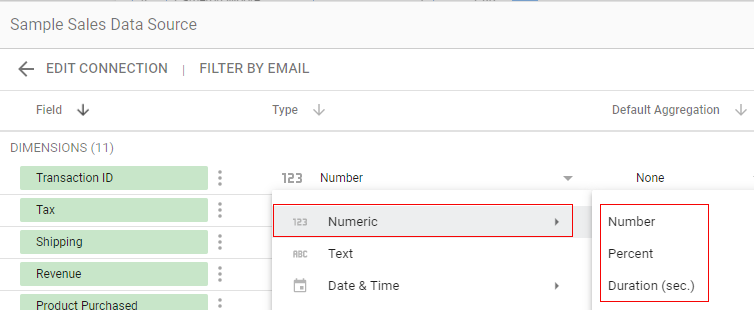
There are three numeric data types in Google Data Studio:
#1 Number – select this data type if you want Google Data Studio to expect a number (includes floating-point number) when processing a field in the underlying data source.
#2 Percent – select this data type if you want Google Data Studio to expect percentage data when processing a field in the underlying data source.
#3 Duration – select this data type if you want Google Data Studio to expect time duration in seconds when processing a field in the underlying data source.
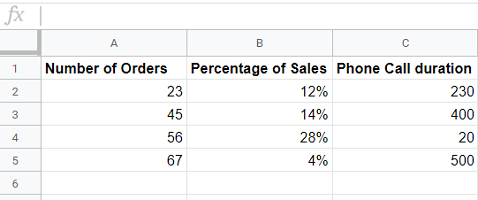
For example, consider the following Google Sheets data source:
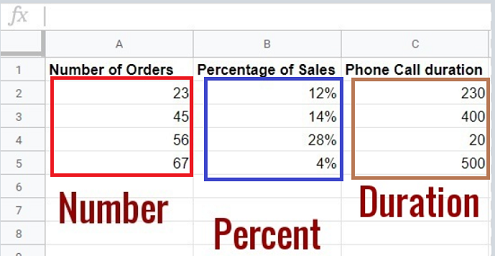
The field ‘Number of orders’ is of type ‘number’.
The field ‘Percentage of Sales’ is of type ‘percent’.
The field ‘Phone Call duration’ is of type ‘duration’.
When we connect this data source to our data source schema then while deciding the data source schema (structure) we should:
- set the data type of the field ‘Number of orders’ to ‘Numbers’.
- set the data type of the field ‘Percentage of Sales’ to ‘Percent’.
- set the data type of the field ‘Phone Call duration’ to ‘Duration’.
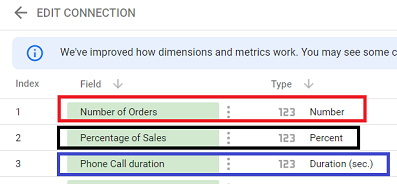
Now if we create a report from this data source schema then it would look like the one below:
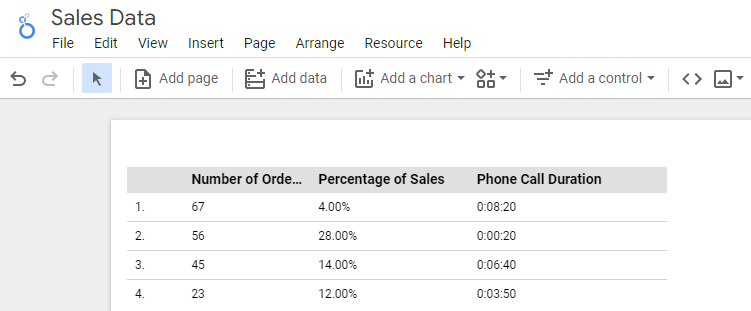
This report matches with our data source:
The only difference here is that the values of the ‘phone call duration’ field are displayed in a different format.
For example, Google Data Studio displayed 230 seconds as 00:03:50
If you convert 230 seconds into minutes, it would be 230/60 = 3.83 minutes or 3 minutes 50 Seconds
Using incorrect numeric data types
Consider the following Google Sheets data source:
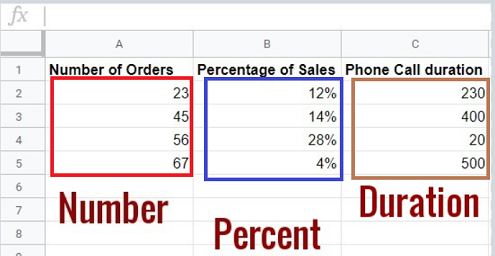
The field ‘Number of orders’ is of type ‘Number’
The field ‘Percentage of Sales’ is of type ‘Percent’
The field ‘Phone Call duration’ is of type ‘Duration’.
When we connect this data source to our data source schema then while deciding the data source schema (structure) we should:
- set the data type of the field ‘Number of orders’ to ‘Numbers’.
- set the data type of the field ‘Percentage of Sales’ to ‘Percent’.
- set the data type of the field ‘Phone Call Duration’ to ‘Duration’.
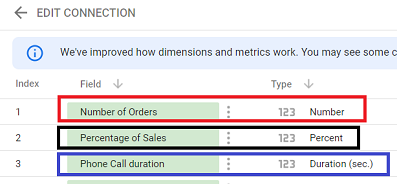
But what if, when deciding the data source schema (structure):
- we set the data type of the field ‘Number of orders’ to ‘Duration’
- we set the data type of the field ‘Percentage of Sales’ to ‘Number’
- we set the data type of the field ‘Phone Call duration’ to ‘Percent’
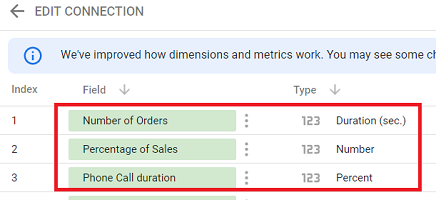
Then this is what our Google Data Studio report would look like:
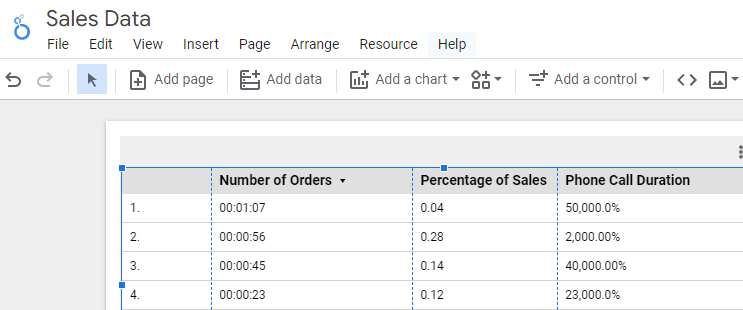
Google Data Studio will automatically convert all the values of the:
- ‘Number of Orders’ field to ‘Duration’ data type
- ‘Percentage of Sales’ field to ‘Number’ data type
- ‘Phone Call Duration’ field to ‘Percent’ data type
So, when you select an incorrect numeric data type while defining the data source schema, you get incorrect/unexpected data in your reports.
Doing Basic Maths on Numeric Fields via Calculated Fields.
Follow the steps below to do basic maths on numeric fields via calculated fields:
Step-1: Consider the following data source named ‘Sales- ABC Inc’:
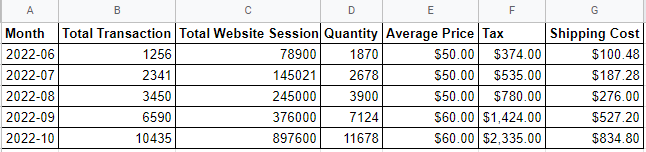
This is the data source, we are going to use.
Step-2: Navigate to Google Data Studio and then click on the ‘Create’ button:

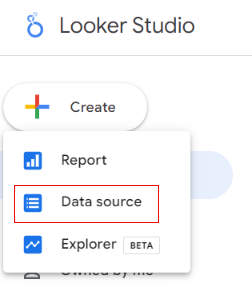
Step-3: Click on ‘Data Source’:
Step-4: Click on the ‘Google Sheets’ connector as we are going to use Google Sheets document as our data source:

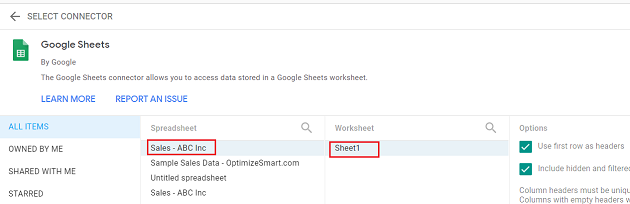
Step-5: Find and click on your Google sheets document:
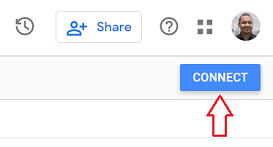
Step-6: Click on the ‘Connect’ button on the top right-hand side to connect your data source to data source schema:
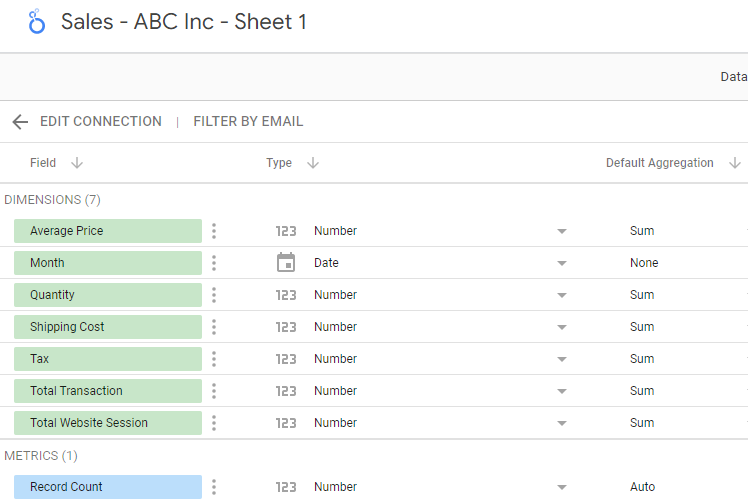
The data source schema for this data source would look like the one below:
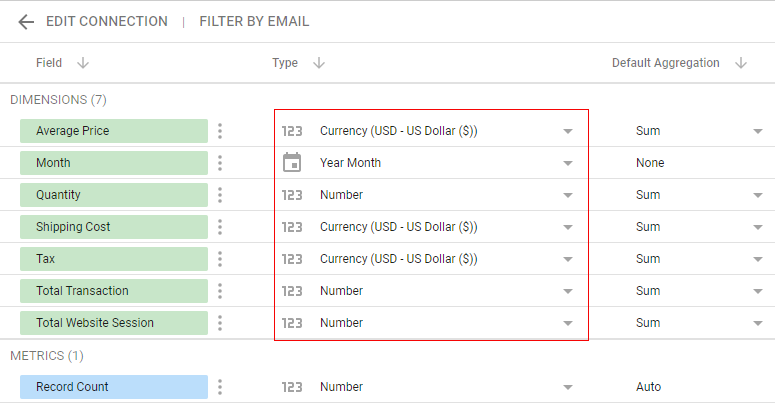
Step-7: Correct the data types of various fields by changing them from their corresponding drop-down menus:
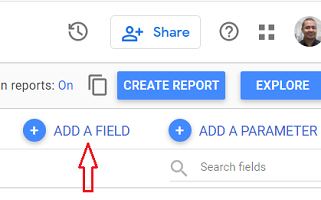
Step-8: Click on the ‘Add a field’ button:
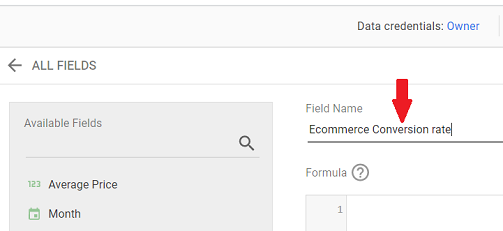
Step-9: Name the new calculated field: Ecommerce Conversion rate:
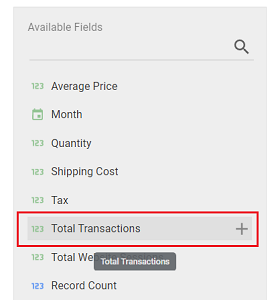
Step-10: Hover your mouse over the ‘Total Transactions’ field:
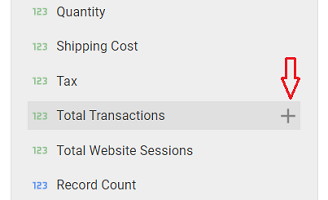
Step-11: Click on the ‘+’ button next to it:
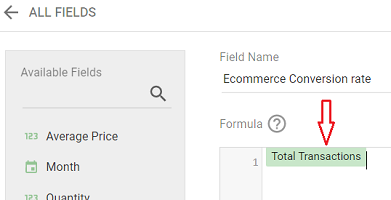
Once you clicked on the + button, the ‘Total Transactions’ field would appear in the formula box:
Step-12: Press the spacebar key on your keyboard to give one white space.
Step-13: Type forward slash ‘/’ from your keyboard and then give another white space by pressing the spacebar key:
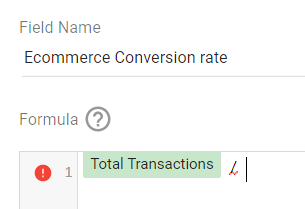
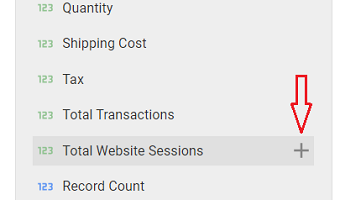
Step-14: Hover your mouse over the ‘Total Website Sessions’ field and then click on the ‘+’ button next to it:
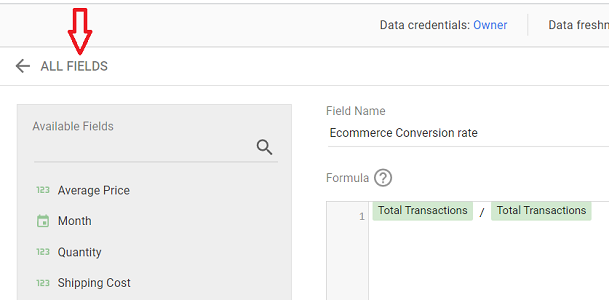
The final formula to calculate the ecommerce conversion rate is going to look like the one below:
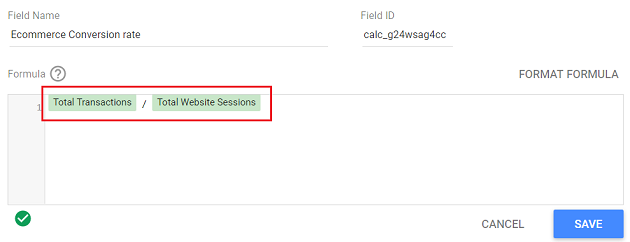
Here we are using the arithmetic operator ‘division’ denoted by a forward slash / between the two numeric fields: ‘Total Transactions’ and ‘Total Website Sessions’.
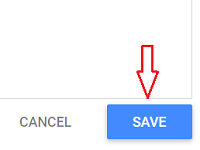
Step-15: Click on the ‘Save’ button at the bottom right-hand side to save the new calculated field:
Step-16: Click on the ‘All Fields’ button in order to navigate back to the data source schema editor:
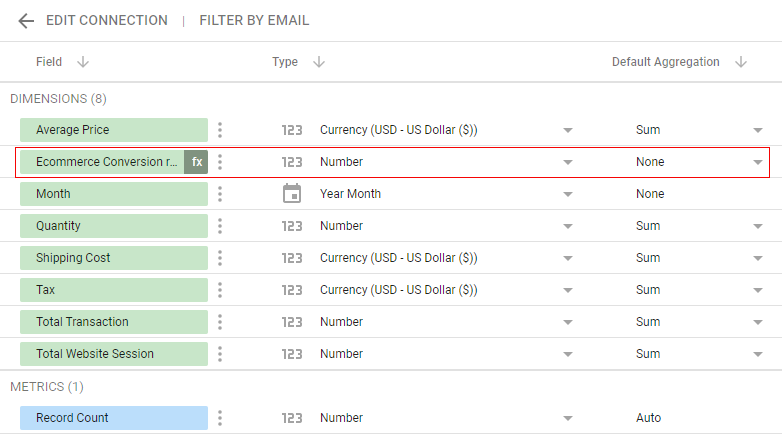
You should now be able to see the new calculated field called ‘Ecommerce Conversion rate’ in the data source schema:
Step-17: Click on the ‘Add a field’ button to create a new calculated field called ‘Product Revenue’ and then enter the following formula:
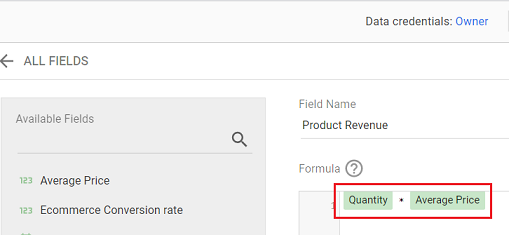
Here we are using the arithmetic operator ‘multiplication’ denoted by * between the two numeric fields: ‘Quantity’ and ‘Average Price’.
Step-18: Click on the ‘Save’ button and then navigate back to the data source schema editor by clicking on the ‘All Fields’ button.
Step-19: Create a new calculated field called ‘Revenue’ and then enter the following formula:
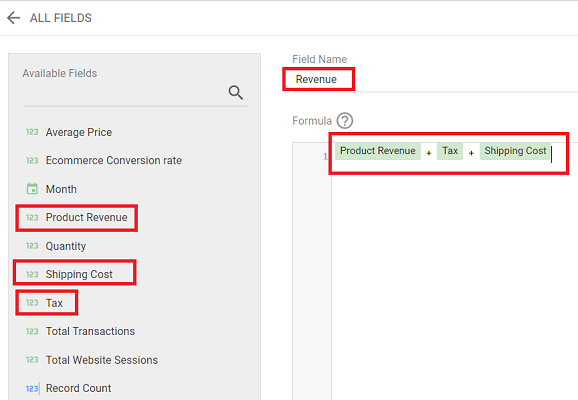
Here we are using the arithmetic operator ‘addition’ denoted by + among the following numeric fields: ‘Product Revenue’, ‘Tax’ and ‘Shipping Cost’.
Step-20: Click on the ‘Save’ button and then navigate back to the data source schema editor by clicking on the ‘All Fields’ button.
Step-21: Create a new calculated field called ‘Gross Profit’ and then enter the following formula:
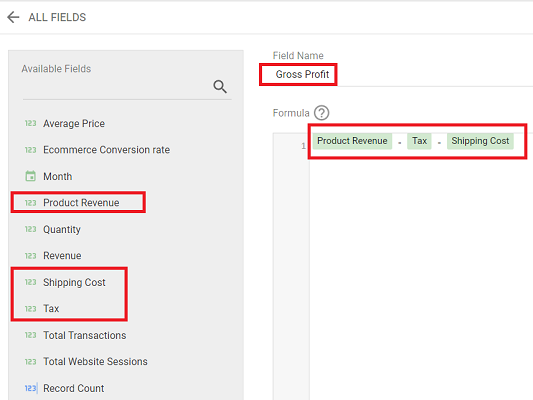
Here we are using the arithmetic operator ‘subtraction’ denoted by – among the following numeric fields: ‘Product Revenue’, ‘Tax’ and ‘Shipping Cost’.
Step-22: Click on the ‘Save’ button and then navigate back to the data source schema editor by clicking on the ‘All Fields’ button.
You should now be able to see all the new calculated fields you have created so far:
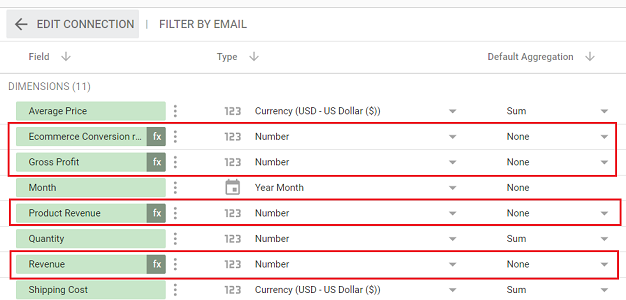
Step-23: Change the data type of the calculated field ‘Ecommerce Conversion Rate’ to ‘Percent’:
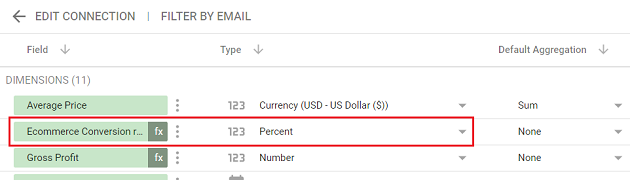
Step-24: Change the data type of the calculated fields: ‘Gross Profit’, ‘Product Revenue’ and ‘Revenue’ to ‘Currency (USD – US Dollar ($))’:
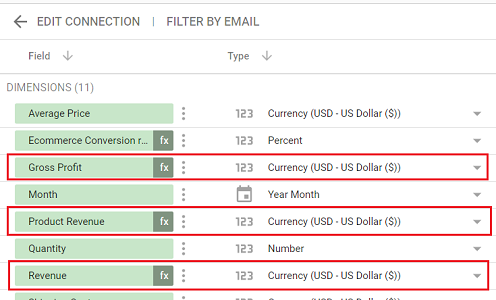
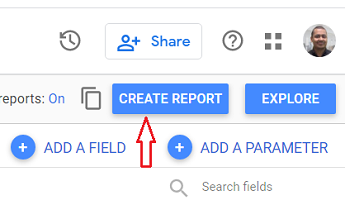
Step-25: Click on the ‘Create Report’ button:
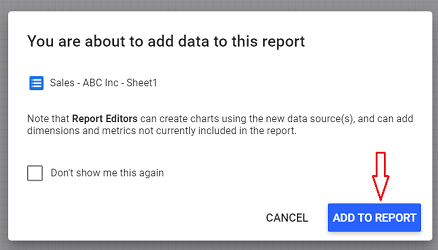
Step-26: Click on the ‘Add to Report’ button:
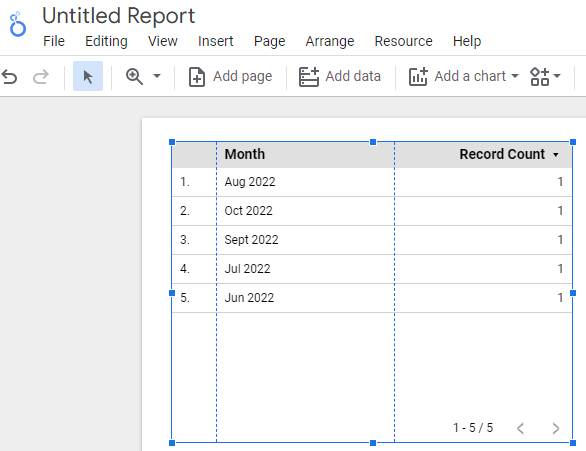
Your new report may look like the one below:
Step-27: Add the following fields to this table:
- Total Transactions
- Total Website Sessions
- Quantity
- Average Price
- Tax
- Shipping Cost
You can add these fields by dragging them one by one from the ‘Available Fields’ section to the ‘Dimensions’ section in the property panel:
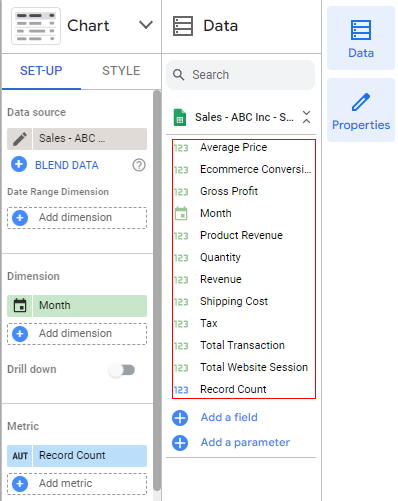
Once you have dragged and dropped all the required fields from the ‘Available Fields’ section to the ‘Dimensions’ section, your property panel may look like the one below:
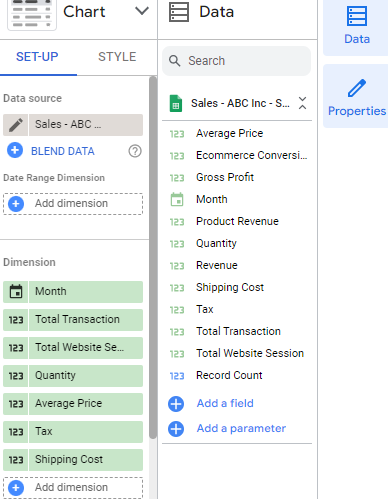
Step-28: Resize your data table:
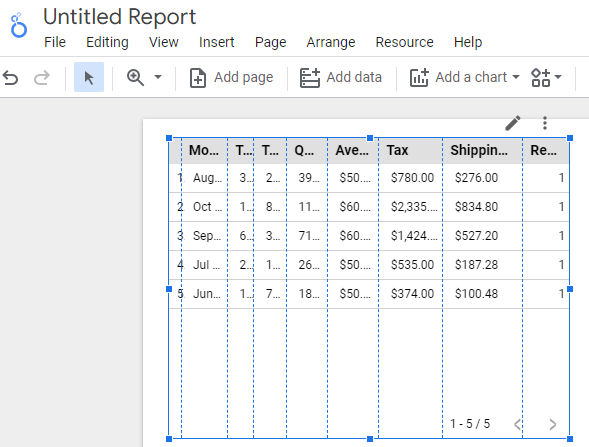
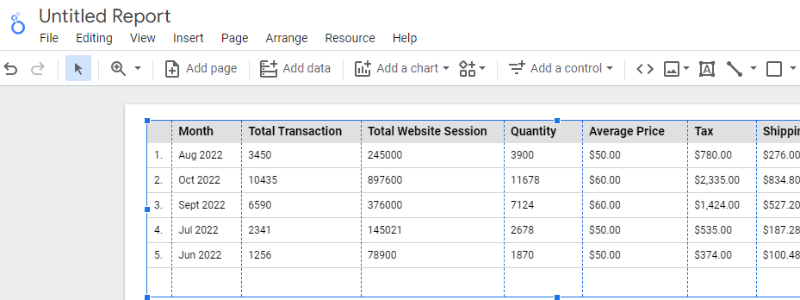
Step-29: Remove the ‘Record Count’ field from the data table by hovering your mouse over the ‘Record Count‘ metric in the property panel and then clicking on the cross button next to the metric:
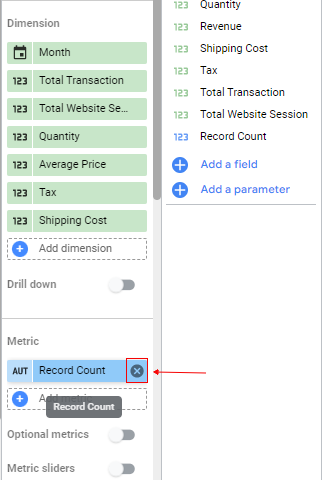
Your data table would now look like the one below:
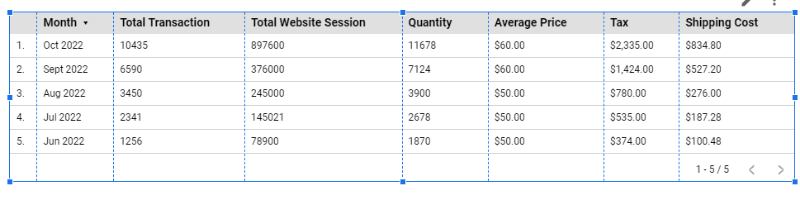
Step-30: Click on the ‘Style’ tab in the property panel:
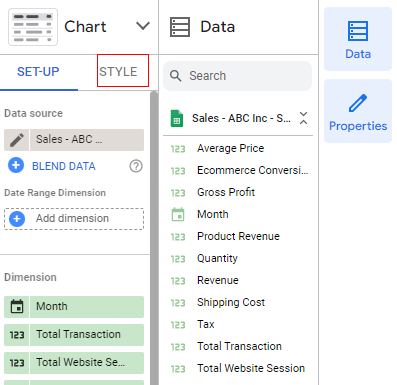
Step-31: Click on the ‘Header font color’ drop-down menu (under the ‘Table Header’):
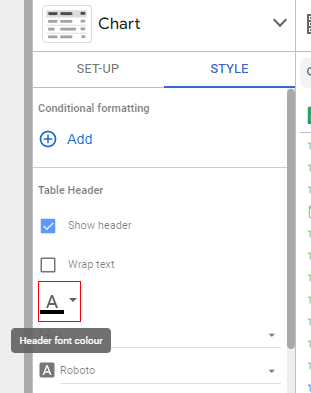
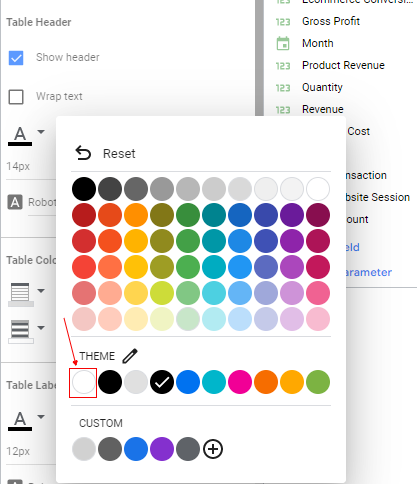
Step-32: Set the color to white:
Step-33: Click on the Header background color drop-down menu (under ‘Table Colors’):
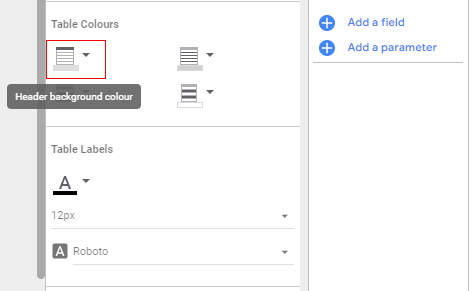
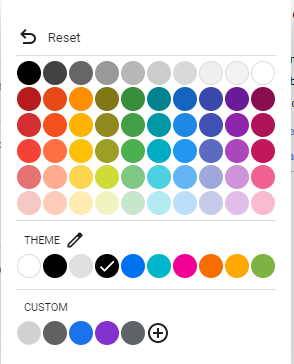
Step-34: Set the color to red:
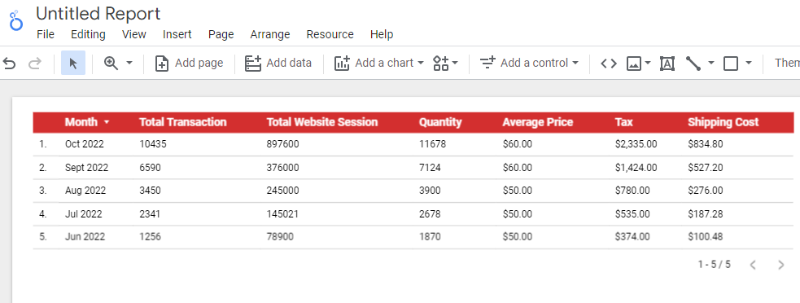
Your data table would now look like the one below:
Step-35: Right-click on the table and then select ‘Duplicate’ to create a copy of the table:
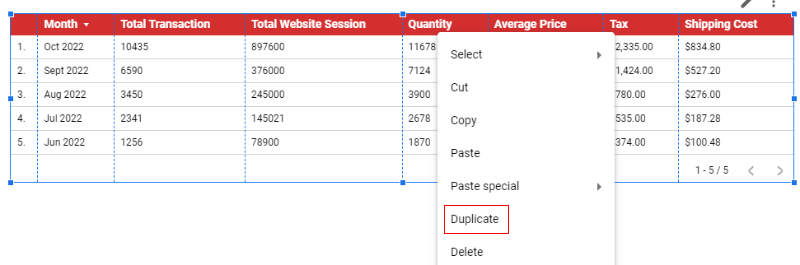
Once you clicked on the ‘Duplicate’ button you are going to see a copy of the table:
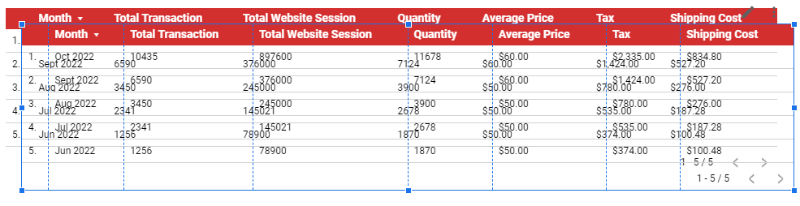
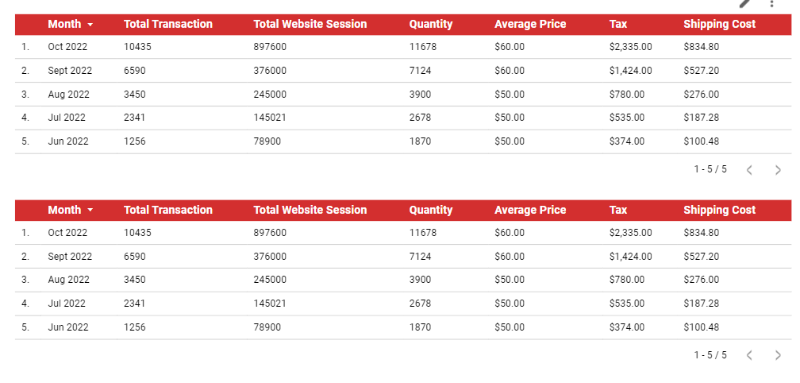
Step-36: Re-arrange this new table so that it appears right below the old table. You can do that by dragging it down:
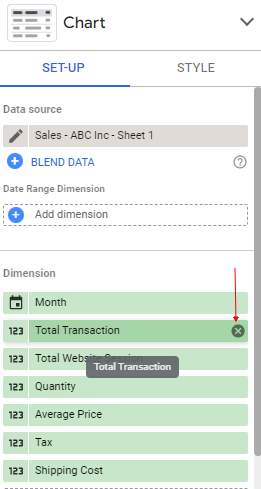
Step-37: Select the second data table and then remove the following fields from it: ‘Total Transactions’, ‘Total Website Sessions’, ‘Quantity’, ‘Average Price’, ‘Tax’ and ‘Shipping Cost’.
You can remove these fields one by one by hovering your mouse over the relevant dimension and then clicking on the cross button next to it:
Once all the specified dimensions are removed, your report would look like the one below:
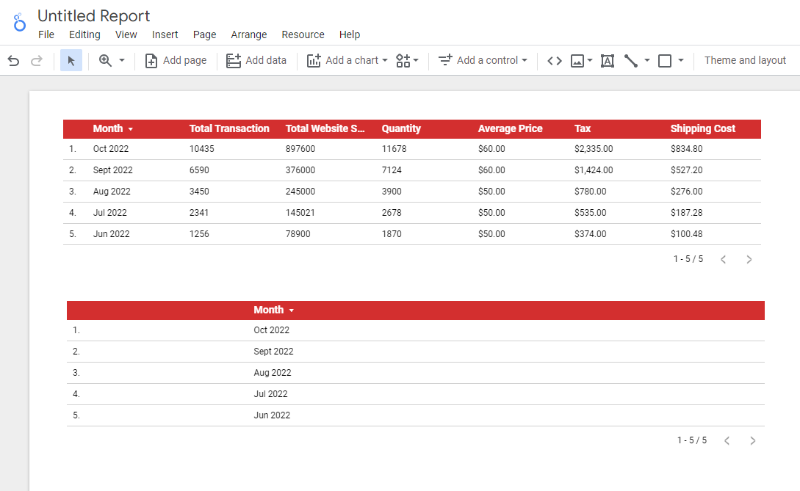
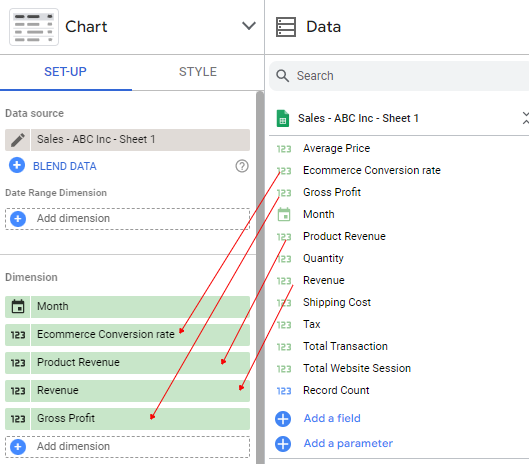
Step-38: Add the following dimensions to the second data table: ‘Ecommerce Conversion Rate’, ‘Product Revenue’, ‘Revenue’ and ‘Gross Profit’.
You can add these dimensions one by one by dragging them from the ‘Available Fields’ column and then dropping them in the ‘Dimensions’ section in the property panel:
Your report would now look like the one below:
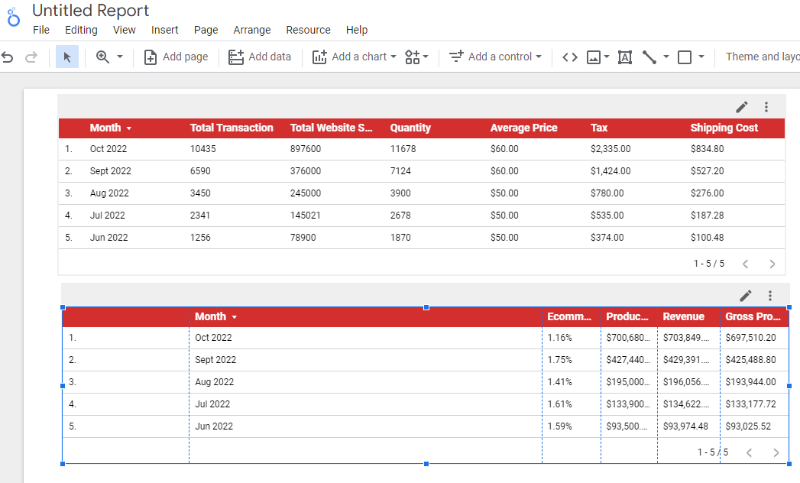
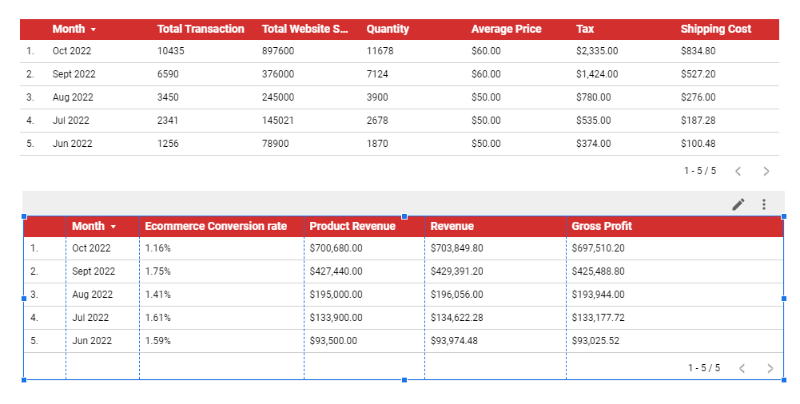
Step-39: Re-size the second data table like the one below:
Step-40: Change the header color of the second table to blue so that it looks different from the table above:
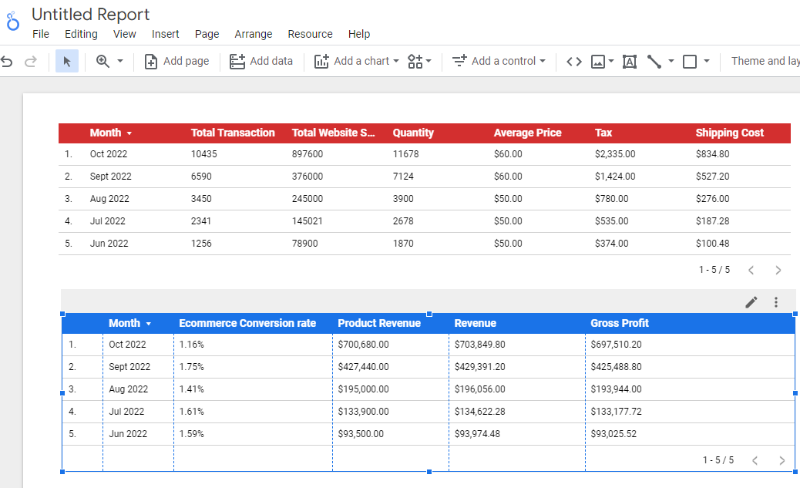
That’s how you can do basic maths with numeric fields via the calculated fields.

Related Articles.
- Google Data Studio Parameters explained with examples.
- Google Data Studio Tutorial.
- How to Change Language in Google Data Studio.
- Google Data Studio Report Tutorial.
- How to work with Boolean field in Google Data Studio.
- How to use Google Data Studio with Google Sheets.
- Stop Using Page Titles in GA4 & Google Data Studio Reports.
- Google Data Studio Geo Map – Latitude Longitude.
- Google Data Studio Data Sources – Tutorial.
- Guide to Data Types in Google Data Studio.
- Google Data Studio Date Format and Time Explained.
- Working with Numeric Data Types in Google Data Studio.