

Google Data Studio provides the Geo data type for geographical data. You see this data type when you create or edit a data source schema in Google Data Studio:
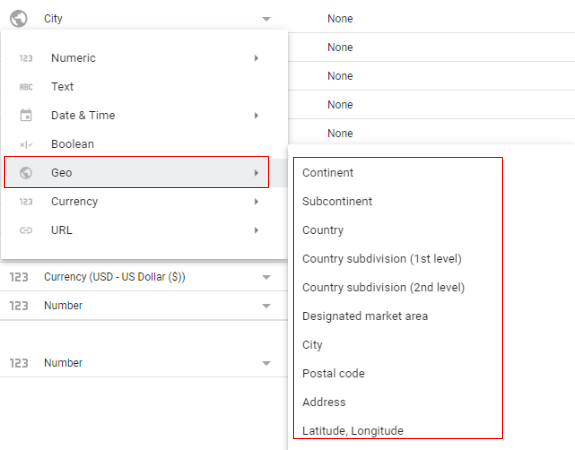
Use the Geo data type if you want Google Data Studio to expect geographic data (like a city, region, country, continent) when processing a field in the underlying data source.
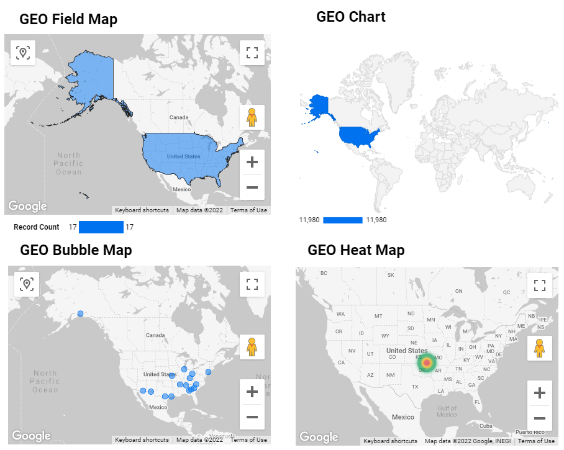
Geo data types are generally used with Google Maps or Google Data Studio Geo Field Map / Geo Chart / Geo Heat Map / Geo Bubble Map:
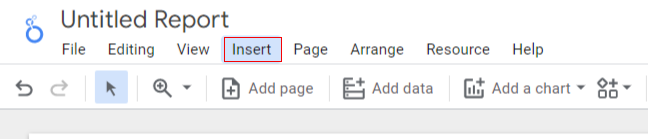
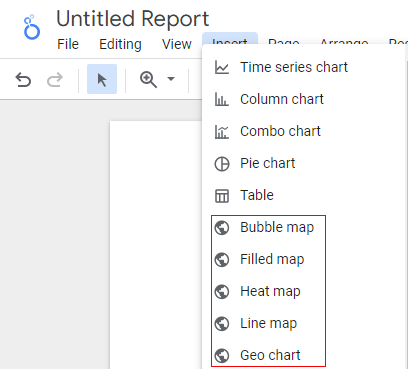
You can insert a Google Map or Geo Chart in your Google Data Studio report from the ‘Insert’ menu:
Geo data types available in Google Data Studio
Following are the various Geo data types available in Google Data Studio:
- Continent
- Subcontinent
- Country
- Country Subdivision (1st level)
- Country Subdivision (2nd level)
- Designated market area
- City
- Postal Code
- Address
- Latitude, Longitude
#1 Continent
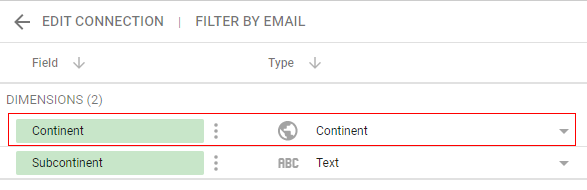
Use the Continent data type if you want Google Data Studio to expect a continent name when processing a field in the connected data source.
The following are examples of valid continent names (in the context of Google Data Studio):
- Africa
- Oceania
- Americas
- Asia
- Europe
#2 Subcontinent
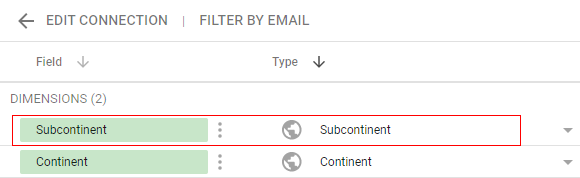
Use the Subcontinent data type if you want Google Data Studio to expect a sub-continent name when processing a field in the connected data source.
For example, ‘Northern Europe’ is a sub-continent name.
The following are examples of sub-continent names:
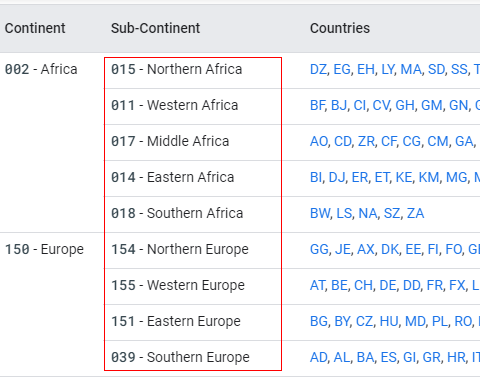
You can get the full list of the valid sub-continent names from here: https://developers.google.com/chart/interactive/docs/gallery/geochart#Continent_Hierarchy
#3 Country
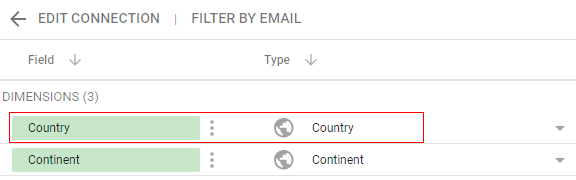
Use the Country data type if you want Google Data Studio to expect a country name when processing a field in the connected data source.
For example, the ‘United Kingdom’ is an example of a country name.
The following are examples of country names:
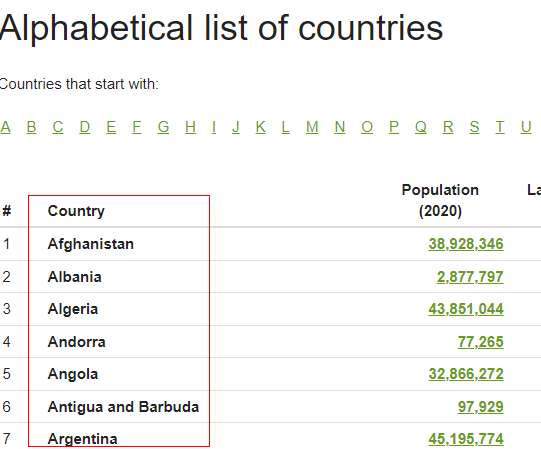
You can get the full list of valid country names from here: https://www.worldometers.info/geography/alphabetical-list-of-countries/
#4 Country Subdivision (1st Level)
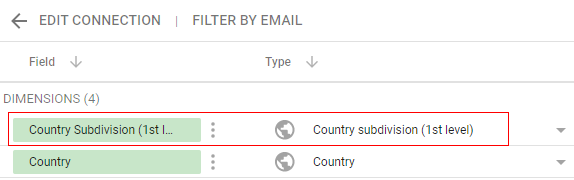
Use the ‘country subdivision (1st level)’ data type if you want Google Data Studio to expect a country subdivision name when processing a field in the connected data source.
For example, the ‘US states’, ‘Canadian provinces’, ‘French regions’ are examples of a country subdivision (1st level).
You can get a full list of Country subdivisions (1st level) here
#5 Country Subdivision (2nd Level)
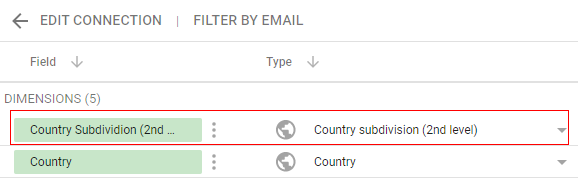
Use the ‘country subdivision (2nd level)’ data type if you want Google Data Studio to expect a country subdivision at level 2 name when processing a field in the connected data source.
For example, the ‘US countries’, ‘Italian and Spanish provinces ’, ‘French departments’ are examples of a country subdivision (2nd level).
You can get a full list of Country subdivisions (2nd level) here
#6 Designated market area
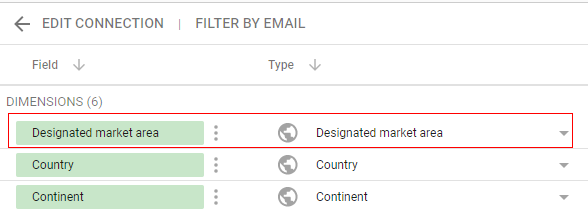
Use the ‘Designated market area’ data type if you want Google Data Studio to expect a Designated market area name when processing a field in the connected data source.
Designated market areas are media markets or television market areas or simply a market region where the users can receive similar television and radio station offerings. This is currently supported only for the United States.
Examples of designated market areas are
- New York
- Los Angeles[b]
- Chicago
- Philadelphia[d]
- Dallas-Fort Worth[e]
- San Francisco-Oakland-San Jose[f]
- Atlanta[g]
- Houston[h]
- Washington (Hagerstown)[i].
You can get a full list of designated market areas here
#7 City
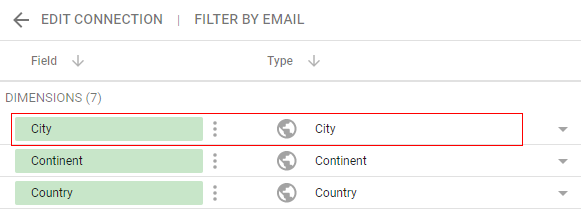
Use the City data type if you want Google Data Studio to expect a city name when processing a field in the connected data source. For example, ‘London’ is a city.
#8 Postal Code
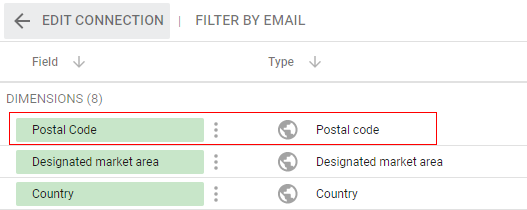
Use the ‘Postal code’ data type if you want Google Data Studio to expect postcode (zip code) information when processing a field in the connected data source.
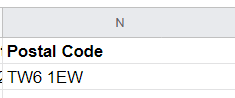
For example, the following is the postcode of Heathrow airport terminal 2:
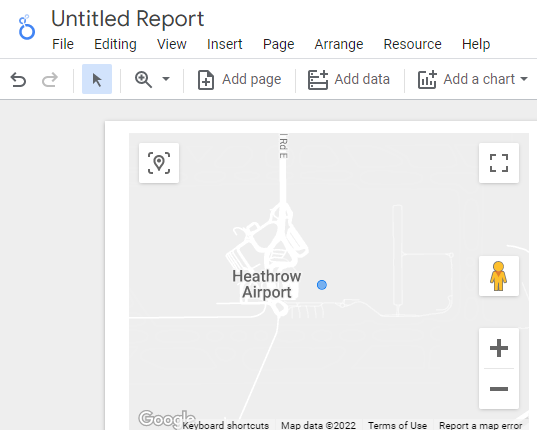
If we use this postcode field on Google Maps (embedded in a Google Data Studio report), it is going to look like the one below:
#9 Address
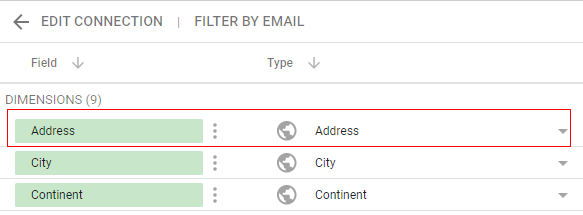
Use the Address data type if you want Google Data Studio to expect a full address when processing a field in the connected data source.
For example, the following is the full address of the Prime Minister of the UK:
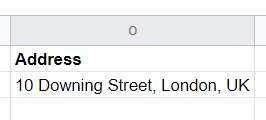
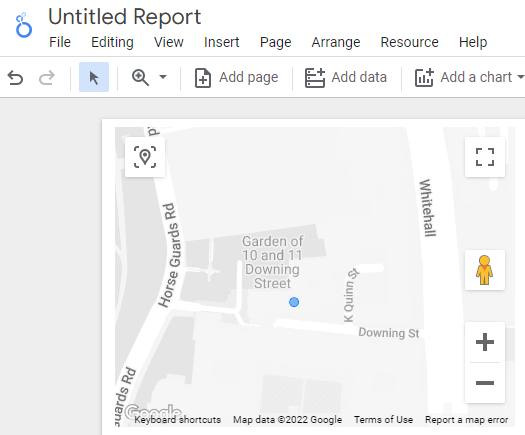
If we use this address field on Google Maps (embedded in a Google Data Studio report), it is going to look like the one below:
#10 Latitude, Longitude
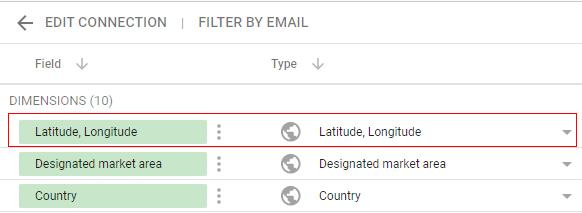
Use the ‘Latitude, Longitude’ data type if you want Google Data Studio to expect Latitude, Longitude information when processing a field in the connected data source.
Use the Latitude and Longitude Finder https://www.latlong.net/ to get the Latitude and Longitude data for a particular geo-location.
You can also use this tool to find GPS coordinates: https://www.maps.ie/coordinates.html
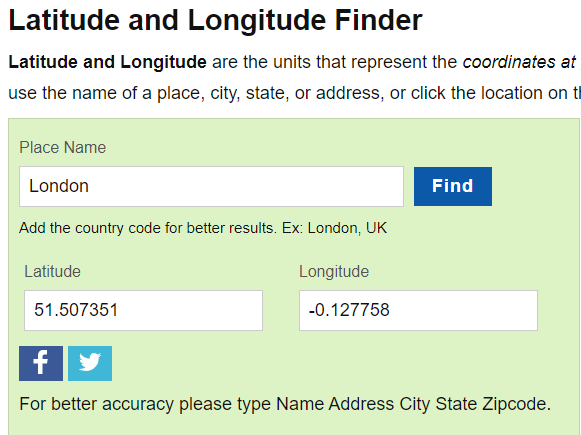
Here is how you enter the latitude and longitude information in Google Sheets:
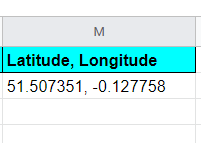
This latitude and longitude information is for London, UK
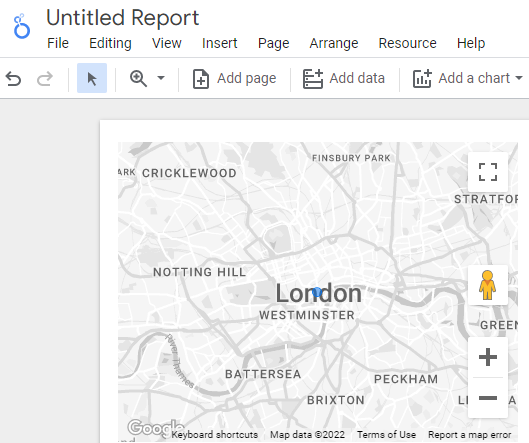
If we use these coordinates on Google Maps (embedded in a Google Data Studio report), it is going to look like the one below:

Related Articles.
- Google Data Studio Parameters explained with examples.
- Google Data Studio Tutorial.
- How to Change Language in Google Data Studio.
- Google Data Studio Report Tutorial.
- How to work with Boolean field in Google Data Studio.
- How to use Google Data Studio with Google Sheets.
- Stop Using Page Titles in GA4 & Google Data Studio Reports.
- Google Data Studio Geo Map – Latitude Longitude.
- Google Data Studio Data Sources – Tutorial.
- Guide to Data Types in Google Data Studio.
- Google Data Studio Date Format and Time Explained.
- Working with Numeric Data Types in Google Data Studio.