

If a data field in your data source can have only one of the two possible values: true or false then you should use the Boolean field while setting up your data source schema.
For example, consider the following Google Sheets data source:
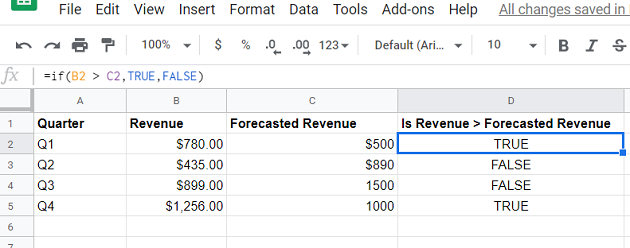
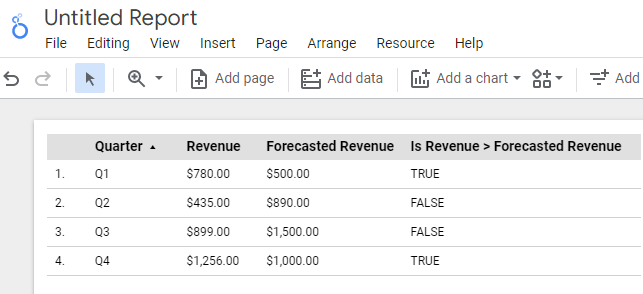
Here the field ‘Is Revenue > Forecasted Revenue’ can have only two possible values: TRUE or FALSE.
For Google Sheets, the values TRUE and FALSE are of type boolean.
So, when setting up the data source schema, we should set the data type of the field ‘Is Revenue > Forecasted Revenue’ to ‘Boolean’:
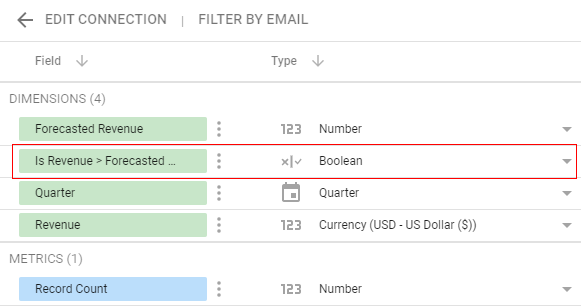
This seems pretty straightforward, doesn’t it?
But here is the thing.
This is not going to work.
When you create a report from this data source schema which uses the ‘Is Revenue > Forecasted Revenue’ field, you will get a system error:
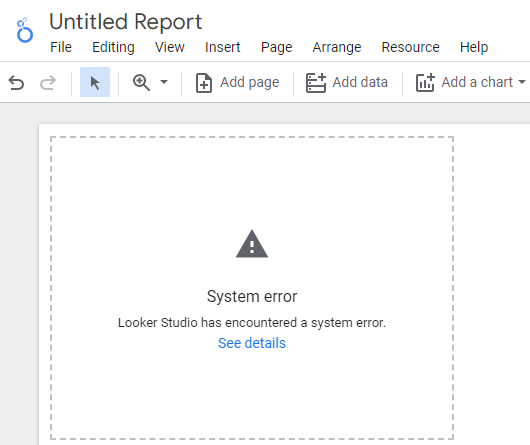
That happened because Google Data Studio did not recognize the boolean values stored in Google Sheets as a boolean value. Instead, it treats these boolean fields as ‘text’ fields:
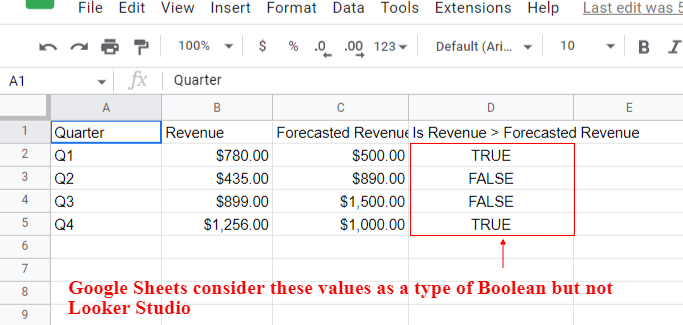
No matter how you store boolean values in Google Sheets (whether as true/false, TRUE/FALSE, 0/1, yes/no), Google Data Studio won’t recognize them as boolean values.
So, if you want to use a boolean field in Google Data Studio then you would need to create and use a calculated metric.
Follow the steps below:
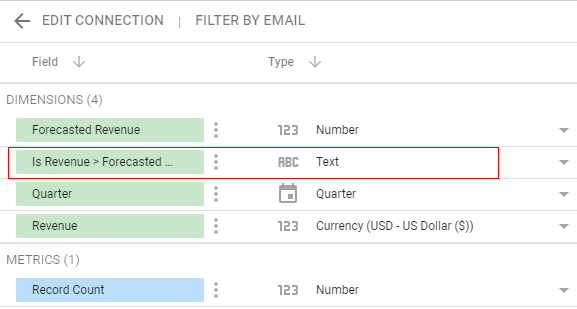
Step-1: Navigate to your data source schema editor and then change the data type of the field ‘Is Revenue > Forecasted Revenue’ from boolean to text:
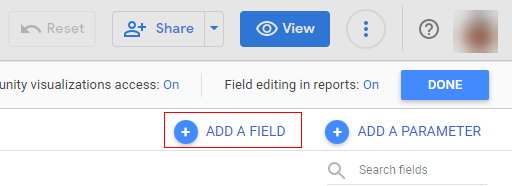
Step-2: At the top right-hand side of your data source schema editor, find and click on the ‘ADD A FIELD’ button to create a new calculated field:
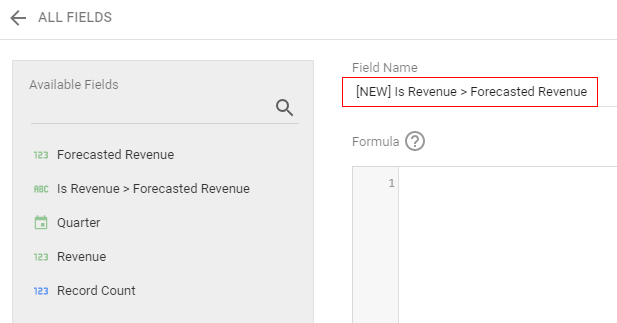
Step-3: Enter the name of your new calculated field. For example: ‘[NEW] Is Revenue > Forecasted Revenue’:
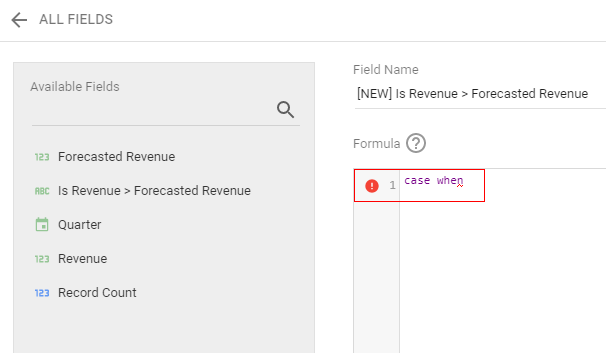
Step-4: Type the following text in the ‘Formula’ field:
case when
followed by a white space:
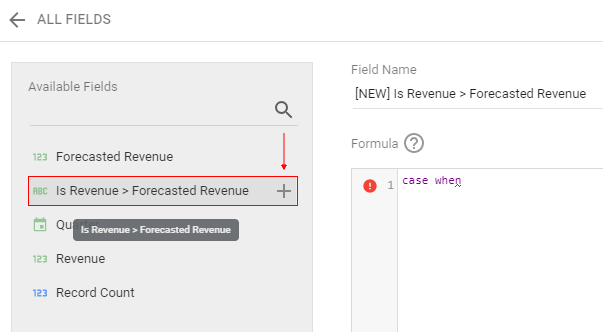
Step-5: Hover your mouse over the field ‘Is Revenue > Forecasted Revenue’ then click on the + button:
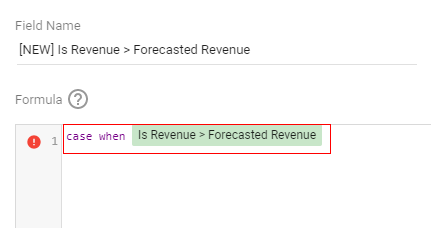
After clicking on the + button, your formula field would look something like the one below:
Step-6: Enter a white space and then type the following text in your formula field:
= “TRUE” then true else false end
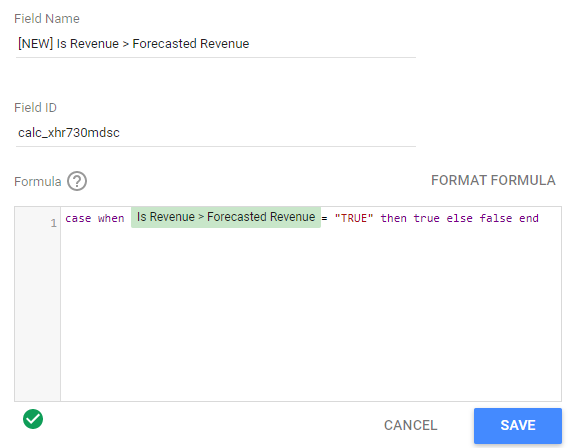
Make sure you see the green-colored checkmark at the bottom of the formula box.

This checkmark indicates that you have entered the formula correctly.
If the formula that you have entered is not correct then you will see this symbol instead of the green checkmark.

I entered the following formula:
case when Is Revenue > Forecasted Revenue = “TRUE” then true else false end
This means if the value of the field ‘Is Revenue > Forecasted Revenue’ is ‘TRUE’ then return true.
Otherwise, return false.
The following formula won’t work:
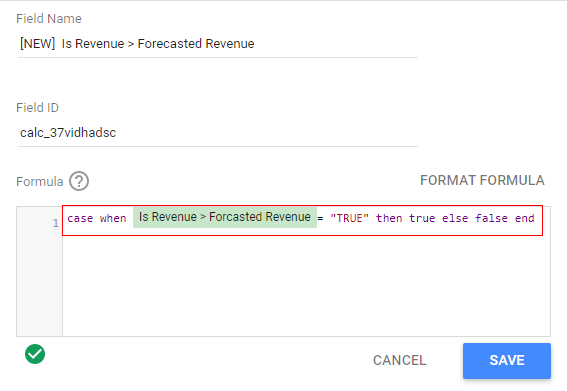
In Google Data Studio, you can compare a dimension or metric only with a literal value.
Here we are comparing the ‘Revenue’ dimension with another dimension called ‘Forecasted Revenue’ via the logical expression: Revenue > Forecasted Revenue
Step-7: Click on the ‘FORMAT FORMULA‘ button to make your formula more readable:
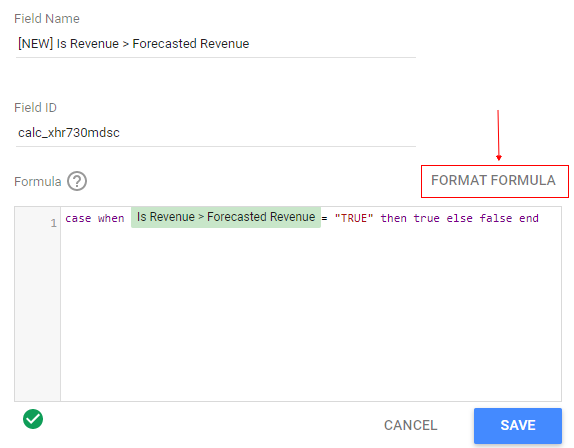
After clicking on the ‘FORMAT FORMULA‘ button your formula would look like the one below:
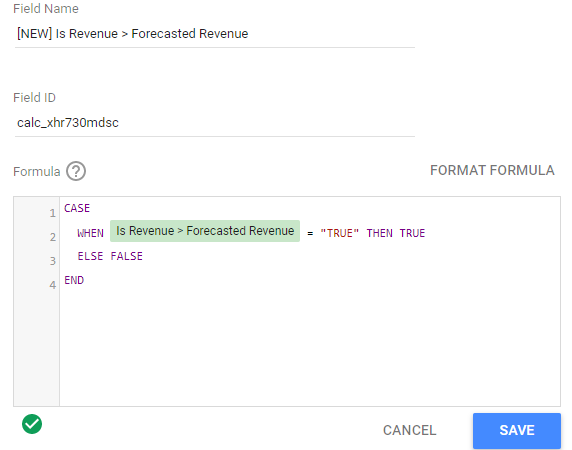
Step-8: Click on the ‘Save’ button.
Step-9: Now click on ‘All Fields’ in order to navigate back to the data source schema editor:
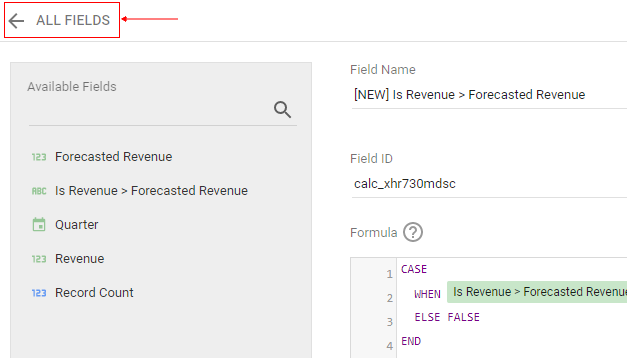
You should now see the new calculated field, listed in your data source schema:
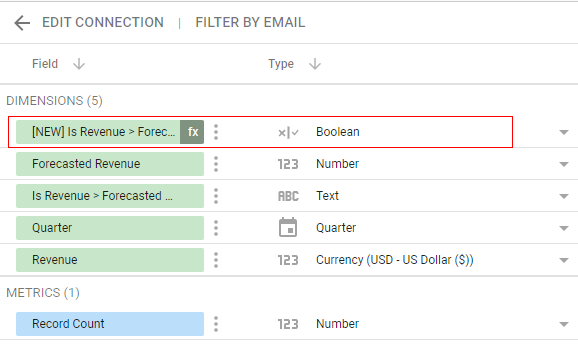
Note: All calculated fields have got this ‘fx’ symbol through which you can easily spot them.
Now when you create a report based on this data source schema which uses the new calculated field, it would look like the one below:

Related Articles.
- Google Data Studio Parameters explained with examples.
- Google Data Studio Tutorial.
- How to Change Language in Google Data Studio.
- Google Data Studio Report Tutorial.
- How to work with Boolean field in Google Data Studio.
- How to use Google Data Studio with Google Sheets.
- Stop Using Page Titles in GA4 & Google Data Studio Reports.
- Google Data Studio Geo Map – Latitude Longitude.
- Google Data Studio Data Sources – Tutorial.
- Guide to Data Types in Google Data Studio.
- Google Data Studio Date Format and Time Explained.
- Working with Numeric Data Types in Google Data Studio.