

What are Google Data Studio parameters?
Parameters provide user-supplied data to calculated fields and connectors in Google Data Studio reports.
Parameters allow you to interact with user-provided data. For example, you can create calculated fields that include input from your report users. Using parameters makes your reports more interactive since they update in real-time.
You can also use parameters to create report templates.
Parameters are similar to variables in programming languages and are used to pass user-defined dynamic values to the reports.
You can use parameters in the following ways:
- In calculated fields to display the results based on user-defined inputs.
- Send custom parameters back to a SQL query in a BigQuery data source.
- Pass custom parameters to community connectors like Google Ads, Facebook ads, etc.
How do parameters in Google Data Studio work?
Parameters can get their data in the following ways:
1. From a default value defined for the parameter in the settings.
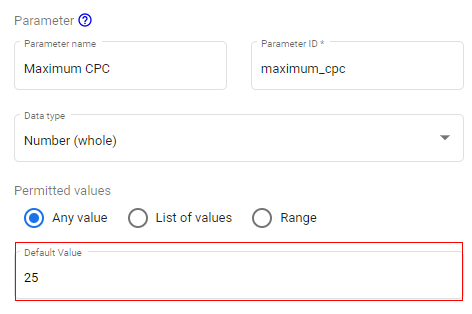
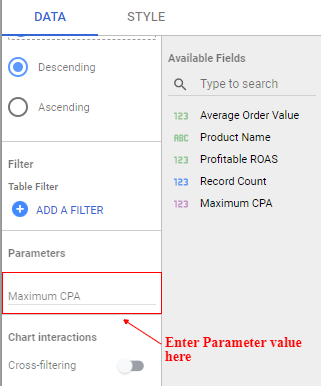
2. From the component properties panel while adding any component. You can specify parameter values at the bottom of the component’s DATA tab and edit default parameter values.
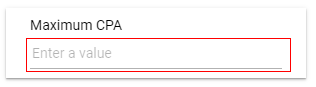
3. From a control placed on the report.
4. From the link to the report.

Setting parameters via the report’s URL allows you to construct reports that can be configured programmatically. Google Data Studio report parameters and their corresponding values are passed in as URL-encoded JSON strings appended to the report URL using the ‘params’ query parameter.
In this article, I will show you how to create parameters and use them in Google Data Studio.
We will be using Google Sheets as the data source for this tutorial. We will be calculating the Profitable ROAS for a list of products available in our Google Sheet.
The formula for Profitable ROAS is:
Profitable ROAS = Avg. Order Value / Maximum CPA
In this example, the Maximum CPA will be our parameter, and its input will be provided by the user.
Let’s go to Google Data Studio and follow the below steps to add the data source.
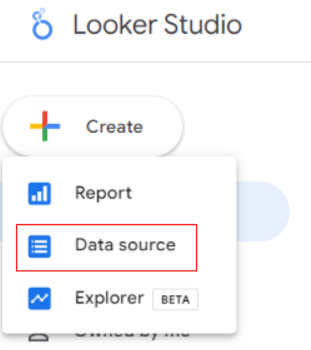
Step 1: Click on ‘Create’ and then click on ‘Data Source’:
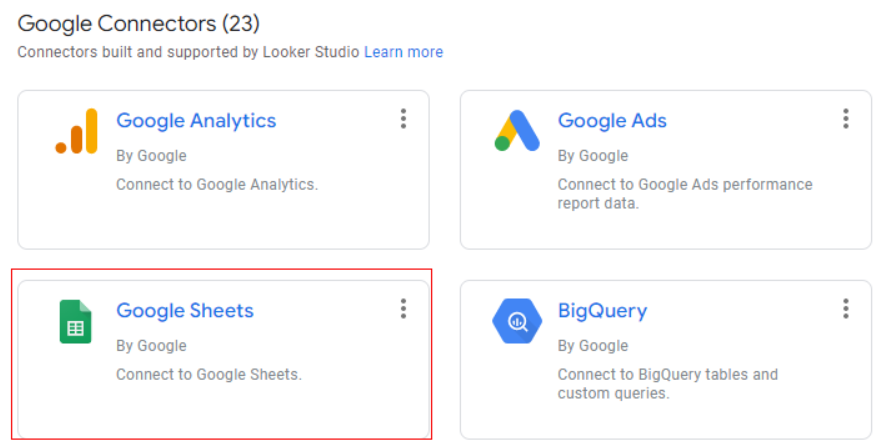
Step 2: Select ‘Google Sheet’ from the available data sources:
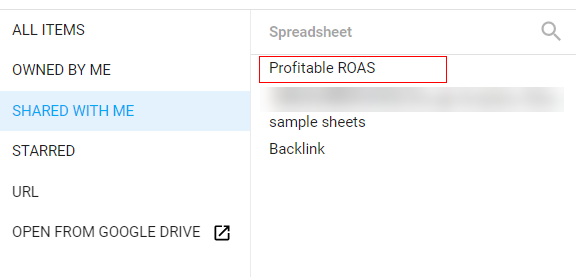
Step 3: You will get a list of available Google Sheets that you have access to. Select the sheet you want to start with.
Step 4: Click on the ‘Connect’ button in the upper right corner. It will connect the data source with the data source schema.
You will see the below screen where you need to define the schemas. In our case, it is already defined – ‘Product Name’ as Text, ‘Average Order Value’ as Number.
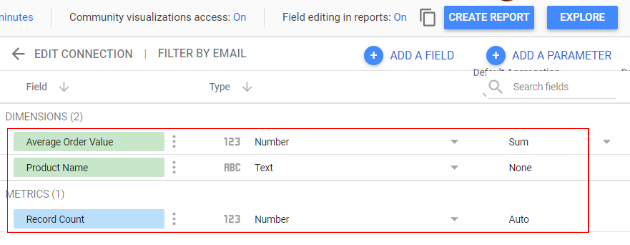
From the image, you can see that Google has added the record count metric, you don’t need to worry about this, and we will keep it as it is.
Creating a parameter
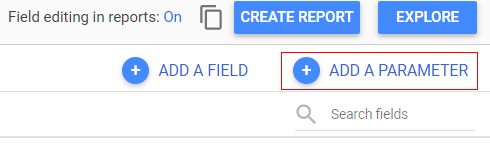
Step 5: In continuation from the above steps, click on ‘Add a parameter’ in the upper right corner:
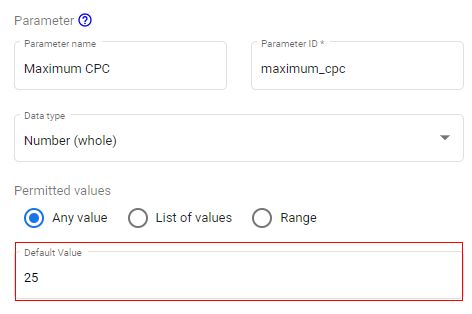
Step 6: You will get a screen like below. Fill in the parameter name in the text box provided. Parameter ID is automatically updated here.
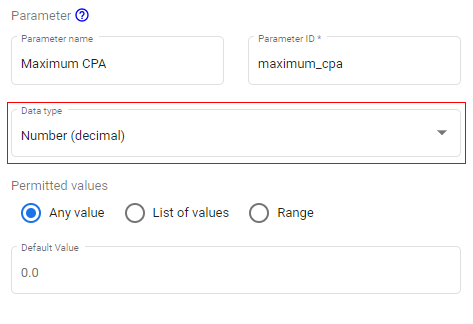
Step 7: Parameters can have different data types, such as text, number (whole), number (decimal) and boolean. Since Maximum CPA in a number and that can be in decimals even, we will use number (decimal) as the data type:
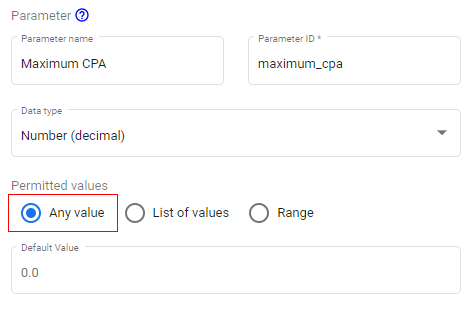
Step 8: The next setting will require deciding the permitted value. The permitted value settings you see are based on the data type selected. In our case, we have selected the parameter data type as number, so we get the following options as the permitted value settings:
Any value: User can input any valid value
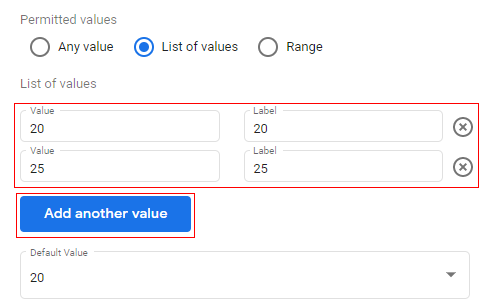
List of values: User can select any value from the given list. You can add options by clicking on the ‘Add another value’ link.
Range: You can allow users to select the value between the range provided by selecting this option
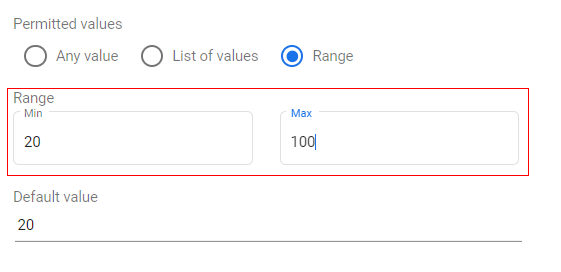
You also get the option to set a default value. In our case, we will go with the ‘Any value’ setting.
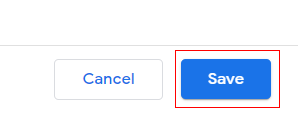
Step 9: Click on the ‘Save’ button on the bottom right-hand side to create your new parameter.
Congratulations, you created your first parameter!
Step 10: Click on the ‘All fields’ link to go back to the data source schema editor:
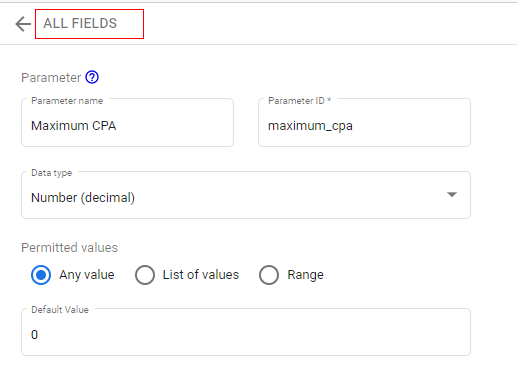
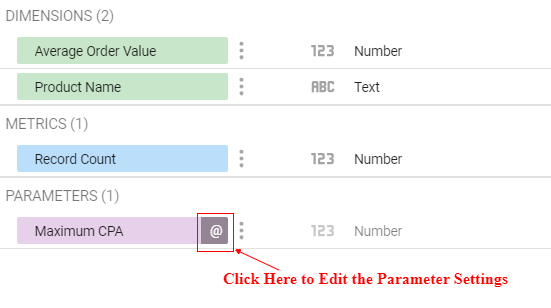
You can now see the parameter we created in the schemas. If you want to edit the parameter setting, you can click on the ‘@’ button as below:
Configuring parameters in calculated fields
Up until this point, we have created a parameter called ‘Maximum CPA’. To calculate Profitable ROAS, we will need to create a field in Google Data Studio using the calculation mechanism.
Follow the below steps to configure a field:
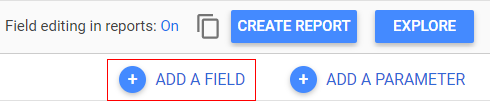
Step 11: Click on ‘Add a field’ in the upper right corner.
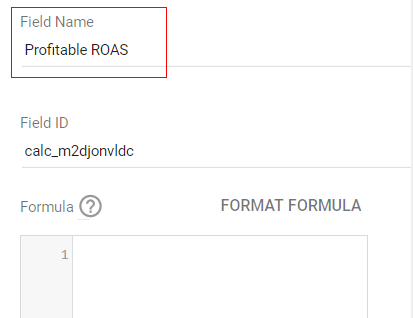
Step 12: Give it a descriptive name such as ‘Profitable ROAS’:
In this section, we need to define the calculation pattern for the field. In our case, we are calculating Profitable ROAS, and its formula is as follows:
Profitable ROAS = Average Order Value ÷ Maximum CPA
So, let’s add this formula to the field.
Step 13: Hover on the fields section of the console and click on the ‘+’ button in front of ‘Average Order Value’.
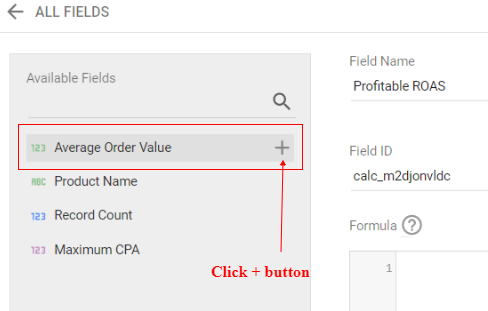
Step 14: You will see now that ‘Average Order Value’ has been added to the formula tab. Now type the ‘/’ symbol after this and then add the ‘Maximum CPA’ field by clicking the ‘+’ button next to the field name to complete the formula:
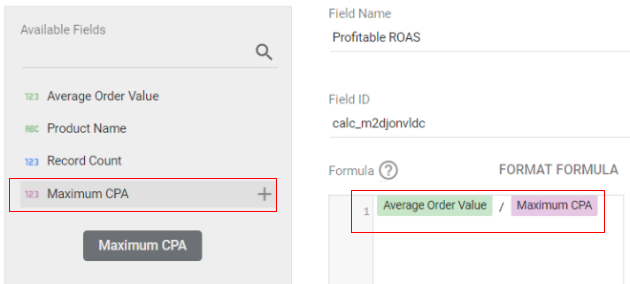
We are using the custom parameter in a calculated field now.
Step 15: Click on ‘Save’ to add the calculated field to the data source schema.
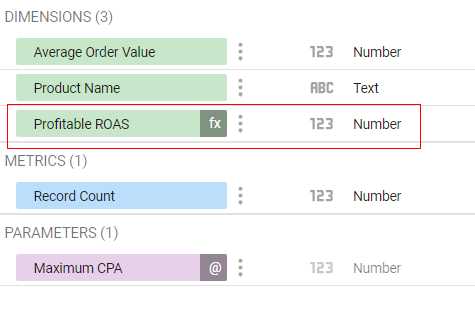
Step 16: Click on the ‘All fields’ link to go back to the data source schema editor.
You can now see that the ‘Profitable ROAS’ field has been added to the data source schema.
Configuring parameters in Google Data Studio reports
We have now created our parameter and the calculated field. Now let’s create a Google Data Studio report and use them.
Step 17: Click on the “Create report’ button:
A new window will open with a report canvas and table added to it like below. Give it a descriptive name.
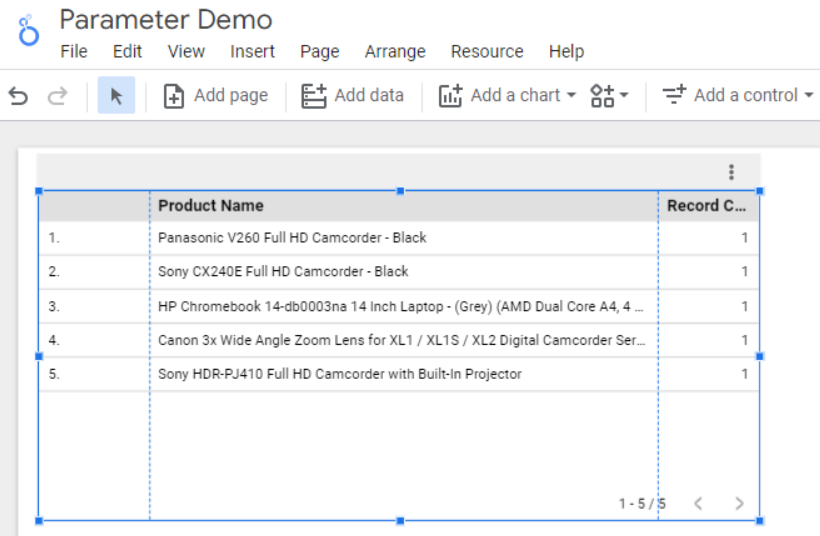
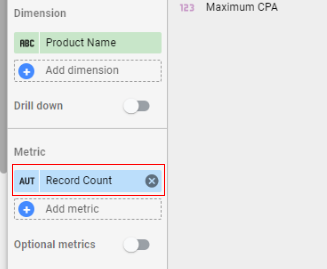
Step 18: The default table has metrics like product name and record count. Let’s remove the record count metric using the editor on the right-hand side:
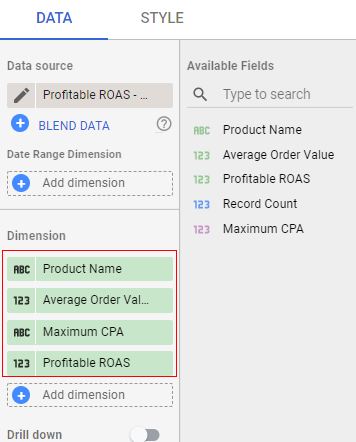
Step 19: Add the required dimensions and metrics to the table by dragging them in. We will be adding Average Order Value, Maximum CPA and Profitable ROAS, as below:
You will see the table in the reporting canvas like below with 0 for Maximum CPA and ‘null’ for Profitable ROAS.
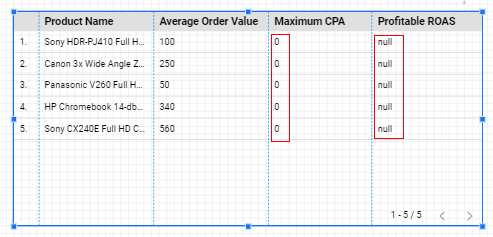
This is because the Maximum CPA value will be provided by the user, and since its value is “0”, the Profitable ROAS is showing as a null value. We need to add a data control to this report in order to provide user input.
Step 20: Click on ‘Add a control’ and select ‘Drop-down list’ from the available menu.
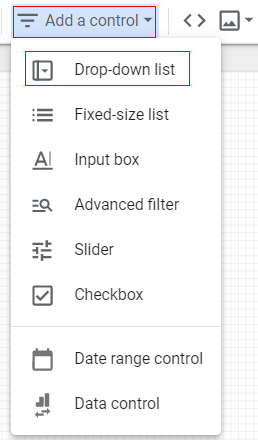
You can place it beside the table we created earlier.
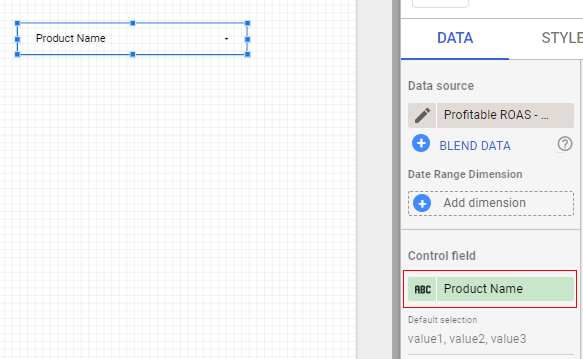
Step 21: A data control acts as a filter over the data table. We can use this filter during run time to select a specific product. Just add ‘Product Name’ as a control field.
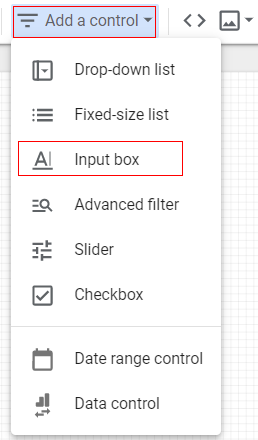
Step 22: Now, let’s add another control from the menu, this time an input box. This input box will be used to get the parameter value from the user.
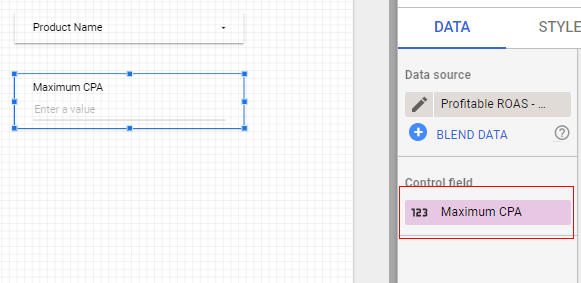
Step 23: By default, the input box will have an Average order value as the control field. Since it’s already available in our table, we will remove it and add Maximum CPA as the control field of the input box.
Step 24: Click on the ‘View’ button to see how the report looks and how it works.
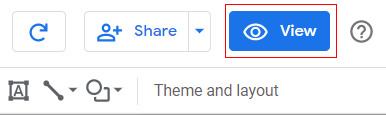
You will get a report view like below:
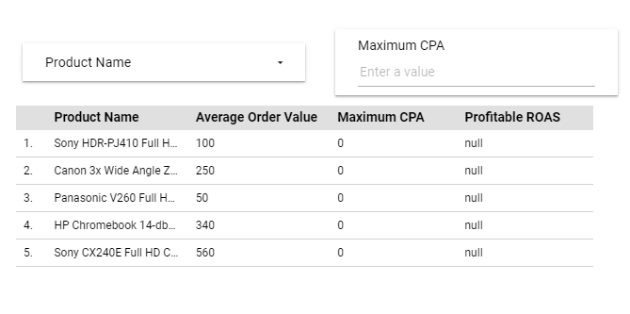
Step 25: Let’s enter a Maximum CPA value of 35 in the user input box and press enter.
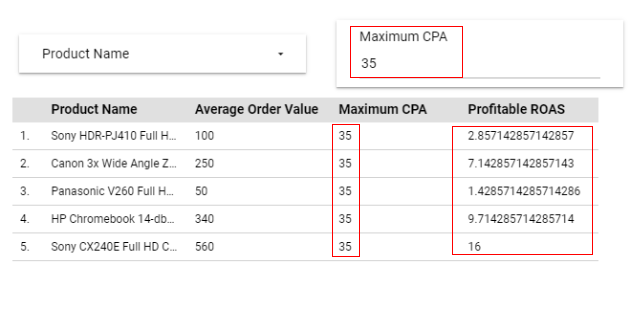
As you can see from the above image, each product now has got a user-defined maximum CPA value of 35, and the profitable ROAS is calculated automatically by Google Data Studio for each product.
Step 26: Now, if you want to assign a different maximum CPA value to each product, click on the product name drop-down list and select the product by clicking on ‘Only’.
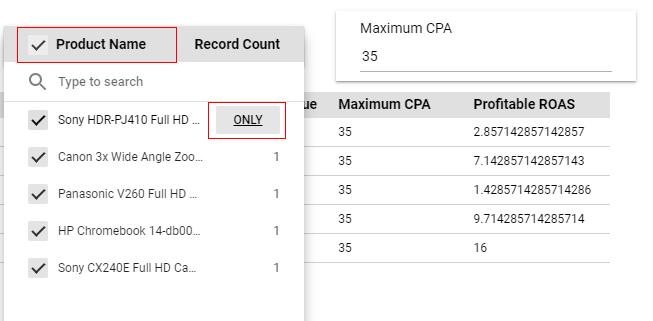
Now you will see the data table only for the selected product (Sony-HDR-PJ410 Full HD) like below:
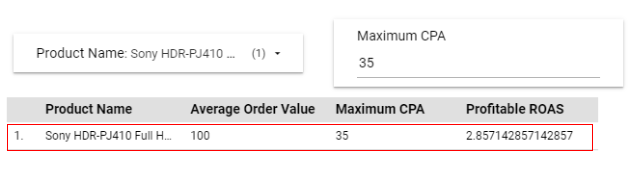
Step 27: Enter the maximum CPA for the selected product, let’s say 65, by deleting the current value of 35 and pressing ‘Enter’.
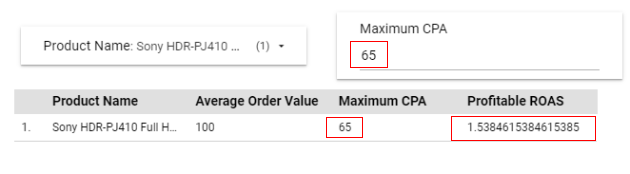
You can see now that the new user-defined value of the maximum CPA parameter is assigned to the Sony-HDR-PJ410 Full HD product, and the profitable ROAS is calculated based on the input provided.
This is how you can use parameters in Google Data Studio and provide user-defined values to calculate the required metrics.

Related Articles.
- Google Data Studio Parameters explained with examples.
- Google Data Studio Tutorial.
- How to Change Language in Google Data Studio.
- Google Data Studio Report Tutorial.
- How to work with Boolean field in Google Data Studio.
- How to use Google Data Studio with Google Sheets.
- Stop Using Page Titles in GA4 & Google Data Studio Reports.
- Google Data Studio Geo Map – Latitude Longitude.
- Google Data Studio Data Sources – Tutorial.
- Guide to Data Types in Google Data Studio.
- Google Data Studio Date Format and Time Explained.
- Working with Numeric Data Types in Google Data Studio.