

Google Data Studio is available in 37 languages and supports number, date, and time formats in those languages.
To change the language in Google Data Studio, follow the steps below:
Step-1: Login to your Google account and then navigate to ‘Data and Personalization’: https://myaccount.google.com/
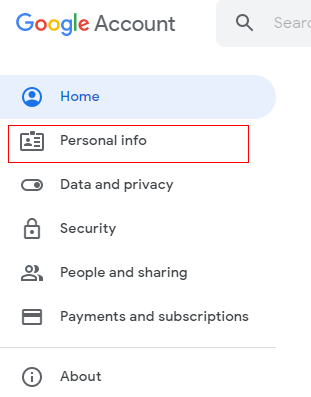
Step-2: Click on ‘Personal Info’
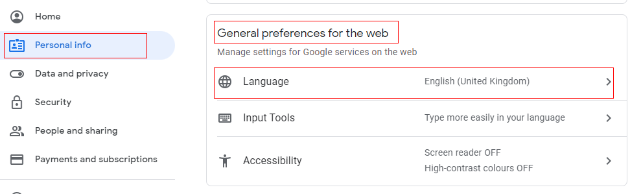
Step-3: Scroll down to the section ‘General preferences for the web’. Here you should see the ‘Language’ setting:
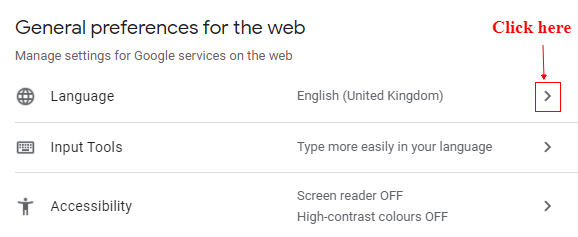
Step-4: Click on the arrow next to the ‘Language’ setting:
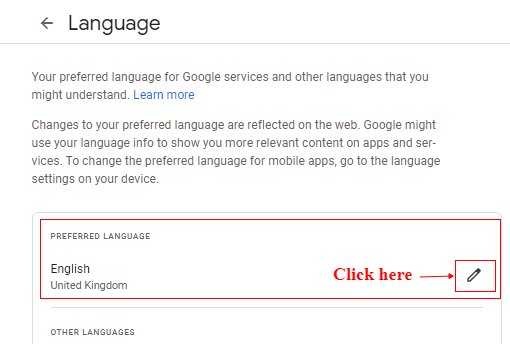
Step-5: Click on the Pencil icon available under ‘Preferred Language’:
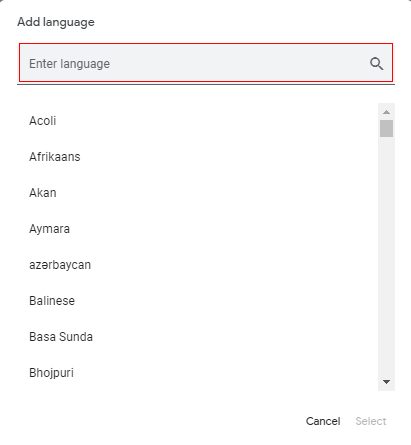
Step-6: A pop up window will come like the image below. Enter the language in the text box available that you want to select.
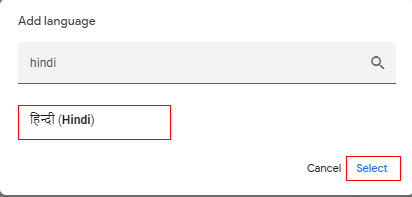
Step-7: Once the language appears in the list, click on the language and then click on select.
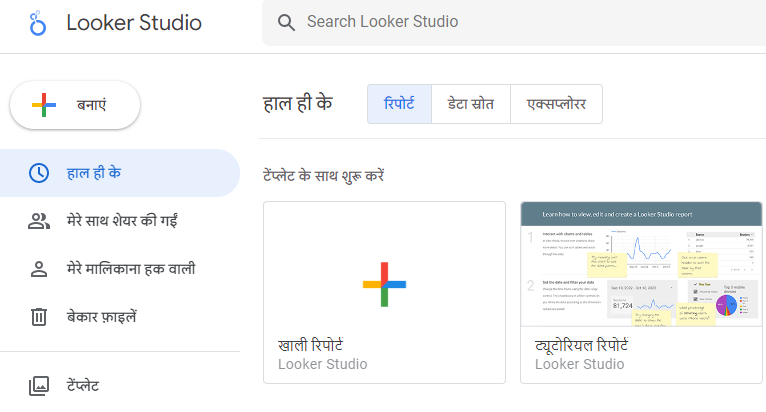
Step-8: Navigate to your Google Data Studio account and then click on the ‘refresh’ button in your browser window. You should now be able to see and use the Google Data Studio in your preferred language:

Related Articles.
- Google Data Studio Parameters explained with examples.
- Google Data Studio Tutorial.
- How to Change Language in Google Data Studio.
- Google Data Studio Report Tutorial.
- How to work with Boolean field in Google Data Studio.
- How to use Google Data Studio with Google Sheets.
- Stop Using Page Titles in GA4 & Google Data Studio Reports.
- Google Data Studio Geo Map – Latitude Longitude.
- Google Data Studio Data Sources – Tutorial.
- Guide to Data Types in Google Data Studio.
- Google Data Studio Date Format and Time Explained.
- Working with Numeric Data Types in Google Data Studio.