

If you want to analyze GA4 data in ChatGPT and ask questions or do data visualization, etc, then do the following:
1) Download your GA4 report as a CSV file and not a PDF.
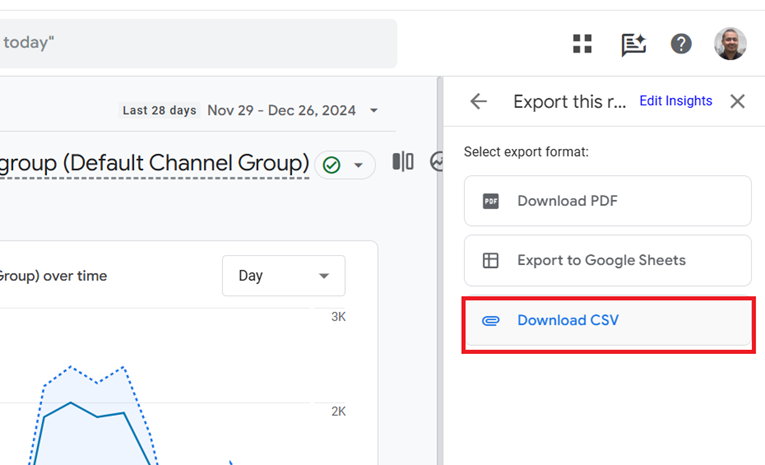
This is because ChatGPT can process CSV files more effectively because the data in the files are structured and easier to parse programmatically.
2) Clean up the downloaded file.
Once you have downloaded the CSV file, delete header metadata and comments at the beginning of the file and retain only the data table for analysis.
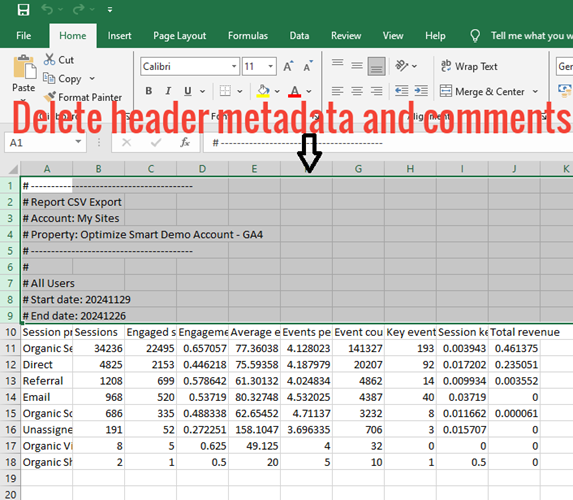
This is because metadata and comments cause issues with ChatGPT.
3) Upload the cleaned file to ChatGPT.
Once the file is cleaned, upload it to ChatGTP for data analysis and visualization and ask questions related to your data.
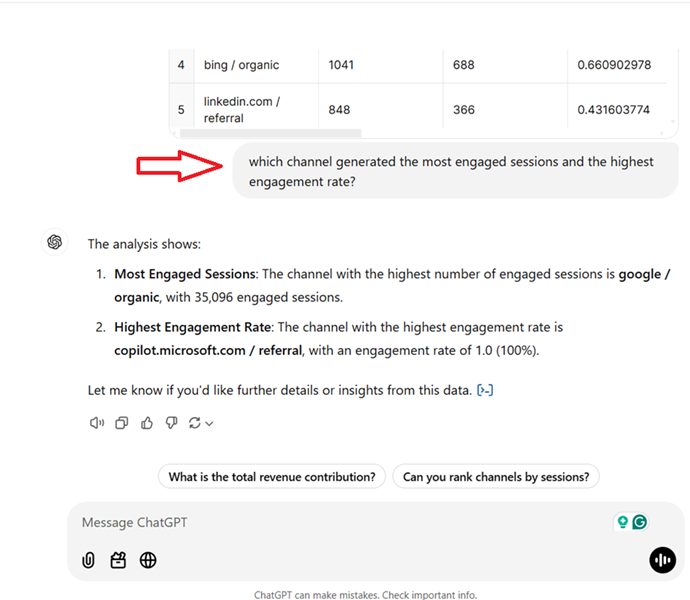
Note: Check with your legal or data protection officer before you upload sensitive information to AI tools like ChatGPT to maintain GDPR compliance.
This ChatGPT Workflow Simplifies GA4 Data Analysis.
Here is how I use ChatGPT to analyse and manipulate GA4 data blazingly fast.
First of all,
I avoid creating and using custom dimensions, custom metrics or calculated metrics for custom calculations whenever possible, esp. for data analysis.
I don’t have time to create them and wait for statistically significant data, which could take days or weeks to collect.
I prefer to work on raw data and do as much data manipulation as possible myself using AI tools.
I also don’t waste time on writing prompts to create logic or individual formulas and functions for Google Sheets (unless required).
So, if I have to calculate Ad CTR for data analysis, I am unlikely to create a custom or calculated metric for it or use AI-generated Google Sheets formulas or functions.
Here is what I would do instead:
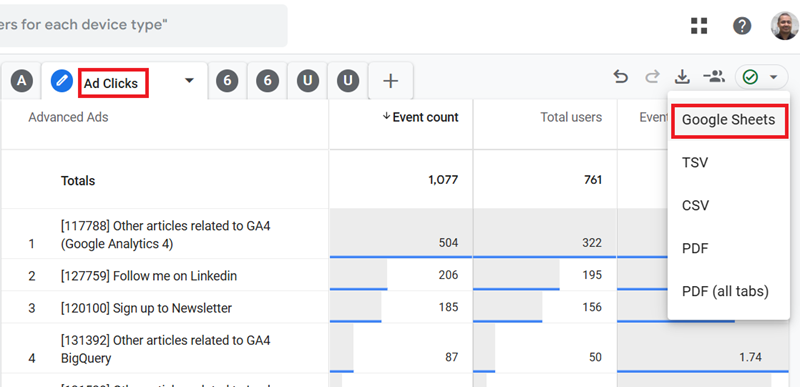
Step-1: Download the Ad impressions and Ad clicks data from the GA4 property to Google Sheets. The WordPress plugin that I use automatically sends this data from my website to GA4.
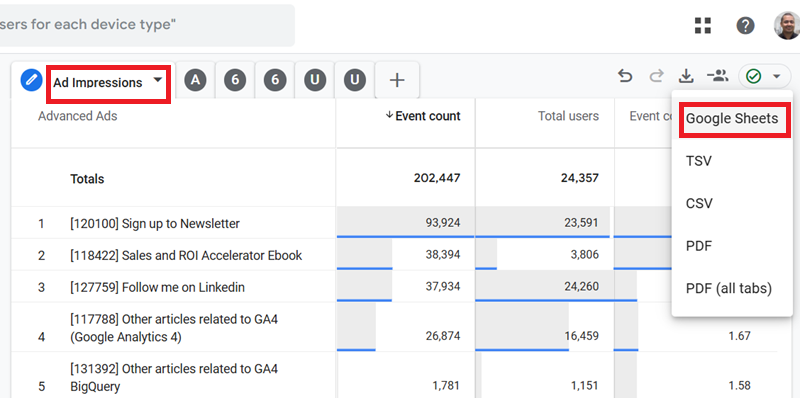
Step-2: Write a text prompt in chatgpt to tell it the results you want to see and in which format.
I won’t be telling chatgpt exactly how to manipulate the data as, most of the time, I don’t need to. It is smart enough to figure that out.
For example, I can use the following text prompt in chatgpt:
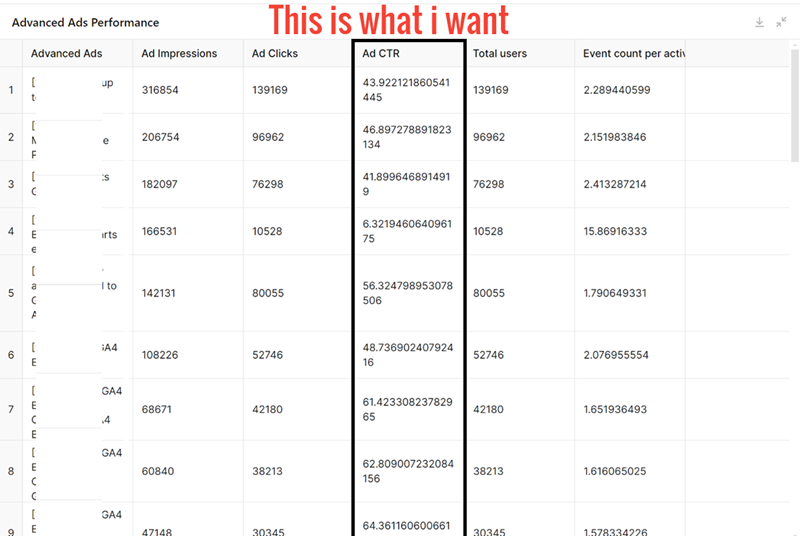
“Use the data from the following two tables to calculate CTR for each advanced ad. Display the final result in the form of a data table which contains the following columns in the exact order they are listed: ‘Advanced Ads’, ‘Ad Impressions’, ‘Ad Clicks’, ‘Ad CTR’, ‘Total users’ and ‘Event count per active user’. Sort the data table by ad CTR.”
ChatGPT is going to produce the following similar response:
Step-3: Analyze the results within chatgpt. At this point, if I want to download the data table to Google Sheets, I can do that.
Step-4: Send the data from Google Sheets to Looker Studio for data visualization. Alternatively, I can also visualize the data within chatgpt.
If I want to automate this entire process, then I can use GA API, Google Apps Script and chatgpt API.
For example,
- Set up a scheduled extraction of Ad Impressions and Ad Clicks using the GA4 API.
- Use Google Apps Script to send this data to Google Sheets at regular intervals (daily, weekly, etc.).
- Write a script that sends the Google Sheets data to ChatGPT via API.
- Use a pre-defined prompt like the one I provided (for CTR calculation) as part of the script.
- Parse the result from ChatGPT, which can either be sent back to the Google Sheets or stored elsewhere.
- Once the processed data is updated in Google Sheets, configure Looker Studio to pull from the updated sheet automatically.
- Use Google Apps Script or a Python script to set up a trigger that automates this process at regular intervals.
You can ask chatgpt to help you every step of the way to automate your workflow.
For example, ChatGPT can generate all the necessary scripts and workflows for you. So you don’t need to be a computer scientist to pull this off.
That way, you can spend more time on data analysis than data extraction, which should be the ultimate goal for all marketers and data analysts.

Other Articles on GA4.
- Why GA4 Audiences not showing in Google Ads.
- Google Analytics 4 Scroll Tracking Tutorial.
- Why Google Ads and Google Analytics data don’t match & how to fix it.
- Google Analytics 4 Calculated Metrics with Examples.
- How to view subdomain traffic in Google Analytics 4.
- Google Analytics 4 Cookieless Tracking Setup.
- Using Funnel Exploration Report in Google Analytics 4.
- Google Advanced Consent Mode and GA4 BigQuery Export.
- Which Conversion Window to use in Google Analytics 4.
- Tracking single page apps in Google Analytics 4.
- Create Content Groups in Google Analytics 4.
- Google Analytics 4 BigQuery Tutorial for Beginners to Advanced.
- Google Analytics 4 Measurement ID and Property ID.
- Prompt Engineering for GA4 BigQuery SQL Generation.
- Google Analytics 4 vs Universal Analytics: The Key Differences.
- How to create a new BigQuery project.
- How to create a new Google Cloud Platform account.
- How to overcome GA4 BigQuery Export limit.
- ChatGPT Workflow That Simplifies GA4 Data Analysis.
- Understanding Google Analytics 4 Sessions.