

What is content grouping in Google Analytics 4 (GA4)?
In the context of GA4, content grouping is a grouping of content groups.
Content grouping is made up of one or more content groups.
What are content groups in GA4?
A content group is a set of web pages that are based on the same theme.
So, in the case of a blog, a content group can be a set of web pages that are based on the same topic, e.g. Google Tag Manager.
In the case of an ecommerce website, a content group can be a set of web pages that sell similar products e.g. shirts.
Let us suppose you sell shirts, trousers and sportswear for men in your ecommerce store.
Your ecommerce store contains the following product categories:
- Men shirts.
- Men trousers.
- Men sportswear.
Now, all the web pages that sell shirts for men can be part of the ‘Men Shirts’ content group.
All the web pages that sell trousers for men can be part of the ‘Men Trousers’ content group.
All the web pages that sell sportswear for men can be part of the ‘Men Sportswear’ content group.
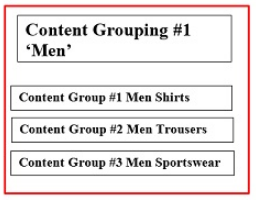
Since content grouping is made up of one or more content groups, the ‘Men’ content grouping can consist of the following content groups:
- Men shirts
- Men trousers
- Men sportswear
Following is the graphical representation of content grouping for men:
Similarly, let us suppose that your blog contains the following content categories:
- Attribution Modelling.
- Google Tag Manager.
- Google Analytics.
- Facebook.
Now, all the web pages that contain content related to ‘Attribution Modelling’ can be part of the ‘Attribution Modelling’ content group.
All the web pages that contain content related to ‘Google Tag Manager’ can be part of the ‘Google Tag Manager’ content group.
All the web pages that contain content related to ‘Google Analytics’ can be part of the ‘Google Analytics’ content group.
All the web pages that contain content related to ‘Facebook’ can be part of the ‘Facebook’ content group.
Since content grouping is made up of one or more content groups, the ‘Blog’ content grouping can consist of the following content groups:
- Attribution Modelling.
- Google Tag Manager.
- Google Analytics.
- Facebook.
As a rule of thumb, use content/product categories for content groups on your website/app.
Note: Unlike in Universal Analytics, you can create only one content grouping in GA4.
What is the advantage of using content grouping in GA4?
Through content grouping in GA4, you can quickly check the performance of a content group or compare the performance of different content groups with each other.
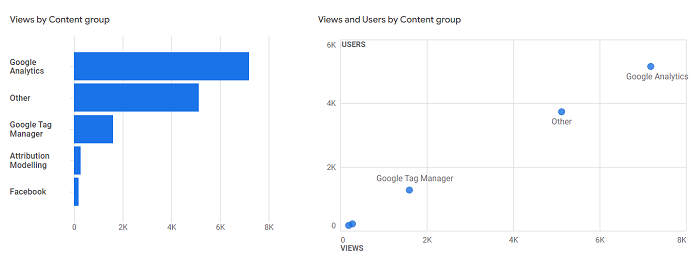
Content groups allow you to measure the performance of a set of web pages at the content category or product category level.
Content grouping is especially useful if you have a big website with hundreds or thousands of web pages and you can realistically measure the web page performance only at the group level and not at the individual page level.
How to create content grouping in Google Analytics 4
Follow the steps below:
Step-1: Decide the names and number of content/product categories which you will use as ‘content groups’ in your GA4 property.
Let us suppose you have decided to create the following content groups in GA4:
- Attribution Modelling
- Google Tag Manager
- Google Analytics
- Other
The content group ‘Other’ contains the web pages that do not belong to any of the following content groups:
- Attribution Modelling
- Google Tag Manager
- Google Analytics
Step-2: Identify the web pages that will be part of each content group. You can use regular expressions to identify all such pages.
For example:
In order to identify all the web pages on my website that belong to the ‘Attribution Modelling’ content group, I can use the following regular expression:
attribution|model|online|offline|nonline
In order to identify all the web pages on my website that belong to the ‘Google Tag Manager’ content group, I can use the following regular expression:
google-tag-manager
In order to identify all the web pages on my website that belong to the ‘Google Analytics’ content group, I can use the following regular expression:
google-analytics
Similarly, in order to identify all the web pages on my website that belong to the ‘Facebook’ content group, I can use the following regular expression:
Step-3: Based on the logic you developed in step-2, create a new Regex Table variable in GTM that can identify all of the web pages which will be part of each ‘content group’.
Follow the steps below:
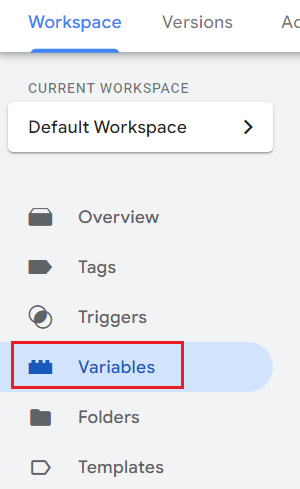
#3.1 Login to your GTM account and then click on the ‘Variables’ tab:
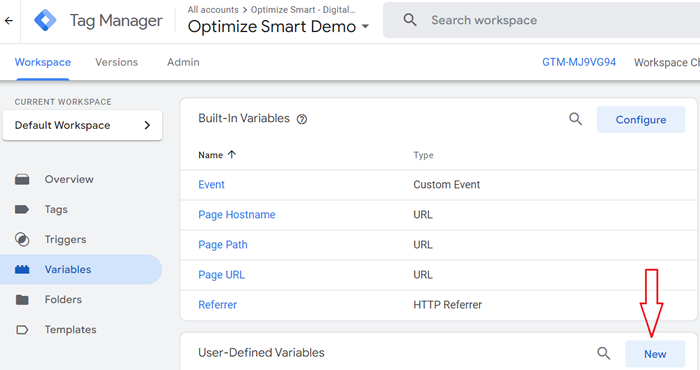
#3.2 Click on the ‘New’ button next to ‘User Defined Variable’:
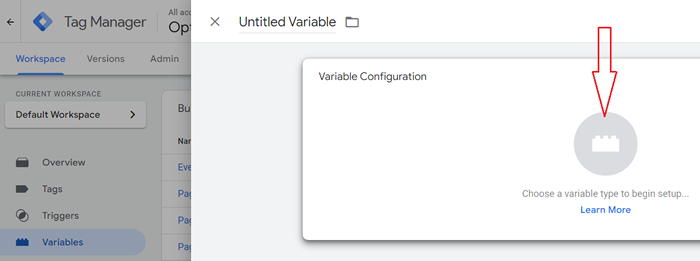
#3.3 Click on ‘Choose a variable type to begin setup’:
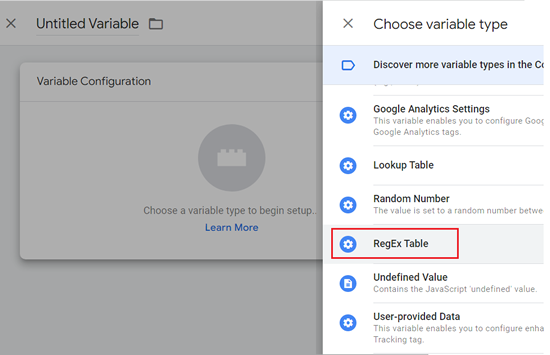
#3.4 Scroll down and then click on the ‘Regex Table’:
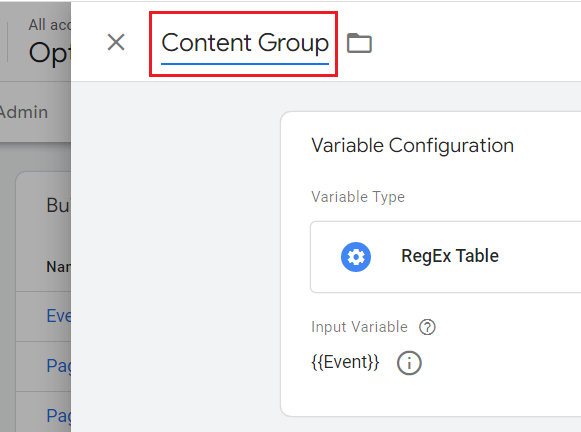
#3.5 Enter a name for your Regex table variable. You will later reference the variable by this name. Let’s name the regex table variable as ‘Content Group’:
#3.6 Click on ‘Input Variable’:
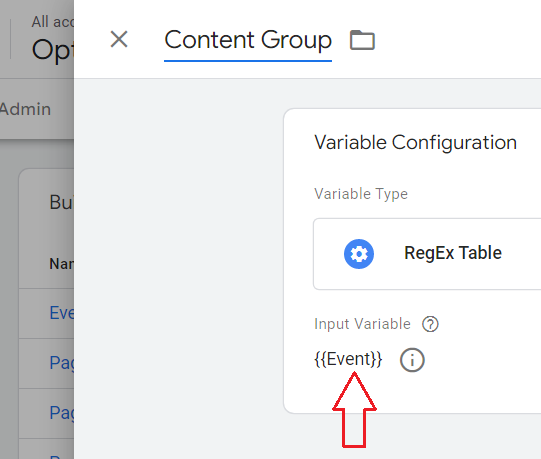
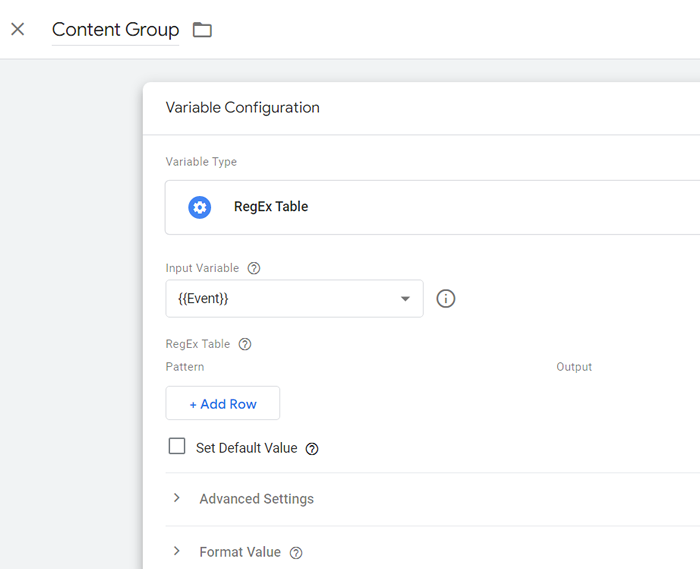
You should now see a screen like the one below:
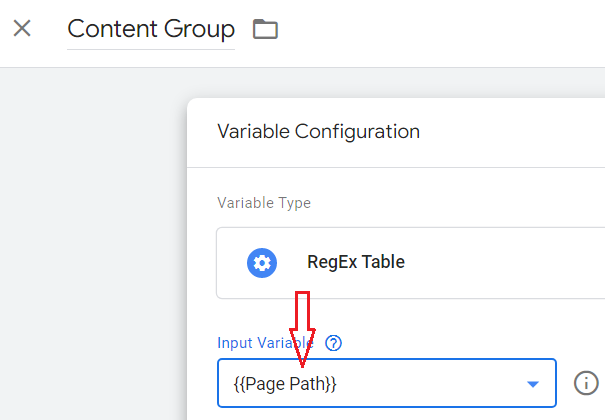
#3.7 Select ‘{{Page Path}}’ as the Input variable from the drop-down menu:
Note: If your input variable does not already exist then you would need to create a new one. You need an input variable in order to use a regex table variable.
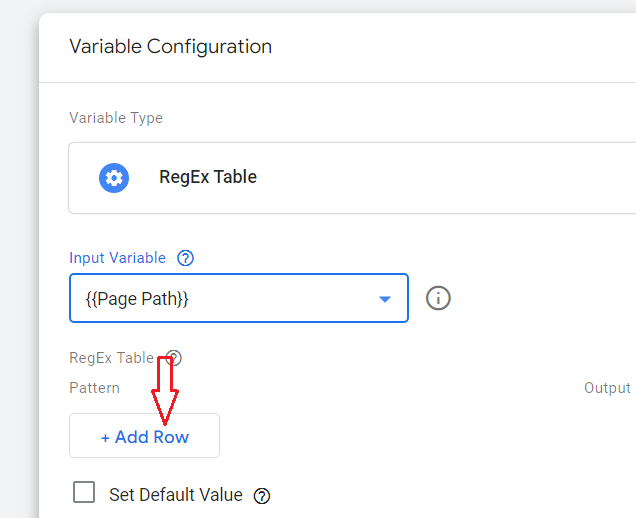
#3.8 Click on the ‘+Add Row’ button:
#3.9 Enter your input pattern and its corresponding output value in the first row and then click on the ‘+Add Row’ button:
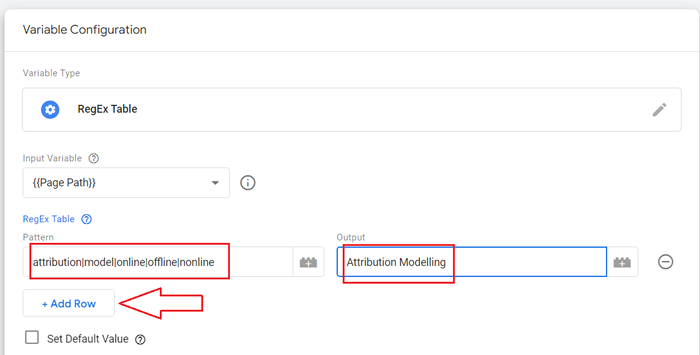
From the screenshot above we can conclude the following:
If ‘page path’ contains any of the following words, then make the corresponding web page part of the ‘Attribution Modelling’ content group:
- attribution
- model
- online
- offline
- nonline
Note: The pipe symbol (|) separating the two words corresponds to the Logical OR operation.
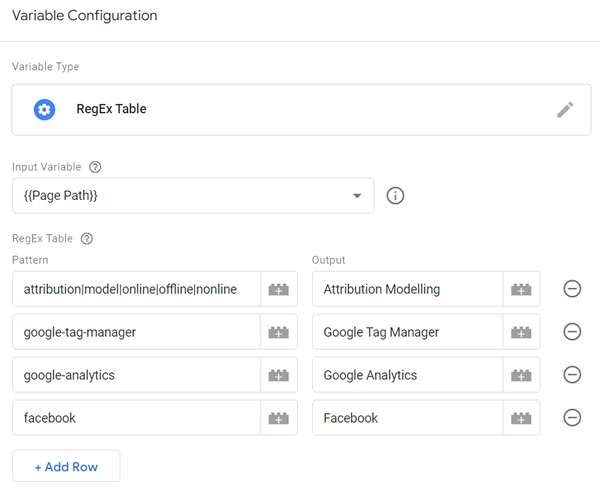
#3.10 Enter your other input patterns and their corresponding output values in the regex table, row by row, from top to bottom, like the one below:
#3.11 Click on the ‘Set Default Value’ checkbox and then type ‘Other‘ in the default value text box:
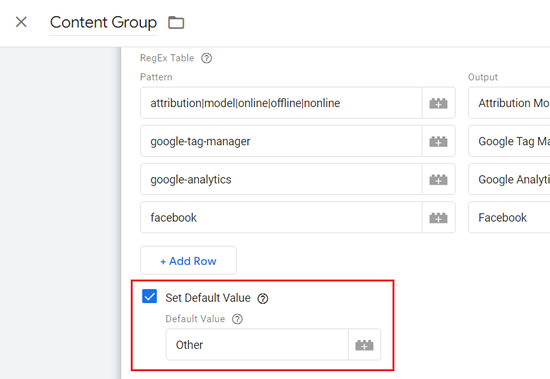
This is what I am doing here:
If a ‘page path’ does not match any of the specified input patterns, make the corresponding web page part of the ‘Other’ content group.
#3.12 Under ‘Advanced Settings, ’ uncheck the following two checkboxes:
- Full Matches Only.
- Enable Capture Groups and Replace Functionality.
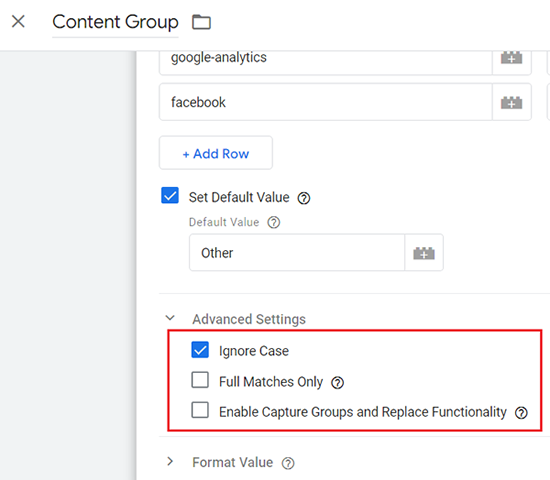
I unchecked the ‘Full Matches Only‘ checkbox because I want the regex table variable to do a partial match.
I unchecked the ‘Enable Capture Groups and Replace Functionality‘ checkbox because Google recommends not to use ‘Enable Capture Groups and Replace Functionality‘ if the ‘Full Matches Only’ checkbox is unchecked.
I want the regex table variable to do a case insensitive match. That’s why I did not uncheck the ‘Ignore Case’ checkbox.
#3.13 Click on the ‘Save’ button on the top right-hand side to save the new regex table variable:
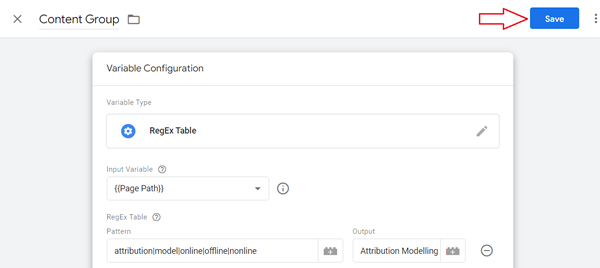
Now, we are going to edit the GA4 configuration tag. It is the tag that is used to install GA4 on a website.
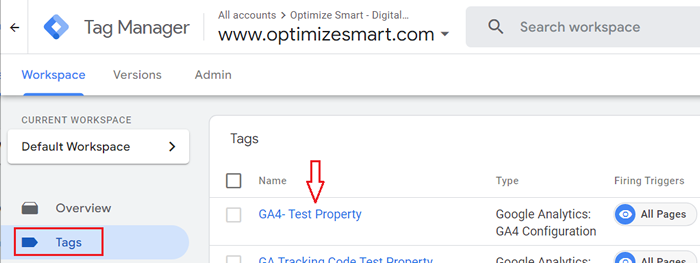
Step-4: Click on the ‘Tags’ tab and then click on the name of your GA4 configuration tag:
Step-5: Add the following field under the ‘Configuration Parameter’ and save the tag:
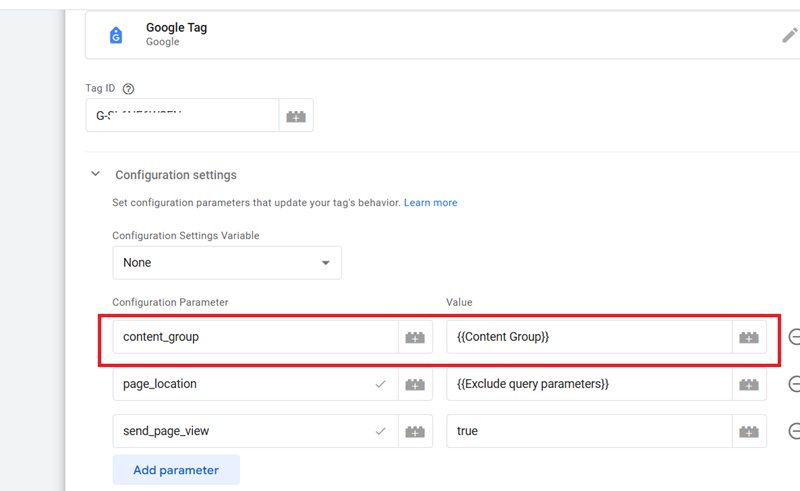
Note: ‘{{Content Group}}’ is the regex table variable we created earlier.
Now we are going to test our new regex table variable to see whether it works the way it is supposed to work.
Step-6: Click on the ‘Preview’ button on the top right-hand side of your GTM account to put your container in preview mode:
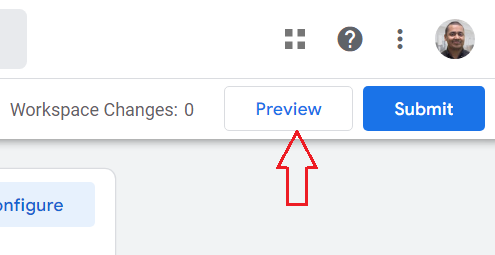
Step-7: Enter the URL of an article page on your website and then click on the ‘Connect’ button:
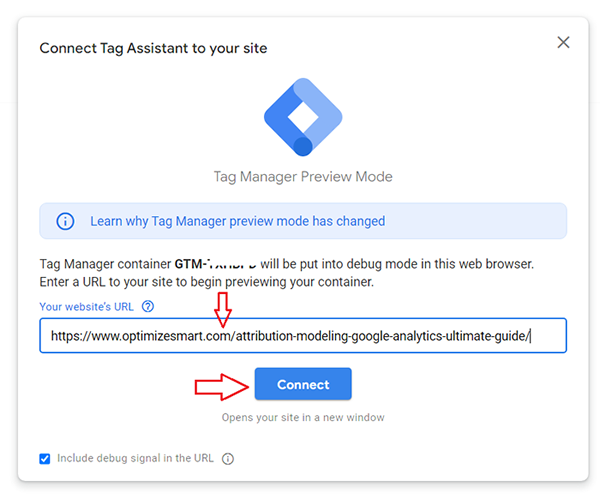
As soon as you click on the ‘Connect’ button you would be redirected to the article page on your website.
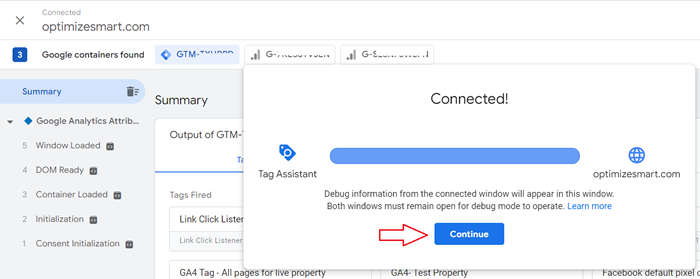
Step-8: Navigate back to the Tag Assistant window and then click on the ‘Continue’ button:
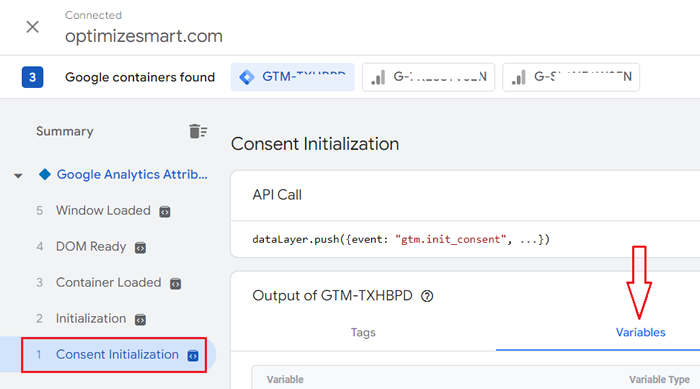
Step-9: Click on ‘Consent Initialization’ and then click on the ‘Variables’ tab:
Step-10: Scroll down until you find the ‘Content Group’ variable and then check its value:
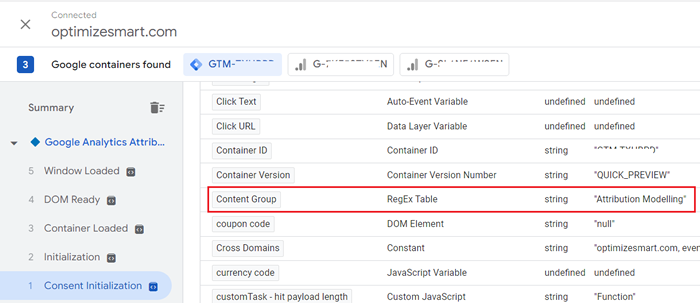
From the screenshot above, we can conclude that the value of the ‘content group’ variable is ‘Attribution Modelling’, which is correct.
Because the URL of the article that I entered earlier is related to attribution modelling.
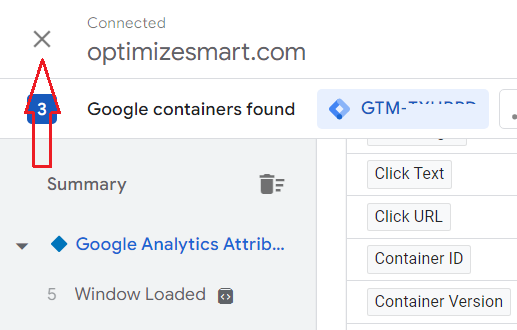
Step-11: Once you are satisfied with the results, click on the cross button on the top left-hand corner to close the Google Tag Assistant:
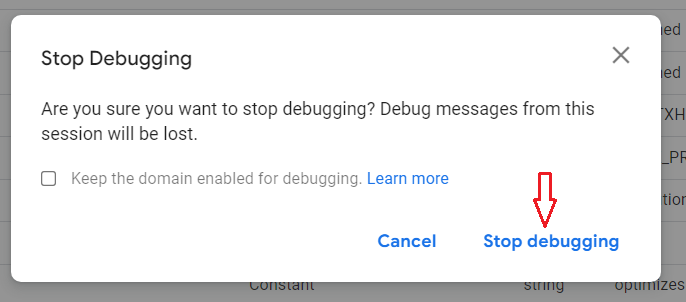
Step-12: Click on the ‘Stop debugging’ button:
Step-13: Navigate back to your GTM account and then click on the ‘Preview’ button.
Step-14: Repeat steps 6 to 12 to test other articles on your website and see what value is populated for the ‘content group’ variable in the Tag Assistant window.
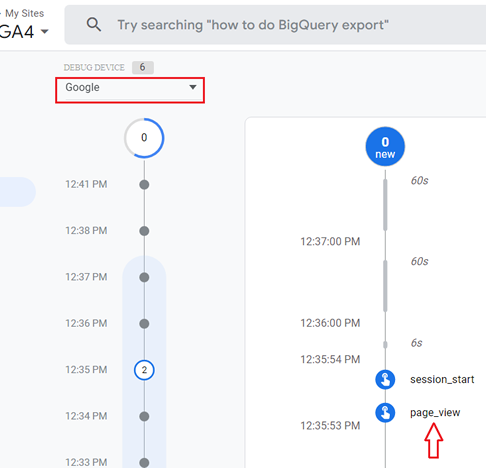
Step-15: Navigate to the DebugView report in your GA4 property and then click on the ‘pageview’ event:
Step-16: Click on ‘content_group’ parameter:
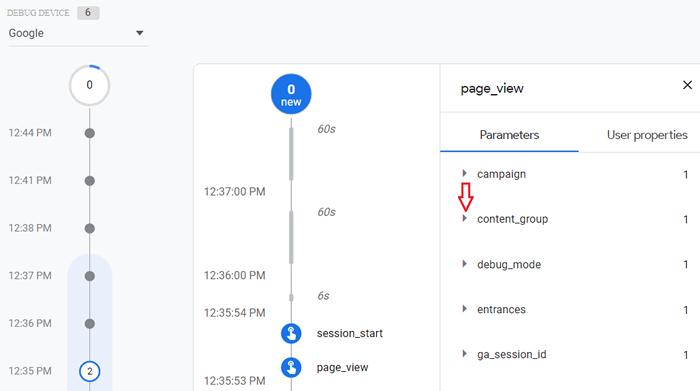
You should now be able to see the value of your content group:
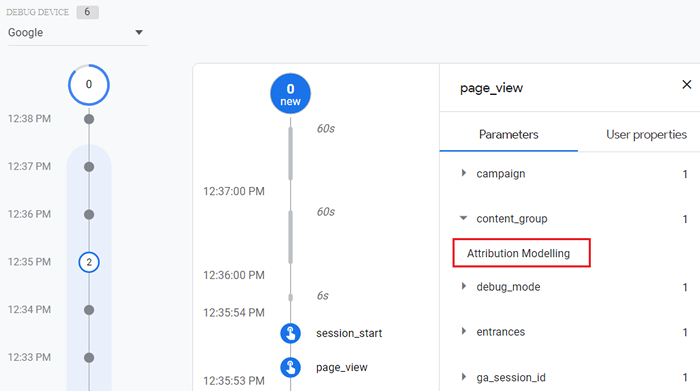
This proves that the value of the ‘content_group’ parameter is being passed to GA4.
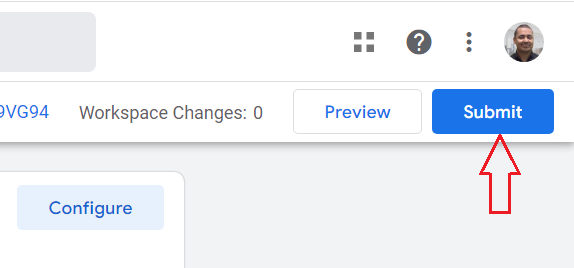
Step-17: Navigate back to your GTM account and then click on the ‘Submit’ button:
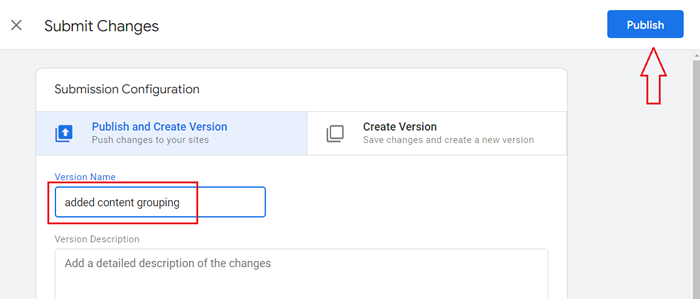
Step-18: Name your version and then click on the ‘Publish’ button to publish the container.
That’s how you can create content groups in GA4.
Important points about Content Groups in GA4.
#1 You cannot create content groups retroactively in GA4. The content groups that you create show data only from the date they were first created and going forward.
#2 You can include the same web page in multiple content groups.
#3 When no content group data is available, GA4 populates the content group dimension with (not set).
Where can you see content groups in Google Analytics 4?
Once 24 hours have elapsed from the time you first set up content groups via GTM, follow the steps below to see content group data in GA4:
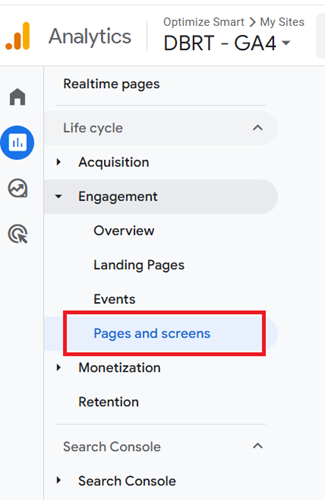
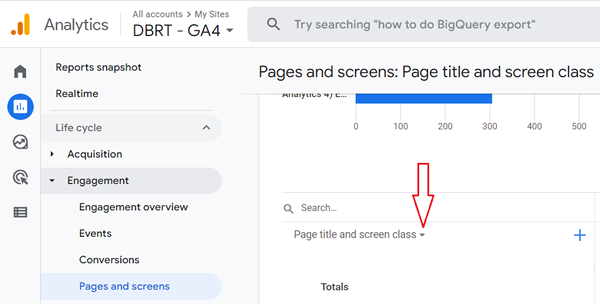
Step-1: Navigate to the ‘Pages and Screens’ report (under ‘Engagement’) in GA4:
Step-2: Scroll down to the data table and then click on the dimensions drop-down menu:
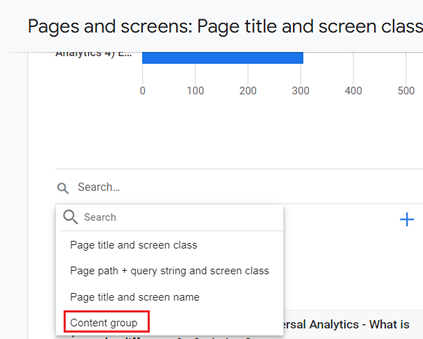
Step-3: Click on ‘Content Group’:
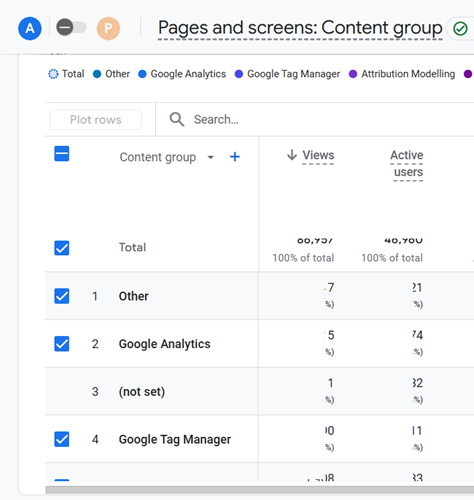
You should now be able to see the content group data in GA4:
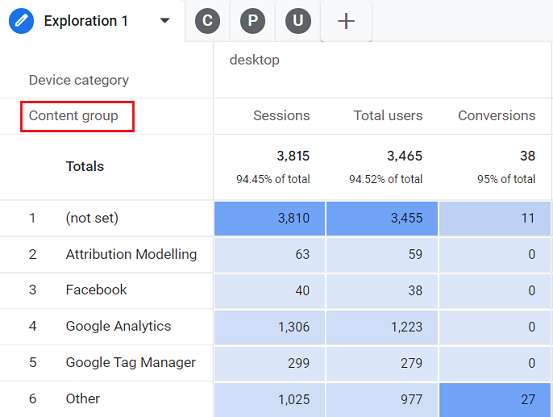
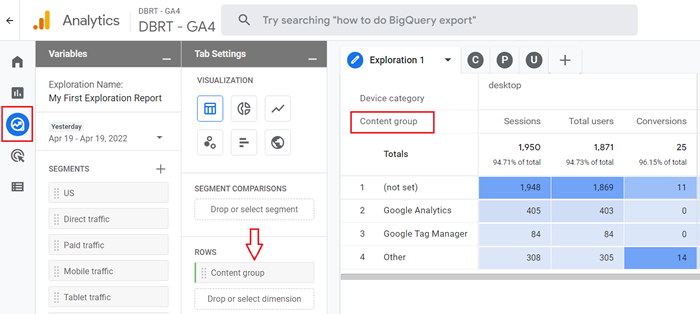
The other place where you can see the content group data in GA4 is in the exploration report.
You just need to find and import the ‘Content group’ dimension:
Content grouping in GA4 for mobile app.
If you want to set up content grouping in GA4 for a mobile app then instead of sending the ‘content_group’ parameter with the page_view event (like we do in the case of a website) send the ‘content_group’ parameter with the ‘screen_view’ event.
Registering the ‘content_group’ parameter as a custom dimension.
When you register the ‘content_group’ event parameter as a custom dimension, it appears as a new data card in every event report where you (or GA4) are passing the ‘content_group’ parameter along with the event.
Thus the use of custom dimensions enriches your existing event reports.
To register the ‘content_group’ event parameter as a custom dimension, follow the steps below:
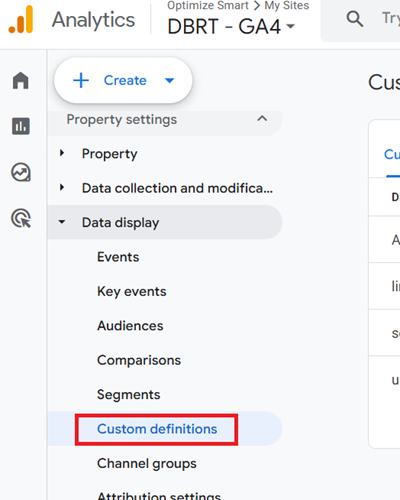
Step-1: In your GA4 property admin, navigate to ‘Custom definitions’ under ‘Data Display‘:
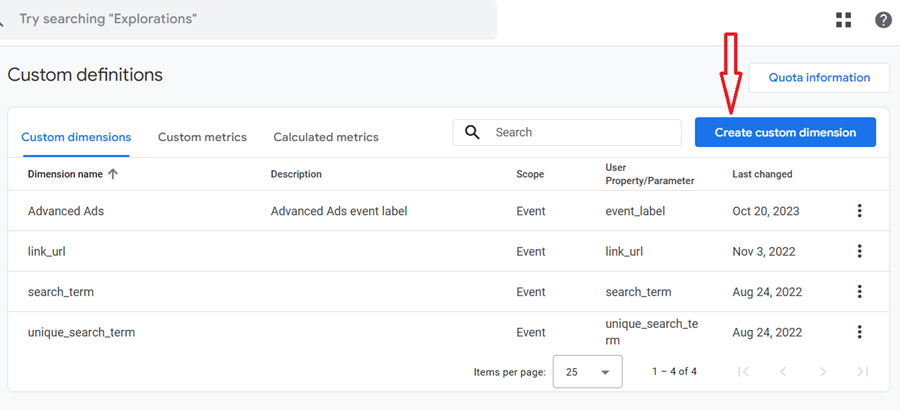
Step-2: Click on the ‘Create custom dimensions’ button:
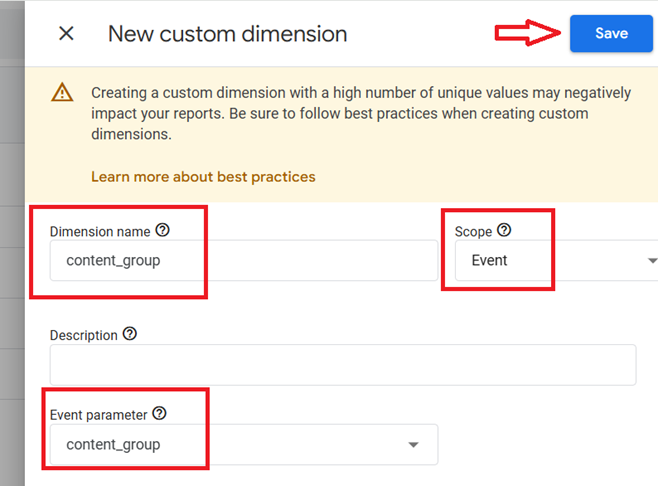
Step-3: Create a custom dimension with the following configuration and then click on the ‘Save’ button:
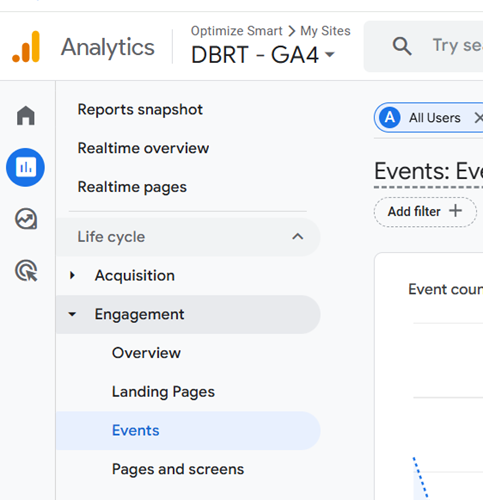
Step-4: After 24 hrs have elapsed, navigate to the ‘Events’ report (under ‘Engagement’):
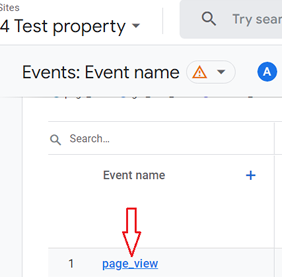
Step-5: Scroll down to the data table and then click on ‘page_view’ event:
Step-6: Scroll down your screen until you see the data card named ‘content_group’:
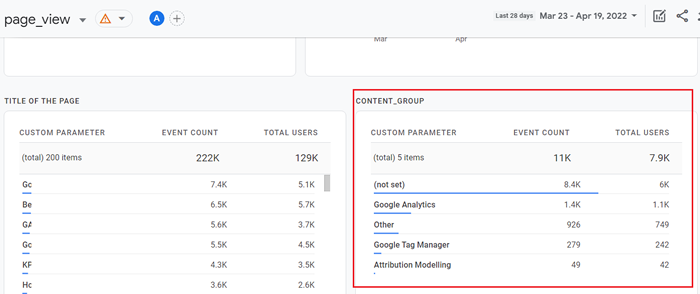
That’s how you can register the ‘content_group’ event parameter as a custom dimension in GA4.

Other Articles on GA4.
- Why GA4 Audiences not showing in Google Ads.
- Google Analytics 4 Scroll Tracking Tutorial.
- Why Google Ads and Google Analytics data don’t match & how to fix it.
- Google Analytics 4 Calculated Metrics with Examples.
- How to view subdomain traffic in Google Analytics 4.
- Google Analytics 4 Cookieless Tracking Setup.
- Using Funnel Exploration Report in Google Analytics 4.
- Google Advanced Consent Mode and GA4 BigQuery Export.
- Which Conversion Window to use in Google Analytics 4.
- Tracking single page apps in Google Analytics 4.
- Create Content Groups in Google Analytics 4.
- Google Analytics 4 BigQuery Tutorial for Beginners to Advanced.
- Google Analytics 4 Measurement ID and Property ID.
- Prompt Engineering for GA4 BigQuery SQL Generation.
- Google Analytics 4 vs Universal Analytics: The Key Differences.
- How to create a new BigQuery project.
- How to create a new Google Cloud Platform account.
- How to overcome GA4 BigQuery Export limit.
- ChatGPT Workflow That Simplifies GA4 Data Analysis.
- Understanding Google Analytics 4 Sessions.