

Once you have successfully created your Google Cloud Platform account, Google will automatically create a new project for you called ‘My First Project‘.
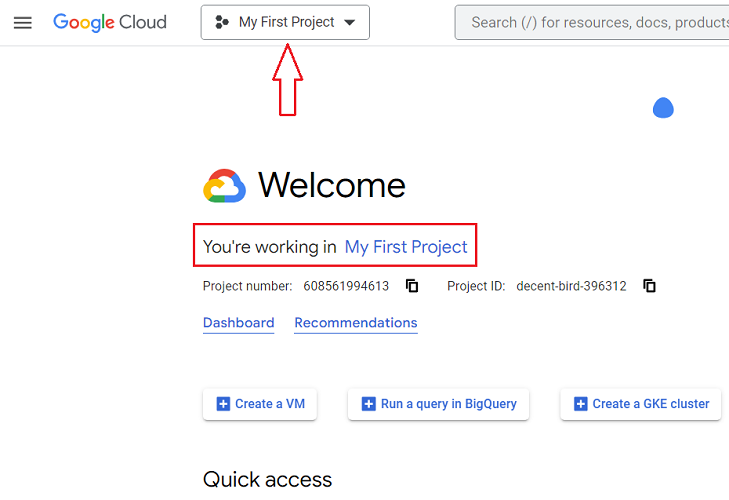
But we would create a new project because then we would get the option to change the project ID.
The project ID helps in quickly identifying your project when you are working on more than one project in Google Cloud Console.
Table of Contents
- Overview of creating a new BigQuery Project
- Creating a new project in Google Cloud Console
- Enabling billing for the new project (i.e. upgrading from the BigQuery Sandbox).
- Configure and enable the BigQuery API
Overview of creating a new BigQuery Project
The following is the 10,000 foot view of creating a new BigQuery project:
- Create a new Google Cloud Platform account with billing enabled (if you already don’t have one).
- Create a new project in Google Cloud Console.
- Enable billing for your new project (i.e. upgrading from the BigQuery Sandbox).
- Configure and enable the BigQuery API to enable BigQuery in the project.
Creating a new project in Google Cloud Console
Follow the steps below to create a new project in Google Cloud Console to store GA4 data:
Step-1: Navigate to https://console.cloud.google.com/
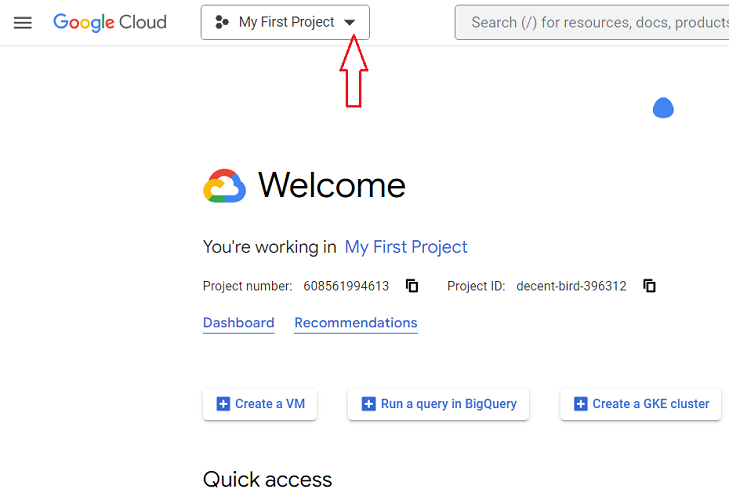
Step-2: Click on the ‘My First Project’ drop-down menu at the top navigation bar:
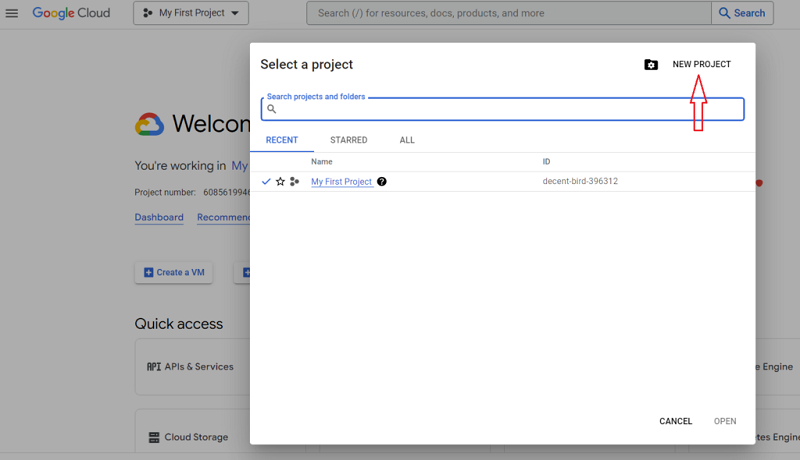
Step-3: Click on the ‘New Project’ button:
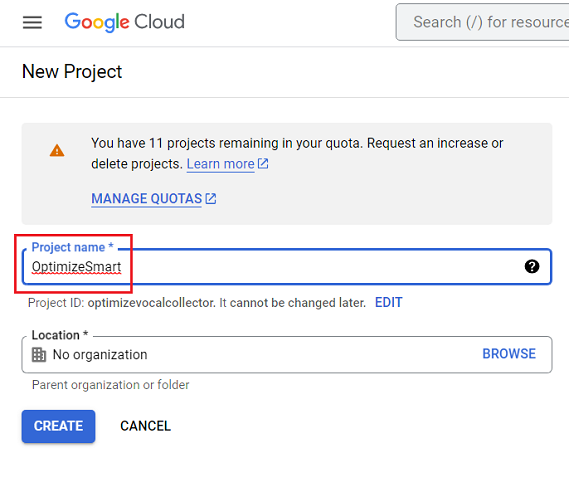
You should now see a screen like the one below:
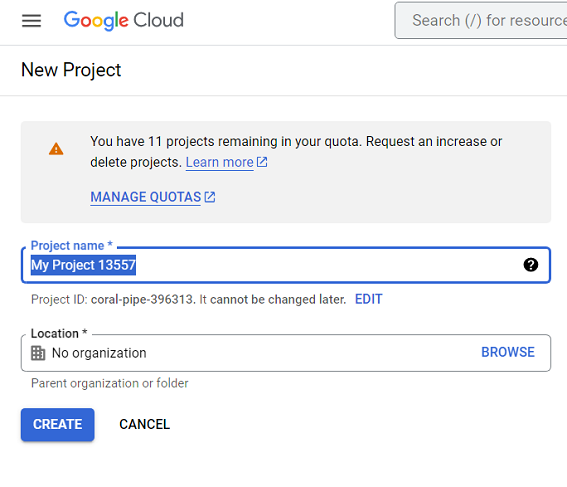
Step-4: Give a descriptive name to your new project.
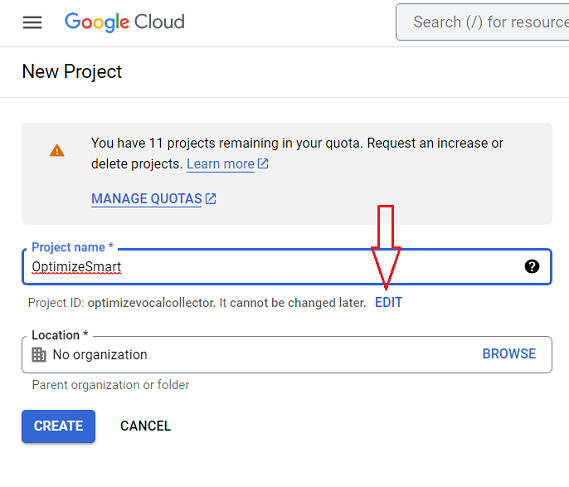
Step-5: Click on the ‘EDIT’ button to change the project ID.
Step-6: Enter your desired project ID.
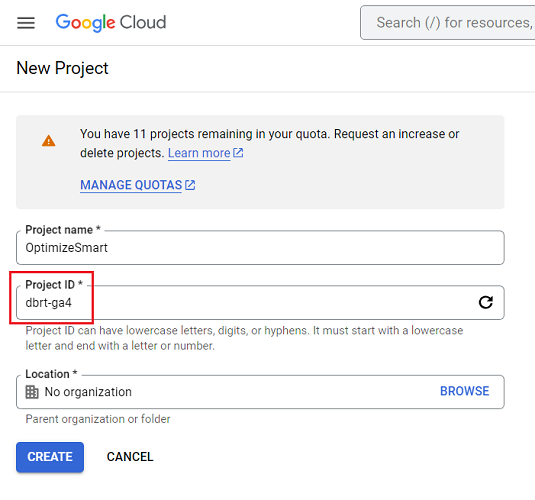
Note: Finding a meaningful project id is not going to be easy. As many IDs have already been taken. And once you change the ID, you can not change it later.
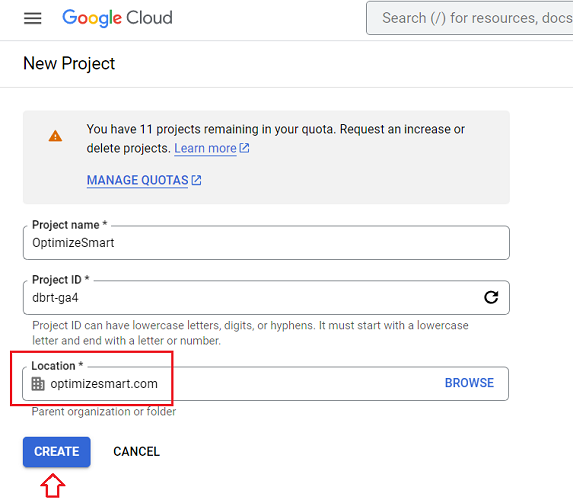
Step-7: Select your organization from the drop-down menu and then click on the ‘Create’ button.
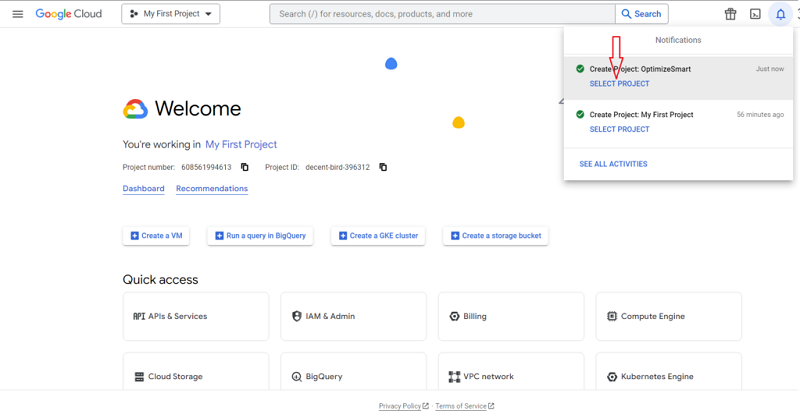
Step-8: Click on the link ‘SELECT PROJECT’ to select the ‘OptimizeSmart’ project:
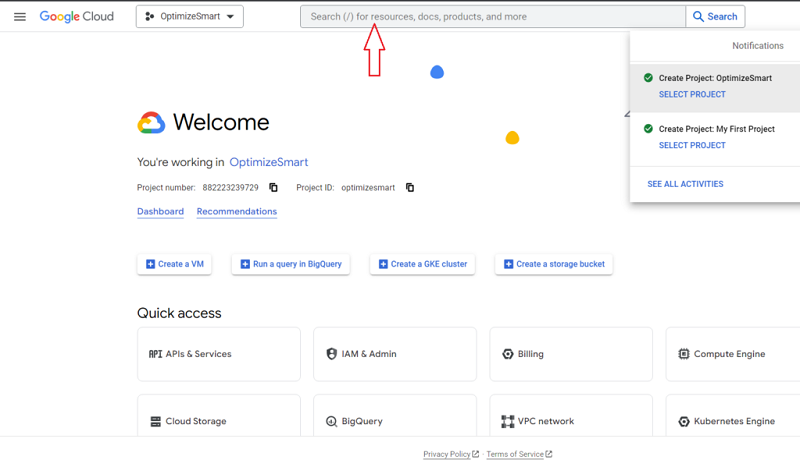
Step-9: Type ‘bigquery’ in the search box:
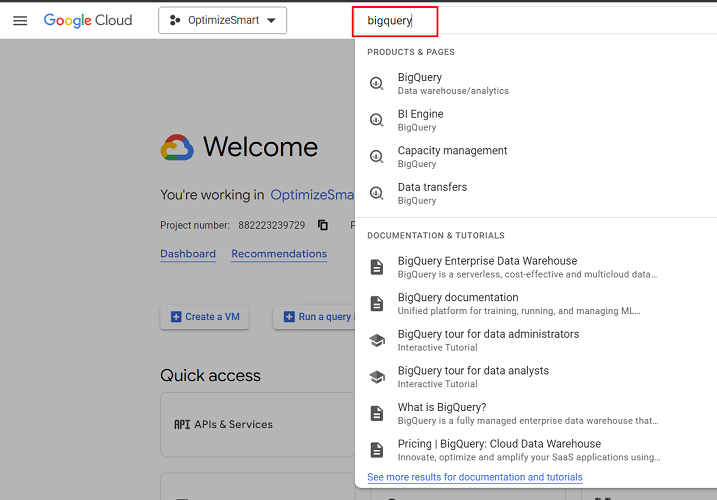
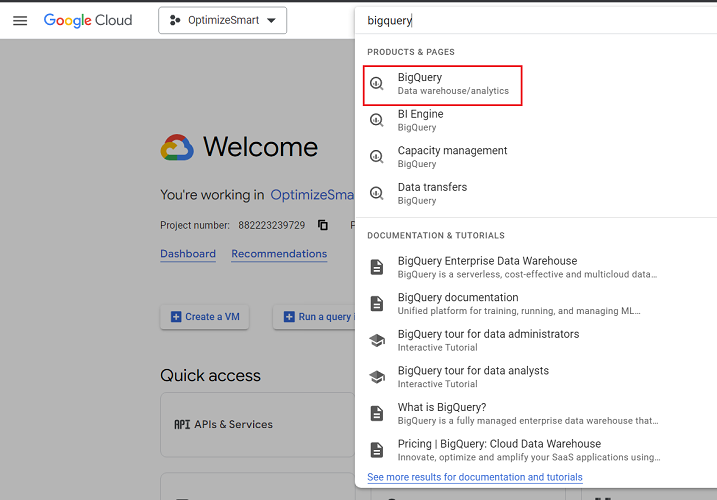
Step-10: Click on the first search result to access BigQuery:
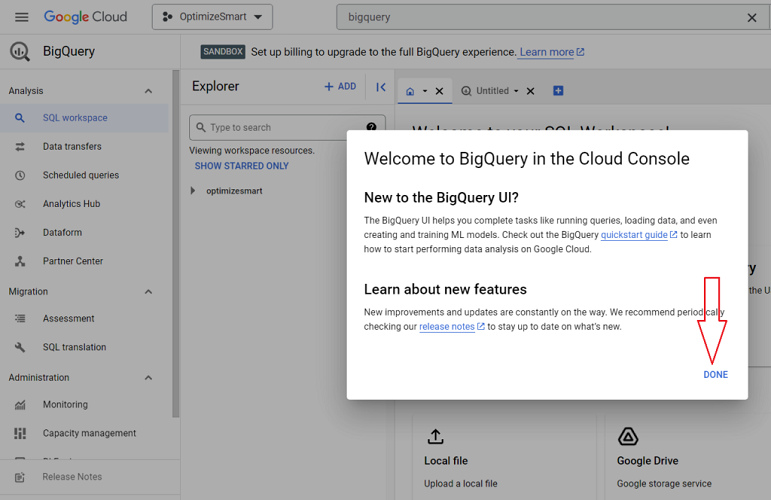
Step-11: Click on the ‘Done’ button:
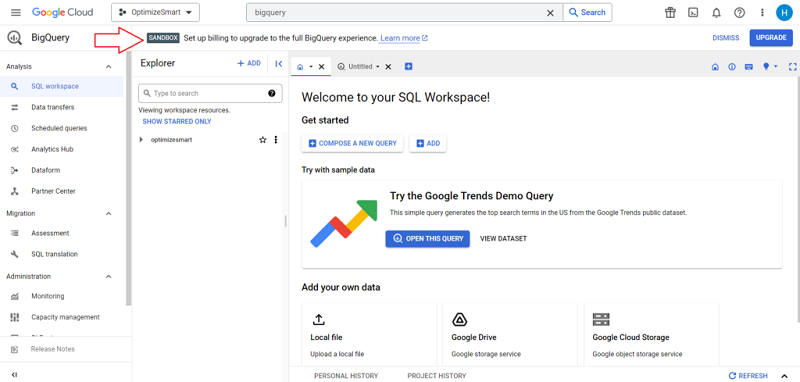
You now have access to BigQuery Sandbox:
Enabling billing for the new project (i.e. upgrading from the BigQuery Sandbox).
The BigQuery Sandbox lets you use your BigQuery project for free without enabling billing for your project.
However, the sandbox has certain limitations related to data storage and processing query data.
To overcome these limitations, you should upgrade your BigQuery Sandbox account by following the steps below:
Step-1: Navigate to your BigQuery account: https://console.cloud.google.com/bigquery
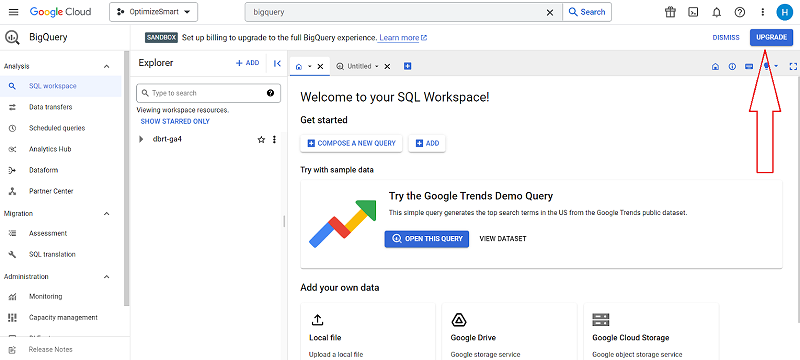
Step-2: Click on the ‘Upgrade’ button at the top right-hand side:
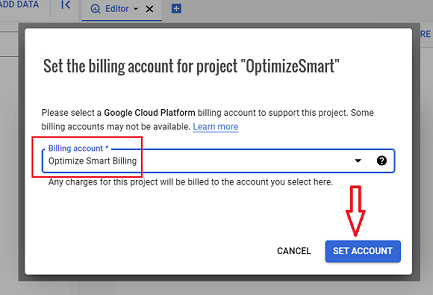
Step-3: Select your billing account from the drop-down menu and then click on the ‘Set Account’ button:
You should now see a screen like the one below without any Sandbox label at the top, which means you have successfully upgraded to the full BigQuery experience:
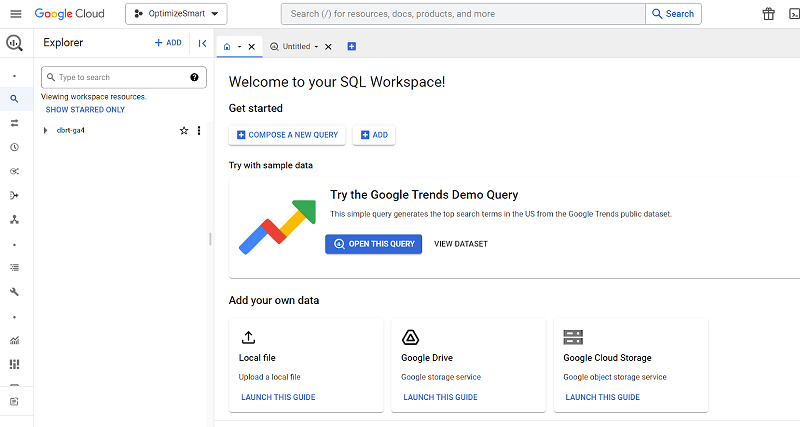
Configure and enable the BigQuery API
The final step is to configure and enable the BigQuery API to enable BigQuery in this project.
Follow the steps below to enable and configure your BigQuery API:
Step-1: Navigate to https://console.cloud.google.com/apis/dashboard
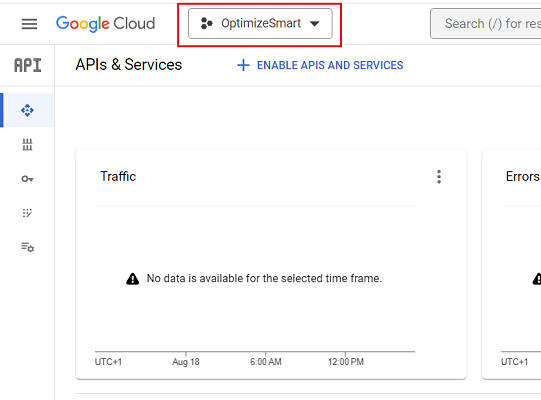
Step-2: Make sure you are in the correct project:
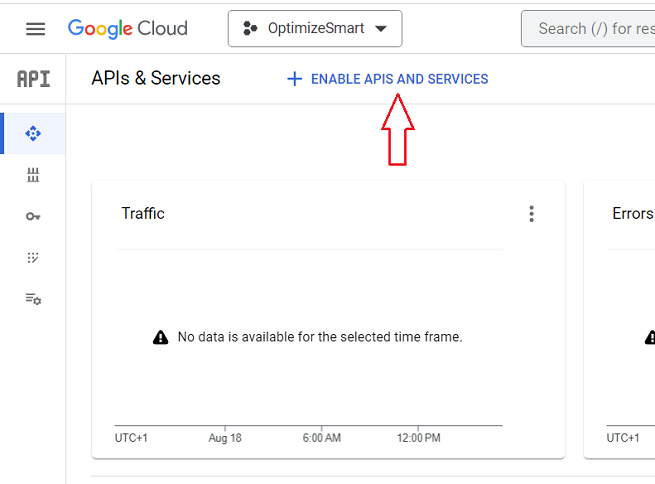
Step-3: Click on the ‘+ENABLE APIS AND SERVICES’ button:
You should now see a screen like the one below:
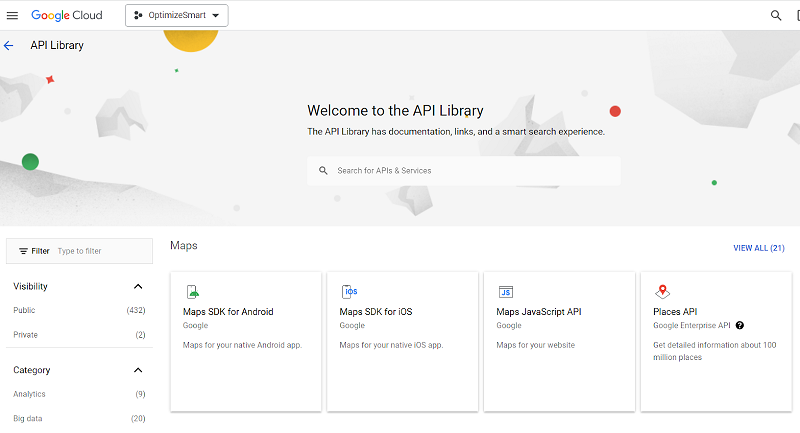
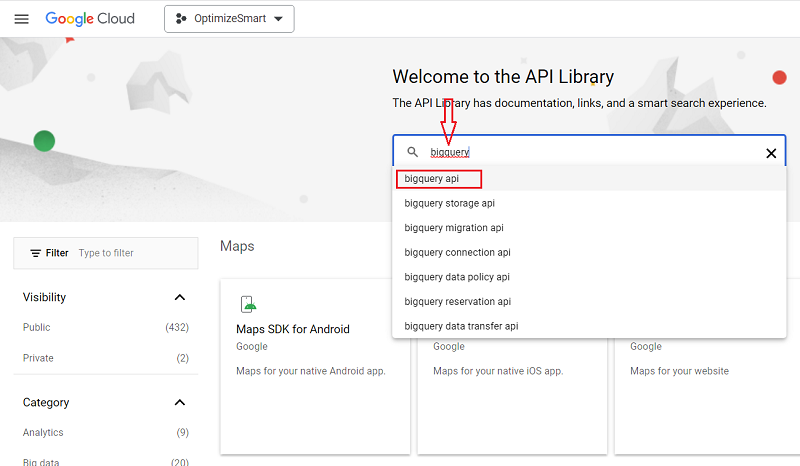
Step-4: Search for ‘bigquery‘ and then click on ‘BigQuery API‘ auto-suggestion:
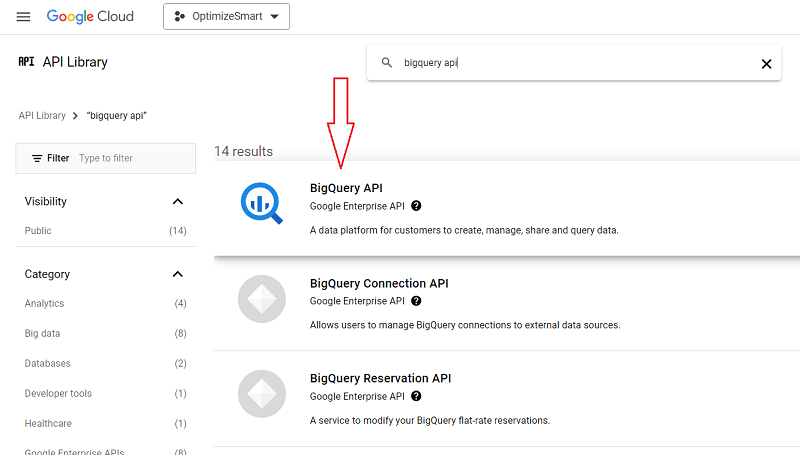
Step-5: Click on the ‘BigQuery API‘ search result to enable the API:
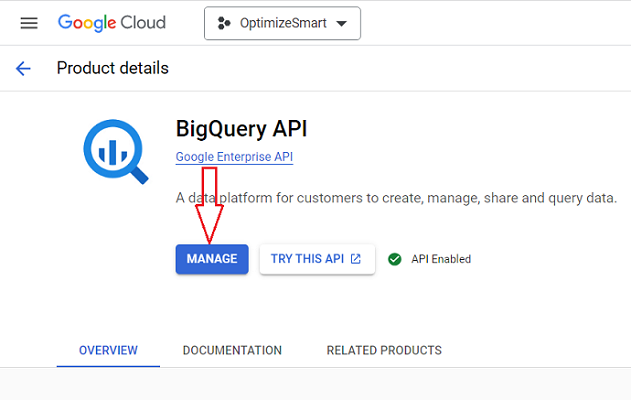
Step-6: Click on the ‘Manage’ button:
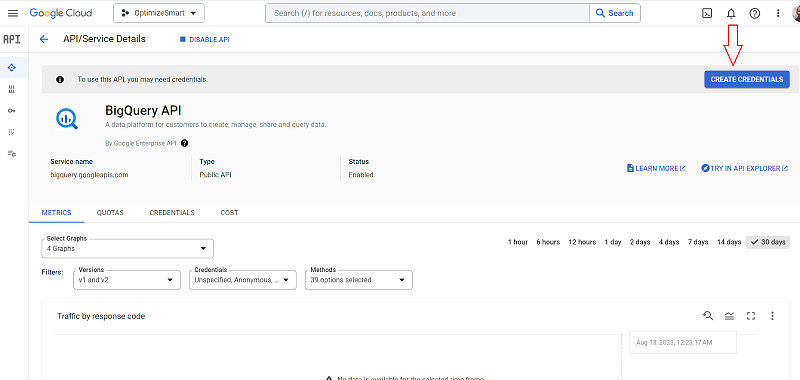
Step-7: Click on the ‘Create Credentials‘ button in order to use the API:
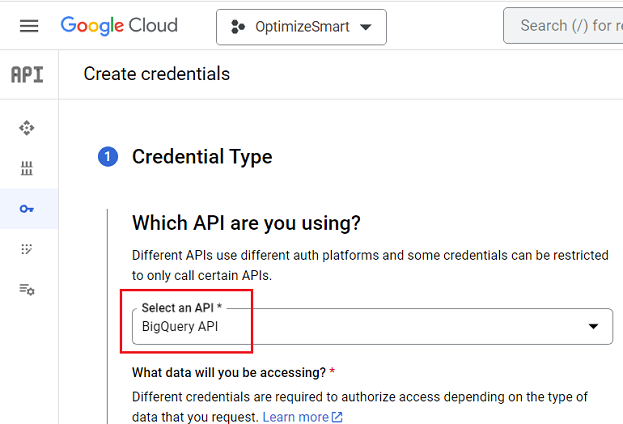
Step-8: Make sure that ‘BigQuery API‘ is selected under the ‘Select an API‘ drop-down menu:
Step-9: Select ‘Application Data‘ in order to create a Firebase service account.
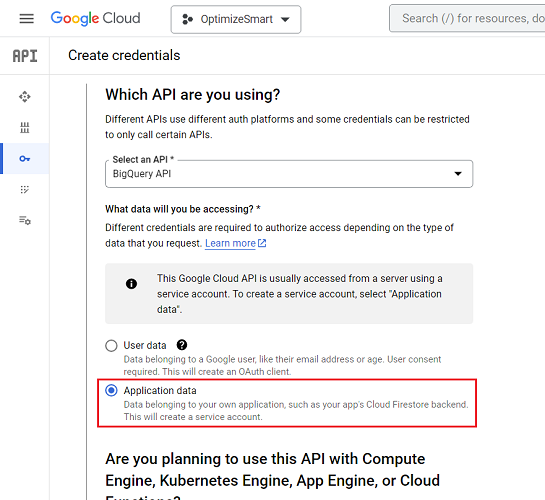
The Firebase service account would be used to export GA4 data to BigQuery.
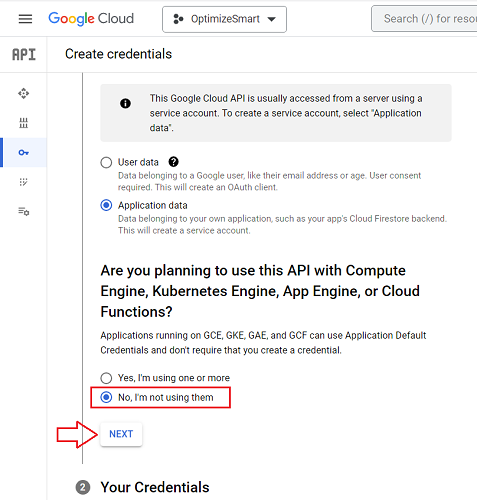
Step-10: Scroll down, select ‘No, I am not using them‘ and then click on the ‘Next‘ button:
Step-11: Enter firebase-measurement@system.gserviceaccount.com as the service account name:
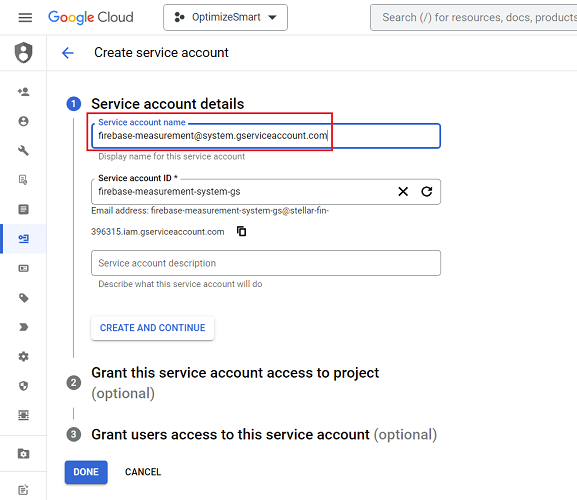
Step-12: Click on the ‘Create and Continue‘ button:
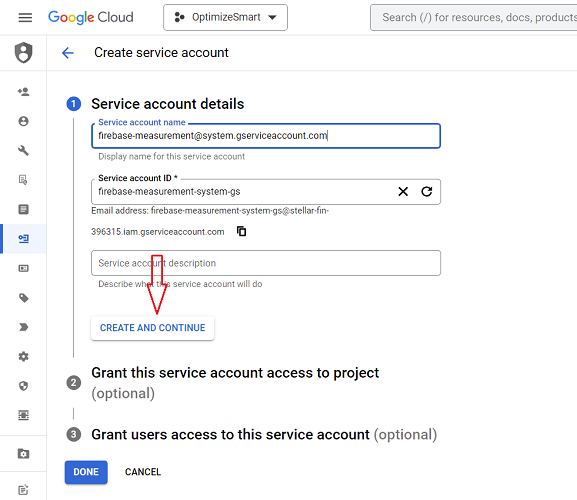
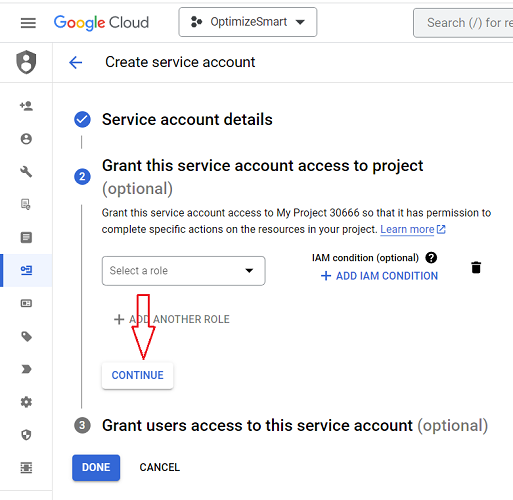
Step-13: Grant this service account access to the project and then click on the ‘Continue‘ button (optional):
The default role is ‘owner’. If you want to keep this setting then click on the ‘Continue’ button. But if you want to give some other permission, then use the ‘Select a role’ drop-down menu.
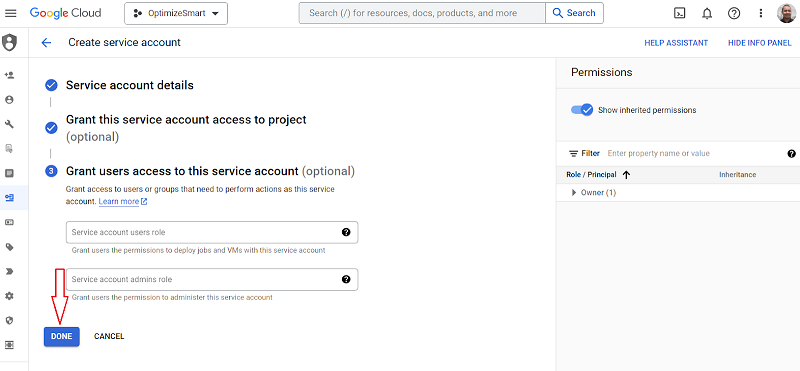
Step-14: Grant access to users or groups that need to perform actions as this service account and then click on the ‘Done’ (optional)
If you do not want to grant access, then leave the text fields blank and then click on the ‘Done‘ button:
You should now see a screen like the one below, which shows the listing of your new service account:
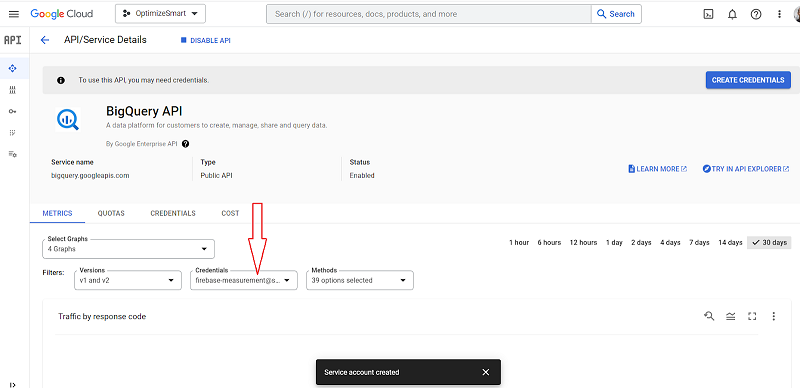
Congratulations!
You have now successfully enabled and configured the BigQuery API.

Related Articles:
- Tracking Pages With No Traffic in GA4 BigQuery.
- First User Primary Channel Group in GA4 BigQuery
- How to handle empty fields in GA4 BigQuery.
- Extracting GA4 User Properties in BigQuery.
- Calculating New vs Returning GA4 Users in BigQuery.
- How to access BigQuery Public Data Sets.
- How to access GA4 Sample Data in BigQuery.
- Understanding engagement_time_msec in GA4 BigQuery.
- GA4 BigQuery Attribution Tutorial.
- How to backfill GA4 data in BigQuery.
- How to send data from Google Search Console to BigQuery.
- Google Advanced Consent Mode and GA4 BigQuery Export.
- Google Analytics 4 BigQuery Tutorial for Beginners to Advanced.
- Prompt Engineering for GA4 BigQuery SQL Generation.
- How to create a new BigQuery project.
- How to create a new Google Cloud Platform account.
- How to overcome GA4 BigQuery Export limit.
- BigQuery Cost Optimization Best Practices.
- event_timestamp vs user_first_touch_timestamp GA4 BigQuery.
- GA4 BigQuery Video Tracking Report.