

What is Google BigQuery?
Google BigQuery is one of the products of the Google Cloud platform.
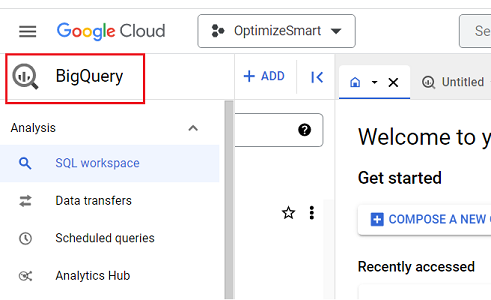
BigQuery is an enterprise-level data warehouse from Google that is used to provide business intelligence through reports and dashboards.
It is a data storage and management system used to bring data from several data sources (like Google Analytics, Google Ads, Facebook, etc.) for the purpose of reporting and analysis.
Advantages of using BigQuery for GA4 (Google Analytics 4)
The following are the advantages of using Google BigQuery for GA4:
- Essential for low-traffic websites: Utilizing GA4 with BigQuery is highly recommended for low-traffic websites.
- Data retention: You can safeguard your user-specific data from deletion.
- Access to unsampled raw events and user-level data: Gain access to unprocessed raw events and data at the individual user level.
- No cardinality limits: Your data is not restricted by cardinality limitations.
- Data ownership: You retain full ownership of your data.
- Advanced data manipulation: Perform advanced data manipulation tasks with ease.
- Integration with other data sources: Seamlessly integrate GA4 data with other data sources.
- Retroactive analysis: Conduct retroactive analysis on your GA4 data.
- Data filtering and modification: Easily filter or modify incorrect GA4 data using BigQuery.
- Expansion of organic search keywords: Unlock a vast array of new organic keywords.
- Transfer Universal Analytics data: Migrate your Universal Analytics data into GA4.
- Retain Universal Analytics data: Safeguard your Universal Analytics data from deletion.
- Enhanced data pipeline capabilities: BigQuery provides a superior solution for creating and managing data pipelines compared to traditional CDP (Customer Data Platform).
To learn more about the advantages of using GA4 and BigQuery, check out this article: Advantages of using Google BigQuery for Google Analytics 4
The cost of using BigQuery for Google Analytics 4
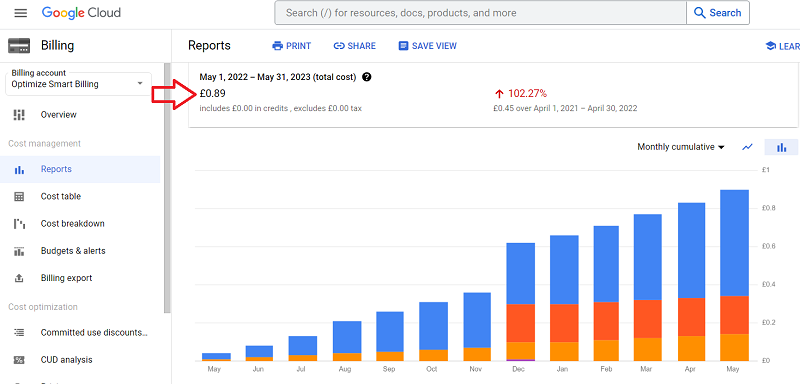
Your monthly cost of using BigQuery will depend upon the following three factors:
- The cost of connecting your Google Analytics account to BigQuery
- The amount of data you stored in BigQuery (i.e. the storage cost)
- The amount of data you processed by each query you run (i.e. the query cost)
However, there is good news. The first 10 GB of active storage and the first one terabyte of data processed is free each month.
To learn more about GA4 BigQuery pricing, check out this article: Cost of using BigQuery for Google Analytics 4
Optimizing BigQuery Cost
BigQuery cost optimization is an essential aspect of managing BigQuery effectively. Costs can add up quickly, especially when dealing with large datasets and numerous queries.
Following are some best practices to optimize costs in BigQuery:
- Practice data minimization.
- Avoid mindless data processing.
- Before you query the data from a table, check the size of the table.
- Before you query the data from a table, preview the table.
- Always look at how much data your query will process before you run your query.
- Your query cost depends on the number and/or size of the returned columns, not the rows.
- Your query cost is also affected by the size of each column.
- Avoid using SELECT *
- Applying a LIMIT clause to a SELECT * query does not affect the query cost.
- Set up Budget alerts.
- Set up Quota limits.
- Regularly monitor your spending.
- Use the Google Cloud pricing calculator.
- Transform BigQuery data before you send them to data platforms.
To learn about these best practices in great detail, check out this article: Guide to BigQuery Cost Optimization.
Google Cloud pricing calculator for BigQuery
If you want to estimate the storage cost or the cost of running your desired query in BigQuery before running it, then you can use the Google Cloud pricing calculator.
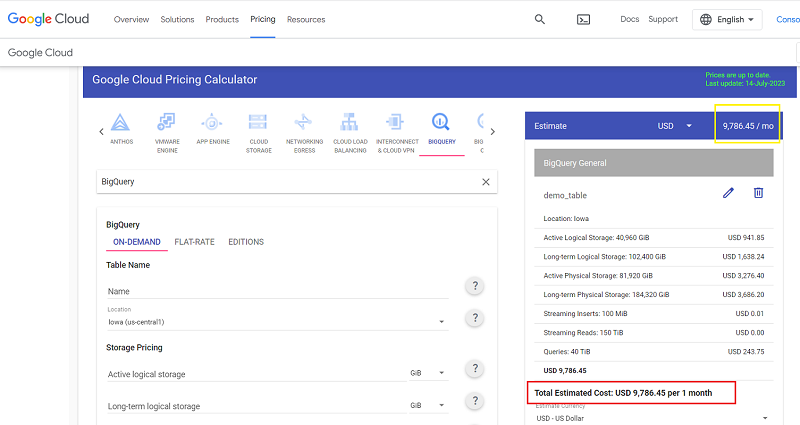
However, this calculator works only when planning to query the data in terabytes or petabytes.
To learn more about this calculator, check out this article: Using Google Cloud pricing calculator for BigQuery
Top myths about GA4 BigQuery that stop you from using it.
Following are the top four myths about GA4 BigQuery that stop you from using it.
- BigQuery is expensive.
- BigQuery is hard to use.
- I need to know SQL to use BigQuery.
- BigQuery is meant for big businesses.
Myth #1: BigQuery is expensive.
For 99% of businesses out there, GA4 BigQuery usage costs pennies.
If you can afford to purchase a cup of coffee every month/year, you can afford to use BigQuery.
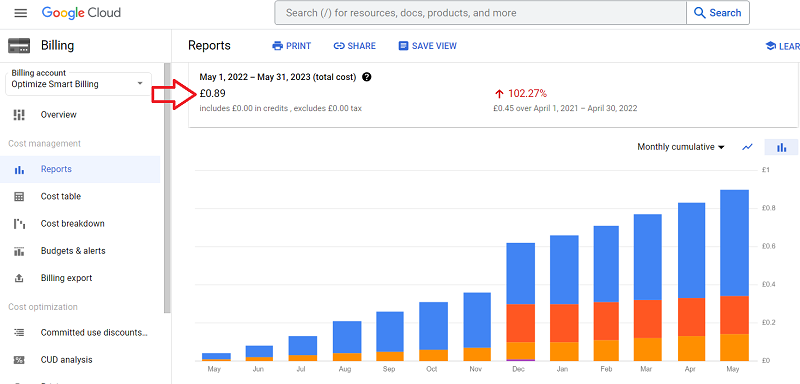
My total GA4 BigQuery usage cost in the last year was £0.89 ($1.14), and my website gets millions of visitors.
Myth #2: BigQuery is hard to use.
It’s just the fear of the unknown. If you have never used BigQuery, it may look intimidating.
BigQuery is actually easier to use than GA4 and GTM. If you can handle GA4/GTM, you can handle BigQuery.
You can develop a working knowledge of BigQuery within a day.
Myth #3: I need to know SQL to use BigQuery.
Not any more.
99% of businesses can use BigQuery without understanding a single line of SQL code (because they don’t have advanced data processing requirements).
The advent of AI tools like chatgpt and Formulabot allows you to convert natural language into SQL.
I personally believe that SQL days are numbered. It will become obsolete in the coming years.
And if you do feel the need to know SQL, you can learn basic SQL within a week and advanced SQL within a month.
Again, it’s mostly the fear of the unknown. If you have never used SQL, it’s going to look scary.
Myth #4: BigQuery is meant for big businesses
There is a common myth that BigQuery is meant for big businesses that require deep analysis and insights and have a data analyst(s) on the payroll.
Small businesses won’t benefit from BigQuery.
First of all, 99% of businesses don’t need a full-time data analyst as their data processing requirements are minimal.
So this argument, “For most companies, people are the real cost of using BigQuery”, goes out the window.
Small businesses often manage low-traffic websites, and Google can withhold a lot of data from them by applying data thresholds.
Because of the data threshold, you may not see the web pages in your GA4 reports, which got very few pageviews.
Because of the data threshold, certain dimensions and metrics could be greyed out for you in the exploration reports.
Because of the data threshold, you may not see demographic data, keywords data, or even e-commerce data.
And no, changing the reporting identity of your GA4 property does not completely fix the data threshold issue. That’s another myth.
As long as you rely on GA4 UI or data API, you will face issues related to data threshold.
But BigQuery does not suffer from data threshold.
BigQuery also does not suffer from data sampling, data retention and data cardinality issues. So you should use it to find missing or incomplete data sets.
So, for small businesses, using BigQuery is not something nice to have but a mandatory requirement.
Prerequisites for using GA4 with BigQuery
Following are the prerequisites for using GA4 with BigQuery:
#1 You would need a Google Cloud Platform account with billing enabled. In order to enable the billing, you would need a valid credit card.
#2 You would need a BigQuery project where you are going to store the GA4 data.
#3 You would need a working knowledge of SQL if you plan not to use AI tools like chatGPT.
SQL stands for Structured Query Language. It is a programming language which is used to store, access and manipulate data in BigQuery.
If you want to learn SQL, you can learn it for free from Code Academy https://www.codecademy.com/learn/learn-sql
Sending Google Analytics 4 data to BigQuery
Google Analytics 4 provides a free connection to BigQuery. So you won’t need a third-party solution for that.
You can connect your GA4 property with BigQuery by clicking on the ‘BigQuery Linking‘ in the admin area:
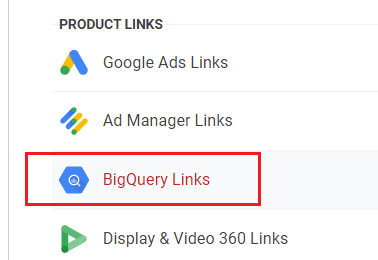
Following is the 10,000-foot view of sending Google Analytics 4 data to BigQuery:
- Create a Google Cloud Platform account (if you already don’t have one) with billing enabled.
- Create a new BigQuery project (to store GA4 data).
- Link your GA4 property to your BigQuery project.
- Find your GA4 data in BigQuery.
- Query the GA4 data you need in BigQuery via SQL.
For more details on each step, check out this article: GA4 BigQuery – Connect Google Analytics 4 with BigQuery.
Where can you find Google Analytics 4 data in BigQuery?
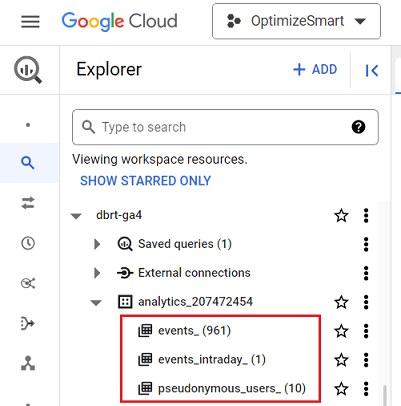
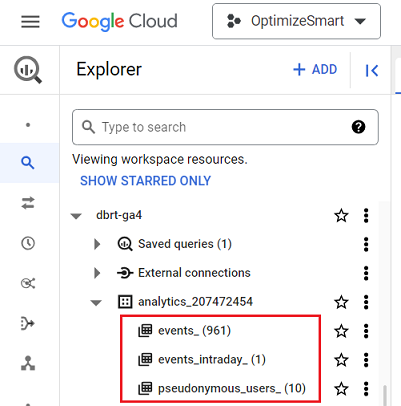
Once you have successfully connected your GA4 property with BigQuery and more than 24 hours have elapsed, you should be able to see your GA4 data in the following four data tables in BigQuery:
- events_() – This table stores all the GA4 event data from the previous day(s)
- events_intraday_ – This table stores all the GA4 event data from the current day.
- pseudonymous_users_() – This table contains all the data for every pseudonymous identifier that is not user ID.
- users_() – This table contains all the data for every pseudonymous identifier that is a user ID.
To learn more about these data tables, check these articles:
- events_ & events_intraday_ tables in BigQuery for GA4 (Google Analytics 4).
- pseudonymous_users_ & users_ data tables in BigQuery for GA4 (Google Analytics 4).
Introduction to Google BigQuery Sandbox
The BigQuery Sandbox is like a free version of BigQuery.
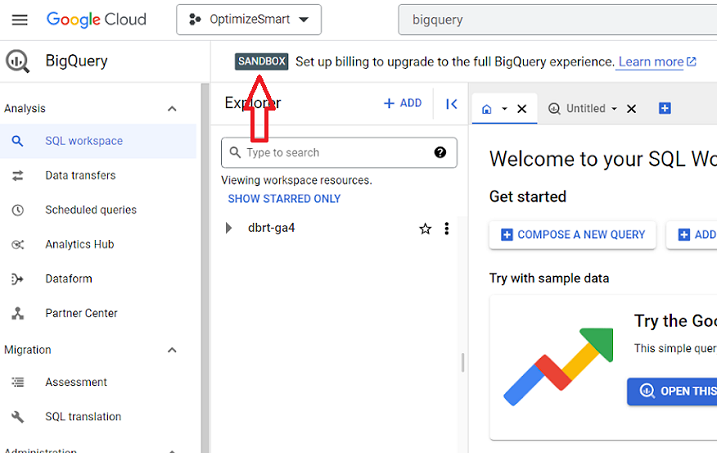
It lets you use the Google Cloud console for free forever without creating your billing account or enabling billing for your BigQuery project.
However, the sandbox has certain limitations related to data storage and processing query data.
To overcome these limitations, you should upgrade your BigQuery Sandbox account by setting up your billing.
To learn more about the BigQuery Sandbox, check out this article: What is Google BigQuery Sandbox and how to use it
BigQuery User Interface
In BigQuery, we create one or more projects. Each project is made up of one or more data sets.
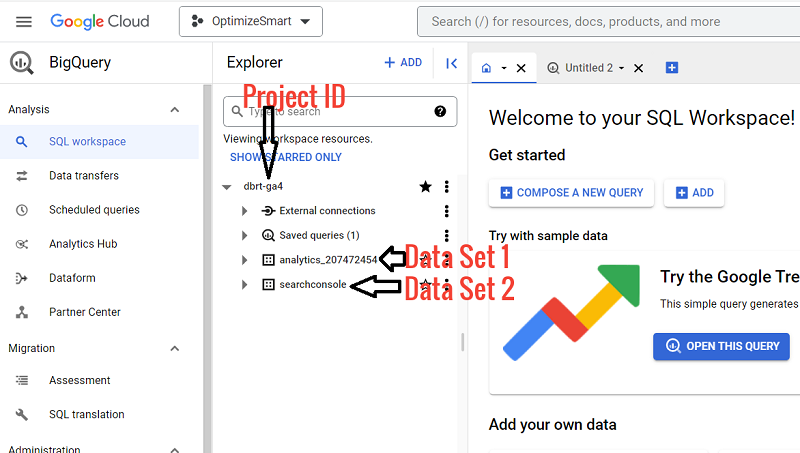
Each data set is made up of one or more tables.
Each data table has ‘Schema’, ‘Details’ and ‘Preview’ tabs.
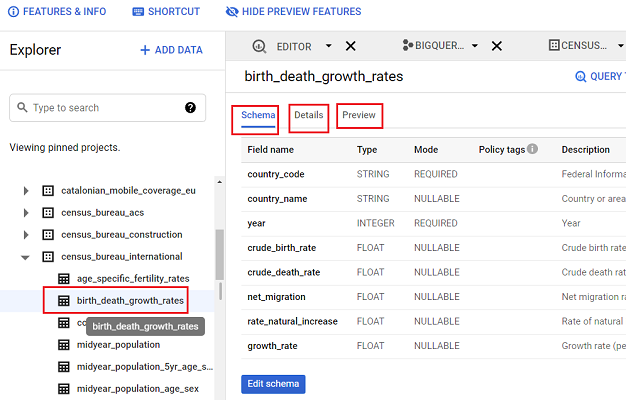
Schema is the structure of your data table. It shows you how the table has been set up and what type of values it will accept.
You can get the following information about your data table through the’ Details’ tab: Table ID, Table size, Number of rows in the table, etc.
You can preview your table without running a single query through the preview tab.
If you want to get a visual walkthrough of the BigQuery UI then check out this article: Understanding the BigQuery User Interface
Using BigQuery Public Datasets
BigQuery Public Data Sets are the data sets made available to the general public through the Google Cloud Public Dataset Program.
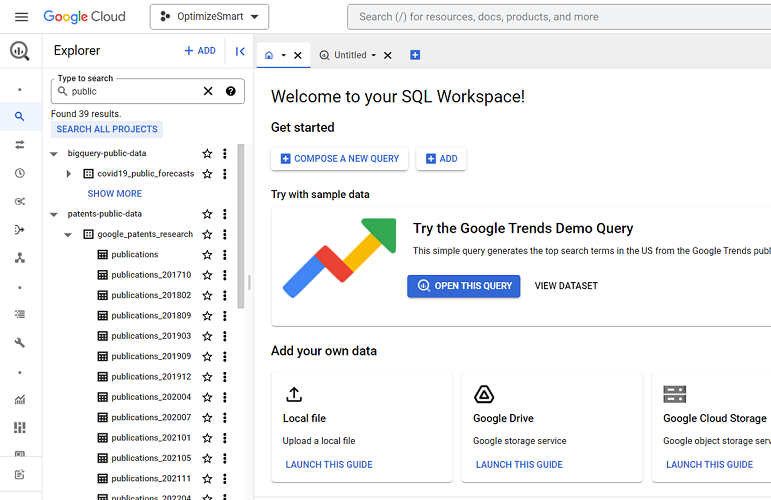
If you do not have access to your own data, then public data sets provide a great way to play with BigQuery. You can also analyze public datasets while using the BigQuery Sandbox.
If you want to learn how to find and use the public data sets then check out this article: How to access BigQuery Public Data Sets
Accessing GA4 sample datasets in BigQuery
If you haven’t imported your own GA4 data into BigQuery, you have the option to utilize the publicly accessible GA4 sample datasets through BigQuery.
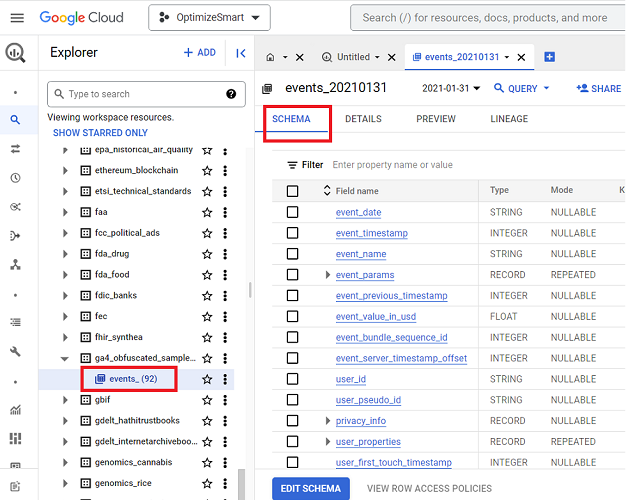
These sample datasets are sourced from two Google platforms: the Google Merchandise Store, which is an e-commerce site operated by Google, and the Google ‘Flood-it’ mobile application, a gaming app also developed by Google.
In addition to the sample GA4 data for the website (Google Merchandise Store), BigQuery also provides access to sample GA4 data for the mobile app (Google ‘Flood-it’ mobile app). However, the mobile app data is not available in the ‘BigQuery Public data’ project.
To access and query GA4 sample data for the mobile app in BigQuery, you will need to find and navigate to another project called ‘firebase-public-project’.
This project contains a data table named ‘events_(114)’, which stores 114 days of obfuscated mobile app data from the year 2018.
For more details, check out this article >> How to access GA4 Sample Data in BigQuery.
Sending Universal Analytics data to BigQuery without using Google Analytics 360
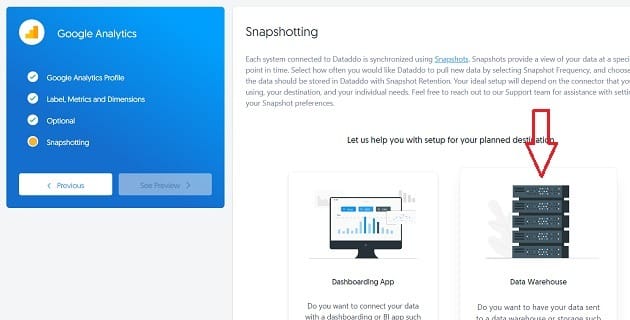
All the GA360 users get a free connection to BigQuery. They can easily connect their GA360 property to BigQuery by clicking on the ‘Link BigQuery’ link in the admin area.
But if you do not have access to the GA360 property, then connecting Google Analytics with BigQuery is not straightforward as Google doesn’t provide any in-built connection to BigQuery.
You need to use a third-party paid solution to connect your GA property with BigQuery.
Following is the 10,000-foot view of sending Google Analytics data to BigQuery:
#1 You first need to create a BigQuery project and the corresponding dataset where you are going to store Google Analytics data in BigQuery.#2 Use a third-party solution (connector) for connecting your Google Analytics property with your BigQuery project. We use this connector to extract Google Analytics data into BigQuery.#3 Configure and save your data transfer in BigQuery. We create data transfer to automatically send Google Analytics data to our BigQuery project regularly.#4 Query the Google Analytics data you need in BigQuery.
To learn more about connecting and sending GA data to BigQuery, check out this article: Sending data from Google Analytics to BigQuery without 360
Connecting Google Sheets to BigQuery
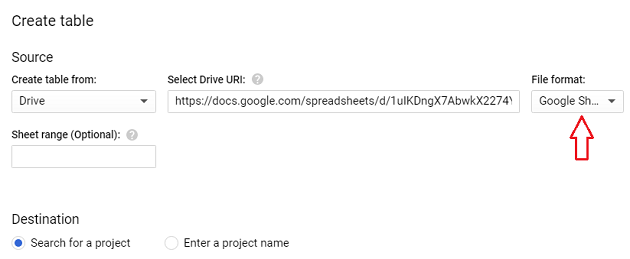
You can connect to your Google Sheets document from your BigQuery account. But the connection is not so apparent and straightforward.
However, once the connection has been made, you can easily analyze the data stored in Google Sheets in BigQuery.
To learn more about connecting Google sheets to BigQuery, check out this article: Connect and transfer data from Google Sheets to BigQuery
Querying Google Analytics data in BigQuery
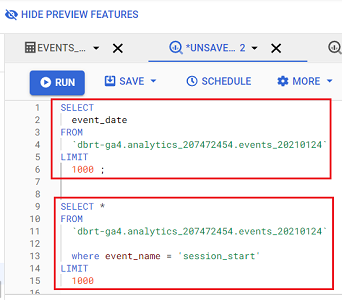
You can connect your Google Analytics account to your BigQuery account and then retrieve and analyze GA data in BigQuery.
The advantage of bringing GA data into BigQuery is that you can integrate Google Analytics data with data from other data sources (like Google Ads, Facebook Ads, etc.) and understand the overall performance of your marketing campaigns.
The recommended method to query Google Analytics data in BigQuery is using SQL(Structured Query Language). SQL is one of the most popular and widely used database query languages.
To learn more about querying GA data in BigQuery, check out this article: How to query Google Analytics data in BigQuery
BigQuery Export Schema for GA4
The BigQuery Export schema for GA4 defines the format of the Google Analytics 4 property data (and the Google Analytics for Firebase data) exported to BigQuery.
When you query Google Analytics 4 data in BigQuery, you could come across various columns/fields that may not make much sense to you.
For example, you may not be aware of what event_params.value.string_value field means:
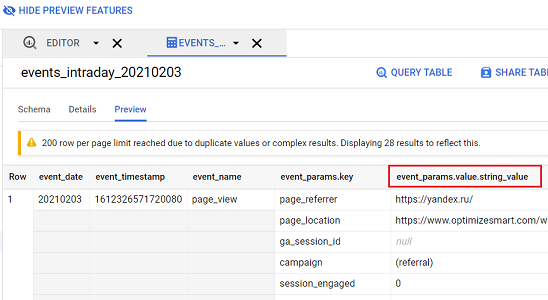
Whenever you are not sure what a certain column/field (of GA4 data that is imported into BigQuery) means or what type of data they accept, you can always refer to the BigQuery export schema for GA4 document:
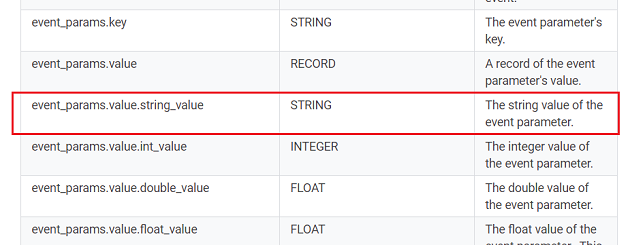
From this help document, we now know that the field event_params.value.string_value represents the string value of an event parameter.
Importing Google Ads data into BigQuery
You can import Google Ads into BigQuery via native integration or with the help of a paid connector.
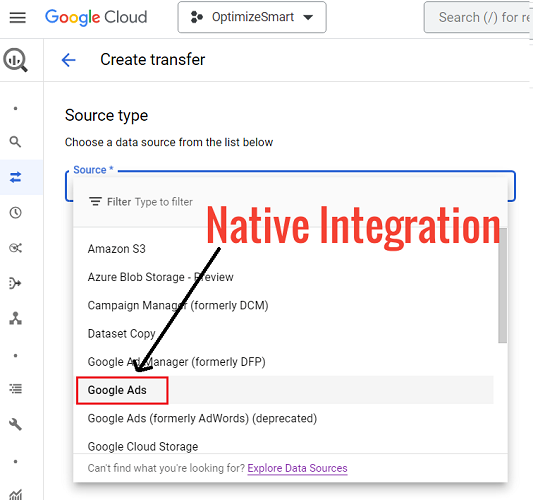
When you export data from Google Ads to BigQuery via the native integration, you use the default schema (i.e. structure) provided by Google.
You do not get the option of creating the data tables you want or setting the fields you want to see in your data table(s).
If you want to see your data tables with only the fields you want, then you will need to use a paid connector to export Google Ads data to your BigQuery project.
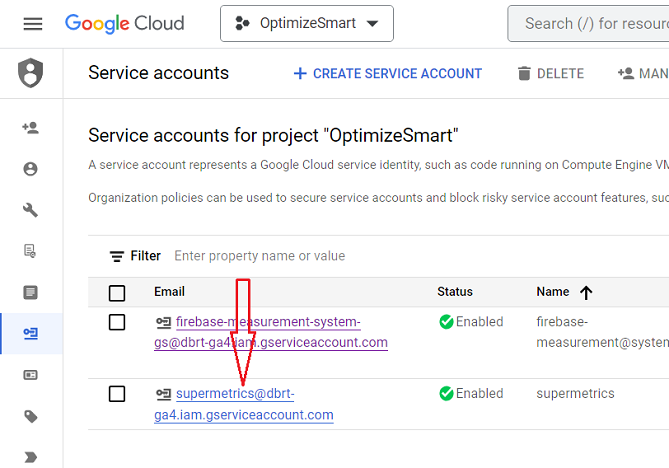
Once the Google Ads data is imported, it can be integrated with the data from other data sources (like Google Analytics, Facebook ads, etc.) for advanced analysis.
If you want to export Google Ads data to BigQuery via native integration, then check out this article: What is BigQuery Data Transfer Service & how it works.
If you want to export custom Google Ads data to BigQuery via native integration, then check out this article: How to send data from Google Ads to BigQuery
What is BigQuery Data Transfer Service & how does it work?
The BigQuery data transfers service is used to automatically send data from a data source to a BigQuery project on a regular basis.
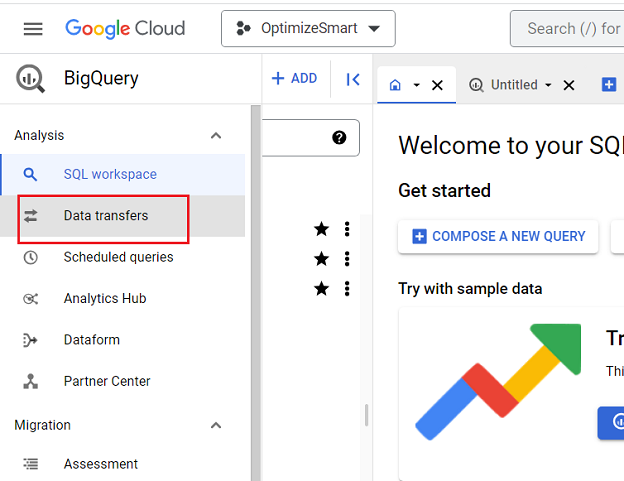
When you create a new project in BigQuery, you can then either manually import data to one of its data tables or you can automate the data transfer on a regular basis.
If you want to automate the data transfer on a regular basis (which you most likely would like to do), then you would need to create one or more data transfers for your BigQuery project:
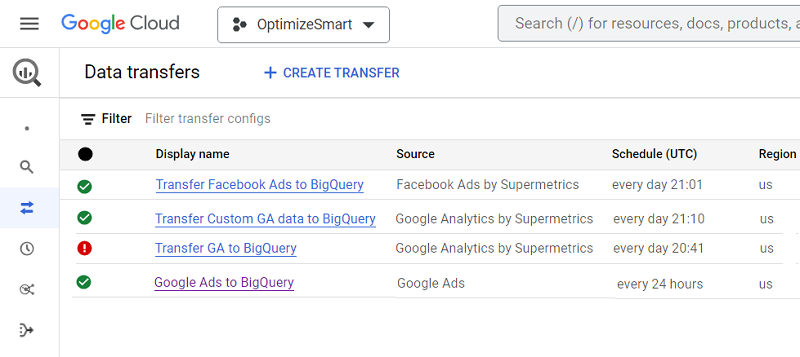
You can access this service via Cloud Console, bq command-line tool or BigQuery Data Transfer Service API.
To learn more about the BigQuery data transfer service, check out this article: What is BigQuery Data Transfer Service & how it works.
Importing Facebook Ads data into BigQuery
You can import data from your Facebook Ads account to your BigQuery project with the help of a paid connector.
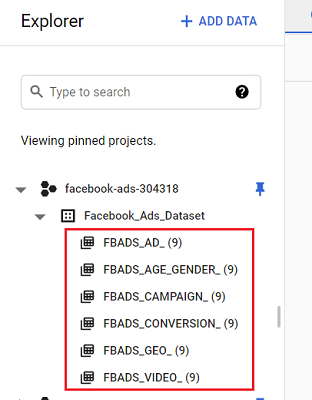
Once the data is imported, it can be integrated with the data from other data sources (like Google Analytics, Google Ads, Google Search Console, etc.) for advanced analysis.
Following is the 10,000-foot view of sending Facebook Ads data to BigQuery:
#1 You first need to create a BigQuery project and the corresponding dataset where you will store Facebook Ads data in BigQuery.
#2 Use a third-party solution (paid connector) for connecting your Facebook Ads Account with your BigQuery project.
#3 Configure and save your Facebook Ads data transfer in BigQuery.
#4 Query the Facebook Ads data you need in BigQuery.
Follow the steps mentioned in this article to send Facebook ads data to BigQuery: How to send data from Facebook ads to BigQuery
Importing Google Search Console data into BigQuery
In Feb 2023, Google announced a new feature called ‘Bulk Data Export’ that allows you to schedule a daily export of your Search Console data to your BigQuery project.
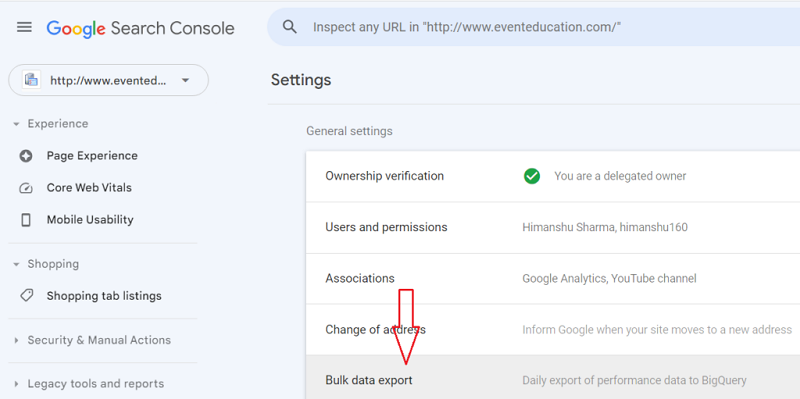
By using the Search Console Bulk Data Export feature, I am able to unlock millions of new organic search keywords in my BigQuery project.
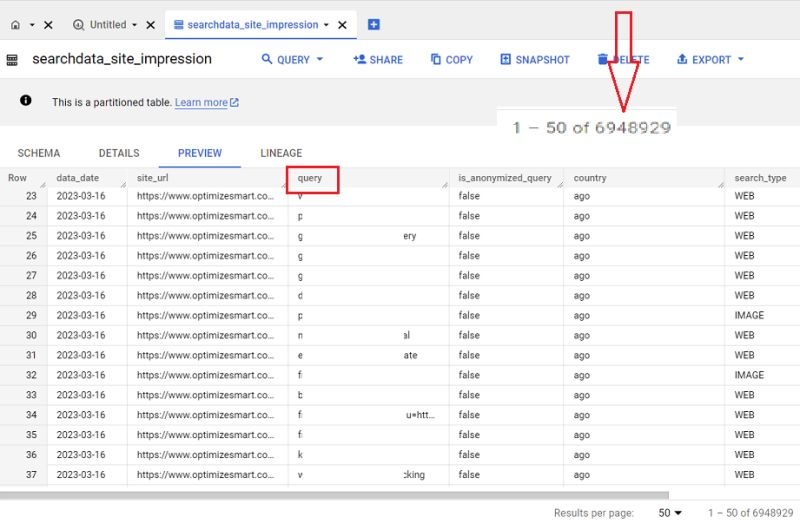
To learn more about Google Search Console and BigQuery integration, checkout this article: How to send data from Google Search Console to BigQuery
Sending Custom Universal Analytics data to BigQuery
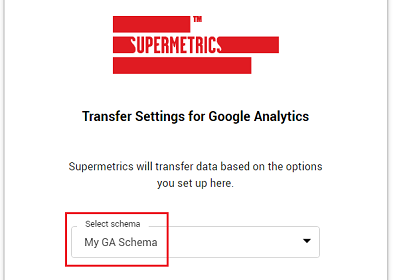
Following is the 10,000-foot view of sending custom Universal Analytics data to BigQuery:
#1 You first need to create a BigQuery project and the corresponding dataset where you are going to store Universal Analytics data in BigQuery. You can also use an existing project or dataset if you want.
#2 Figure out the overall layout and format (wireframe) of how your data table should look in BigQuery.
#3 Based on your wireframe, create a custom schema via a third-party solution (connector).
#4 Create, configure and save your data transfer in BigQuery. We create a data transfer to automatically send Universal Analytics data to our BigQuery project regularly.
#5 Backfill Universal Analytics data in BigQuery.
#6 Query the Universal Analytics data you need in BigQuery.
To learn more about sending Custom Universal Analytics data to your BigQuery project, follow the steps mentioned in this article: How to pull custom data from Google Analytics to BigQuery
Are you looking for a Supermetrics alternative?
It could be the case that Supermetrics is too expensive for you, and you are desperately looking for an alternative. If that’s the case, then you are in the right place.
Meet Dataddo.
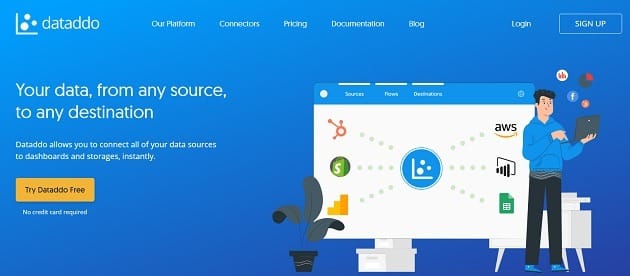
It can do many things that Supermetrics can do, especially for BigQuery, but at a fraction of the price. I did a lot of research and used this tool for weeks before recommending it.
I do not have any business relationship with Dataddo, nor did they ask me to recommend them. My recommendation is based purely on my own research and personal usage.
You can learn more about this tool from the article: Best Supermetrics Alternative – Dataddo
How to send Custom GA4 data to BigQuery
When you import GA4 data to a BigQuery project via native integration, you use the default data table schema provided by Google.
As a result, Google automatically created a set of tables (‘events_‘ and ‘events_intraday_‘) in the pre-built dataset (“analytics_“).
You do not get the option of creating the data tables you want or setting the fields you want to see in the data table(s):
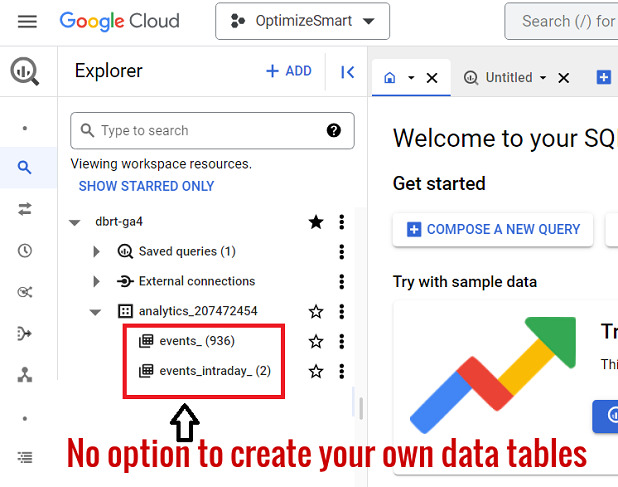
When you use the default schema, you have no control over the fields (columns) that appear in your data tables and no control over the number and type of data tables you see in your dataset.
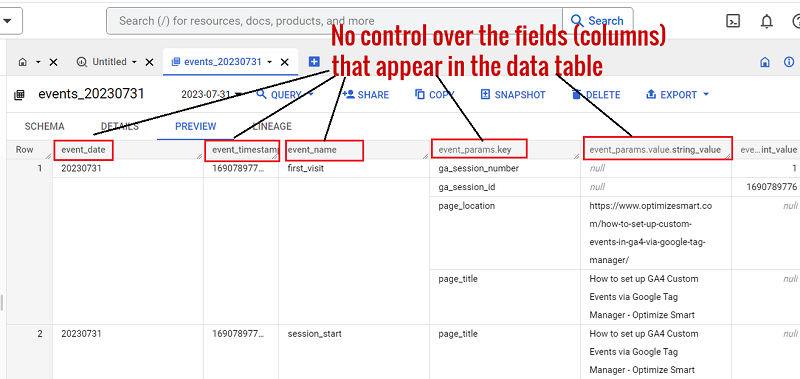
If you want to see your data tables with only the fields you want, then you will need to use a paid connector.
For step by step instructions on creating and using a custom schema for importing custom GA4 data to BigQuery, check out this article: BigQuery GA4 schema – Send Custom GA4 data to BigQuery
Backfilling GA4 data in BigQuery
If you have been collecting data in your GA4 property for years but have only recently linked your GA4 property to your BigQuery project, then you won’t get all the historical GA4 data in your BigQuery project.
This is because, by default, the GA4 data is imported to BigQuery only from the date you first connected your GA4 property to your BigQuery project.
If you want historical GA4 data in your BigQuery project, then you would need to backfill GA4 data in BigQuery.
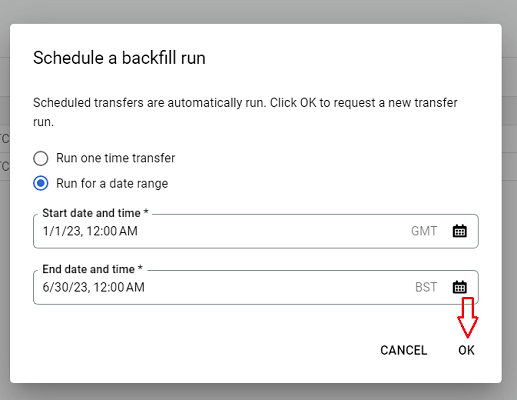
For step by step instructions on backfilling GA4 data, check out this article: How to backfill GA4 data in BigQuery.
Overcoming GA4 BigQuery Export limit
Frequent grievances about GA4 often focus on the restricted Google Analytics data API quota limits and the daily caps on BigQuery exports.
A standard GA4 setup has a cap of 1 million events per day for batch exports to BigQuery.
To circumvent the BigQuery export limitations in GA4, consider the following approaches:
- Assess your tracking needs critically.
- Include additional data through event parameters.
- Identify and eliminate redundant events.
- Opt to remove specific events from your daily export.
- Enable real-time or streaming export.
- Employ a third-party tool.
- Utilize multiple GA4 properties.
- Consider upgrading to GA4 360.
For more details, check out this article: How to overcome GA4 BigQuery Export limit.
Should you create and maintain data pipelines using a CDP or a data warehouse?
A customer data platform or CDP (like ‘segment‘) is primarily used for managing and analyzing customers’ data. It is not suitable for managing and analyzing non-customers data.
A data warehouse (like ‘BigQuery‘) is a general purpose tool that can be used to manage and analyze both customers and non-customers data.
Customer data refers to data that is directly related to customers or their interactions with a business.
Following are examples of customer data:
1) Demographic data (age, gender, location, income, etc.).
2) Psychographic data (interests, attitudes, opinions, etc.)
3) Behavioural data (browsing history, product usage, in-app actions, etc.).
4) Interaction data (support tickets, email responses, chat messages, social media interactions, etc.).
5) Transactional data (purchase history, subscription details, billing information, etc.).
Non-customers data refers to data that does not directly relate to customers or their interactions with a business.
Following are examples of non-customer data:
1) Data related to competitors, market trends, benchmarks, etc.
2) Financial data (revenue, expenses, budgets, profits, etc.).
3) Data related to business operations (inventory, supply chain, human resources, etc.)
Both a CDP and a data warehouse can be used for creating and maintaining data pipelines.
Creating and maintaining data pipelines is much easier when you use a CDP instead of a data warehouse.
However, unlike a data warehouse, a CDP is mainly useful for creating data pipelines that focus on customers’ data.
A CDP often provides basic analytics capabilities, which you are unlikely to notice unless you start using a data warehouse.
Whereas a data warehouse is much more versatile and can accommodate a wider range of advanced analytics use cases (data mining, predictive analytics, machine learning, NLP, etc.).
The biggest advantage of using a data warehouse is avoiding vendor lock-in, which many companies do not realize until it is too late.
Vendor lock-in occurs when you, as a customer, become dependent (often permanently) on your CDP vendor’s API, infrastructure, tools, technology, customizations, configurations, processes and services.
You cannot easily migrate your data to other platforms, as CDP vendors often use proprietary data formats and technologies.
CDP vendors often claim that you own your data.
But since you are almost permanently locked in with them (for the above reasons), you don’t.
There is always a risk of your data pipelines falling apart once you try to migrate to another CDP vendor or platform.
You would need to invest a significant amount of time and resources in order to learn to use a CDP effectively.
Why not invest the same time and resources using a data warehouse and creating and maintaining your own data pipelines there?
When you use your own data warehouse, you don’t have to deal with vendor lock-in; you own 100% of your data and data pipelines.
BigQuery allows you to design your data pipelines, schemas, and storage according to your unique requirements.
You are not restricted to the customization allowed by your CDP vendor.
In the long run, using and relying on a CDP is much more expensive than using a data warehouse.
You would be better off using a data warehouse like ‘BigQuery’.
Query BigQuery Data without using SQL
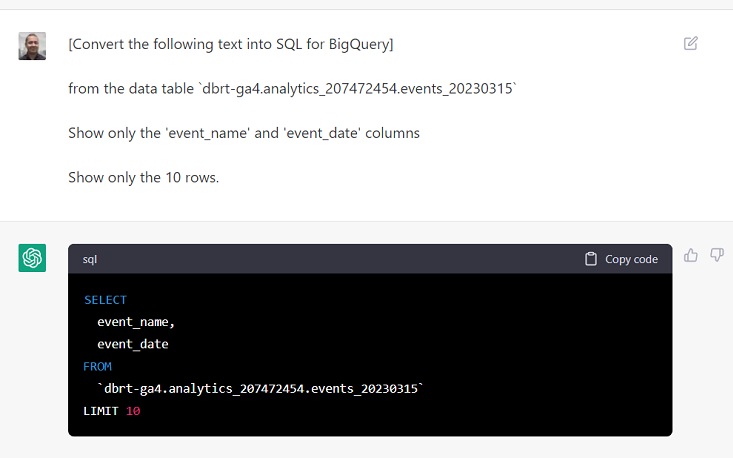
BigQuery is of little use if you cannot query data. However, to query data within BigQuery, knowledge of SQL is necessary.
SQL, or Structured Query Language, is a programming language for storing, accessing, and manipulating data in databases like BigQuery.
Nevertheless, SQL possesses a complicated syntax and structure.
It is essential to acquire proficiency in numerous keywords, operators, and functions and comprehend how to combine them, which can be challenging.
As SQL queries become more intricate, they become progressively difficult to understand and troubleshoot.
Even minor errors in syntax or logical reasoning can lead to inaccurate outcomes.
Complex queries often involve nested subqueries, multiple joins, and intricate logic, making them difficult to comprehend.
Consequently, SQL can be challenging to learn and employ, especially for individuals entirely new to it.
Thanks to advancements in AI tools like ChatGPT, it is now feasible to convert natural language into SQL queries.
It is now possible to query GA4 data in BigQuery without understanding a single line of SQL code.
For more details, check out this article >> Query GA4 data in BigQuery without understanding SQL.
If you can’t afford chatgpt (it now costs $24/month in the UK) but still want to query GA4 data in Bigquery without the knowledge of SQL, still want to transform your text instructions into Excel and Google Sheets formulas or regex, then I have another and significantly cheaper solution for you…
Meet “Formulabot“.
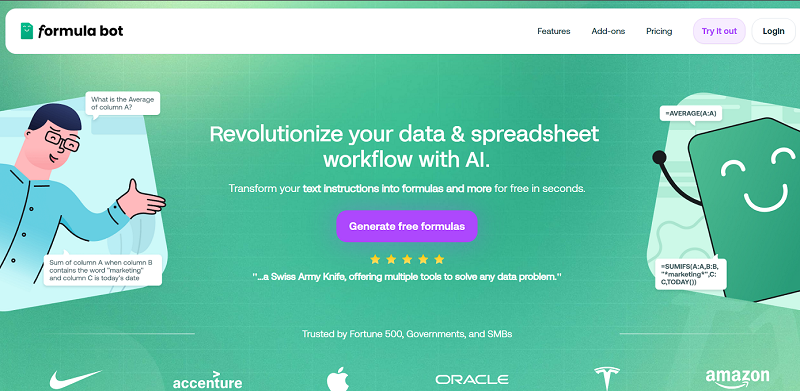
Formulabot is a very popular AI-enabled bot just like ChatGPT but is used mainly for Excel and Google Sheets and now databases like BigQuery.
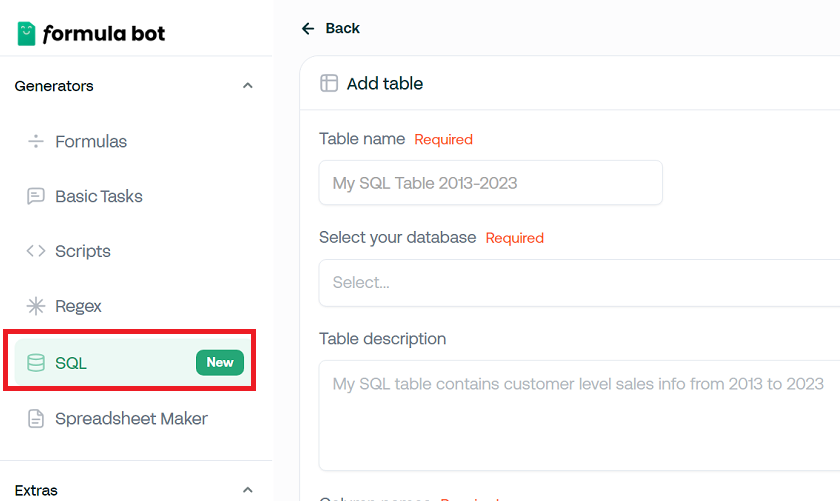
Formulabot has a new SQL generator that can transform your text instructions into SQL with the help of AI.
GA4 BigQuery Tutorial for Beginners to Advanced 38
You write your instructions in plain English and then ask Formulabot to generate SQL.
Here is how FormulaBot works:
1. Navigate to your Formulabot account and click ‘SQL’ from the left-hand menu.
2. Enter your table ID.
3. Select your database (like ‘BigQuery’) from the drop-down menu. Formulabot supports dozens of databases and data warehouses.
4. Enter the column names of your data table from which you want to retrieve data.
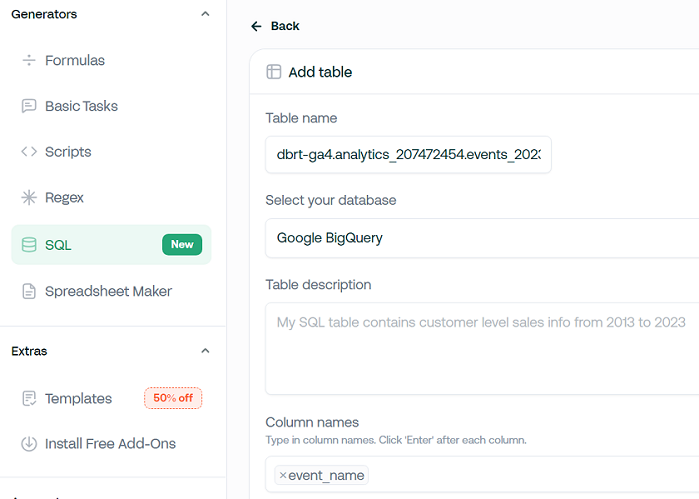
5. If the mentioned column name is a nested field, then switch the toggle button to ‘Yes’.
6. Click on the ‘Create table‘ button.
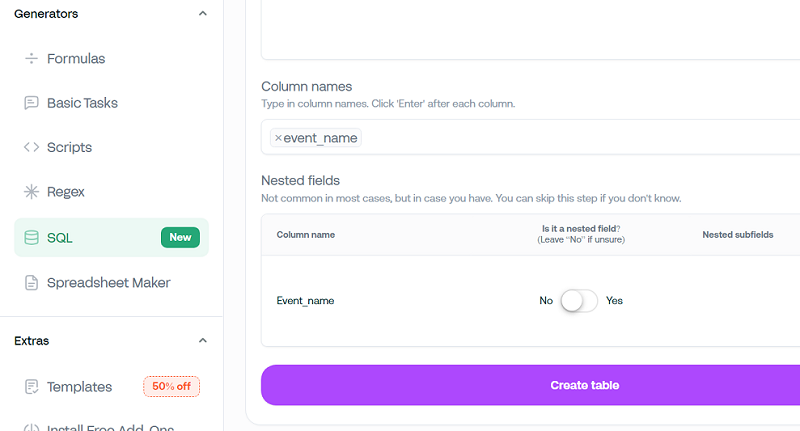
7. Write your instructions in plain English. For example, “display all the unique records of the event_name”.
8. Click on the ‘Submit‘ button to generate SQL.
9. Copy the SQL from the SQL generator, paste it into the query editor box in BigQuery and then click on the ‘Run‘ button.
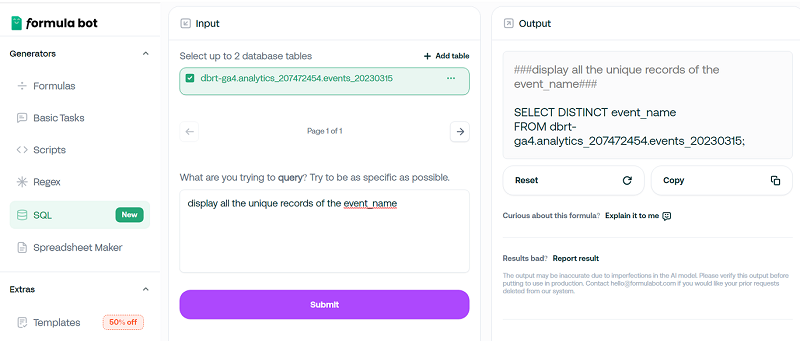
I have been using this tool for a long time. It’s a must-have tool for anyone involved in data extraction and analysis. It costs like $5/month.
If you don’t want to invest in either ChatGPT or FormulaBot, then there is another tool you can use to generate SQL. It is called GA4 SQL.
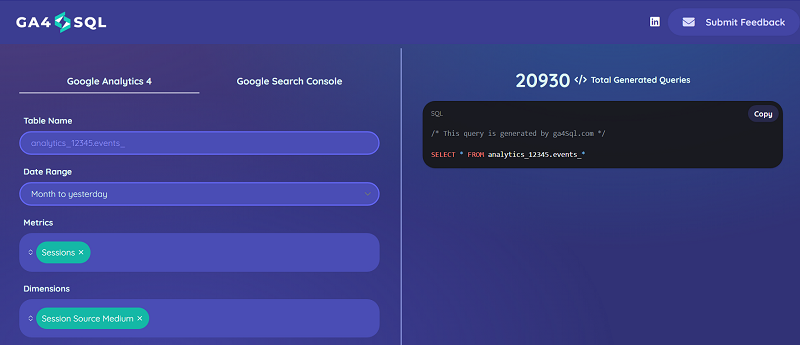
Through this tool, you can create GA4 BigQuery SQL queries for free.
To learn more about using this tool, check out this article: Using GA4 BigQuery SQL generator to create SQL queries.
Disadvantages of using Google BigQuery
The following are the main disadvantages of using Google BigQuery (not specifically related to GA4 BigQuery usage):
#1 Cost.
BigQuery is not free to use. Its pricing structure is based on data storage, data processing, and data transfer.
Storing and processing large volumes of data can result in significant costs, especially for organizations with substantial data requirements.
You must be very careful about how you query data, especially big data, to avoid high query costs.
If you don’t construct your queries properly or pull too much data too frequently, you could end up paying dearly at the end of each month.
#2 Knowledge of SQL.
You need a good working knowledge of SQL to use BigQuery efficiently for data analysis.
However, with the advent of AI tools like ‘chatGPT‘ and ‘Formula bot‘, you can also use BigQuery even without understanding a single line of SQL code.
These tools can convert natural language into SQL queries.
#3 You are tied to the Google ecosystem
BigQuery is a service provided by Google Cloud Platform (GCP), and it is tightly integrated within the Google Cloud ecosystem and infrastructure.
It is not designed to be used outside of the Google Cloud platform.
Four Essential Rules for Accurate GA4 BigQuery Data
Ensure GA4 BigQuery data accuracy by following these four rules:
- Aggregate event data at the session level for session-scope dimensions and metrics.
- Aggregate session data at the user level for user-scope dimensions and metrics.
- Avoid direct event-to-user aggregation; use session-level first.
- Use event-centric logic only for datasets under 1M rows.
For more details, check out this article: GA4 BigQuery Data Is Wrong Unless You Follow these 4 Rules.
Account for all GA4 BigQuery data types in every query.
When working with GA4 BigQuery, assume event parameters can exist in multiple data type columns.
GA4 stores event values as string, integer, float, or double, but only one type is used per row.
However, across different rows, the same parameter may shift data types due to changes in GTM, Google Tag scripts, or server-side tagging.
For example, ‘session_engaged’ might be stored as ‘1’ (string) or 1 (integer).
For more details, check out this article: Don’t Let GA4 BigQuery Data Types Ruin Your Analysis.
Career saving advice for using GA4 BigQuery.
Using GA4 with BigQuery is notoriously complex, especially if you rely on outdated SQL methods.
Mastering SQL, debugging errors, and understanding GA4’s export schema can consume months if not years.
Most GA4 dimensions/metrics aren’t available as direct BigQuery fields and require calculated logic. The old approach demands memorizing SQL syntax and troubleshooting nested queries.
The new approach focuses on AI-driven SQL generation.
By using ChatGPT prompts, you can generate SQL queries instantly, saving time and effort.
For more details, check out my GA4 BigQuery Course.
Attribution Modelling in GA4 BigQuery.
GA4 BigQuery Attribution refers to the process of assigning traffic sources and conversion credit to user interactions and events within the GA4 BigQuery export.
In contrast to the GA4 UI, which applies predefined attribution models like last click or data-driven attribution, the BigQuery export offers raw event-level data, allowing analysts to build custom attribution models using SQL queries.
For more details, check out this article: GA4 BigQuery Attribution Tutorial.
GA4 BigQuery nested tables are better than flat tables.
You should not split nested GA4 BigQuery event tables into separate tables like sessions, transactions, or users. It leads to lost event granularity, complex joins, duplicate data, higher storage costs, and delays in real-time reporting. Automated SQL generation eliminates the need to split tables, ensuring accuracy, flexibility, and performance.
For more details, check out this article: Stop Splitting GA4 BigQuery Tables – Keep Them Nested.

Related Articles:
- Tracking Pages With No Traffic in GA4 BigQuery.
- First User Primary Channel Group in GA4 BigQuery
- How to handle empty fields in GA4 BigQuery.
- Extracting GA4 User Properties in BigQuery.
- Calculating New vs Returning GA4 Users in BigQuery.
- How to access BigQuery Public Data Sets.
- How to access GA4 Sample Data in BigQuery.
- Understanding engagement_time_msec in GA4 BigQuery.
- GA4 BigQuery Attribution Tutorial.
- How to backfill GA4 data in BigQuery.
- How to send data from Google Search Console to BigQuery.
- Google Advanced Consent Mode and GA4 BigQuery Export.
- Google Analytics 4 BigQuery Tutorial for Beginners to Advanced.
- Prompt Engineering for GA4 BigQuery SQL Generation.
- How to create a new BigQuery project.
- How to create a new Google Cloud Platform account.
- How to overcome GA4 BigQuery Export limit.
- BigQuery Cost Optimization Best Practices.
- event_timestamp vs user_first_touch_timestamp GA4 BigQuery.
- GA4 BigQuery Video Tracking Report.