

Learn all about Google Analytics Measurement ID and Property ID. Google Analytics 4 properties use a Measurement ID and not a Tracking ID.
Introduction to GA4 Measurement ID
To set up any type of tracking in GA4 via GTM, you must use the measurement ID. This makes understanding the measurement ID so important.
Google Analytics 4 uses measurement ID instead of the tracking ID used in Universal Analytics. The measurement ID format is G-XXXXXXX, and it identifies which data stream is sending data to your GA4 property.
If you have set up a GA4 property with a web data stream, your Google Analytics measurement ID begins with the characters’ G-‘.
For example, G-PSW1MY7HB4
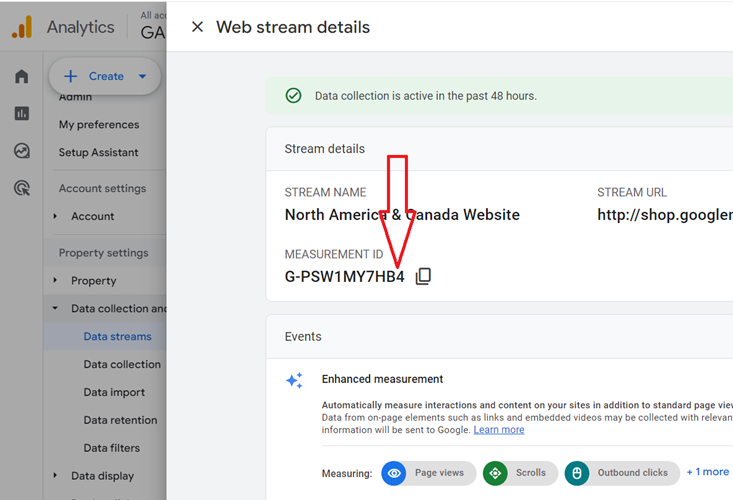
How to find Google Analytics 4 measurement ID
To find your Google Analytics 4 measurement ID, follow the steps below:
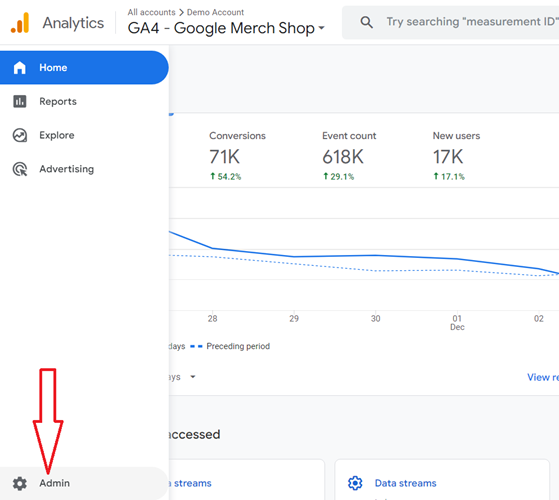
Step-1: Navigate to the ‘Admin‘ section of your GA4 reporting view.
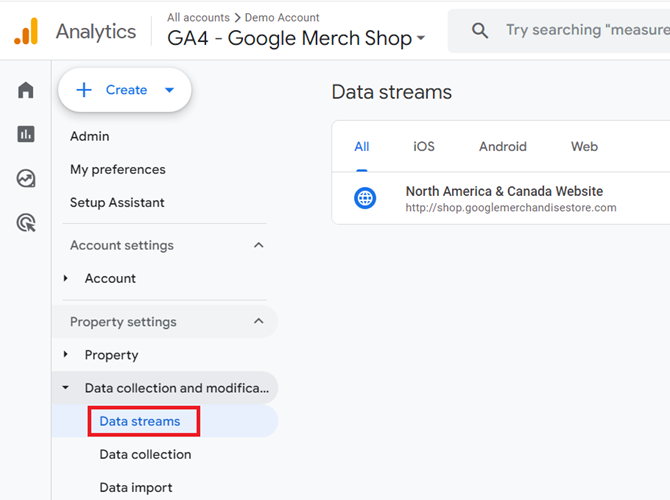
Step-2: Click on ‘Data Streams‘ under ‘Data Collection and Modification‘.
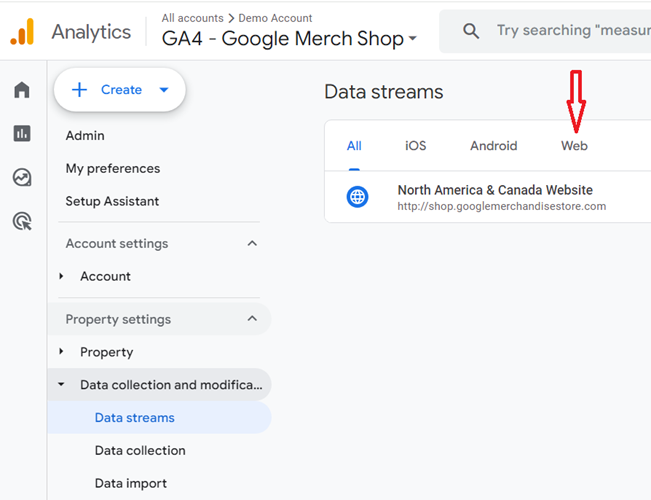
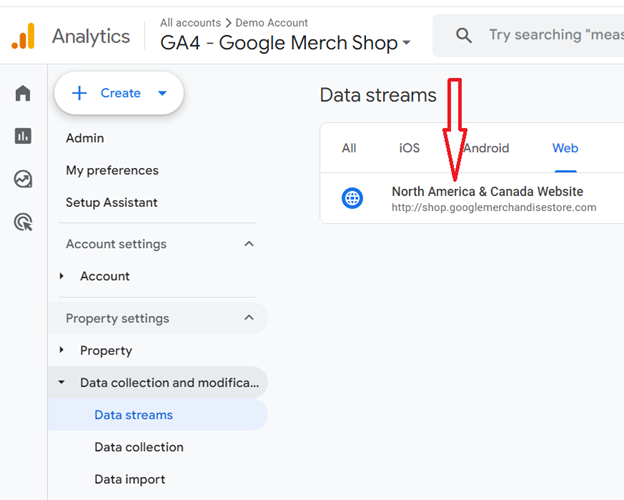
Step-3: Click on the ‘Web’ tab:
Step-4: Click on the name of the ‘Web data stream’ whose measurement ID you want to see:
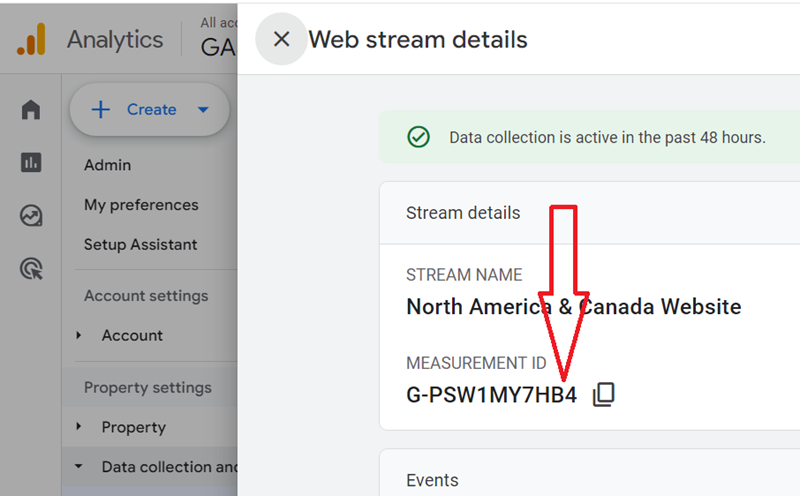
You should now be able to see your measurement ID on the top right-hand side:
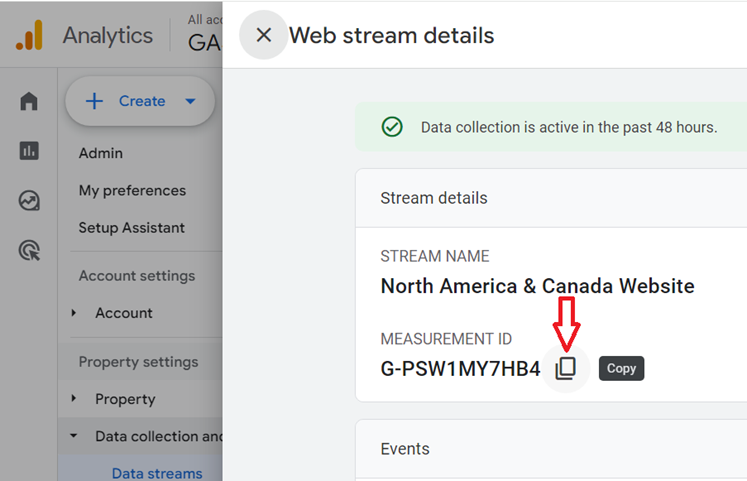
Tip >> Click on the copy button if you want to copy the measurement ID:
Difference between Measurement ID and Property ID
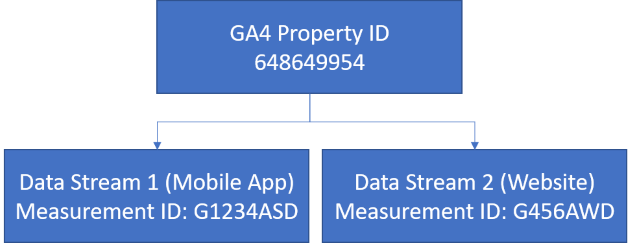
The measurement ID is not the same as the property ID. Measurement IDs are the identifiers of data streams.
Data Streams in Google Analytics 4 are the flow of data from customer touchpoints to Analytics, and it can be a mobile application or a website.
Each Google Analytics 4 property can contain up to 50 data streams.
So, for example, you can send data from your mobile app, which has its unique measurement ID, and a website that also has its measurement ID into one single GA4 property. You can correlate this with the below image.
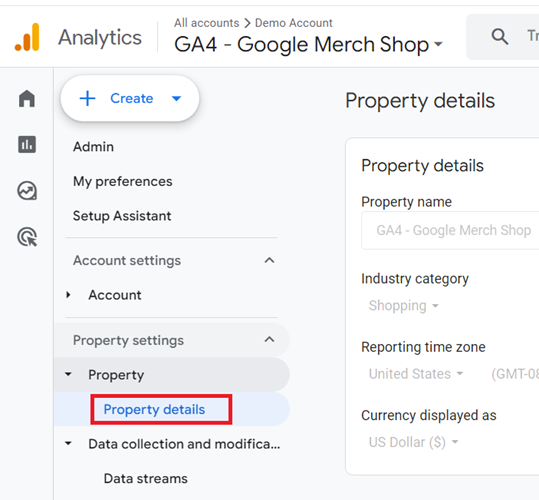
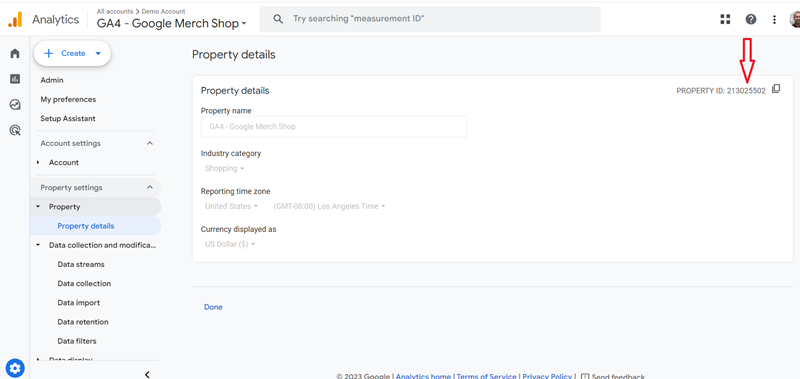
All GA4 properties have property IDs, which you can find by following the steps below:
Step-1: Navigate to the ‘Admin‘ section of your GA4 reporting view.
Step-2: Click on ‘Property details‘ under ‘Property‘:
You can now see the property ID on the right-hand side of your screen:

Other Articles on GA4.
- Why GA4 Audiences not showing in Google Ads.
- Google Analytics 4 Scroll Tracking Tutorial.
- Why Google Ads and Google Analytics data don’t match & how to fix it.
- Google Analytics 4 Calculated Metrics with Examples.
- How to view subdomain traffic in Google Analytics 4.
- Google Analytics 4 Cookieless Tracking Setup.
- Using Funnel Exploration Report in Google Analytics 4.
- Google Advanced Consent Mode and GA4 BigQuery Export.
- Which Conversion Window to use in Google Analytics 4.
- Tracking single page apps in Google Analytics 4.
- Create Content Groups in Google Analytics 4.
- Google Analytics 4 BigQuery Tutorial for Beginners to Advanced.
- Google Analytics 4 Measurement ID and Property ID.
- Prompt Engineering for GA4 BigQuery SQL Generation.
- Google Analytics 4 vs Universal Analytics: The Key Differences.
- How to create a new BigQuery project.
- How to create a new Google Cloud Platform account.
- How to overcome GA4 BigQuery Export limit.
- ChatGPT Workflow That Simplifies GA4 Data Analysis.
- Understanding Google Analytics 4 Sessions.