

The best way to understand Google Analytics 4 sessions is to compare them with Universal Analytics (GA3) sessions.
Key differences between GA3 (Universal Analytics) and GA4 sessions:
#1 In GA3, a session is a group of hits recorded for a user in a given time period. Whereas in GA4, a session is a group of events recorded for a user in a given time period.
#2 Both GA3 and GA4 define a user as an individual who performs actions on your website or mobile app in one or more sessions.
These actions could be like viewing a page, scrolling a page, clicking on add to cart button, making a purchase etc.
#3 A user can generate one or more sessions in a single day or over several days, weeks, or even months. As a result, the session counts in your GA3/GA4 property are likely to be higher than the user counts.
Note: Unlike in GA3, the user activity is detected automatically in GA4. This may lead to higher active user counts for GA4.
#4 Both GA3 and GA4 sessions can be categorized into app sessions and web sessions.
#5 A web session in both GA3 and GA4 starts as soon as a user views a page and no previous session is currently active.
#6 An app session in both GA3 and GA4 start when a user either opens your app in the foreground or views a screen, and no previous session is currently active.
#7 Since a GA3 session starts as soon as a user views a page/screen, the GA3 session is almost always a session with a pageview/screen view.
Whereas a GA4 session can start with or without a pageview/screenview.
For example, a GA4 session can start with user engagement. So you could end up with views or user engagements with no sessions.
Consider the following scenario:
A user landed on your website but immediately navigated to another browser tab. After a couple of hours, he returned to your website, consumed the content, and then closed the tab.
In this scenario, GA3 will likely count only one session with a pageview.
But GA4 would count two sessions. One session with pageviews and one session with user engagement.
The session with user engagement started when the user returned to your website hours later and started consuming content.
As a result, GA4 sessions do not accurately reflect user engagement, and you would be better off focusing on users and events.
#8 The duration of a GA3 session is calculated as the time elapsed between the first and last hit in the session. Whereas the duration of a GA4 session is calculated as the time elapsed between the first and last event in the session.
#9 By default, a GA3 session expires if no new hit is sent to the GA server within 30 minutes from when the last hit was sent. This period of no new hit sent is called ‘user inactivity’.
Similarly, by default, a GA4 session expires if no new event is sent to the GA server within 30 minutes from the time when the last event was sent.
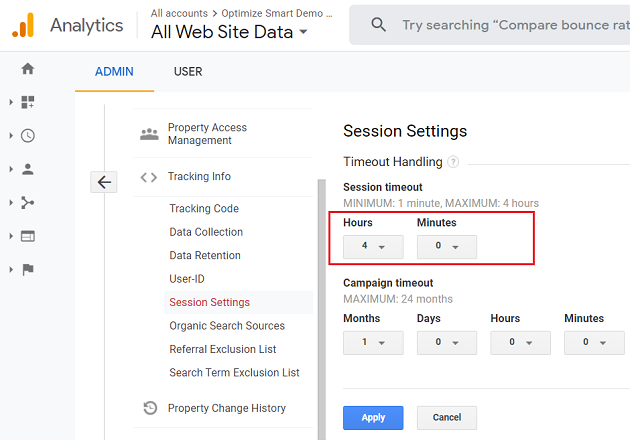
#10 By default, a GA3 web session expires after 30 minutes of users’ inactivity. However, you can change this setting by changing the session timeout settings in your GA3 property.
For example, you can make a GA3 web session expire after 3 minutes of users’ inactivity or after 3 hours of users’ inactivity.
By default, a GA4 web session expires after 30 minutes of users’ inactivity.
However, you can change this setting by changing the session timeout settings in your GA4 property.
For example, you can make a GA4 web session expire after 10 minutes of users’ inactivity or after 5 hours of users’ inactivity:
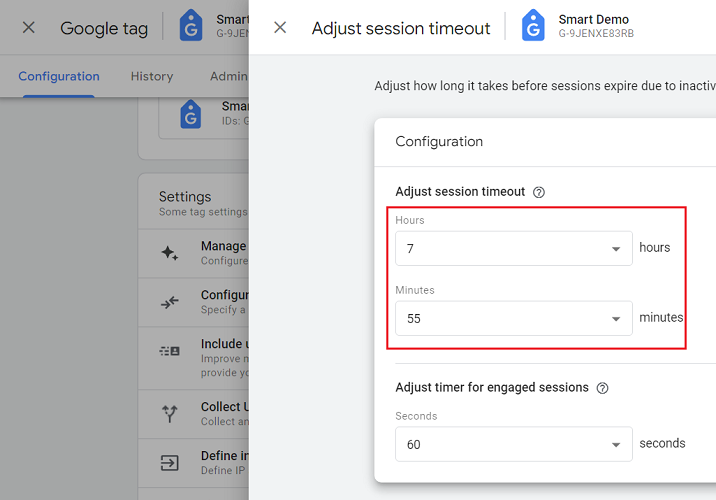
#11 A GA3 session timeout can not be less than 1 minute or greater than 4 hours. Whereas a GA4 session timeout can not be less than 5 minutes or greater than 7 hours and 55 minutes.
#12 Unlike GA3, A GA4 session begins to time out when a website or app is moved to the background. However, you have the option to extend that session.
#13 A GA3 session expires if a user returns to your website via a different campaign source in the middle of the active session.
The campaign source could be search engines, referring websites, and URLs with campaign parameters.
Every time a campaign source is changed in the middle of an active session, the existing GA3 session expires, and a new GA3 session starts.
Whereas the GA4 session does NOT expire if a user returns to your website via a different campaign source in the middle of an active session.
As a result, the session counts in your GA4 property could be lower than the session counts in your GA3 property.
And you could also see a single GA4 session from multiple traffic sources.
#14 A GA3 session automatically expires at midnight (11:59:59 pm).
For example, if a user has been browsing your website since 11:45 pm, his session will automatically terminate at 11:59:59 pm even if he continues to engage with your website. At midnight a new GA3 session will start for your user.
Whereas a GA4 session does NOT automatically expire at midnight (11:59:59 pm). However, the same GA4 session would now be counted twice, once for each day.
#15 Unlike in GA3, the GA4 property reports on ‘Engaged Sessions’ and ‘Engaged Sessions Per user’.
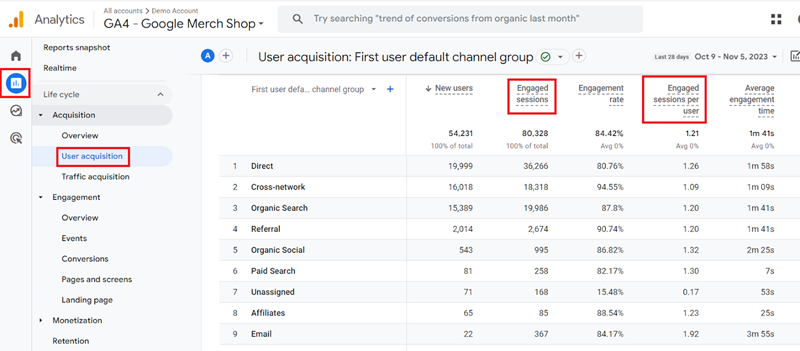
GA4 defines an ‘engaged session’ as the one that:
- Lasted 10 seconds or longer or
- Had one or more conversion events fired or
- Had two or more pageviews or screenviews.
GA4 defines ‘engaged sessions per user’ as the number of engaged sessions / the number of users
#16 GA3 counts sessions by counting the sessions metric. Whereas GA4 counts sessions by counting session_start events.
#17 The session count of GA3 and GA4 are unlikely to match as they are calculated and adjusted differently.
How to adjust the web session timeout in GA4?
Follow the steps below:
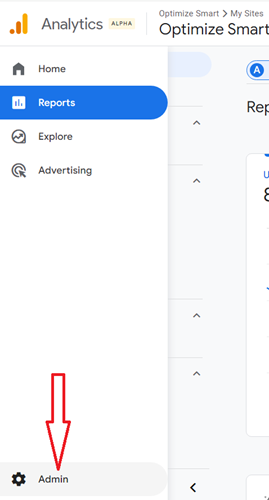
Step-1: Navigate to your GA4 property and then click on the ‘Admin’:
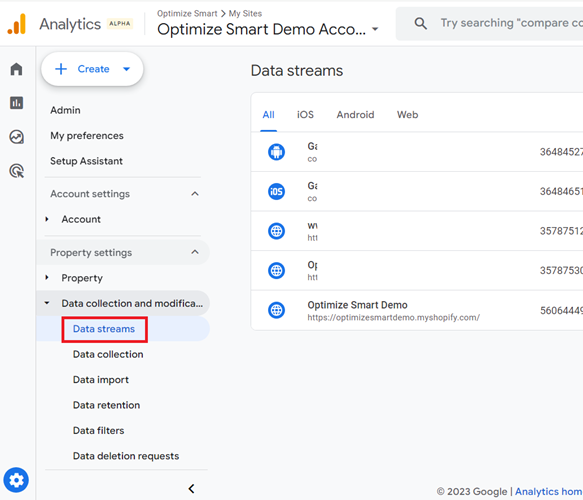
Step-2: Click on ‘Data Streams’ under ‘Data Collection and modification‘:
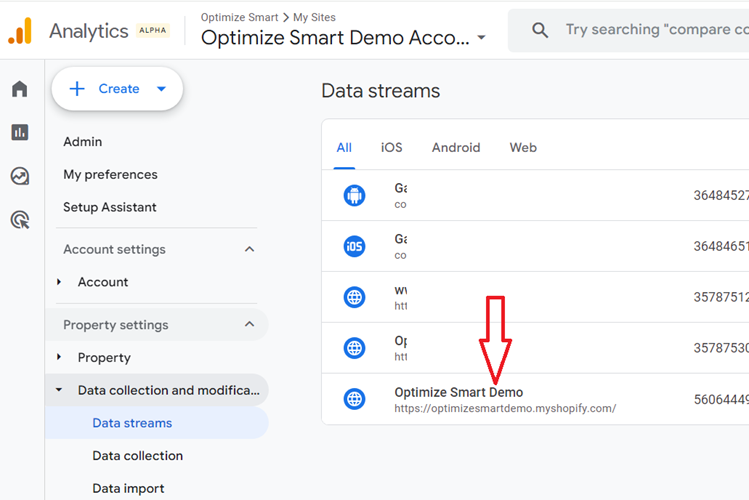
Step-3: Click on the name of the web data stream whose web session you want to configure:
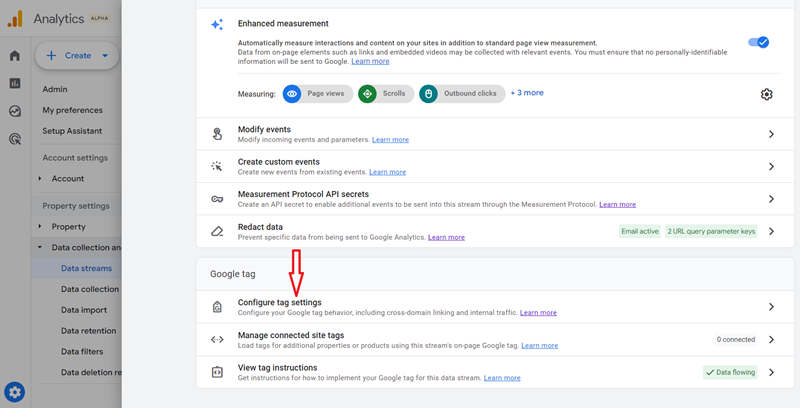
Step-4: Scroll all the way down and then click on the ‘Configure tag settings’ link:
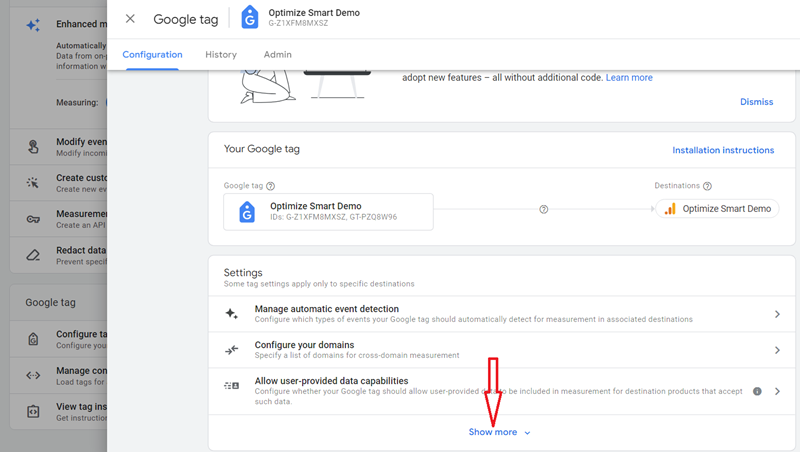
Step-5: Scroll down and click on the ‘Show more‘ drop-down menu:
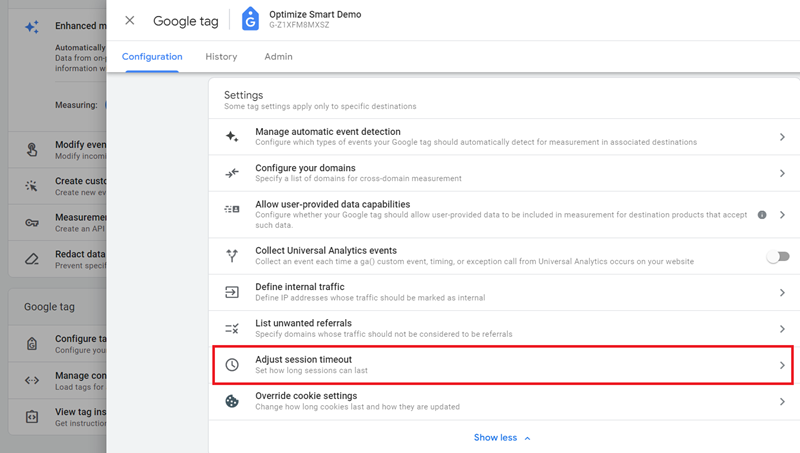
Step-6: Scroll down and click on ‘Adjust Session timeout’:
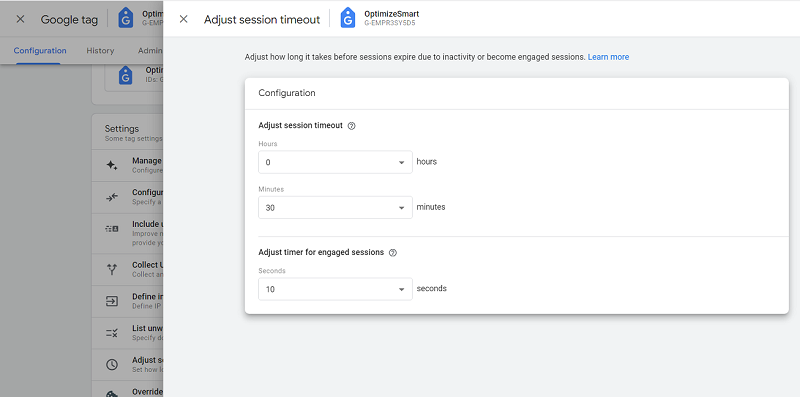
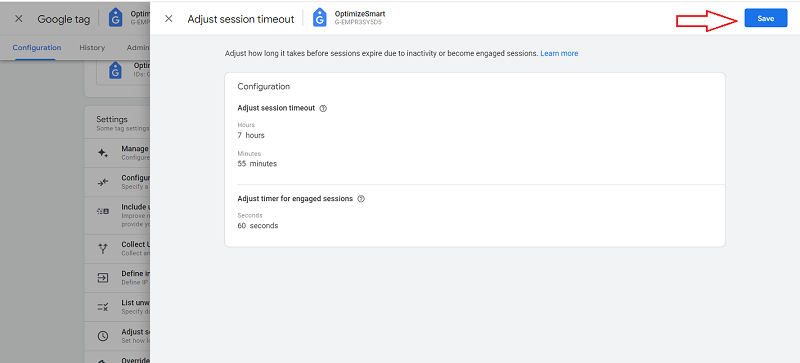
You should now see a screen like the one below:
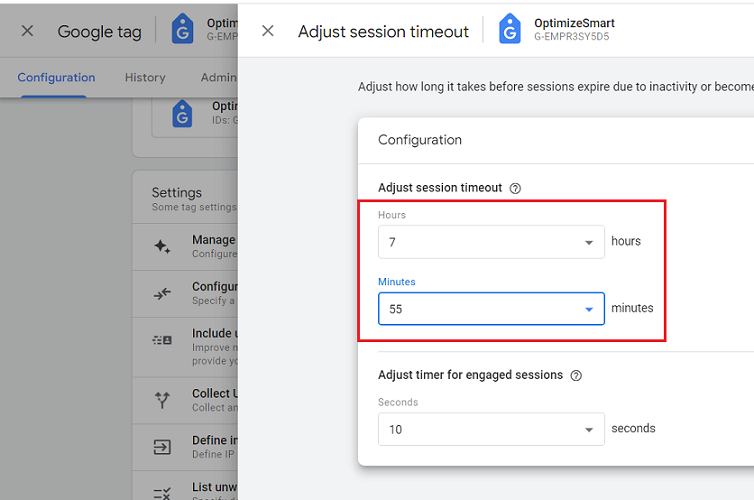
Step-7: Set the session timeout to 7 hours and 55 minutes:
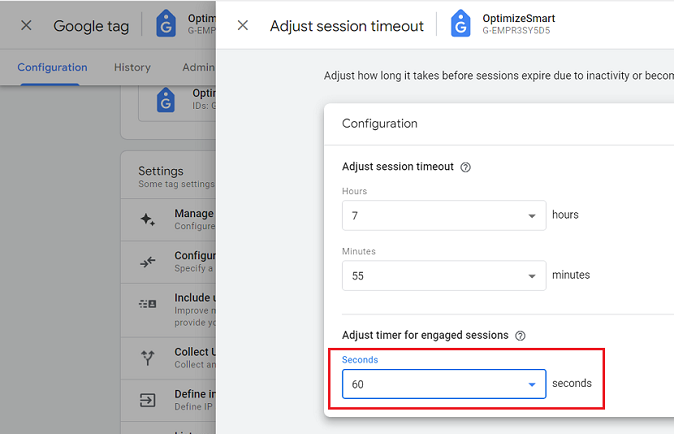
Step-8: Adjust the timer for ‘engaged sessions’
You can adjust the time by selecting the number of seconds it should take for a GA4 session to be considered an ‘engaged session’:
Step-9: Click on the ‘Save’ button:
Where to see the Sessions metrics in GA4?
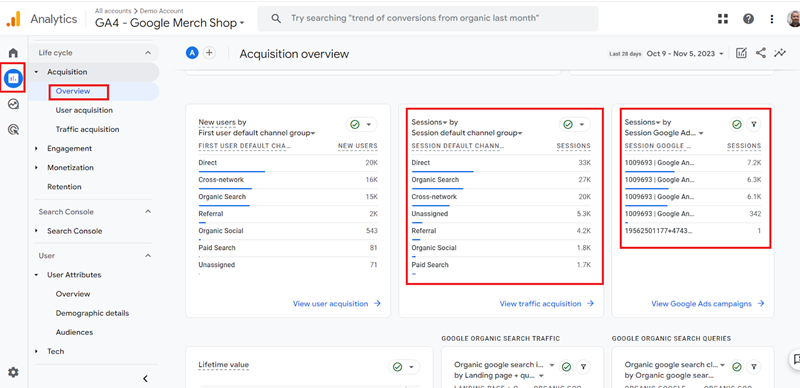
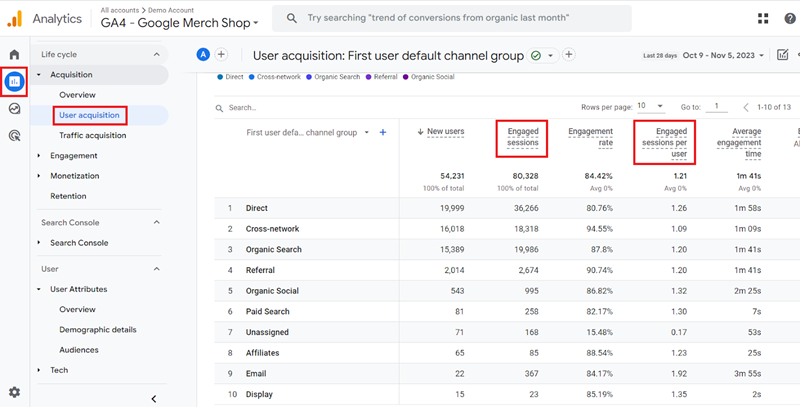
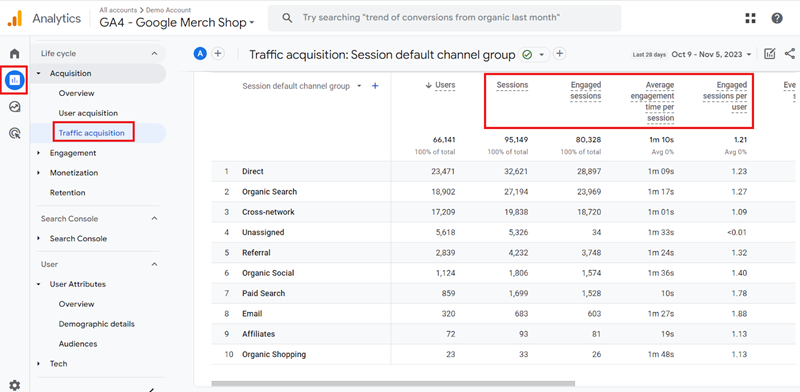
You can see the various sessions metrics in the following GA4 reports:
#1 Acquisition overview report
#2 User acquisition report
#3 Traffic acquisition report
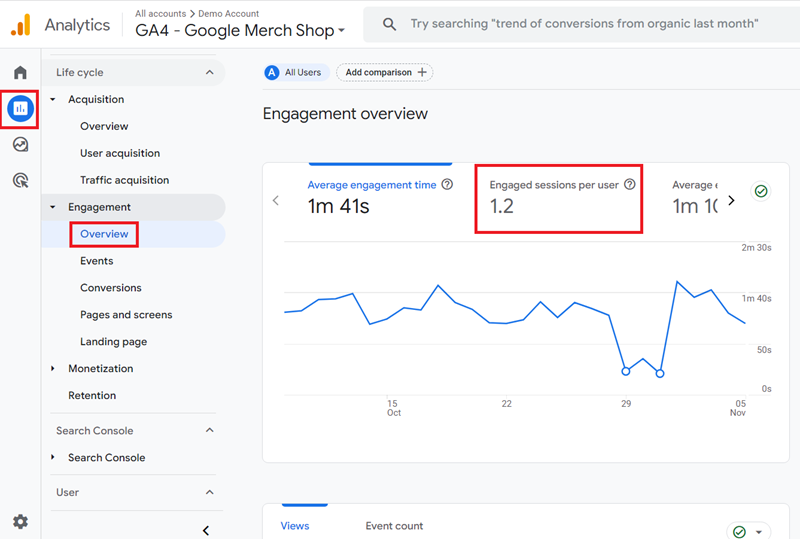
#4 Engagement overview report
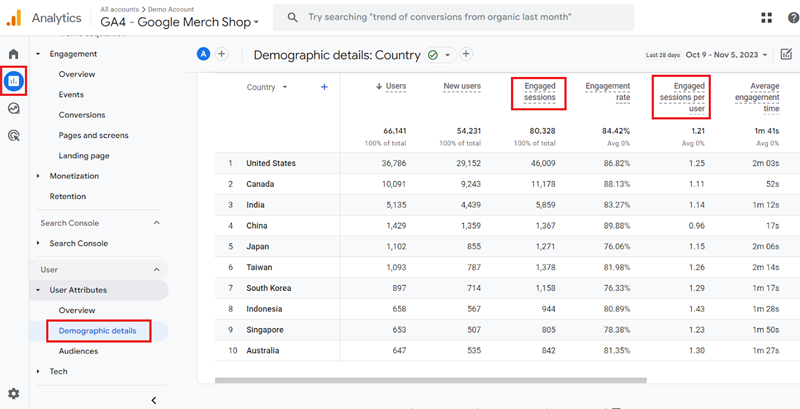
#5 Demographic details report
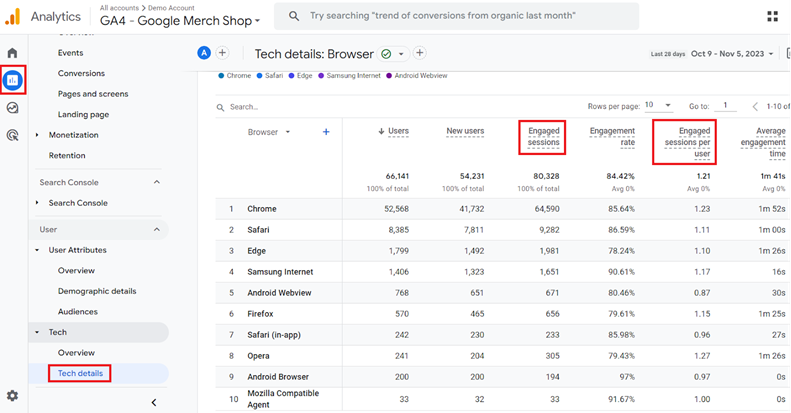
#6 Tech details report

Other Articles on GA4.
- Why GA4 Audiences not showing in Google Ads.
- Google Analytics 4 Scroll Tracking Tutorial.
- Why Google Ads and Google Analytics data don’t match & how to fix it.
- Google Analytics 4 Calculated Metrics with Examples.
- How to view subdomain traffic in Google Analytics 4.
- Google Analytics 4 Cookieless Tracking Setup.
- Using Funnel Exploration Report in Google Analytics 4.
- Google Advanced Consent Mode and GA4 BigQuery Export.
- Which Conversion Window to use in Google Analytics 4.
- Tracking single page apps in Google Analytics 4.
- Create Content Groups in Google Analytics 4.
- Google Analytics 4 BigQuery Tutorial for Beginners to Advanced.
- Google Analytics 4 Measurement ID and Property ID.
- Prompt Engineering for GA4 BigQuery SQL Generation.
- Google Analytics 4 vs Universal Analytics: The Key Differences.
- How to create a new BigQuery project.
- How to create a new Google Cloud Platform account.
- How to overcome GA4 BigQuery Export limit.
- ChatGPT Workflow That Simplifies GA4 Data Analysis.
- Understanding Google Analytics 4 Sessions.