

If there is an error in your calculated field’s formula, you’ll see a warning message like WHEN conditions must compare a dimension or metric with a literal value and you won’t be able to save the field:
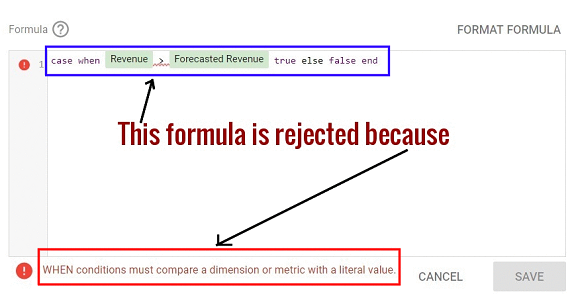
When this happens it means your formula has been rejected by Google Data Studio.
If you are new to using calculated fields, you will often see yourself in a situation where your formula has been rejected by the Google Data Studio.
The most common reasons why your formula is rejected by Google Data Studio:
#1 You used an invalid field name
If your field name is valid, it will appear as a green or blue chip in the formula:
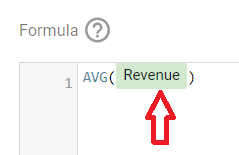
However, if your field name is not valid, it will not appear as a green or blue chip in the formula.
If you reference a field that does not exist in your data source then it is going to be an invalid field.
Similarly, if your field has got a spelling mistake or some special character (like white space) in it then it is going to be invalid.
And when Google Data Studio encounters an invalid field in a formula it rejects the formula.
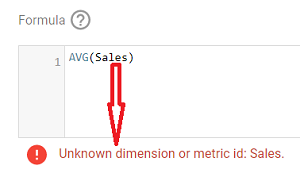
For example in the screenshot below, Google Data Studio does not recognize ‘Sales’ as a valid field and that’s why you see the error message ‘Unknow dimension or metric id: Sales‘:
#2 You used an invalid function name
If your function name is valid, it will automatically appear as an uppercase green text:
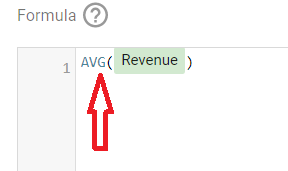
A function that is not spelt correctly or which is not supported by Google Data Studio is an example of an invalid function.
For example, in the screenshot below the function ‘concatenate’ is not a valid function name:
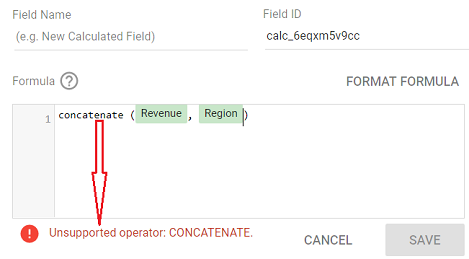
Therefore it is rejected by Google Data Studio and you see the error message ‘Unsupported operator: CONCATENATE”.
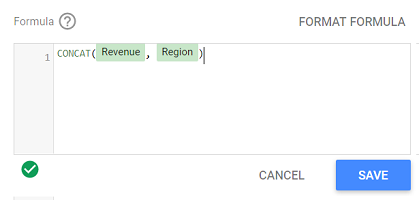
However, the function ‘CONCAT‘ is valid and that’s why it appears as an uppercase green text:
#3 Missing quotes
Make sure all literal strings are properly quoted with single or double-quotes.
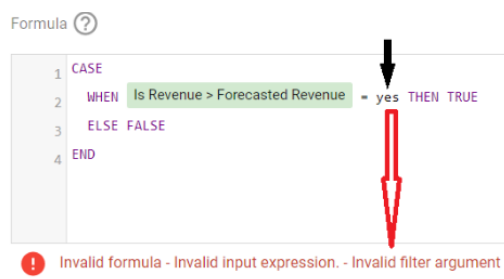
For example, in the formula below the string ‘yes’ is not surrounded by a single or double quote and because of that reason, Google Data Studio rejected the formula and you see the error message: ‘Invalid formula: Invalid input expression – Invalid filter argument‘:
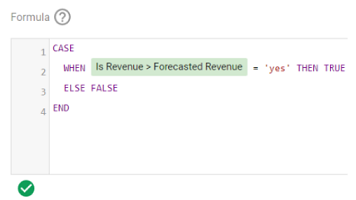
When the string ‘yes’ is surrounded by a single quote, the formula becomes valid:
#4 Mismatched parentheses
When nesting functions, it is quite easy to miss a closing parenthesis. You need to make sure that you have the same number of opening parentheses as closing parentheses.
For example, in the formula below we are nesting the ‘CONCAT’ function:
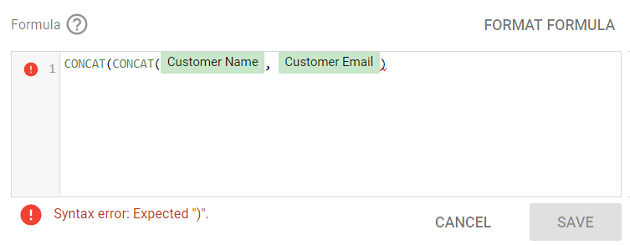
However, since the number of opening parentheses is not the same as the closing parentheses, Google Data Studio rejected the formula and you see the error message: Syntax error: Expected “)”.
The formula below contains the same number of opening parentheses as closing parentheses and is therefore valid:
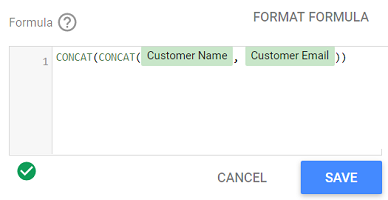
#5 Not using the correct parameters for your function can cause your formula to be rejected by Google Data Studio.
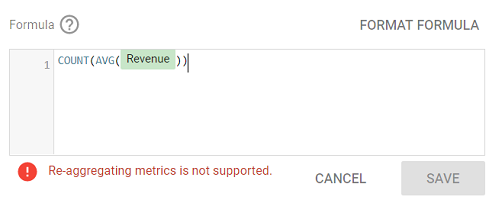
#6 Applying an aggregation function on already aggregated data
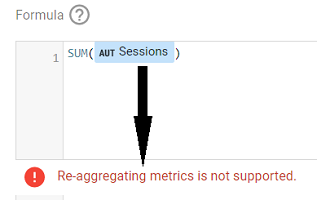
For example, the ‘Sessions’ metric is already summed in Google Analytics.
So the formula SUM(Sessions) will be rejected by Google Data Studio and you will see the error message ‘Re-aggregating metrics is not supported‘:
Another example:
#7 Mixing dimensions and metrics in function arguments
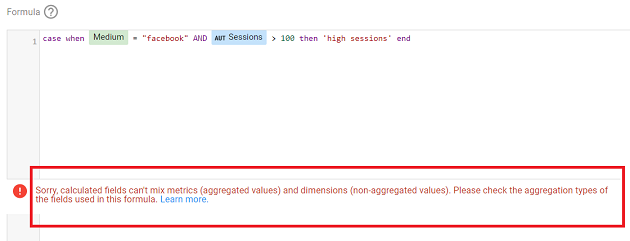
An expression can have either metrics or dimensions, but not both.
For example, the formula below is made up of an expression that contains both dimension (the field ‘medium’) and metric (the field ‘Sessions’) and because of that reason, Google Data Studio rejected the formula and you see the error message:
‘Sorry Calculated fields can’t mix metrics (aggregated values) and dimensions (non-aggregated values). Please check the aggregation types of the fields in this formula.‘:

Related Articles.
- Stop Using Page Titles in GA4 & Google Data Studio Reports.
- Google Data Studio Geo Map – Latitude Longitude.
- Google Data Studio Data Sources – Tutorial.
- Guide to Data Types in Google Data Studio.
- Google Data Studio Date Format and Time Explained.
- Working with Numeric Data Types in Google Data Studio.
- How to embed Google Data Studio report on a website.
- The Data Set Configuration Error in Google Data Studio.
- Google Data Studio Aggregation Explained.
- Google Data Studio Calculated Fields Tutorial.
- Google Data Studio Functions, Formulas Tutorial.
- Google Data Studio Page Navigation Tutorial.
- Google Data Studio Image function.
- Avoid Using Functions and Calculated Fields in Google Data Studio.
- Data Source Fields in Google Data Studio.
- Google Data Studio Dimensions vs Metrics Tutorial.
- Sharing Data Source Schema in Google Data Studio.
- Formula Rejection in Google Data Studio.
- How to invite others to view or edit a report in Google Data Studio.
- How to share reports in Google Data Studio.