

How to navigate between pages in the report editor
Follow the steps below:
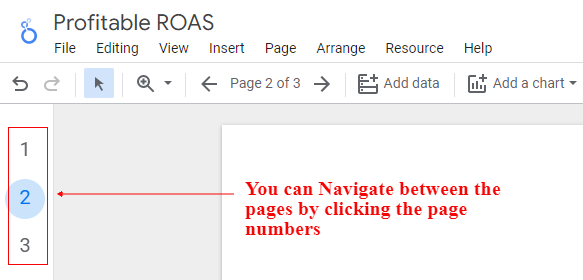
Step-1: Click on the ‘Left arrow‘ or ‘Right arrow‘ in Page control menu in your report editor:

Similarly, if you can also use the ‘Page numbers’ icon available at the right side of report editor:
How to navigate between pages in view mode
In view mode, a navigation bar appears at the top of the report:
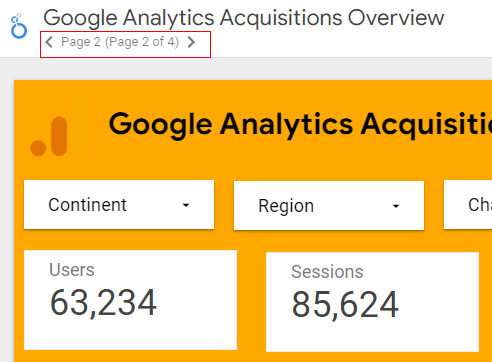
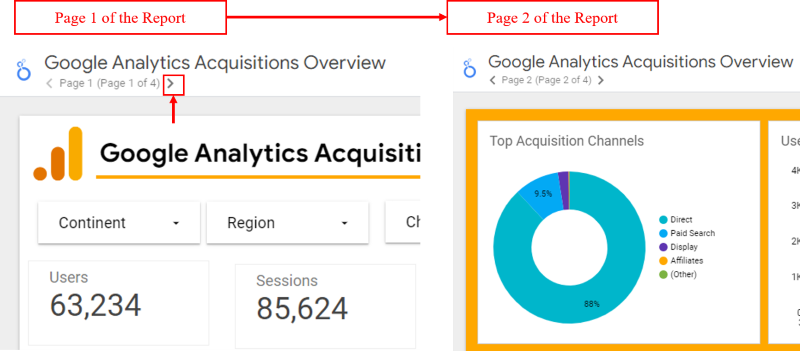
You can click on the left or right arrow button to navigate to the next page of your report:
In the view mode, the list of pages in your report can also appear as a drop-down menu above the report:
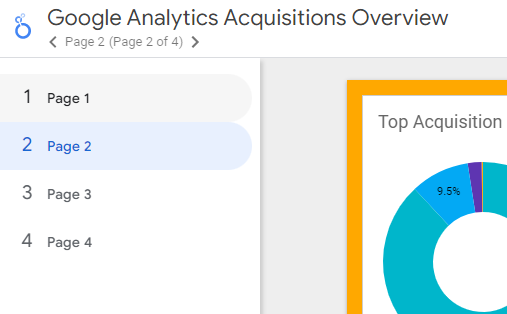
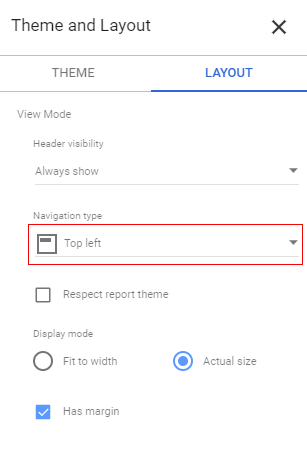
If the ‘Navigation Position‘ is set to ‘Left’:
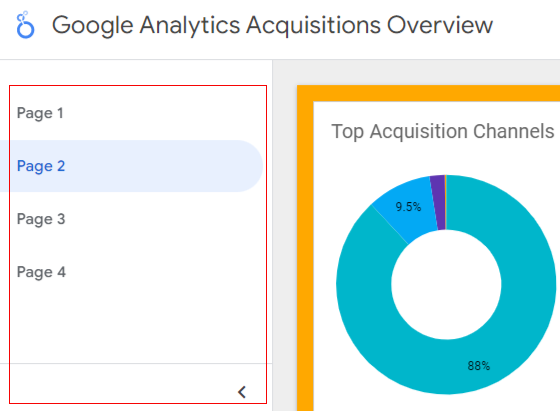
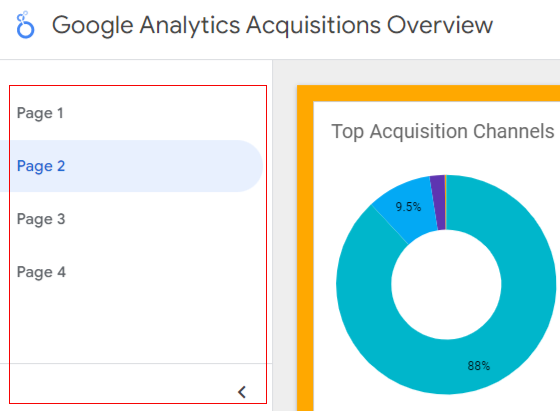
then the list of pages in your report can also appear as a collapsible panel on the left in the view mode:
Create a multi-page report in Google Data Studio by adding pages to the report
If you are planning to add multiple charts to your report then instead of adding them all on just one page, consider distributing them across multiple pages.
This way you can minimize the visual complexity of your report and save your report users from information overload.
How to add pages to a report
Follow the steps below:
Step-1: Navigate to the home page of your Google Data Studio report: https://datastudio.google.com/navigation/reporting
Step-2: Click on the name of the report to which you want to add two or more pages:
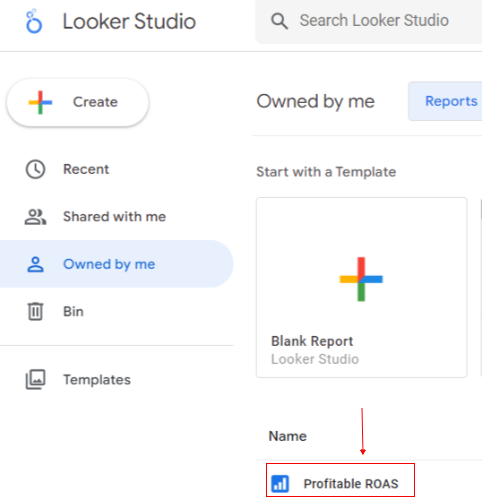
Your report will open in view mode.
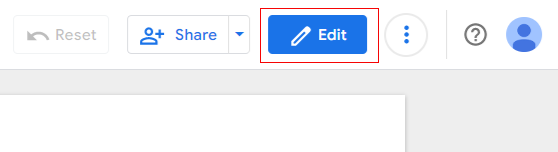
Step-3: Edit your report by clicking on the ‘Edit button at the top right-hand side of your screen:
Step-4: Click on the ‘+Add a page’ button on the toolbar:
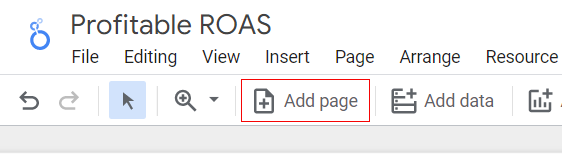
Once you clicked on the ‘+Add a page’ button, you will be automatically redirected to the second page of your report:
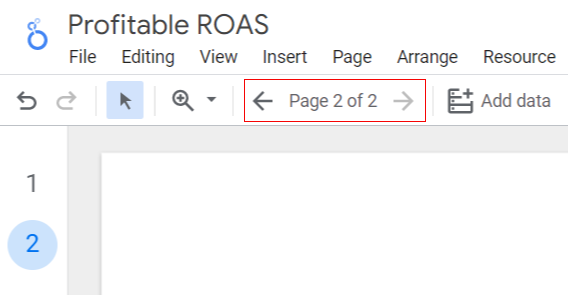
The second page of the report is denoted by ‘Page 2 of 2‘.
You can now add chart components on this page.
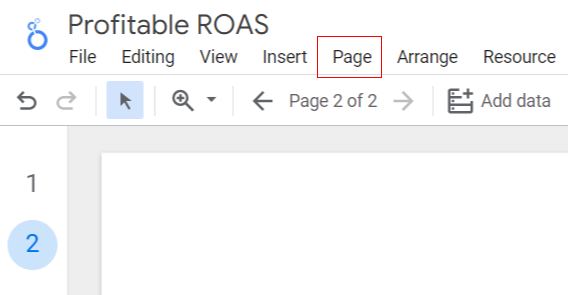
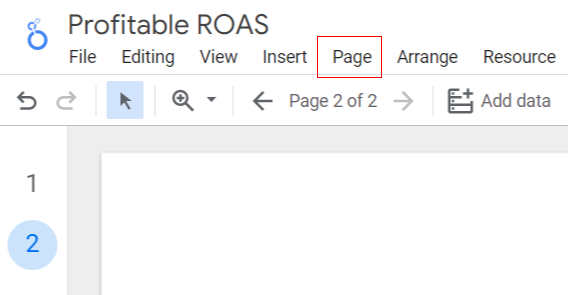
Step-5: To add a third page to the report, click on the ‘Page‘ menu in your report editor:
Step-6: Click on the link ‘New page‘:
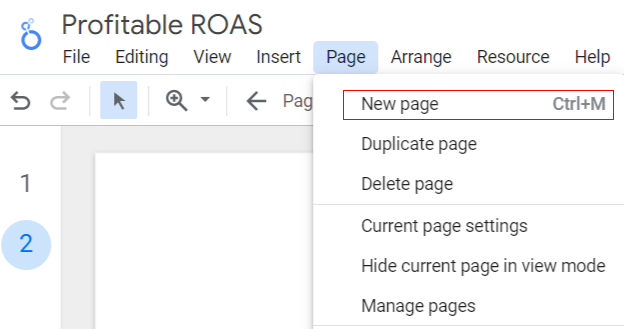
Once you clicked on the ‘New page’ link, you will be automatically redirected to the third page of your report:
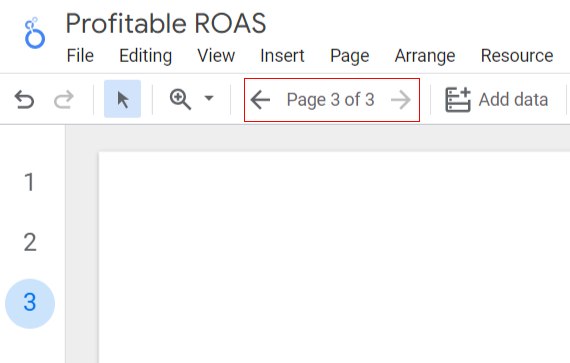
The third page of the report is denoted by ‘Page 3 of 3‘.
You can now add chart components on this page.
Repeat step-5 and 6 to add more pages to your report.
How to rename a page
By default, new pages of a report are named Page 1, Untitled page, Untitled page etc.
You should consider renaming your pages so that the report users get an idea of what a particular page is all about even before navigating to it.
Follow the steps below to rename a page:
Step-1: Click on the ‘Page‘ menu in your report editor:
Step-2: Now click on ‘Manage Pages’ from the drop down :
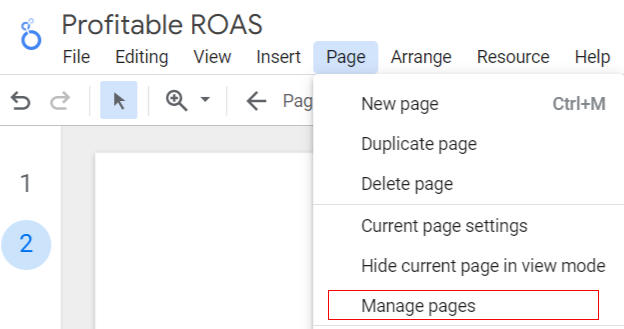
It will open a new page control panel at the right side of report editor like below
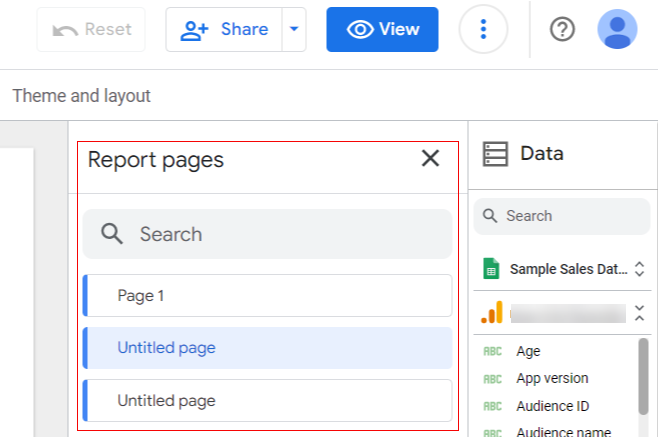
Step-3: Now when you mouse over the page you want to rename, Click on the three dots and then click on ‘Rename’:
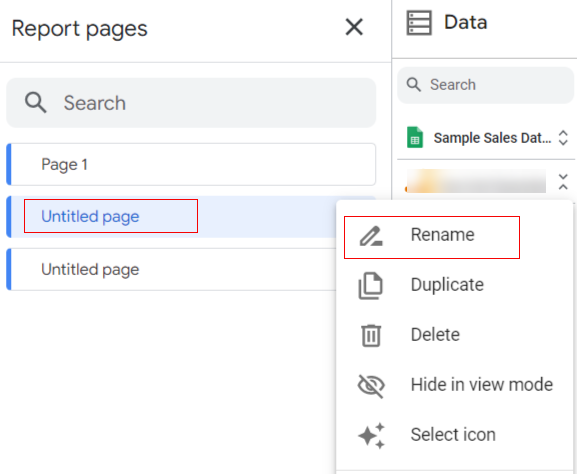
Step-4: Type a new name for your page and then press the enter key:
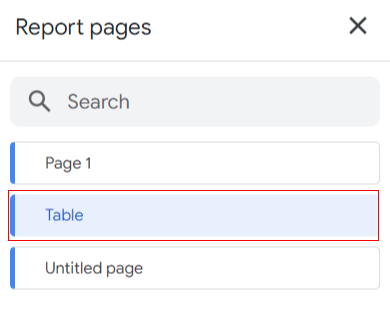
How to copy a page to another report
If you want to copy a page from one report to another then Google recommends that you select all the components of the source page and then paste them into the target page of the other report.
How to duplicate a page
Duplicating a page creates a copy of the page in the current report.
Follow the steps below to duplicate a page:
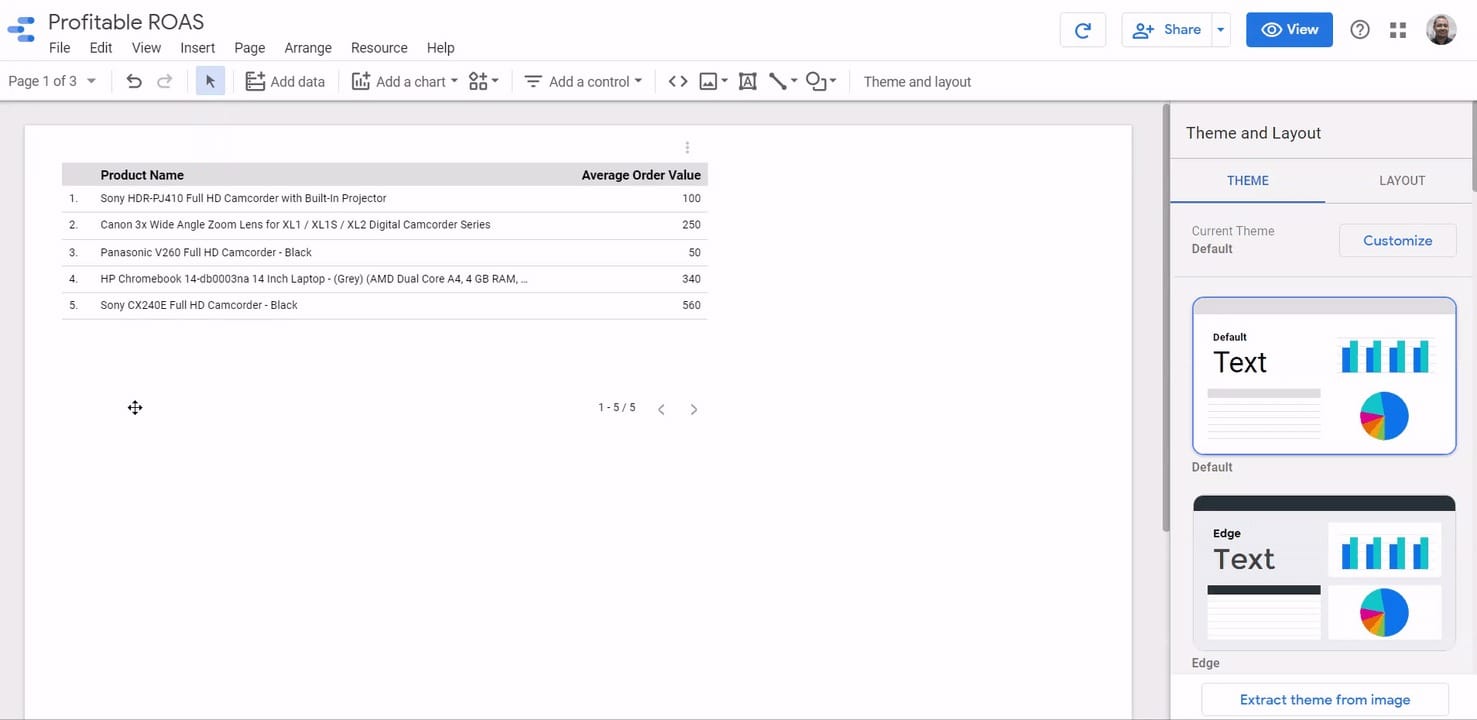
Step-1: Navigate to the Page that you want to duplicate. For example, I want to duplicate the Page 2nd which is named ‘Table’
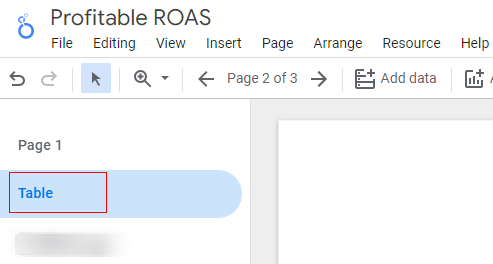
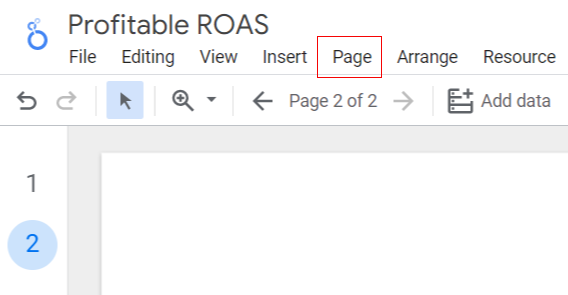
Step-2: Now Click on the ‘Page‘ menu in your report editor:
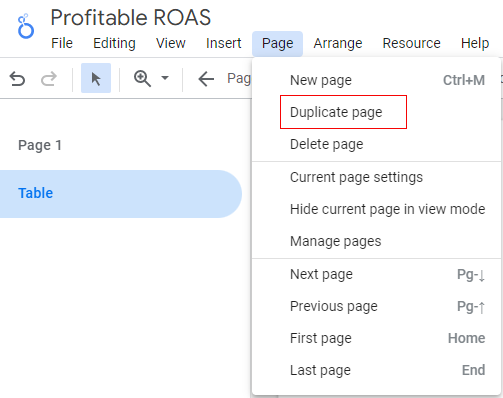
Step-3: Now click on the duplicate menu from the drop down:
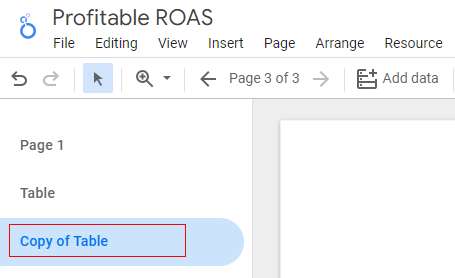
You should now see a new page added to your report which is the duplicate of the ‘Table’ page:
How to remove a page
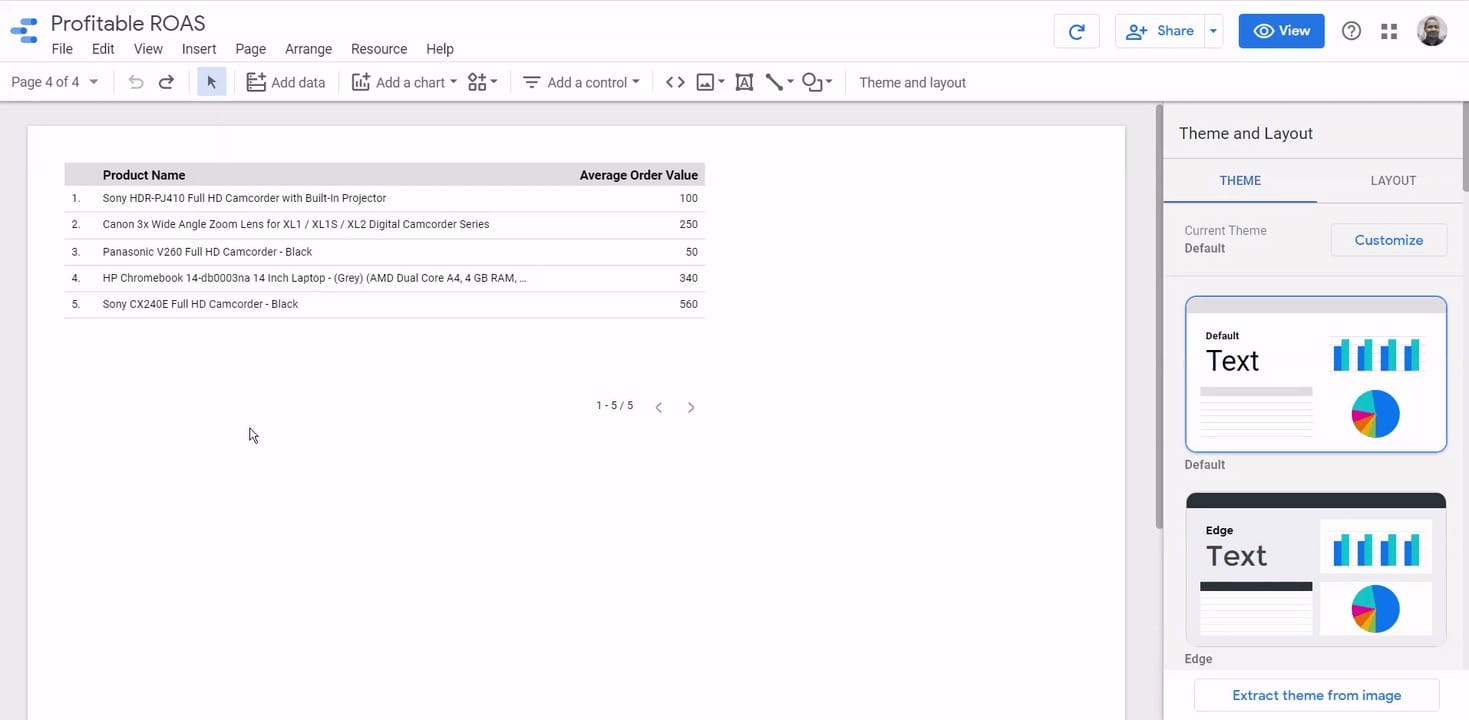
Removing a page deletes it from the report.
Follow the steps below to remove a page:
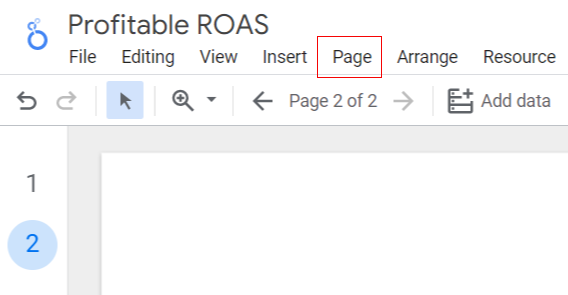
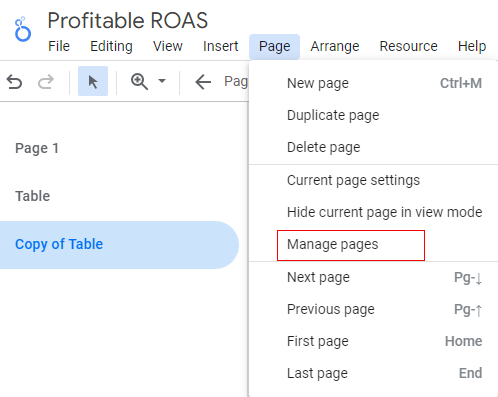
Step-1: Click on the ‘Page‘ menu in your report editor:
Step-2: Click on ‘Manage Pages‘ option from the drop-down:
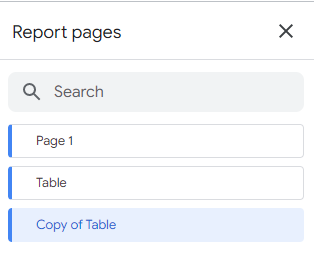
It will open a new page control panel at the right side of report editor like below
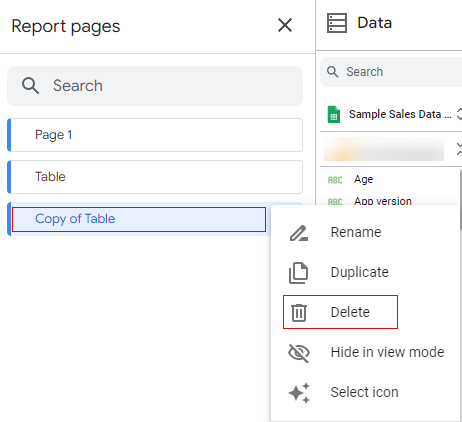
Step-3: Click on the three dots Infront of the page you want to delete and then click on ‘Delete’:
How to restore a deleted page
If you want to restore a deleted page then use the version history (under the ‘File’ menu)
How to hide a page in view mode
If you want to prevent report viewers from seeing the selected page(s) of your report then you should hide it.
When you hide a page:
- Report viewers can not navigate to that page.
- The hidden page won’t appear in the report copy.
- The hidden page won’t appear in PDF downloads.
Note: Report editors can still see and edit the hidden page.
Follow the steps below to hide a page in the view mode:
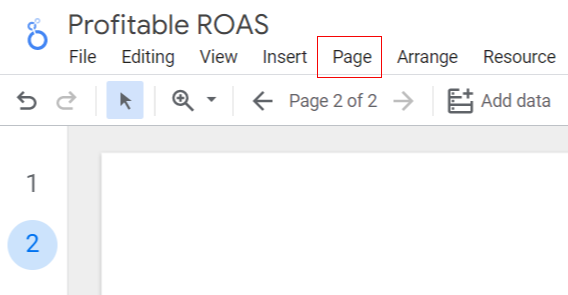
Step-1: Navigate to the page that you want to hide, then click on the ‘Page‘ menu in your report editor:
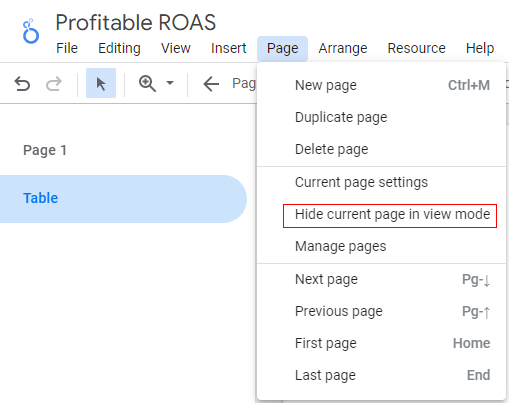
Step-2: Click on ‘Hide Current page in view mode‘ option from the drop-down:
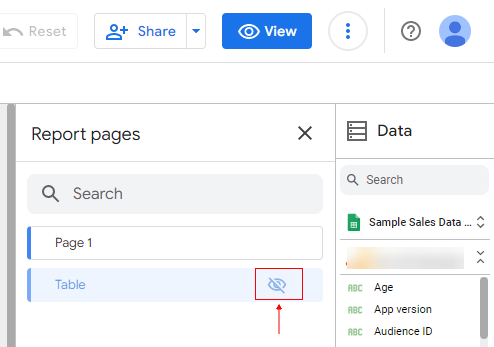
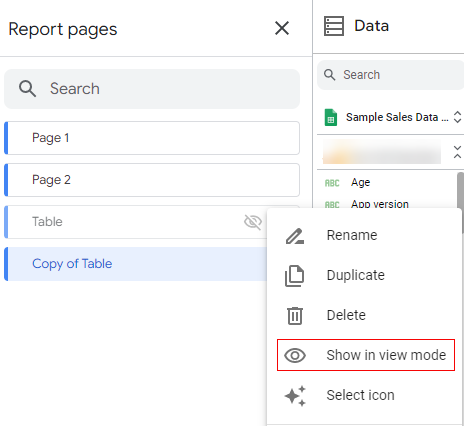
You will now see a hidden symbol next to the page you just hidden:
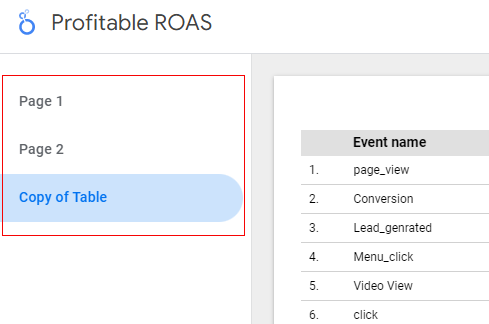
Now when you navigate to the view mode of your report (by clicking on the ‘View’ button) the ‘Table’ page won’t appear in the drop-down list of pages:
If you want to unhide a page then click on the ‘Show in view mode‘ option again:
How to reorder pages in a report
You can change the order of the pages in your report by dragging them into a new position with your mouse.

Related Articles.
- Google Data Studio Tutorial.
- How to Change Language in Google Data Studio.
- Google Data Studio Report Tutorial.
- How to work with Boolean field in Google Data Studio.
- How to use Google Data Studio with Google Sheets.
- Stop Using Page Titles in GA4 & Google Data Studio Reports.
- Google Data Studio Geo Map – Latitude Longitude.
- Google Data Studio Data Sources – Tutorial.
- Guide to Data Types in Google Data Studio.
- Google Data Studio Date Format and Time Explained.
- Working with Numeric Data Types in Google Data Studio.
- How to embed Google Data Studio report on a website.
- The Data Set Configuration Error in Google Data Studio.
- Google Data Studio Aggregation Explained.
- Google Data Studio Calculated Fields Tutorial.
- Google Data Studio Functions, Formulas Tutorial.
- Google Data Studio Page Navigation Tutorial.
- Google Data Studio Image function.
- Avoid Using Functions and Calculated Fields in Google Data Studio.
- Data Source Fields in Google Data Studio.