

What is a calculated field in Google Data Studio?
It is a field that performs certain action(s) on another field(s) in your data source schema or chart via a formula.
These actions could be:
- Arithmetic and math operations
- Manipulating text, date and geographic information
- Using branching logic to evaluate data
Through calculated fields, you can create new metrics and dimensions in Google Data Studio.
Types of Google Data Studio calculated fields
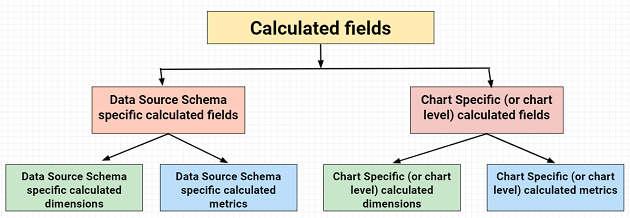
Google Data Studio Calculated fields can be further categorized into:
- Data source schema specific calculated fields
- Chart specific (or chart level) calculated fields
Data source schema specific calculated fields can be further categorized into:
- Data source schema specific calculated dimensions
- Data source schema specific calculated metrics
Chart specific calculated fields can be further categorized into:
- Chart specific calculated dimensions
- Chart specific calculated metrics
Data source schema specific calculated field
This is a calculated field created in a data source schema.
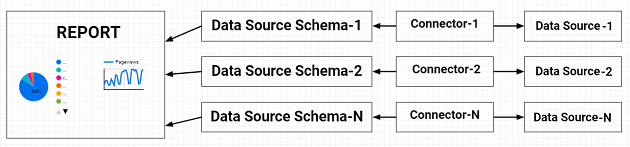
When you create a calculated field in a data source schema, the calculated field is available in any report that uses that data source schema.
A Google Data Studio report which uses multiple data source schemas is based on multiple data sources:
Note: You can’t use a data source specific calculated field with blended data.
Chart specific (or chart level) calculated field
It is the calculated field created in a specific chart in a report.
When you create a calculated field in a chart, the calculated field is available only in the chart in which you create it. However, you can use a chart specific calculated field with blended data.
Note: When using a chart specific calculated field, you cannot reference other chart-specific calculated fields in your formula, even if those fields are defined in the same chart. If you want to reference other calculated fields, use a data source schema specific calculated field.
Data source schema specific calculated dimension
It is the dimension that performs certain action(s) on another field(s) in your data source schema via a formula.
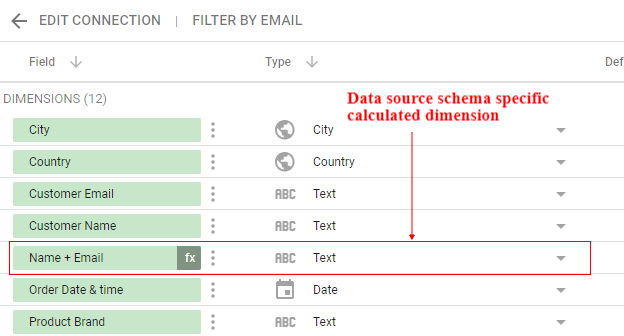
When you create a calculated dimension in a data source schema, the calculated dimension is available in any report that uses that data source schema.
Note: All calculated dimensions appear in the data source schema with an ‘fx’ symbol.
Data source schema specific calculated metric
It is the metric that performs certain action(s) on another field(s) in your data source schema via a formula.
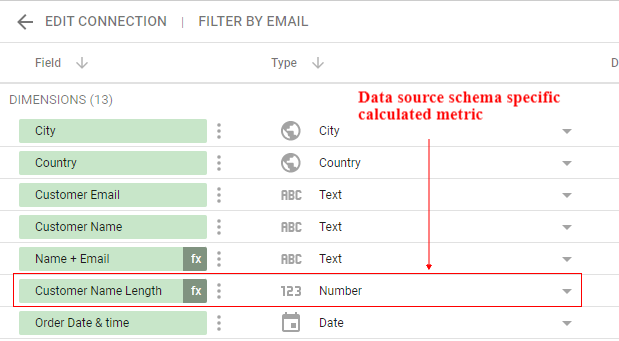
When you create a calculated metric in a data source schema, the calculated metric is available in any report that uses that data source schema.
Note: All calculated metrics appear in the data source schema with an ‘fx’ symbol.
Chart specific calculated dimension
It is the dimension that performs certain action(s) on another field(s) in your chart via a formula.
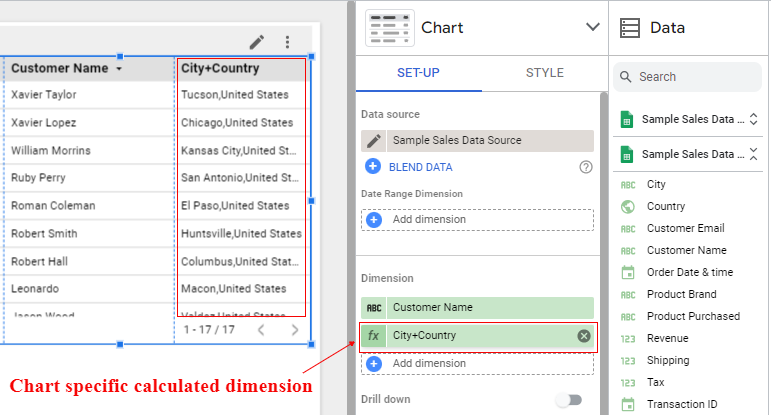
When you create a calculated dimension in a chart, the dimension is available only in the chart in which you create it. However, you can use a chart specific calculated dimension with blended data.
Chart specific calculated metric
It is the metric that performs certain action(s) on another field(s) in your chart via a formula.
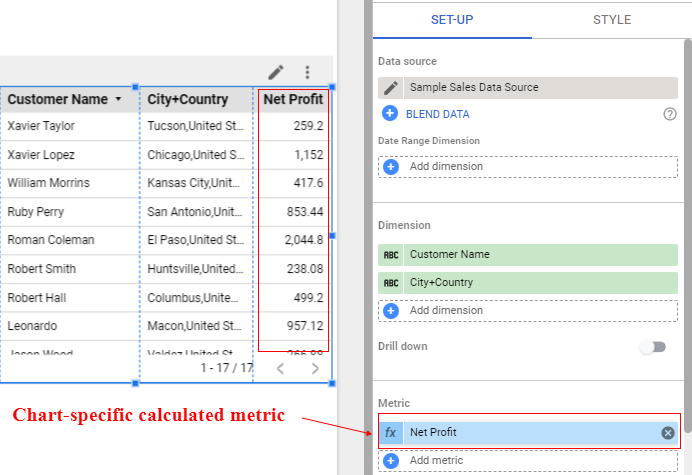
When you create a calculated metric in a chart, the metric is available only in the chart in which you create it. However, you can use a chart specific calculated metric with blended data.
How to identify calculated fields
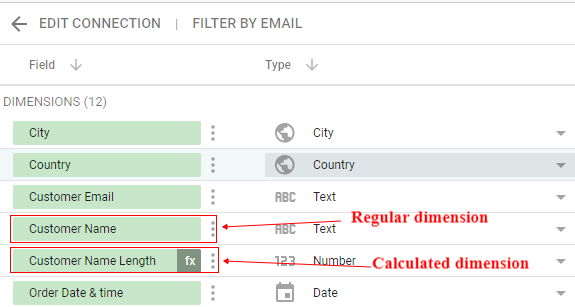
All calculated dimensions appear in the data source schema editor with an ‘fx’ symbol:
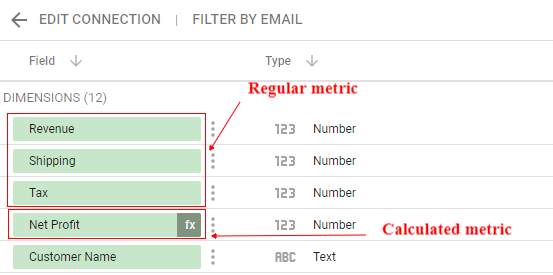
All calculated metrics appear in the data source schema editor with an ‘fx’ symbol:
How to identify calculated fields in a report editor
The data source schema specific calculated fields do not appear with an ‘fx’ symbol in a report editor.
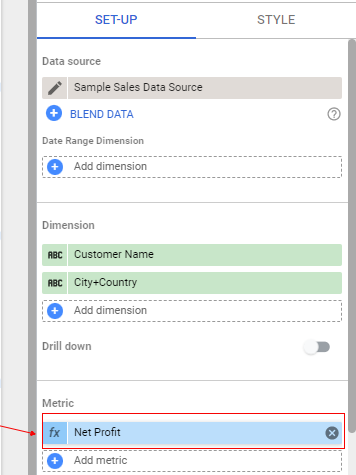
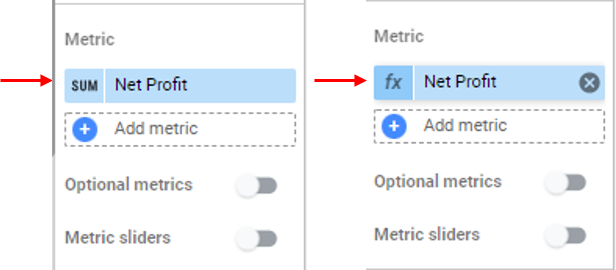
However, the chart specific calculated fields do appear with an ‘fx’ symbol when you hover your mouse them.
The following screenshot shows the data source schema specific calculated field called ‘[NEW] Is Revenue > Forecasted Revenue‘ in a report editor:
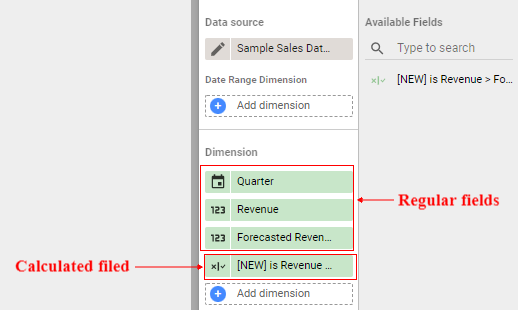
So if the calculated field is created in a data source schema then you can not easily identify it in the report editor.
But if the calculated field is created in a specific chart then you can identify it by hovering your mouse over the edit section of the field:
Editing a calculated field
In order to edit a data source schema specific calculated field, follow the steps below:
Step-1: Navigate to the data source schema editor whose calculated field you want to edit.
Step-2: Click on the ‘fx’ icon next to the calculated field:
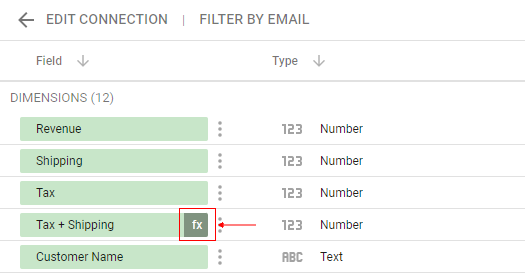
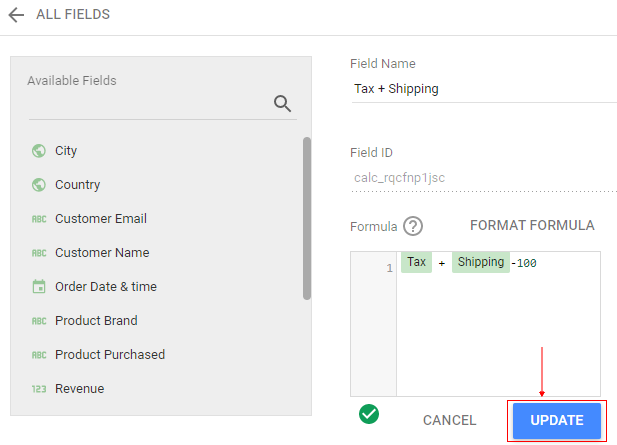
You would now see the calculated field editor through which you can edit your calculated field:
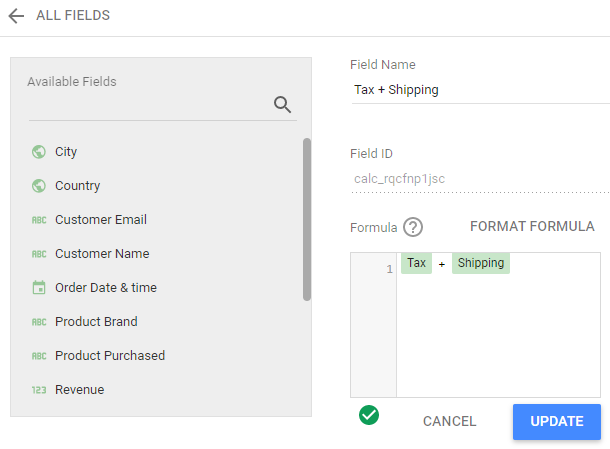
Step-3: Make changes to the formula of your calculated field and then click on the ‘Update’ button:
In order to edit a chart specific calculated field, follow the steps below:
Step-1: Navigate to the report which includes the chart that contains your calculated field.
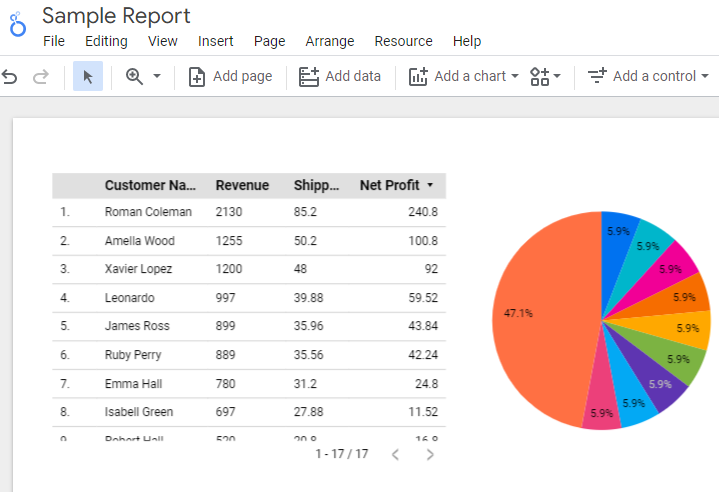
Step-2: Select the chart (by clicking on it) whose calculated field you want to edit:
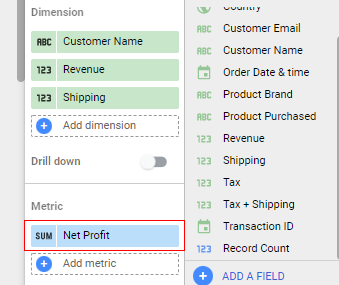
Step-3: Find your calculated field in the properties panel:
Step-4: Hover your mouse over the ‘AUT’ symbol. If it changes into the ‘fx’ icon then it means it is a chart specific calculated field:
Step-5: Click on the ‘fx’ icon. You would now see the calculated field editor through which you can edit your calculated field:
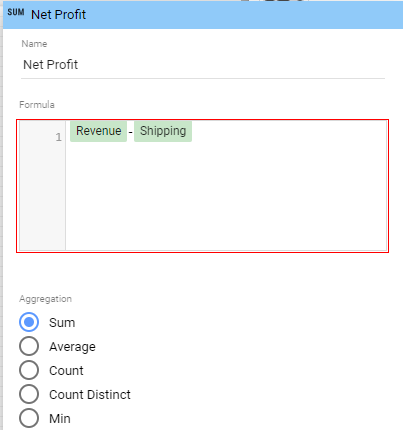
Step-6: Make changes to the formula of your calculated field and then click on the ‘Apply’ button:
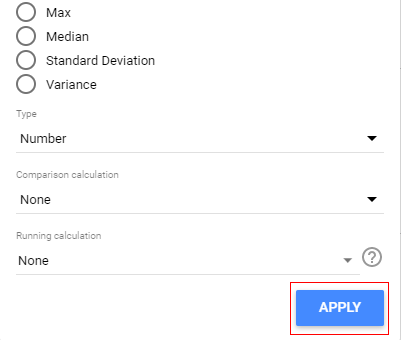
Step-7: Click anywhere on the canvas to hide the dialog box.
Calculated fields data types
By default, the data type assigned to a calculated field depends upon the type of operation(s) it performs on another field(s) in your data source schema or chart.
If your calculated field performs an arithmetic operation on another field(s) then it returns data of type ‘number’. So the data type assigned to the calculated field would be ‘Number’.
For example, consider the following calculated field:
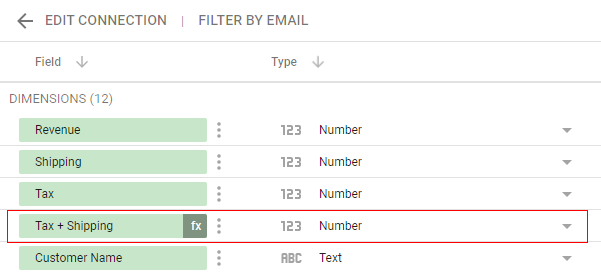
Here the data type assigned to the calculated field ‘Tax+Shipping‘ is ‘Number’. And that is because the calculated field performs an arithmetic operation on two numeric fields ‘Tax‘ and ‘Shipping‘:
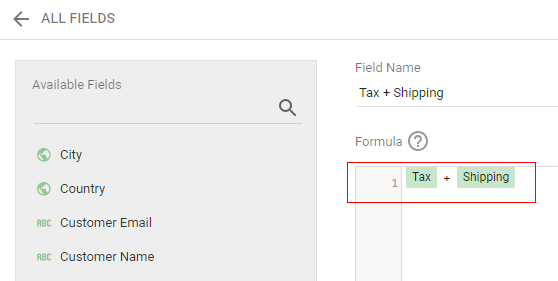
Consider another calculated field:
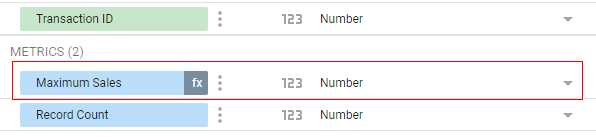
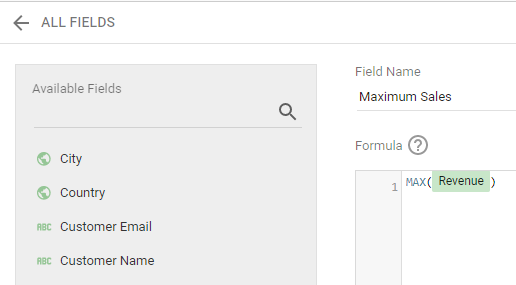
Here, the data type assigned to the calculated field ‘Maximum Sales‘ is ‘Number’. And that is because the calculated field uses a function (called MAX) that returns a value of type number:
If your calculated field performs a boolean operation on another field(s) then it returns data of type ‘boolean’. So the data type assigned to the calculated field would be ‘boolean’.
For example, consider the following calculated field:
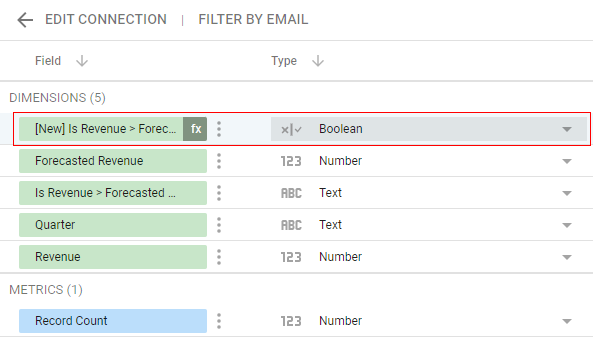
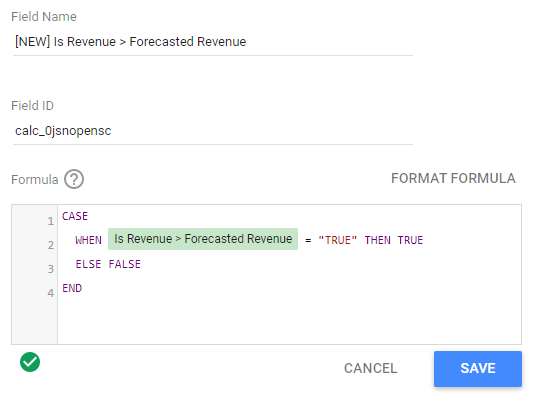
Here the data type assigned to the calculated field ‘[NEW] is Revenue > Forecasted Revenue‘ is ‘Boolean’. And that is because the calculated field performs a boolean operation:
Similarly, if your calculated field performs a text operation on another field(s) then it returns data of type ‘text’. So the data type assigned to the calculated field would be ‘text’.
Changing the data type of data source schema specific calculated field
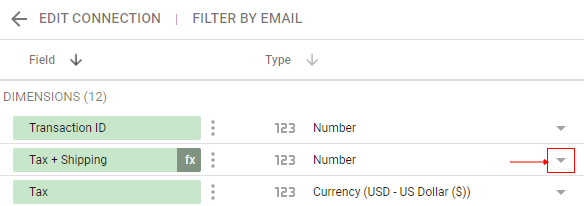
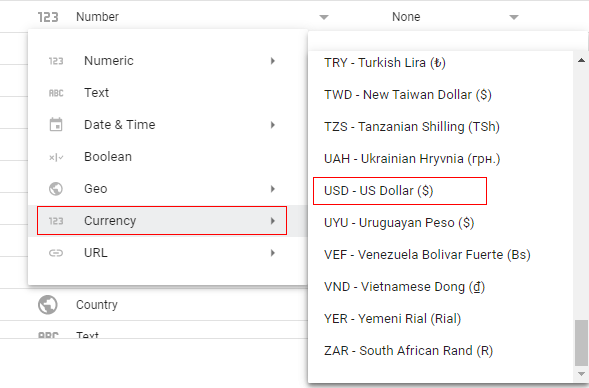
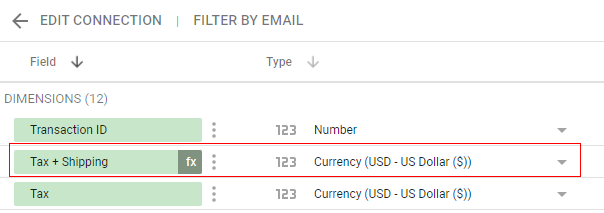
You can change the data type of your data source schema specific calculated field by using the ‘Type’ drop-down menu in the data source schema editor:
Changing the data type of chart specific calculated field
To change the data type of your chart specific calculated field follow the steps below:
Step-1: Navigate to the report which includes the chart that contains your calculated field.
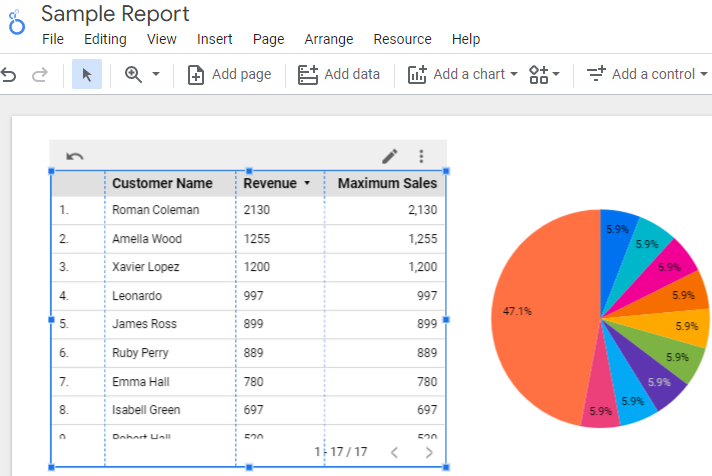
Step-2: Select the chart whose calculated field data type you want to change:
Step-3: Find your calculated field in the properties panel:
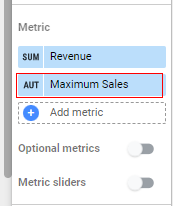
Step-4: Hover your mouse over the ‘AUT’ symbol. If it changes into the ‘fx’ icon then it means it is a chart specific calculated field:
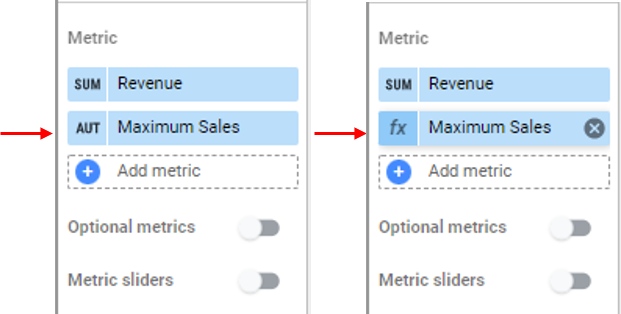
Step-5: Click on the ‘fx’ icon. You would now see the calculated field editor through which you can edit your calculated field:
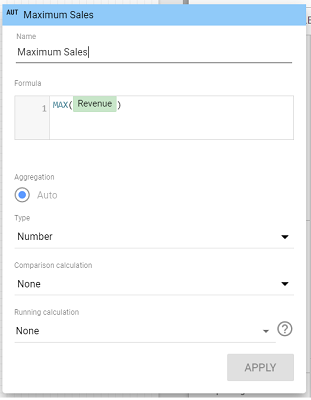
Step-6: Click on the ‘Type’ drown menu and then select the new data type for your chart specific calculated field:
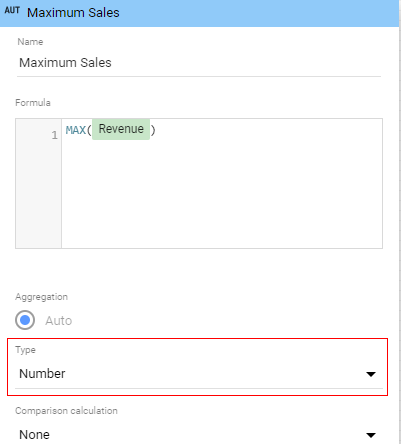
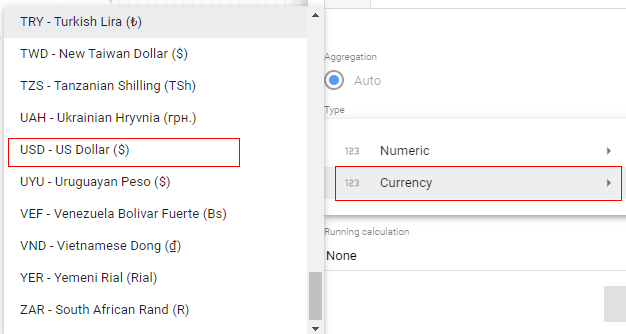
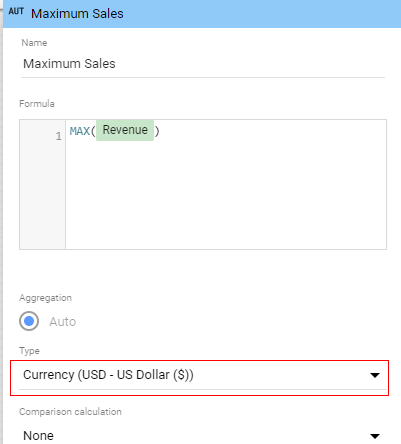
Step-7: Click anywhere on the canvas to close the dialog box.
Changing the data type of your calculated field to incompatible data type
Consider the following calculated field of type ‘number’:
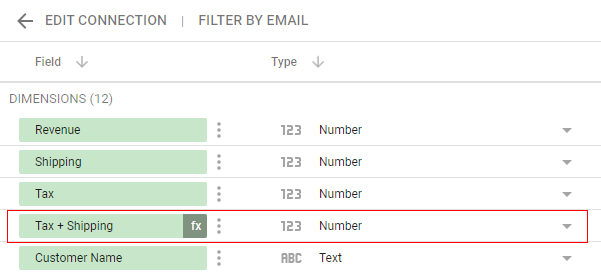
You can change the data type of the ‘Tax+Shipping’ calculated field to ‘currency’ without any issue. That is because the currency is also a type of number and hence is of the compatible data type.
But what if you change the data type of the ‘Tax+Shipping’ calculated field to ‘Boolean’:
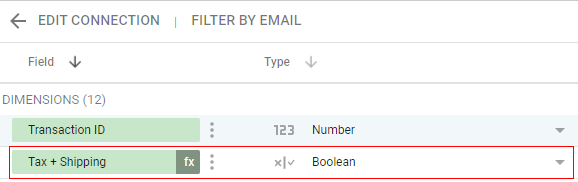
In that case, your report will throw a system error as ‘Boolean’ data type is not compatible with the ‘Number’ data type:
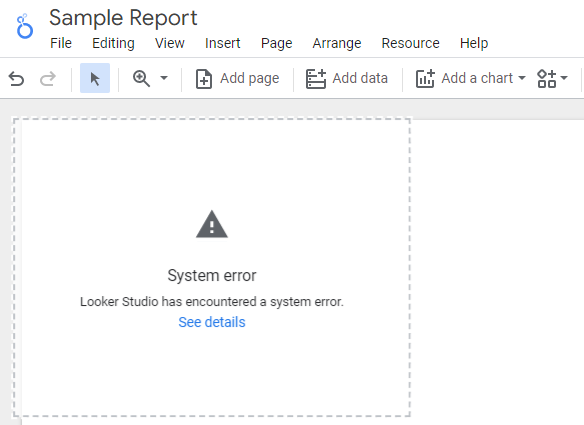
Note: Ideally, you should not change the data type of your calculated field. But if you have to then make sure that the new data type is compatible with the existing data type. You would know that your new data type is not compatible when your report shows a system error.

Related Articles.
- Google Data Studio Tutorial.
- How to Change Language in Google Data Studio.
- Google Data Studio Report Tutorial.
- How to work with Boolean field in Google Data Studio.
- How to use Google Data Studio with Google Sheets.
- Stop Using Page Titles in GA4 & Google Data Studio Reports.
- Google Data Studio Geo Map – Latitude Longitude.
- Google Data Studio Data Sources – Tutorial.
- Guide to Data Types in Google Data Studio.
- Google Data Studio Date Format and Time Explained.
- Working with Numeric Data Types in Google Data Studio.
- How to embed Google Data Studio report on a website.
- The Data Set Configuration Error in Google Data Studio.
- Google Data Studio Aggregation Explained.
- Google Data Studio Calculated Fields Tutorial.
- Google Data Studio Functions, Formulas Tutorial.
- Google Data Studio Page Navigation Tutorial.
- Google Data Studio Image function.
- Avoid Using Functions and Calculated Fields in Google Data Studio.
- Data Source Fields in Google Data Studio.