

Google Data Studio aggregation is the process of summarizing tabular data.
Tabular data is data that is in the form of a table. Following is an example of tabular data:
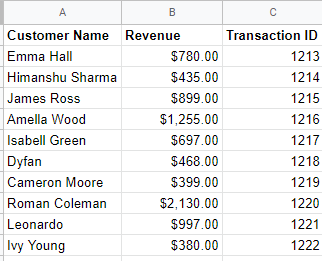
You can aggregate/summarize tabular data in Google Data Studio by:
- Calculating the sum/total of all the values of a numeric field.
- Calculating the average of all the values of a numeric field.
- Finding the minimum value of a numeric field.
- Finding the maximum value of a numeric field.
- Calculating the median of the values of a numeric field.
- Counting the number of values in a field.
- Uniquely counting the number of values in a field.
- Calculating the standard deviation of the values of a numeric field.
- Calculating variance of the values of a numeric field.
There are three methods through which you can aggregate tabular data in Google Data Studio:
Table of Contents
- #1 You can aggregate data via a field’s default aggregation in the data source schema
- #2 You can change the aggregation for a particular field in the report editor
- #3 You can use specific aggregation functions within a calculated field formula to create a new aggregated field
- Default Aggregation
- Auto Aggregation
#1 You can aggregate data via a field’s default aggregation in the data source schema
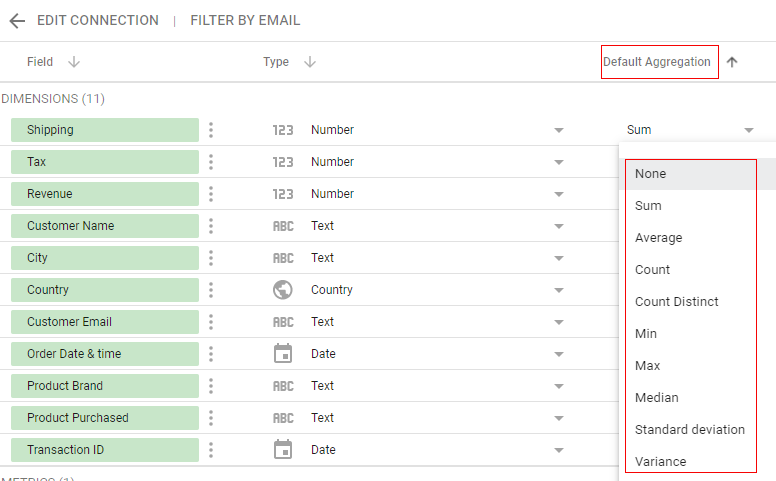
The default aggregation determines how that field, by default, is aggregated and displayed in various charts of the report.
#2 You can change the aggregation for a particular field in the report editor
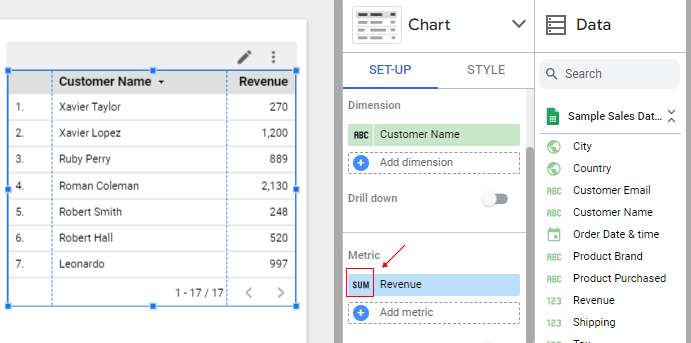
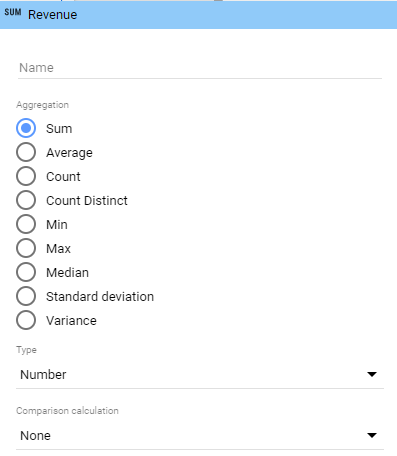
The aggregation method changed via report editor can override the default aggregation and apply a different one to the field on a chart.
#3 You can use specific aggregation functions within a calculated field formula to create a new aggregated field
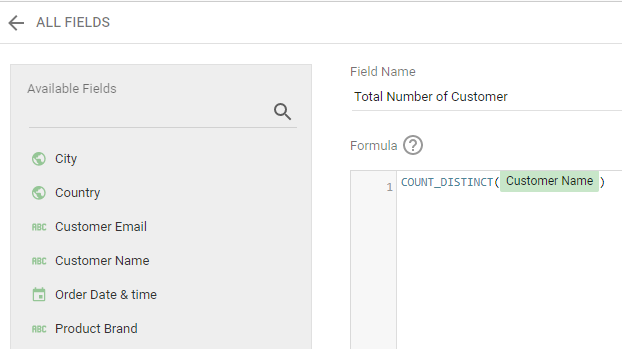
Here, COUNT_DISTINCT is an aggregation function used with a calculated field formula to create a new aggregated field called ‘Total number of customers’.
Default Aggregation
The default aggregation determines how a field, by default, is aggregated and displayed in one or more charts of a report.
You can apply the following default aggregations to fields in your data source schema:
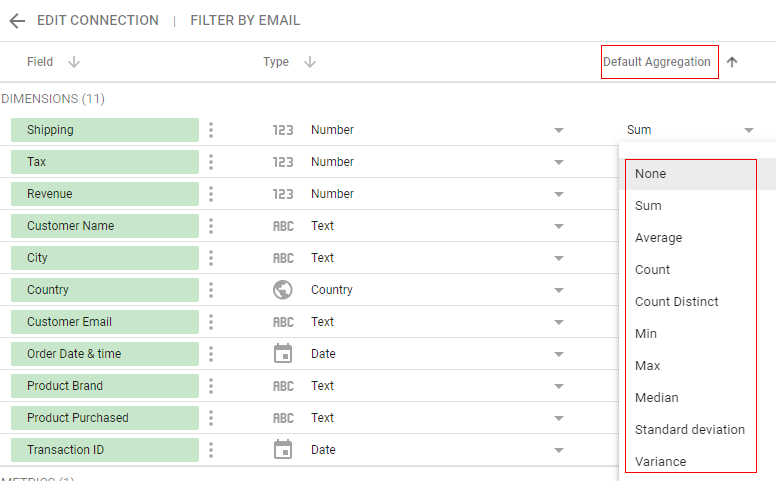
- None – Use this aggregation type when you don’t want to apply any aggregation to a data source field.
- Sum – Use this aggregation type when you want a numeric field to be aggregated and displayed (in one or more charts of a report) by default, as the sum of all of the values of the field.
- Average – Use this aggregation type when you want a numeric field to be aggregated and displayed (in one or more charts of a report) by default, as the average of all of the values of the field.
- Count – Use this aggregation type when you want a field to be aggregated and displayed by default, as the total count of all of the values of the field.
- Count distinct – Use this aggregation type when you want a field to be aggregated and displayed by default, as the total count of all of the unique values of the field.
- Min – Use this aggregation type when you want a numeric field to be aggregated and displayed by default, as the minimum value of the field.
- Max – Use this aggregation type when you want a numeric field to be aggregated and displayed by default, as the maximum value of the field.
- Median – Use this aggregation type when you want a numeric field to be aggregated and displayed by default, as the median value of the field. A median is a middle number in the sorted list of numbers.
- Standard Deviation – Use this aggregation type when you want a numeric field to be aggregated and displayed by default, as the standard deviation of the values of the field. The standard deviation is a measure of the amount of variation of a set of values.
- Variance – Use this aggregation type when you want a numeric field to be aggregated and displayed by default, as the variance of the values of the field. The variance measures how far a set of numbers are spread out from their average value.
Auto Aggregation
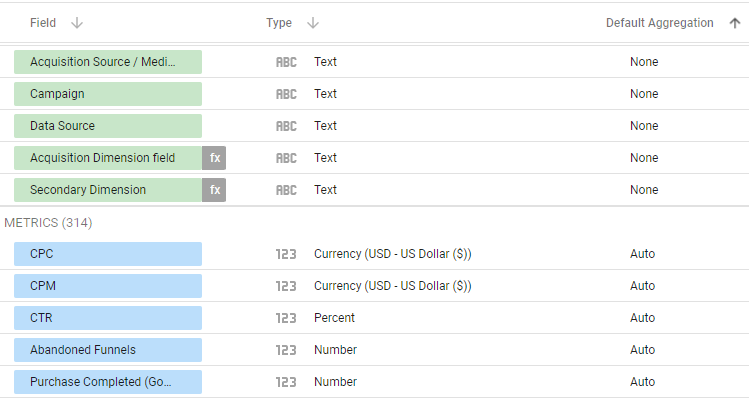
The data source fields that are already aggregated have the default aggregation of ‘auto’ and you can not change the aggregation methods of such field.
Data Sources like Google Analytics and Google Ads show ‘None’ as the only available aggregation type for most dimensions and ‘Auto’ as the only available aggregation type for most metrics. And you can not change the aggregation methods of such fields:
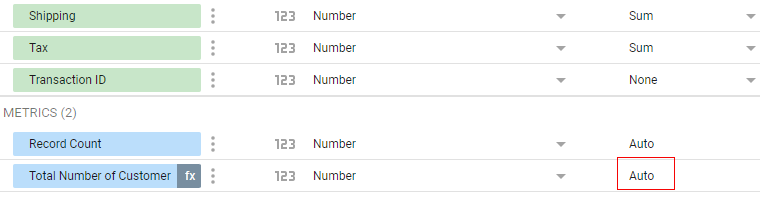
A calculated field that uses an aggregation function in its formula becomes a pre-aggregated field. Therefore its default aggregation is set to ‘auto’ which can not be changed.

Related Articles.
- Google Data Studio Tutorial.
- How to Change Language in Google Data Studio.
- Google Data Studio Report Tutorial.
- How to work with Boolean field in Google Data Studio.
- How to use Google Data Studio with Google Sheets.
- Stop Using Page Titles in GA4 & Google Data Studio Reports.
- Google Data Studio Geo Map – Latitude Longitude.
- Google Data Studio Data Sources – Tutorial.
- Guide to Data Types in Google Data Studio.
- Google Data Studio Date Format and Time Explained.
- Working with Numeric Data Types in Google Data Studio.
- How to embed Google Data Studio report on a website.
- The Data Set Configuration Error in Google Data Studio.
- Google Data Studio Aggregation Explained.
- Google Data Studio Calculated Fields Tutorial.
- Google Data Studio Functions, Formulas Tutorial.
- Google Data Studio Page Navigation Tutorial.
- Google Data Studio Image function.
- Avoid Using Functions and Calculated Fields in Google Data Studio.
- Data Source Fields in Google Data Studio.