

We use the IMAGE function to create image fields in our data source schema.
Following is the syntax of the Image function:
IMAGE(Image URL, [Alternative Text])
Image URL is a field or expression that evaluates to a URL.
Alternative Text is an optional field or expression that evaluates to text. This text is used to describe an image so that the visually impaired users can understand what the image is all about by using a screen reader.
Follow the steps below to use the image function in the Google Data Studio:
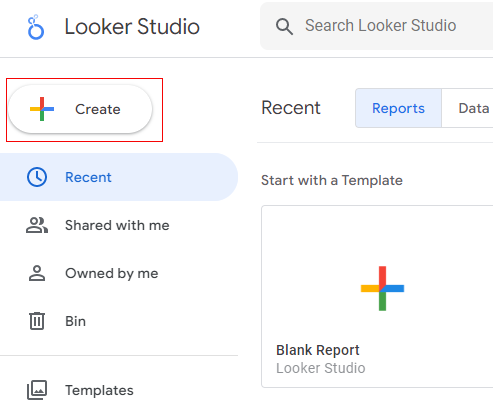
Step-1: Navigate to your Google Data Studio account and then click on the ‘Create’ button:
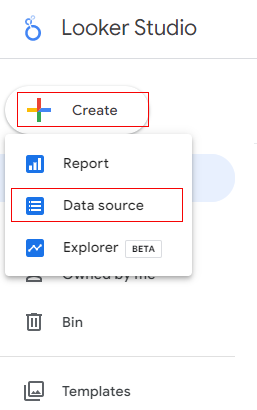
Step-2: Click on the ‘Data Source’ option to create a new data source schema:
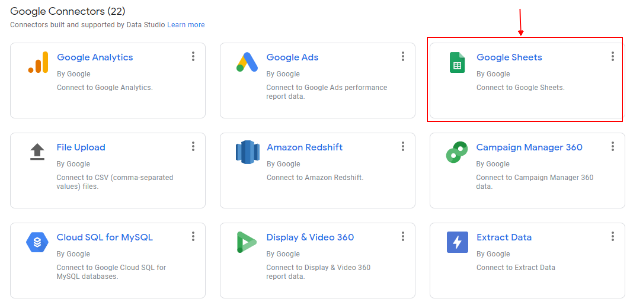
Step-3: Find and click on the Google Sheets connector:
Step-4: Select your Google Sheets data source:
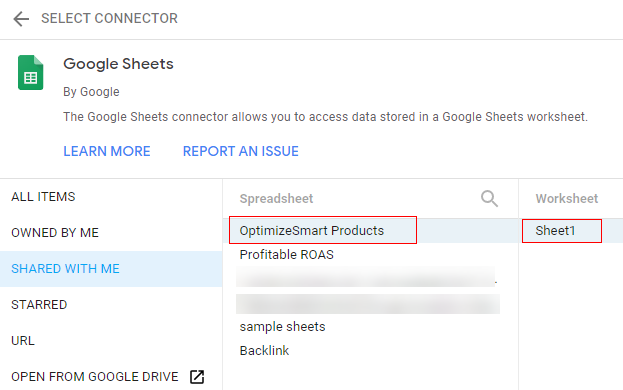
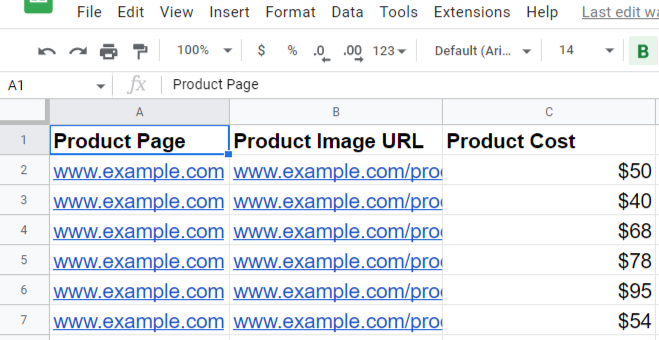
The selected Google Sheets data source contains the following data:
Step-5: Click on the ‘Connect’ button at the top right-hand side:
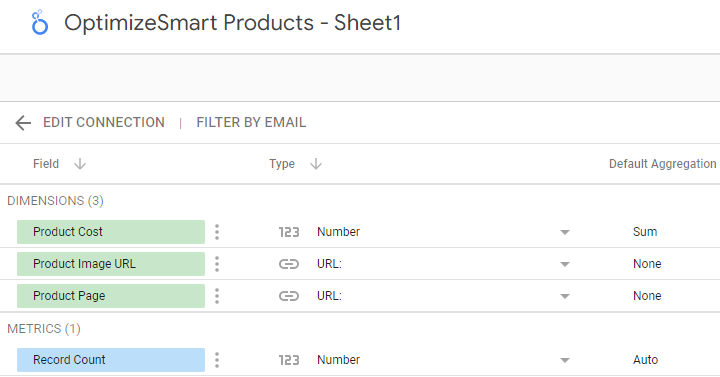
Your new data source schema is going to look like the one below:
Step-6: Click on the ‘ADD A FIELD’ button to create a new calculated field:
Step-7: Name the new calculated field ‘Product Images ‘ and then define it like the one below:
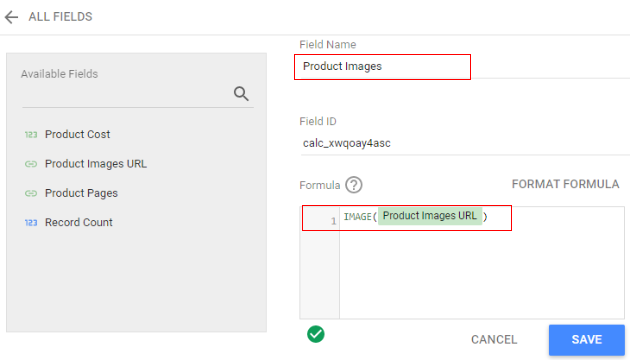
Step-8: Click on the ‘Save’ button and then click on the ‘ALL FIELDS’ button to navigate back to the data source schema editor.
You should now see a new calculated field of type ‘Image’:
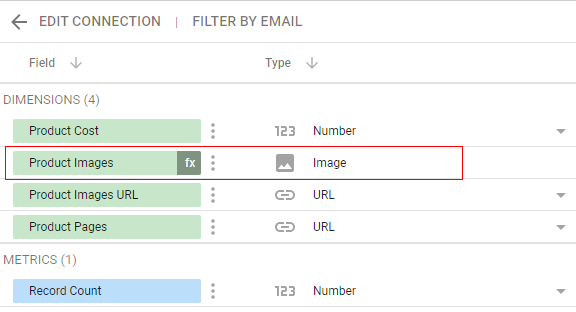
That’s how you can use the IMAGE function to create image fields in your data source schema.
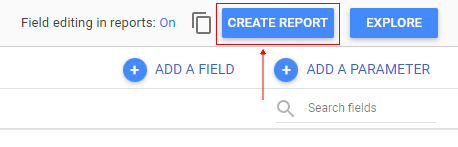
Step-9: Click on the ‘Create Report’ button to create a new report from the data source schema:
Step-10: Click on the ‘Add to report’ button:
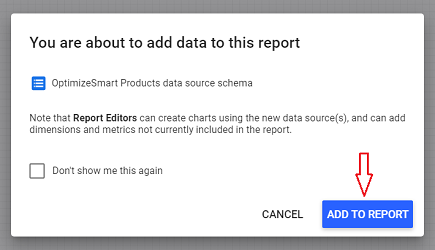
Google Data Studio will automatically create a new table in your report:
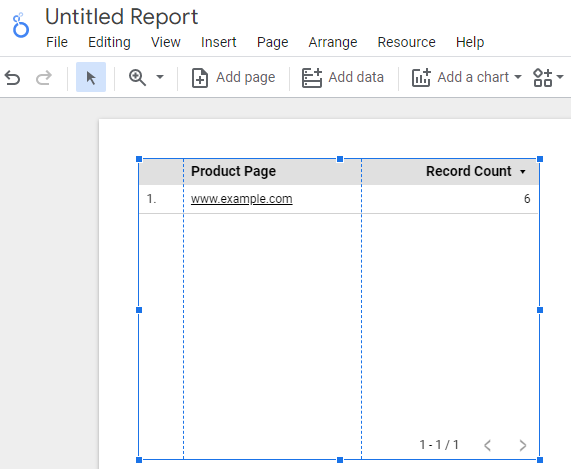
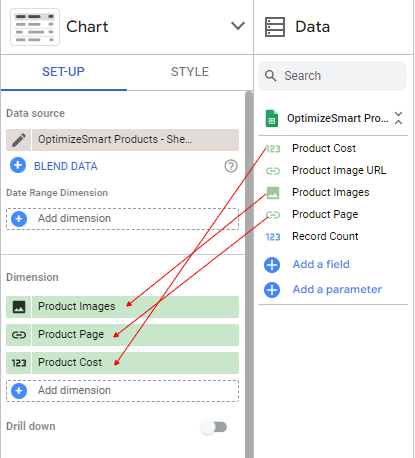
Step-11: Drag and drop the following fields one by one from the ‘Available Fields’ section to the ‘Dimensions’ section:
- Product Images
- Product Cost
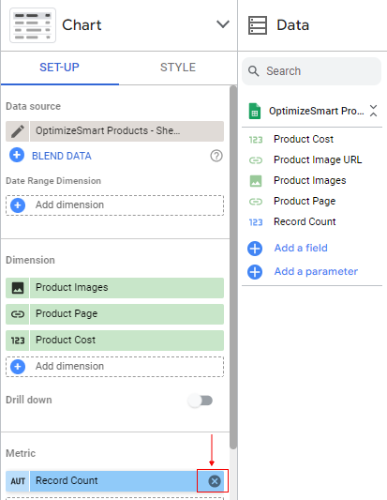
Step-12: Remove the ‘Record count’ metric by clicking on the cross button next to it:
Your data table is now going to look like the one below:
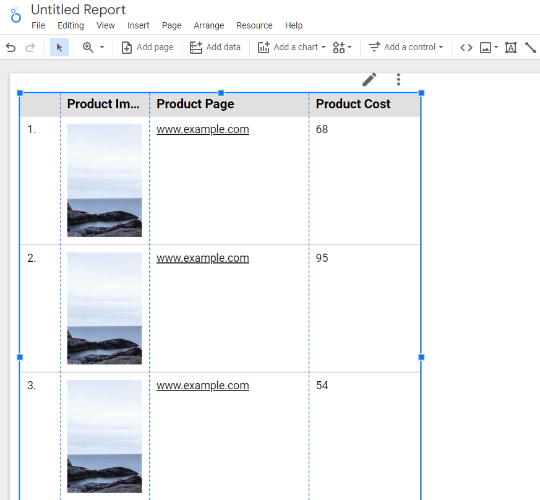
Step-13: Re-size your data table so that you can see all the product images
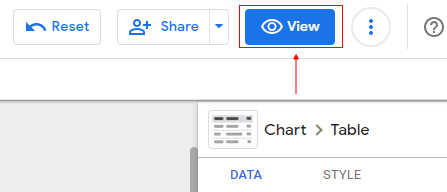
Step-14: Click on the ‘View’ button (on the top right-hand side of your screen) to view your report in the view mode:
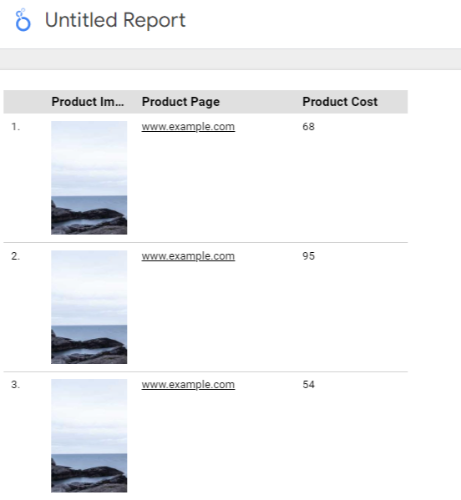
In view mode, your data table is going to look like the one below:
When you copy a data source schema, all Image fields are disabled in the copy.
You can re-enable image fields by following the steps below:
Step-1: Navigate to the copied data source schema editor:
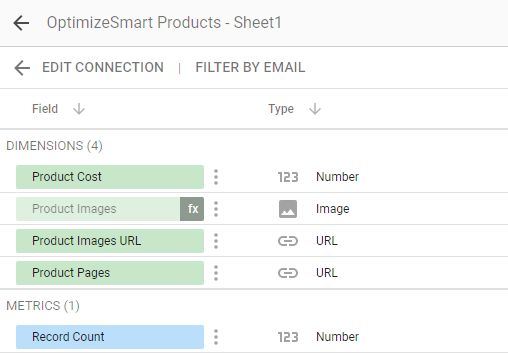
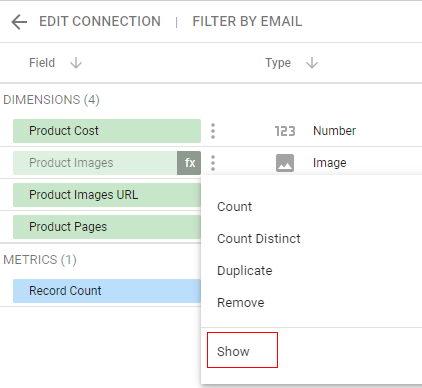
Step-2: For each image field you want to enable, click on the three dots next to it:
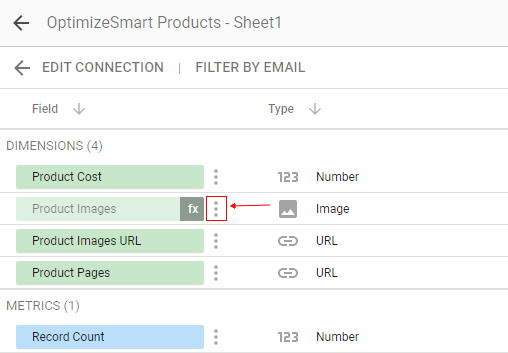
Step-3: Click on the ‘Show‘ option from the drop-down menu to re-enable the image field:
This is what the re-enabled image field will look like:

Related Articles.
- Google Data Studio Tutorial.
- How to Change Language in Google Data Studio.
- Google Data Studio Report Tutorial.
- How to work with Boolean field in Google Data Studio.
- How to use Google Data Studio with Google Sheets.
- Stop Using Page Titles in GA4 & Google Data Studio Reports.
- Google Data Studio Geo Map – Latitude Longitude.
- Google Data Studio Data Sources – Tutorial.
- Guide to Data Types in Google Data Studio.
- Google Data Studio Date Format and Time Explained.
- Working with Numeric Data Types in Google Data Studio.
- How to embed Google Data Studio report on a website.
- The Data Set Configuration Error in Google Data Studio.
- Google Data Studio Aggregation Explained.
- Google Data Studio Calculated Fields Tutorial.
- Google Data Studio Functions, Formulas Tutorial.
- Google Data Studio Page Navigation Tutorial.
- Google Data Studio Image function.
- Avoid Using Functions and Calculated Fields in Google Data Studio.
- Data Source Fields in Google Data Studio.