

Follow the steps below to invite people via email to view, use, edit or collaborate on a report:
Step-1: Open the report you want to share.
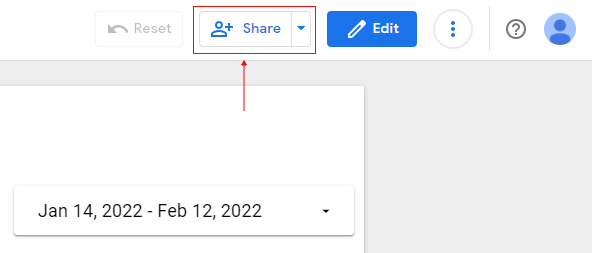
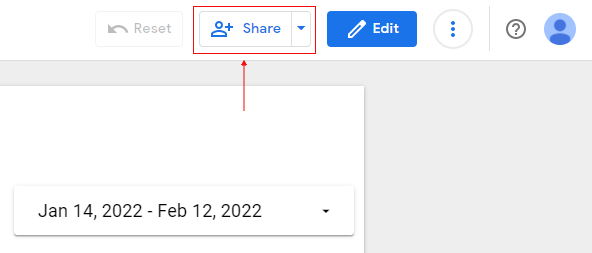
Step-2: Click on the ‘+Share’ drop-down menu at the top right-hand side of your screen:
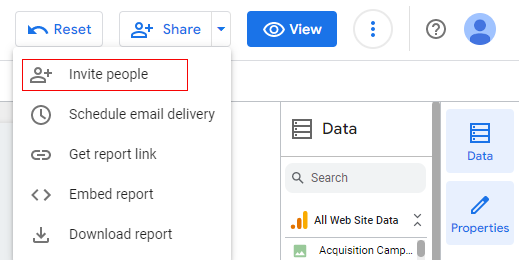
Step-3: Click on the ‘Invite people’ option:
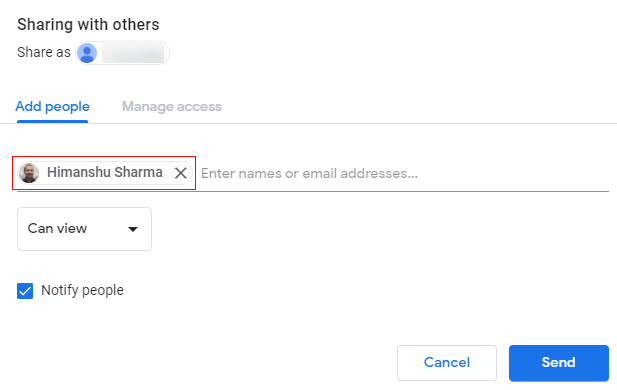
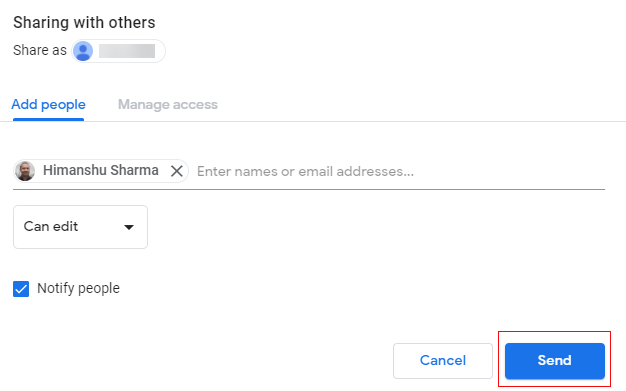
Step-4: Under “Add people”, enter the names or email addresses of the people with whom you want to share your report:
Step-5: If you want the people with whom you want to share your report to be able to edit the report then select ‘Can Edit‘ option from the permission drop-down menu. Otherwise, move to the next step:
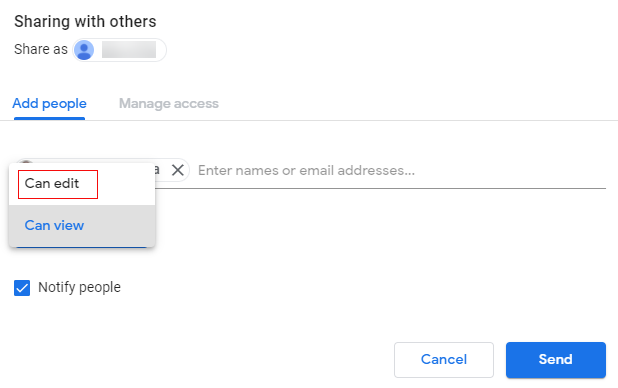
Can edit – This permission allows users to edit the report (i.e. add, change or remove charts, controls, filters, data sources schema etc). They can also share the report with other users.
Can view – This permission allows users to only view the report. They cannot edit the report. However, they can still share the report with other users.
Step-6: Click on the ‘Send’ button.
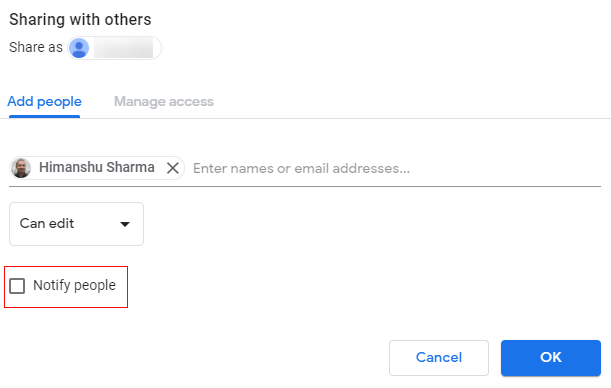
Note: By default, people you invite to share your report receive an email with a link to the shared report. Uncheck ‘Notify people’ if you don’t want Google Data Studio to send the email notification:
If you want to set different permissions for different people then follow the steps below:
Step-1: Open the report you want to share and then click on the ‘+Share’ drop-down menu at the top right-hand side of your screen:
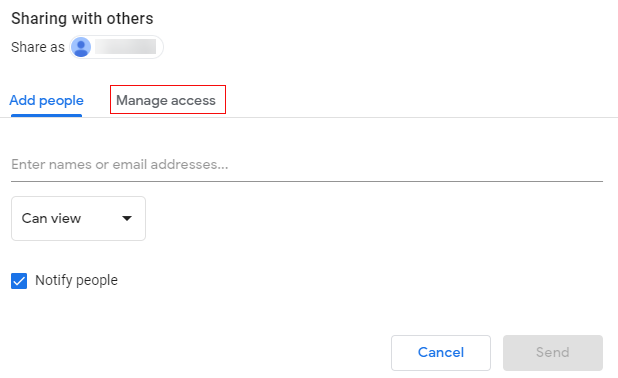
Step-2: Click on the ‘Manage access’ tab:
Step-3: Click on the permission drop-down menu next to the name and email address of the user whose permission you want to change:
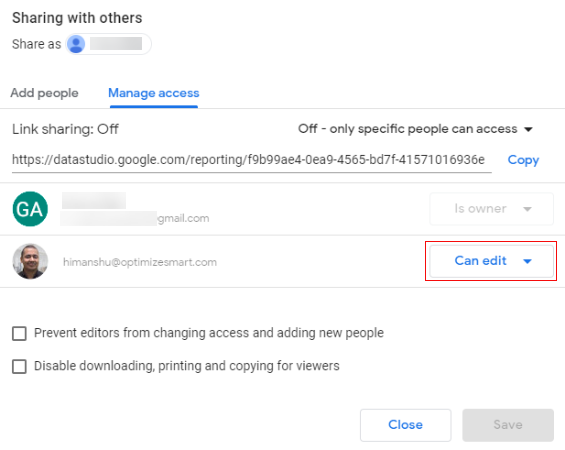
Step-4: Change the user permission to ‘Can view’ or ‘Make Owner’:
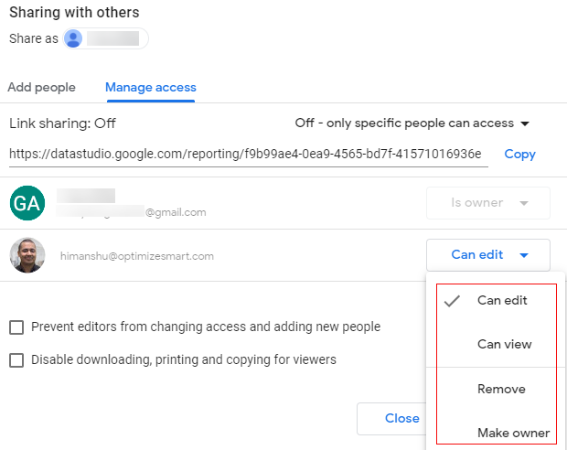
‘Owner’ access means the user has complete control over the report. This permission is automatically set for you when you first create a report.
If you want to remove the user then click on the ‘Remove’ option.
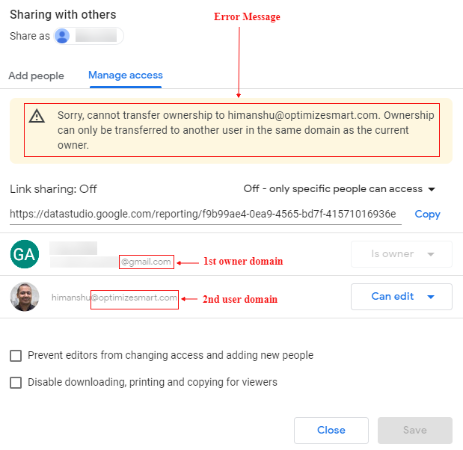
Note: Report ownership can be transferred to another user in the same domain as the current owner.
For example, if the user domain with the ownership is ‘gmail.com’ and the user to which ownership transfer has to be done is ‘optimizesmart.com’. If you make a user with another domain as the owner it will show you an error message like the image below.
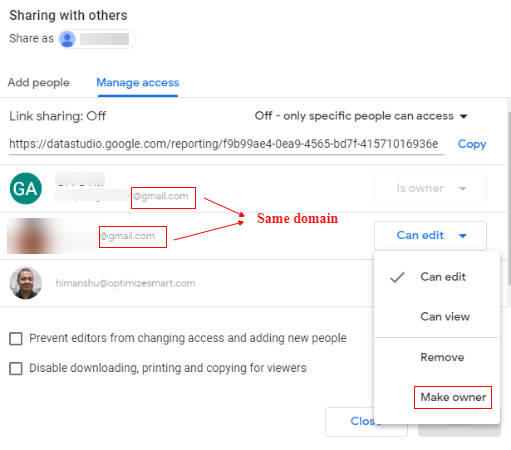
If the user domain and the current owner domain is same, you can transfer the ownership.
Step-5: Click on the ‘Make Owner’ option from the permission drop down
Step-6: A pop-up will show like the below image. Click on ‘Yes’.
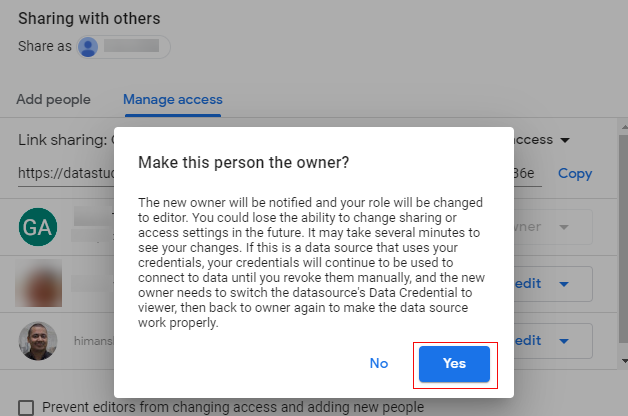
The ownership will be immediately transferred to the user.
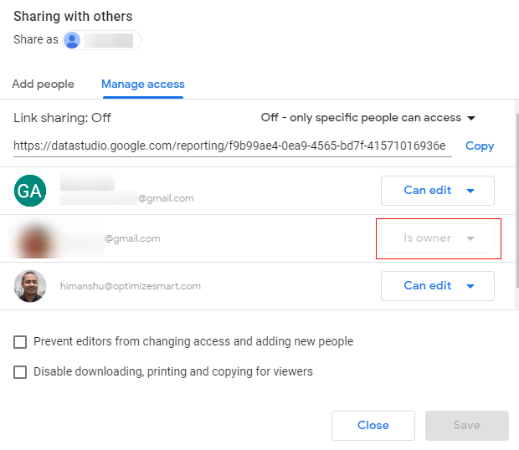
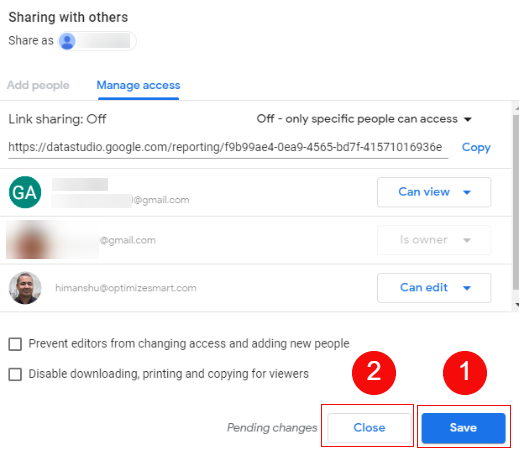
Step-7: Click on the ‘Save’ button and then on the ‘Close’ button.
Preventing report editors from changing access and adding new people
If you want to stop the report user(s) with ‘can edit‘ permission to change the access of other report users or if you want to stop the report user with ‘can edit‘ permission to add new users to your report then follow the steps below:
Step-1: Open the report you want to share and then click on the ‘+Share’ drop-down menu at the top right-hand side of your screen:
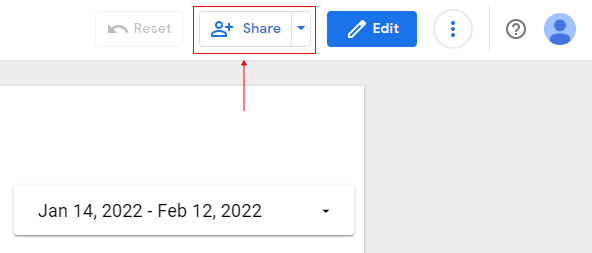
Step-2: Click on the ‘Manage access’ tab:
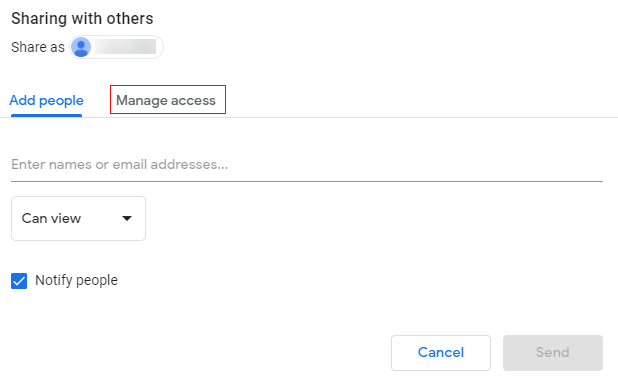
Step-3: Click on the checkbox ‘Prevent editors from changing access and adding new people‘:
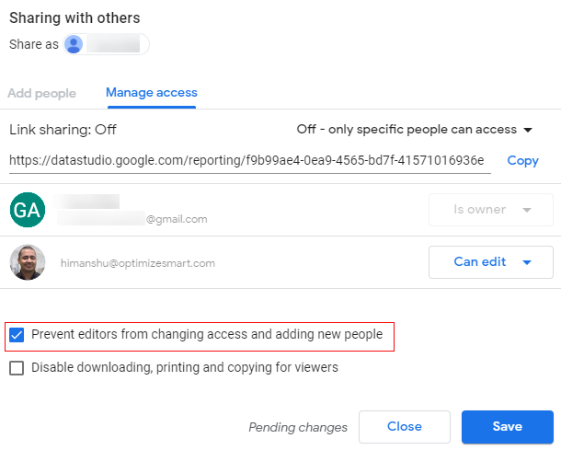
Step-4: Click on the ‘Save’ button and then on the ‘Close’ button.
Disabling downloading, printing and copying for report viewers
If you want to stop the report user(s) with ‘can view‘ permission to be able to download, print or copy the shared report then follow the steps below:
Step-1: Open the report you want to share and then click on the ‘+Share’ drop-down menu at the top right-hand side of your screen:
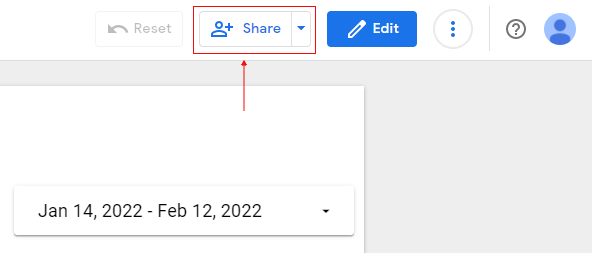
Step-2: Click on the ‘Manage access’ tab:
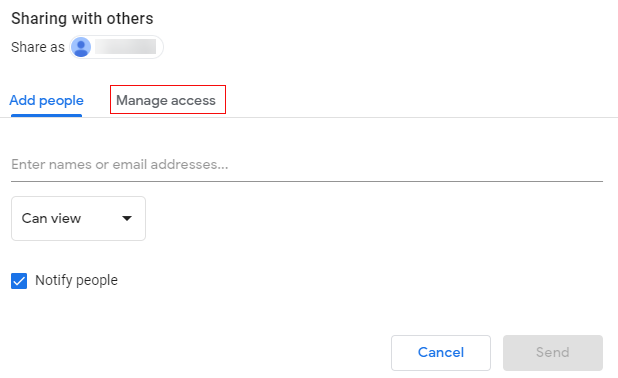
Step-3: Click on the checkbox ‘Disable downloading, printing and copying for viewers‘:
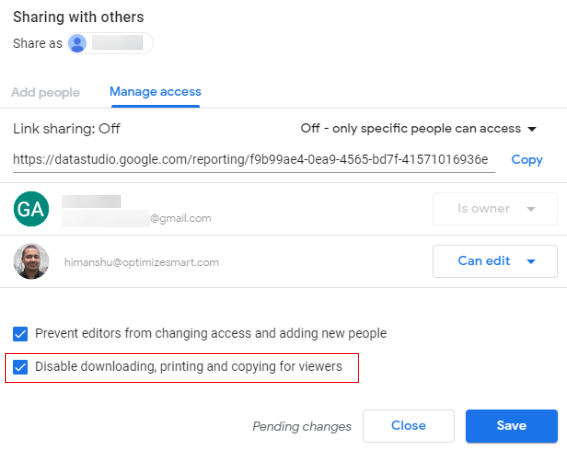
Step-4: Click on the ‘Save’ button and then on the ‘Close’ button.
Link Sharing Options
If you want to on or off link sharing for the report then follow the steps below:
Step-1: Open the report you want to share and then click on the ‘+Share’ drop-down menu at the top right-hand side of your screen:
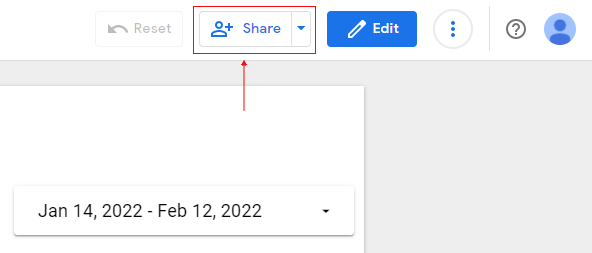
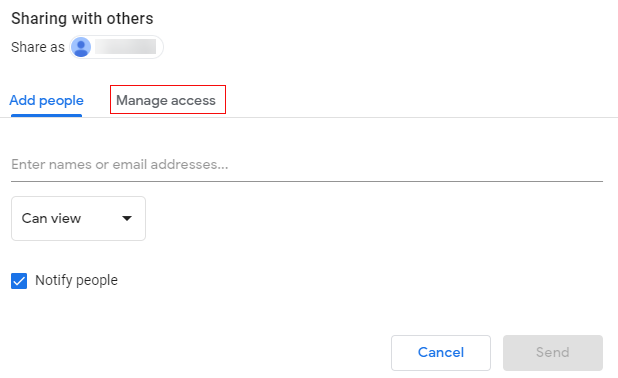
Step-2: Click on the ‘Manage access’ tab:
Step-3: Click on the drop down in front of ‘Link sharing’
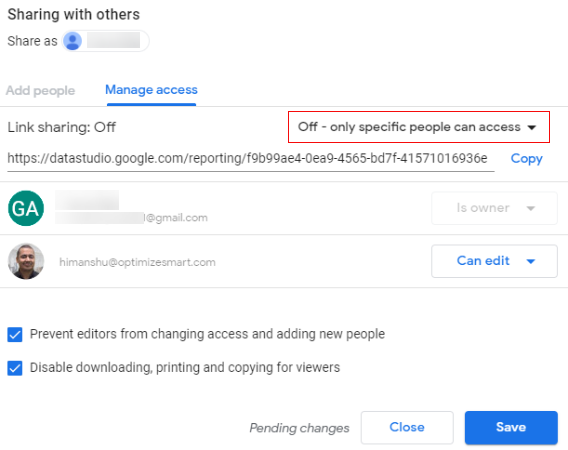
Step-4: Click on any of the option of your choice based on how you would like to share the report.
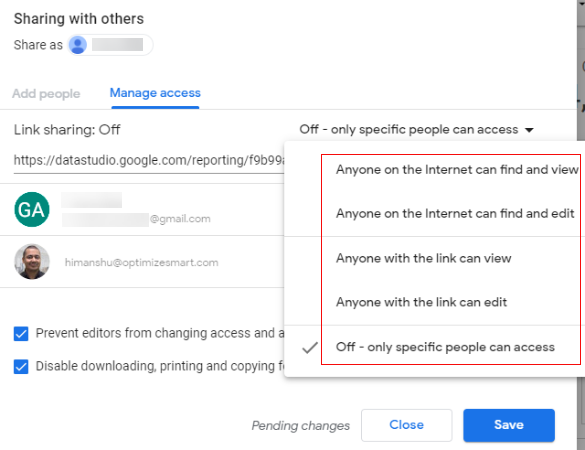
Step-5: Click on the ‘Save’ button and then on the ‘Close’ button.

Related Articles.
- Stop Using Page Titles in GA4 & Google Data Studio Reports.
- Google Data Studio Geo Map – Latitude Longitude.
- Google Data Studio Data Sources – Tutorial.
- Guide to Data Types in Google Data Studio.
- Google Data Studio Date Format and Time Explained.
- Working with Numeric Data Types in Google Data Studio.
- How to embed Google Data Studio report on a website.
- The Data Set Configuration Error in Google Data Studio.
- Google Data Studio Aggregation Explained.
- Google Data Studio Calculated Fields Tutorial.
- Google Data Studio Functions, Formulas Tutorial.
- Google Data Studio Page Navigation Tutorial.
- Google Data Studio Image function.
- Avoid Using Functions and Calculated Fields in Google Data Studio.
- Data Source Fields in Google Data Studio.
- Google Data Studio Dimensions vs Metrics Tutorial.
- Sharing Data Source Schema in Google Data Studio.
- Formula Rejection in Google Data Studio.
- How to invite others to view or edit a report in Google Data Studio.
- How to share reports in Google Data Studio.