

Google Data Studio provides the following methods to share your report with other users.
#1 Invite people via email to view, use, edit or collaborate on a report.
#2 Share the link of your report with specific users
#3 Share the link of your report with the general public
#4 Share the PDF version of your report via automatic email delivery.
#5 Download Google Data Studio report as PDF
#6 Embed Google Data Studio report on a website
Inviting people to view or edit a report in Google Data Studio
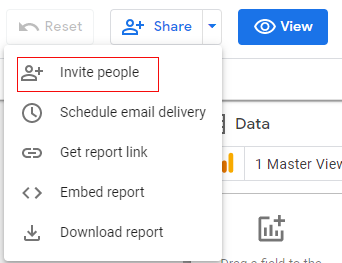
You can invite people via email to view, use, edit or collaborate on a report by clicking on the ‘Invite People’ option from the ‘+Share’ drop-down menu at the top right-hand side of your report:
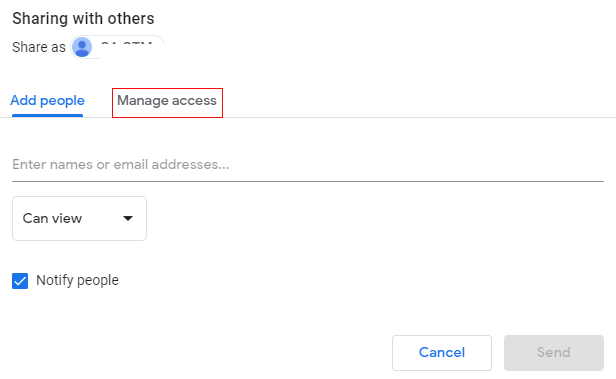
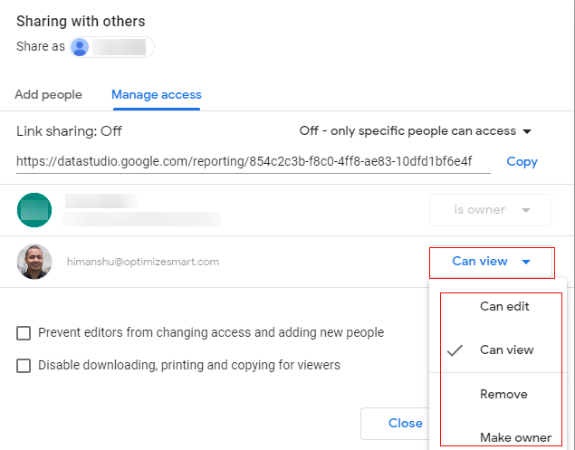
If you want to set different permissions for different people then you can do that by clicking on the ‘Manage access‘ tab:
To learn more, checkout this article: How to invite others to view or edit a report in Google Data Studio.
Sharing the report link in Google Data Studio.
In Google Data Studio, you can share the link of your report with specific users (users who already have ‘can view’, ‘can edit’ or ‘owner’ permission for the shared report)
To do that follow the steps below:
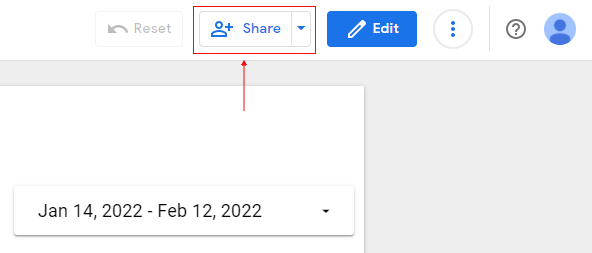
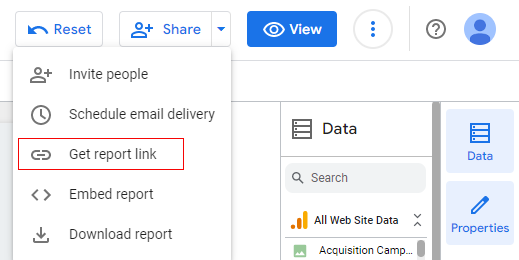
Step-1: Open the report you want to share and then click on the ‘+Share’ drop-down menu at the top right-hand side of your screen:
Step-2: Click on the ‘Get report link‘ option:
Step-3: Click on the ‘Copy Link’:
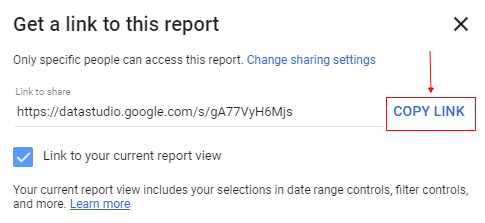
Step-4: Share the link with other report users via email, Instant messenger etc.
Sharing the link of your report with a large group of people or with the general public
If you want to share your report with a large group of people or with the general public then instead of inviting each user separately via email, you can just share the report link.
Follow the steps below:
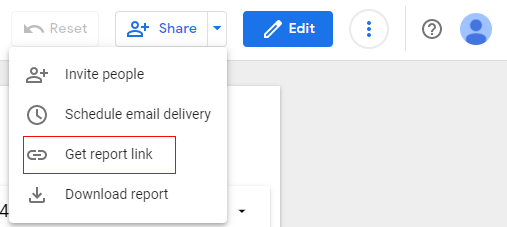
Step-1: Open the report you want to share and then click on the ‘+Share’ drop-down menu at the top right-hand side of your screen:
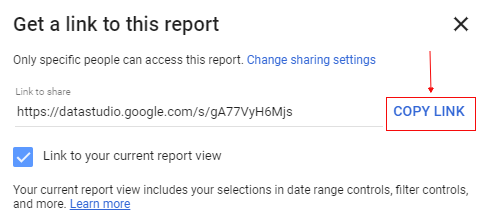
Step-2: Click on the ‘Get report link‘ option:
Step-3: Click on ‘Change Sharing settings‘ link:
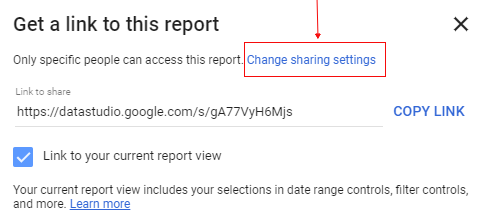
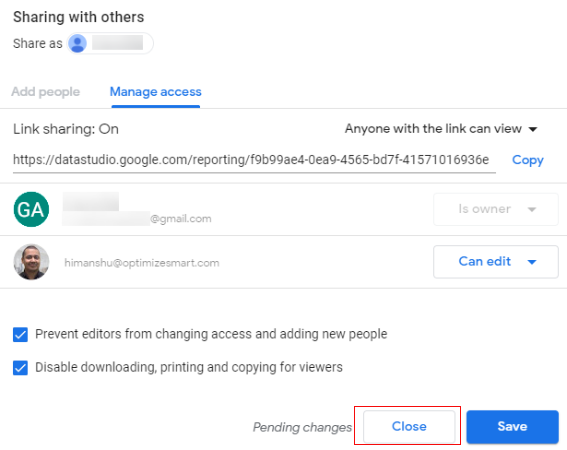
You should now see the ‘Sharing with others’ dialog box:
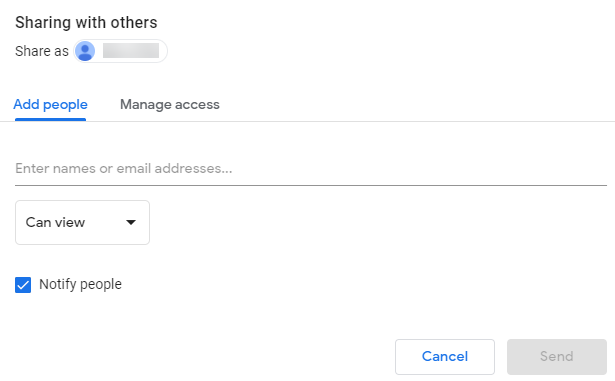
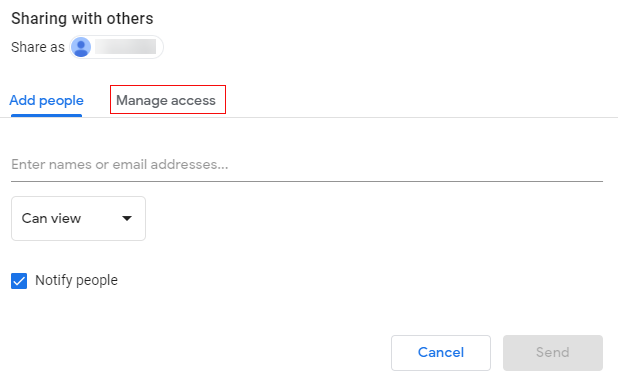
Step-4: Click on the ‘Manage Access’ tab:
Step-5: Click on the drop-down menu next to ‘Link Sharing: OFF‘:
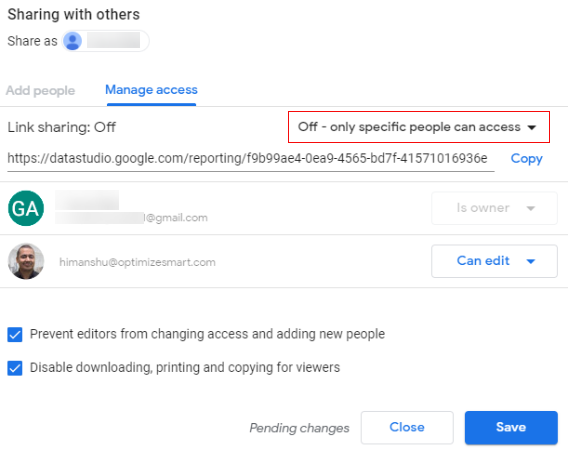
Step-6: Select one of the link-sharing options:
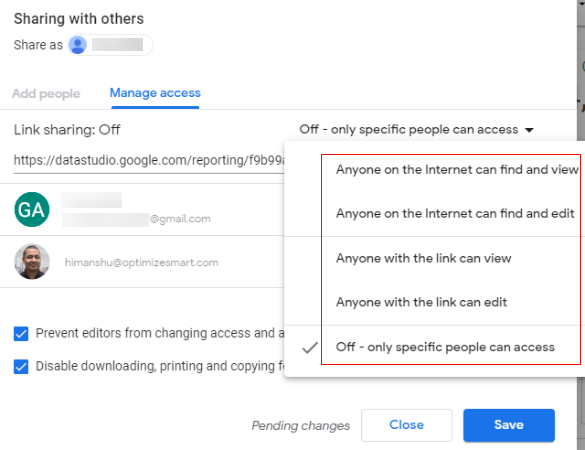
Anyone on the Internet can find and view – select this setting if you want to make your report searchable on search engines like Google. So anybody on the internet can search, view and share your report.
Anyone on the Internet can find and edit – select this setting if you want to make your report searchable on search engines like Google and any person is allowed to view, share and even ‘edit’ your report.
Anyone with the link can view – select this setting if you want to allow anyone with the link to your report to be able to view the report. Use this setting if you want to share your report on social media.
Anyone with the link can edit – select this setting if you want to allow anyone with the link to your report to be able to view as well as edit the report.
Off – Only specific people can access – select this setting if you want only specific people to be able to access your report.
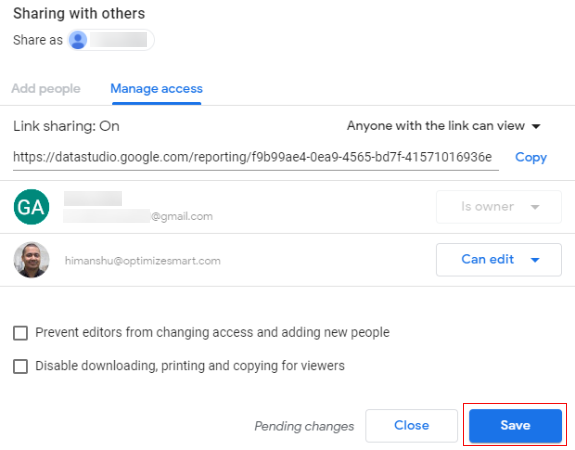
Step-7: Once you have chosen the required setting then click on the ‘Save’ button:
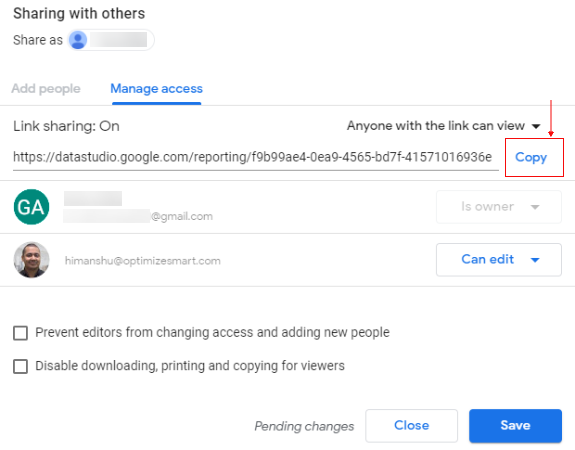
Step-8: Click on the ‘Copy’ button to copy the link of your report:
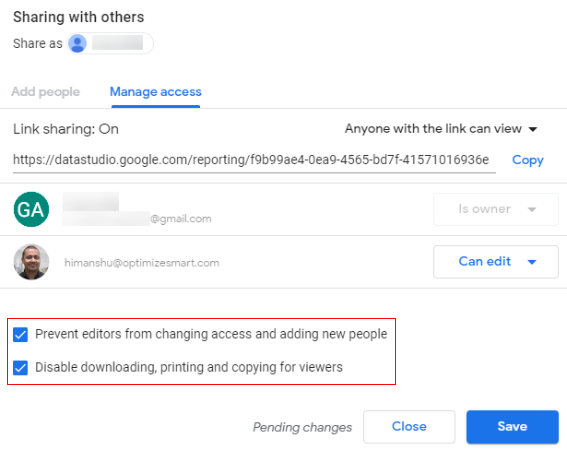
Remember even with link sharing, you can still use the following two settings:
Step-8: Click on the ‘Close’ button.
Schedule email delivery of a report in Google Data Studio.
If you want to send a copy (as a PDF file attachment) of your Google Data Studio report to yourself and other users on a regular basis then set up an email delivery schedule.
Note: The email will contain a link to view the entire report.
To create a new email delivery schedule, follow the steps below:
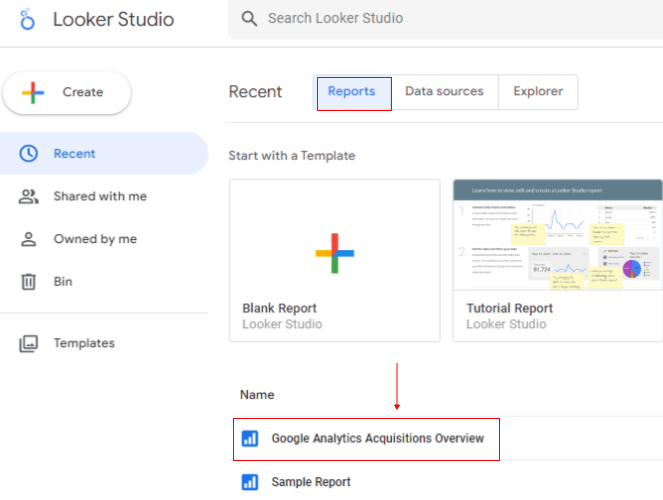
Step-1: Open the report you want to schedule.
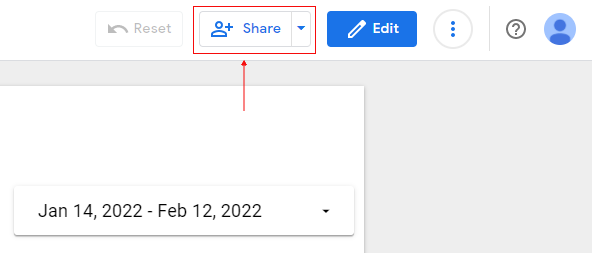
Step-2: Click on the ‘+Share’ drop-down menu on the top right-hand side of your screen:
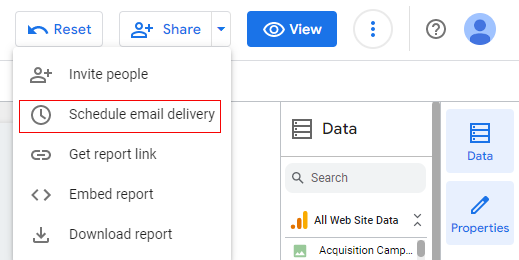
Step-3: Click on ‘Schedule email delivery’:
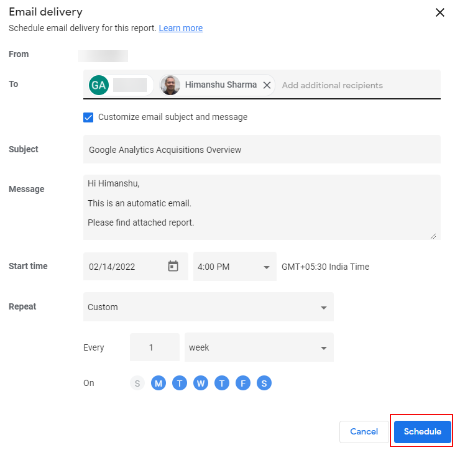
Step-4: Type the email addresses of the users who you want to send a copy of your report on a regular basis:
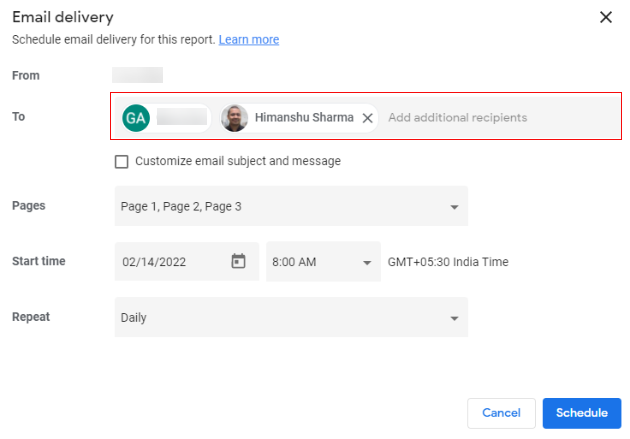
If you created the email delivery schedule then you can not exclude yourself from getting email updates.
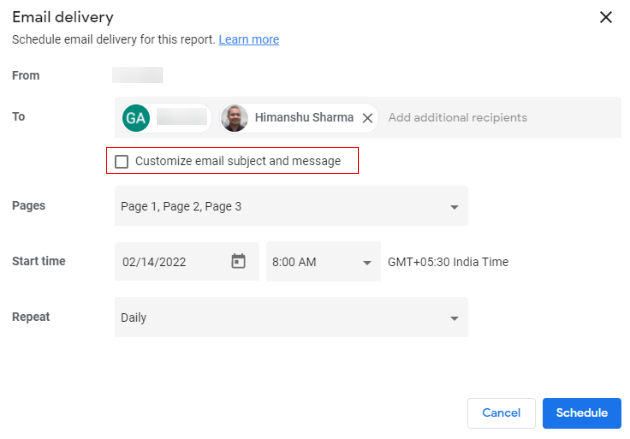
Step-5: Click on the checkbox ‘Customize email subject and message‘:
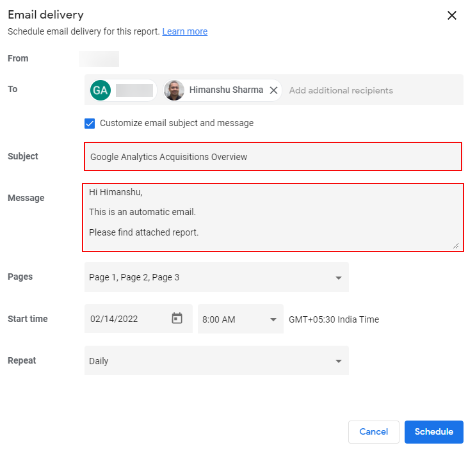
Step-6: Enter your email subject line and message:
Step-7: Select the report page(s) to include in your email notifications from the ‘Pages’ drop-down menu:
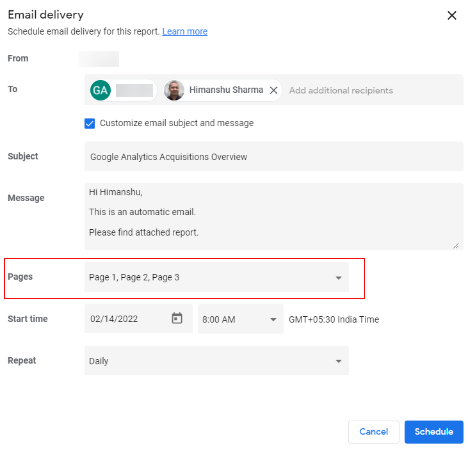
You can either select all pages or only particular pages of your report to be included in your email.
Step-8: Set the date and time you want to begin sending your report.
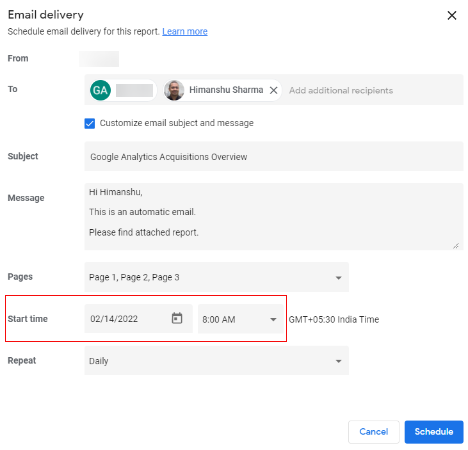
The timezone setting that you see is based on your operating systems’ timezone. You can’t change this setting inside Google Data Studio.
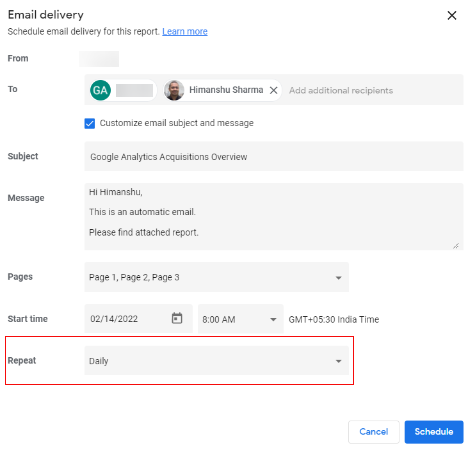
Step-9: Set the delivery frequency for your email:
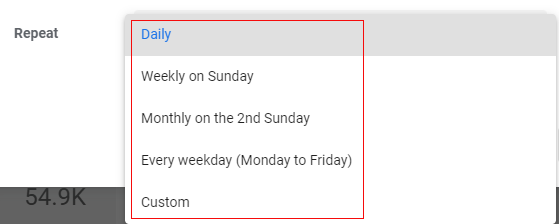
Following are the various options for email delivery frequency:
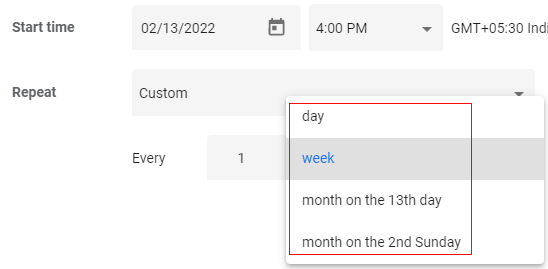
Click on ‘Custom’ if you want to set up a custom delivery frequency:
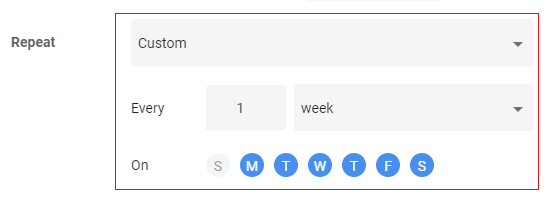
You can select the custom frequency from the drop down available.
Step-10: Click on the ‘Schedule’ button.
A report can have only one email delivery schedule at a time. You cannot set multiple different schedules for the same report.
How to change an existing email delivery schedule
Follow the steps below:
Step-1: Open the report you want to re-schedule.
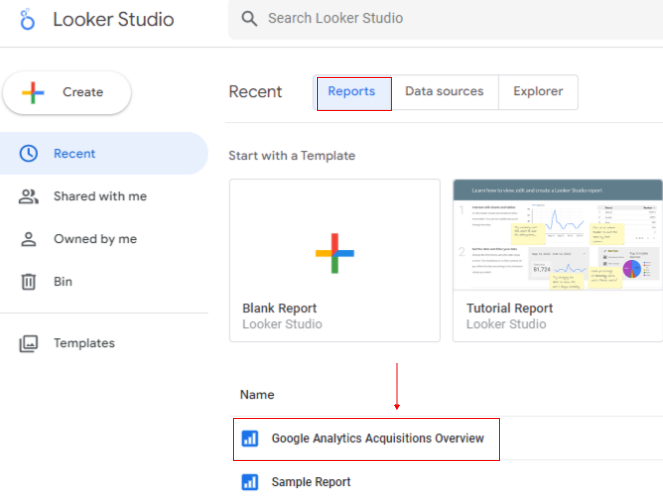
Step-2: Click on the ‘+Share’ drop-down menu on the top right-hand side of your screen:
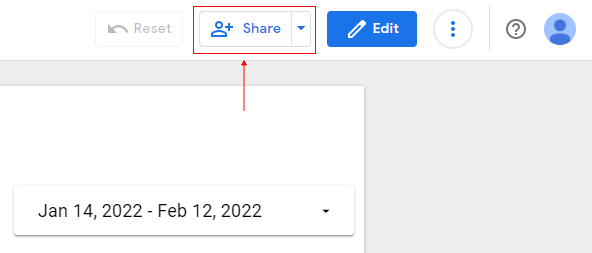
Step-3: Click on ‘Schedule email delivery’:
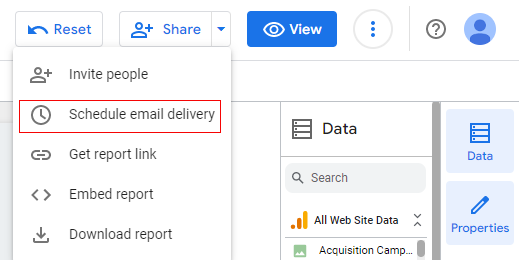
Step-4: Click on the ‘Edit Schedule‘ button:
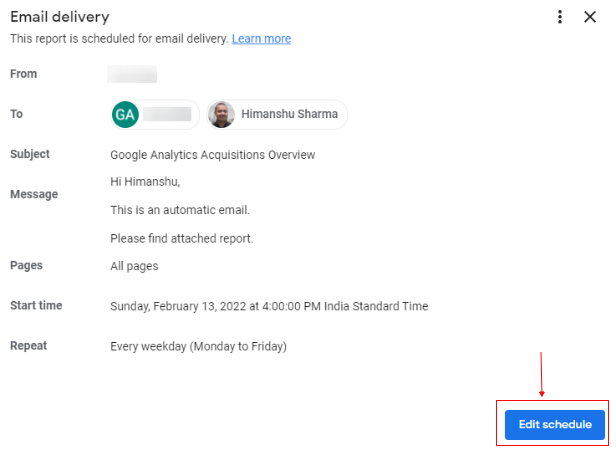
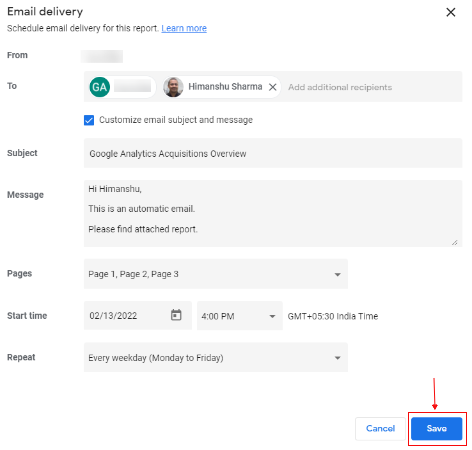
Step-5: Make the changes you want to make and then click on the ‘Save’ button:
How to stop an email delivery schedule
Follow the steps below:
Step-1: Open the report whose email delivery schedule you want to stop.
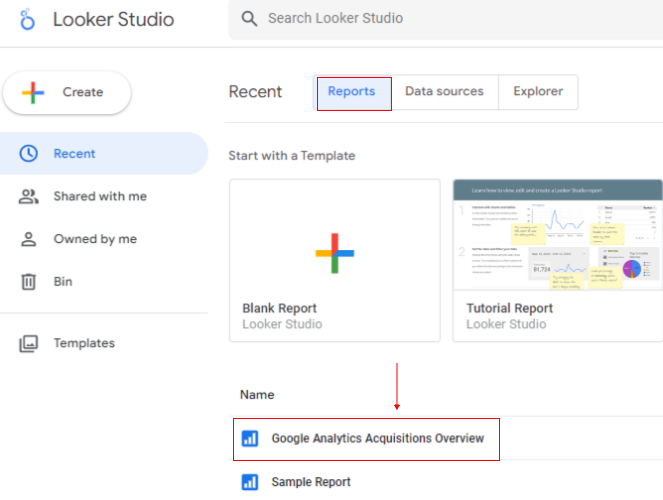
Step-2: Click on the ‘+Share’ drop-down menu on the top right-hand side of your screen:
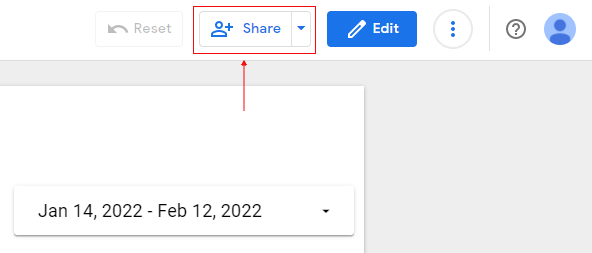
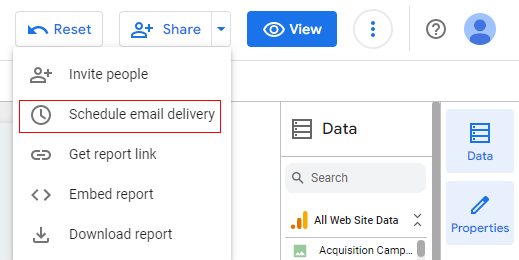
Step-3: Click on ‘Schedule email delivery’:
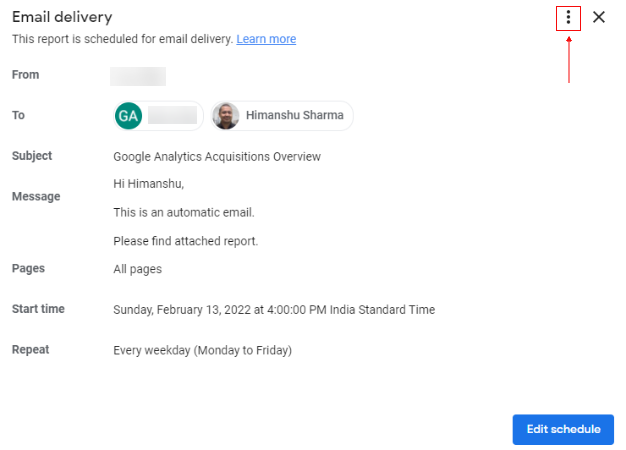
Step-4: Click on the three dots menu at the top right-hand side:
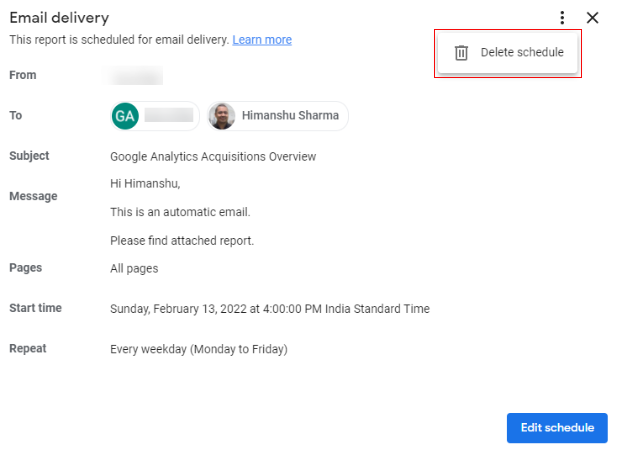
Step-5: Click on ‘Delete Schedule’:
Downloading Google Data Studio report as PDF.
Follow the steps below to download a Google Data Studio report as PDF
Step-1: Open the report which you want to download.
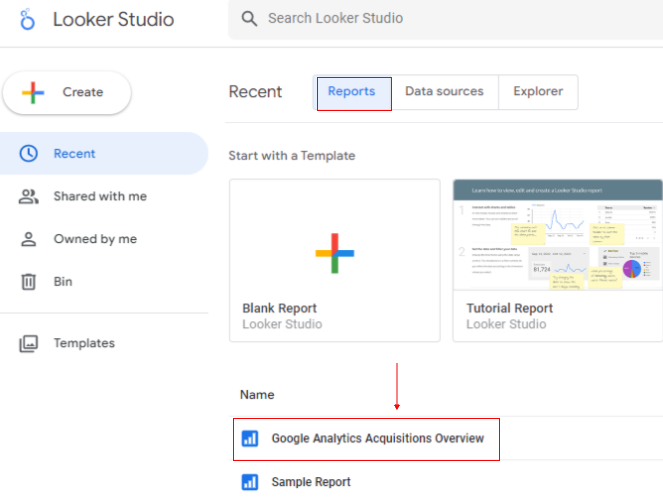
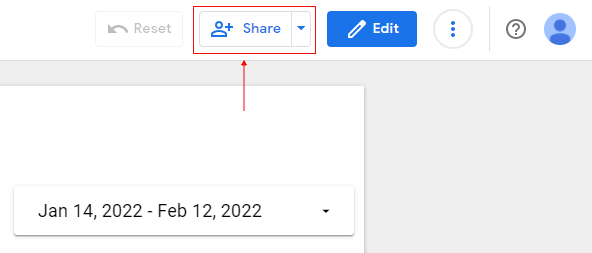
Step-2: Click on the ‘+Share’ drop-down menu on the top right-hand side of your screen:
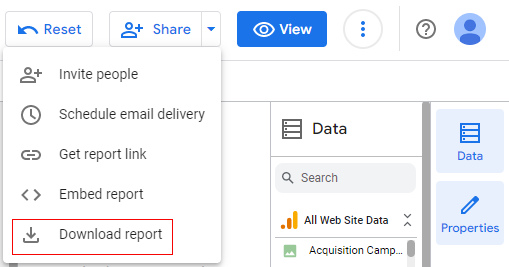
Step-3: Click on the ‘Download Report’ link:
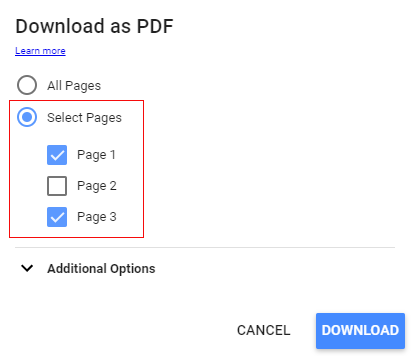
Step-4: Decide whether you want to download all the pages of your report or only specific pages:
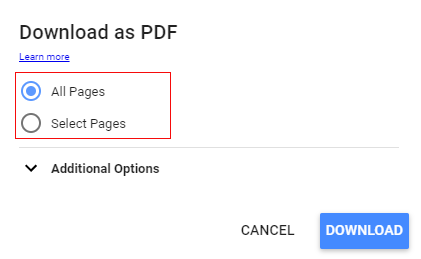
If you want to download only specific pages then click on the ‘Select Pages’ option and then select the pages you want to download:
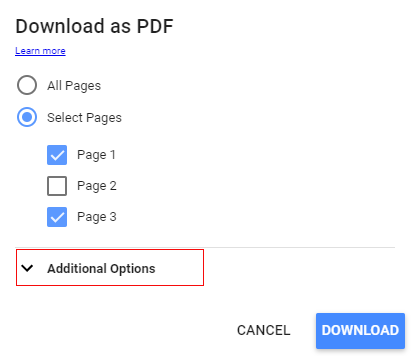
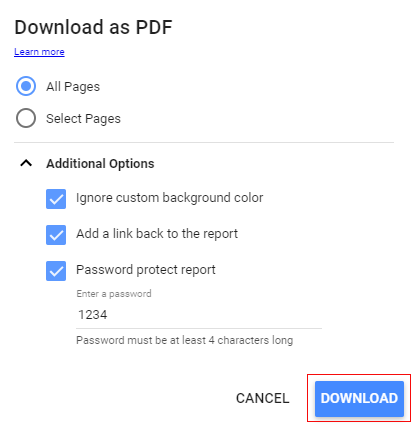
Step-5: Click on the ‘Additional options’ drop-down menu:
Step-6: Select the download options that you want to use:
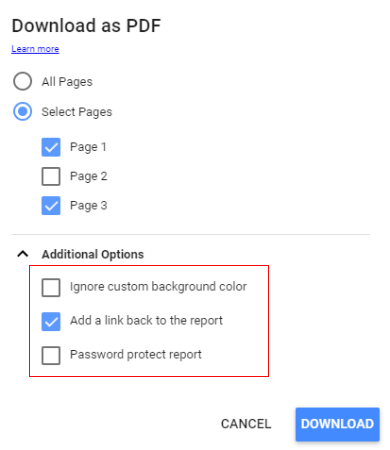
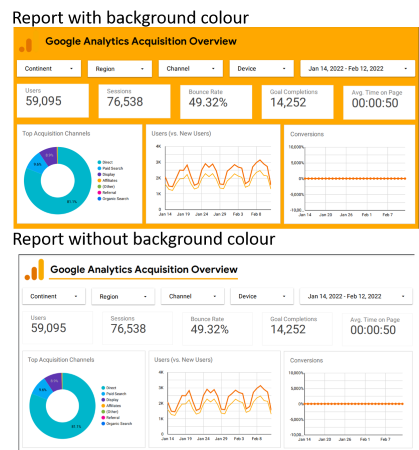
Ignore custom background color
Select this setting if you want Google Data Studio to ignore the background color and instead use a transparent background for the downloaded report.
Add a link back to the report
Select this setting if you want to add the ‘Open in Google Data Studio’ option under the ‘Bookmarks’ drop-down menu (which appears in your web browser when you open a downloaded report):
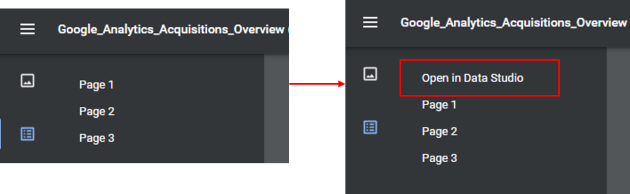
Through this setting, a user can also open the downloaded report within Google Data Studio.
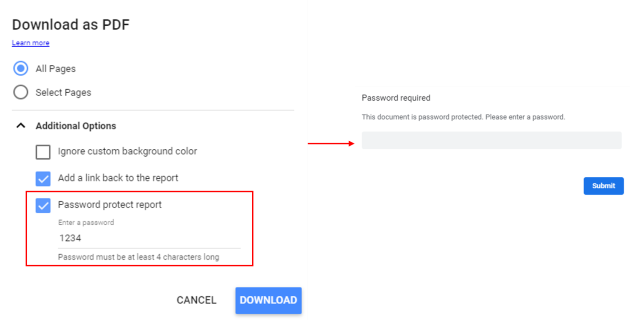
Password protect report
Select this setting if you want only those users to be able to view the downloaded report who supply the password that you added.
Step-7: Click on the ‘Download’ button.
Embedding Google Data Studio report on a website/app.
Google Data Studio allows you to embed a fully functional report on any iframe enabled website/app or on any social media platform that supports oEmbed.
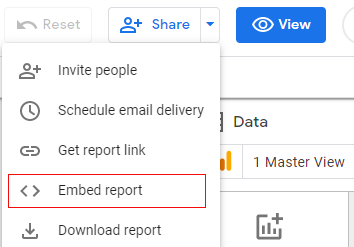
If you want to embed a Google Data Studio report on a website/app that supports the HTML iframe tag then navigate to the report editor and then click on the option ‘Embed report‘ from the ‘+Share’ drop-down menu:

Related Articles.
- Stop Using Page Titles in GA4 & Google Data Studio Reports.
- Google Data Studio Geo Map – Latitude Longitude.
- Google Data Studio Data Sources – Tutorial.
- Guide to Data Types in Google Data Studio.
- Google Data Studio Date Format and Time Explained.
- Working with Numeric Data Types in Google Data Studio.
- How to embed Google Data Studio report on a website.
- The Data Set Configuration Error in Google Data Studio.
- Google Data Studio Aggregation Explained.
- Google Data Studio Calculated Fields Tutorial.
- Google Data Studio Functions, Formulas Tutorial.
- Google Data Studio Page Navigation Tutorial.
- Google Data Studio Image function.
- Avoid Using Functions and Calculated Fields in Google Data Studio.
- Data Source Fields in Google Data Studio.
- Google Data Studio Dimensions vs Metrics Tutorial.
- Sharing Data Source Schema in Google Data Studio.
- Formula Rejection in Google Data Studio.
- How to invite others to view or edit a report in Google Data Studio.
- How to share reports in Google Data Studio.