

Google Data Studio allows you to embed a fully functional report on any iframe enabled website/app or on any social media platform that supports oEmbed.
To embed a Google Data Studio report on a website/app that supports the HTML iframe tag follow the steps below:
Step-1: Open the report you want to embed.
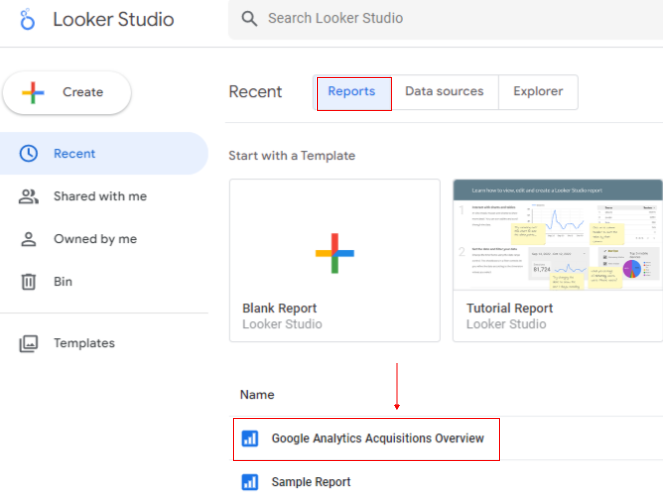
Step-2: Click on the ‘Edit’ button to navigate to the ‘edit’ mode:
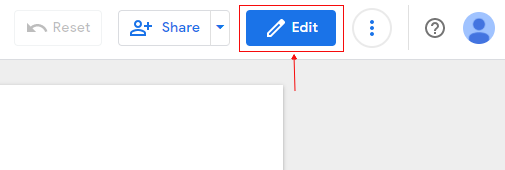
Step-3: Click on the ‘+Share’ drop-down menu at the top right-hand side:
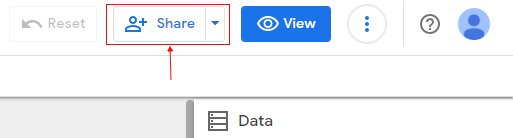
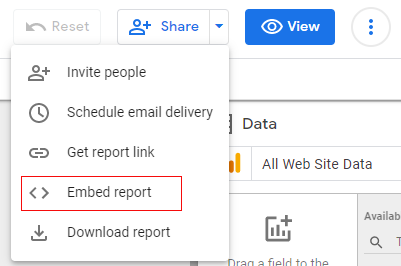
Step-4: Click on the option ‘Embed report’:
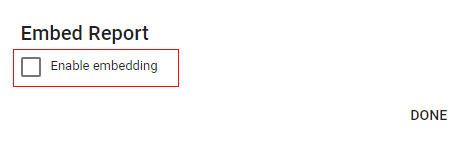
Step-5: Click on the checkbox ‘Enable embedding’:
Step-6: Adjust the height of your iframe using the ‘width’ and ‘height’ settings:
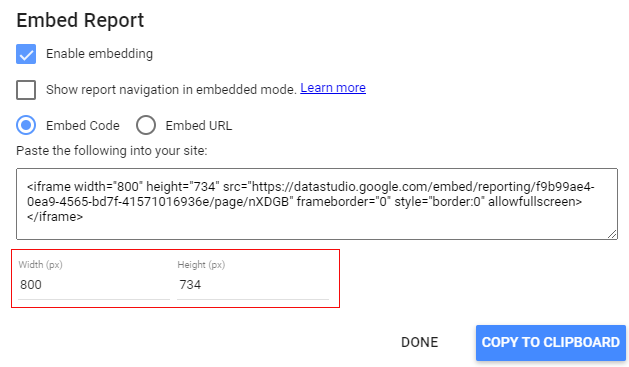
Step-7: Click on the ‘COPY TO CLIPBOARD’ button.
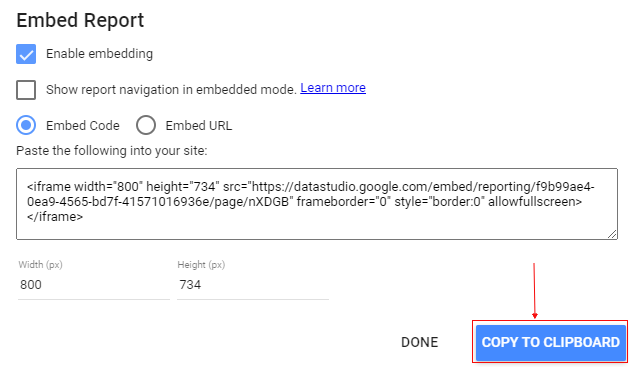
Step-8: Edit the HTML source code of the web page where you want to embed the report and then paste the embed code there.
Here is what the embedded report may look like:
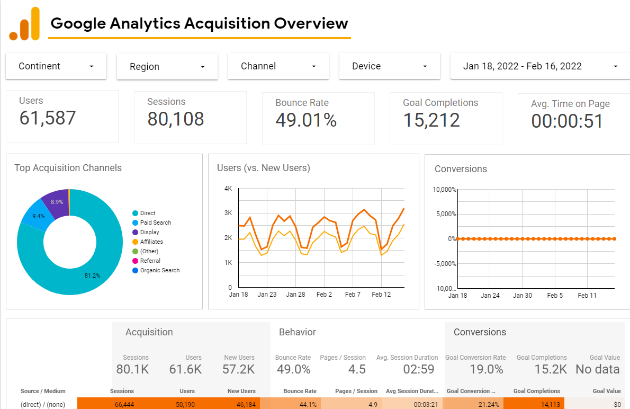
Users can not edit, copy, or share an embedded report.
Embedded reports always contain the Google Data Studio watermark and full-screen option which cannot be removed.
To embed a Google Data Studio report on a website/social media platform that supports oEmbed follow the steps below:
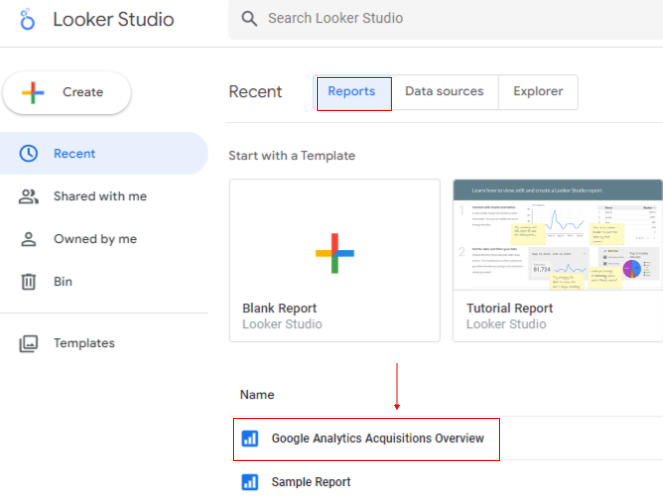
Step-1: Open the report you want to embed.
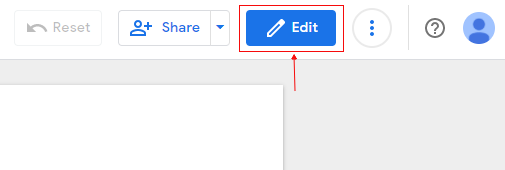
Step-2: Click on the ‘Edit’ button to navigate to the ‘edit’ mode:
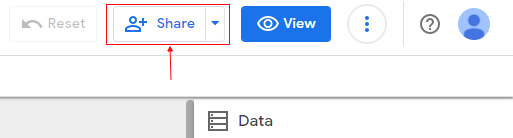
Step-3: Click on the ‘+Share’ drop-down menu at the top right-hand side:
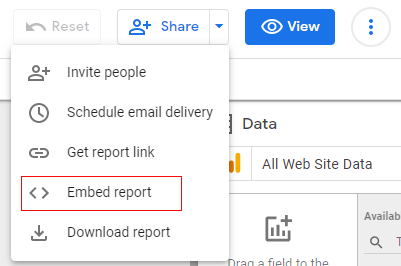
Step-4: Click on the option ‘Embed report’:
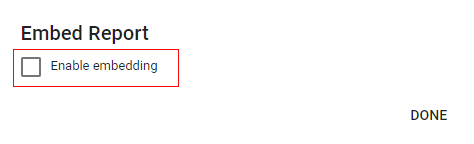
Step-5: Click on the checkbox ‘Enable embedding’:
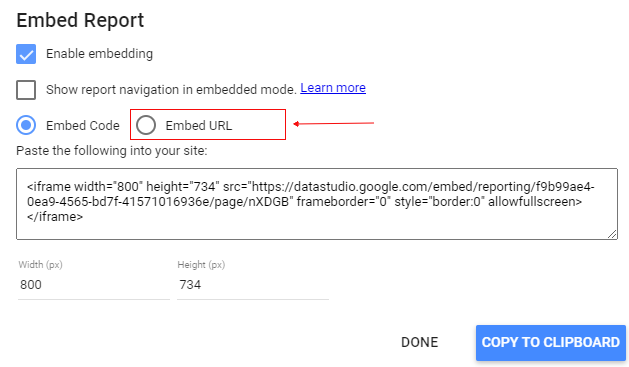
Step-5: Click on the button ‘Embed URL’:
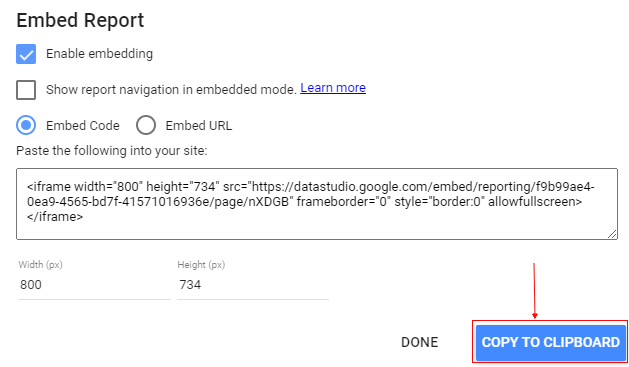
Step-6: Click on the ‘COPY TO CLIPBOARD’ button:
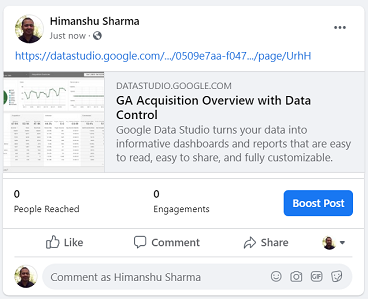
Step-7: Paste the copied URL as embedding URL on the website where you want to embed the report.
How to turn off report embedding
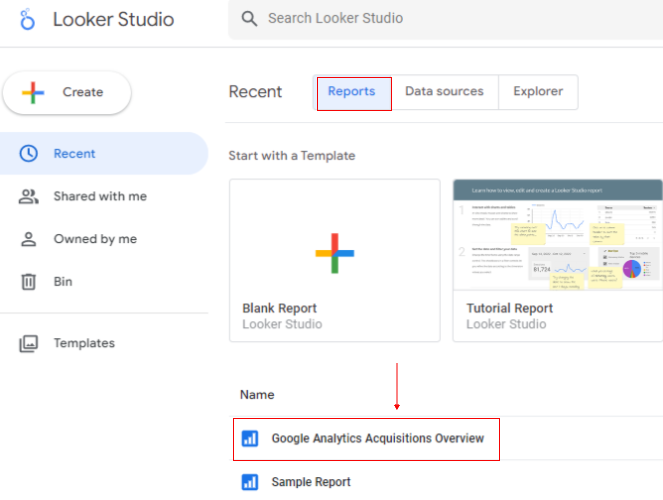
Step-1: Open the report for which you want to turn off the embedding.
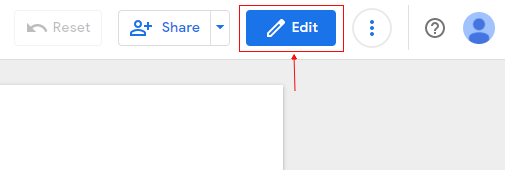
Step-2: Click on the ‘Edit’ button to navigate to the ‘edit’ mode:
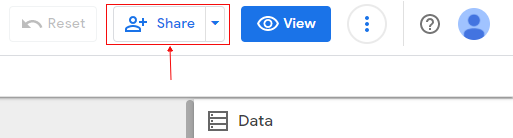
Step-3: Click on the ‘+Share’ drop-down menu at the top right-hand side:
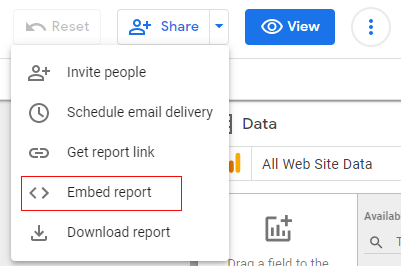
Step-4: Click on the option ‘Embed report’:
Step-5: Uncheck ‘Enable embedding’:
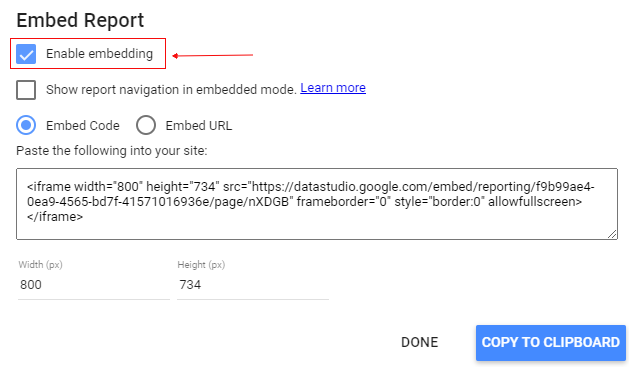
Step-6: Click on the ‘Done’ button.
Note: The embedded reports could show up in the Google Search Results.

Related Articles.
- Google Data Studio Tutorial.
- How to Change Language in Google Data Studio.
- Google Data Studio Report Tutorial.
- How to work with Boolean field in Google Data Studio.
- How to use Google Data Studio with Google Sheets.
- Stop Using Page Titles in GA4 & Google Data Studio Reports.
- Google Data Studio Geo Map – Latitude Longitude.
- Google Data Studio Data Sources – Tutorial.
- Guide to Data Types in Google Data Studio.
- Google Data Studio Date Format and Time Explained.
- Working with Numeric Data Types in Google Data Studio.
- How to embed Google Data Studio report on a website.
- The Data Set Configuration Error in Google Data Studio.
- Google Data Studio Aggregation Explained.
- Google Data Studio Calculated Fields Tutorial.
- Google Data Studio Functions, Formulas Tutorial.
- Google Data Studio Page Navigation Tutorial.
- Google Data Studio Image function.
- Avoid Using Functions and Calculated Fields in Google Data Studio.
- Data Source Fields in Google Data Studio.