

Google Analytics 4 Audiences overview.
In the context of Google Analytics 4, an audience is a group of users that you can club together based on any combinations of attributes or experiences in a particular time frame.
The audiences feature in GA4 allows you to segment your users based on the dimensions, metrics, and events important to your business.
Following are some examples of audiences:
- US audience: Group of users whose location is ‘US’
- Mobile audience: Group of users who visited the website using a mobile device
- Facebook audience: Group of users who visited the website from Facebook post or campaign
- Purchasers: Group of users who have made purchases
When GA4 receives data about the users, their audience memberships are re-evaluated to ensure they still meet the audience criteria. If the latest data indicates they no longer meet the criteria, they are removed from those audiences.
The same user can be a member of multiple audiences depending on the conditions applied in the audience.
For example, if a user from the country location ‘US’ visits the website after seeing a campaign post on Facebook using a mobile device and then purchases a product. they will be a member of all the audiences listed in the examples above.
You can use the audiences created in GA4 in Google Ads. Your audiences are available in your shared library in Google Ads, and you can use them in your ad campaigns.
You can remarket to existing or previous users, and you can create similar audiences to prospect for new users.
Note that there is a limit of 100 audiences per property in GA4
Audience templates in Google Analytics 4.
Google Analytics 4 allows you to define your audience from audience templates that are partially configured audiences that already identify a set of dimensions and/or metrics that form the basis of widely applicable audiences.
There are three types of templates available in GA4:
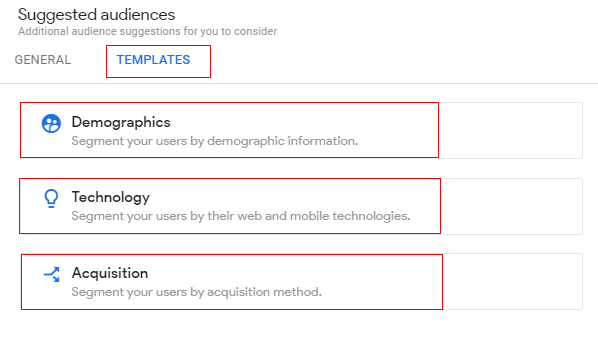
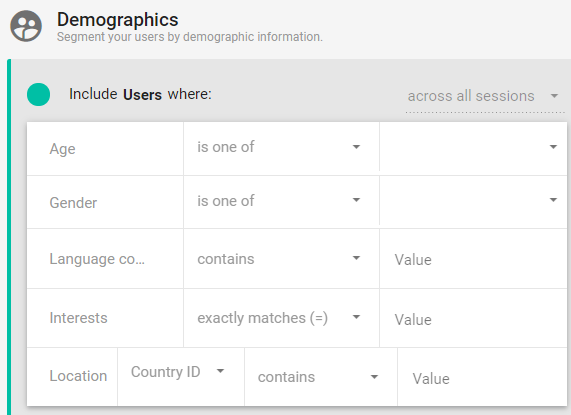
1) Demographics template
This template includes the age, gender, language, interest IDs, and location dimensions that you can use to define a particular audience in which you’re interested.
Using this template, you can supply the operators and dimension values that define the audience you want
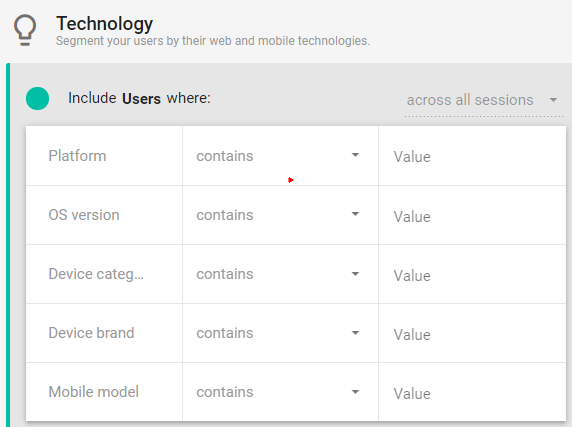
2) Technology template
This template includes the platform, OS version, device category, device brand, and mobile model dimensions that you can use to define a particular audience in which you’re interested.
Using this template, you can supply the operators and dimension values that define the audience you want
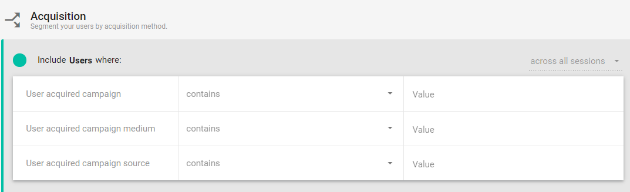
3) Acquisition template
This template includes the user-acquired campaign, user-acquired campaign medium, and user-acquired campaign source dimensions that you can use to define a particular audience in which you’re interested. Using this template, you can supply the operators and dimension values that define the audience you want
Predictive audiences in Google Analytics 4
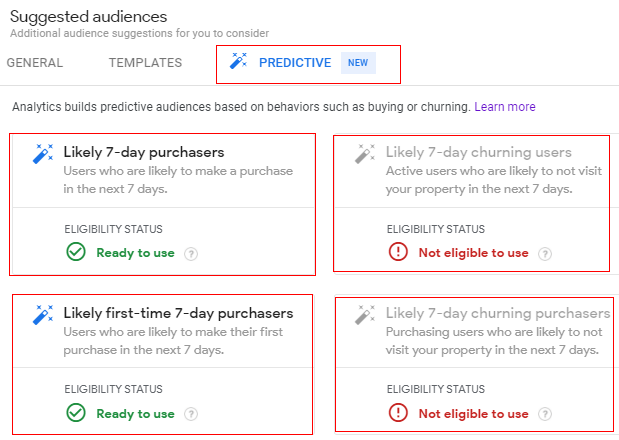
A predictive audience (prospects) is an audience based on the conditions of a predictive metric, such as purchase probability, churn probability, and revenue predictions.
You can learn more about predictive metrics here: About predictive metrics.
You can use suggested predictive audiences that meet prediction-modelling prerequisites and are labelled as ‘ready to use’. You can modify the template to your needs using the audience builder. You cannot edit the predictive condition, but you can add additional non-predictive conditions based on your business requirements.
If there is insufficient data to use predictive modelling, the audience will be marked as ‘not eligible to use’.
Now let’s create a custom audience to understand it more.
How to create a new audience in Google Analytics 4
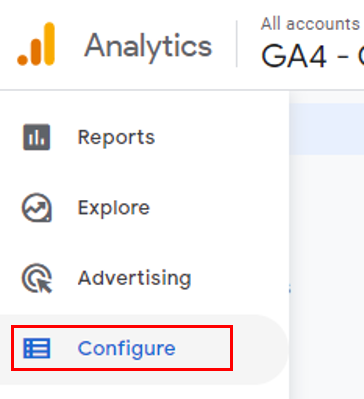
Step 1: Navigate to your Google Analytics 4 property and click on the ‘Configure’ link.
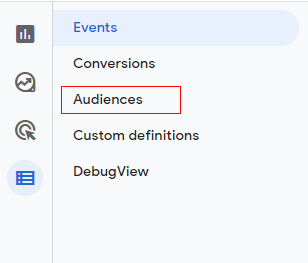
Step 2: Now click on ‘Audiences’.
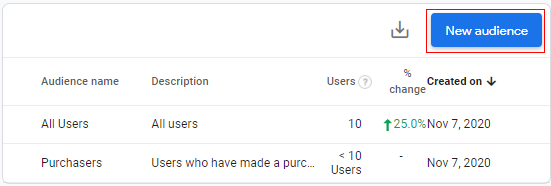
You will get a screen like below. There are two types of audiences created by default, ‘All Users’ and ‘Purchasers’.
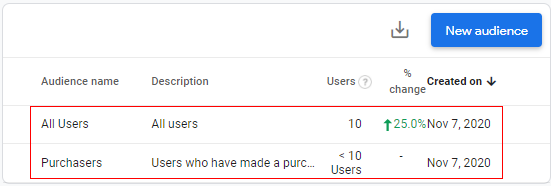
Step 3: Now click on the ‘New audience’ button.
Step 4: An overlay will appear like below.
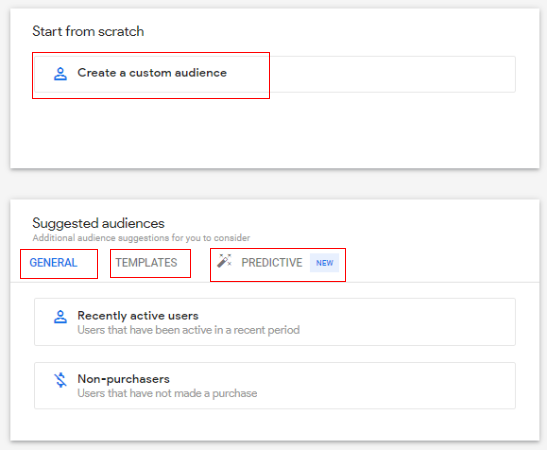
You get the option to create an audience from the following start points:
- Create a custom audience (start from scratch to define the audience)
- General (suggested audience)
- Templates (partially-defined audience template based on demographics, technology, and acquisition – suggested audience)
- Predictive (predictive audience based on predictive metrics – suggested audience)
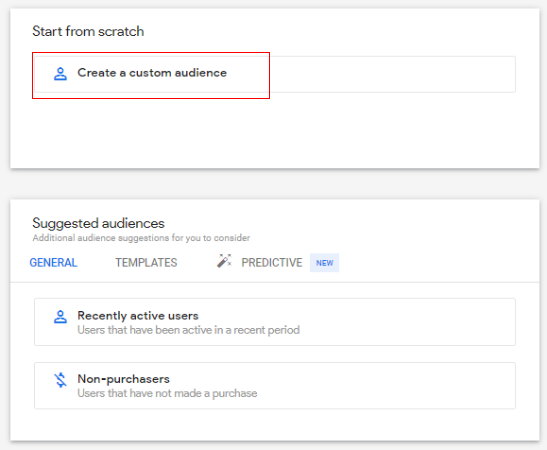
In this article, we are going to create a custom audience, so click on ‘Create a custom audience’.
Step 5: A configuration panel will open like below.
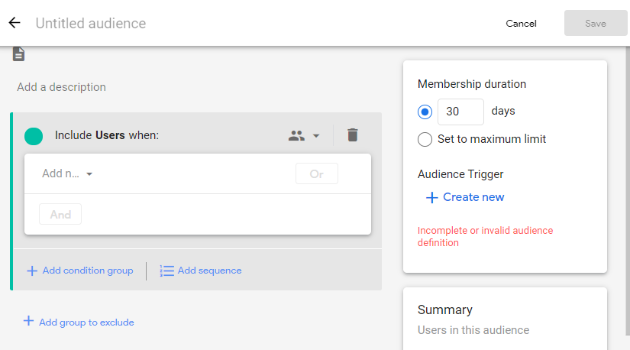
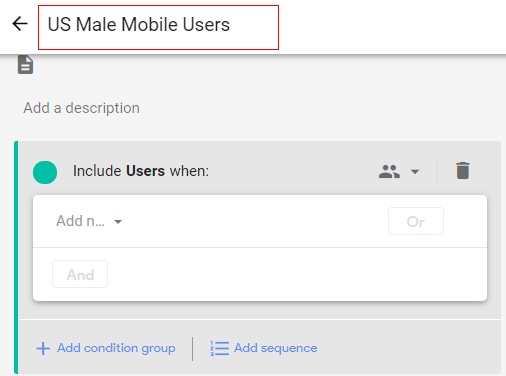
Now click on the text box ‘Untitled audience’ and give a descriptive name to your custom audience.
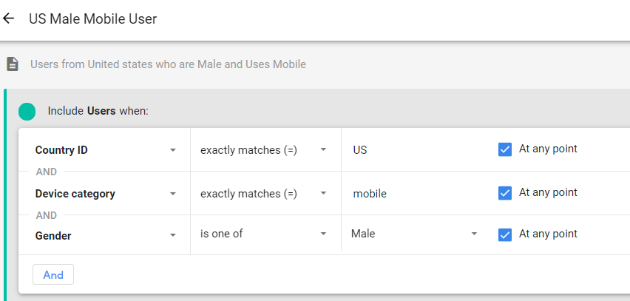
For example, let’s create an audience from the United States who are male and use a mobile device to visit the website. We will name it ‘US Male Mobile Users’.
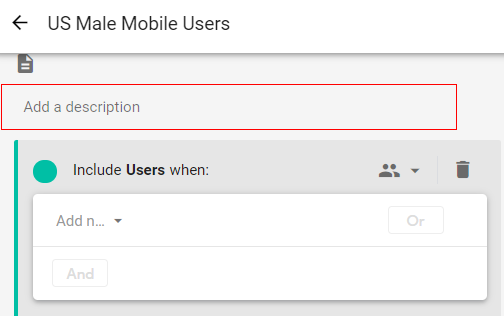
Step 6: Now click on the ‘Add a description text box to provide details of the custom audience we are creating.
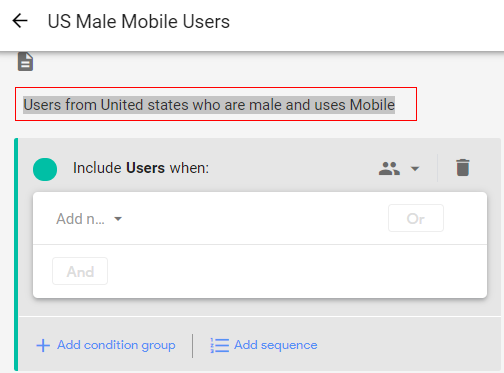
Step 7: Give a proper description to your custom audience.
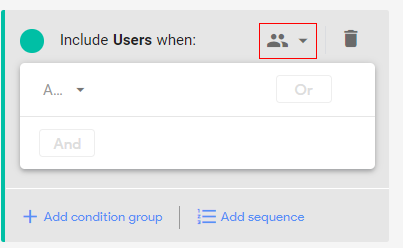
Step 8: Now, we need to define the scope of the audience.
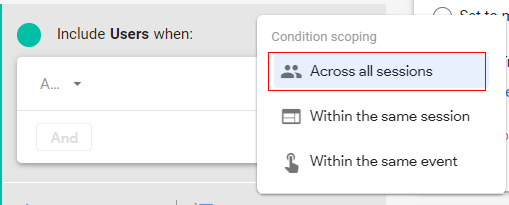
When you set conditions for the audience, you need to set the scope of when the conditions must be met, i.e. across all sessions, in a single session, or in a single event. This way, GA4 will analyze the scope of the audience, and it will be made available accordingly.
Click on the drop-down available beside the user icon.
Step 9: A ‘Condition scoping’ pop-up will appear as below, containing options such as:
- Across all-session: Add the user to the audience if the condition is true for all the previous sessions.
- Within the same session: Add the user to the audience if the condition is true for the current session (live session).
- Within the same event: Add the user to the audience if the condition is true for a particular event.
Here we will be selecting the first condition as per our example (US male users who use mobile).
Step 10: Now, we need to define the membership duration for the custom audience.
Membership duration supports time-windowed metrics. You can specify that a metric condition can be true during any point in the lifetime of a user or that it must be true during a specific number of days (7-day period).
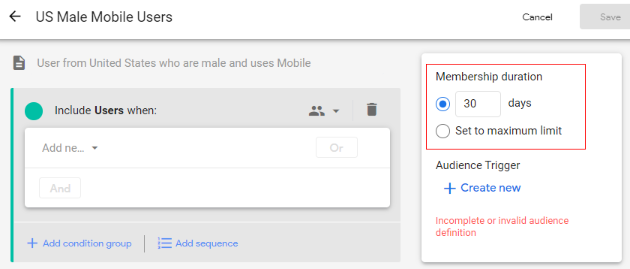
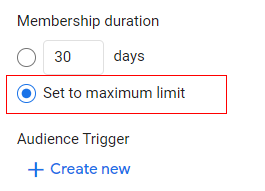
In our case, we are creating our audiences to measure their performance over the maximum time. So, let’s select the radio button under membership duration for ‘Set to maximum limit’.
Step 11: Now click on the drop-down ‘Add new condition’.
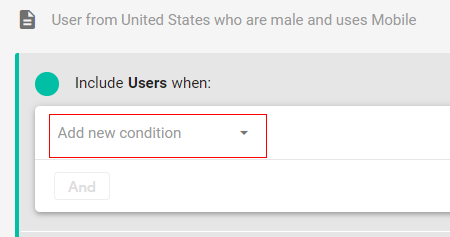
A pop-up will appear as below. You can select any dimension, metric, or event parameter to distinguish your custom audience.
You can select it from the available menu or simply type it in the search bar and then select it.
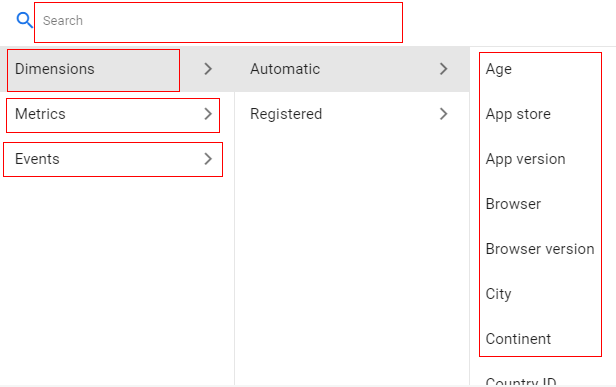
In our case, we will select ‘Dimension’.
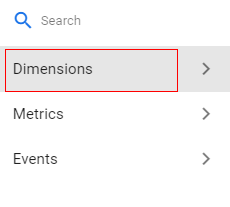
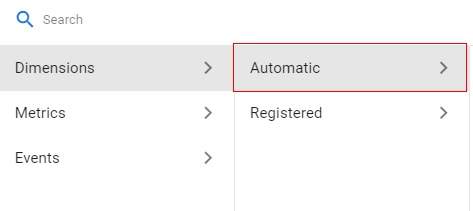
Step 12: Now, you need to select dimension type from the available options as
- Automatic: Default GA4 dimensions (age, country, gender, device category).
- Registered: Custom dimensions defined by you.
In our case, we will select ‘Automatic’.
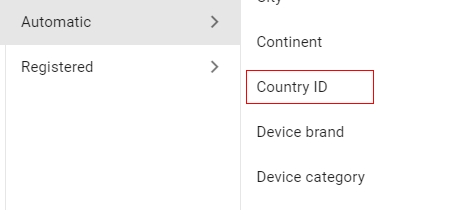
Step 13: Now Select ‘Country ID’ from the available dimensions.
Step 14: Now click on the ‘Contains’ drop-down.
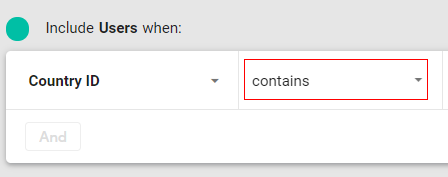
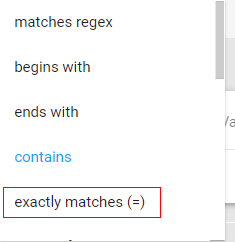
A list will appear as a pop-up. You can select any of the available conditions depending on your business requirement. In our case, we will select ‘exactly matches(=)’.
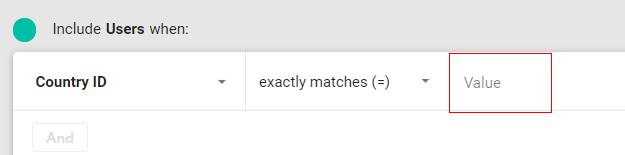
Step 15: Now click on ‘Value’ to provide a dimension value.
Step 16: A list of available values will pop-up. Select the value you want to create an audience for.
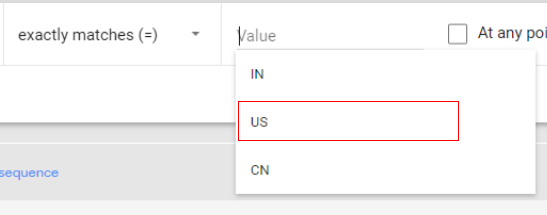
Step 17: You will see a check box available called ‘At any point’. Select this if you want your users to be added to the custom audience list if the condition is true at any point of a session (including previous sessions during the membership period).

Step 18 (optional step): If at any given point you want to add users matching multiple conditions, you can add them by clicking on ‘OR’.
Let’s suppose if you want to add the user to a custom audience when the country location is ‘US’ or ‘Canada’ you can specify it by adding the ‘OR’ condition.
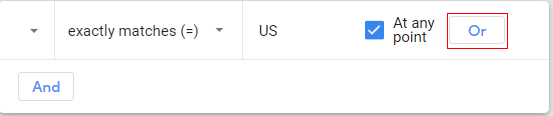
You can now similarly add new conditions from Step 10 to Step 15.
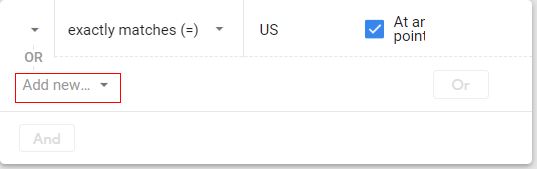
Step 19: Now our first condition is met (the country is equal to ‘US’), let’s add another condition for ‘Male’ users. Click on ‘And’.
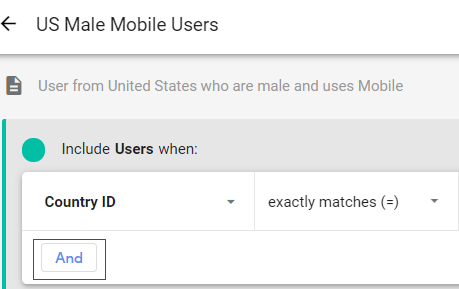
Step 20: Click on the ‘Add New Condition’ drop-down.
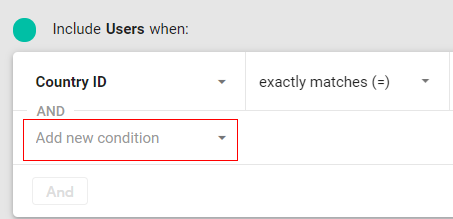
Step 21: A pop-up will appear like below. Select ‘Dimensions’ from the list and then select ‘Automatic’.
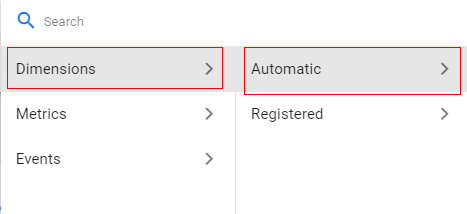
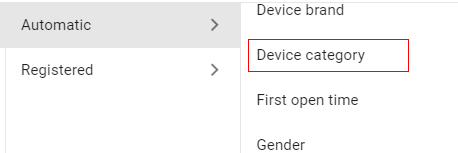
Step 22: Now select ‘Device Category’.
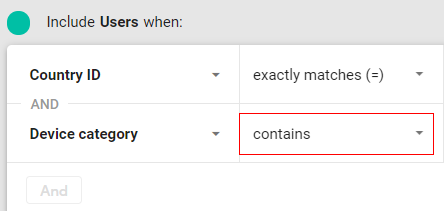
Step 23: Click on the ‘Contains’ drop-down to select the condition.
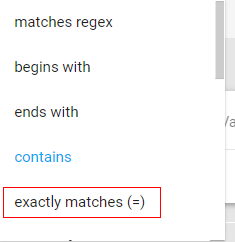
Step 24: Select the ‘exactly matches (=)’ condition.
Step 25: Click on ‘Value’ to select the dimension attribute.
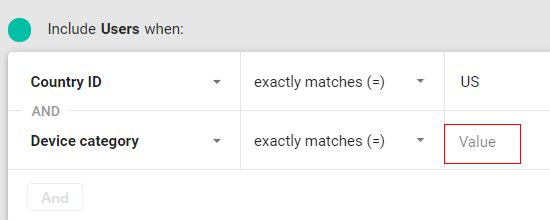
Step 26: Select ‘Mobile’ from the list of values available.
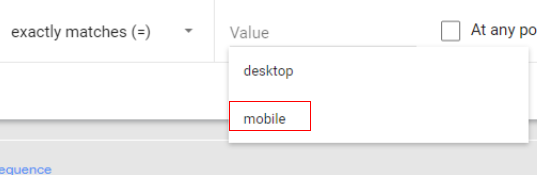
Step 27: Click on the check box for ‘At any point’.

Step 28: Up until now, we have added our second condition as well. Now let’s add the gender condition to define the male users. Click on ‘And’.
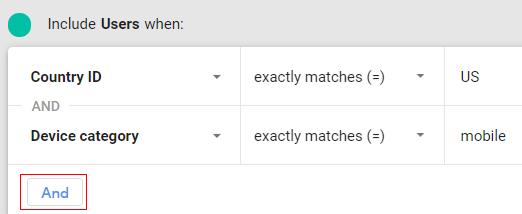
Step 29: Click on ‘Add new condition’.
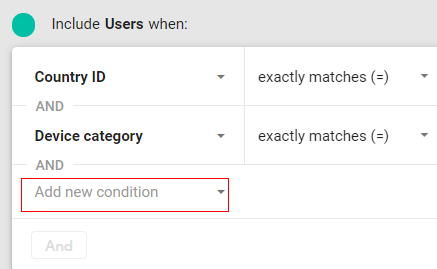
Step 30: Select ‘Dimensions’ and then select ‘Automatic’.
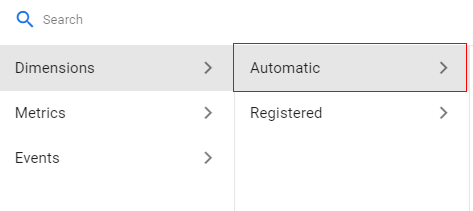
Step 31: Now select ‘Gender’ from the list.
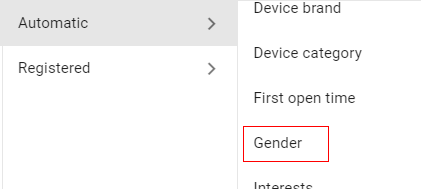
Step 32: Click on the drop-down after ‘is one of the’.

You will get only two options available as a condition for this dimension; ‘is one of’ or ‘is not one of’. Select ‘is one of’.
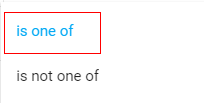
Step 33: Now click on the blank drop-down like below.

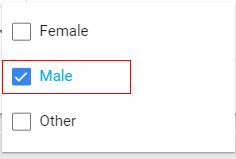
Step 34: You will get options like below. Now select the check box available in front of ‘Male’.
Step 35: Click on the check box for ‘At any point’.

Step 36: Your complete audience configuration will look like below:
Step 37: Now click on ‘Save’ in the upper right corner.
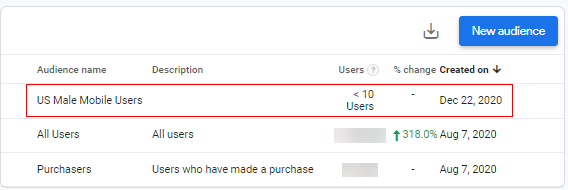
Congratulations! You have successfully created your first custom audience in Google Analytics 4.
You can see now that your audience is available under the ‘Audiences’ tab.
How to edit an audience in Google Analytics 4
If at any point in time you want to edit your custom audience configuration, you can follow the below steps.
Step 1: Navigate to your Google Analytics 4 property and click on the ‘Configure’ link.
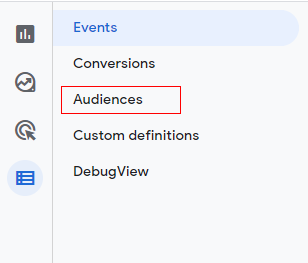
Step 2: Now click on the ‘Audiences’.
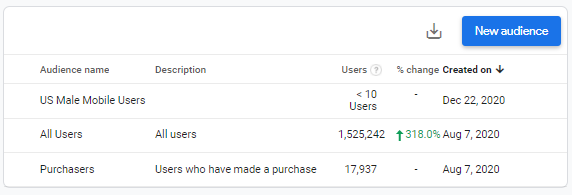
You will now see a list of available audiences below.
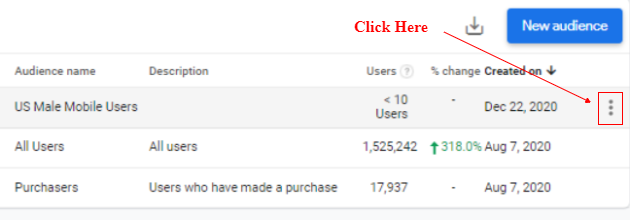
Step 3: Now hover your mouse over the audience which you want to edit. Click on the three vertical dots.
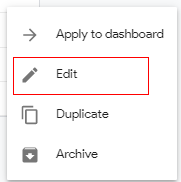
Step 4: A pop-up will appear like below. Click on ‘Edit’.
Step 5: You will get a configuration window like below.
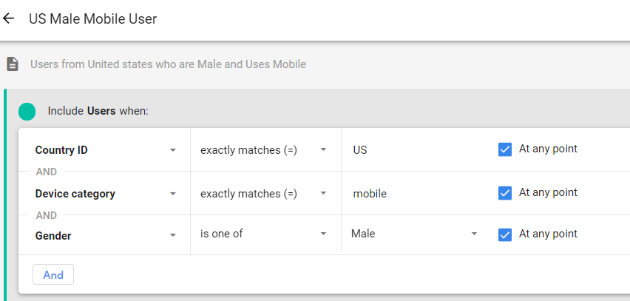
Step 6: You can now change the configuration of your audience. You can add conditions to include or exclude, add a sequence, etc. Once done, click on ‘Save’.
How to archive an audience in Google Analytics 4
To archive your custom audience, you can follow the below steps.
Step 1: Navigate to your Google Analytics 4 property and click on the ‘Configure’ link.
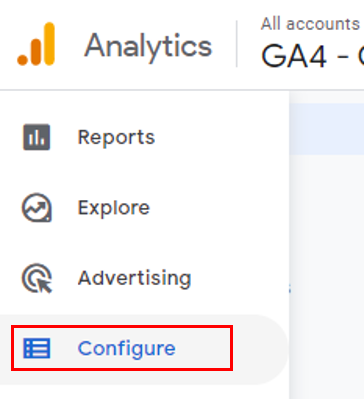
Step 2: Now click on ‘Audiences’.
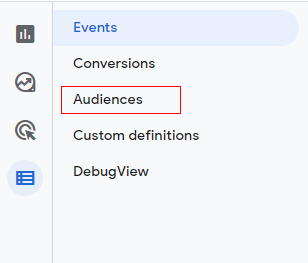
You will see a list of available audiences.
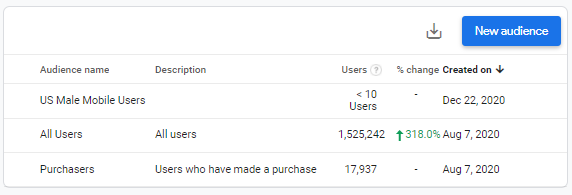
Step 3: Now hover your mouse over the audience which you want to edit. Click on the three vertical dots.
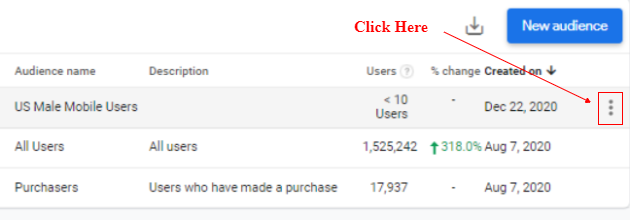
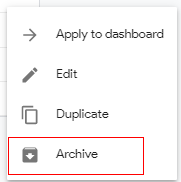
Step 4: A pop-up will appear like below. Click on ‘Archive’.
Step 5: Another pop-up will appear like below to confirm your action. Click on ‘Archive’.
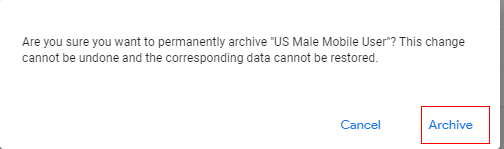
You are done! Your audience will no longer appear in the audience list.
Adding sequences and excluding groups from Google Analytics 4 audience
Sequences let you specify the order in which conditions must be met to the custom audience.
You can create a custom audience that shows a group of users who followed the particular sequence of conditions mentioned.
For example, you can create an audience that includes users who did ‘Add to cart’ and then begin ‘checkout’ but did not purchase the product.
Let’s create a new audience. You can use this audience for a remarketing campaign.
Step 1: Navigate to your Google Analytics 4 property and click on the ‘Configure’ link.
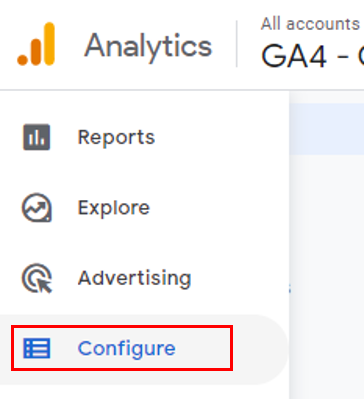
Step 2: Now click on ‘Audiences’.
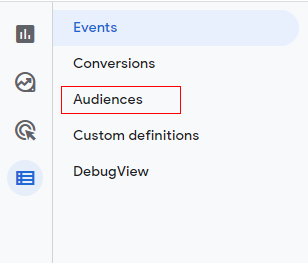
You will see now a list of available audiences below.
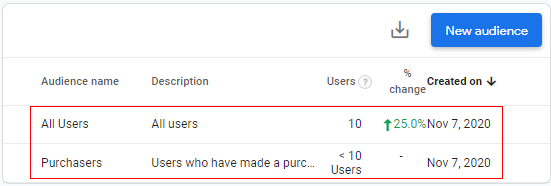
Step 3: Now click on the ‘New audience’ button.
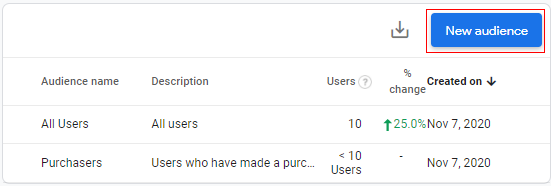
Step 4: Click on ‘Create a custom audience’.
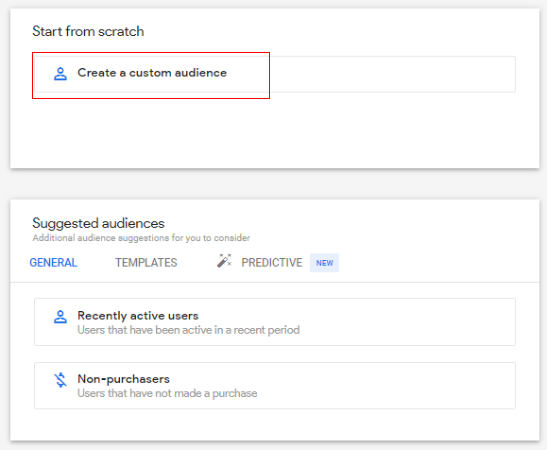
Step 5: A configuration panel will open like below.
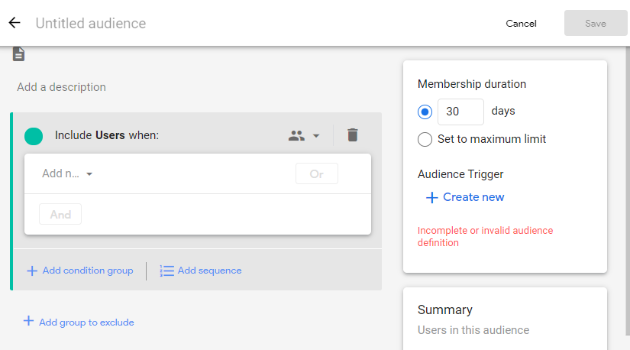
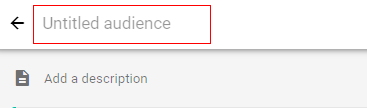
Step 5.1: Give a descriptive name to your audience by clicking on the text box under ‘Untitled audience’.
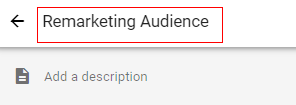
Step 5.2: Type a descriptive name for the audience.
Step 5.3: Add a description to your audience. Click on ‘Add a description’.
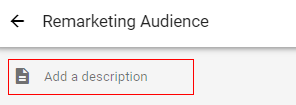
Step 5.4: Type a brief description for the audience, e.g. ‘Users who did add to cart, then begin checkout, but did not purchase’.

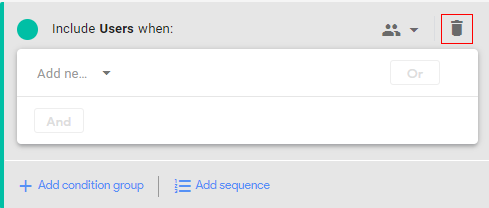
Step 5.5: Click on the ‘Recycle Bin’ (delete option). We are doing this since the configuration panel opens with default condition options, and we need to create a sequence of events for which the configuration options are different.
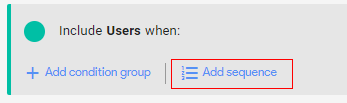
Step 6: Now click on ‘Add Sequence’.
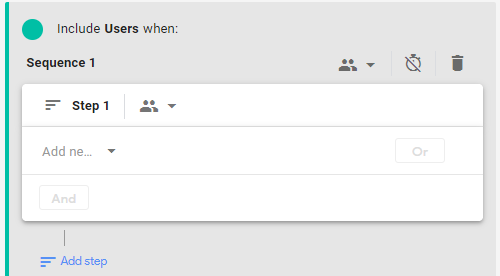
A new configuration panel will appear, as below.
Step 7: Now click on ‘Add a new condition’.
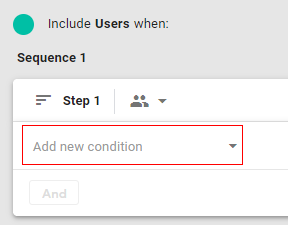
A pop-up will appear like the one below. You can select any dimension, metric, or event parameter to distinguish your custom audience.
You can select it from the available menu or simply type it in the search bar and then select it.
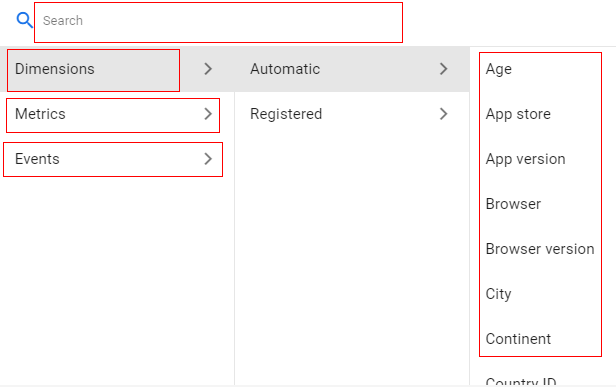
In our case, we will select ‘Event’.
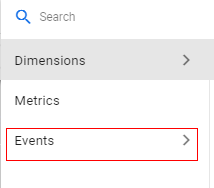
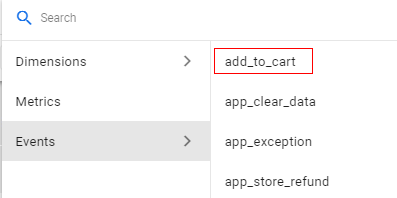
Step 8: A list will be shown below. Select the event (first event in sequence) from the list. In this case, we will select ‘add_to_cart’.
Your screen will appear like below.
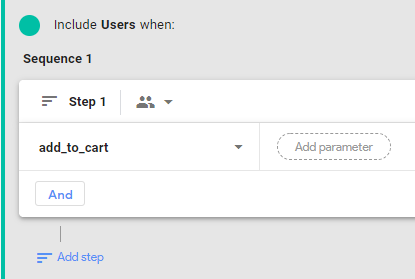
Step 9 (optional step): You can additionally click ‘Add parameter’ if you want to filter your audience on a more granular level.
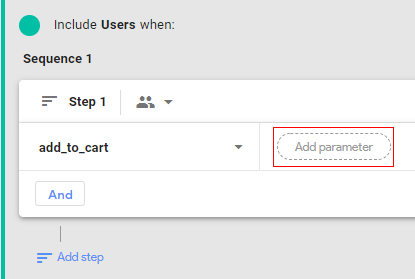
A list will appear below. Select any parameter that you want to add. Let’s say I want to add the parameter ‘Value’.
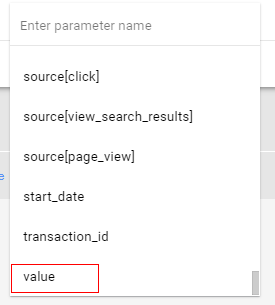
Now click on the drop-down under condition.
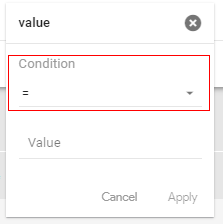
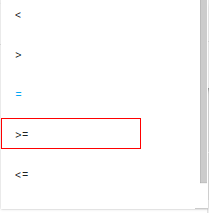
Select the condition from the available list. In our case, I will select ‘>=‘ (greater than or equals).
Now click on ‘Value’ and type any numeric value for which you want to create an audience. Let’s say ‘50’.
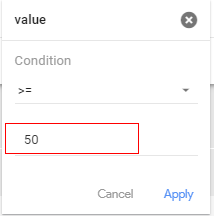
This will add a condition for users who did ‘add to cart’ with a value more than or equal to $50. The currency may vary depending upon its configuration in the ‘Admin’ section).
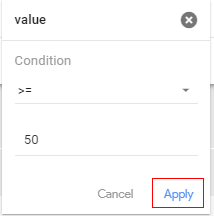
Now click on ‘Apply’.
Your first sequence step will look like below.
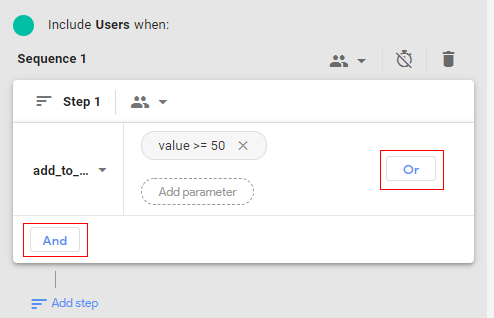
You can add multiple conditions with ‘OR’ logic and ‘AND’ logic, as required.
Step 10: Now click on ‘Add step’.
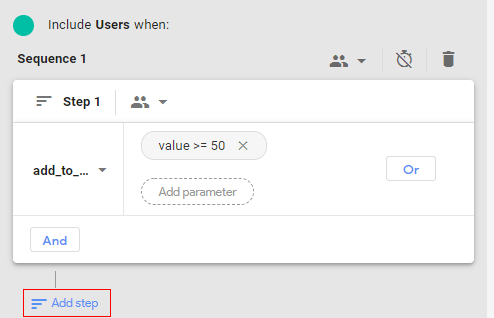
You will get a console, like below.
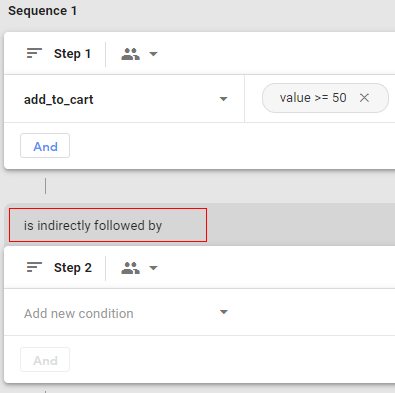
As you can see from the above image, the second event in the sequence is, by default, showing ‘is indirectly followed by’. This means the second step can happen any time after the previous step.
You can change this to ‘directly followed by’, which means the second step must happen immediately after the previous step, or within a specific timeframe.
Step 11: Click on ‘is indirectly followed by’ drop-down to change the condition, and you will get the below options.
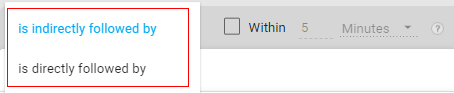
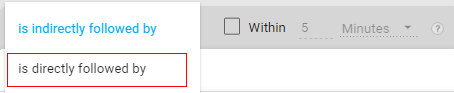
Step 12: Select ‘is directly followed by’.
Step 13: Mark the check box as below.
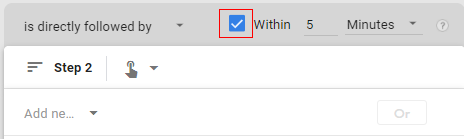
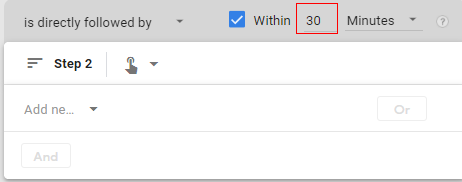
Step 14: Specify the time frame. For example, let’s set it up for 30 mins. Click on the input box and type 30.
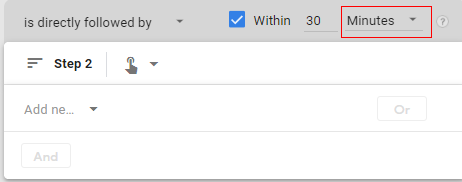
Step 15: Click on the drop-down under ‘Minutes’.
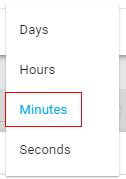
You will get a pop-up list from which to select the available options, such as seconds, minutes, hours, and days. In our case, we will go with ‘Minutes’.
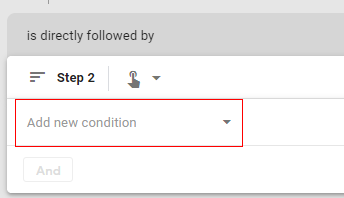
Step 16: Now click on ‘Add new condition’ under ‘Step 2’.
Step 17: Select ‘Event’ from the populated list.
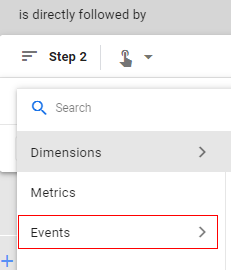
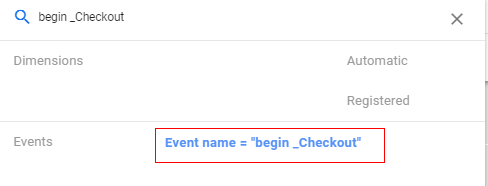
Step 18: Select the ‘begin_checkout’ event.
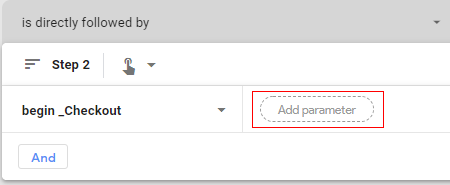
You can add a parameter to the event if you want to select a more granular condition for the audience.
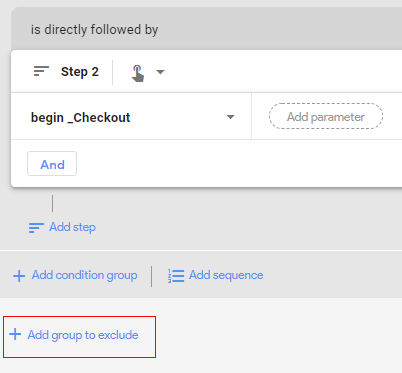
Now since we are creating a sequence for the custom audience (remarketing audience), we need to exclude the users who have completed a purchase.
Step 19: Now click on ‘Add group to exclude’.
Step 20: You will get an overlay like below. Click on the drop-down in front of ‘Temporarily exclude users when’.
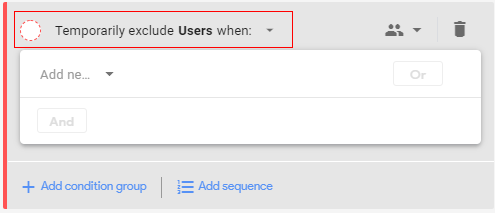
Step 21: A pop-up will appear like below.
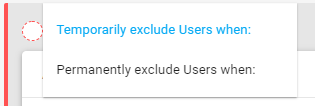
Temporarily exclude users when: Select this condition if you want to exclude users who have not performed the purchase event currently (in current membership duration of users where scope defined at current session-level).
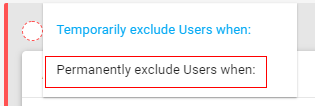
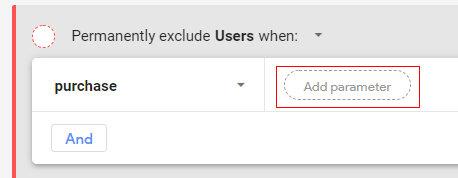
Permanently exclude users when: Select this condition if you want to exclude users who have not purchased through a complete user journey (user scope set to all sessions).
In our case, we will select ‘permanently exclude users when’ this will exclude all users who have not performed any purchase event in their lifetime.
Step 22: Click on the drop-down beside the user icon.
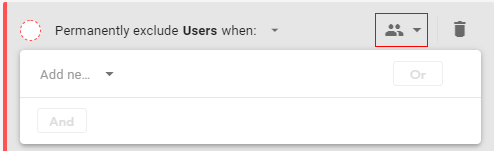
Step 23: You will see a pop-up like below. Select ‘Across all sessions’.
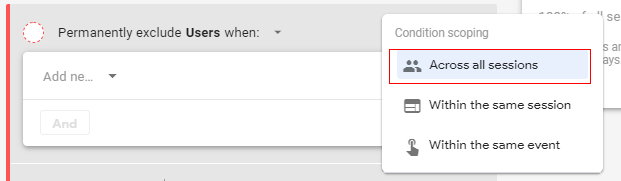
Note: If you have selected ‘Temporarily exclude Users when’ in the earlier step, then select condition scoping as ‘within the same session’. This will only exclude the users who have not performed the purchase event in the same session.
Step 24: Now click on ‘Add new condition’.
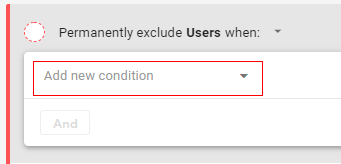
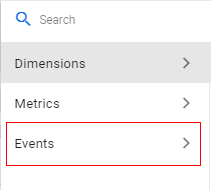
Step 25: Select ‘Event’ from the populated list.
Step 26: Select the ‘Purchase’ event from the list.
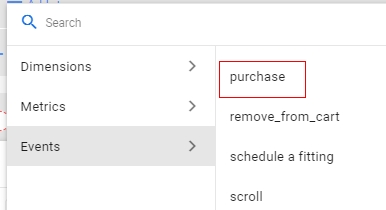
Your configuration will appear like below. You can add a parameter to the event if you want to select a more granular condition for the audience.
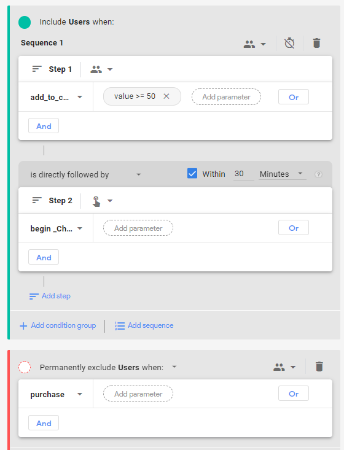
Your completed audience configuration will appear like below.
Step 27: Now click on ‘Save’ in the upper right corner.
Congratulations! You have successfully created a custom audience for remarketing using sequence and exclude options.
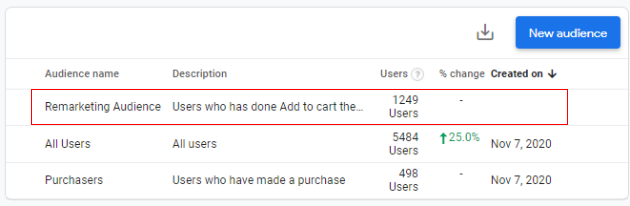
You can see your custom audience in the audience list.
That is how you can create a custom audience in Google Analytics 4 (GA4).

Other Articles on GA4.
- Understanding Lookup Table in Google Tag Manager.
- Google Tag Manager Variables and Triggers Tutorial.
- How to find Average Order Value in Google Analytics 4.
- Google Ads tag still running in GTM? Here is the fix.
- 8 Signs Your GA4 Property Needs Expert Help.
- Google Tag Assistant Tutorial.
- Google Analytics 4 not working? Here is how to fix it.
- Google Analytics 4 for Low Traffic Websites.
- Google Tag Manager Implementation Guide.
- Google Tag Manager Server Side Preview Mode.
- How to learn Google Analytics without a website.
- Key Benefits of Using Google Analytics 4 (GA4).
- Google Marketing Platform Cost and is it Worth it?
- How to export GA4 data to Google Sheets for free.
- Top Google Analytics 4 Tools, add-ons and resources.
- Google Analytics 4 Audiences Tutorial.
- Understanding Automated Insights in Google Analytics 4 (GA4).
- How to build Comparisons in Google Analytics 4 (GA4).
- How to create a remarketing audience in Google Analytics 4 (GA4).
- Advanced Google Analytics Tracking – HTML DOM – Tutorial.