

What is Google Tag Assistant?
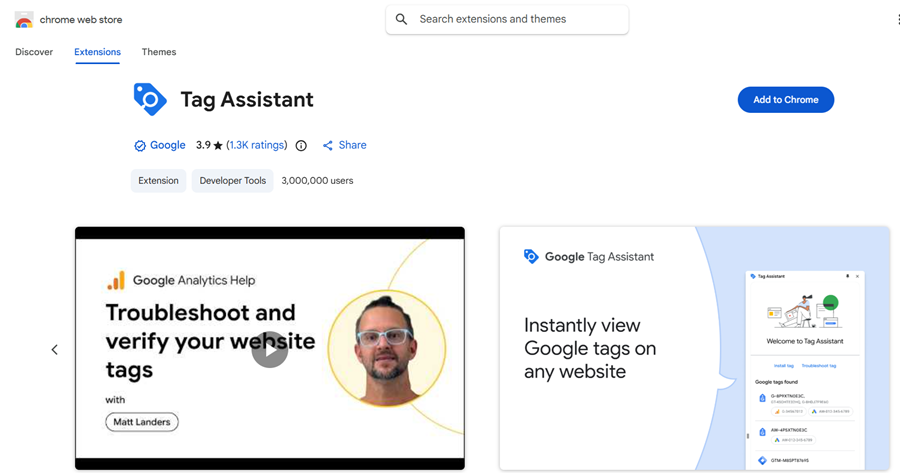
Google Tag Assistant is a chrome extension that is used to identify, validate, and troubleshoot the installation of various Google Tags on a web page.
These Google tags can be:
- Google Analytics
- Google Tag Manager
- Google Ads Conversion Tracking
- Remarketing etc.
Most of the time, you will find yourself using Tag Assistant.
Functions of Google Tag Assistant
The following are the various functions of Google Tag Assistant:
#1 It displays a list of the various Google Tags installed on a web page.
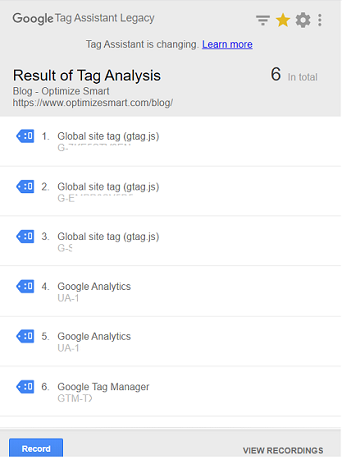
#2 It reports on implementation errors.
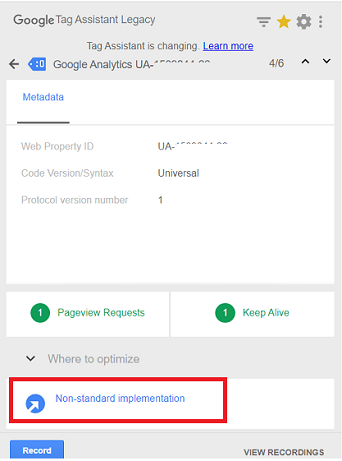
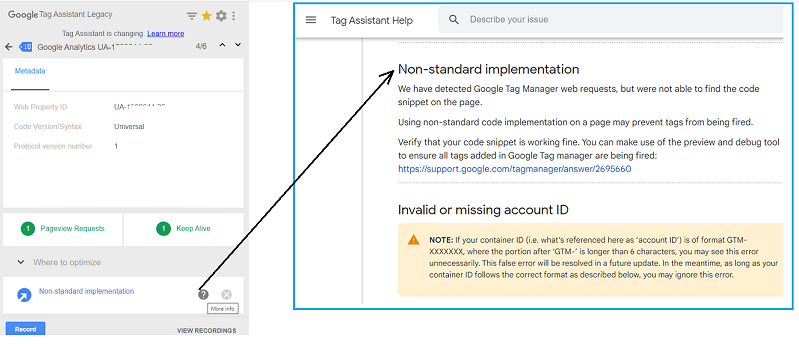
#3 It suggests fixes by providing useful tips and a link to help articles.
#4 It records user flow across web pages/websites to identify implementation and configuration issues.
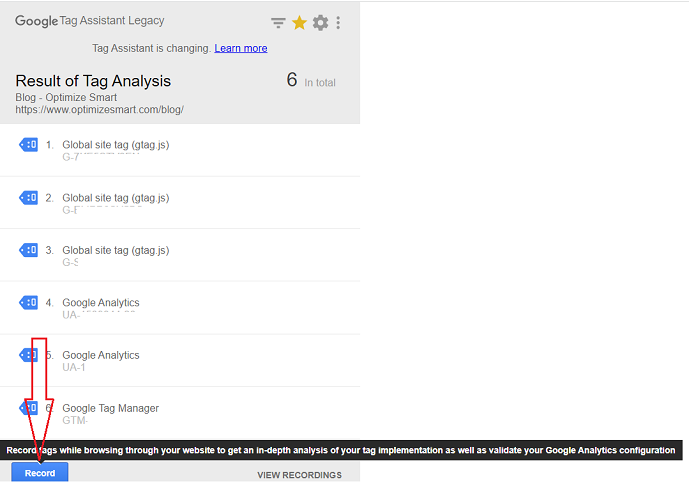
Installing and configuring Google Tag Assistant
Follow the steps below to use Google Tag Assistant:
Step-1: Make sure that you are not using an add-on or extension that disables Google Analytics in your web browser.
Add-ons or extensions like ‘Google Analytics Opt-out Add-on‘ or ‘Ghostery‘ can disable Google Analytics in your web browser and could stop the tag assistant from either working correctly or producing false-positive results.
Disable such add-ons and extensions when using Google Tag Assistant or Google Tag Manager.
Step-2: Install the Google Tag Assistant Chrome extension.
Step-3: Navigate to the web page where you want to use tag assistant.
Step-4: Pin the tag assistant.
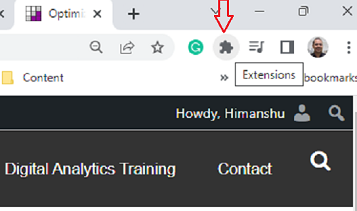
If you are already using other Chrome extensions, you may not see the tag assistant icon in your browser toolbar.
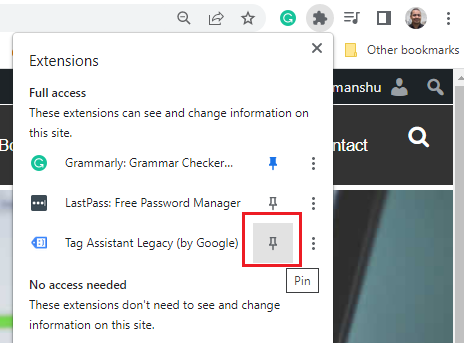
To fix this problem, click on the Extensions button and then click on the pin button to pin the tag assistant:
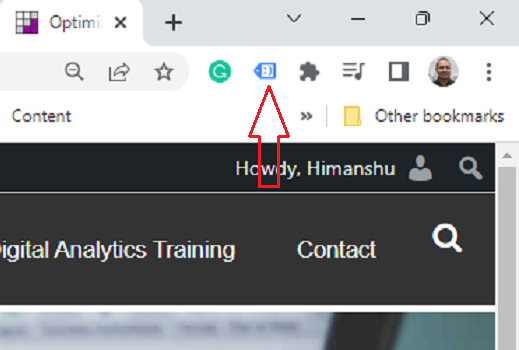
You should now see the tag assistant icon added to your browser toolbar:
Step-5: Click on the tag assistant icon.
You should now see a screen like the one below:
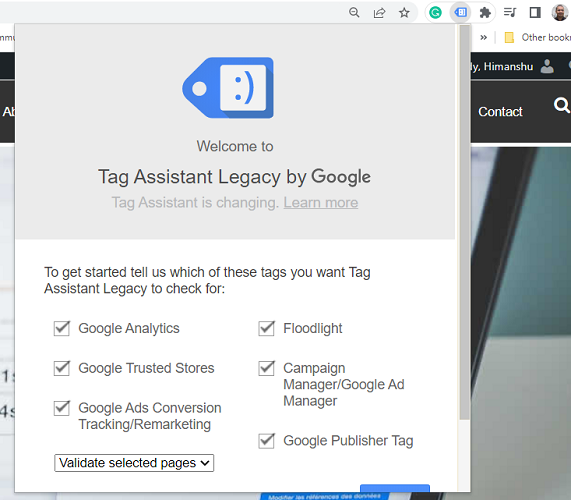
Step-6: Scroll down and then click on the ‘More options‘ button:
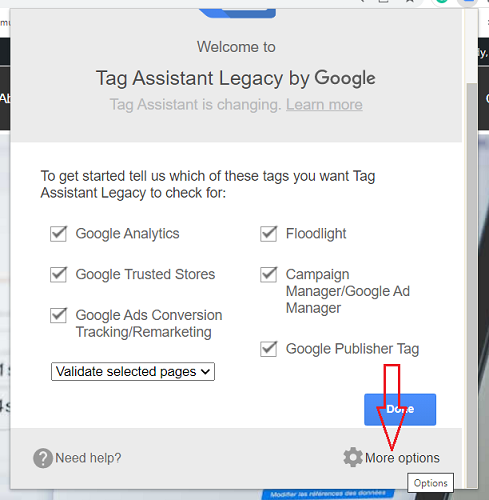
You should now see a screen like the one below:
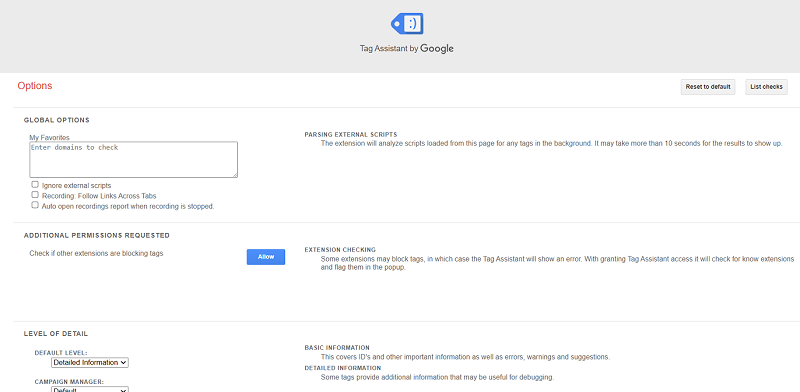
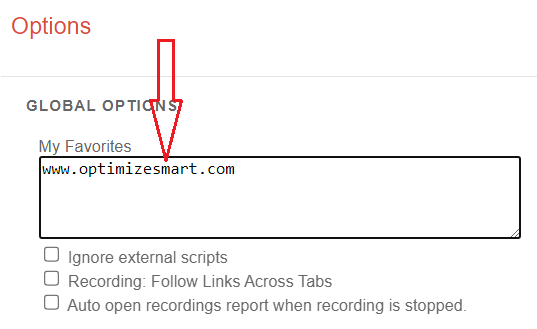
Step-7: Enter one or more domains in the ‘My Favorites‘ text box for which you want the tag assistant to be always enabled by default:
Step-8: Select the following two checkboxes: ‘Recording: Follow Links Across Tabs‘ and ‘Auto open recordings report when recording is stopped‘:
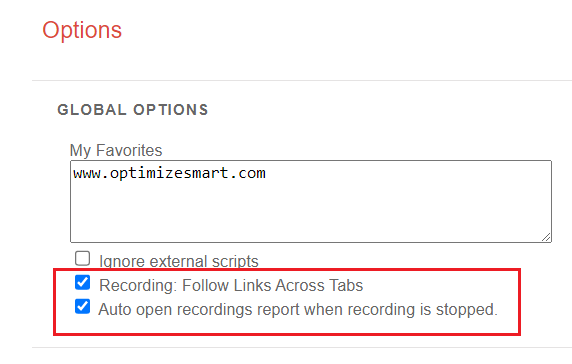
If the checkbox ‘Recording: Follow Links Across Tabs‘ is not selected, then what will happen is that whenever you use Google Tag Assistant recording, any page which opens up in a new tab or window will not be recorded.
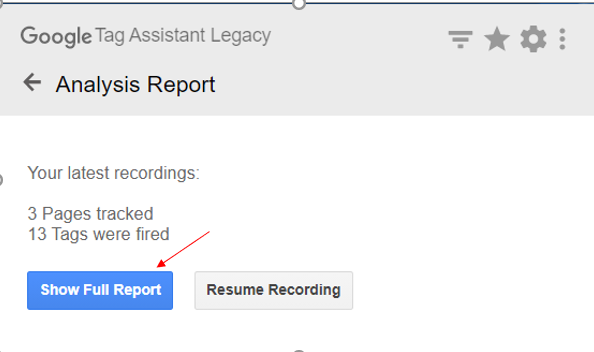
If the checkbox ‘Auto open recordings report when recording is stopped‘ is not selected, then what will happen is that whenever you stop your Google Tag Assistant recording, the recording report will not automatically open for you.
You will have to manually click on the ‘Show Full Report‘ button to see the recording report:
Step-9: Change the ‘Level of Details’ for all Google tags to ‘Detailed Information’:
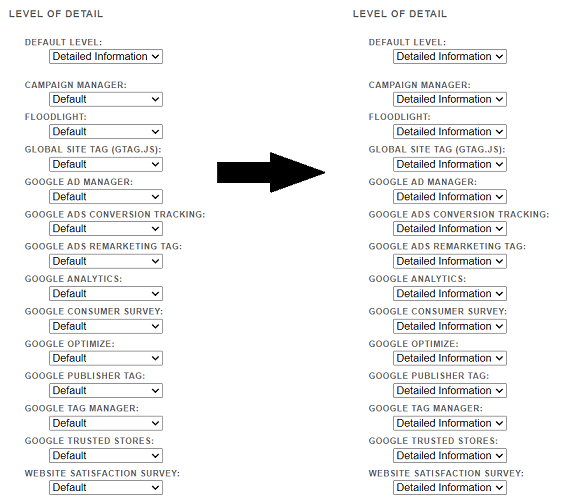
Note: Make sure that the ‘Default Level’ is also set to ‘Detailed Information’.
If you do not want Tag Assistant to check for a specific Google tag, you can turn that tag ‘off’.
For example, if you do not want Tag Assistant to check for the ‘Floodlight’ tag during a page load, you can turn it off by selecting ‘Off’ from the ‘Floodlight’ drop-down menu:
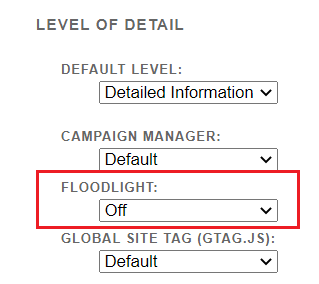
On the contrary, if you don’t find a particular tag being checked and reported by Tag Assistant, make sure that it has not been turned off in the Tag Assistant ‘options’ settings.
Note: Every time you change one of the Google Tag Assistant ‘options’ settings, you need to reload the page whose Google tags you want to validate via Tag Assistant.
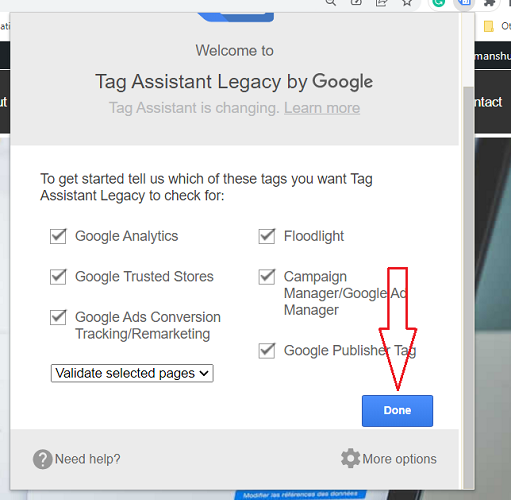
Step-10: Click on the ‘Done‘ button:
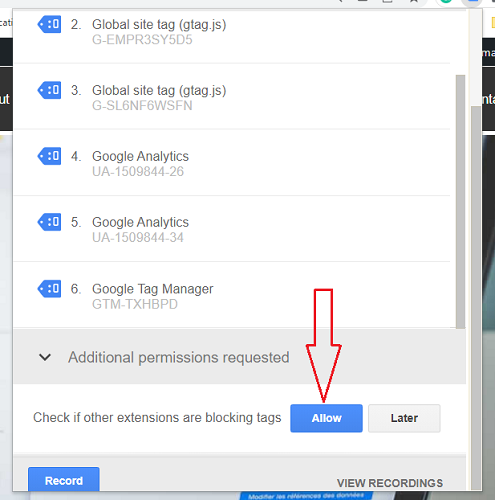
Step-11: Click on the ‘Allow‘ button to allow the tag assistant to check if other extensions are blocking tags:
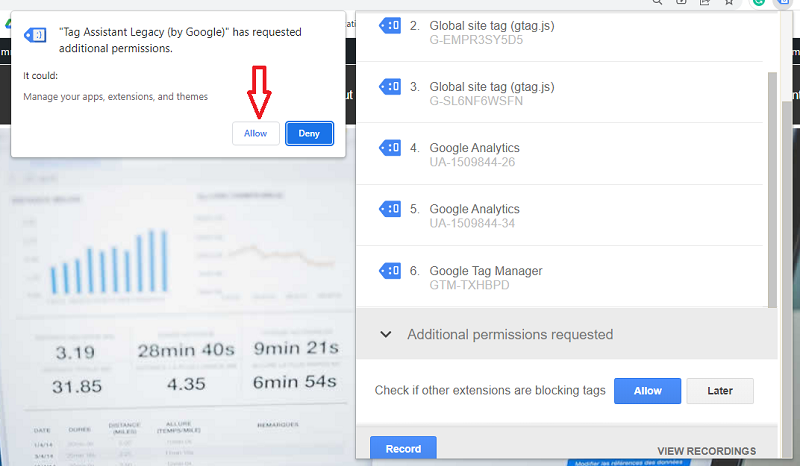
Step-12: Click on the ‘Allow‘ button once again:
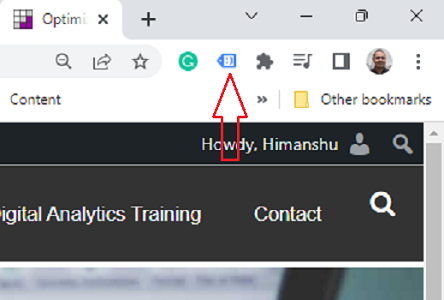
Step-13: Click on the Google Tag Assistant icon in the browser toolbar.
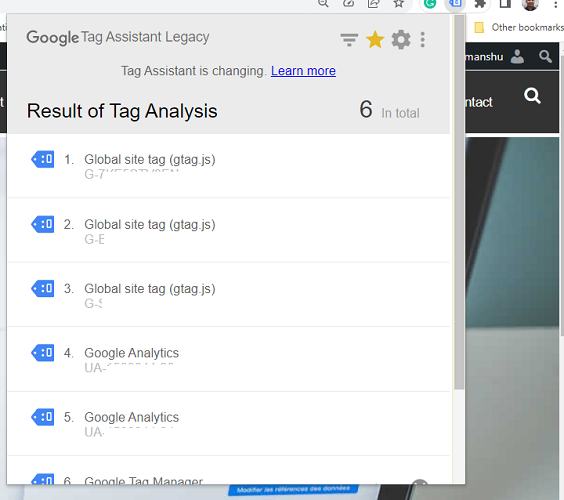
You should now be able to see the list of all the Google tags which fired on the web page:
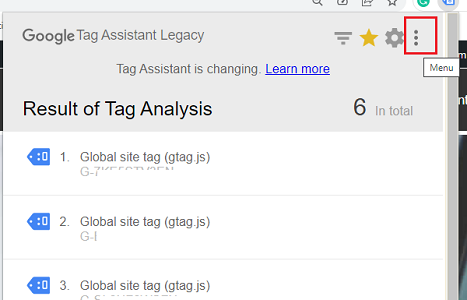
Step-14: Click on the three dots menu on the top right:
Step-15: Click on ‘Auto Validation OFF‘ to turn it on:
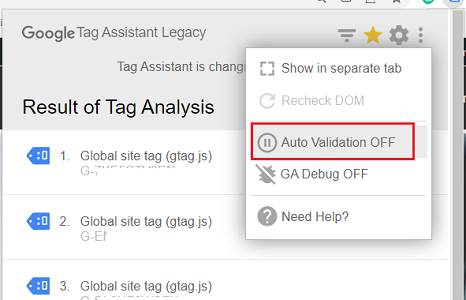
By default, Tag Assistant is not enabled across browser tabs.
So whenever you open a new tab, you will have to manually enable Tag Assistant before you can use it.
If you want Tag Assistant to be automatically enabled across all browser tabs, turn on the ‘Auto Validation’ setting.
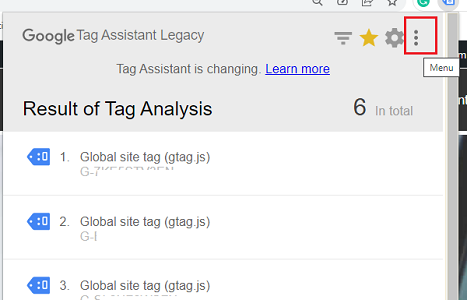
Step-16: Click on the three dots menu on the top right:
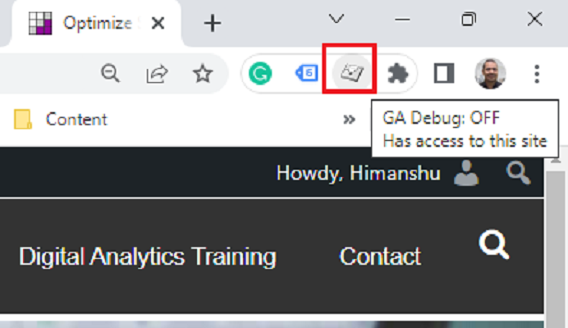
Step-17: Click on ‘GA Debug OFF‘ to turn it on:
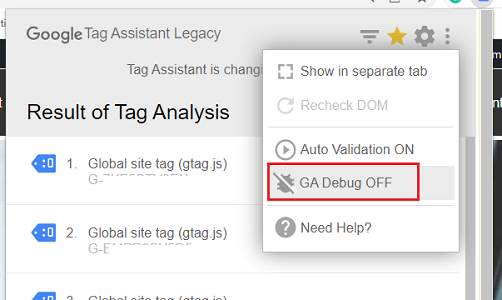
When you turn on the ‘GA Debug’ setting, it is equivalent to using the Google Analytics debugger Chrome extension.
In other words, you do not need to install and use the Google Analytics debugger Chrome extension when the ‘GA Debug’ setting of the tag assistant has been turned on.
Step-18: Install the Google Analytics Debugger Chrome extension.
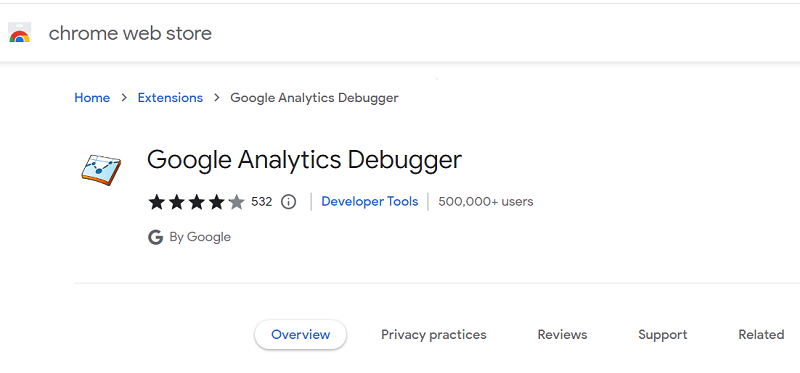
Through Google Analytics Debugger Chrome extension, the Google developer console is able to log/record every hit/event that you send to the Google Analytics server.
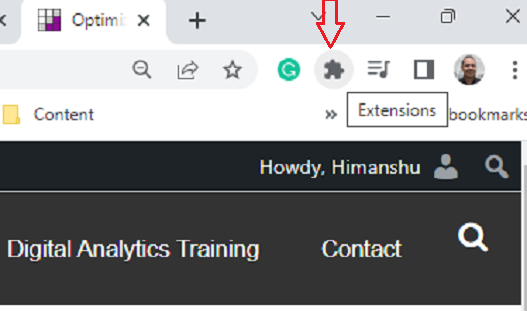
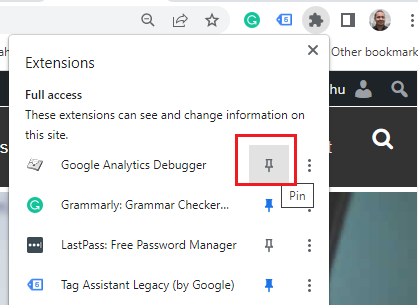
Step-19: Pin the GA debugger extension.
If you are already using other Chrome extensions, you may not see the tag assistant icon in your browser toolbar.
To fix this problem, click on the Extensions button and then click on the pin button to pin the GA debugger extension:
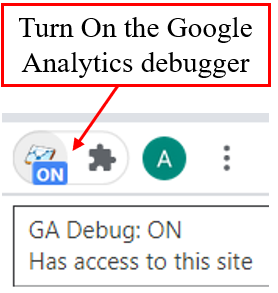
Step-20: Enable the GA debugger extension.
Once you have installed the GA debugger Chrome extension, you need to enable it before you can use it on a web page.
To enable the extension, click on its icon on the top right-hand side of your browser address bar and then refresh the web page:
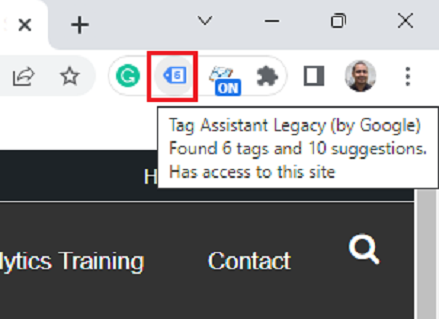
Step-21: Click on the Google Tag Assistant icon in the browser toolbar:
Step-22: Click on the three dots menu on the top right:
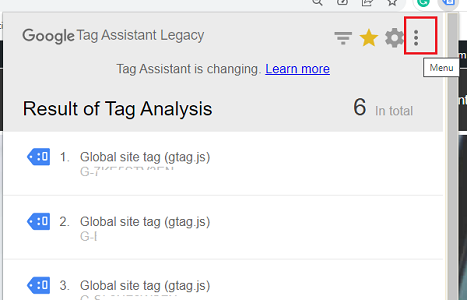
Step-23: Click on ‘Show in separate tab’:
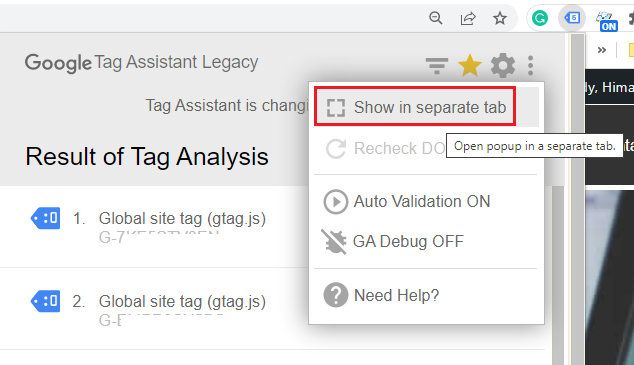
The ‘Show in separate tab’ menu item will open the Google Tag Assistant in a separate browser tab.
If you do not use this option, then every time you navigate to a different browser tab or reload the web page, the Google Tag Assistant window will automatically hide.
This may become annoying for you really fast.
The colour coding used by Google Tag Assistant
When you navigate to a web page where Google Tag Assistant is enabled, you are going to see the tag assistant icon (next to the browser address bar) with one of the following colours:
- Green
- Blue
- Yellow
- Red
Tag Assistant icon in green colour.
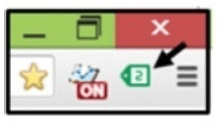
If you see the tag assistant icon in green, then it means the tag assistant has found all of the identified Google Tags to be perfectly valid.
Tag Assistant icon in blue colour.
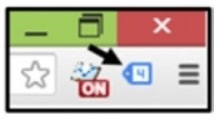
If you see the tag assistant icon in blue, then it means the tag assistant has found Google tags that have no major or minor implementation issues but which are still not perfectly valid tags because of some non-standard GA implementation.
Tag Assistant icon in yellow colour.
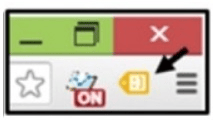
If you see the tag assistant icon in yellow, then it means the tag assistant has found some or all Google tags have minor implementation issues.
Tag Assistant icon in red colour.
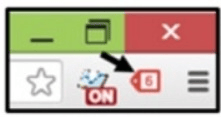
If you see the tag assistant icon in red, then it means the tag assistant has found some or all Google tags have major implementation issues.
The number showing in the tag assistant icon.
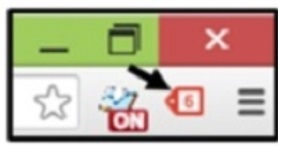
You will also notice a number in the middle of a tag assistant icon.
This number represents the number of tags identified by Google Tag Assistant on a web page.
For example,
The red icon above has got number six on it.
It means there are six Google tags identified by the tag assistant.
However,
This number does not automatically imply that all 6 Google tags have got major implementation issues.
Analyzing the result of tag analysis by Tag Assistant
Once you load a web page in your browser window and then open tag assistant in a separate browser tab, you will see the result of the tag analysis:
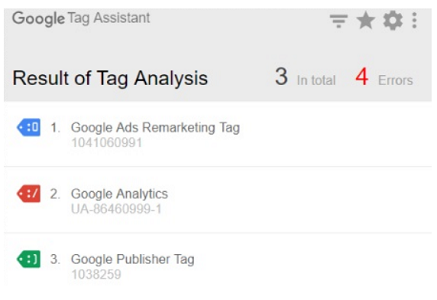
From the result above, we can conclude the following:
#1 A total of three Google tags are identified on the page by the tag assistant: Google Ads Remarketing Tag, Google Analytics, and Google Publisher Tag.
#2 One tag (Google Analytics) has got an error (major implementation issue).
To see what is wrong with the Google Analytics tag, you need to click on it:
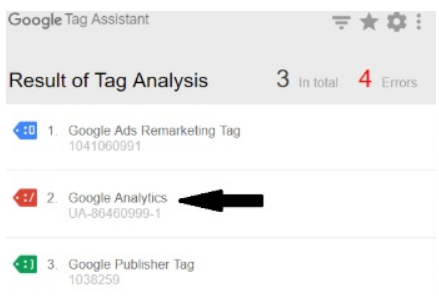
After clicking on the tag, scroll down to the section ‘where to optimize’:
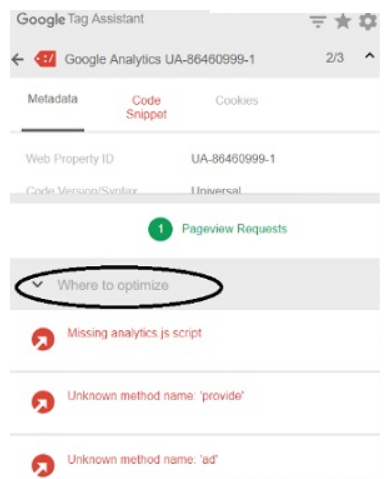
The ‘where to optimize’ section shows what exactly is wrong with the tag and what needs to be fixed.
For example,
In our case, the Google Analytics tag is throwing an error because of the following:
- Missing analytics.js script.
- Unknown method name: ‘provide.’
- Unknown method name: ‘ad’.
You need to be a Google Analytics developer in order to understand the messages listed in the ‘where to optimize’ section. Perhaps you can share your insight with your GA developer and let them fix the tag problem for you.
Shortcomings of Google Tag Assistant
There are three shortcomings of Google Tag Assistant:
#1 It can not identify and validate tags across a website in one go. You would need to run this tool on each web page manually.
#2 It does not work for non-Google tags.
#3 It can not identify tags which don’t fire (as they are either broken or waiting for an event to occur first).
Note: Google Tag Assistant only works on web pages which have got at least one of the Google tags.
So if you try to use this tool on a page with no Google tag, you won’t see any results, and you may be asked to add Google Analytics to your website.
The new Google Tag Assistant
Google has introduced a new Tag Assistant that allows you to verify and troubleshoot tagging for global site tag (gtag.js) and also Google Tag Manager installation.
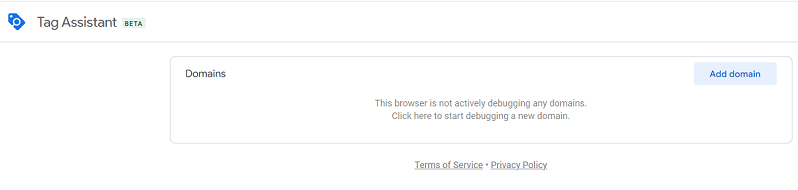
Basically, the preview mode in Google Tag Manager is now replaced with the Tag Assistant.
For the new Tag Assistant, you don’t need to install the Chrome extension, and it comes with additional features.
Let’s discuss the new assistant in detail and how to access it.
To access the new Tag Assistant, follow the below steps:
Step-1: Navigate to https://tagassistant.google.com/
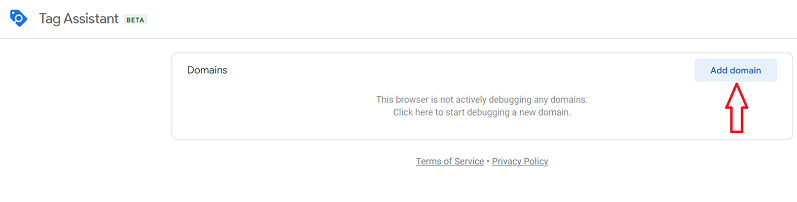
Step-2: Click on the ‘Add Domain‘ button:
Step-3: Enter the URL of the domain that you would like to debug, and then click on the ‘Connect’ button:
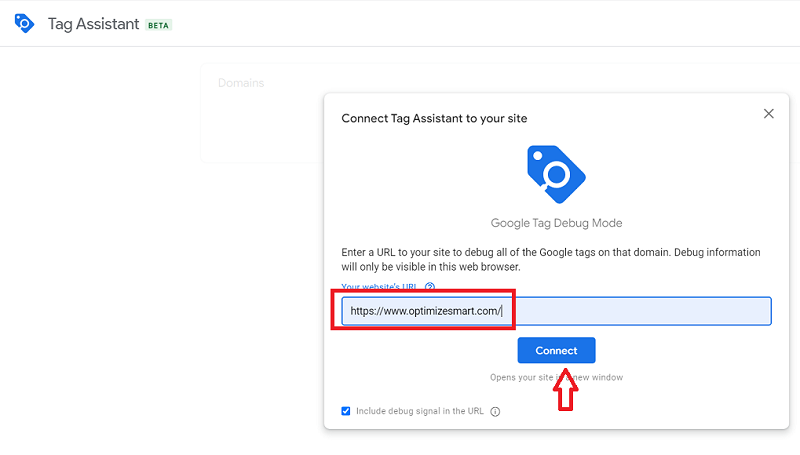
You will now be automatically redirected to a new tab that shows the web page you would like to debug.
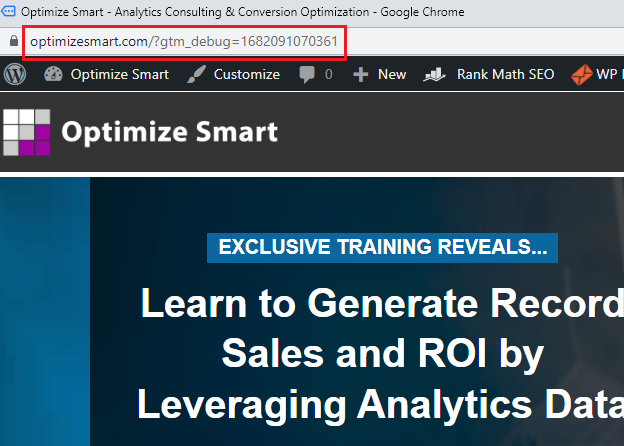
The URL of this web page contains gtm_debug= 168209…:
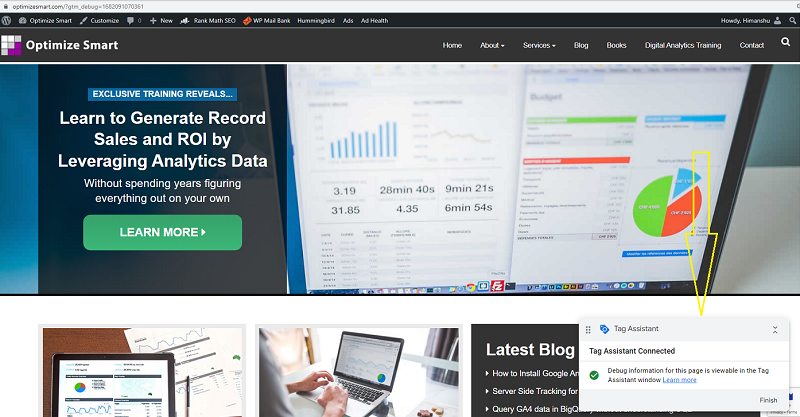
You will also see the tag assistance connected notification box at the bottom right of your screen:
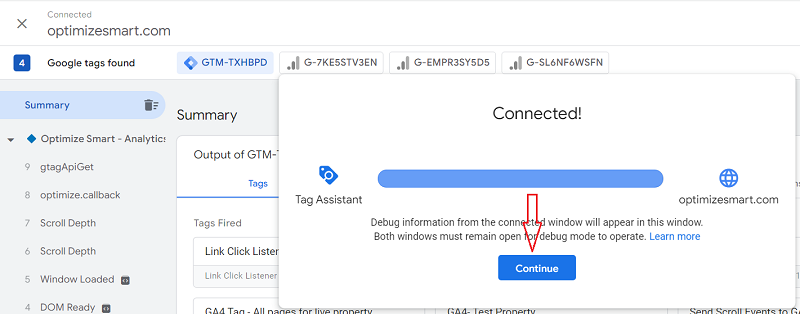
Step-4: Navigate back to the tab where the Google Tag Assistant is opened, and then click on the ‘Continue‘ button:
You should now be able to see the list of various tags which fired and not fired on a web page:
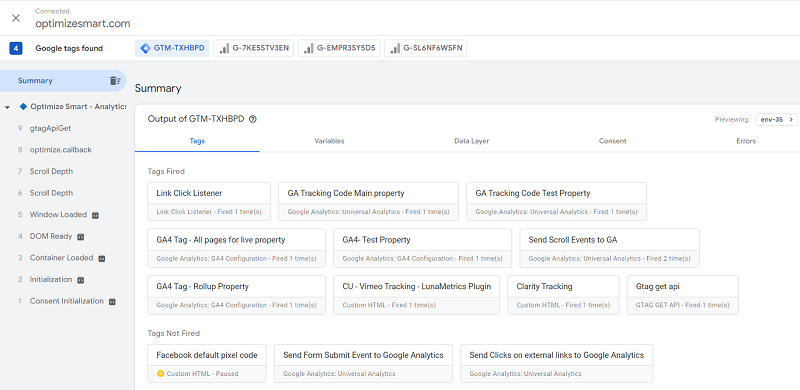
You can see the list of messages in the left navigation bar:
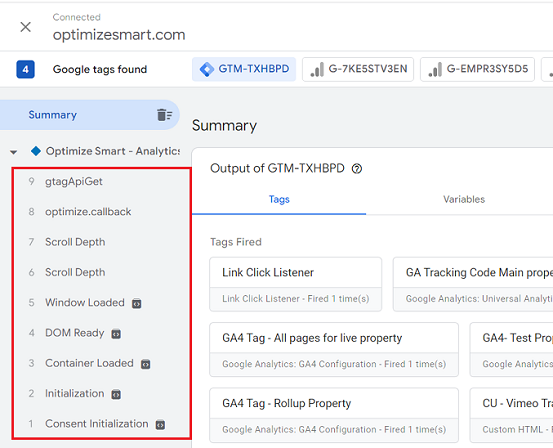
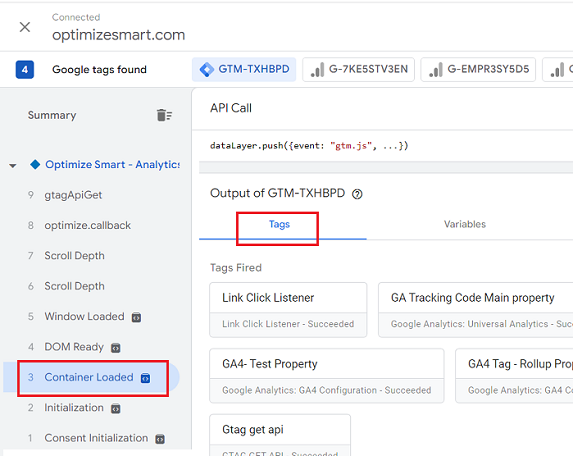
If you want to know which tags fired on ‘container loaded’, then click on the ‘Container Loaded‘ message from the left navigation bar:
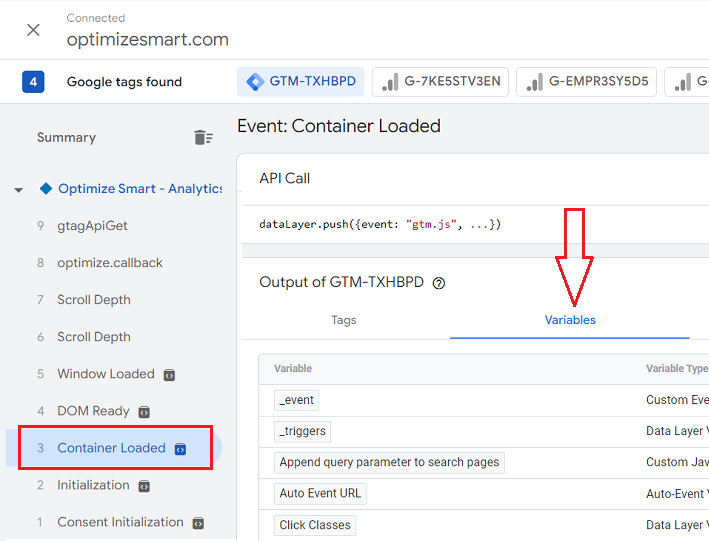
If you want to know the list of variables that were re-evaluated for the ‘Container Loaded‘ message, then click on the ‘Variables‘ tab:
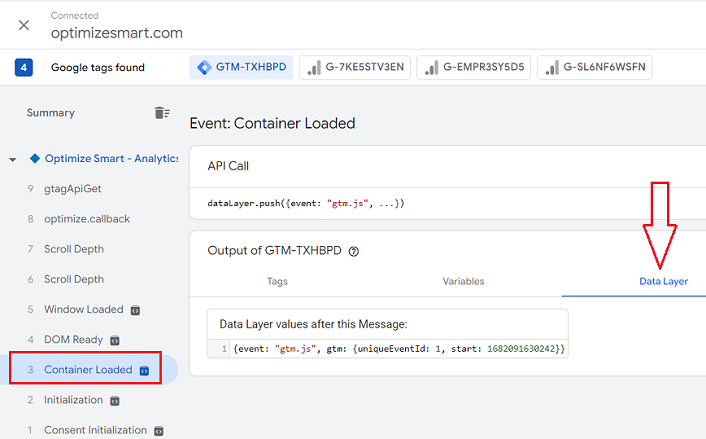
If you want to see the current values of the data layer for the ‘Container Loaded‘ message, then click on the ‘Data Layers‘ tab:
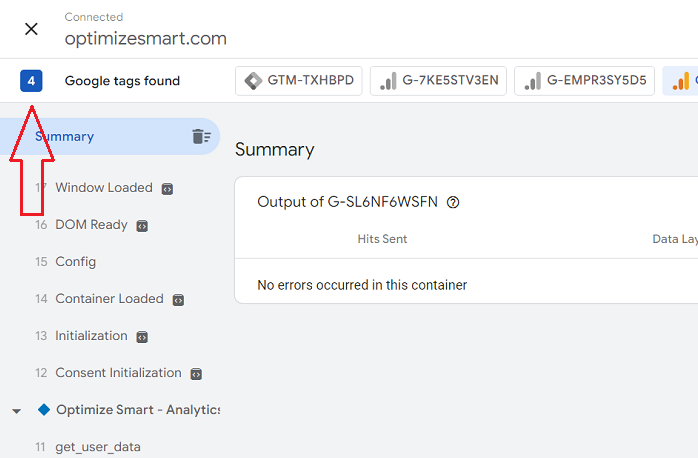
Step-5: Click on the ‘X’ button on the top left of your screen to stop debugging:
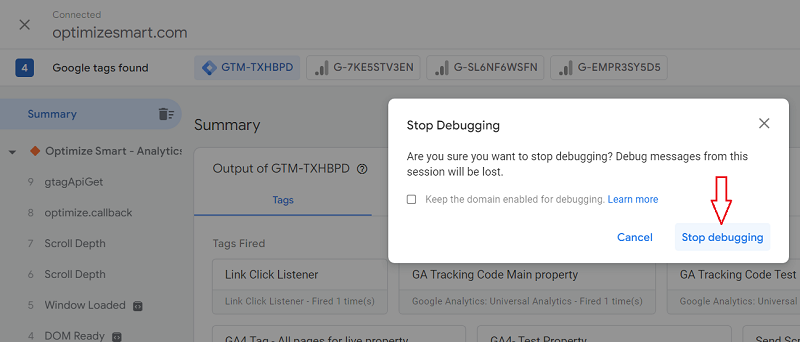
Step-6: Click on the ‘Stop debugging‘ button:
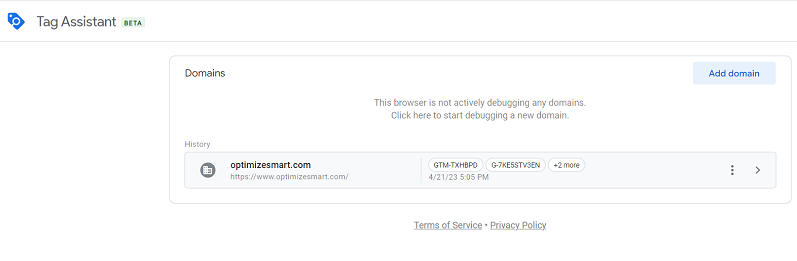
You should now see a screen like the one below, which shows the list of domains you have debugged so far:
You can click on the ‘Add domain‘ button again to debug another website:
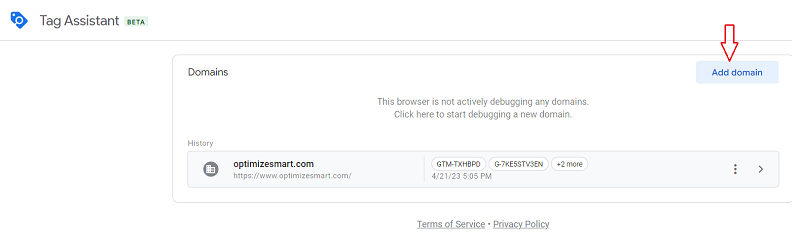
If you want to debug the previously debugged website once again, then click on it:
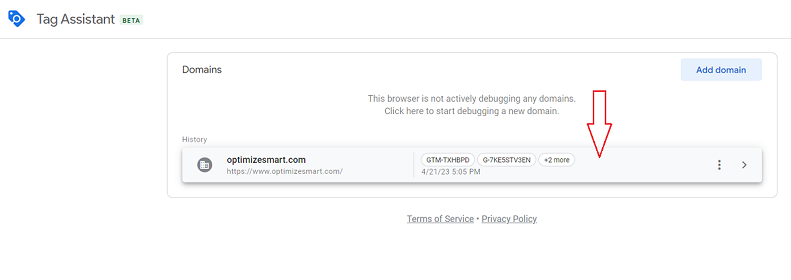
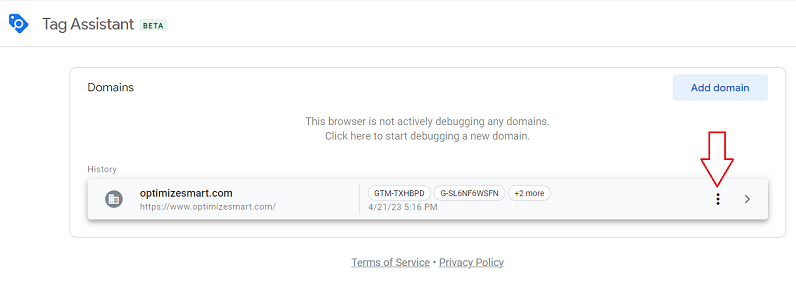
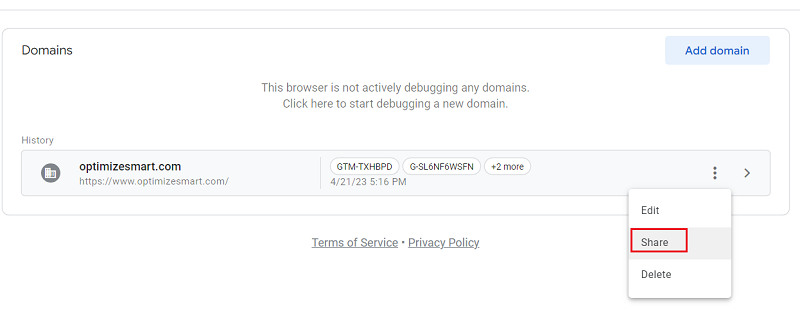
Step-7: When you click on the three dots menu next to the domain name, you will see options to edit, share and delete:
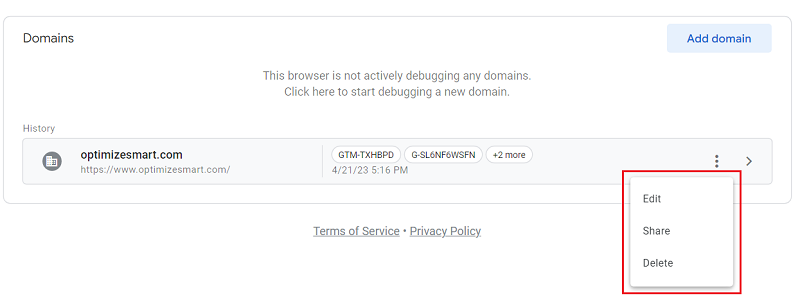
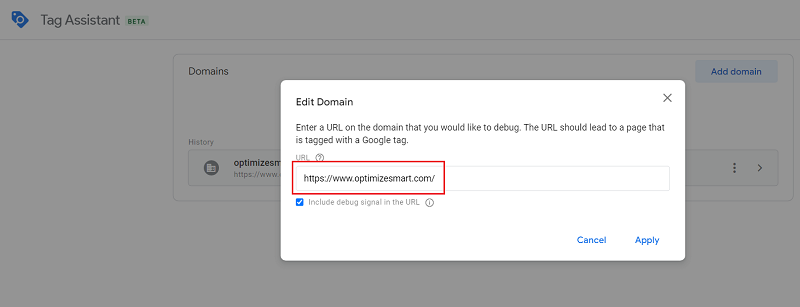
Step-8: When you click on the ‘Edit’ option, a pop-up appears where you can edit the domain name:
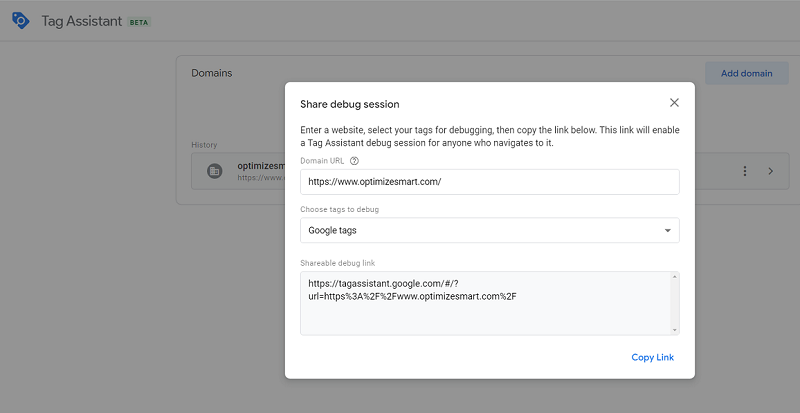
Step-9: When you click on ‘Share’, a new pop-up appears, which will let you share the debug session with anyone:
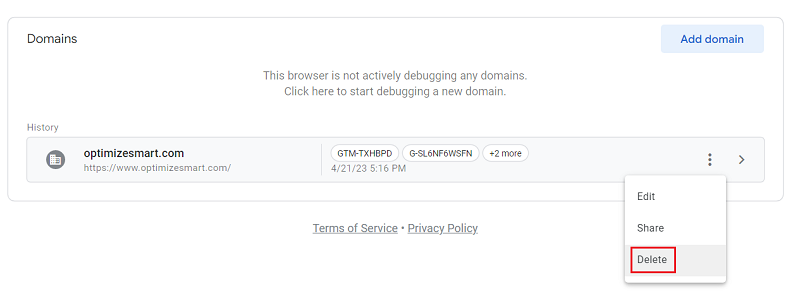
Step-10: When you click on the ‘Delete‘ option, the domain will be deleted from Tag Assistant.

Other Articles on GA4.
- Fixing unassigned issues with GTM Server Side Tagging.
- How to exclude internal traffic in Google Analytics 4.
- Understanding data filters in Google Analytics 4.
- Conversion Funnel Analysis in Google Analytics 4.
- How to use custom templates in Google Tag Manager.
- 6 Critical Flaws in Google Analytics 4 Attribution Paths.
- Google Analytics 4 Admin Settings Tutorial.
- How to Connect Google Ads to Google Analytics 4.
- Google Analytics 4 Predictive Audiences – Tutorial.
- How to use Segment Overlap Report in Google Analytics 4.
- Audience Triggers in Google Analytics 4.
- Google Tag Manager Regex Table Variable Explained.
- Understanding Lookup Table in Google Tag Manager.
- Google Tag Manager Variables and Triggers Tutorial.
- How to find Average Order Value in Google Analytics 4.
- Google Ads tag still running in GTM? Here is the fix.
- 8 Signs Your GA4 Property Needs Expert Help.
- Google Tag Assistant Tutorial.
- Google Analytics 4 not working? Here is how to fix it.
- Google Analytics 4 for Low Traffic Websites.