

The following are the key benefits of GA4 (Google Analytics 4):
- GA4 measurement model is more flexible and superior to the one used by GA3 (aka Universal Analytics)
- GA4 provides a platform for both website and mobile app.
- GA4 property has roll-up reporting built-in.
- GA4 roll-up reporting is much more accurate than the one provided by GA3.
- GA4 provides much more accurate cross-device insight than GA3.
- GA4 provides much more robust cross-device and cross-platform tracking than GA3.
- GA4 provides automatic tracking for certain types of events.
- GA4 makes event tracking setup much easier.
- GA4 provides debugging within the reporting interface.
- GA4 provides a new set of metrics for more accurate engagement tracking.
- GA4 provides better user privacy control options.
- GA4 provides a free connection to BigQuery.
- GA4 provides Exploration report templates.
- GA4 makes conversion tracking much easier.
- GA4 allows creating complex conversions.
- GA4 users’ engagement tracking is much more aligned with contemporary browsing behaviour.
- GA4 makes cross-domain tracking setup much easier.
- GA4 provides access to far more custom dimensions and custom metrics.
- GA4 provides predictive analytics capabilities.
- GA4 provides superior funnel creation and analysis capabilities.
- GA4 has much focus on the users’ journey.
- GA4 provides Enhanced data visualizations capabilities.
- GA4 forces a pause in immediate data analysis.
#1 GA4 measurement model is more flexible and superior to the one used by GA3.
GA3 uses the measurement model which is based on sessions and pageviews.
Whereas GA4 uses the measurement model based on events and parameters.
Thus, the measurement model used by GA4 is more flexible and superior to the measurement model used by GA3.
#2 GA4 provides a platform for both website and mobile app

One of the biggest benefits of GA4 is that you can use it for your website or mobile app, as well as both website and mobile app together.
Earlier, you had to use GA3 for your website and Firebase for mobile applications.
But with GA4, you can use the ‘app + web’ implementation, which is basically Google Analytics for Firebase with website tracking capabilities.
Now, you have the ability to consolidate data from websites as well as mobile applications in a single property. This is done by using data sources, which are also called data streams in GA4.
Under one property, you can have multiple data streams like Android, iOS and web.
#3 GA4 property has roll-up reporting built-in
Roll-up reporting is simply the reporting of data in an aggregated form from multiple digital properties (websites, mobile apps).
Through roll-up reporting, you can aggregate all of your website’s data in one reporting view and see aggregated performance metrics.
Roll-up reporting helps you understand the overall performance of all of your company’s websites and mobile apps.
Through roll-up reporting, you can see the total unique visitor reach of all of your websites and/or apps.
There are two methods of setting up roll-up reporting in GA3:
- By using multiple trackers on each page of your website.
- By using GA360
The first method of roll-up tracking requires a lot of technical expertise, and the second method requires a GA360 subscription which costs $150k per year.
GA4 allows you to combine mobile app and website usage data in one reporting view without any additional coding/tagging.
Thus, with GA4, no roll-up tracking is required.
#4 GA4 roll-up reporting is much more accurate than the one provided by GA3
In the case of GA4, both mobile apps and websites use the same schema for tracking users’ activities.
This makes GA4 roll-up reporting much more accurate and reliable than the one you get with GA3.
#5 GA4 provides much more accurate cross-device insight than GA3
In GA4, you can measure a customer purchase journey across your website and mobile apps more accurately.
Such cross-device insight can help you to:
#1 Improve your understanding of customer purchase journeys across platforms and provide a better user experience as a result.
#2 Fix cross-device attribution issues.
For example, you can determine the number of users who started their purchase journey on your mobile app before visiting your website to complete the purchase.
#3 Understand the effectiveness of your marketing campaigns across devices/platforms.
For example, you can determine the marketing channel(s) responsible for acquiring the most customers across mobile and desktop.
#6 GA4 provides much more robust cross-device and cross-platform tracking than GA3
This is because:
- GA4 has roll-up reporting built-in for app and web data.
- Both the web and app data in GA4 use the same schema. Whereas in the case of GA3, this is not the case.
- Accurate roll-up reporting enables robust cross-device and cross-platform tracking capabilities in GA4.
#7 GA4 provides automatic tracking for certain types of events
A GA4 property has the ‘enhanced measurement‘ feature built-in, allowing automatic tracking for certain types of events without any additional coding/tagging.
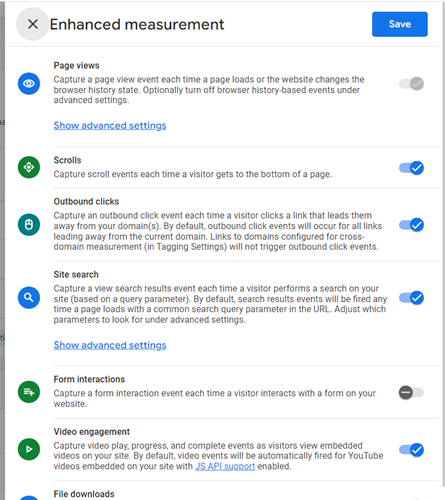
You can automate the tracking of the following types of events in GA4:
- Scroll tracking
- Outbound clicks (aka exit tracking)
- Site Search tracking
- Video engagement (aka video tracking)
- Tracking file downloads.
This is something that is not possible with GA3 (aka Universal Analytics).
#8 GA4 makes event tracking setup much easier
In GA4, you can easily modify any event or create a new event based on the occurrence of other events and parameters. This is something that is not possible with GA.
When you are using GA3, all the tracked events must follow the category-action-label-value schema:
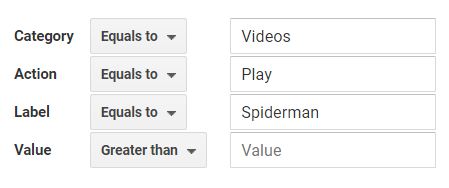
This is not the case with GA4 which provides a much more flexible event tracking setup.
In the case of GA4, additional information is supplied to an event via parameters:
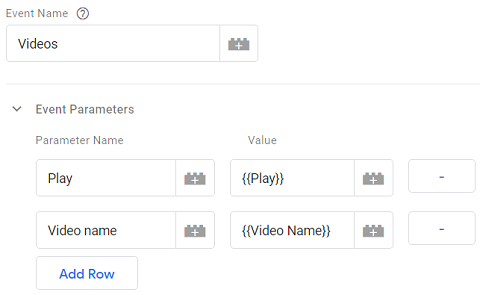
You can not supply additional information to a GA3 event via parameters.
Thus setting up event tracking is much easier in GA4.
#9 GA4 provides debugging within the reporting interface
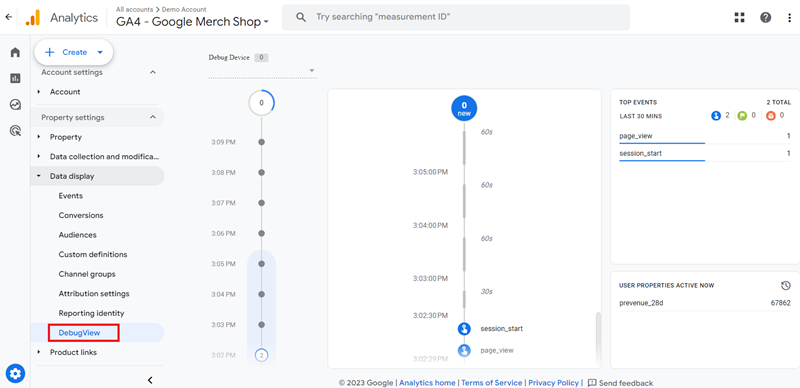
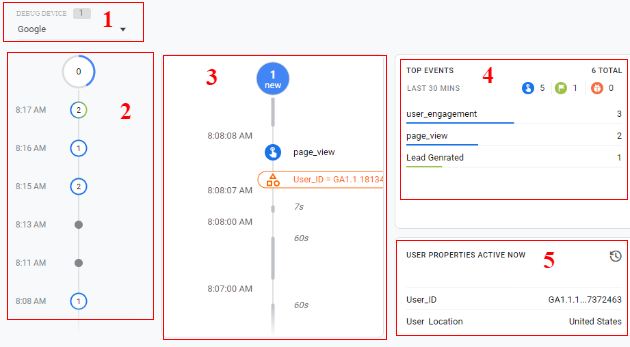
The GA4 reporting view provides the DebugView report through which you can quickly validate your analytics configuration for a website/app from within the reporting interface.
This is not possible with a GA3 reporting view, as no DebugView report is available.
Debugging your implementation setup is an important step to validate your analytics configuration.
It could take a few minutes or several days to troubleshoot issues in Google Analytics depending upon your skills and experience.
However, Google Analytics 4 makes debugging pretty simple due to the presence of a special real-time report called DebugView.
DebugView allows you to monitor your website’s event data in real-time, along with all the custom parameters and user properties set.
Through this report, you can isolate and see data only from a specific device where debug mode is enabled.
DebugView looks at the following:
- A device used for debugging.
- Minutes stream: This section gives you details of events happening every minute.
- Seconds stream: This section gives you details of events happening every second.
- Top events: Displays events in real-time from the debugging device.
- User properties: User properties sent by the debugging device.
#10 GA4 provides a new set of metrics for more accurate engagement tracking
GA4 reporting view provides a new set of engagement metrics that can track users’ engagement with your website/app much more accurately than the page views and bounce rate metrics used by GA3.
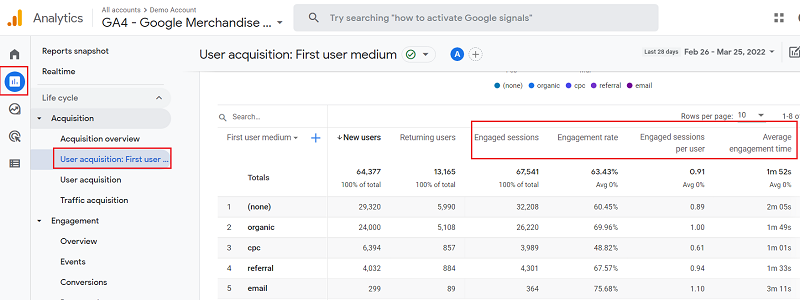
Following are examples of GA4 engagement metrics:
- Engaged Sessions
- Engagement Rate
- Engaged Sessions per User
- Average Engagement Time
#11 GA4 provides better users’ privacy control options
#1 Unlike in GA3, the IP anonymization feature is built-in in GA4, is enabled by default and you can not disable it.
#2 Unlike in GA3, the GA4 does not log IP addresses. This is done to prevent individuals from being identified via report data.
#3 GA4 allows disabling collection of Google signals data on a per-region basis.
#4 GA4 collects and processes measurement data from EU users via domains and servers based in the EU.
#5 GA4 drops any sensitive data that it collects from EU users before logging that data via domains and servers based in the EU.
#6 In GA3, you can set the ‘User and event data retention’ setting to a maximum of ’50 months’ or ‘Do not automatically expire’.
Whereas in GA4, you can set the ‘User and event data retention’ setting to a maximum of 14 months.
Thus unlike in GA3, the GA4 can retain user-specific data for an inactive website user for only up to 14 months before automatically deleting it.
#12 GA4 provides a free connection to BigQuery
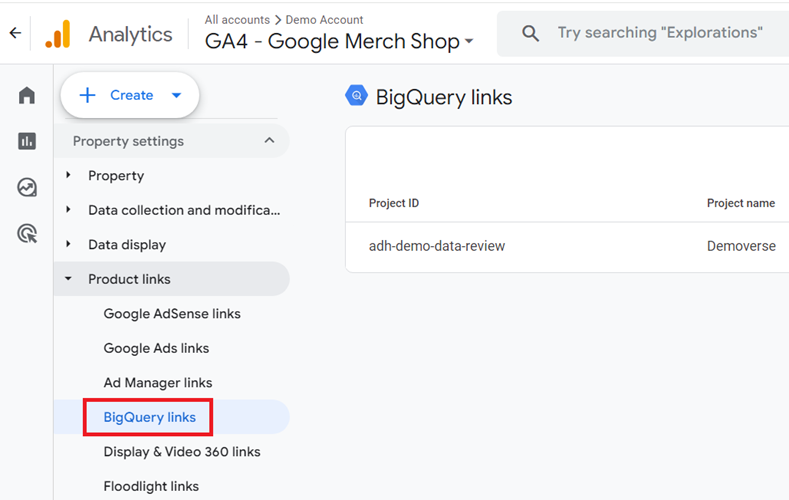
Unlike GA3, the GA4 comes with a free connection to BigQuery. Earlier, this feature was available only to the GA 360 customers.
So now you can access the raw GA data and can run SQL queries on it.
This is very useful when you want to connect GA4 data with an external data source.
#13 GA4 provides Exploration report templates
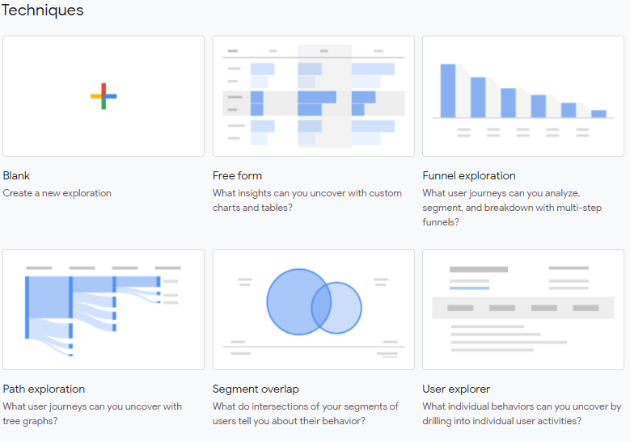
The reporting view of a GA4 property comes with a new set of report templates called ‘Explorations‘ through which you can do advanced data analysis:
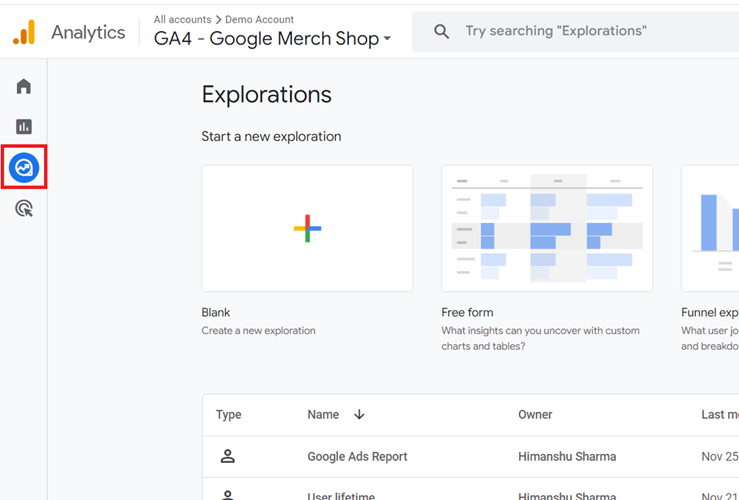
In the case of GA3, only GA 360 customers can use the ‘Exploration’ report templates:
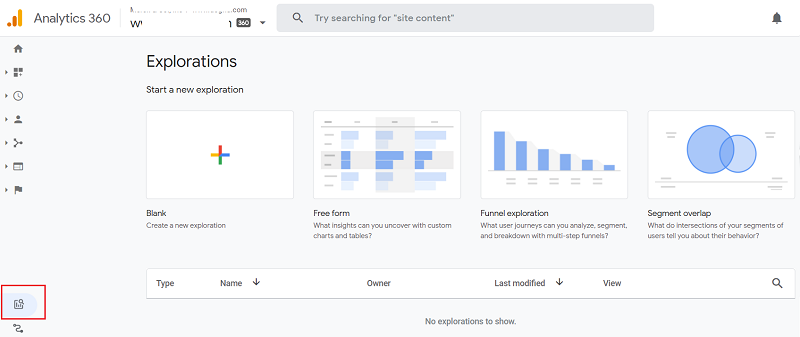
Currently, GA4 supports the following analysis techniques
1. Free form report
The free form report represents your data in a dynamic table layout.
You have the option to arrange rows and columns as you like and apply custom segments and filters to refine your data.
In GA3, you had the option to create a custom report under the customization menu option.
The GA4 custom report is replaced with the exploration report.
2. Cohort exploration report
The cohort exploration report provides insight into the behaviour and performance of groups of users with common attributes.
3. Funnel exploration report
This report allows you to visualize the steps your users took to complete a task.
You can quickly analyze how well they succeeded or failed at each step.
For example, you can determine how users behaved while purchasing a product which had a series of events like product view, product click, add to cart, checkout and then the final transaction.
With this information, you can improve inefficient or abandoned customer journeys.
4. Segment overlap report
The segment overlap report allows you to compare up to three user segments and see how they overlap and relate to each other.
In other words, it is an analysis technique that visualizes the relationship between multiple segments of users.The ‘Segment Overlap’ report helps you to understand specific audiences by isolating them based on complex and/or advanced segments.
You can then create new segments based on your findings, which you can apply to other analysis techniques and reports.
5. User explorer report
This report shows you the users that make up the segments you created or imported.
You can also drill down into individual user activities via this report.
6. Path exploration report
The path exploration report in Google Analytic 4 allows you to determine the sequence of pages visited by users and the actions performed.
For example, you can find the top pages that new users visited after visiting the home page or you can discover what actions users took after a particular page view.
You can use the path exploration report to uncover the looping behaviour of the users.
For example, if users visited page A then page B and then again page A.You can also use the path exploration report to determine the effect of a particular event on subsequent events
7. User lifetime report
Through this report, you can determine how website users behaved during their lifetime, after visiting your website for the first time.
Through the user lifetime report, you can get answers to questions like:
- When did a user last purchase from your website/app?
- When did a user last engage with your website/app?
- How can we find users with higher purchases and lower churn probability?
- Which traffic source and/or medium resulted in users with the highest lifetime value?
- Which campaigns performed the best in terms of lifetime value?
#14 GA4 makes conversion tracking much easier
In GA4, you can easily mark any logged event as a conversion.
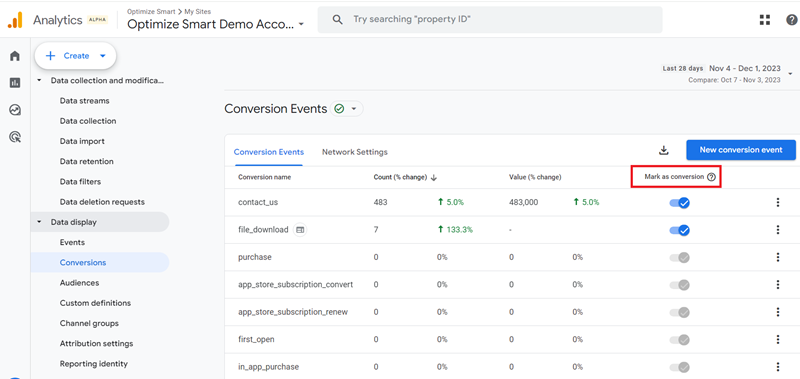
This is something that is not possible with GA3.
Thus, setting up conversion tracking is much easier in GA4:
Note: In GA3, you can track a maximum of 20 conversions per reporting view. GA4 does not have any such restrictions. You can set up as many conversions as you want in GA4.
#15 GA4 allows the creation of complex conversions
GA3 allows you to create conversions based on:1. Pageviews2. Events3. Duration4. Pageviews/screens per session
But GA3 does not allow you to create conversions that satisfy multiple conditions.
For example, you can not define the following user activity as a conversion in GA3:
A user that visited your website via your newsletter and then watched a 5 minutes long video before making a purchase that is above $100.
However,
GA4 let you create conversions that are based on multiple conditions.
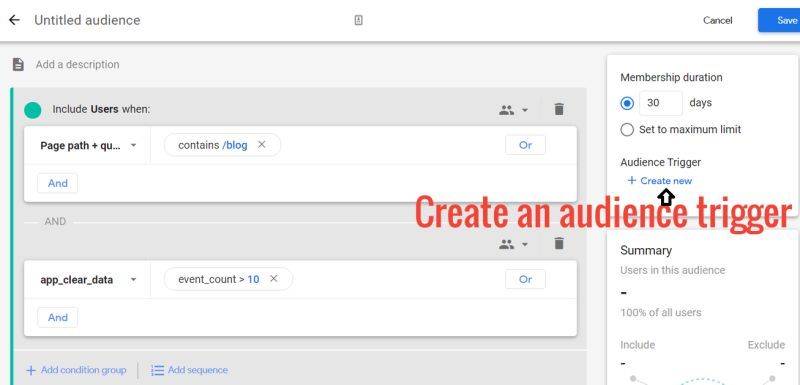
You can create such types of complex conversions in GA4 by carrying out the following three tasks:
#1 Create a new audience in GA4 with one or more conditions (like visiting your website via newsletter, watching a video for at least 5 minutes etc).
#2 Create an audience trigger that logs an event when a user becomes a member of your new audience.
#3 Mark the event as conversion.
#16 GA4 users’ engagement tracking is much more aligned with contemporary browsing behaviour.
Users these days use multiple tabs while browsing websites.
They may open your website in one tab and then navigate to another tab to do some other work.
Then they may come back hours later on your website to finish what they started.
GA3 user engagement tracking does not work well to capture such user behaviour.
However, GA4 does. This is because, unlike in GA3, a GA4 session can start with or without a pageview/screenview.
Thus GA4 can track user engagement more accurately than GA3.
For example, consider the following scenario:
A user landed on your website but immediately navigated to another browser tab. After a couple of hours, he returned to your website, consumed the content and closed the tab from the landing page without browsing any further.
In this scenario, GA3 will likely count only one session with a pageview and 100% bounce rate.
But GA4 would count two sessions. One session with pageviews and one session with user engagement.
The session with user engagement started when the user returned to your website hours later and started consuming content.
#17 GA4 makes cross-domain tracking setup much easier
Complicated tracking setups are required in GA3 to make cross-domain tracking work.
It is usually done by using the ‘allowlinker‘ parameter sent with every single Google Tag Manager tag (if you are using Google Tag Manager) or every ‘gtag.js‘ (global site tag) call.
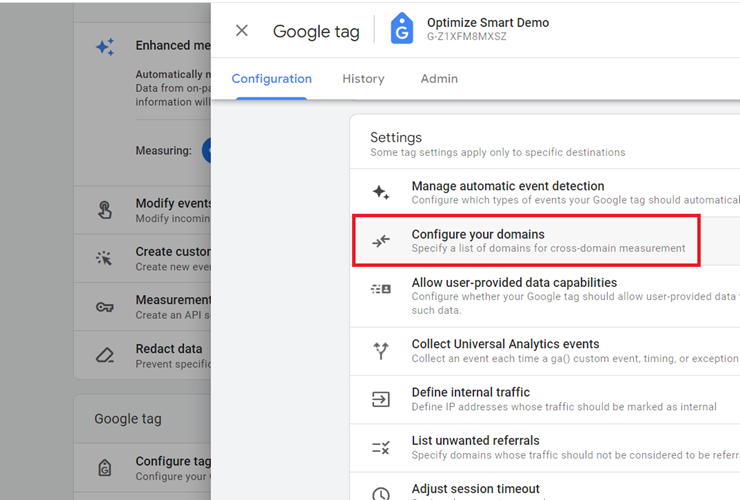
In the case of GA4, setting up cross-domain tracking has been made very simple and no additional tagging is required.
You just need to configure your domains in the Admin section:
#18 GA4 provides access to far more custom dimensions and custom metrics
GA3 (excluding GA 360) supports only 20 custom dimensions and 20 custom metrics.
Whereas GA4 supports 50 event scoped custom dimensions and 50 event scoped custom metrics.
In addition to that, GA4 also supports 25 user scoped custom dimensions.
#19 GA4 provides predictive analytics capabilities
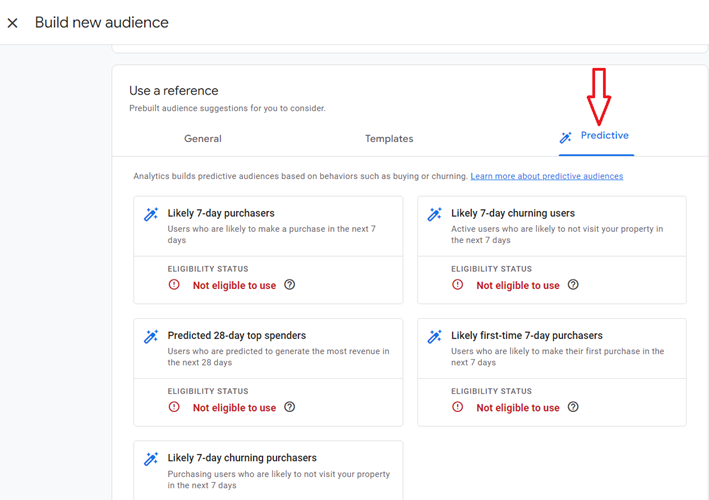
One of the major benefits of GA4 is that you get to use predictive metrics.
These metrics are derived from machine learning algorithms that measure conversion progress.
With predictive metrics, you can identify users and their actions on your website/app that would likely lead to a purchase or conversion.
This could help you to discover more users who may purchase a product in the next 7 days.
To predict the potential actions of users, GA4 automatically enriches the data on your dataset with Google machine learning algorithms.
GA4 currently supports three predictive metrics:
- Purchase probability: The probability that a user who was active in the last 28 days will generate a purchase event within the next 7 days. Currently, only purchase/ecommerce_purchase and in_app_purchase events are supported in GA4.
- Churn probability: The probability that a user who was active on your website within the last 7 days will not be active within the next 7 days.
- Revenue prediction: The revenue expected from all purchase events within the next 28 days from the users who were active in the last 28 days on the website.
#20 GA4 provides superior funnel creation and analysis capabilities
The funnel creation and analysis capabilities have greatly improved in GA4.
For example, you can not create funnels on the fly in GA3, but you can in GA4.
Similarly, you could not apply advanced segments to a funnel in GA3 but you can in GA4.
The GA4 funnel exploration report provides a visualization called ‘trended funnel’ through which you can determine how the funnel is performing over time:
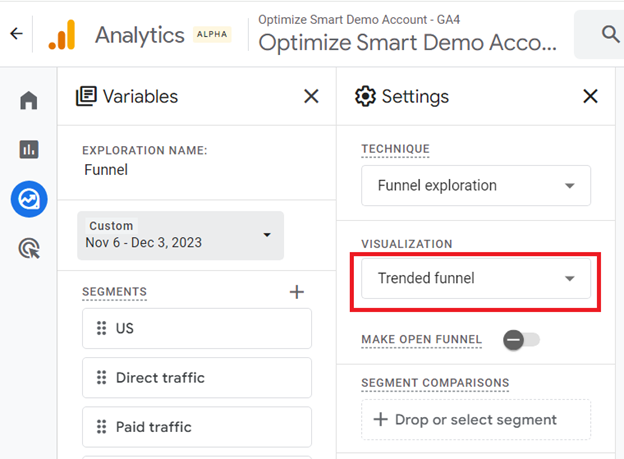
Neither GA3 nor GA3 360 provided the ability to create trended funnels.
In GA4, you can make a funnel open or close on the fly by using a toggle button:
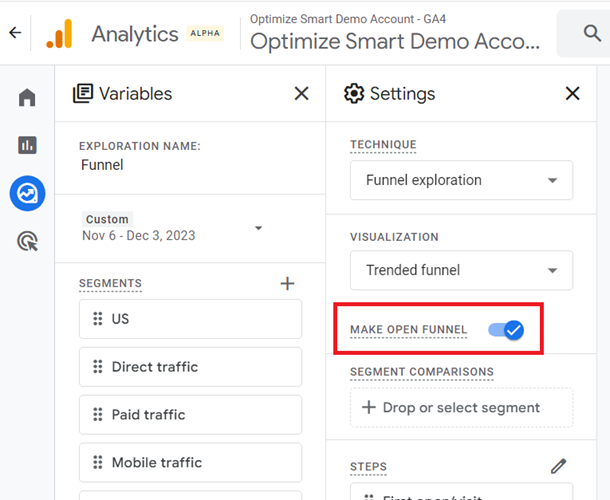
This is something not possible with GA3.
#21 GA4 has much focus on the users’ journey
GA4 focuses more on user journeys and the events triggered by them than GA3.
With GA4’s data stream capabilities, you can now measure the user interactions across all the platforms and get a holistic view.
Let us suppose a user came to your website using a desktop and carried out some activities like ‘add to cart’ or ‘sign up’.
Then the user downloaded your company mobile app and made a few purchases.
In this case, GA4 allows you to stitch together the activities carried by the user using different devices (desktop and mobile) and then bring them into the reporting more accurately than GA3.
Note: In order to stitch together the user journey across devices and mobile apps, you need to create a unique customer ID that should be the same for both website and mobile apps. This can be done using your developer’s help.
Unlike the GA3 property, you don’t need a separate user ID view in a GA4 property as the user ID feature is built-in in a GA4 reporting view.
Unlike GA3, the GA4 user interface is much more user-centric.
#22 GA4 provides Enhanced data visualizations capabilities
Compared to GA3, GA4 has far better data visualization capabilities.
These capabilities come primarily from the various exploration report templates through which you can create reports which are hard to duplicate even with Google Data Studio.
Just take the example of real-time reports.
Earlier we had the option to see real-time data but via overview, locations, traffic sources, content, events and conversions reports:
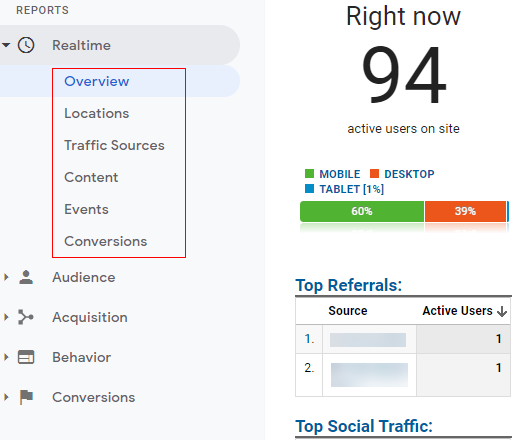
However, in the case of GA4, real-time data visualization is far better adjusted to get a holistic view of all the real-time data in just one glance.
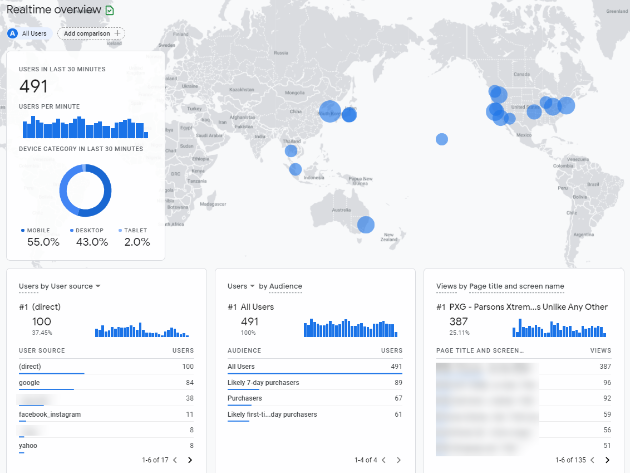
Not only is there improved data visualization, but you also get the option to interact with the data dynamically.
#23 GA4 forces a pause in immediate data analysis.
Here is how to use data processing delays (ranging from 24 hours to 12 days) to your advantage in GA4.
The 24 hours to 12 days delay in GA4 event reporting may seem inconvenient at first, but it can offer several benefits that can lead to more sales and better ROI.
The delay forces marketers to adopt a “baker” approach rather than a “cook” mentality.
In marketing, bakers make money and cooks get burned.
A baker is a person who carefully plans a marketing campaign before launching it and then waits for it to fully bake (wait for the learning phase to get over and/or achieve statistically significant results) before analyzing its performance and making further changes to it.
On the other hand, a cook is an impatient person who rushes to launch a new campaign and then changes it based on the previous day’s performance.
Since a cook lacks patience and wants to cook (make money) as fast as possible, they often make frequent edits to campaigns, launch new campaigns or make marketing decisions based on near real-time data.
Since all major advertising platforms now use machine learning to find audiences most likely to convert, a cook almost always remains stuck in the learning phase and frequently burns dishes.
This is what happens when you try to cook a cake.
The cook actually believes they can outsmart machine learning algorithms, optimize much better than a machine, do better audience targeting and make smart marketing decisions based on near real-time data (which is often incomplete).
So they believe in all things manual: manual optimization, manual placements, manual bidding….
The more you touch your campaign, the worse it gets.
GA4 data processing delays force you to collect statistically significant data and make decisions based on that data.
The delay discourages frequent, knee-jerk reactions to daily fluctuations in performance metrics, which pushes marketers to avoid disrupting the learning phase of campaigns and allows for more stable, data-driven optimizations.
GA4 allows time for machine learning algorithms to work effectively by “forcing a pause in immediate data analysis”, which is crucial for platforms that use AI to find the most likely to convert audiences.
This approach aligns well with machine learning algorithms used by advertising platforms, which require “time” to optimize performance.
The delay forces marketers to focus on long-term trends and overall campaign performance rather than getting caught up in short-term fluctuations, which leads to better strategic decision-making and potentially better ROI.
Long story short.
Don’t try to cook a cake. Bake it.
Be a baker in marketing.

Other Articles on GA4.
- How to Connect Google Ads to Google Analytics 4.
- Google Analytics 4 Predictive Audiences – Tutorial.
- How to use Segment Overlap Report in Google Analytics 4.
- Audience Triggers in Google Analytics 4.
- Google Tag Manager Regex Table Variable Explained.
- Understanding Lookup Table in Google Tag Manager.
- Google Tag Manager Variables and Triggers Tutorial.
- How to find Average Order Value in Google Analytics 4.
- Google Ads tag still running in GTM? Here is the fix.
- 8 Signs Your GA4 Property Needs Expert Help.
- Google Tag Assistant Tutorial.
- Google Analytics 4 not working? Here is how to fix it.
- Google Analytics 4 for Low Traffic Websites.
- Google Tag Manager Implementation Guide.
- Google Tag Manager Server Side Preview Mode.
- How to learn Google Analytics without a website.
- Key Benefits of Using Google Analytics 4 (GA4).
- Google Marketing Platform Cost and is it Worth it?
- How to export GA4 data to Google Sheets for free.
- Top Google Analytics 4 Tools, add-ons and resources.