

In this article, I am going to talk about GTM server-side preview mode.
We will first learn more about the differences in the preview mode of the normal client-side GTM container and server-side GTM container, then we will proceed with step-by-step tutorials and finally, see the technical details.
Comparison of preview mode client-side GTM vs server-side GTM
In a normal client-side GTM container, you need to click on the preview button, add the website URL, then click on continue to see the preview mode of the website.
But in the case of a server-side container, you don’t have to provide any URL of the website. This is because the server-side container gets its requests from the client-side GTM container and not the actual website.
You cannot use extensions like Google Tag Assistant or Google Analytics debugger for debugging the server-side GTM requests. The only tool available is Google Tag Manager’s Preview mode.
The server-side GTM container preview mode interface is similar to normal GTM containers but technically it’s different in many aspects. We will look into its details later in this article. For now, let’s start with the tutorial
Start preview
Follow the below steps to start server-side GTM container preview mode.
Note: I am assuming that you have already done setting up tags for pageviews and events in both the containers (client-side GTM container as well as server-side GTM container).
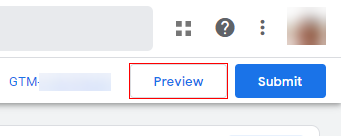
Step-1: Navigate to your server-side GTM container and click on the ‘Preview’ button on the top left-hand side.
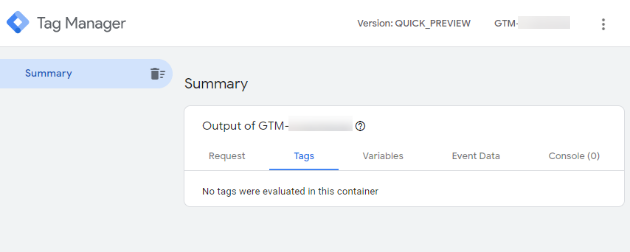
Step-2: Once you click on the ‘Preview’ button, a new window will open like below.
Step-3: Now navigate to your website and visit any page or perform any event action. You will see that pageview requests and events data have started appearing in the preview mode of the server-side GTM container.
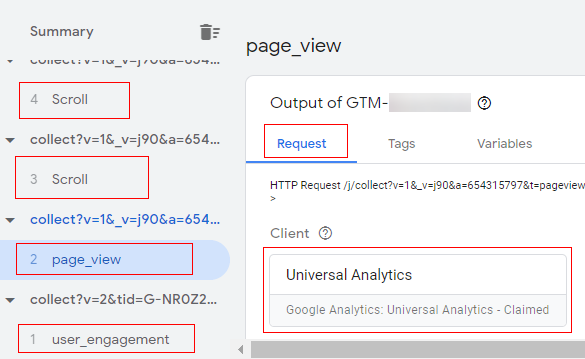
That is how you can start the preview mode of your server-side GTM container.
Share preview (not available)
One thing to point out here is that in a normal GTM container (client-side) you would get an option to share the preview. However, in the case of a server-side GTM container, this option is not available.
Yes, you heard right, you cannot share the preview mode with others.
Preview mode technical details
When you enable the preview mode of your server-side container, you will get a screen like the below image which shows multiple things including:
- Summary
- Request
- Tags
- Variables
- Event data
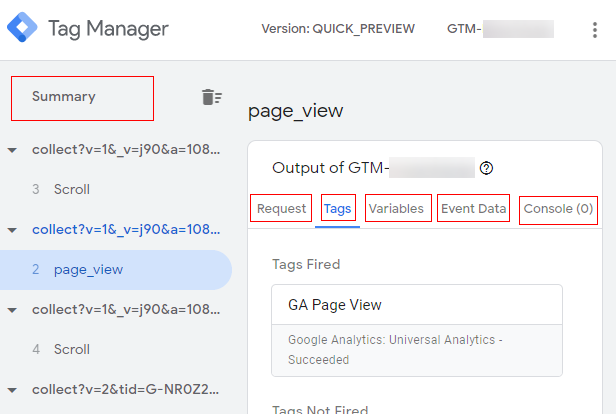
Summary
The ‘Summary’ tab will show you all the event details. These event requests are generated by the client-side GTM container and then transported to the server-side GTM container.
Based on these event requests received you can fire a tag from the server-side GTM container to the actual Google Analytics server or any third-party tool.
Request
To check the individual event request in detail you can click on them and then click on the ‘Request’ tab.
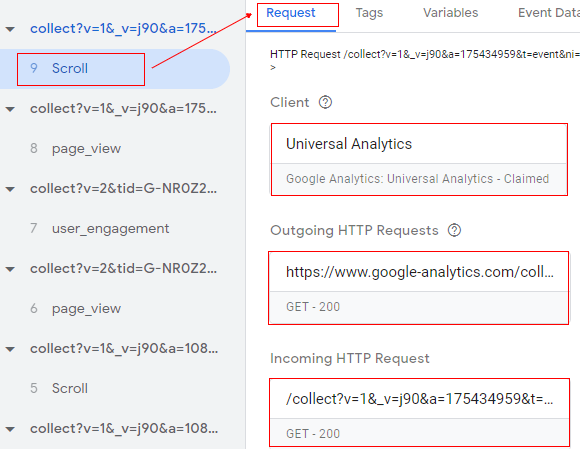
The image above shows an example of a scroll event request. You will see information such as:
Client: The client represents the vendor that claimed this request. In this case, it’s Universal Analytics. It is possible that it may not be the same as the client that generated the event data.
Incoming HTTP request: Incoming HTTP request is the server call request made to the server-side GTM container by the client-side GTM container. The request method is the GET method and the response code 200 shows that the request was successfully accepted.
You can click on the incoming HTTP request to get more technical details and you will get a screen like below.
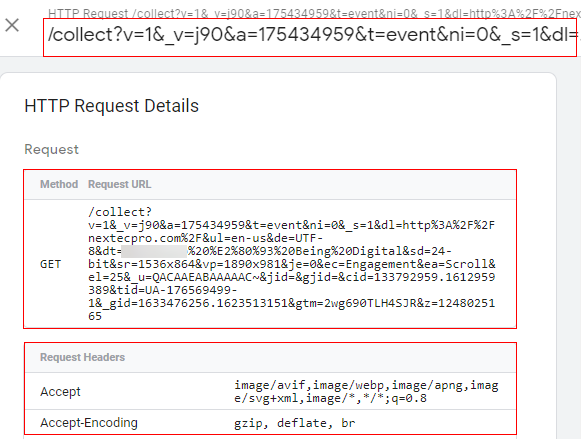
Outgoing HTTP Request: Outbound HTTP requests are sent to the actual Google Analytics server. These requests are a summary of all requests sent by each event.
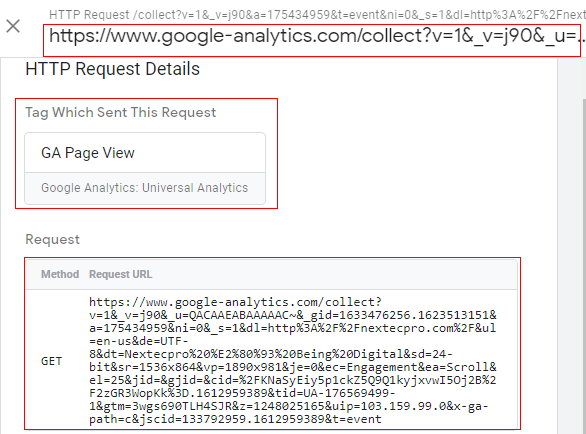
Once the incoming request is processed, based on your tagging configuration, it then sends data to the Google Analytics server or third party tool. This outgoing request may contain information on events such as page views, custom events, transactions, etc.
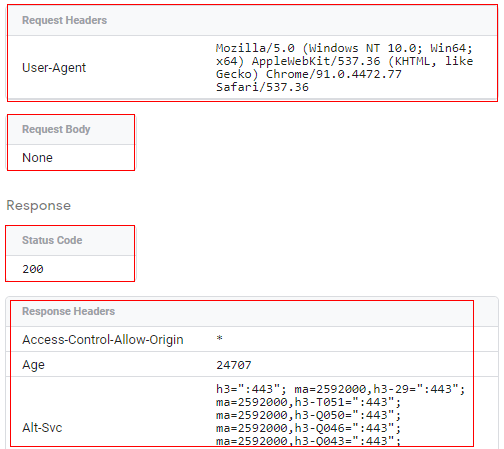
You can check each outgoing HTTP request and its details by clicking on it. The request method is the GET method and the response code 200 shows that the request was successfully sent.
Tags
The ‘Tags’ tab gives you the details of tags fired for the corresponding incoming event request.
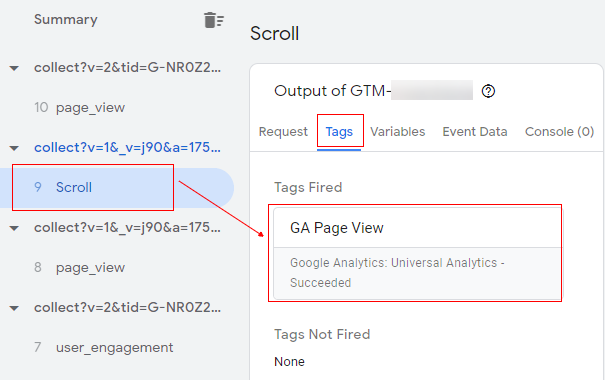
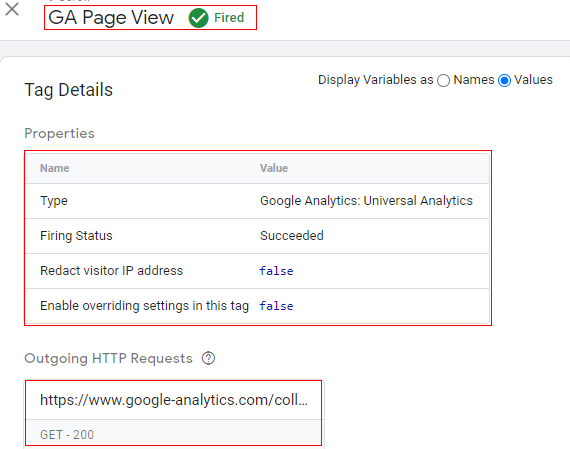
You can click on the tag fired to check in more details.
Variables
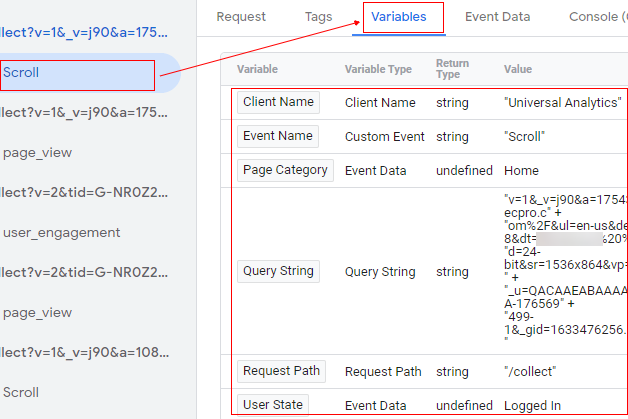
The ‘Variables’ tab will give you more details about the different variables that you have created in the server-side container and their values for the corresponding event.
Event data
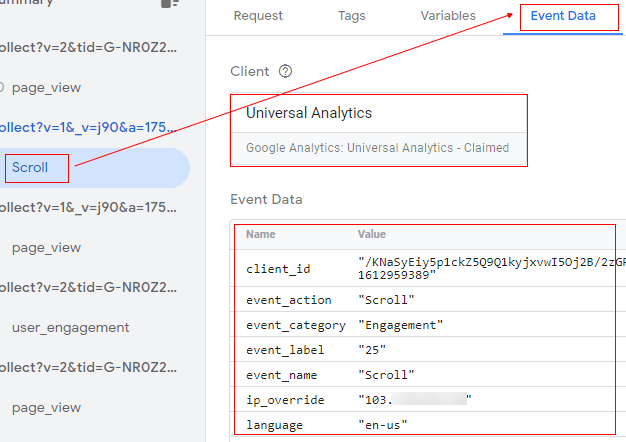
The ‘Event data’ tab will provide more granular details on the corresponding event and different event parameters and their values.
Quit preview
Like a normal client-side GTM container, Google has not provided any pop-up at the bottom where you can stop debugging and quit preview mode.
There is just one simple step to quit server-side GTM container preview mode, and that is by closing the browser window.

Other Articles on GA4.
- How to Connect Google Ads to Google Analytics 4.
- Google Analytics 4 Predictive Audiences – Tutorial.
- How to use Segment Overlap Report in Google Analytics 4.
- Audience Triggers in Google Analytics 4.
- Google Tag Manager Regex Table Variable Explained.
- Understanding Lookup Table in Google Tag Manager.
- Google Tag Manager Variables and Triggers Tutorial.
- How to find Average Order Value in Google Analytics 4.
- Google Ads tag still running in GTM? Here is the fix.
- 8 Signs Your GA4 Property Needs Expert Help.
- Google Tag Assistant Tutorial.
- Google Analytics 4 not working? Here is how to fix it.
- Google Analytics 4 for Low Traffic Websites.
- Google Tag Manager Implementation Guide.
- Google Tag Manager Server Side Preview Mode.
- How to learn Google Analytics without a website.
- Key Benefits of Using Google Analytics 4 (GA4).
- Google Marketing Platform Cost and is it Worth it?
- How to export GA4 data to Google Sheets for free.
- Top Google Analytics 4 Tools, add-ons and resources.