

What is Automated Insights in Google Analytics 4?
Automated insights in Google Analytics 4 are generated automatically using a machine learning algorithm and are available by default in a GA4 reporting view. These insights are generated whenever GA4 detects unusual changes, like a sudden spike or dip in any particular data trend.
The automated insights in GA4 are just like the analytics intelligence feature available in Universal Analytics reporting views.
How to use automated insights in GA4?
Follow the steps below to use automated insights in GA4:
Step 1: Log in to your Google Analytics 4 account. Click on ‘Report Snapshot’ in the reporting menu.
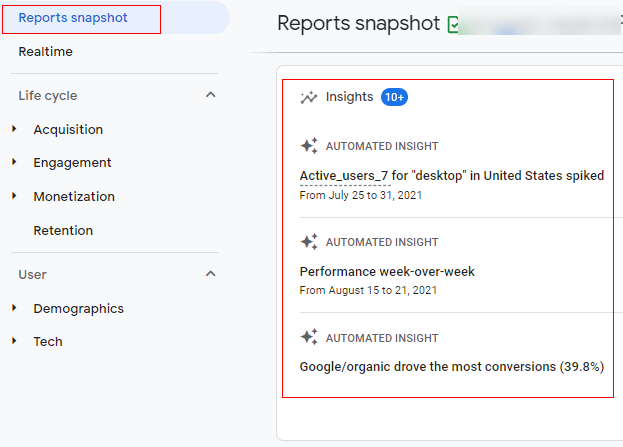
As you can see from the above image, insight cards are by default available.
Step 2: You can click on any of the insights available in the list to know more details.
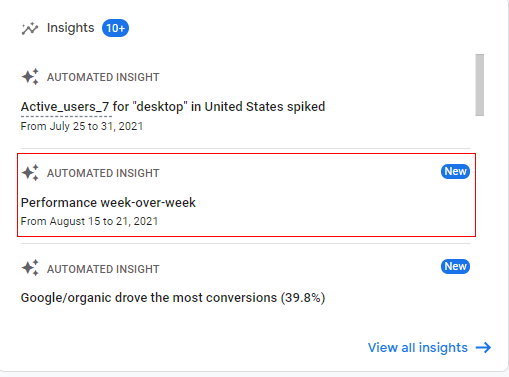
Step 3: An overlay will appear on the right-hand side like below providing you with more details on the selected card.
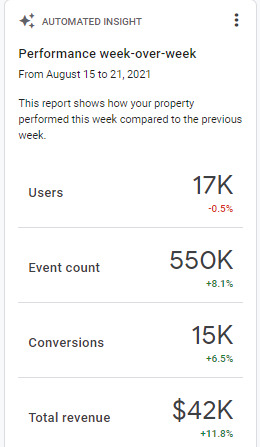
Step 4: If you want to see all insight cards available you can simply click on the ‘View All Insights’ option.
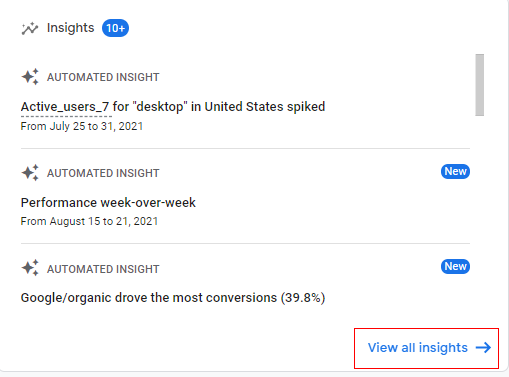
Once you click on ‘View all insights’ you will see an overlay that will appear like the below image, providing you with all the insight cards like below. You also get an option to manage and create a custom insight card and we will talk about that later in this article.
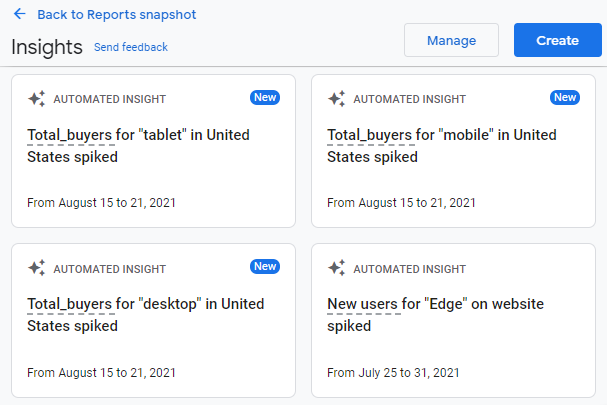
Step 5: You can select any of the insight cards to check in more details.
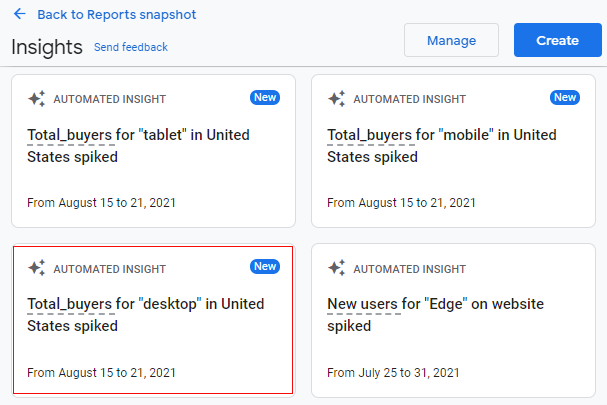
An overlay will appear on the right-hand side giving you more details as below.
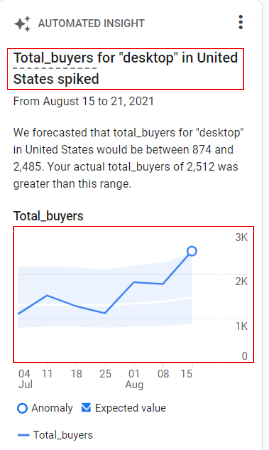
Step 6: If you want to share this insight, you can click on the three vertical dots available as below and a small pop-up will open as ‘Share’.
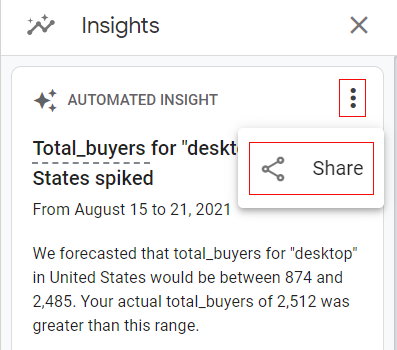
Step 7: Click on the ‘Share’ option available and you will get two options to share it as ‘Share Link’ and ‘Download File’.
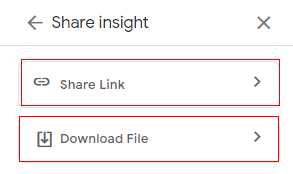
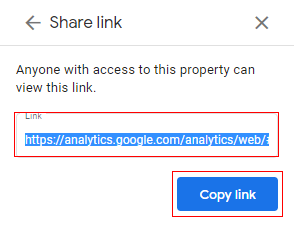
If you click on ‘Share Link’ A link will be generated as below. You can copy this link and share it with your team.
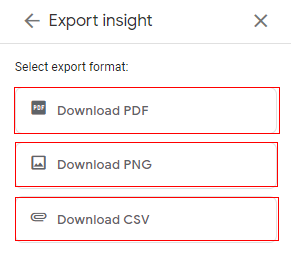
If you click on ‘Download File’ you get an option to download the insight card as PDF, PNG Image, and as CSV(Comma Separated Value in Excel) file.
Step 8: Another way to use automated (default) insights is via the small ‘Insight’ icon available at the top right corner of the analytics console.
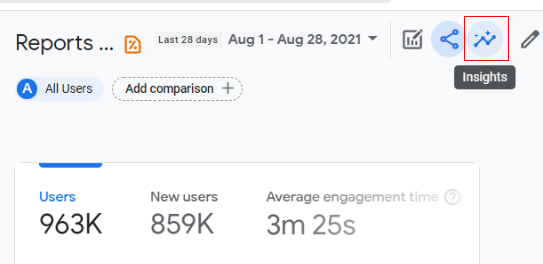
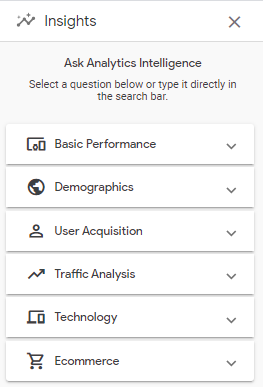
Once you click on the ‘Insights’ icon, an overlay will appear on the right-hand side like below, with multiple drop-downs.
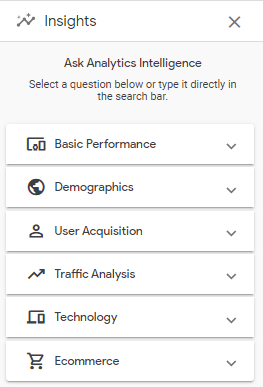
Step 9: You can click on any of the drop-down to see multiple options available.
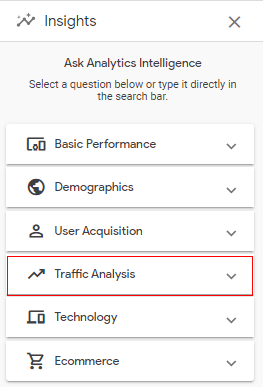
This will expand the selected drop-down providing you with options to deep dive into more detail.
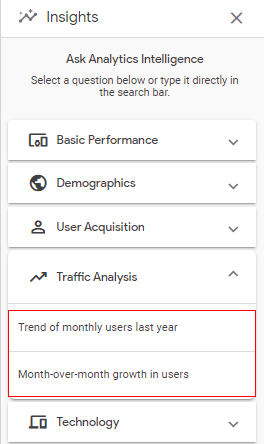
Step 10: Click on any of the options to deep dive.
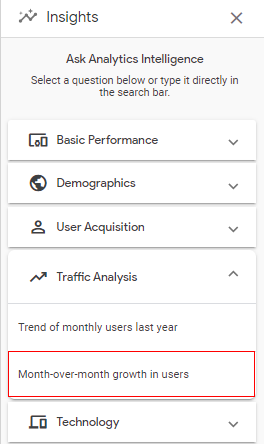
You will get more details, as below.
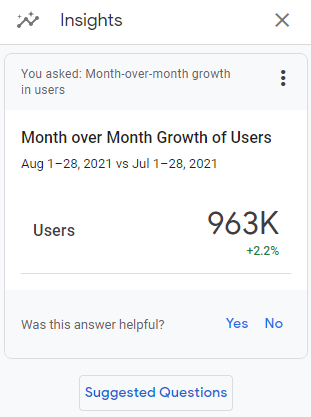
Step 11: If any time you want to go back to the previous menu, you can click on ‘Suggested Questions’.
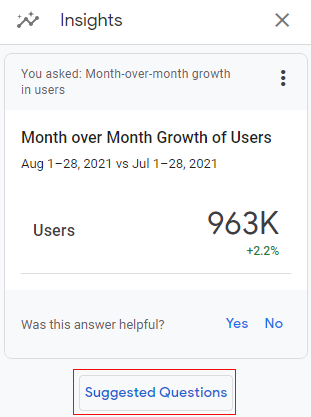
This will take you to the previous menu where you can select different options.
Step 12: The third method to access the insight is via using a search bar.
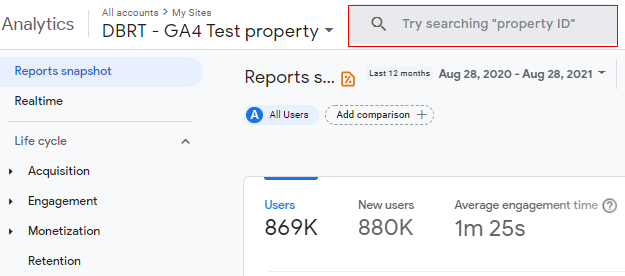
Step 13: If you click on the search bar you get an option to select the insight from the pop-up under ‘Ask analytics intelligence’.
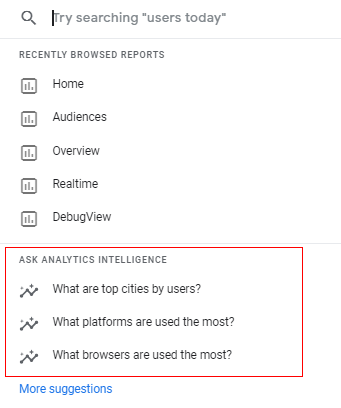
Step 14: You can click on any of the options (questions) to deep dive into more details.
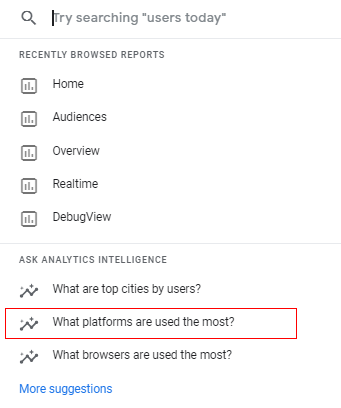
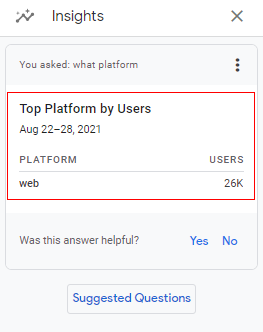
An overlay will appear on the right-hand side providing you details of the selected card as below.
Step 15: You can also search your query in the search bar to explore different insights and GA4 will provide you suggestions as below. For example, let’s type ‘device category’ in the search bar.
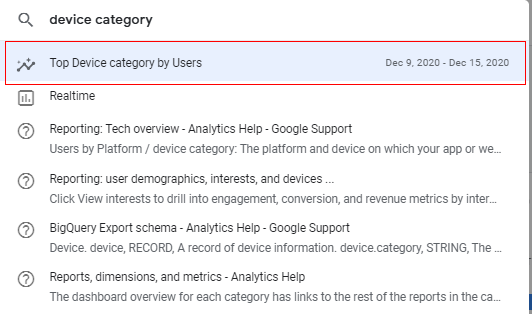
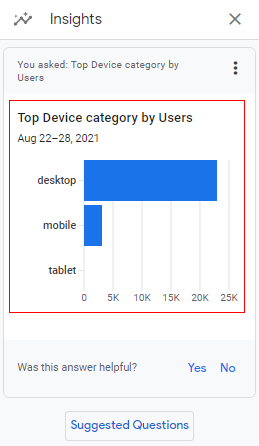
As you can see from the above image, ‘Top Device Category by Users’ is an available insight card. You can click on the insight card and it will populate the details on the right-hand side as below.

Other Articles on GA4.
- Understanding Lookup Table in Google Tag Manager.
- Google Tag Manager Variables and Triggers Tutorial.
- How to find Average Order Value in Google Analytics 4.
- Google Ads tag still running in GTM? Here is the fix.
- 8 Signs Your GA4 Property Needs Expert Help.
- Google Tag Assistant Tutorial.
- Google Analytics 4 not working? Here is how to fix it.
- Google Analytics 4 for Low Traffic Websites.
- Google Tag Manager Implementation Guide.
- Google Tag Manager Server Side Preview Mode.
- How to learn Google Analytics without a website.
- Key Benefits of Using Google Analytics 4 (GA4).
- Google Marketing Platform Cost and is it Worth it?
- How to export GA4 data to Google Sheets for free.
- Top Google Analytics 4 Tools, add-ons and resources.
- Google Analytics 4 Audiences Tutorial.
- Understanding Automated Insights in Google Analytics 4 (GA4).
- How to build Comparisons in Google Analytics 4 (GA4).
- How to create a remarketing audience in Google Analytics 4 (GA4).
- Advanced Google Analytics Tracking – HTML DOM – Tutorial.