

A lookup table variable is a user defined variable in Google Tag Manager.
As the name suggests this type of variable is used to lookup for the value that matches a given input pattern.
In the context of GTM, the lookup table variable determines whether or not there is an exact match with an input pattern and if there is an exact match then return the corresponding output value. If there is no exact match then return ‘undefined’ (unless the default value has been set).
By using lookup table variables you can greatly reduce the number of tags required to send hit data (esp. ‘event’ data) to Google Analytics.
A lookup table variable is made up of input variable and lookup table:
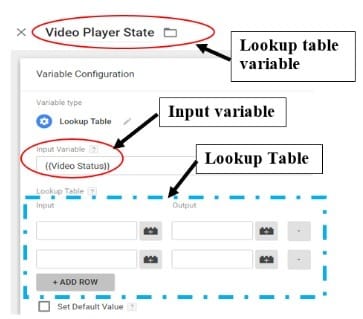
The lookup table is made up of one or more rows and two columns. You can add as many rows as you like to a lookup table. However, the number of columns in the lookup table will always remain two.
The first column of the lookup table is labelled ‘Input’ and is used to specify ‘Input Patterns’: For example:
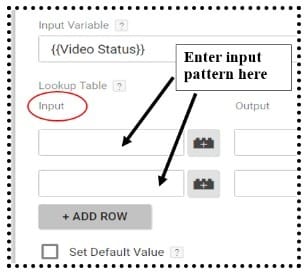
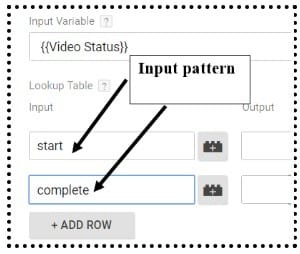
You can use any string as an input pattern. You can also use any GTM variable as an input pattern. But you can not use regular expression as an input pattern.
The second column of the lookup table is labelled ‘Output’ and is used to specify ‘Output values’. For example:
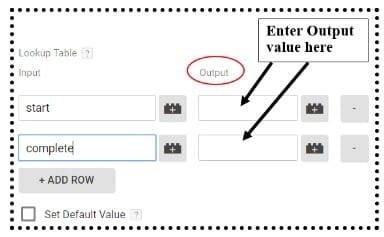
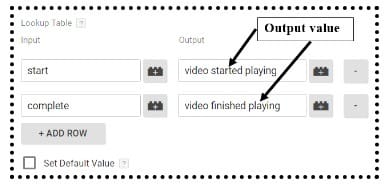
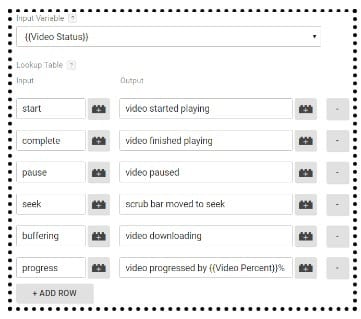
From the screenshot above we can conclude the following:
- If the output of the input variable matches the input pattern ‘start’ then set the output value to ‘video started playing’.
- If the output of the input variable matches the input pattern ‘complete’ then set the output value to ‘video finished playing’.
The corresponding output value of the last matched pattern is the value returned by a lookup table variable. It is important to remember that this match needs to be an exact match and is case sensitive.
You can reference/call any GTM variable (including another lookup table variable) from within the output value field:
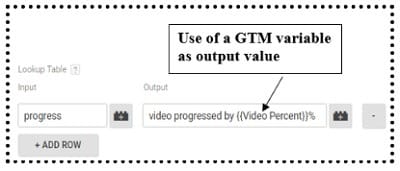
You can also reference the lookup table variable in custom HTML tags and custom JavaScript variables.
Table of Contents
- Introduction to Input Variables
- How to Create a Lookup Table Variable
- Use Case for Lookup Table Variables
Introduction to Input Variables
The input variable is the GTM variable (either built-in or user defined variable) whose output is checked against the input patterns you specify in the ‘Lookup Table’:
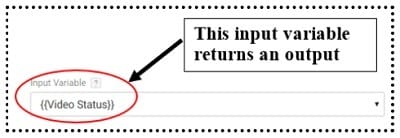
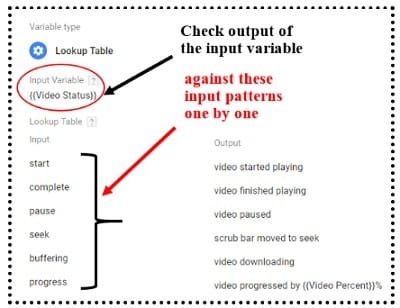
The output of the input variable is checked against each input pattern, row by row, from top to bottom in the lookup table.
When the output of an input variable last matches an input pattern, the corresponding output value of the last matched input pattern is resolved and then returned by the lookup table variable. If no match is found then the default value is returned.
If the default value has not been set and no exact match is found then the lookup table variable returns ‘undefined’.
For example, let us consider a built-in variable {{Video Status}}. This variable can return one of the following values at run-time:
- start
- complete
- pause
- seek
- buffering
- progress
In other words, the following are the possible outputs of the {{Video Status}} variable:
- start
- complete
- pause
- seek
- buffering
- progress
If you use {{Video Status}} variable as an input variable then its value will be checked against each input pattern, row by row, from top to bottom in the lookup table:
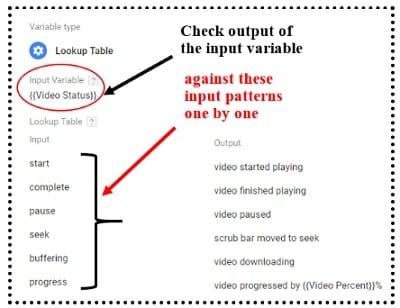
When the output of the {{Video Status}} input variable last matches an input pattern, the corresponding output value of the input pattern is resolved and then returned by the lookup table variable.
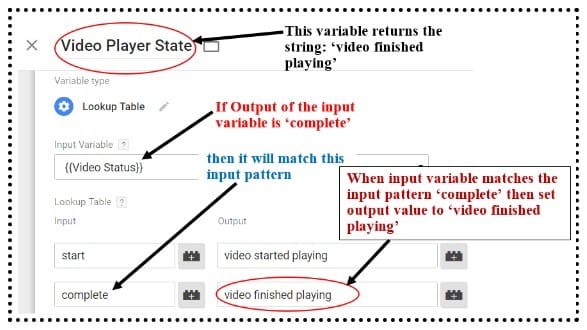
For example, let us suppose the output of the {{Video Status}} input variable at run-time was ‘complete’.
Now when the lookup table variable is referenced/called, the output of the {{Video Status}} input variable will match the input pattern ‘complete’ and the corresponding output value ‘video finished playing’ will be returned by the lookup table variable:
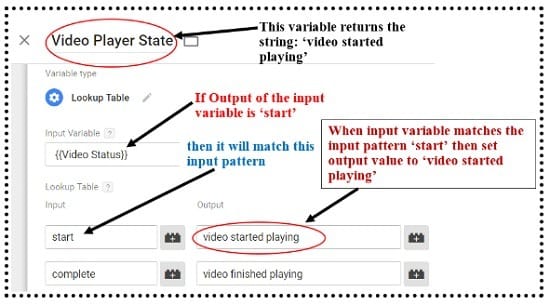
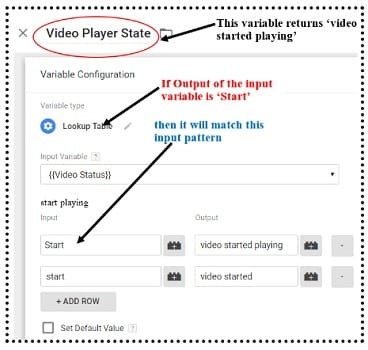
Another example, if the output of the input variable {{Video Status}} is ‘start’ at run time then it will match the ‘start’ input pattern.
And when the input variable matches the input pattern ‘start’ then the output value will be set to ‘video started playing’ and the lookup table variable ‘Video Player State’ would return the string ‘video started playing’:
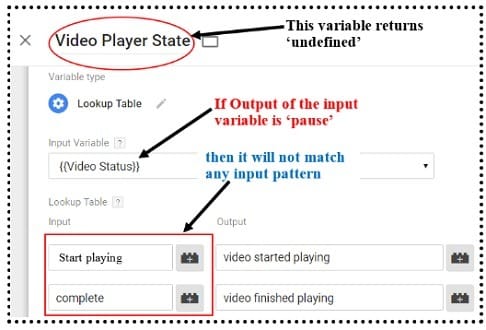
Another example, if the output of the input variable {{Video Status}} is ‘pause’ at run time then it will not match any input pattern.
And when the input variable does not match any input pattern then the lookup table variable ‘Video Player State’ would return ‘undefined’ (unless a default value has been set):
Another example, consider the following lookup table:
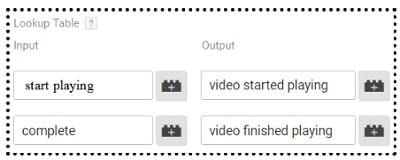
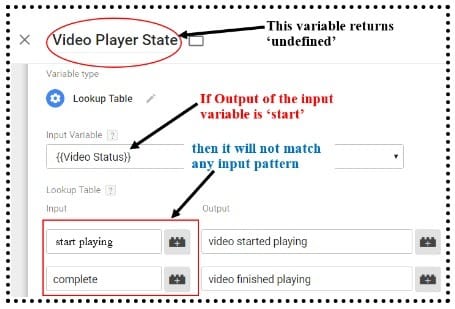
If the output of the input variable {{Video Status}} is ‘start’ at run time then it will not match any input pattern including the input pattern ‘start playing’. This is because only the ‘exact match’ operation is carried out in the case of lookup tables and ‘start’ is not an exact match of ‘start playing’
And when the input variable does not match any input pattern then the lookup table variable ‘Video Player State’ would return ‘undefined’:
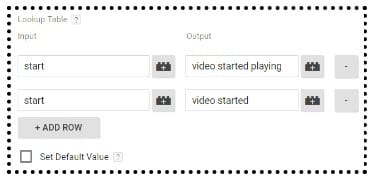
Another example, consider the following lookup table:
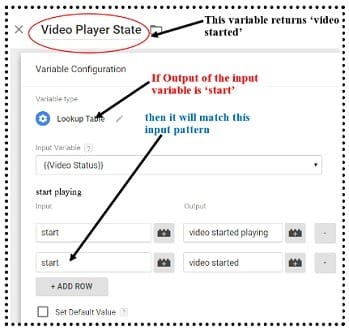
If the output of the input variable {{Video Status}} is ‘start’ at run time then it will match the last matched input pattern.
So the output value will be set to ‘video started’ and the lookup table variable ‘Video Player State’ would return the string ‘video started’:
Usually the input variable should return a single value at a time. But sometimes it can run multiple values. In that case, all of the values returned by the input variable should match one of the input patterns.
For example, consider the following custom JavaScript variable which returns an entire array:
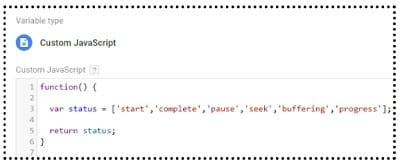
Now if we use this custom Javascript variable as an input variable then the output of the input variable will return all of the following values at run time: start,complete,pause,seek,buffering,progress
So unless one of your input patterns is ‘start,complete,pause,seek,buffering,progress’, your lookup table variable will return ‘undefined’:
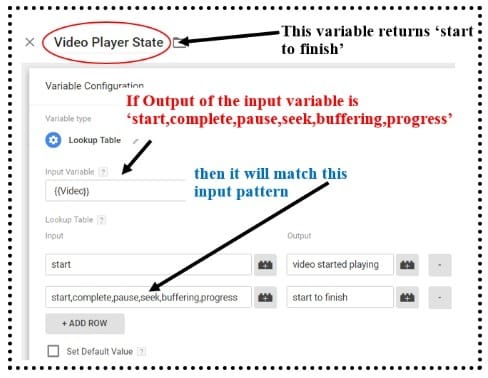
You can set a default value for your lookup table variable by clicking on the ‘Set Default Value’ checkbox and then entering the default value:
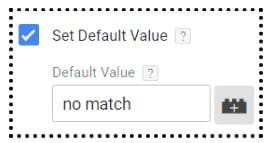
If you have set the default value to ‘no match’ then when the output of the input variable does not match any of the specified input patterns, the lookup table variable returns ‘no match’ instead of ‘undefined’.
It is important to note that if an input variable does not match any given input pattern then GTM will not throw any error or give you a warning message.
Another example, consider the following lookup table:
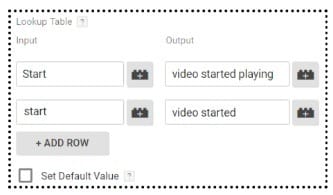
If the output of the input variable {{Video Status}} is ‘Start’ (note the word start with a capital letter) at run time then it will match the first input pattern and not the second. This is because the value lookup is always case sensitive.
So the output value will be set to ‘video started playing’ and the lookup table variable ‘Video Player State’ would return the string ‘video started playing’:
How to Create a Lookup Table Variable
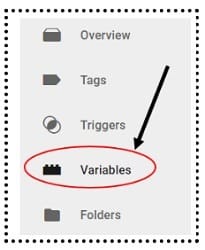
Step-1: Login to your GTM account and then click on the ‘Variables’ link in the left hand side menu:
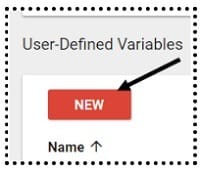
Step-2: Scroll down to ‘User-Defined Variables’ section and then click on the ‘New’ button:
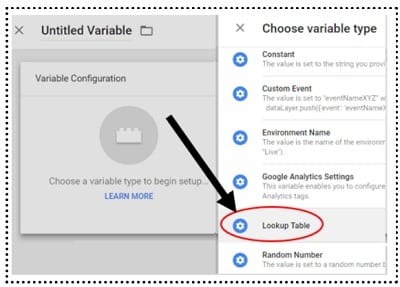
Step-3:Select ‘Lookup Table’ from the ‘Choose Variable Type’ menu
Step-4: Enter a name for your Lookup table variable. You will later reference the lookup table variable by this name.
Step-5: Select Input variable from the drop down menu:
If your input variable does not already exist then create a new one. You need an input variable in order to use a lookup table variable.
Step-6: Enter input pattern and its corresponding output value in the lookup table, row by row, from top to bottom:
Step-7: Specify the default value for your lookup table variable by clicking on the ‘Set Default Value’ checkbox and then entering the default value:
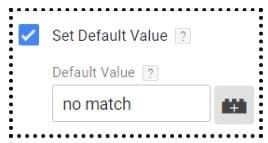
Here when the output of the input variable does not match any of the specified input patterns, the lookup table variable returns ‘no match’ instead of ‘undefined’.
Use Case for Lookup Table Variables
Lookup table variables are ideal for using one tag for sending different event hits.
Read this article: Video Tracking via YouTube Video Trigger In Google Tag Manager where a lookup table variable is used in an event tag to return the current video player state.

Other Articles on GA4.
- Cohort Exploration Report in Google Analytics 4 (GA4).
- Google Analytics 4 vs Google Ads conversion tracking.
- Google Analytics 4 Custom Dimensions Tutorial.
- Google Analytics 4 Dimensions Tutorial.
- Event Scoped Custom Dimensions in Google Analytics 4.
- Google Analytics 4 Search Console Integration Tutorial.
- Fixing unassigned issues with GTM Server Side Tagging.
- How to exclude internal traffic in Google Analytics 4.
- Understanding data filters in Google Analytics 4.
- Conversion Funnel Analysis in Google Analytics 4.
- How to use custom templates in Google Tag Manager.
- 6 Critical Flaws in Google Analytics 4 Attribution Paths.
- Google Analytics 4 Admin Settings Tutorial.
- How to Connect Google Ads to Google Analytics 4.
- Google Analytics 4 Predictive Audiences – Tutorial.
- How to use Segment Overlap Report in Google Analytics 4.
- Audience Triggers in Google Analytics 4.
- Google Tag Manager Regex Table Variable Explained.
- Understanding Lookup Table in Google Tag Manager.
- Google Tag Manager Variables and Triggers Tutorial.