

There are two methods to export GA4 data to Google Sheets for free:
Method #1: Download the data into Google Sheets from the GA4 reporting interface.
Method #2: Use a free Google Sheets add-on to export GA4 data to Google Sheets.
Method #1: Download the data into Google Sheets from the GA4 reporting interface.
There are two different methods for downloading GA4 data from the reporting interface, which depends upon whether you want to download the data from the Standard report or the Exploration report.
Downloading data from a GA4 Standard report.
If you want to download the data from a standard report, then click on the ‘share this report’ button and download the CSV file:
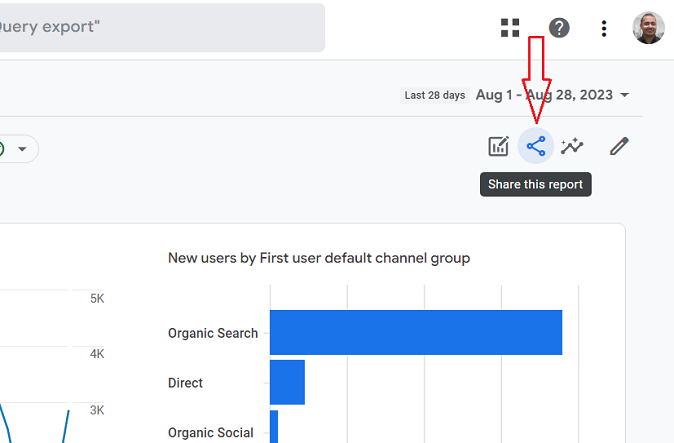
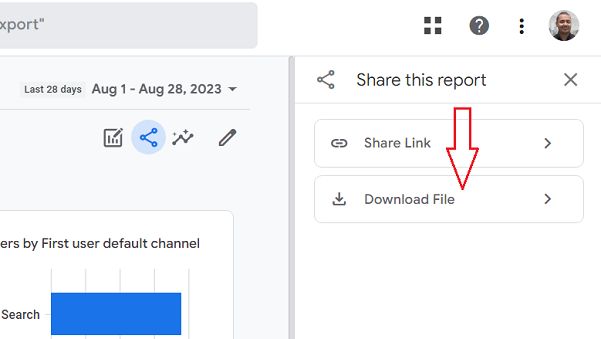
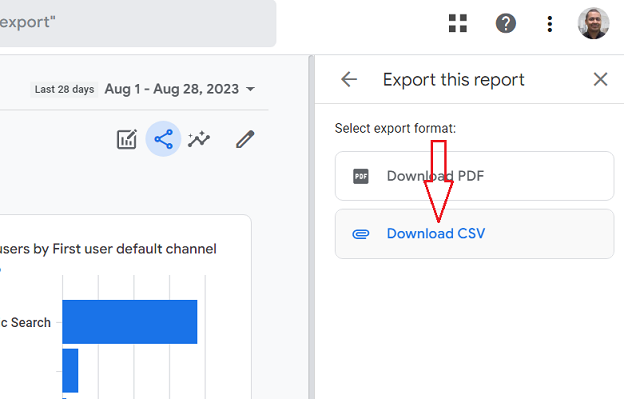
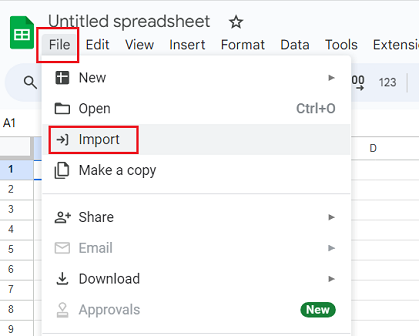
Open the downloaded CSV file into Google Sheets by navigating to the File menu > Import:
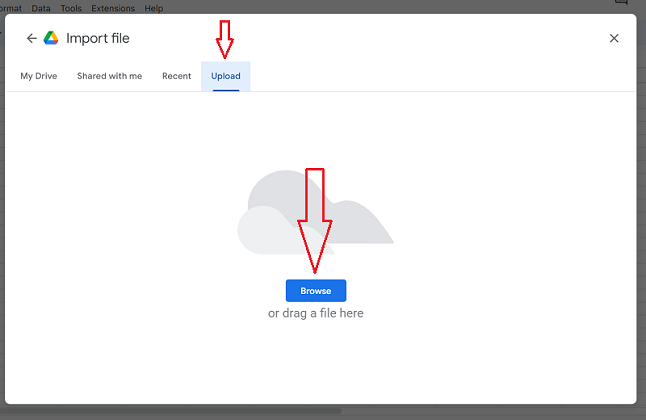
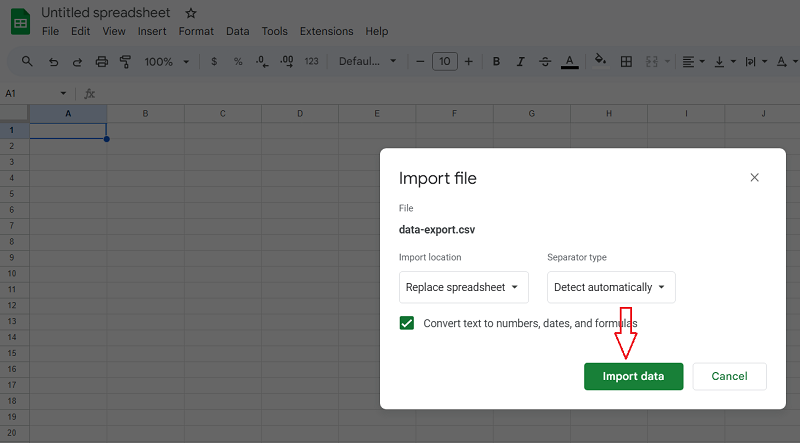
You should now see the exported data from the GA4 standard report in Google Sheets:
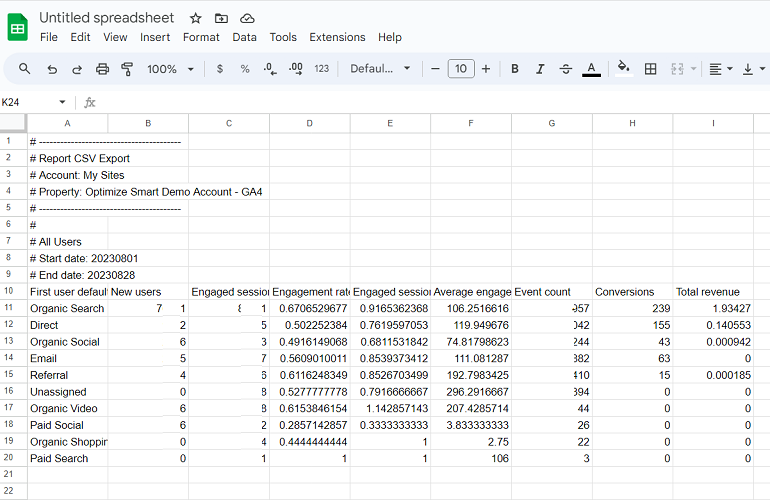
Downloading data from a GA4 Exploration report.
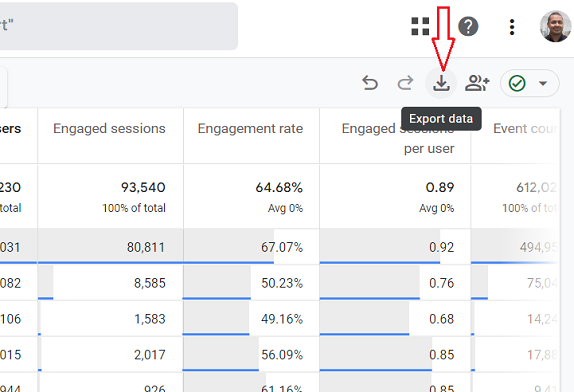
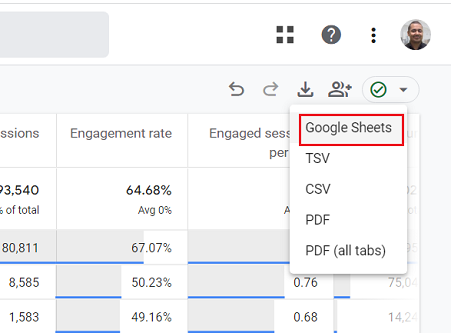
Navigate to an exploration report and then click on ‘Google Sheets’ from the ‘Export Data’ drop-down menu to download the GA4 data into Google Sheets:

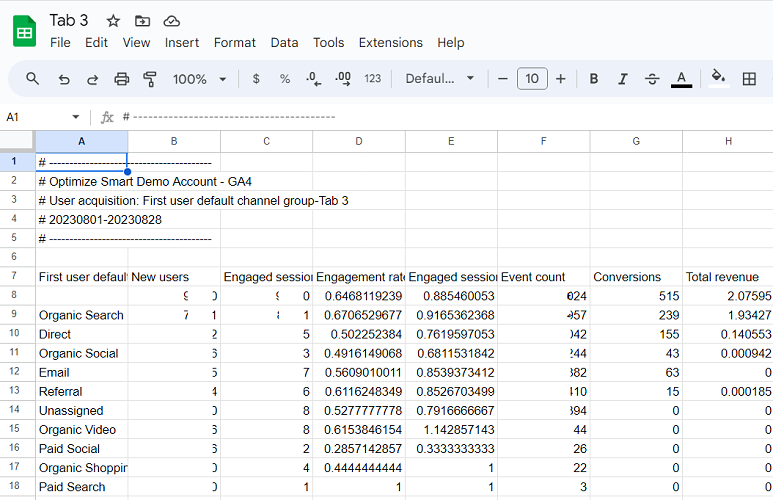
You should now see the exported data from the GA4 exploration report in Google Sheets:
Method #2: Use a free Google Sheets add-on to export GA4 data to Google Sheets.
There are a lot of free Google Sheets add-ons available through which you can export the GA4 data to Google Sheets. The two most notable ones are:
#1 GA4 Reports Builder for Google Analytics (the official add-on from Google).
#2 GA4 Magic Reports.
‘GA4 Reports Builder for Google Analytics’ vs ‘GA4 Magic Reports’
Let’s start with the native Google add-on for downloading GA4 data into Google Sheets, aka ‘GA4 Reports Builder for Google Analytics‘:
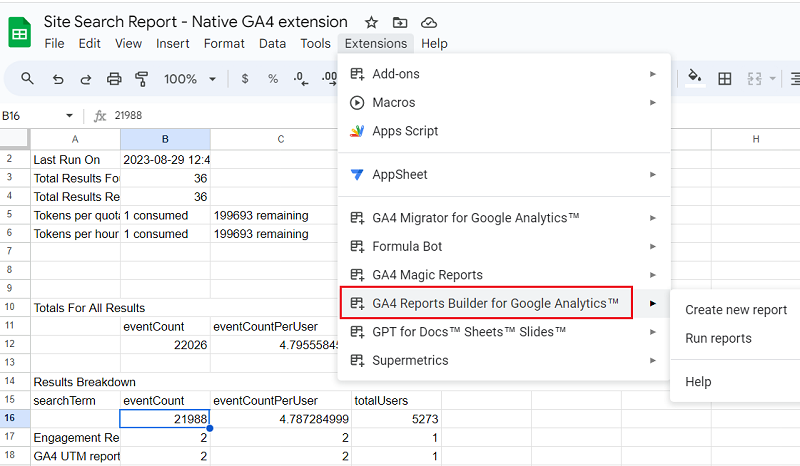
This add-on is free to use. You can download GA4 data into Google Sheets for free. However, the benefits end here.
You can not apply metric or dimension filters or sort data.
To apply a metric/dimension filter, you will have to manually create and add reporting API filter(s) to the ‘Report configuration’ tab and then run the report again.
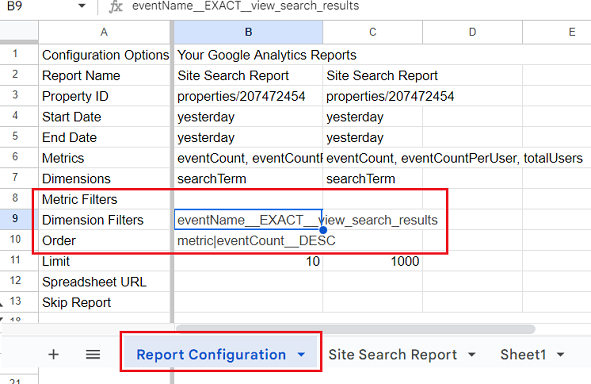
Creating a correct reporting API filter is a beast on its own.
You must be familiar with the API names of your dimensions and metrics. You must be able to use the correct filter operator and expression.
And here is the bummer.
The last time I checked, metric/dimension filters and sorting options didn’t work for the ‘GA4 Reports Builder for Google Analytics’ add-on.
So, as of now, even with all the necessary API skills, the Google native add-on is pretty much useless.
The filters might work in the near future, but you still have to open the API documentation and/or dimensions & metrics explorer and wrestle with API names and filters.
Now, let’s move on to the second add-on, ‘ GA4 Magic Reports‘.
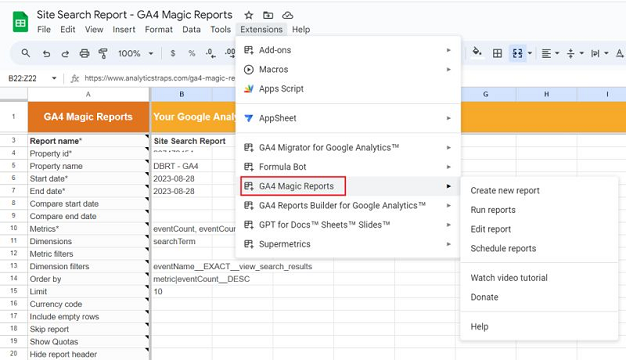
This add-on is also free to use.
It lets you:
1) Apply dimensions and metrics filters (without manually creating API filters + the filters actually work).
2) Sort the data.
3) Edit a report (not available in the native add-on)
4) Schedule reports (not available in the native add-on)
So, if you have to choose between the native add-on and ‘ GA4 Magic Reports’, you now know who is the clear winner.
Exporting GA4 data to Google Sheets via the ‘GA4 Magic Reports’ add-on.
Let’s export the following data from a GA4 property to Google Sheets:
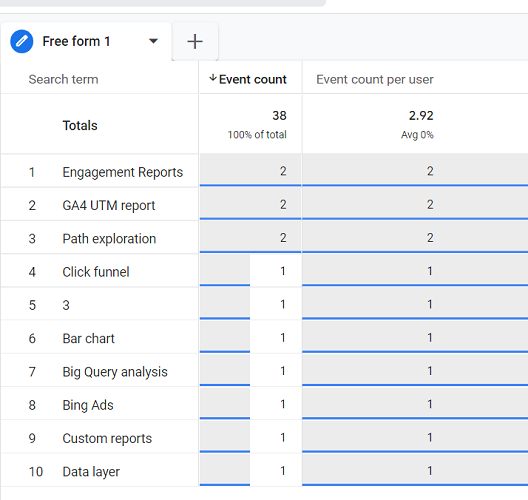
From the screenshot above, we can conclude the following:
#1 The data table has ten rows.
#2 There is one dimension called ‘Search Term’ in the data table.
#3 The data table uses the following two dimensions: ‘Event Count’ and ‘Event Count per user’.
#4 The data table is sorted by the ‘Event Count’ metric in descending order.
#5 The data table is for yesterday (not shown in the screenshot).
#6 This data table uses the following dimension filter: ‘Event name’ exactly matches ‘view_search_results’ (not shown in the screenshot).
But before we can export GA4 data via the ‘GA4 Magic Reports’ add-on into Google Sheets, we will need to download the add-on.
Downloading the GA4 Magic Reports add-on.
Follow the steps below:
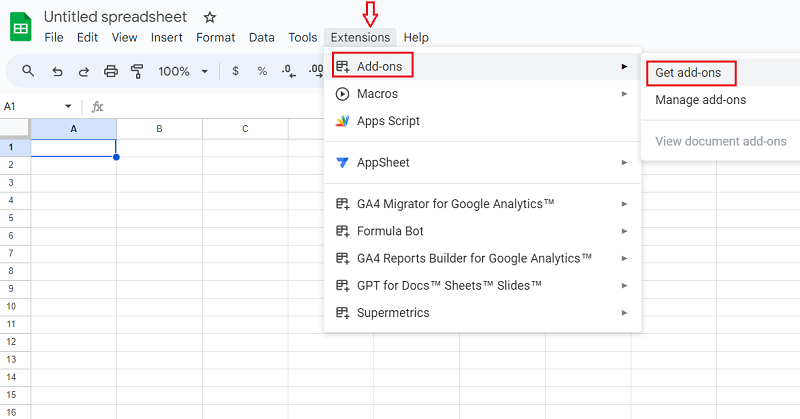
#1 Open a new Google sheet and then navigate to Extensions > Add-on > Get add-ons
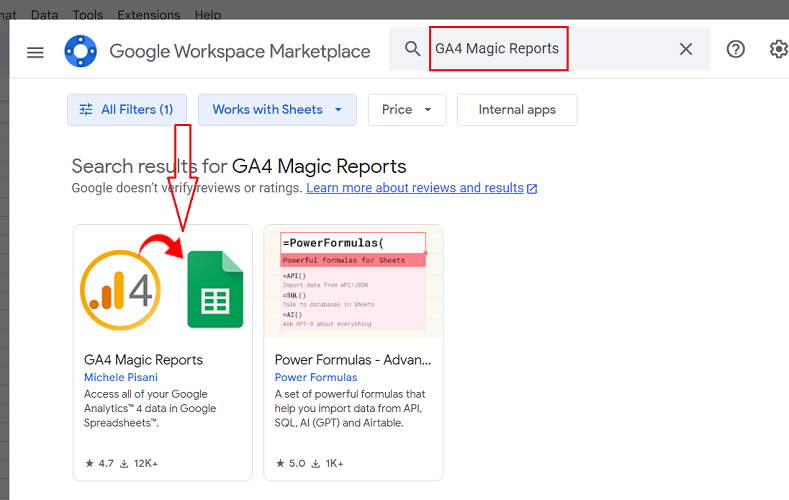
#2 Search for the ‘GA4 Magic Reports’ app and then click on it to install it:
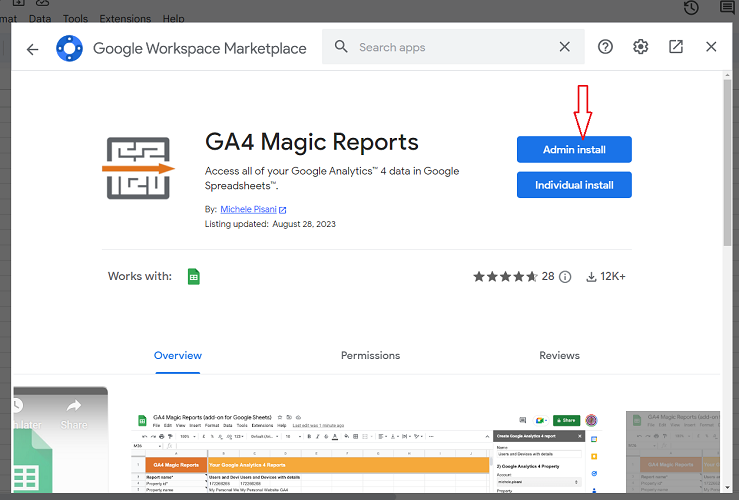
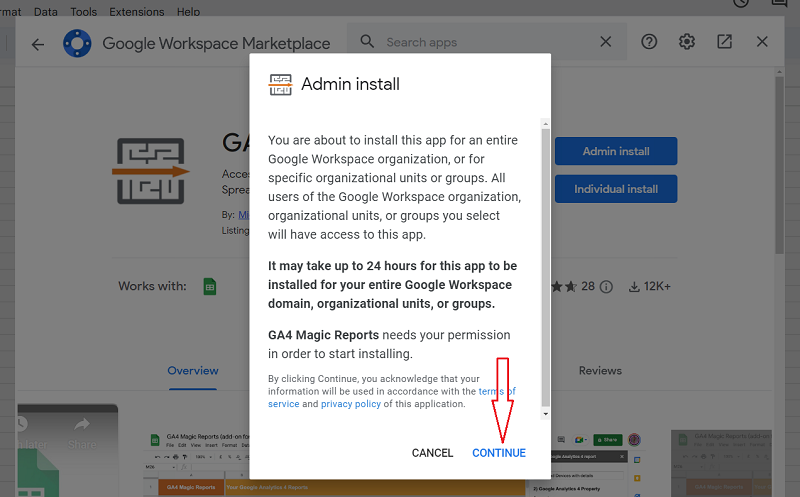
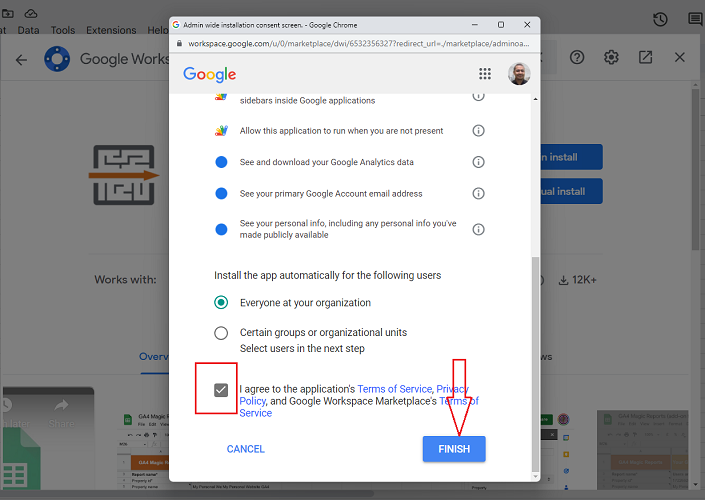
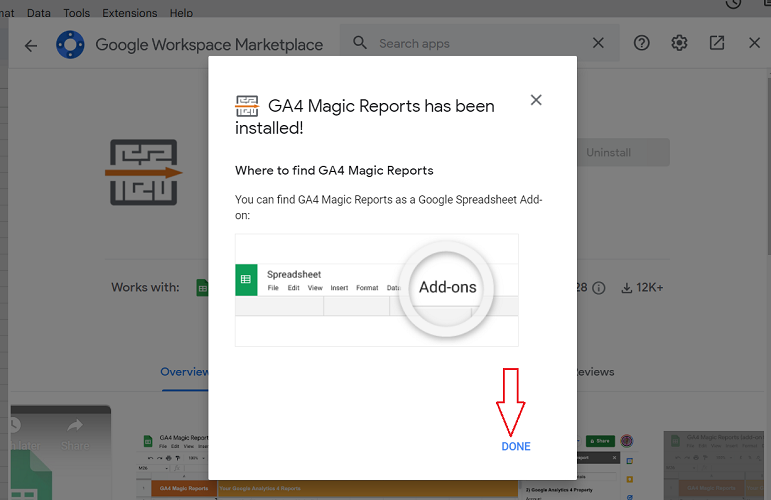
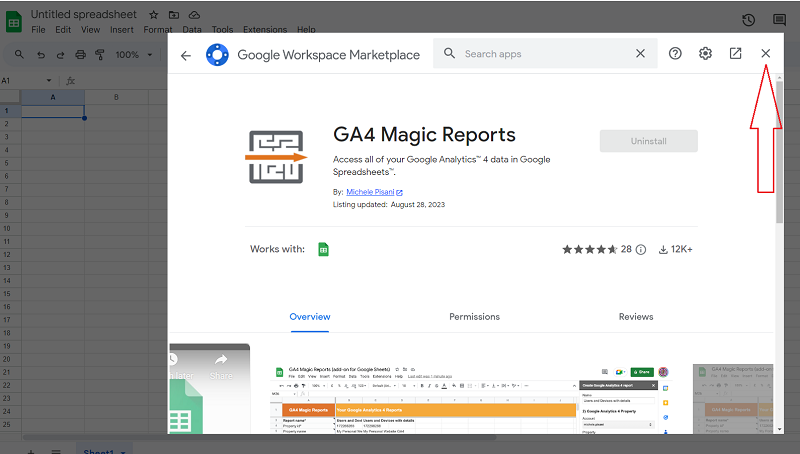
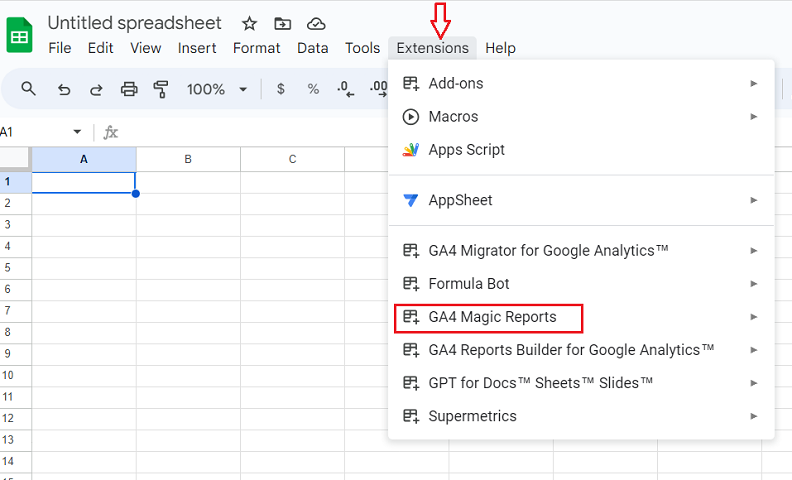
#3 Refresh your Google Sheet and then click on the ‘Extensions’ menu. You should now be able to see the ‘GA Magic Reports’ add-on:
Using the ‘GA4 Magic Reports’ add-on.
Follow the steps below to use the ‘GA4 Magic Reports’ add-on to export GA4 data to Google Sheets:
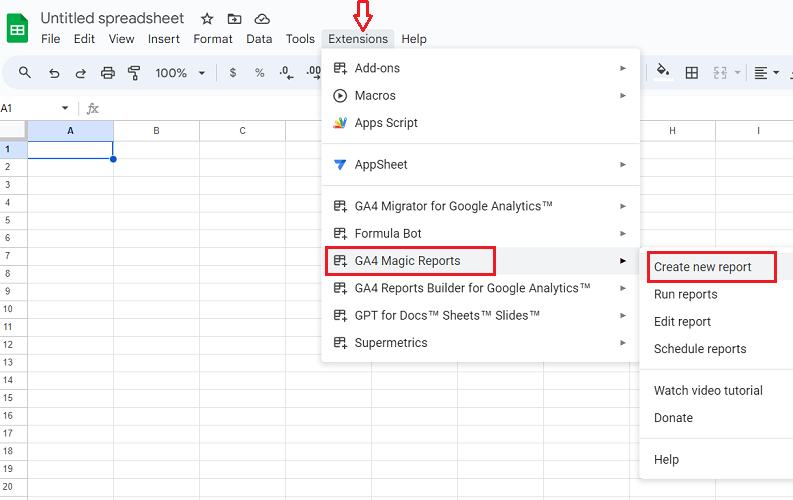
#1 Navigate to Extensions > GA4 Magic Reports > Create new report to create a new report configuration:
You should now see a screen like the one below:
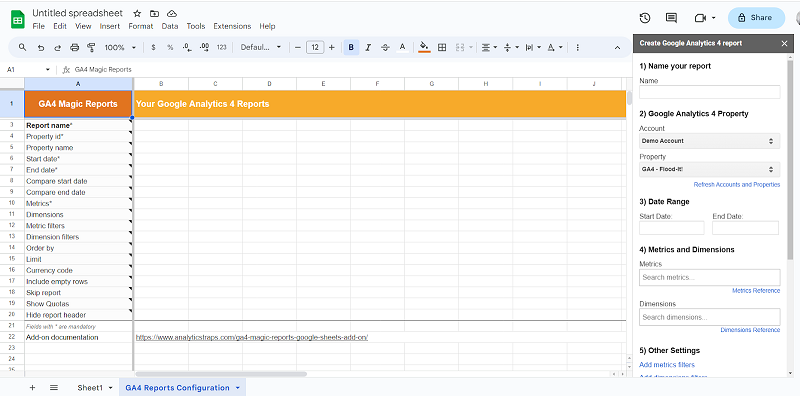
#2 Provide the following details about your new report:
- Give a descriptive name to your report.
- Select your Google Analytics account from the ‘Account’ drop-down menu.
- Select your GA4 property from the ‘Property’ drop-down menu.
- Set the date range to yesterday.
- Select ‘Event Count’ and ‘Event count per user’ from the ‘Metrics’ drop-down menu.
- Select ‘Search Term’ (event scoped) from the ‘Dimensions’ drop-down menu.
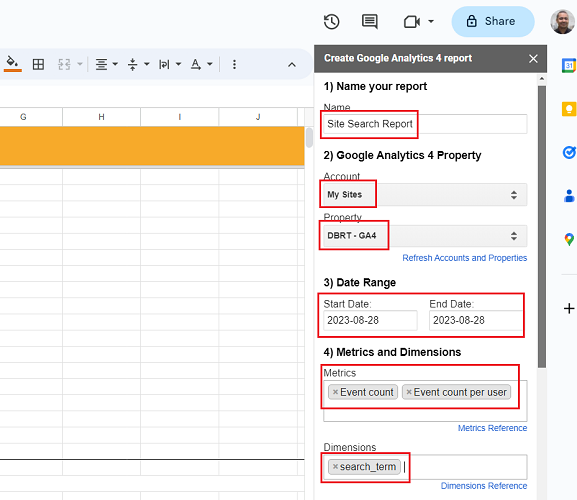
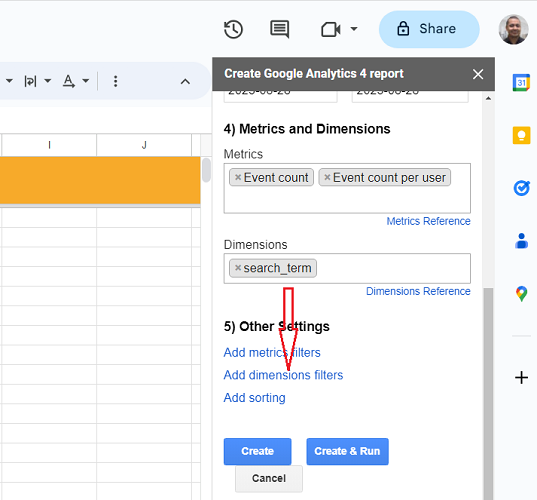
#3 Scroll down and then click on the link ‘Add dimensions filters’:
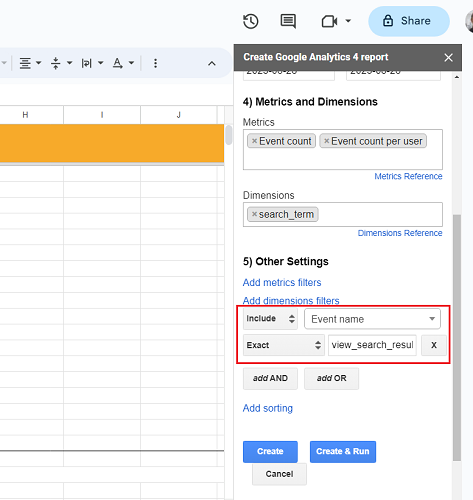
#4 Add the following dimension filter: ‘Event name’ exactly matches ‘view_search_results’:
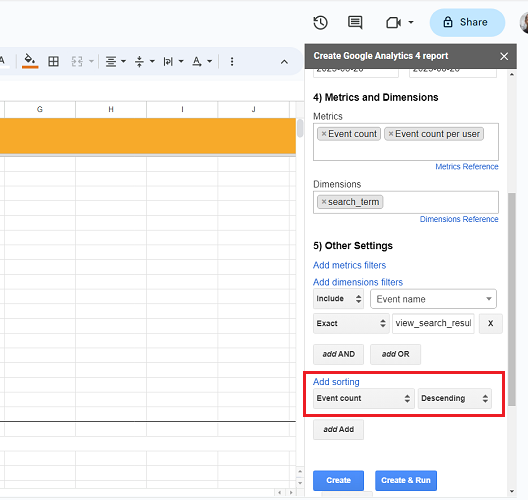
#5 Click on the ‘Add sorting’ link:
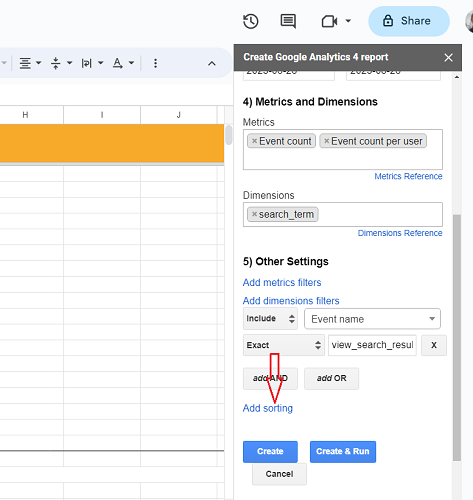
#6 Use the following sorting setting: Event count descending, and then click on the ‘Create’ button to create your report configuration.
You should now see a screen like the one below:
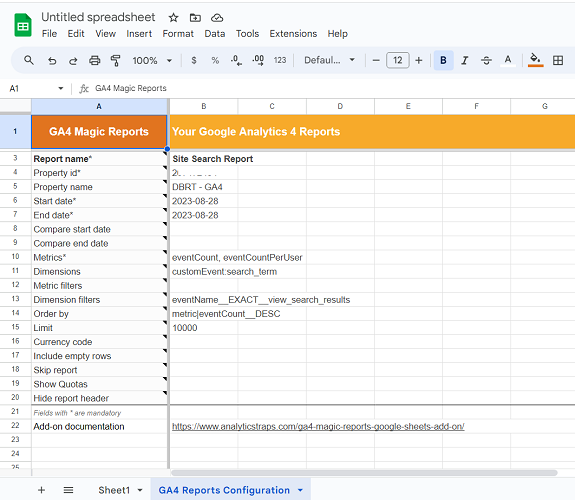
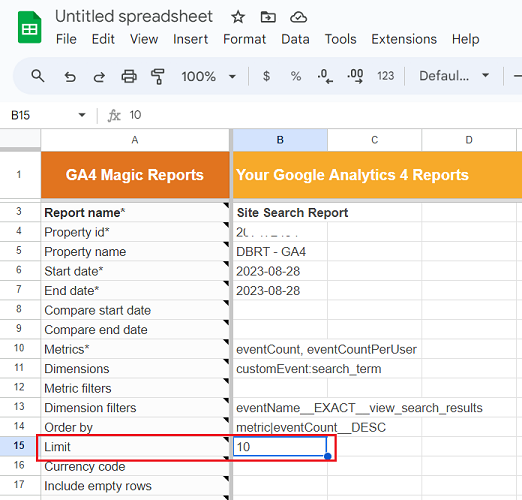
#7 Replace 10000 with 10 in the ‘Limit’ row to return only 10 rows of the data table:
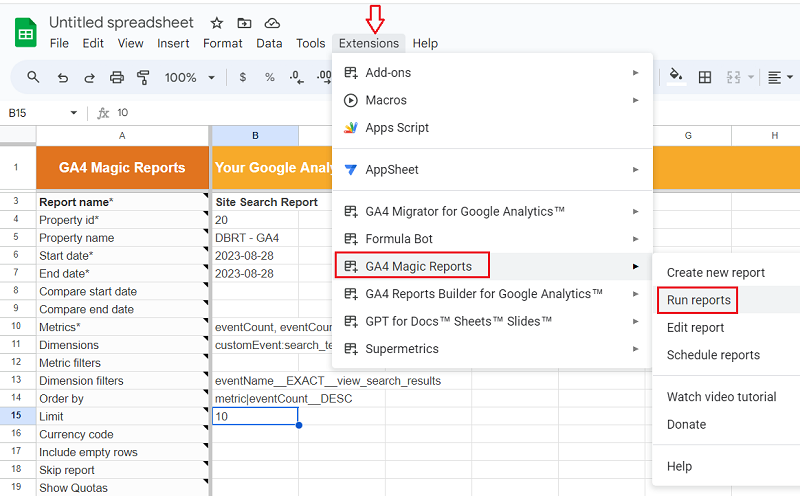
#8 Navigate to Extensions > GA4 Magic Reports > Run report to create a new report:
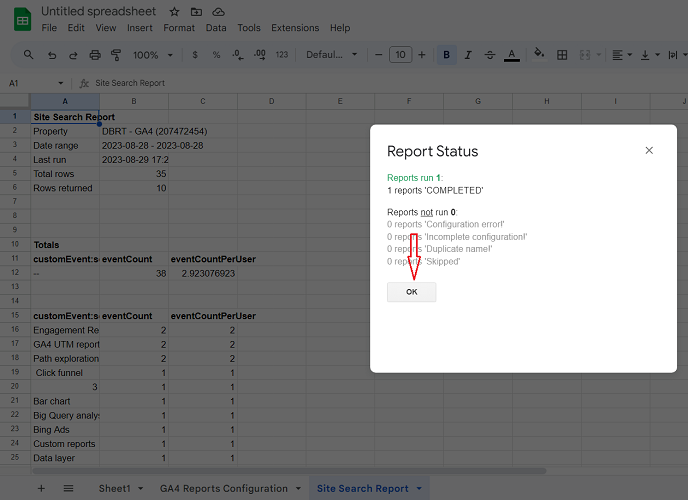
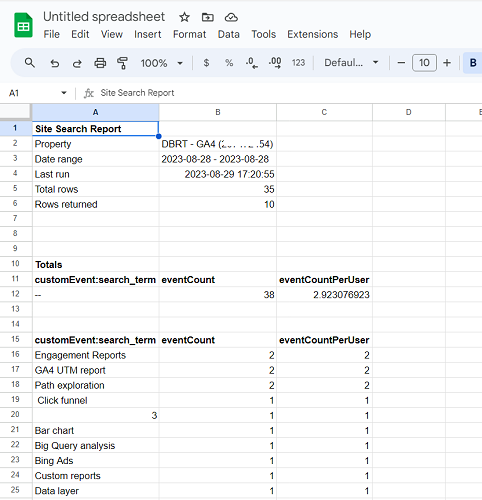
You should now see the exported GA4 data in Google Sheets, which matches the data table we used earlier:

Other Articles on GA4.
- How to Connect Google Ads to Google Analytics 4.
- Google Analytics 4 Predictive Audiences – Tutorial.
- How to use Segment Overlap Report in Google Analytics 4.
- Audience Triggers in Google Analytics 4.
- Google Tag Manager Regex Table Variable Explained.
- Understanding Lookup Table in Google Tag Manager.
- Google Tag Manager Variables and Triggers Tutorial.
- How to find Average Order Value in Google Analytics 4.
- Google Ads tag still running in GTM? Here is the fix.
- 8 Signs Your GA4 Property Needs Expert Help.
- Google Tag Assistant Tutorial.
- Google Analytics 4 not working? Here is how to fix it.
- Google Analytics 4 for Low Traffic Websites.
- Google Tag Manager Implementation Guide.
- Google Tag Manager Server Side Preview Mode.
- How to learn Google Analytics without a website.
- Key Benefits of Using Google Analytics 4 (GA4).
- Google Marketing Platform Cost and is it Worth it?
- How to export GA4 data to Google Sheets for free.
- Top Google Analytics 4 Tools, add-ons and resources.