

Google Analytics 4 not working?
Is Google Analytics 4 not working? Sometimes Google Analytics tracking code just stops working (i.e. does not fire anymore).
Sometimes the tracking code fires, but hits like ‘event’ hit just drop (i.e. not sent to the GA4 server). In that case, your existing or new tracking code may not work.
So how can you fix the problem?
There may or may not be an easy fix, and there is certainly no ‘one size fits all’ solution.
But there are a couple of things you can do to determine what has gone wrong and what can be done to fix the issue.
Related Article: 8 Signs Your GA4 Property Needs Expert Help.
GA4 tracking not working even when you made no changes to GTM?
Clients often argue, “Our website tracking broke, but we didn’t change our GTM container.”
Yes, you did.
Your tracking can’t break without changes to tags, triggers, or variables.
Most marketers rely on the ‘last edited date’ in GTM to check for changes. But in reality, changes happen differently.
The two implementation mistakes which are the source of most errors in your GA4 reports.
These two implementation mistakes are the source of most errors in your GA4 reporting. If you could fix them, your tracking will be mostly accurate.
1) An event tag firing before the GA4 configuration tag.
In GA4, the configuration tag establishes the initial connection between your website (or app) and your GA4 property. It acts as the foundation for all other event tags.
Without the configuration tag firing first, subsequent event tags may not have the “context” they need to properly attribute sessions and traffic sources.
If an event tag fires before the configuration tag, it tries to send data to GA4 without the foundational parameters set by the configuration tag.
As a result:
- The event might not be tied to the correct user (due to missing or incorrect client_id).
- The event may not have the necessary session context (session_id).
- Traffic source attribution might be missing or inaccurate, leading to the source/medium being displayed as (not set) / (not set) and eventually ‘unassigned’ traffic.
Ensure that your GA4 configuration tag has a higher firing priority than your event tags in GTM.
So, even if both the tags are set to fire on the same trigger, the configuration tag will fire first.
2) The missing ‘session_start’ event.
In GA4, the ‘session_start ‘event should be triggered whenever a new session starts.
Without the ‘session_start’ event, GA4 might not recognize user interactions as belonging to a distinct session and may have difficulty attributing interactions to a specific source or medium.
This can result in source/medium data appearing as (not set) / (not set), leading to “unassigned” traffic.
Note: There is always a possibility of a certain percentage of GA4 sessions missing the ‘session_start’ event for no apparent reason, and you may not always be able to fix this issue.
As a result, you can minimize (not set)/unassigned issues, but you may not be able to fix them 100%.
#1 Delete and disable the cache
You may be in a situation where you are making many code changes to your website, but nothing is reflected in your Google Analytics real-time reports or via any other debugging tool you may be using.
Chances are, your CDN (like ‘Cloudflare’), cache plug-in (like ‘WP Super Cache’) or your web browser keeps loading the previous version of your web page.
And they have cached your web page and all of its elements (images, JavaScript, etc.) so good that no amount of ‘browser refresh’ make any difference.
So code changes do not load correctly or do not load at all in your web browser.
Your testing could become hard if you can not see the changes you are making.
You need to delete all the existing cache and disable the new cache from creating while you are making code changes or doing testing.
Also, make sure that the checkbox ‘Disable Cache (while DevTools is open)‘ in the Chrome developer tool settings is checked:
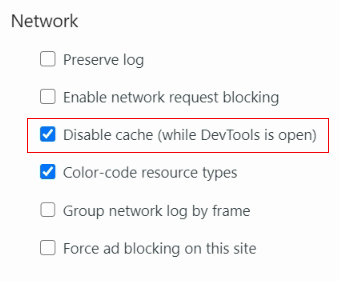
This setting disables browser caching for the page you visit while the developer console is still open.
#2 Use Google Tag Assistant and check ‘where to optimize.’
Google Tag Assistant is a Chrome extension through which you can identify, validate and troubleshoot the installation of various Google Tags on a web page.
Follow the steps below:
Step-1: Install the Google Tag Assistant Chrome extension and then enable it.
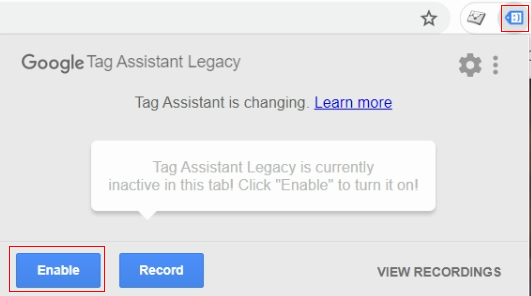
Step-2: Install the Google Analytics debugger Chrome extension and then enable it.
The GA debugger reports on error messages and warnings related to your tracking code in the developer console and tag assistant.
Step-3: Switch on the Google Analytics debugger by clicking on its icon on the top right-hand side of your browser address bar:
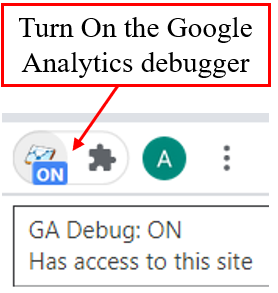
Step-4: Right-click on the tag assistant icon and then select ‘Options‘:
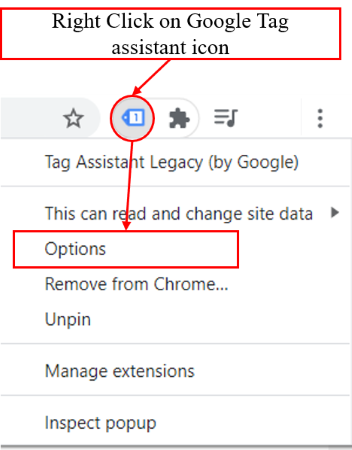
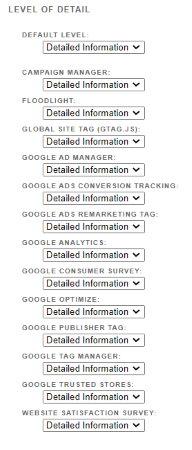
Step-5: Change the ‘Level of Details‘ for all Google tags to ‘Detailed Information’:
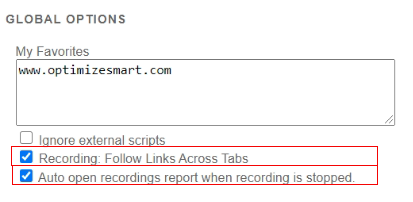
Step-6: Within the tag assistant options, make sure that the ‘Recording: Follow Links Across Tabs‘ and ‘Auto open recordings report when recording is done‘ checkboxes are checked:
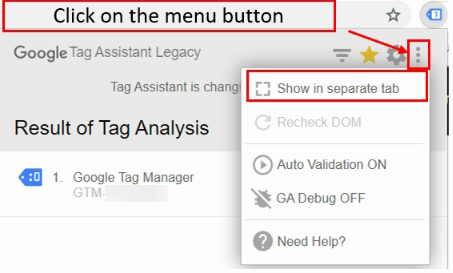
Step-7: Click on the Google Tag Assistant icon again and then click on the ‘Menu’ button. Make sure that ‘Auto Validation‘ and ‘GA Debug‘ settings are turned ON:
Step-8: Navigate to that web page of your website where you want to test your Google Analytics tracking code.
Step-9: Click on the tag assistant icon and look for the following message ‘No Google Analytics HTTP responses because….‘ under the section ‘where to optimize’:
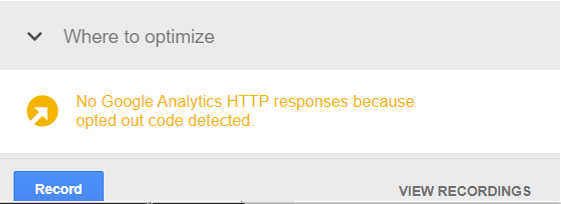
‘No Google Analytics HTTP responses’ mean your Google Analytics 4 tracking code is not firing.
In my case, I am using the Google Analytics opt-out add-on Chrome extension, which has disabled Google Analytics.
So I am aware of why the GA4 tag is not firing.
Make sure that you are not using any similar browser add-on/extension which disables Google Analytics in your browser.
Sometimes firewall settings can disable Google Analytics.
There could be many other reasons for a GA4 pageview event getting dropped, such as:
- Web page is missing the Google Analytics Tracking Code (GATC)
- Web page contains an invalid GATC
- Web page is taking too long to send the pageview event.
- Google Tag Manager not firing the Google Analytics tag.
Google Tag Assistant may reveal what might be going wrong on your web page by displaying a warning or error:
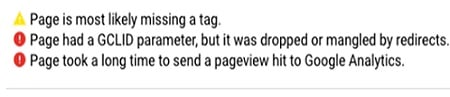
#3 Use the developer console and look for the ‘abort’ and ‘command ignored’ error messages
Google developer console is a debugging tool that is already built-in Chrome browser.
So you don’t need to install it separately. Right-click on a web page and select ‘Inspect’ to open it.
Follow the steps below:
Step-1: Navigate to the web page of your website where you want to test your Google Analytics tracking code.
Step-2: Right-click on a web page and select ‘Inspect‘ (in the Chrome web browser).
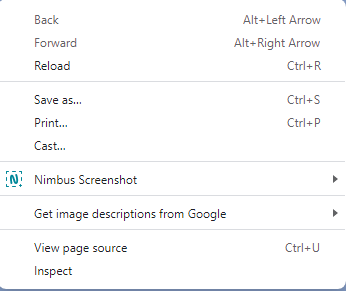
This action will open the developer console at the bottom of the web page:
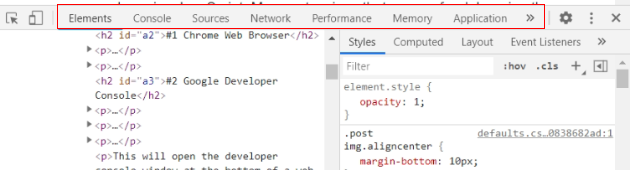
Step-3: Click on the ‘Console‘ tab.
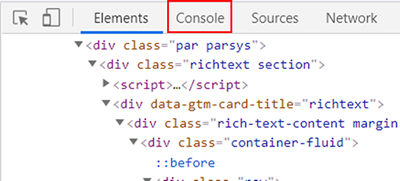
Step-4: Right-click on the console and then select ‘clear console‘:
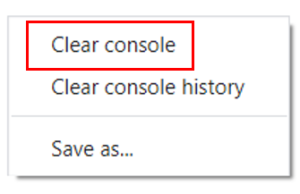
Step-6: Reload your web page in the web browser and then look for error messages related to aborting:

#4 Read the GIF Request (Tracking Beacon)
The Google Analytics tracking code sends hit and browser data to the Google Analytics server via atransparent GIF image file called _utm.gif. This file is requested for each hit.
Through the developer console, you can read this file:
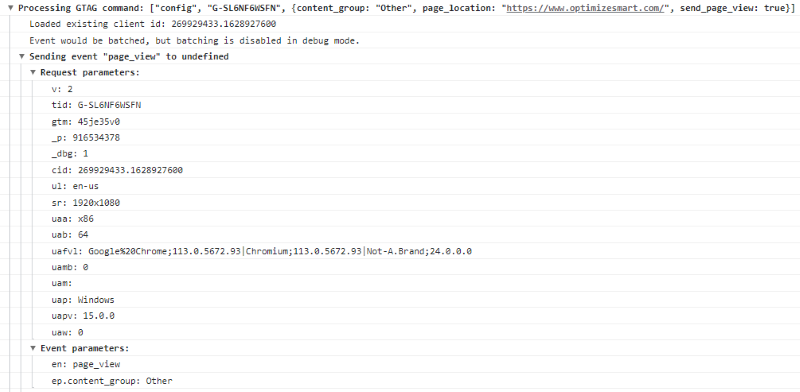
Sometimes you won’t see the Google Analytics event you want to send to the GA server in the tracking beacon.
Whenever an event is dropped, aborted, or a Google Analytics command is ignored, your tracking code is not working the way it is supposed to.
#5 Check the collect call in the network tab
Another way to check is by looking at the collect call in the network tab of the developer console.
This is needed because many a time GA4 event is generated but not sent to the GA server. And you can identify it by looking at the status code.
So if the status code is 204, that means the hit is successfully sent to the GA server.
Follow the below steps to check it:
Step-1: Navigate to the web page of your website where you want to test your Google Analytics tracking code.
Step-2: Right-click on a web page and select ‘Inspect‘ (in the Chrome web browser).
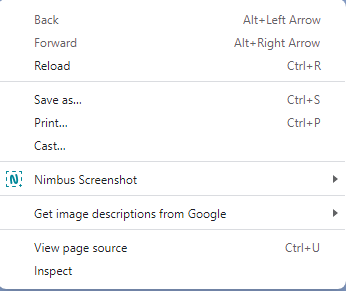
This action will open the developer console at the bottom of the web page:
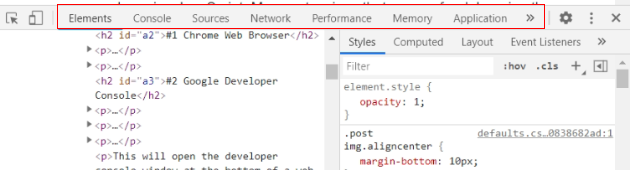
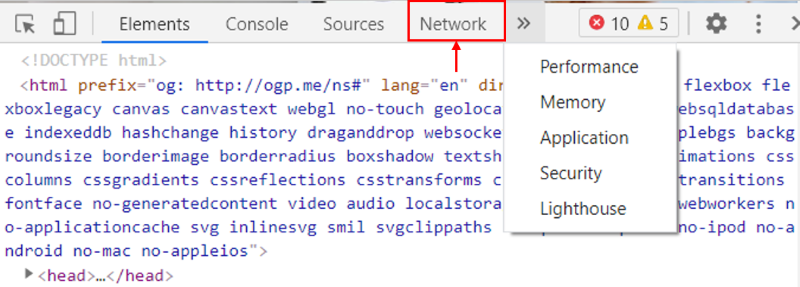
Step-3: Click on the ‘Network‘ tab.
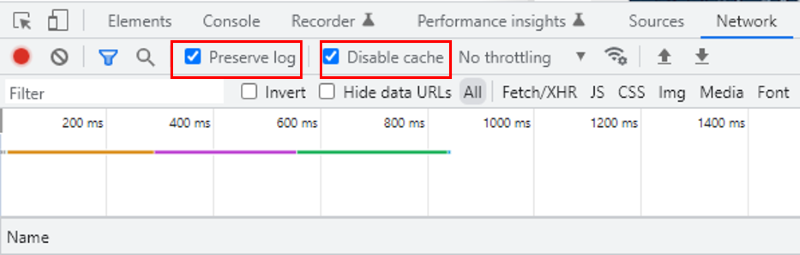
Step-4: Now click on the two checkboxes named “Preserve log” and “Disable cache”.
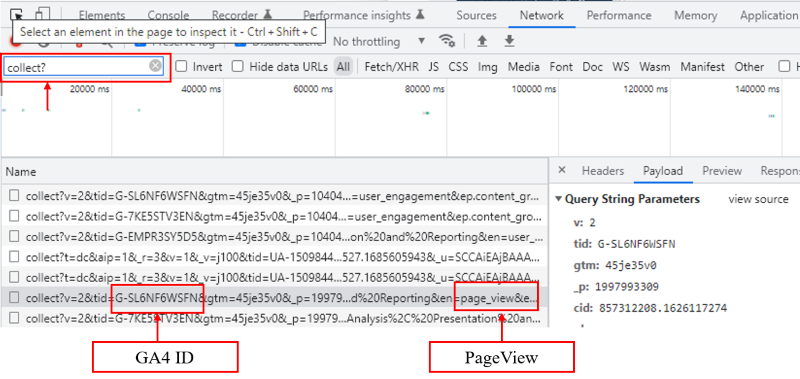
Step-5: Now type “collect?” in the filter tab and then refresh the page. Once the page is refreshed, you will see the collect call below:
Step-6: Now click on the “Headers” menu in the adjacent menu. You should see that the status code should be green, and it should be 204.
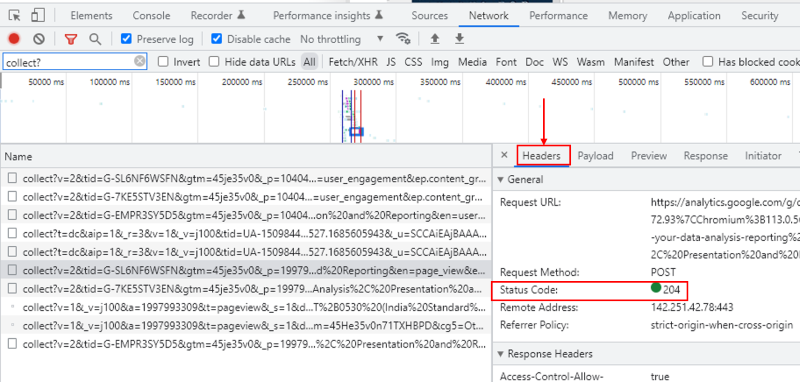
If the status code is not 204, that means some scripts are blocking the GA4 hits to reach from the server.
It could be other scripts on your website conflicting with Analytics tracking code, or it could be an adblocker as well.
#6 Avoid non-standard implementation of Google Analytics
There are only two recommended ways to install Google Analytics on a website:
#1 By directly placing the Google Analytics Tracking Code in the head section of all the web pages of a website.
#2 By using a tag management solution like Google Tag Manager.
When you deploy the Google Analytics tracking code in any other way, your GA set-up may no longer remain a standard implementation.
Following are examples of non-standard implementation of Google Analytics 4:
- Google Analytics tracking code (GATC) placed outside the head section (<head> …</head>) of a web page.
- GATC is being executed via an external JavaScript file.
- GATC contains Google Analytics commands that your current GA analytics library does not recognize/recommend.
- GATC contains invalid formatting (extra comma, extra whitespaces, bracket or semicolon)
- GATC contains invalid casing (GA function names are case-sensitive)
- GATC deployed via a third-party plug-in.
- Using multiple Google Analytics tracking codes on the same page.
Many webmasters use a third-party plug-in to install Google Analytics tracking on their websites.
These plug-ins often modify the original Google Analytics tracking code by:
- Changing the name of the tracking object.
- Adding new Google Analytics commands
- Adding their own lines of codes between the Google Analytics tracking code.
Now, if something goes wrong with the plug-in itself or you customize the Google Analytics tracking code in such a way that the plug-in no longer communicates with the GA JavaScript, then your tracking may stop working.
Your testing could become really hard if you are unfamiliar with the plug-in code and how it is supposed to work with Google Analytics.
Unless you are a ‘ninja’ or ‘guru’ of the Google Analytics development environment, you know exactly what you are doing and how it can affect existing website tracking, or you can decode any plug-in, your best bet is to stay away from such third-party plug-ins and stick to the standard installation of Google Analytics.
#7 Avoid customizing the standard Google Analytics tracking code
Avoid making any changes to your Google Analytics tracking code unless you are 100% sure what you are doing.
Use a test property if you want to learn new tricks. Avoid experimenting on a live website, especially if it does not belong to you.
If you have already changed the Google Analytics tracking code, replace it with the fresh code provided by Google Analytics.
Make sure that you copy-paste the GATC directly into the HTML of your web pages without changing its formatting or casing.
#8 Look for a broken GTM container tag
The use of Google Tag Manager (GTM) makes tag deployment very easy and efficient. But sometimes, during website updates, the container tag can break.
And when that happens, all of the website trackings stop working immediately. So if you use GTM, ensure the container tag is still intact.
#9 Avoid non-standard implementation of Google Tag Manager
There is only one recommended way to install Google Tag Manager on a website:
Add one part of the container tag code (the JavaScript part) in the <head>…</head> section of a web page and the other part (the iframe part) in the body section of a web page (immediately after the opening <body> tag:
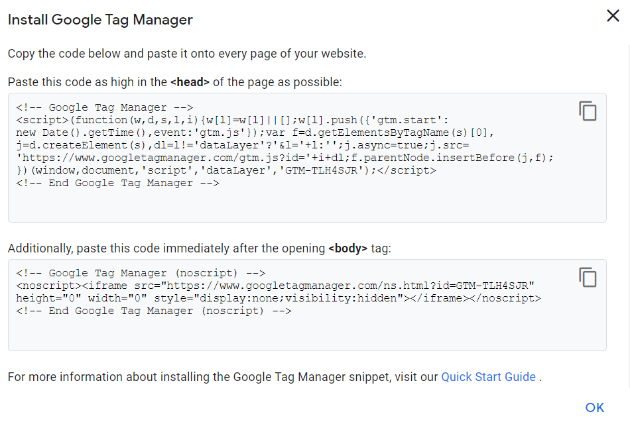
When you deploy the GTM container tag code in any other way, your GA set-up may no longer remain a standard implementation.
The following are examples of non-standard implementations of Google Tag Manager:
- All GTM container tag codes were added immediately after the opening <body> tag.
- GTM container tag code was added immediately before the closing </body> tag.
- The container code is deployed via an external JavaScript file.
- Container code contains invalid formatting or invalid casing.
- GTM container code deployed via another tag management solution
- Use of multiple container codes on the same web page.
- Use of a third-party plug-in to install Google Tag Manager on a website.
I am not saying that you can not make the non-standard implementation of GA/GTM work for you.
But remember, when you have a non-standard setup (the one which Google does not recommend), you could create hard-to-diagnose tracking issues.
Often a non-standard tracking setup behaves unexpectedly.
If you are unfamiliar with the GA/GTM development environment, you could make your testing and debugging unnecessarily difficult.
#10 Avoid customizing the GTM container tag
They say a little knowledge is a dangerous thing, and this is particularly true for Google Tag Manager.
If you accidentally break your container tag while customizing it, all of your website trackings can stop working immediately. Tread with extreme caution.
#11 Dealing with 307 redirects on Google Analytics Calls
You will often see that Google Analytics calls are duplicated or redirected when checked in the network tab of a browser.
As you can see from the below image, it looks like the status code for all Google Analytics calls sent via the GET method is duplicating.
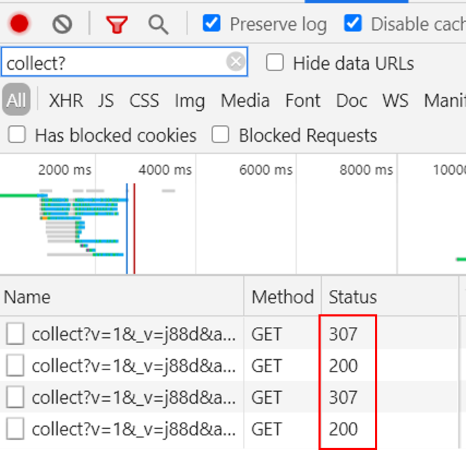
If this is happening on your website, you must understand that the 307 statuses are not duplicate calls but are redirects.
In general, redirects happen when analytics hits are not sent through standard Google Analytics via SSL protocol.
Long story short, if the analytics hits contain a request URL with the “HTTP://” protocol, you will find 307 redirects in debug console.
This happens if you are using an Ad-Block extension.
The extra network calls are not causing any deviation in data being sent to Google Analytics, but if you don’t want to see duplicate network calls try disabling your extensions and check again.
If you want to send analytics hits using the standard “HTTPS://” protocol, you can do it in the following ways.
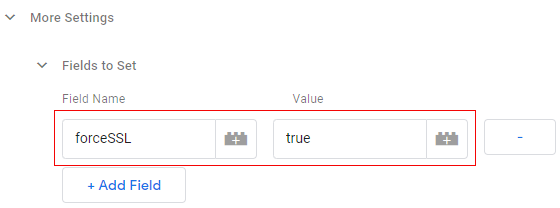
Use the forceSSL parameter in GTM
Add the forceSSL parameter with the value set to ‘true‘ in ‘Fields to Set‘ for every GA4 Analytics tag in Google Tag Manager.
Add a piece of code to your main tracking code
Set forceSSL for your ga tracker gtag(‘set’, ‘forceSSL’, true).
The complete tracking code may look like below
<script>
<!– Google tag (gtag.js) –>
<script async src=”https://www.googletagmanager.com/gtag/js?id=TAG_ID”></script>
<script>
window.dataLayer = window.dataLayer || [];
function gtag(){dataLayer.push(arguments);}
gtag(‘js’, new Date());
gtag(‘set’, ‘forceSSL’, true);
gtag(‘config’, ‘TAG_ID’); // your GA4 Data Stream ID
</script>
#12 Filters Set Up
Many organizations use filters in their analytics views to avoid traffic from unwanted sources.
Traffic filters are generally set to avoid counting internal employees visiting the website.
Other analytics views created for specific purposes also use filters.
For example, if you have created a separate view for the European region and only want to have data from the European countries.
Sometimes setting up incorrect filters also results in no data in Google Analytics. Make sure you set up the filters correctly and validate them in real time.
Also, it is good practice to always test and validate filters in GA4.
Be extra cautious while using including and excluding attributes of a filter. You have to be very careful while filtering attributes.
#13 Blocking extensions: Ad blockers and script blockers
Many users nowadays use different browser extensions, saving them a lot of time when doing day-to-day activities.
Some of these extensions are ad blockers or script blockers, which don’t allow the loading of certain files on the webpage, and block files, particularly paid ads, display ads, and video ads.
These extensions sometimes block the Google Analytics script and Google Tag Manager script. Hence you see no data in Google Analytics.
Try to disable all these extensions while debugging the analytics implementation.
Related article: Your Website Traffic Didn’t Vanish – GA4 Tracking Did.
#14 Iframe tracking
If you use iframes on your website to a larger extent, you must know that an iframe contains its own <head> and <body> tags.
In other words, you can say that iframes are a micro-website (child website) within your main website (parent website).
Analytics scripts only load for the parent website.
Because of this, you will not be able to track anything inside an iframe, leading to no data being sent to the analytics tool for pageviews and events inside the iframe.
If you want to track the iframe, you need to load the analytics script into the iframe manually.
Note: Loading the same analytics script in the main parent website and iframe may lead to duplication of pageview and event.
#15 Dealing with website environments and publishing
You might use different website environments to test and validate the website’s functionality. The same happens with analytics as well. You can have a separate property or a separate view for each environment.
It often happens while switching between the environments or publishing it to the production environment, and we forget to update the data stream ID in the analytics script.
This can break the current analytics setup, and Google Analytics may stop working.
Always be careful while switching the environment and debugging its data in Google Analytics property or view for the corresponding environment.
#16 Locally hosted gtag.js
Many developers try to host the gtag.js file on a local server.
They generally do it to get faster page load times and better website performance. However, this is not recommended by Google.
To make this work, you need to set up a cron job to run the script at a specific interval, which can be every 12 hours or 24 hours. If you do not set up the cron job correctly, you will see no data in GA4.
Another reason could be that older browsers may contain an older version of the Google Analytics cache; hence, the current version is still not reflected.
The best solution to this kind of problem is not to use a locally hosted gtag.js file in the first place.
If you still have business needs to do it, you need to carefully do the complete set-up for it to work without any issues.
#17 Google Tag Manager errors
If you are using Google Tag Manager for analytics implementation, there could be multiple reasons you see analytics not working or incomplete tracking.
A few of them might be as below:
#1 Tags not firing: Look at Google Tag Manager preview mode and check if the tag is firing or not. Ensure your tag is firing correctly and can be seen in preview mode.
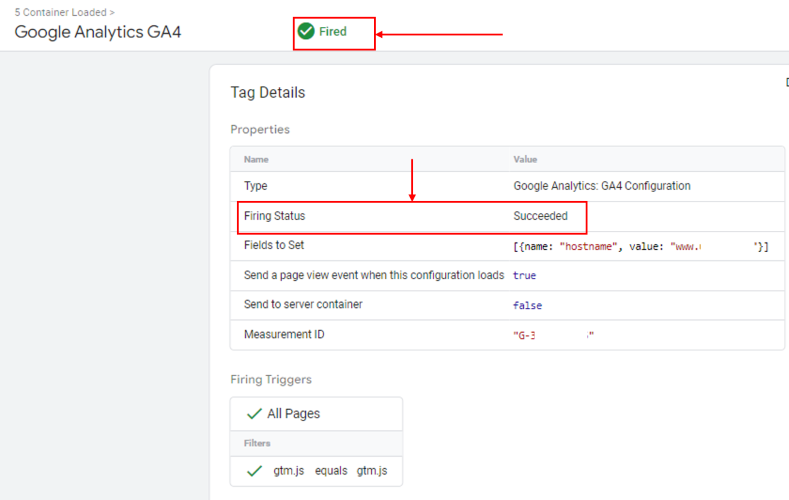
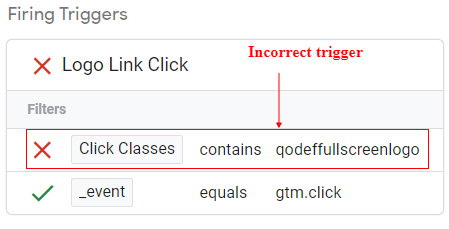
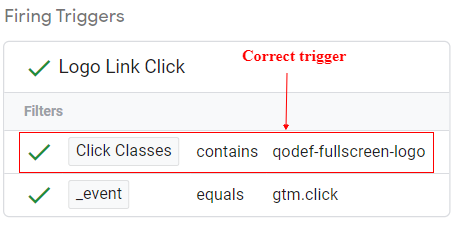
#2 Incorrect triggers: There may be reasons why your triggers are not working correctly. You can check for trigger conditions and validate if it’s working or not.
#3 Variables errors: Sometimes, you need to send custom dimensions and metrics to Google Analytics.
Generally, if variables are not capturing the data correctly (set up error), then you will see no data for that custom dimension or metric in GA, resulting in incomplete tracking.
#4 Container not published: Another reason for not showing data in GA could be the GTM container is not published with the GA tags added.
#18 No data in the newly created GA4 property
If you have created a new Google Analytics 4 property, you need to make sure that you are sending data to the correct data stream ID and use the debug view mode to validate the tracking.
To use debug view mode in GA4, follow the below steps
Step-1-: First, put the GTM container in the preview mode and visit any page on your website.
Step-2: Now Navigate to the GA4 Admin console and click on “DebugView”.
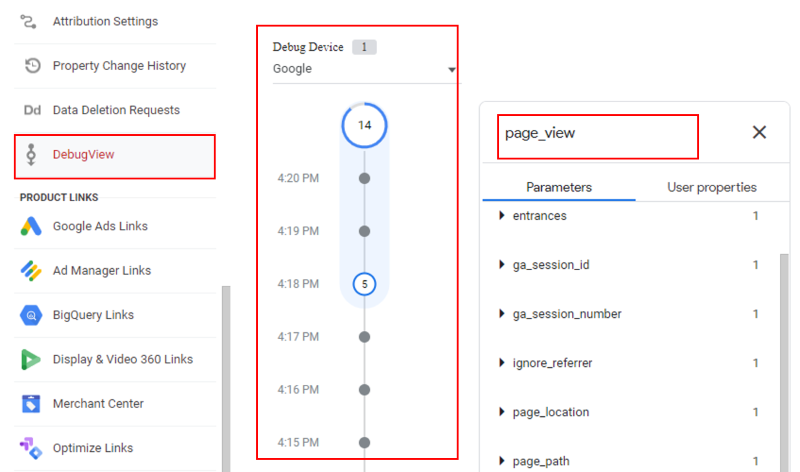
As you can see from the above image, I can see data getting recorded in real-time, and I can validate it as well. This means the implementation is working perfectly fine.
If you want to know more about how to use debug view, you can check the below article: How to use DebugView report in Google Analytics 4 (GA4)
#19 Other scripts on the page conflict with the GA script
Your website may have multiple JavaScript scripts running on pages.
Sometimes, two JavaScripts are using the same variable, resulting in a conflict that may break either or both scripts.
Sometimes this error also arises from the cookies rewritten by other scripts.
The best solution to such problems is to use the analytics debugger every time a new script is added to a page and check for data going to Google Analytics.

#20 Incorrect placements of code
Code placement is very important to track all the user hits and send them to Google Analytics.
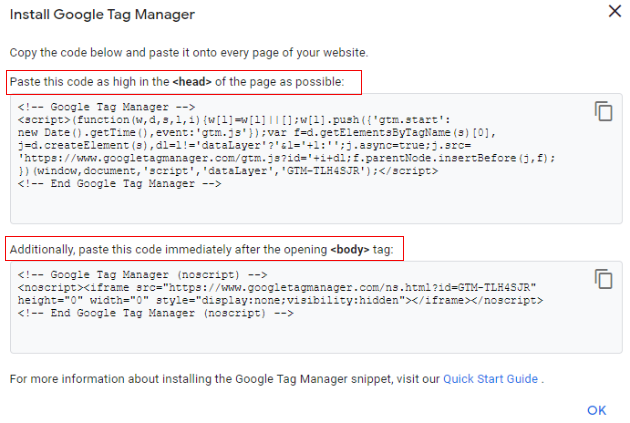
For example, if you are using gtag.js for analytics, then it’s compulsory to add the gtag.js code in the head section of the website just immediately after the opening of the <head> tag.
If you add the code to the footer or at the end of <body>, a user may leave the page before the analytics code is even fired. This will lead to data loss and incomplete tracking.
The same principle applies to the Google Tag Manager code as well. You need to add code to the website as recommended by Google only.
#21 Avoid using plug-ins for Google Analytics implementation
If you are using a WordPress website, you get multiple options to implement Google Analytics code or GTM code on a website.
This can be done by using available plug-ins. I am not a big fan of using plug-ins and use them only when it is absolutely necessary.
The biggest downside of using a plug-in is the lack of control over the code placed on your website by the plug-in. Another minor issue is that plug-ins negatively impact your WordPress website speed.
So, I try to minimize the use of plug-ins wherever I can.
Sometimes a user may leave the page even before the plug-in is initiated, leading to no data capture. This happens if we are using a plug-in for code placement.
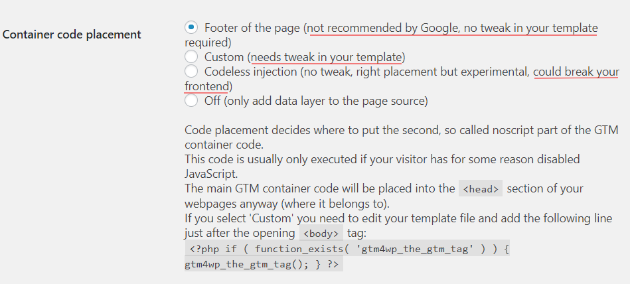
As you can see from the above image, every code placement option available has some pros and cons.
- Footer: Not Recommended by Google.
- Custom: Needs a tweak in the template file (changes website theme code).
- Codeless injection: Can break the front end.

Other Articles on GA4.
- Fixing unassigned issues with GTM Server Side Tagging.
- How to exclude internal traffic in Google Analytics 4.
- Understanding data filters in Google Analytics 4.
- Conversion Funnel Analysis in Google Analytics 4.
- How to use custom templates in Google Tag Manager.
- 6 Critical Flaws in Google Analytics 4 Attribution Paths.
- Google Analytics 4 Admin Settings Tutorial.
- How to Connect Google Ads to Google Analytics 4.
- Google Analytics 4 Predictive Audiences – Tutorial.
- How to use Segment Overlap Report in Google Analytics 4.
- Audience Triggers in Google Analytics 4.
- Google Tag Manager Regex Table Variable Explained.
- Understanding Lookup Table in Google Tag Manager.
- Google Tag Manager Variables and Triggers Tutorial.
- How to find Average Order Value in Google Analytics 4.
- Google Ads tag still running in GTM? Here is the fix.
- 8 Signs Your GA4 Property Needs Expert Help.
- Google Tag Assistant Tutorial.
- Google Analytics 4 not working? Here is how to fix it.
- Google Analytics 4 for Low Traffic Websites.