

What is Google Analytics 4 Site Search Tracking?
Through the GA4 site search tracking feature, you can determine the search terms used by your website visitors to find information on your website:
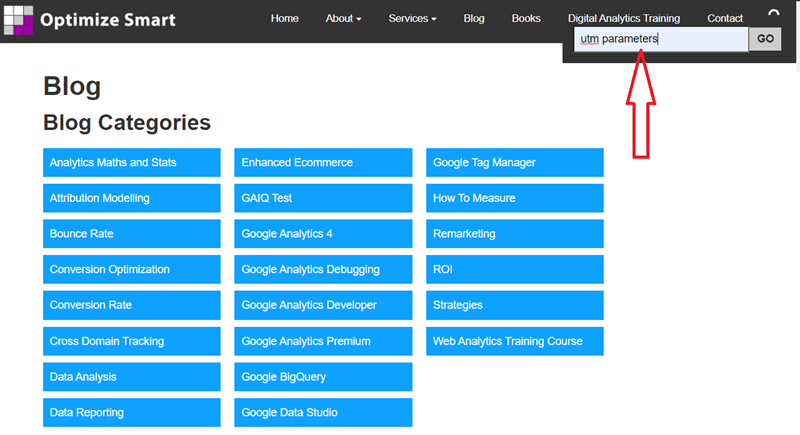
What is the advantage of implementing site search tracking in GA4?
Once you have implemented site search tracking in your GA4 property, you can see the list of keywords (called ‘Search terms’) used by your website visitors to find information on your website:
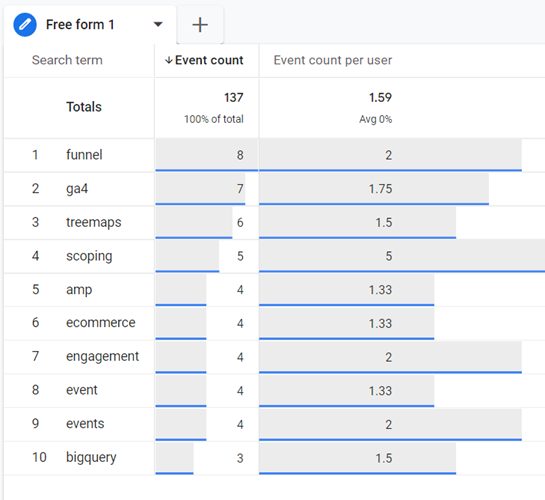
This insight can help you in finding new content development opportunities and/or popular or trending products.
Example-1:
Let us suppose you discovered that many website visitors are searching for the keyword ‘enhanced ecommerce tracking’ on your website.
Let us also suppose that your website does not have any article on ‘enhanced ecommerce tracking’.
In that case, you can publish a brand new article on ‘enhanced ecommerce tracking’, thus satisfying the website visitors’ query.
Example-2:
GA4 site search tracking can reveal popular or trending products on your e-commerce website.
Analysing search terms helps understand customer interests. High-searched items indicate strong demand.
You should promote these products prominently on your website. Adjust marketing strategies based on search trends.
This approach can enhance user experience and potentially increase website sales.
Requirements for setting up site search tracking in GA4
If you do not have a site search feature (aka the search box, the internal search engine) installed on your website, then you won’t be able to benefit from the site search tracking feature in GA4.
So, you need to have the site search feature on your website.
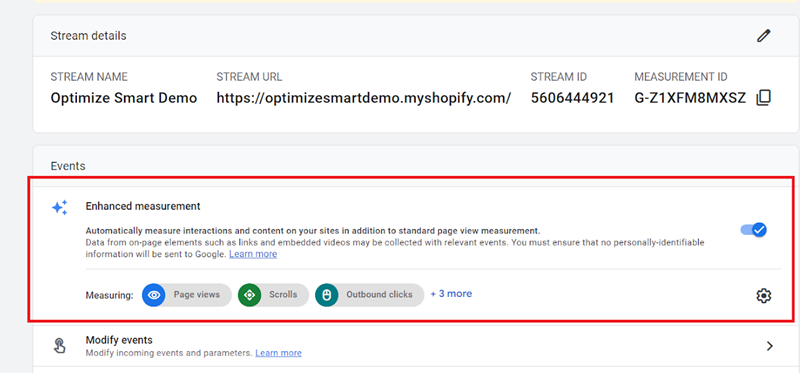
GA4 automatically tracks site searches (in most cases) once you have enabled Enhanced Measurement Tracking in your GA4 property:
The default site search tracking feature provided by GA4 may not always work for you.
There could be a situation in which the site search feature is installed on your website in such a way that the default site search tracking feature provided by GA4 won’t work for you.
In that case, you would need to use GTM (Google Tag Manager) to set up site search tracking in your GA4 property.
For example,
If you have the site search feature installed on your website, but the search term does not appear in the query parameter, then you won’t be able to benefit from the default site search tracking capability of GA4.
Here is what I meant by the search term appearing in the query parameter:
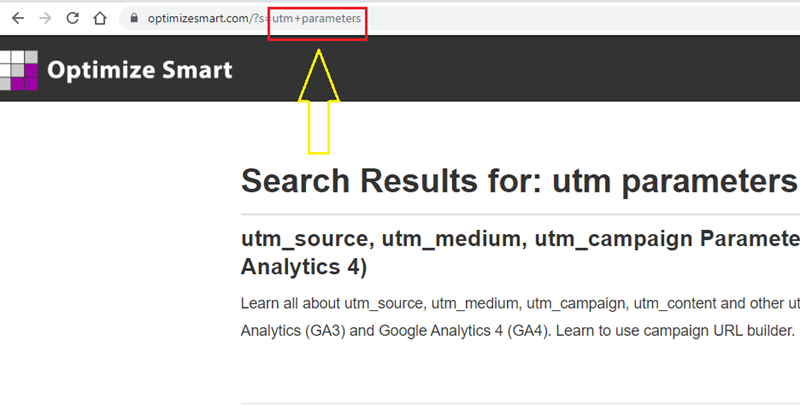
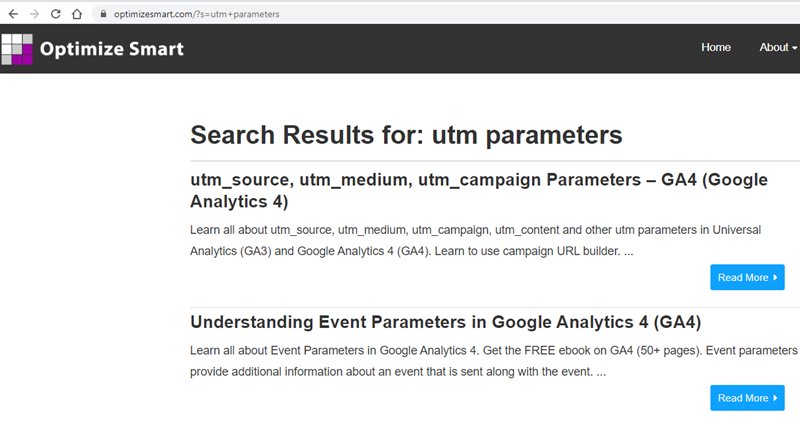
Here, the query parameter is the part of the URL which comes after the ‘?’ character.
So the query parameter is:
s=utm+parameters
Following is the search term used in the query parameter:
If you have the site search feature installed on your website, but the search term does not appear in the query string, then you would have to use GTM to set up site search tracking on your website.
Alternatively,
You can ask your web developer to configure the URLs of search result pages in such a way that it shows the search terms in the query string.
How does the site search tracking work in GA4?
By default, GA4 fires the ‘view_search_results’ event when a user inputs a query and clicks on the search button on your website.
As the event gets fired on the website, Google sends a few default event parameters, such as search_term, page_location, and source.
You can see these parameters in real-time in the GA4 Realtime report.
How to set up site search tracking in GA4?
Follow the steps below:
Step-1: Navigate to the website for which you want to set up site search tracking in GA4.
Step-2: Use the search feature of your website by entering a search term in the search box:
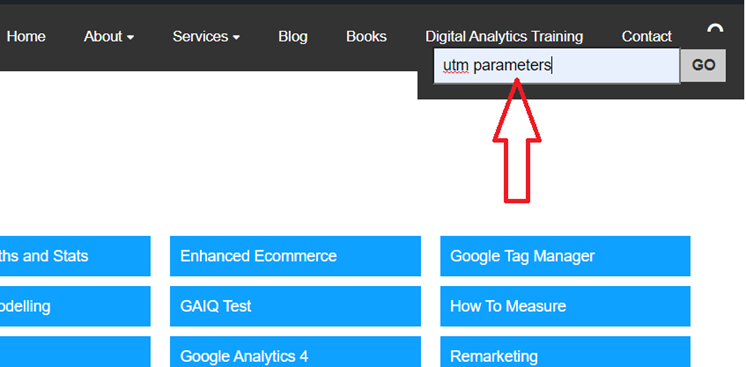
Step-3: Note down the search query parameter from the URL of the search result page:
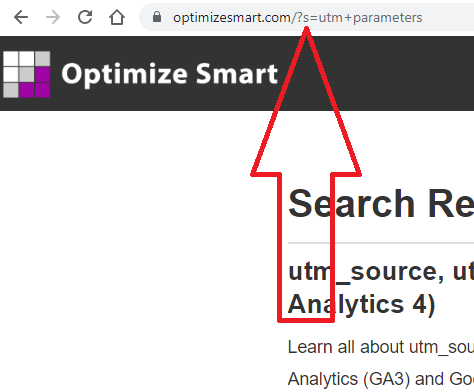
Here ‘s’ is the search query parameter.
Step-4: Navigate to your GA4 Property.
Step-5: Click on the ‘Admin’ link available in the left-hand side reporting menu:
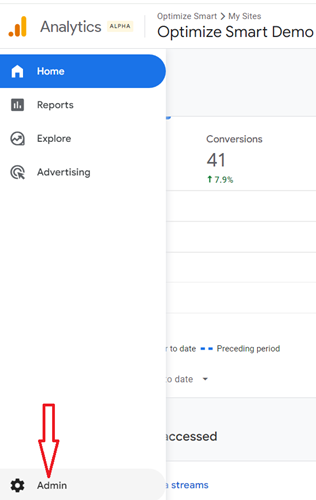
Step-6: Click on ‘Data Streams’ under ‘Data Collection and Modification‘:
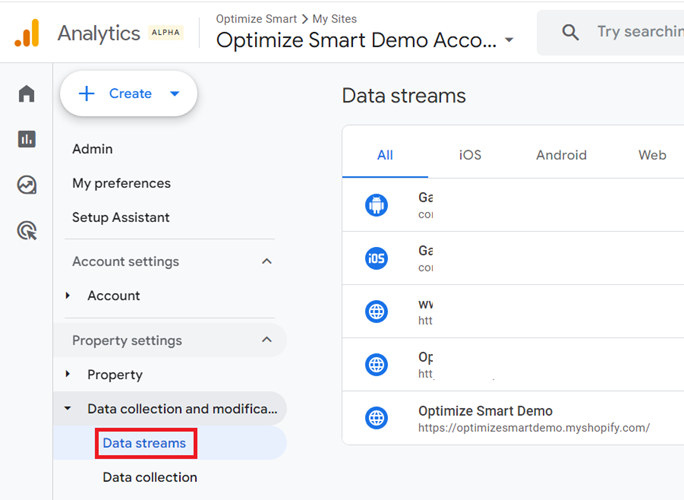
Step-7: Click on the web data stream for which you want to set up site search tracking in GA4:
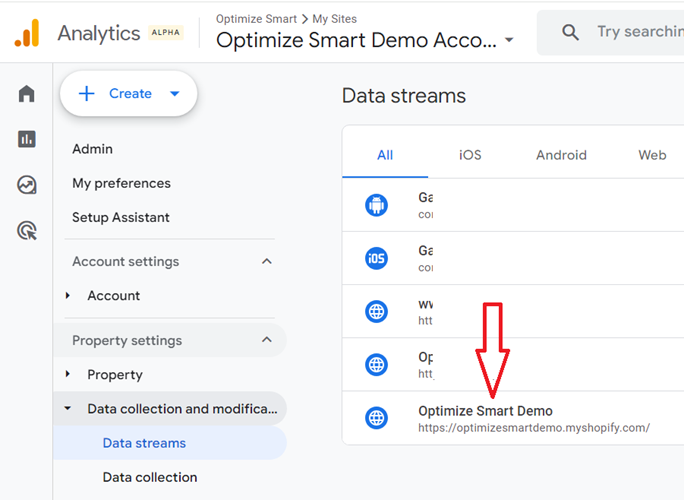
Step-8: Make sure that the ‘Enhanced Measurement’ featured is enabled:
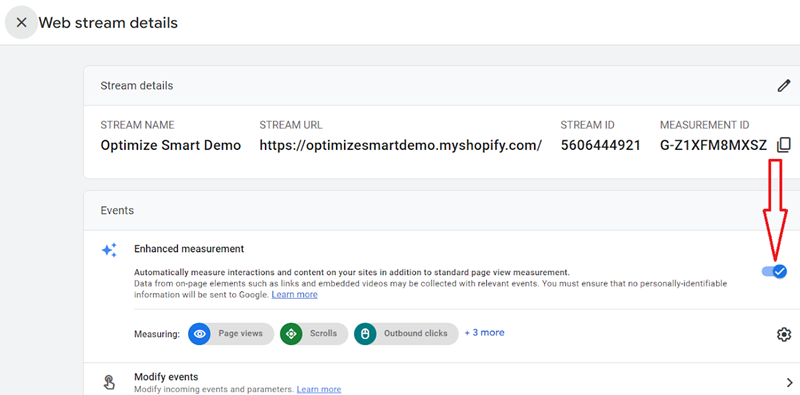
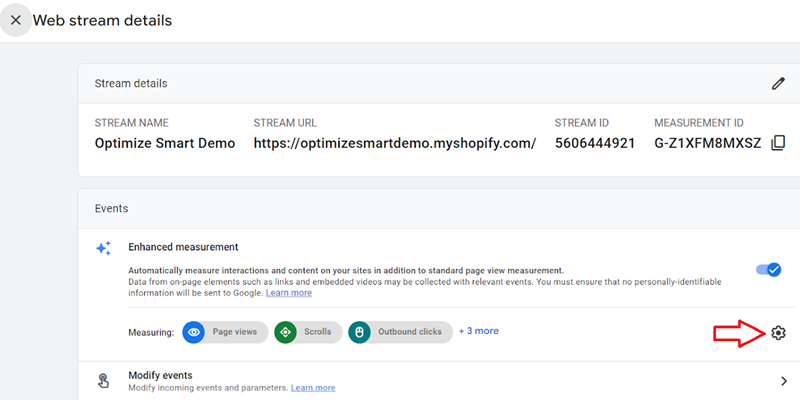
Step-9: Click on the gear button under ‘Enhanced measurement’ to access the settings menu:
Step-10: Make sure that the ‘Site Search’ feature is enabled:
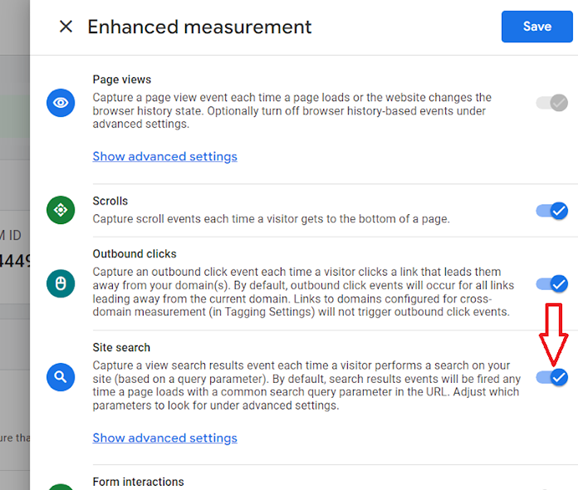
Step-11: Click on the link ‘Show advanced settings’ under the ‘Site search’:
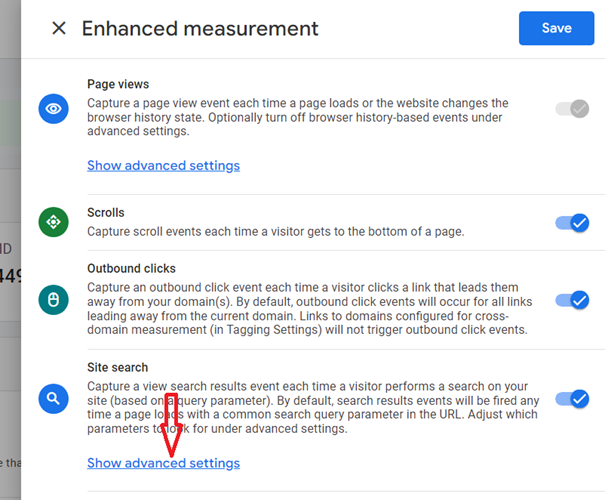
You should now be able to see the advanced settings for the ‘site search’ feature:
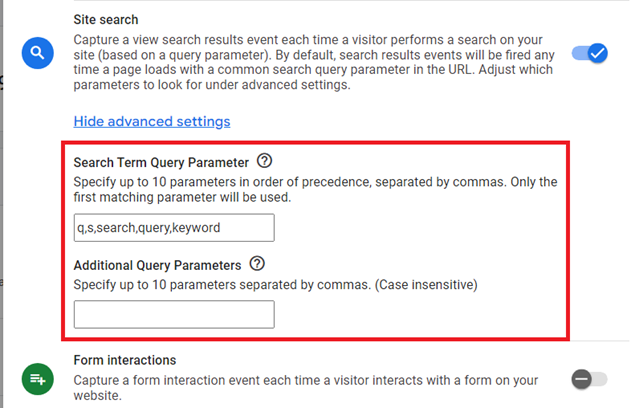
Though site search is automatically tracked in GA4, it will only work on default query parameters defined by Google: q,s,search,query,keyword.
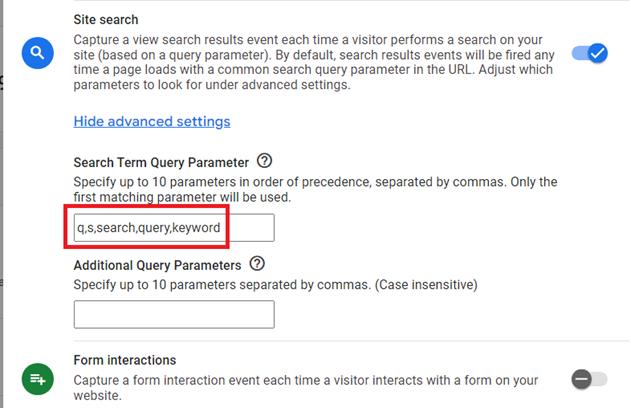
If your website uses a search term query parameter which is not one of the default parameters supported by GA4, you would need to configure a custom parameter to fire the ‘view_search_results’ event.
For example,
If your website uses the ‘st’ parameter in its URL to capture the search term:
https://www.optimizesmart.com/?st=utm+parameters
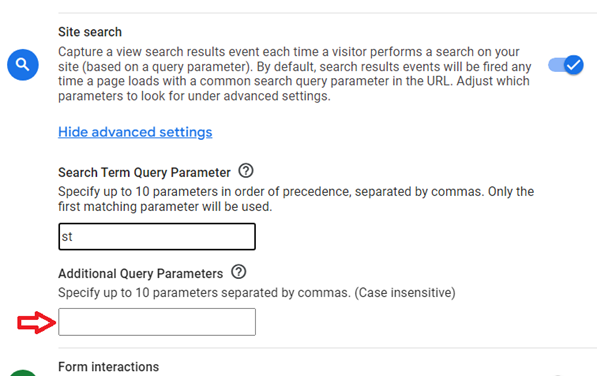
then you should enter the ‘st’ parameter in the text box below ‘Search Term Query Parameter’:
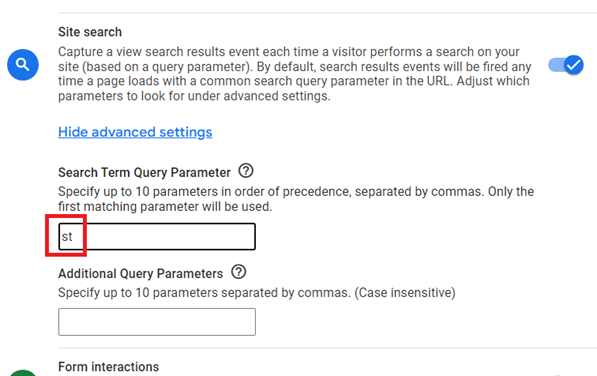
If you want to collect values from additional URL query parameters when the ‘view_search_results’ event occurs, then you should add the query parameters in the text box under ‘Additional Query Parameters’:
For example,
The search URL below contains an additional query parameter called ‘title’:
https://www.optimizesmart.com/?st=utm+parameters&title=best+excel+charts
Now, if you want to collect values from the ‘title’ query parameter when the ‘view_search_results’ event occurs, then you should add the ‘title’ parameter in the text box under ‘Additional Query Parameters’:
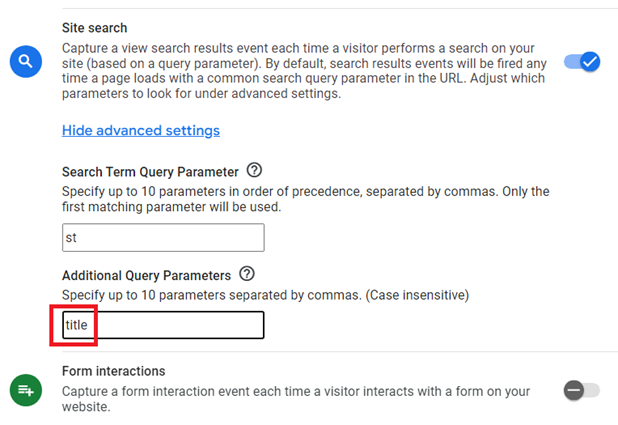
Additional query parameters are useful when your website search functionality allows users to filter search results using multiple filters.
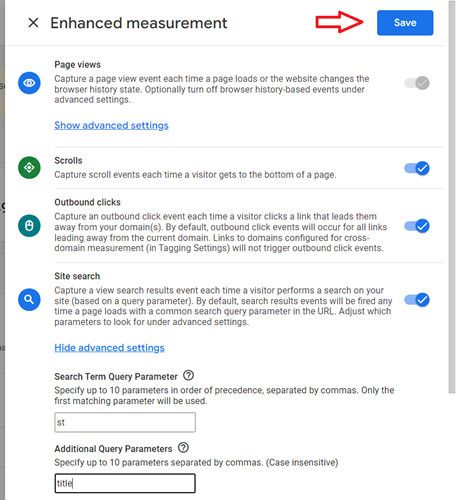
Step-12: Click on the ‘Save’ button in the upper right corner of the overlay to save the advanced site search settings:
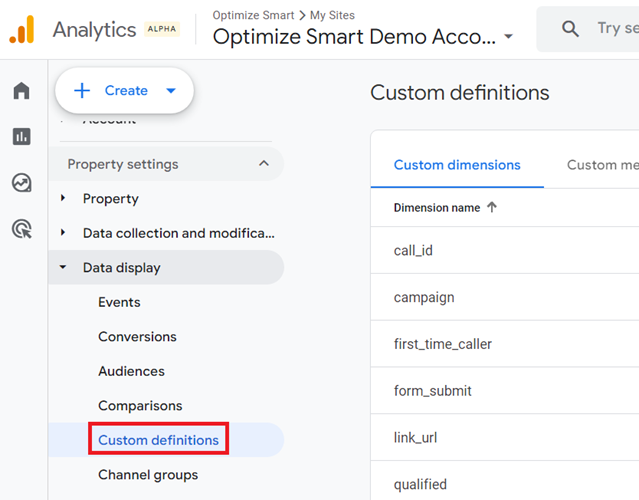
Step-13: Click on ‘Custom definitions‘ under ‘Data Display‘ in the GA4 admin area:
Step-14: Click on the ‘Create custom dimension’ button:
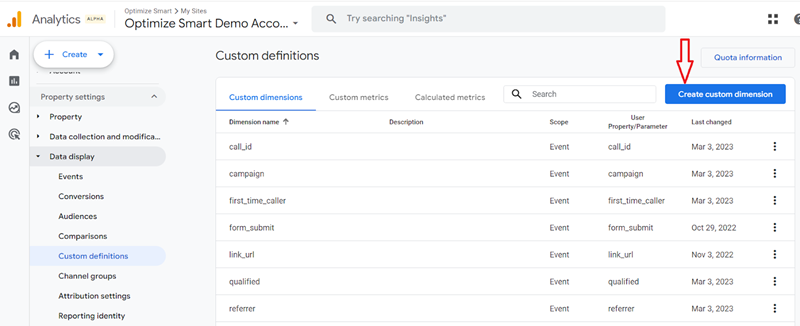
Step-15: Enter ‘search_term’ as the dimension name:
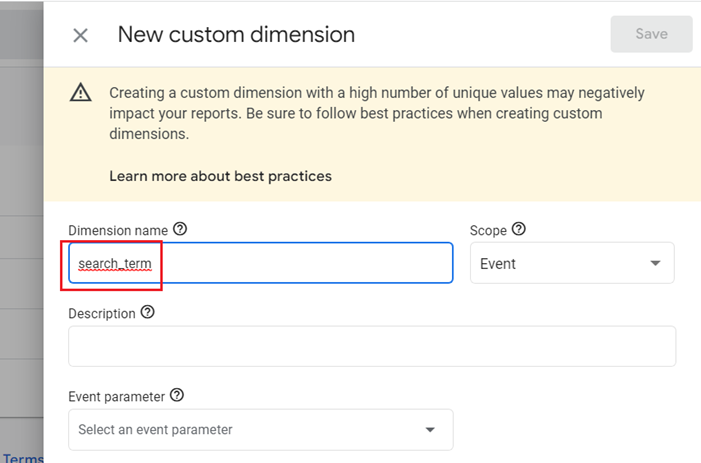
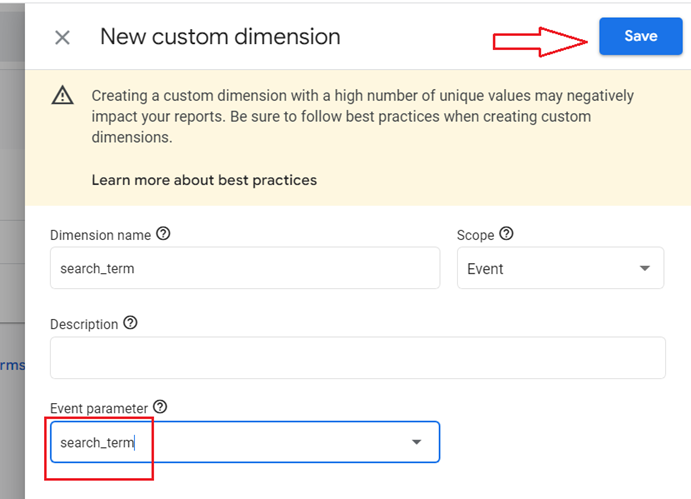
Step-16: Type ‘search_term’ in the text box under the ‘Event parameter‘ and then click on the ‘Save’ button:
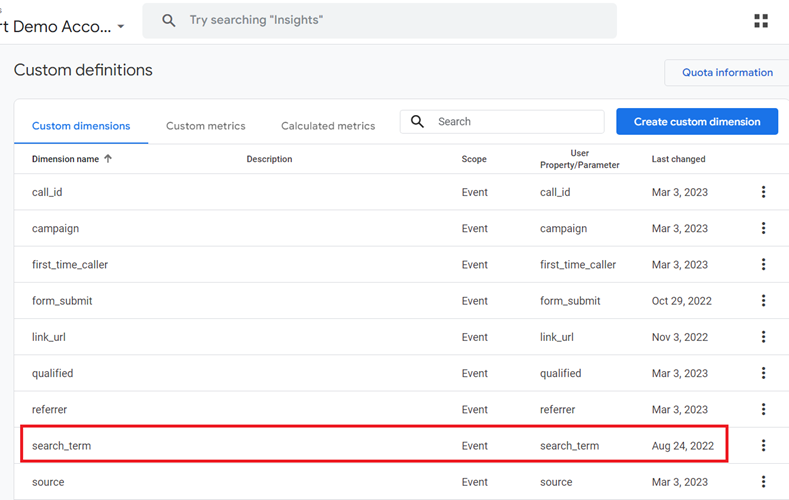
You should now see the ‘search_term’ listed as a custom dimension:
When you register an event parameter (like ‘search_term’) as a custom dimension and once the parameter is logged (i.e. recorded), you should see a new data card added to various event reports in GA4:
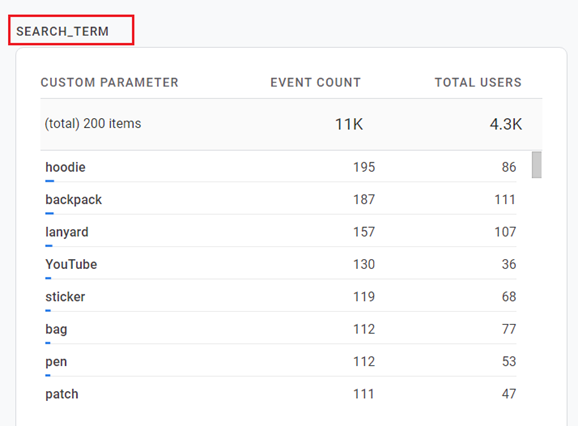
I will show you later how to view this data card.
How To Test Site Search Tracking in GA4
Once you have set up site search tracking in GA4, you need to test it to make sure that it is working correctly.
Follow the steps below to test site search tracking in GA4.
Step-1: Navigate to the website for which you set up site search tracking in GA4.
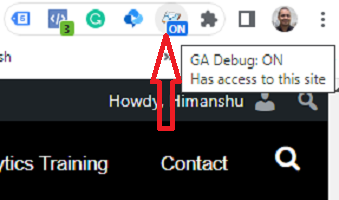
Step-2: Make sure that you have installed the ‘Google Analytics Debugger’ Chrome extension in your web browser and that it is turned on:
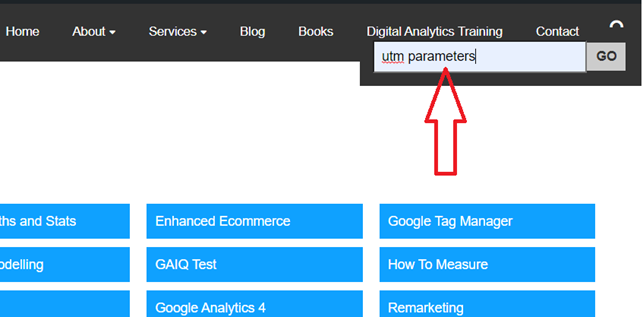
Step-3: Use the search feature of your website by entering a search term in the search box:
You should now see the search result page:
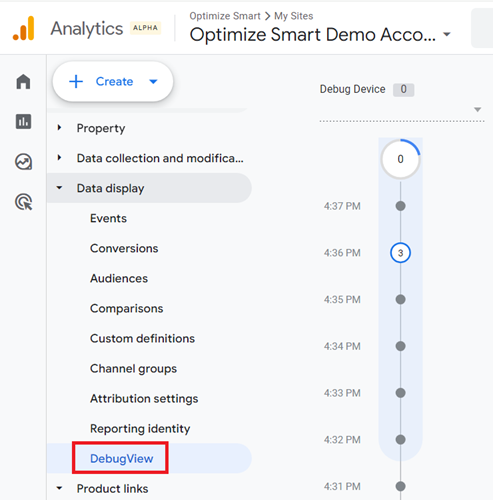
Step-4: Click on the ‘DebugView‘ link under ‘Data Display‘ in the GA4 admin area:
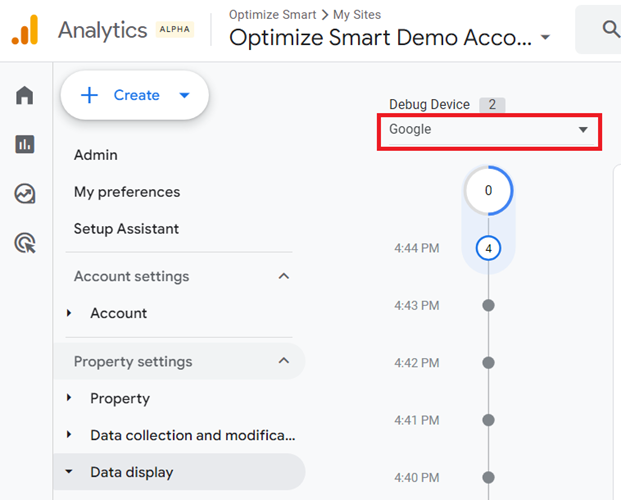
Step-5: Set your debug device to ‘Google’ as we are using Google Analytics Debugger Chrome extension:
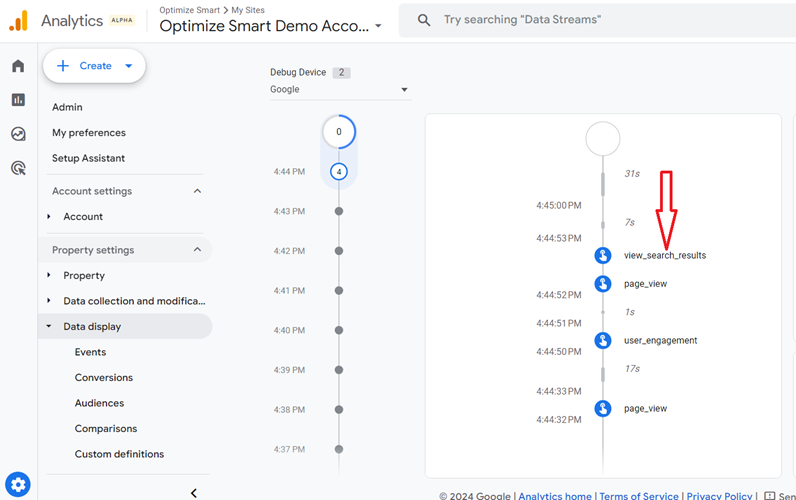
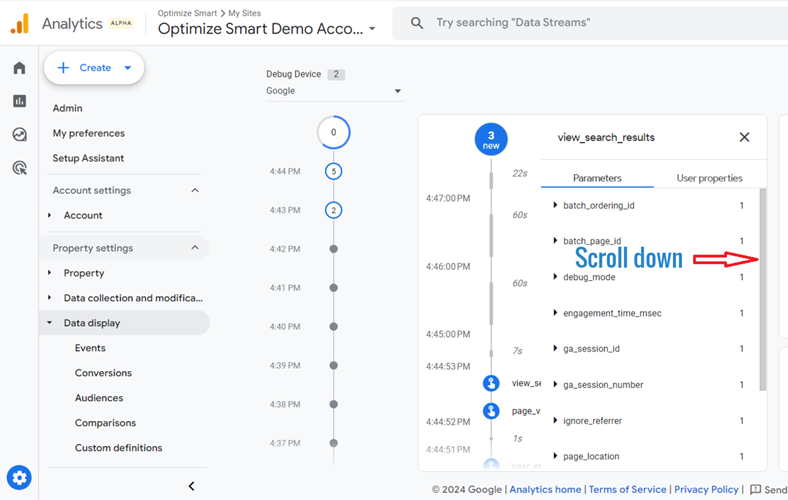
Step-6: Wait for a minute or so, scroll down and then find and click on the event ‘view_search_results’:
You should now see a screen like the one below:
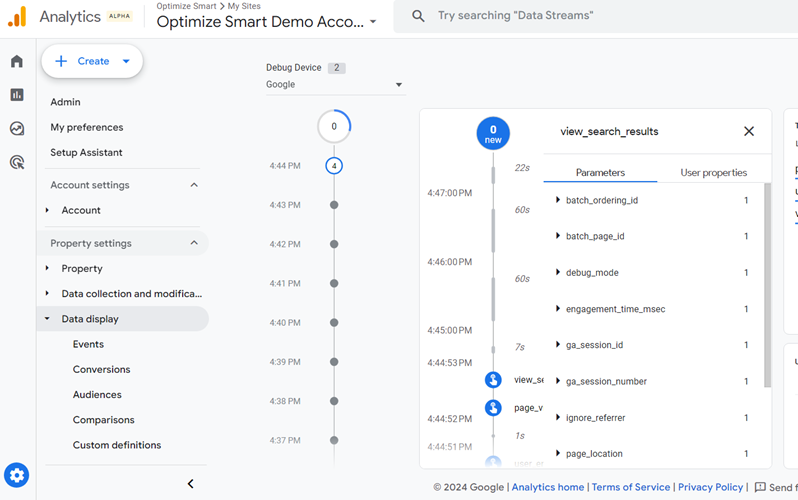
Step-7: Scroll down and then click on the event parameter ‘search_term’:
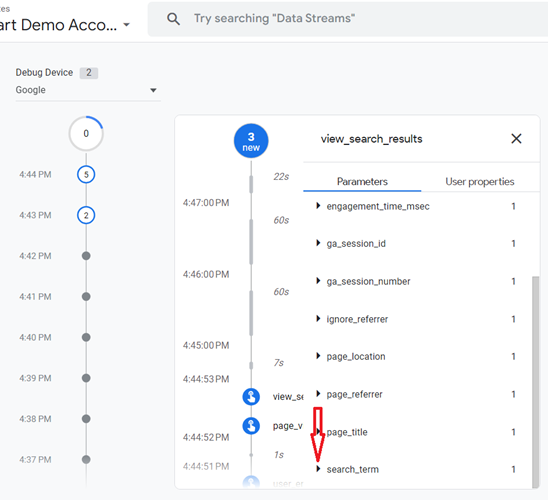
You should now be able to see the keyword you used to find information on your website (in our case, the keyword is ‘utm parameters’):
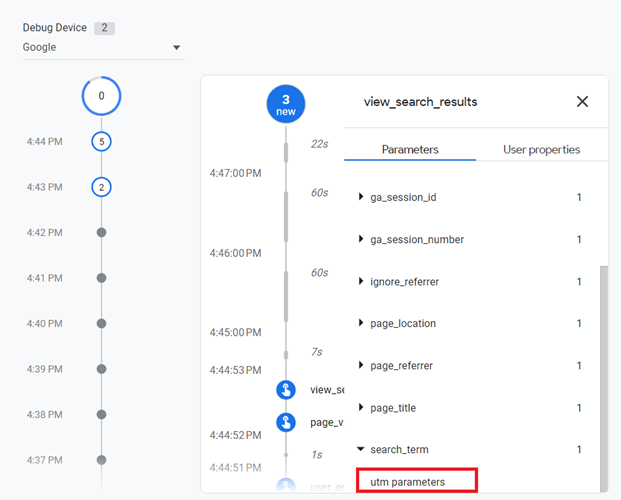
Since you can see the ‘view_search_results’ event and its corresponding parameter, it means the site search tracking is working correctly on your website.
Where can I see the data related to site search terms in GA4?
Once you have set up site search tracking in GA4 and tested it, you can create a site search tracking report in GA4.
There are two ways you can see the data related to site search terms in GA4:
#1 Through the ‘Events’ report.
#2 By creating an exploration report (recommended).
Finding site search terms data through the ‘Events’ report
Follow the steps below:
Step-1: Once you have set up site search tracking, wait for at least 24 hours before you go to find site search terms data in your GA4 property.
Step-2: Navigate to Reports > Engagement > Events.
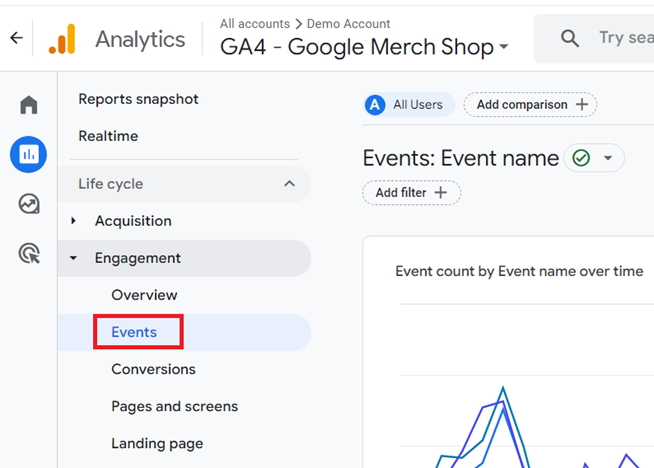
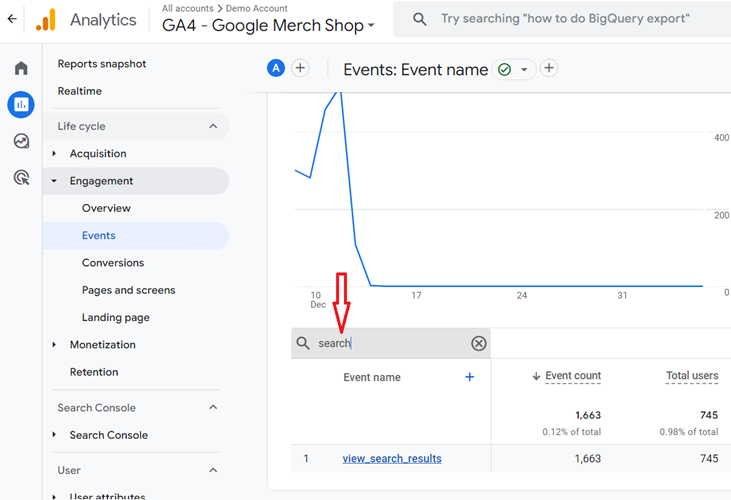
Step-3: Type ‘search’ in the search box and then press the enter key:
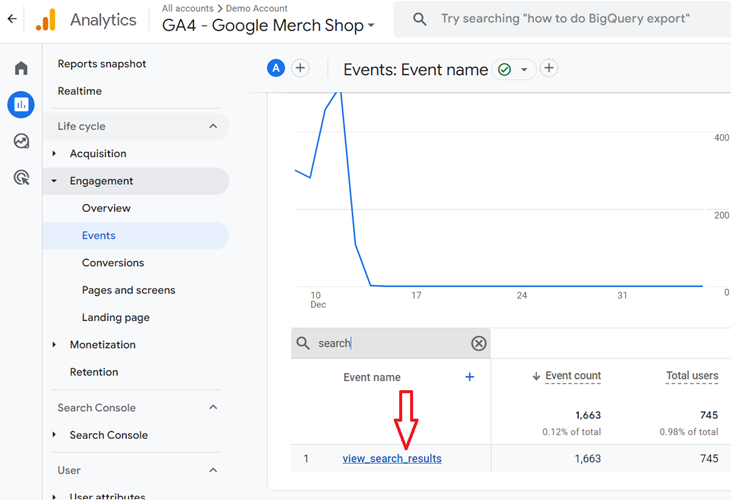
Step-4: Click on the event name ‘view_search_results’:
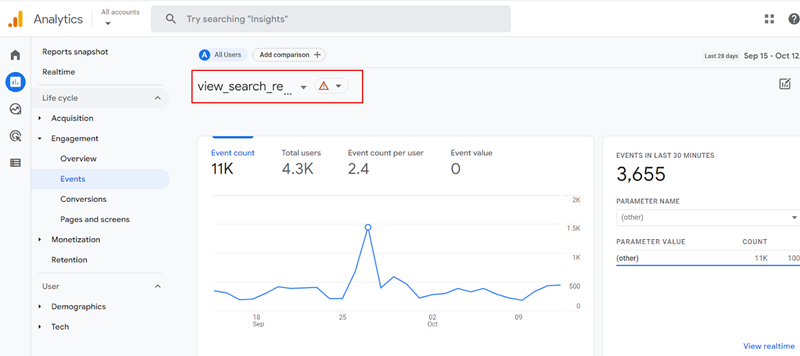
You should now see the report for the event ‘view_search_results’:
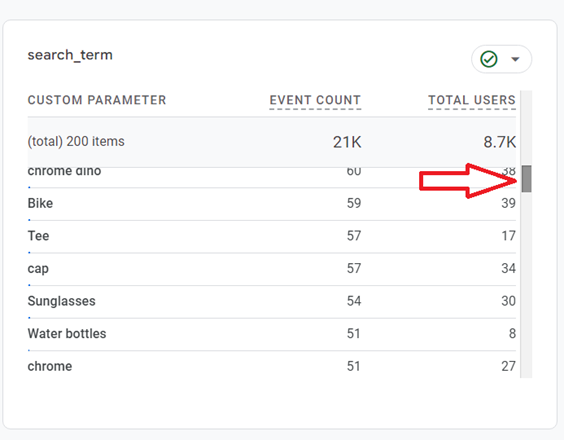
Step-5: Scroll down the report until you see the data card named ‘SEARCH_TERM’:
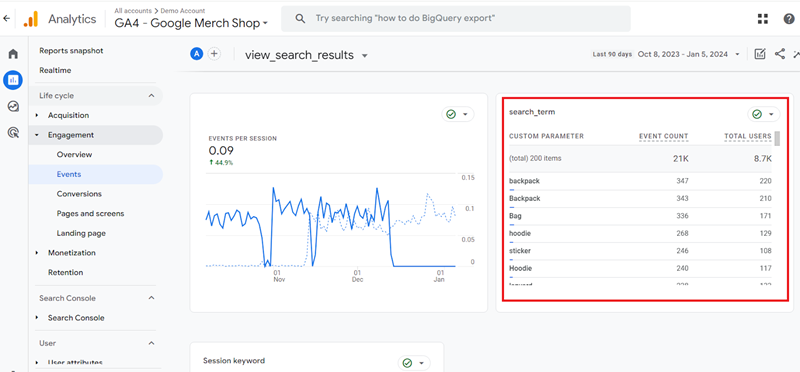
This data card reports on the search terms in decreasing order of event count.
The data card has also got a scroll bar on the right to scroll down:
Finding site search terms data via exploration report
Follow the steps below:
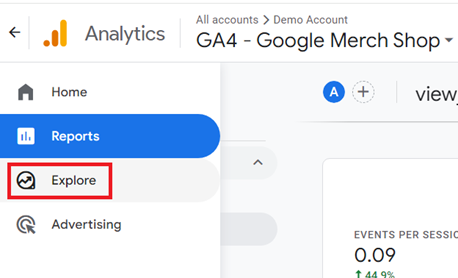
Step-1: Click on the ‘Explore’ link from the left-hand side navigation bar in your GA4 property:
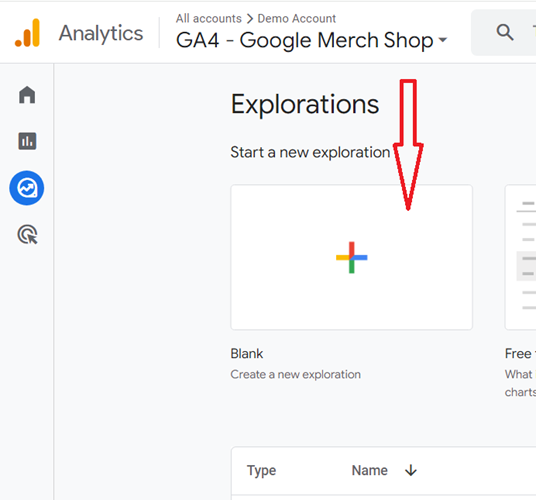
Step-2: Click on the ‘Blank’ exploration report template:
Step-3: Name your report ‘Site Search Report’:
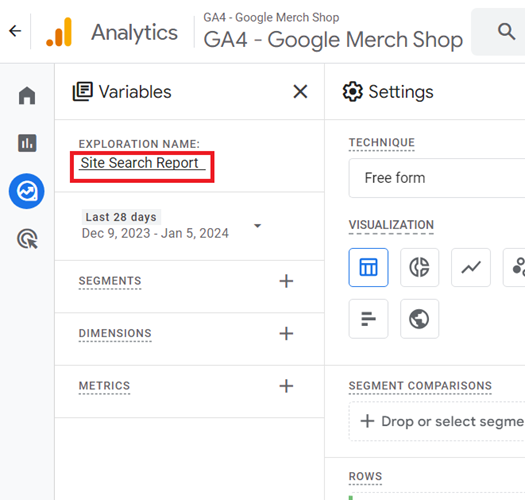
Step-4: Set the date range to the last 30 days:
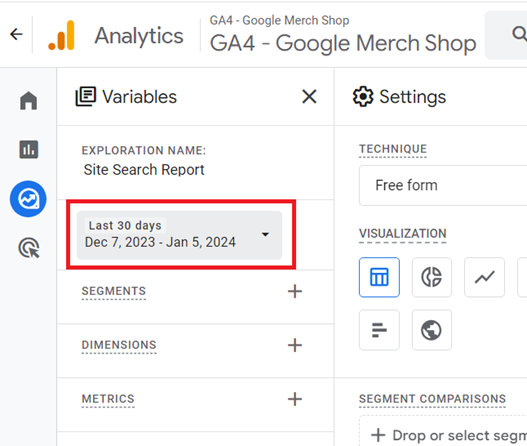
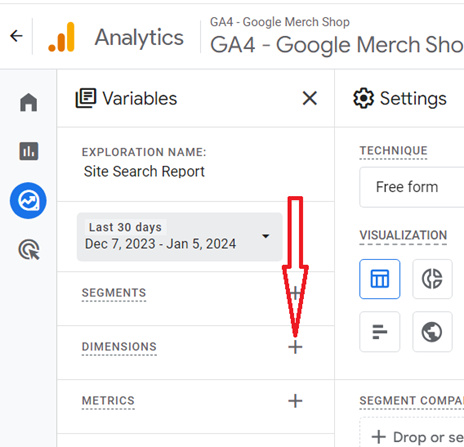
Step-5: Click on the + button next to ‘DIMENSIONS‘:
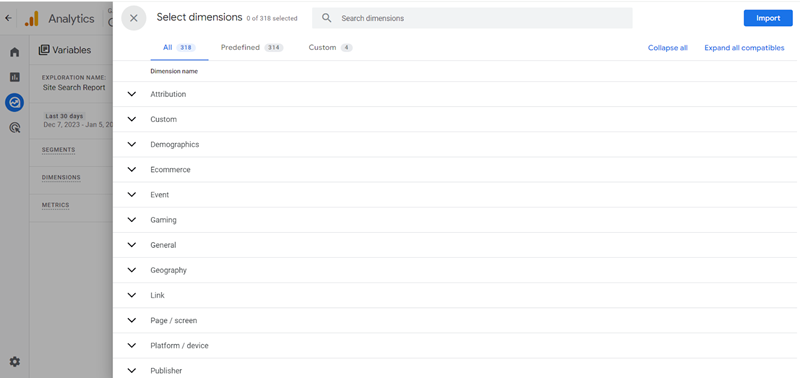
You will now see a screen like the one below:
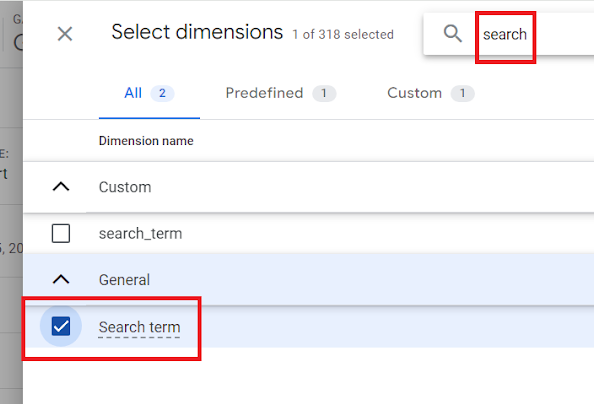
Step-6: Search for the ‘Search Term’ dimension and then click on the checkbox next to it:
Step-7: Search for the ‘Event Name’ dimension and then click on the checkbox next to it:
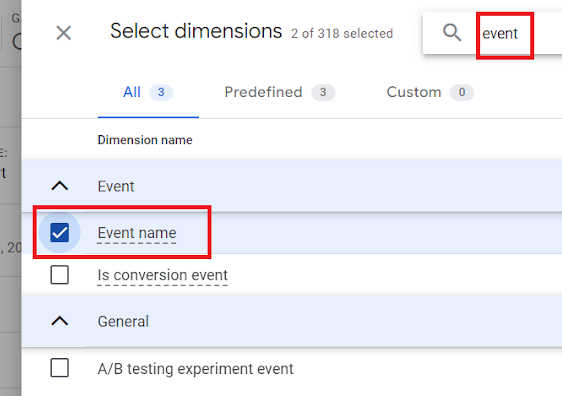
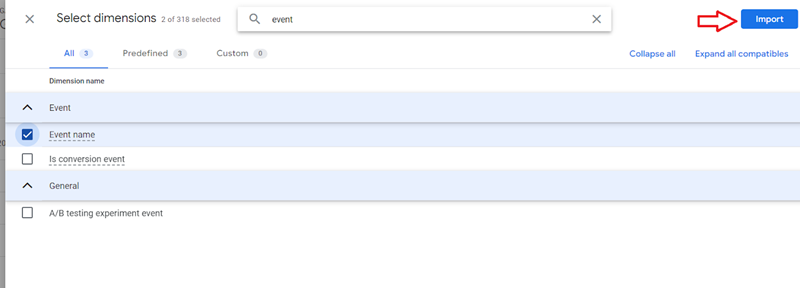
Step-8: Click on the ‘Import’ button to import all the selected dimensions to the report:
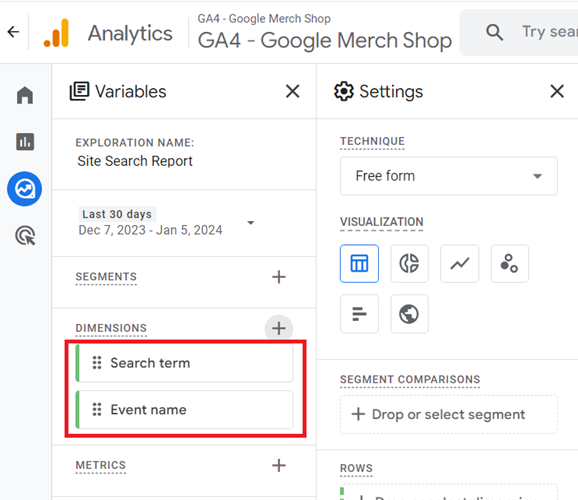
You should now see all the imported dimensions listed under the DIMENSIONS section:
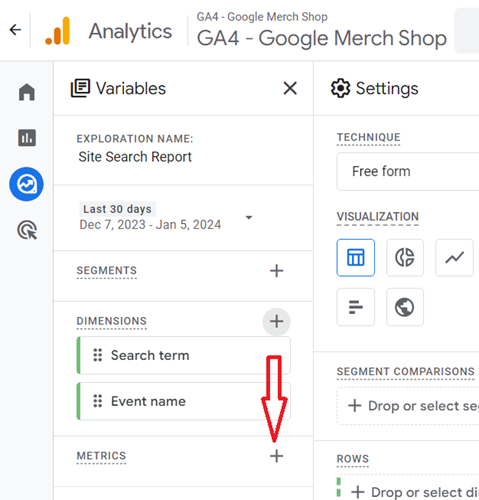
Step-9: Click on the + button next to METRICS:
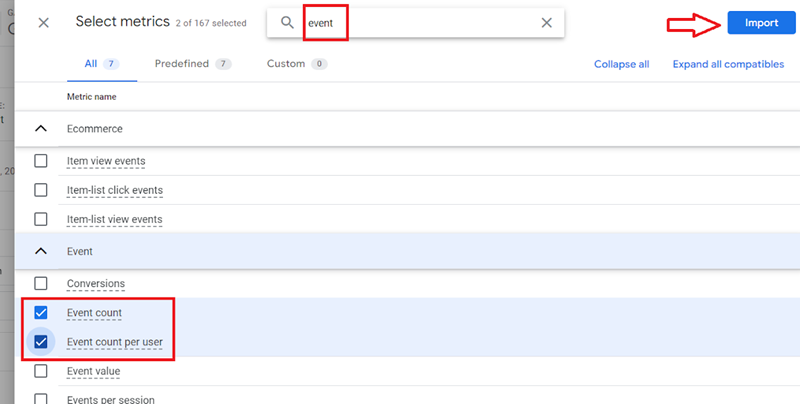
Step-10: Search and select the following metrics one by one in the exact order as mentioned below and then click on the ‘Import‘ button:
- event count
- event count per user
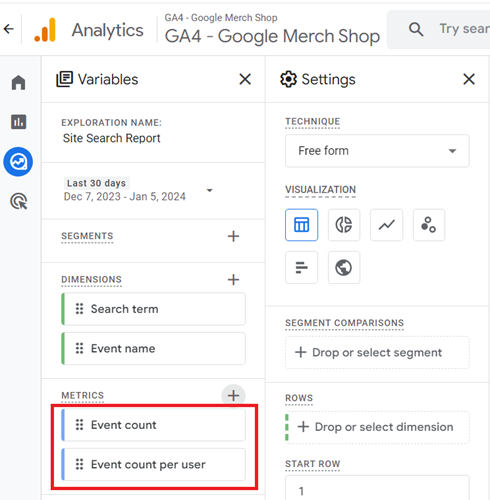
You should now see all the imported metrics listed under the METRICS section:
Step-11: Double-click on the dimension ‘Search Term’ so that it is automatically added to the Rows section:
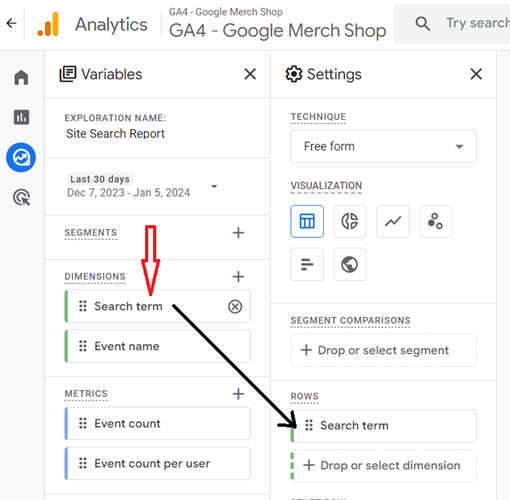
Note: When you double-click on the ‘Search Term’ dimension, you won’t see any change to the canvas on the right. But the dimension has been added to the canvas. Only when you start adding metrics to the canvas will you start seeing the dimension(s) added to the canvas.
Step-12: Double-click on the following metrics one by one, starting from the very top, so that they are automatically added to the blank canvas on the right:
- event count.
- event count per user.
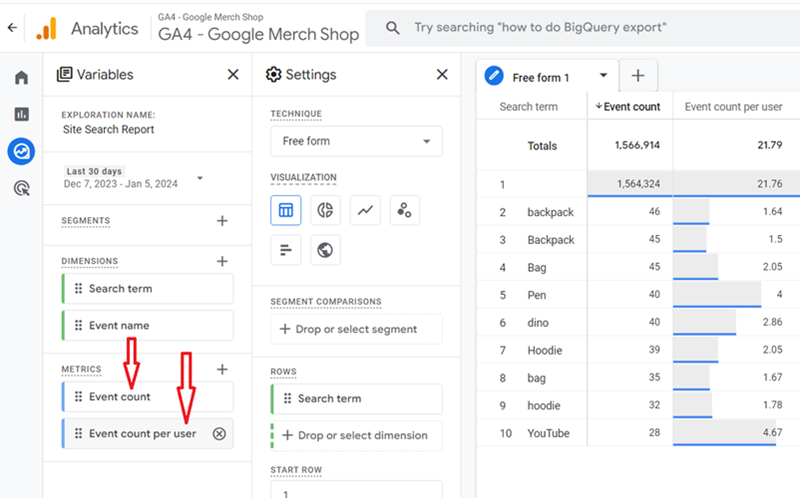
Step-13: Scroll all the way down under the ‘Settings’ column until you see the section called ‘FILTERS’:
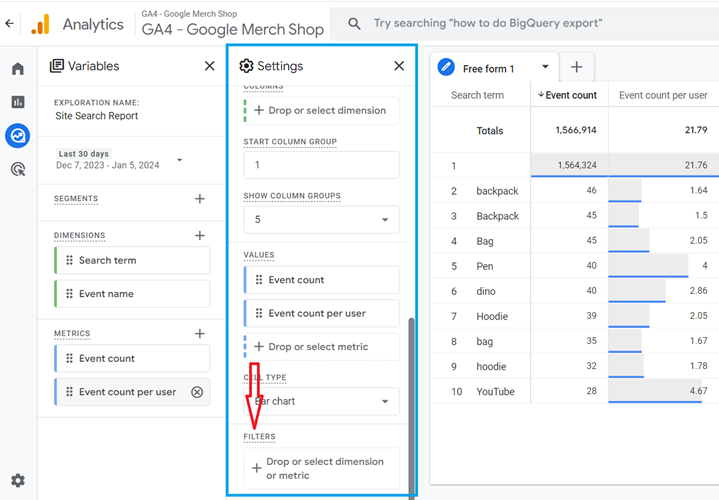
Step-14: Click on ‘Drop or select dimension or metric’:
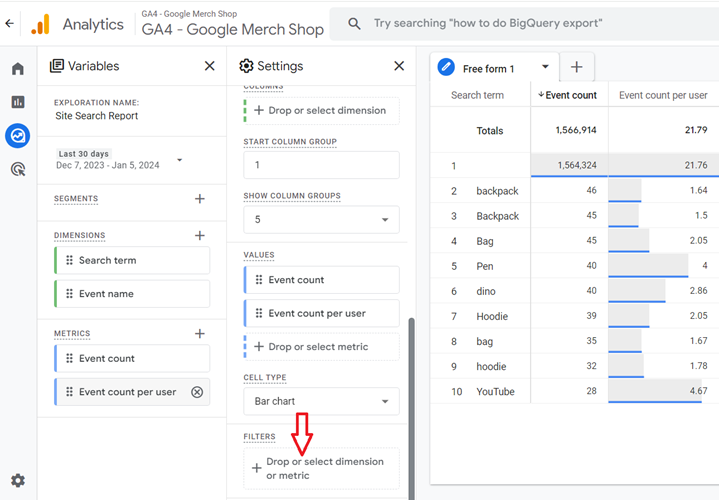
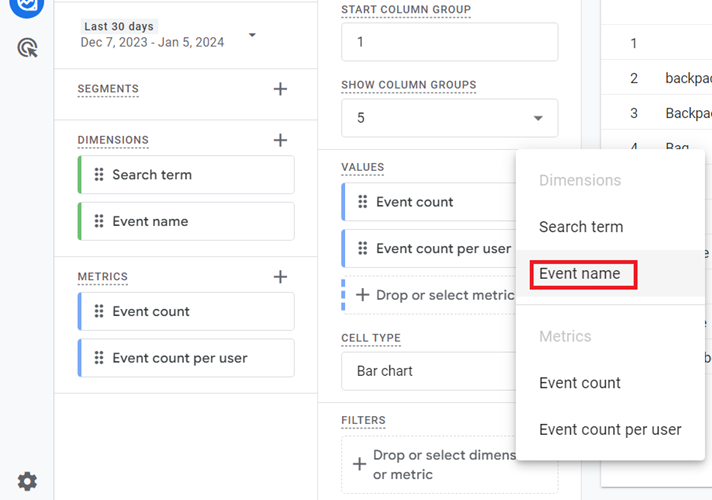
Step-15: Click on the ‘Event Name’ dimension from the drop-down menu:
Step-16: Click on the ‘Select match type’ drop-down menu:
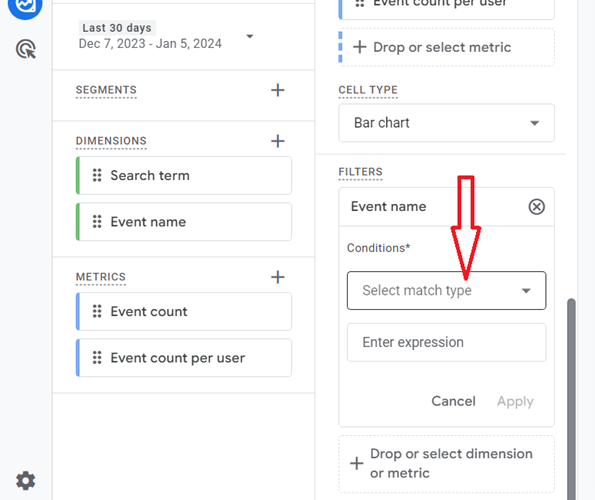
Step-17: Click on ‘exactly matches’:
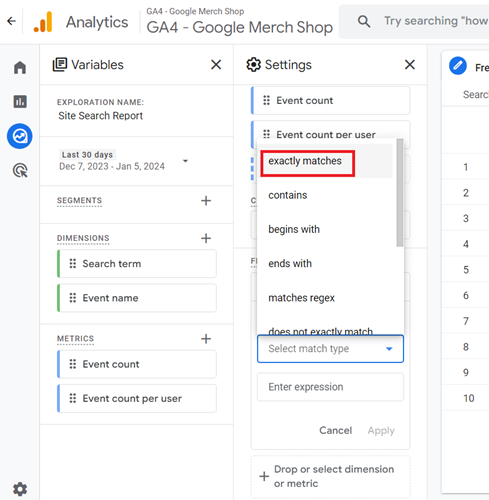
Step-18: Click on the ‘enter expression’ text box:
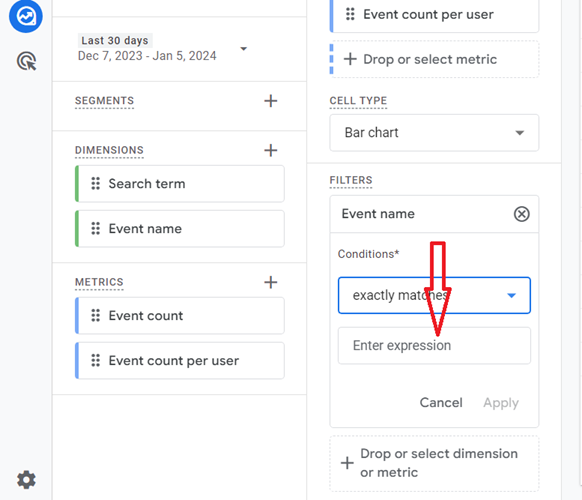
You should now see a screen like the one below:
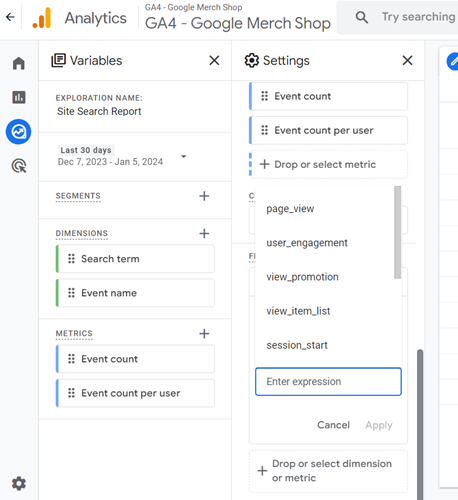
Step-19: Type ‘view_search’ in the text box and then click on the first search result:
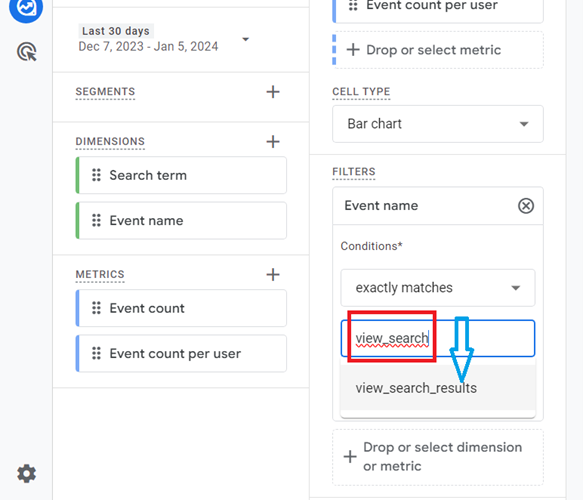
Step-20: Click on the ‘Apply’ button to apply your filter to the canvas on the right:
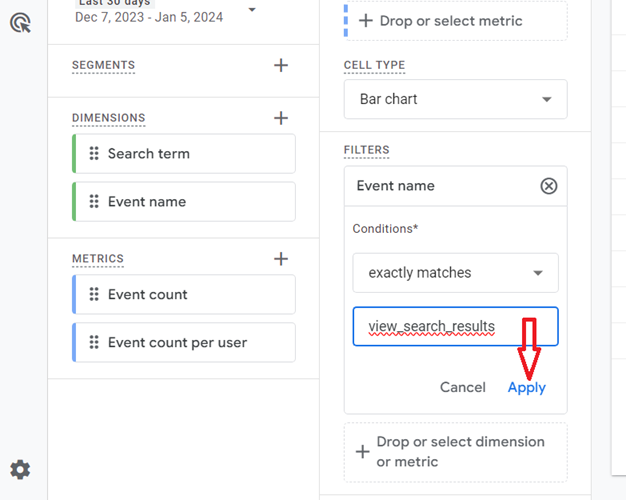
You should now see a screen like the one below:
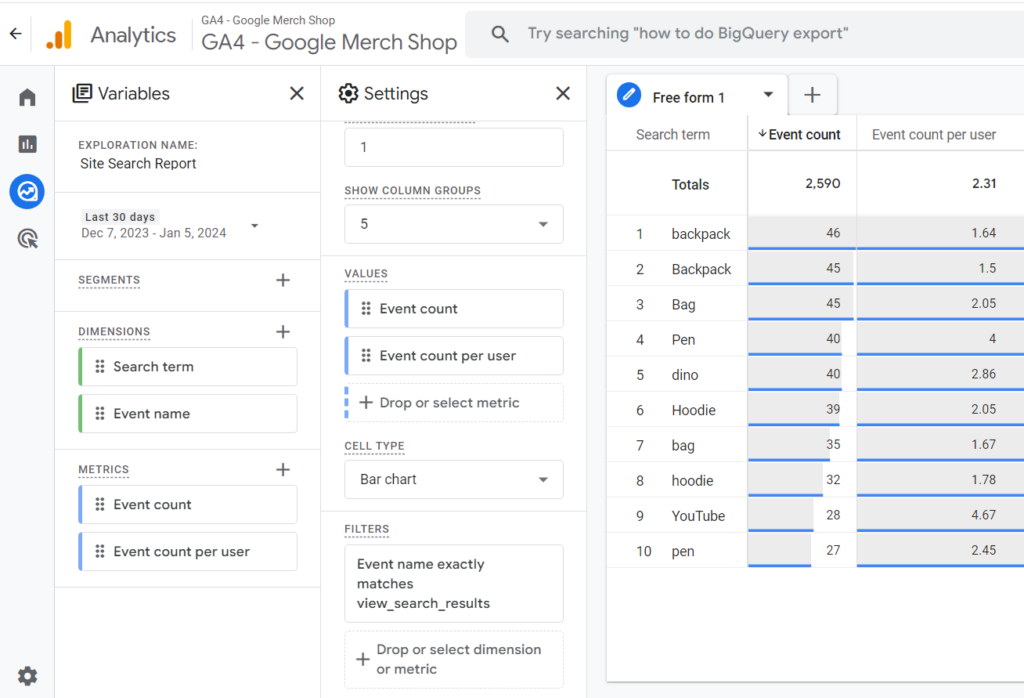
That’s how you can see the site search terms data via the exploration report.

Other Articles on GA4.
- Google Analytics 4 Channels, Source and Medium explained.
- Path exploration report in GA4 (Google Analytics 4) – Path analysis.
- How to use Microsoft Clarity with GA4 (Google Analytics 4).
- GA4 vs GA4 360 – Pricing, Limits, Billing and more.
- Setup Enhanced Conversions for Leads using Data Layer in Google Tag Manager.
- Self-referral Google Analytics 4 – Referral exclusion GA4.
- GA4 Attribution Paths (Conversion Paths) Report.
- Google Tag Manager Tutorial.
- GA4 Attribution Models Explained: How to Choose the Right One.
- Looker Studio (Google Data Studio) Tutorial.
- Google Tag Manager Data Layer Tutorial with Examples.
- Set up enhanced conversions for Web using ‘Code’ in Google Tag Manager.
- How to create Google Ads report in Google Analytics 4.
- Google Tag Manager Audit Checklist.
- Tracking Site Search in Google Analytics 4.
- How to see Organic Search Keywords in Google Analytics 4.