

In this article, I will discuss the steps that need to be considered while using the Google Tag Manager for your website tagging.
This checklist covers all the important steps and ensures that the implementation meets the needs of the client.
Creating a measurement plan
The first step before even implementing the Google Tag Manager snippet on your website is to create a measurement plan. This plan should cover all the activities performed by the user on your website, such as button tracking, form completion, enhanced ecommerce, implementing cross domain tracking, etc.
Make sure to document your measurement plan for future references. You should have a clear picture of every tag implemented in your Tag Manager account.
GTM container snippet placement
The GTM container snippet is a piece of JavaScript code that should be implemented on all the pages that you would like to track.
Let us see where to find this snippet and how to implement it.
Step-1: Login to your Google Tag Manager account.
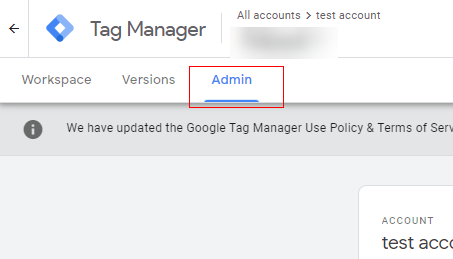
Step-2: Click on the ‘Admin’ section at the top.
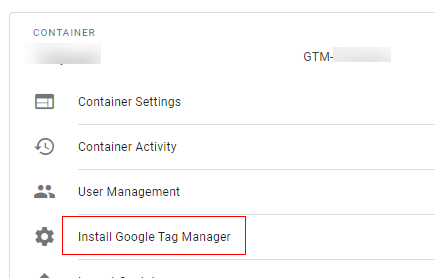
Step-3: Under ‘Container’ column, select ‘Install Google Tag Manager’.
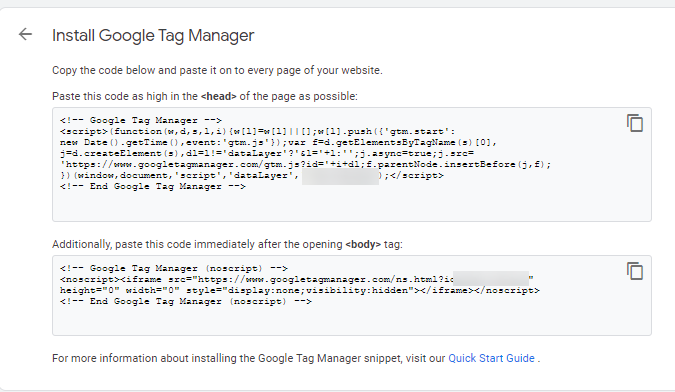
Step-4: Copy the below code and paste it to every page of your website. This code should be placed in the head section of the page and the second part should be right after the body tag.
Check if all the pages have the GTM container snippet
Make sure that you have added the GTM container snippet on all the pages of your website that you would like to track.
GTM container snippet validation can be done by two methods.
- Using the Google Tag Assistant Chrome extension.
- Checking the code in the source code of the page.
Validation using Tag Assistant Chrome extension: Google Tag Assistant is the chrome extension that checks all the tags added on the page. Download this extension from the chrome web store
Follow below steps to validate if GTM snippet is loading properly on your page.
Step-1: Visit your website and now click on the ‘Enable’ icon for the extension.
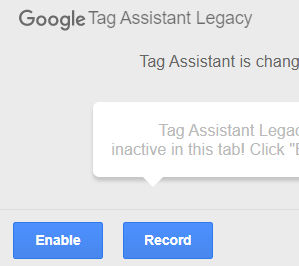
Step-2: Check for the tags loaded on the page in the Tag Assistant with status green, red or blue.
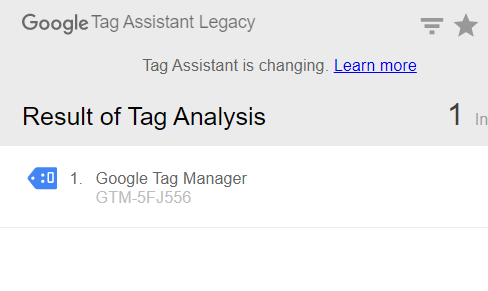
Step-3: If the status is green or blue it means that the GTM is installed properly on the page as shown above.
Validation using source code of the page:
Step-1: Visit your website in the Chrome browser.
Step-2: Right click anywhere on the page and select ‘view page source’ or use command Ctrl+U.
Step-3: You would now notice that your source code is now open in the new tab.
Step-4: Press ‘Control +F’ and search for GTM- and if your developer has installed the code, you would see it in the results. If GTM is installed correctly you will see two instances, one in the head tag and one in the body tag.
Naming convention for your tags and triggers
While creating tags and triggers in your GTM make sure that you have named the tags and triggers uniquely so that it will be easier for identifying.
The best practice is to be consistent with your tag and trigger names in GTM. For example, if you are naming GA event tags with GA-Event-Form Completion, then for every event tag follow the same format.
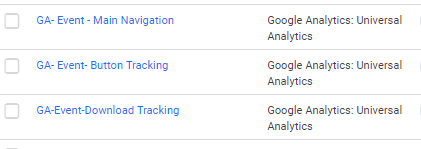
Following the proper naming convention will be easy for maintenance and helps your container to stay more organized.
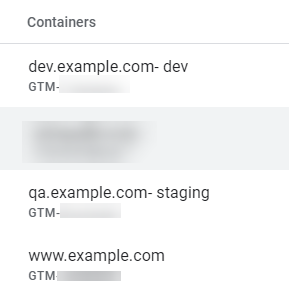
If you are using multiple containers for different environments (dev, staging and production), you can create containers based on the environment as shown below.
Additionally, if you are creating tags for different products then include the product name at the beginning of the tag name. For example, if you are creating a tag for Google Ads then you can name it as GA-Conversion-Tag. Similarly for DoubleClick you can use DC etc.
Implementation of a data layer on your website
A data layer is a JavaScript array that stores the custom information that you need and can be used in GTM tags, triggers and variables.
The data layer method is recommended and the best method for implementation. For example, let us consider that you have created a tag based on the click element or class ID on the webpage and, due to some business reason, the page has been modified and they do not have the same class Id or click element, in that case it will break your tag or implementation. However, if you have implemented a data layer this issue will be resolved.
To know more about the data layer and how to use it refer to this article: Google Tag Manger data layer explained like never before.
Use folders for organising your tags, triggers and variables
Google Tag Manager provides a folder option that helps organise your tags, triggers and variables in one place.
You can create a folder to manage all marketing tags, like DoubleClick, Facebook, Google Ads, and organise them.
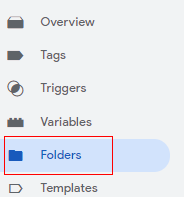
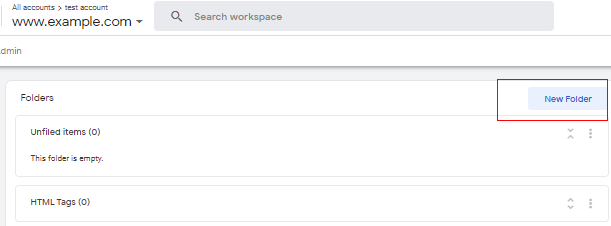
Step-1: Login to your GTM account and click on ‘Folders’.
Step-2: Click on the ‘New folder’ button as shown below:
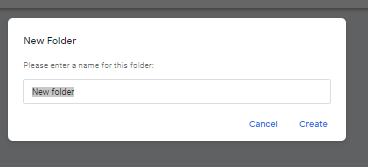
Step-3: Name your folder and click on ‘Create’.
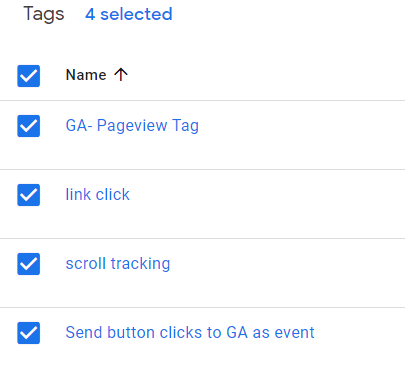
Step-4: Now navigate to your tags and select the tags that you would like to move into the folders.
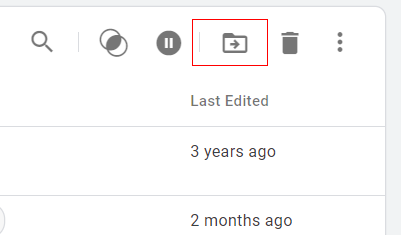
Step-5: From the top right, select the ‘Move to folder’ icon to add tags to a specific folder.
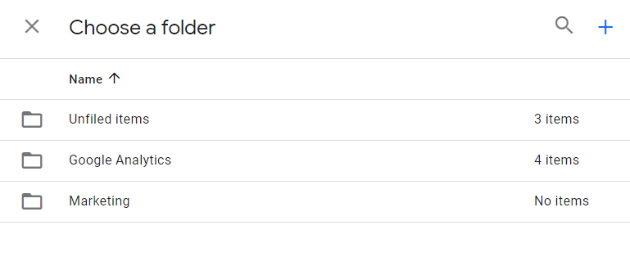
Step-6: Choose the folder to move your tags to that folder.
Consolidate all the similar tags
If you are using multiple tags for similar purposes, then you can replace them with a single tag.
For example, if you have button tracking on your website and all the buttons have a similar class on the page, instead of creating multiple tags, you can create a common tag and use it for every button.
Use Google Analytics settings variable for tags
The Google Analytics settings variable acts as a central location for all the custom settings that can be used in multiple tags.
Let’s say you have only five tags in your container then it is easy enough to enter the tracking code (UA-XXXX-X) manually and add any other settings like custom dimensions, anonymize IP and cookie settings. But if you have more tags in your GTM container then it is going to take a lot of time.
Instead of entering tracking code manually create a constant Google Analytics settings variable that can be used in all tags.
Step-1: Login to your Google Tag Manager account.
Step-2: Select the account in which you would like to create a GA settings variable.
Step-3: Select ‘Variables’ from the left-hand menu.
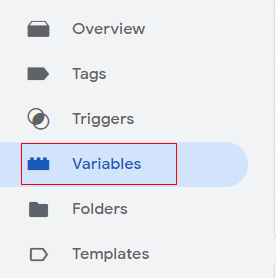
Step-4: Now, from ‘User defined variables’, click on ‘New’ to create a GA settings variable.

Step-5: Provide a name for your variable. For example, ‘Google Analytics settings variable’.
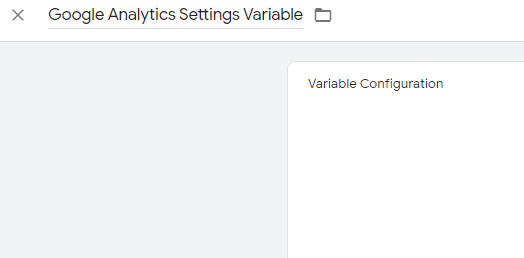
Step-6: Click on the ‘Variable configuration’ and choose the ‘Variable type’ as ‘Google Analytics settings’.
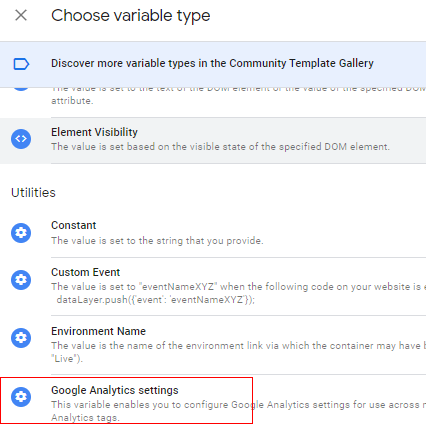
Step-7: Now, in ‘Variable configuration’ provide the tracking ID and you can set the cookie domain and other values like custom dimensions, custom metrics, etc.
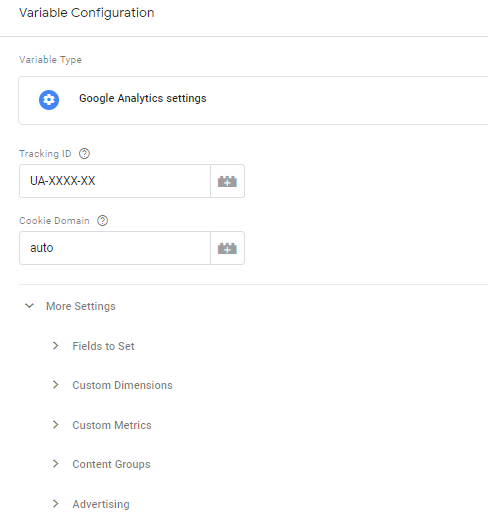
Step-8: Click on ‘Save. This variable can now be used for the tags that you create.
Use built in variables templates instead of custom templates
Instead of using the custom HTML tags in Google Tag Manager use the built-in tags to reduce code mistakes in HTML tags.
Google Tag Manager provides many built-in variables that makes it easy to use. They have multiple built-in variables for scroll tracking, video tracking, forms, clicks. etc.
For example, if you would like to track video on your website using the built-in variable, then follow the below steps.
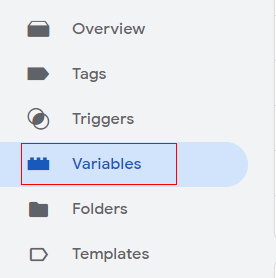
Step-1: Login to your Google Tag Manager account and select ‘Variables’ from the left-hand side.
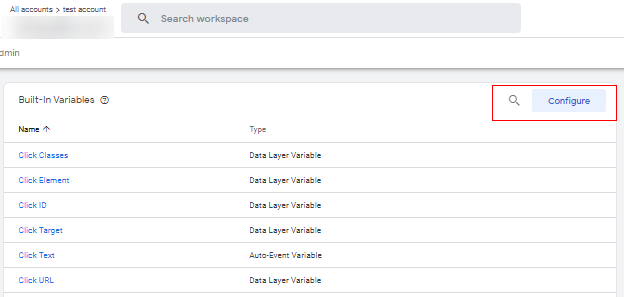
Step-2: Click on the ‘Configure variable’ button from the ‘Built-in variables’ option.
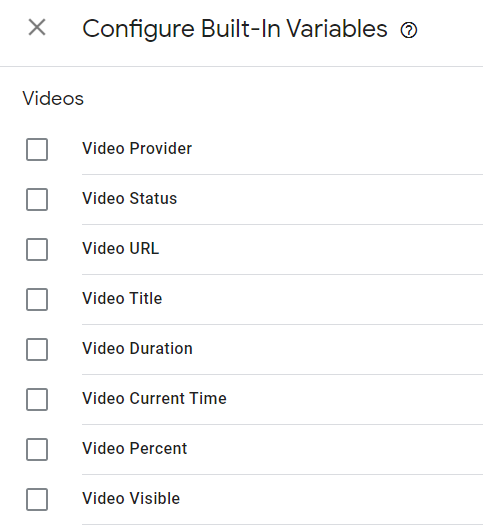
Step-3: We will enable all the video related variables for this example. However, you can enable any variables as per your tracking request.
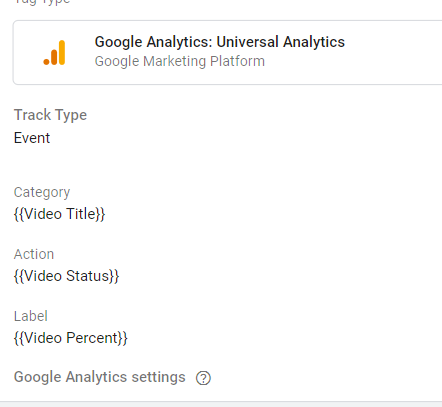
Step-4: Now you can create a new tag and use these variables for video tracking as below.
Use regular expressions instead of creating multiple triggers
Instead of creating multiple triggers in your container, try using regular expressions.
Let’s say, for example, you have a requirement to implement the Facebook trigger on your about us page, services page and contact us page, you can simply create a regular expression for this case.
Step-1: Login to your GTM account and select ‘Triggers’.
Step-2: Click on ‘New trigger’ and provide a name for your trigger.
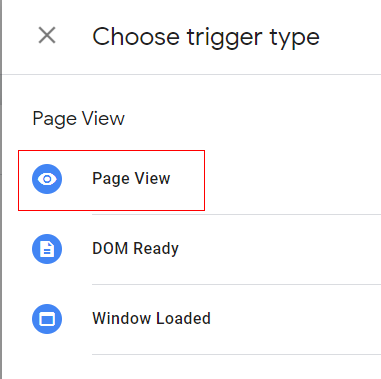
Step-3: Select the ‘Page view’ trigger type, as shown below.
Step-4: Select the tag to fire on some pages by selecting ‘Some page views’. Set ‘Page path’ as ‘matches regex’ and enter the path name of the URLs to fire the tag.
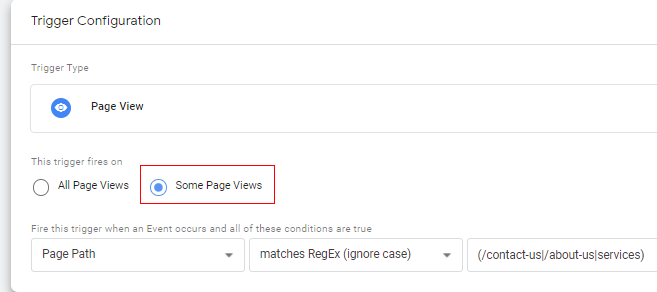
Step-5: Use this trigger in any marketing tags where you want to fire the tag on multiple pages (in this case contact us, about us and services).
Use preview option before publishing any tags on your website
Before publishing any tags on your website, make sure that you have validated if the tags are working fine on the website.
Use the preview option to check this and validate that the custom values have been captured correctly, are the event values, and variables are populating correctly based on specific actions.
To learn more about the publishing and preview feature in GTM refer to this article: How to check if the Google Tag manager is working
Check real time reports in Google Analytics to validate implementation
After the implementation setup is done in Google Tag Manager and you have created the test events (Pageview, events, form completion, button tracking), navigate to Google Analytics reporting and check if the data is been captured correctly.
Step-1: Login to your Google Analytics account.
Step-2: Click on the ‘Real time’ reports from the left-hand menu.
Step-3: If your GTM setup is fine, then you should be seeing the data for your website in real time reports.
Follow publishing guidelines in Google Tag Manager for every change
After you are done with your implementation and validation of the tags, the next step is to publish the changes to your website.
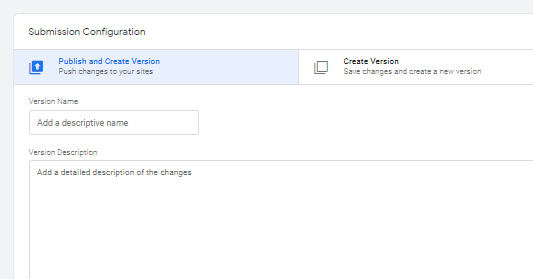
Make sure that you are adding a descriptive name for your versions, as it can be useful for future reference. For example, if you are about to publish Facebook pixel on some pages, you can describe it as ‘FB Pixel implementation on contact us page’.
Congratulations!
You have now completed the basics of GTM that apply to every website.

Other Articles on GA4.
- Google Analytics 4 Channels, Source and Medium explained.
- Path exploration report in GA4 (Google Analytics 4) – Path analysis.
- How to use Microsoft Clarity with GA4 (Google Analytics 4).
- GA4 vs GA4 360 – Pricing, Limits, Billing and more.
- Setup Enhanced Conversions for Leads using Data Layer in Google Tag Manager.
- Self-referral Google Analytics 4 – Referral exclusion GA4.
- GA4 Attribution Paths (Conversion Paths) Report.
- Google Tag Manager Tutorial.
- GA4 Attribution Models Explained: How to Choose the Right One.
- Looker Studio (Google Data Studio) Tutorial.
- Google Tag Manager Data Layer Tutorial with Examples.
- Set up enhanced conversions for Web using ‘Code’ in Google Tag Manager.
- How to create Google Ads report in Google Analytics 4.
- Google Tag Manager Audit Checklist.
- Tracking Site Search in Google Analytics 4.
- How to see Organic Search Keywords in Google Analytics 4.