

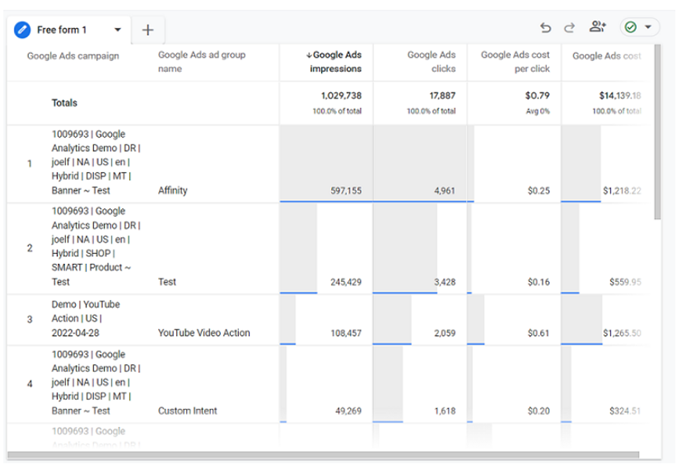
Create a report to measure the performance of Google Ads using the exploration report templates of your GA4 property.
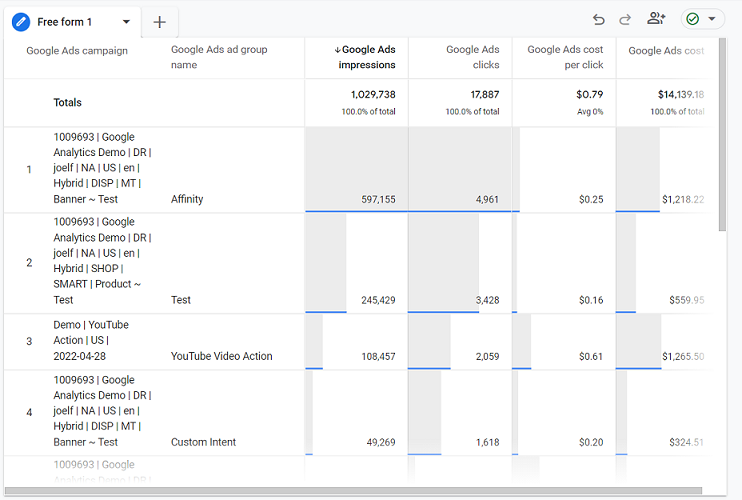
Following is a sample of such a report:
You can also navigate to Advertising > Google Ads for the standard Google Ads report.
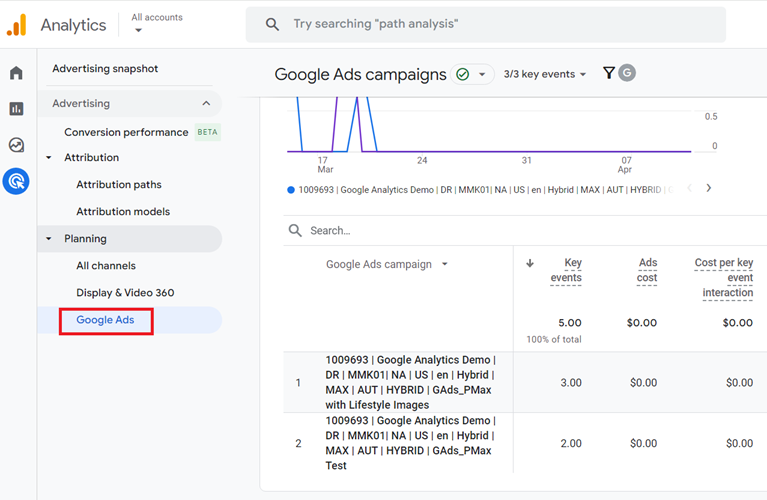
So, what’s the point of creating this report again via the exploration report template?
Standard reports often suffer from cardinality issues and do not contain the raw event and user-level data, while the exploration report provides many more customisation options.
Follow the steps below to create a Google Ads report using the exploration report template:
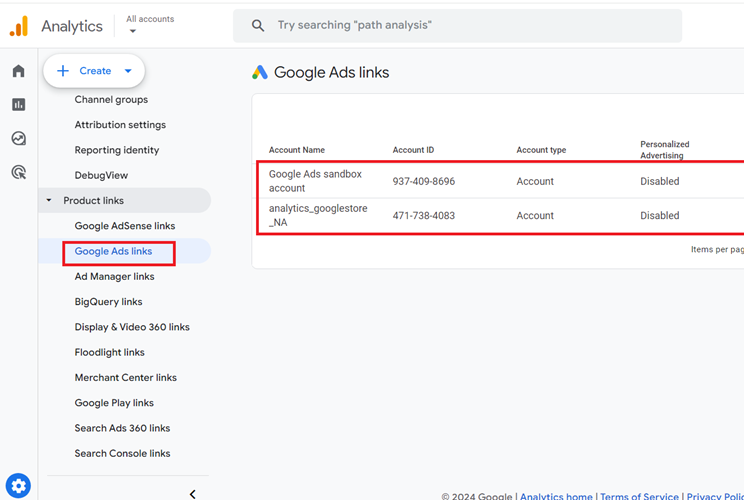
Step-1: Make sure that your Google Ads account is linked to your GA4 property. This step is required in order to get the Google Ads data in your GA4 property.
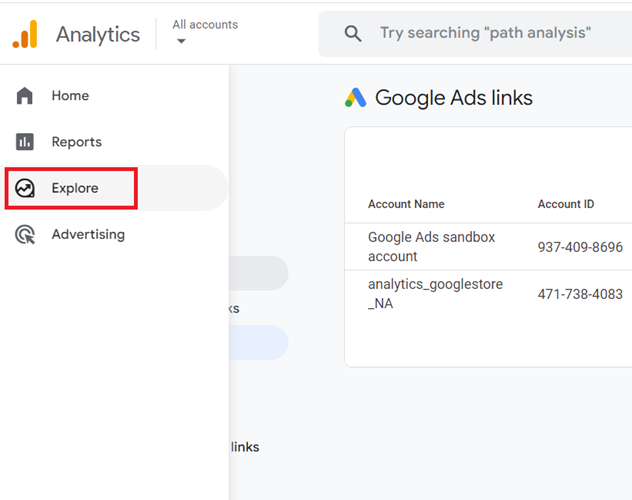
Step-2: Click on the ‘Explore‘ link in your GA4 property:
Step-3: Click on the ‘Blank‘ exploration template to create a new exploration report from scratch:
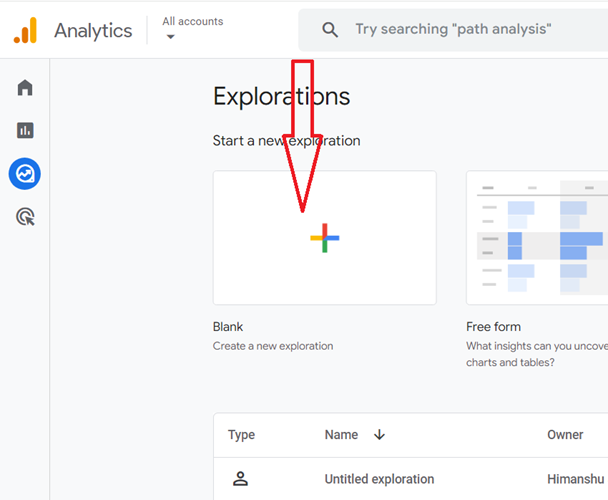
Step-4: Name your report ‘Google Ads Report‘:
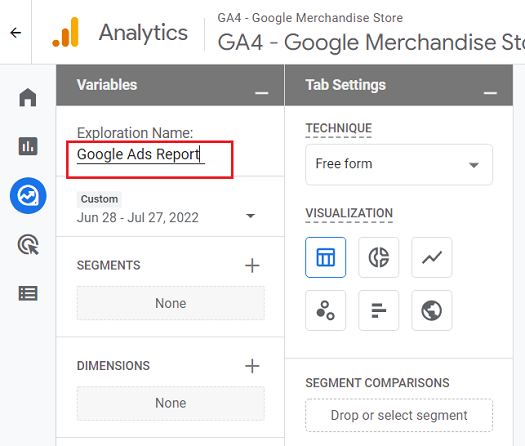
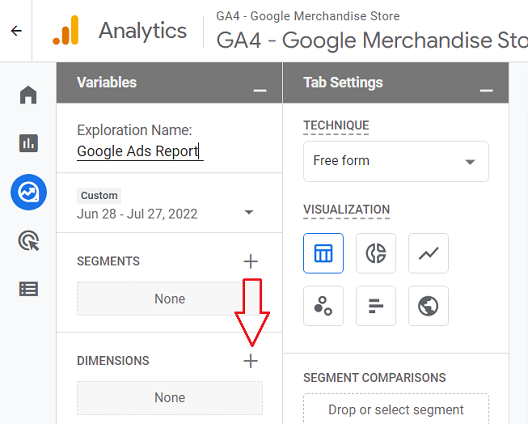
Step-5: Click on the ‘+‘ button next to ‘DIMENSIONS‘ to add new dimensions to the report:
Step-6: Type ‘google ads‘ in the search box to find all the dimensions related to ‘Google Ads’:
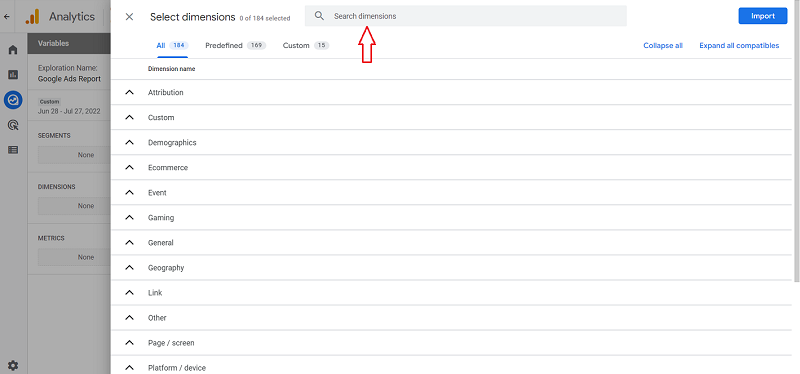
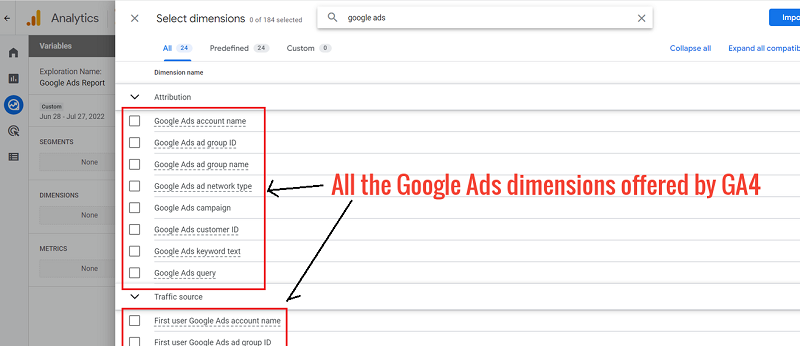
Step-7: Select the Google Ads dimensions you want to see in your report and then click on the ‘Import‘ button:
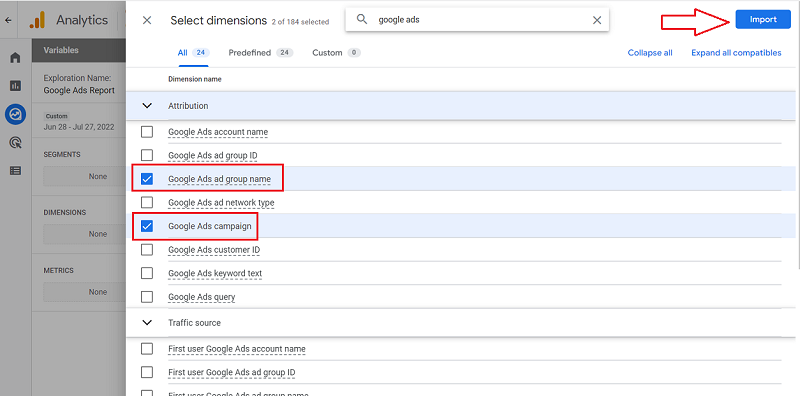
I selected the following two dimensions for import:
- Google Ads Campaign
- Google Ads ad group name
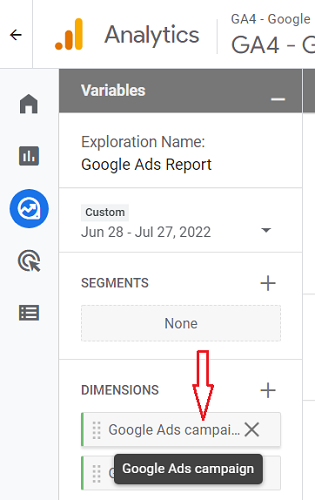
Note: Hover your mouse over a dimension name to know more about the dimension:
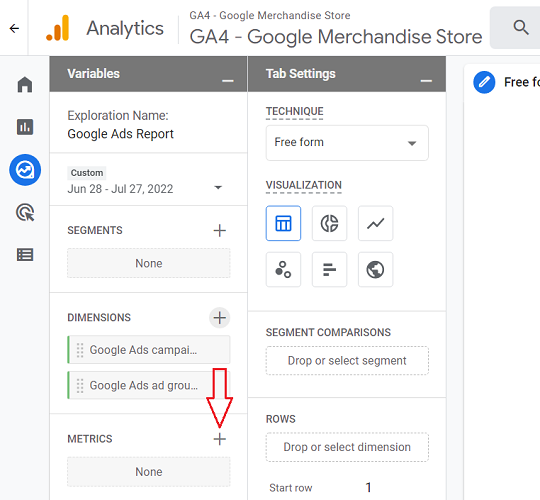
Step-8: Click on the ‘+‘ button next to ‘METRICS‘ to add new metrics to the report:
Step-9: Type ‘google ads‘ in the search box to find all the metrics related to ‘Google Ads’:
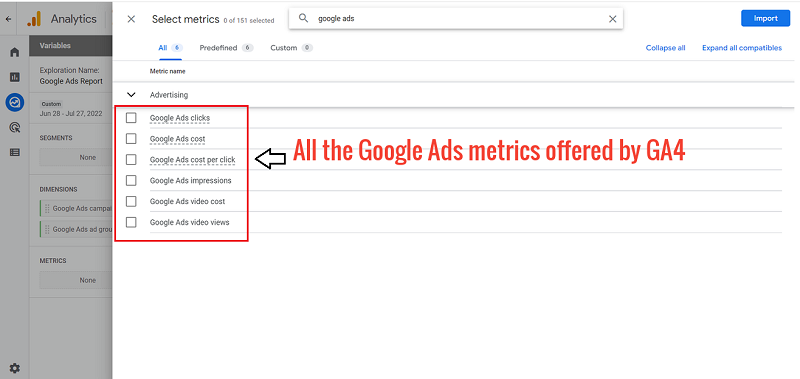
Step-10: Select the Google Ads metrics you want to see in your report and then click on the ‘Import‘ button:
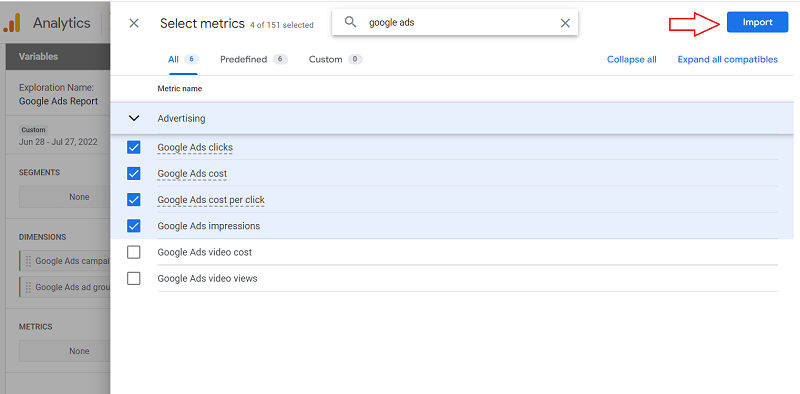
I selected the following two metrics for import:
- Google Ads Impressions
- Google Ads Clicks
- Google Ads Cost Per Click
- Google Ads Cost
Your screen should now look like the one below:
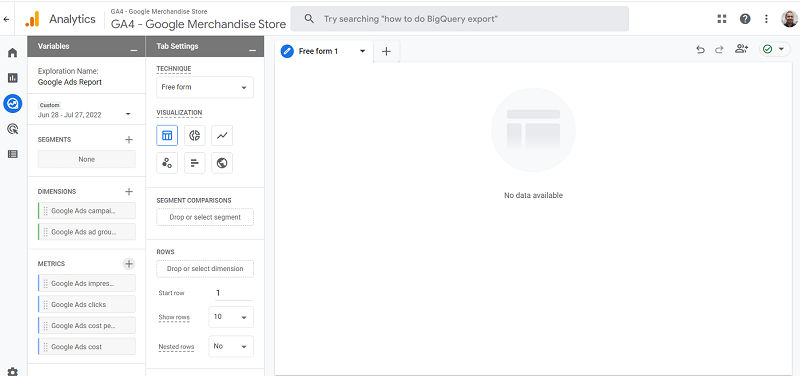
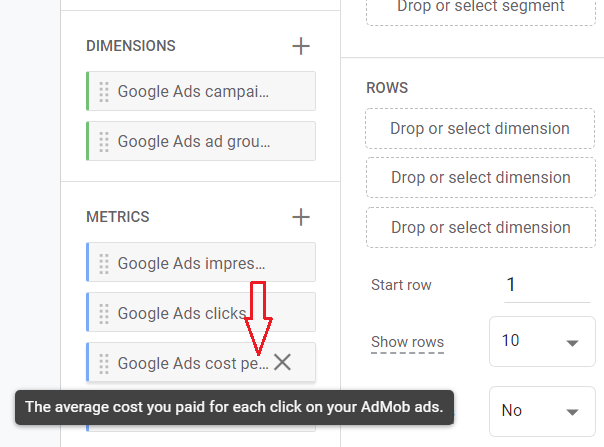
Note: Hover your mouse over a metric name to know more about the metric:
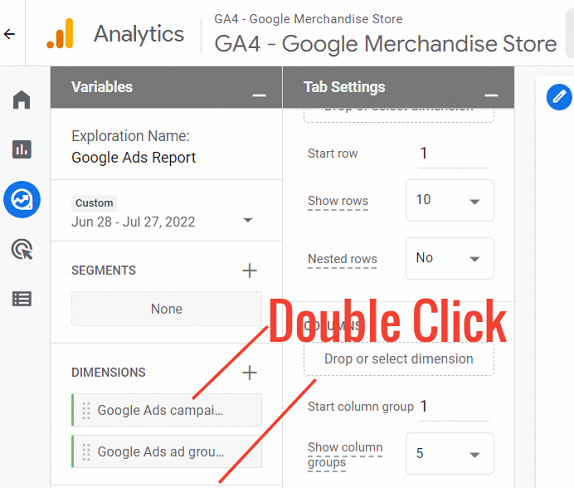
Step-11: Double click on the dimensions one by one to add them to the canvas on the right:
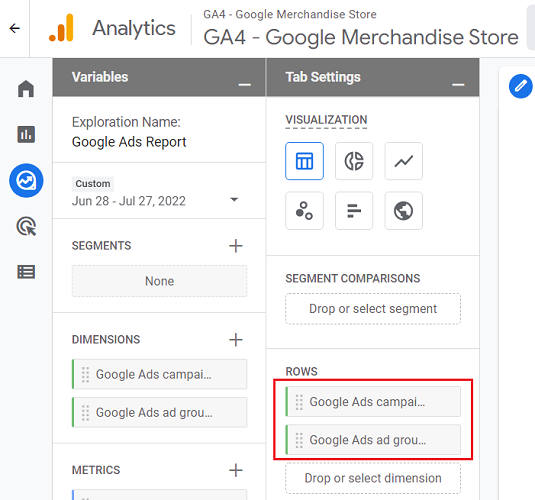
Note: When you double-click on a dimension, you won’t see any change to the canvas on the right, but you will see the dimension added under the ‘ROWS‘ column:
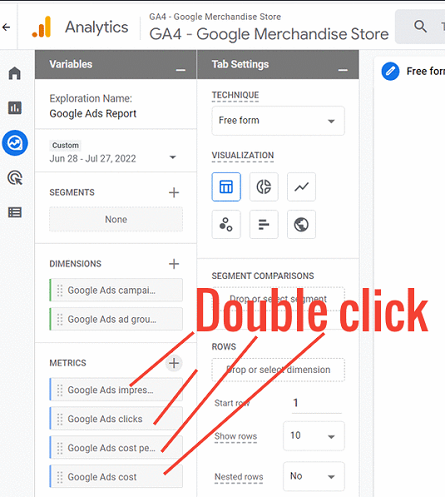
Step-12: Double click on the metrics one by one to add them to the canvas on the right:
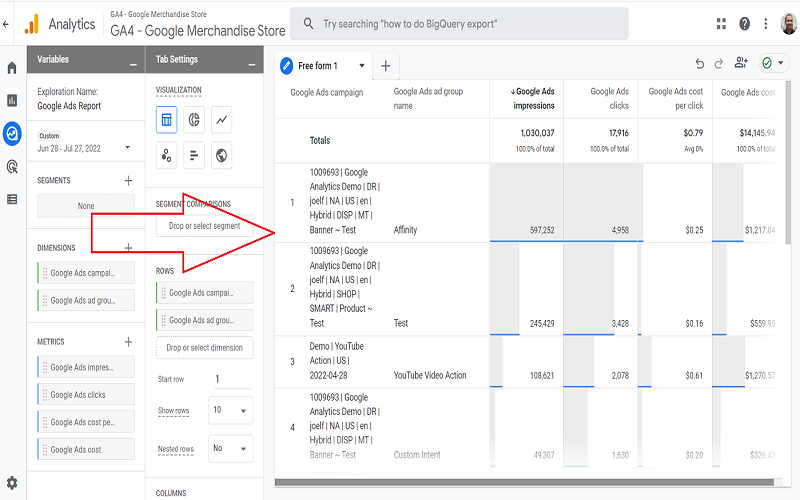
Your canvas would now look like the one below:
Congratulations!
You have successfully created a Google Ads report in GA4.

Other Articles on GA4.
- Google Analytics 4 Channels, Source and Medium explained.
- Path exploration report in GA4 (Google Analytics 4) – Path analysis.
- How to use Microsoft Clarity with GA4 (Google Analytics 4).
- GA4 vs GA4 360 – Pricing, Limits, Billing and more.
- Setup Enhanced Conversions for Leads using Data Layer in Google Tag Manager.
- Self-referral Google Analytics 4 – Referral exclusion GA4.
- GA4 Attribution Paths (Conversion Paths) Report.
- Google Tag Manager Tutorial.
- GA4 Attribution Models Explained: How to Choose the Right One.
- Looker Studio (Google Data Studio) Tutorial.
- Google Tag Manager Data Layer Tutorial with Examples.
- Set up enhanced conversions for Web using ‘Code’ in Google Tag Manager.
- How to create Google Ads report in Google Analytics 4.
- Google Tag Manager Audit Checklist.
- Tracking Site Search in Google Analytics 4.
- How to see Organic Search Keywords in Google Analytics 4.