

By default, GA4 provides fewer keyword referral data than Universal Analytics (GA3).
Unlike Universal Analytics, GA4 does not provide the ‘Organic Keywords’ report, and it also does not provide the ‘Keyword’ dimension:
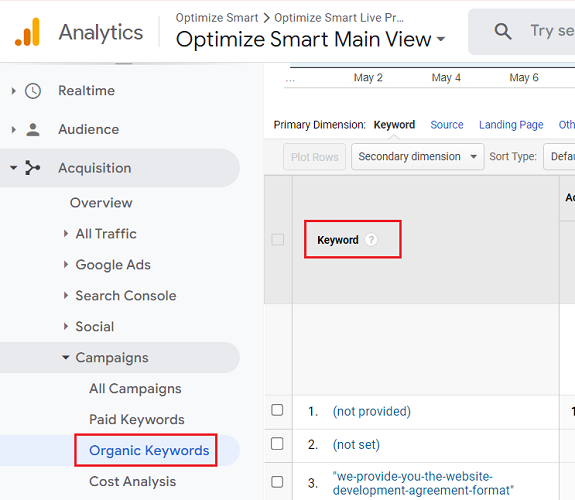
Table of Contents
- Where are (not provided) keywords in GA4?
- Types of Keywords Referral Data
- Why unlocking keyword data is important in GA4?
- Two methods to see Organic Search Keywords in GA4 (Google Analytics 4)
- Using Google Search Console to see Organic Keywords in GA4
- Using ‘Keyword Hero’ to see Organic Keywords in GA4
- GA4 Custom Dimensions and Custom Metrics for Organic Search Keywords Data.
- Advantages of using the Keyword Hero tool
- Limitations of the Keyword Hero tool
- Other methods to unlock organic search keywords
Where are (not provided) keywords in GA4?
In GA3, when Google choose not to provide keyword data to you, it reports (not provided).
Technically speaking, Google Analytics (not provided) keywords are the keywords without ‘keyword referral data’.
The keyword referral data tells you which search term was used by a person on a search engine (like Google) to visit your website.
For example, if someone visits your website by typing ‘web analytics training’ on Google, then the keyword referral data is ‘web analytics training’.
Similarly, if someone visits your website by typing ‘google analytics bounce rate’’ on Google, then the keyword referral data is ‘google analytics bounce rate’.
In GA4, when Google choose not to provide keyword data to you, it DOES NOT report (not provided). Instead, it just does not report anything.
Types of Keywords Referral Data
There are two categories of keywords referral data:
#1 Organic keywords referral data – It tells you which search term was used by a person to visit your website after he clicked on an organic search engine listing on Google.
#2 Paid keywords referral data – It tells you which search term was used by a person to visit your website after he clicked on a paid search engine listing on Google. This paid search engine listing is the PPC ads you see on Google.
Google has been hiding the ‘organic keyword referral data’ since October 2011 by encrypting its organic search data.
In the last few years, Google has also started hiding the ‘paid keyword referral data’.
In order to comply with GDPR and CCPA, Google applies an unspecified data threshold to prevent a user from inferring the identity of individual users.
This results in a lot of keyword data not being reported by Google.
Why unlocking keyword data is important in GA4?
What are people searching for to find your product?
If you have a solid answer to this question, then you are on your way to getting a high conversion rate (provided you have the right landing page) from your organic search marketing campaigns.
And if you are into organic and/or paid search marketing, you need access to tons of keyword data.
You want to know:
- Which keywords send you the most traffic?
- Which keywords are worth targeting and bidding on?
- Which keywords send the most traffic to a particular landing page?
You want to:
- Track the ranking of your keywords.
- Do keyword research.
- Correlate keywords data with website usage data and conversion data.
Two methods to see Organic Search Keywords in GA4 (Google Analytics 4)
There are two methods to see Organic Search Keywords:
Method-1: Link your Google Search Console account to your GA4 property and then publish the search console reports.
Method-2: Use a tool like ‘Keyword Hero’ to collect more keyword data in your GA4 property.
Using Google Search Console to see Organic Keywords in GA4
#1 Link your Google Search Console account to your GA4 property. For step-by-step instructions, check out this article: How to link Google Search Console to Google Analytics 4 (GA4)
#2 Once you have successfully linked your GA4 property to your Google Search Console property, then publish the search console reports.
You will not see the search console reports even after linking your search console account to your GA4 property.
This is because the search console reports in GA4 are unpublished by default. They need to be published first.
For step-by-step instructions on publishing the search console reports, check out this article: How to link Google Search Console to Google Analytics 4 (GA4)
#3 Once you have successfully published the search console reports and more than 48 hrs have elapsed, then navigate to the ‘Queries’ report under ‘Search Console’:
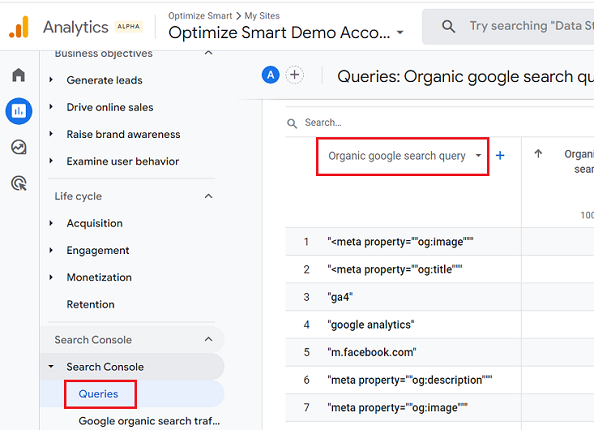
The dimension ‘Organic google search query’ lists out all the organic search keywords.
Using ‘Keyword Hero’ to see Organic Keywords in GA4
Keyword Hero is a third-party tool which pulls the search data from your Google Search Console account, uses several data sources for keywords clustering and classification and then matches it with the GA4 session data using some machine learning algorithm.
Keyword Hero provides a free 14-day trial, so there is no harm in trying it out. And it really does work.
I can now see thousands of new organic keywords in my GA4 property that were earlier not reported by Google.
As far as I know, the keywords reported by this tool in GA4 are pretty accurate.
To use Keyword Hero, follow the steps below:
Step-1: Make sure you have got an active Google Search Console account with at least one month of historical data.
Step-2: Link your Google Search Console account to your GA4 property.
Step-3: Login to your Google Analytics account.
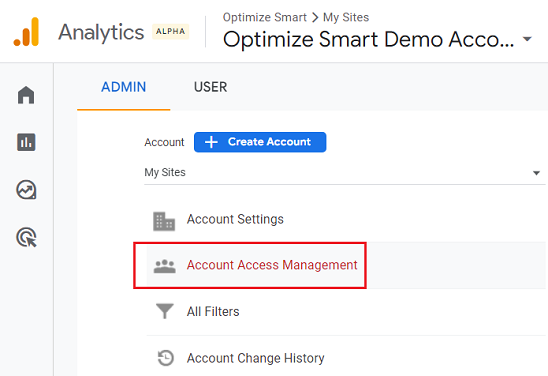
Step-4: Get ‘Editor’ permission at the account level so that later you can add a new GA4 property to your Google Analytics account:
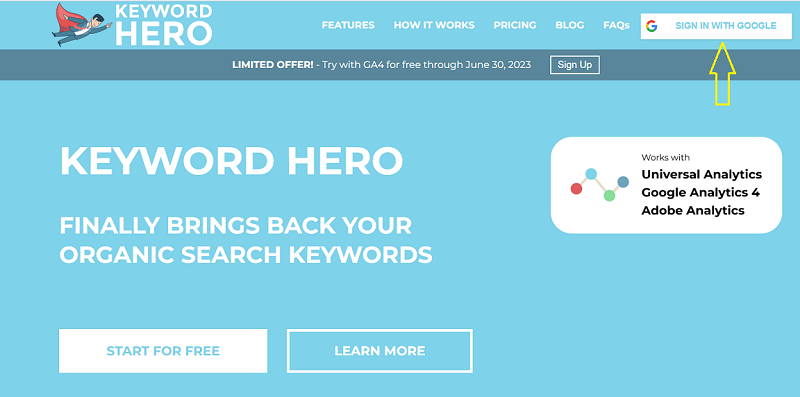
Step-5: Navigate to https://keyword-hero.com/
Step-6: Click on the ‘SIGN IN WITH GOOGLE’ button:
Once you have signed in with your Google Login and provided the required permission to Keyword Hero, you should see a screen like the one below:
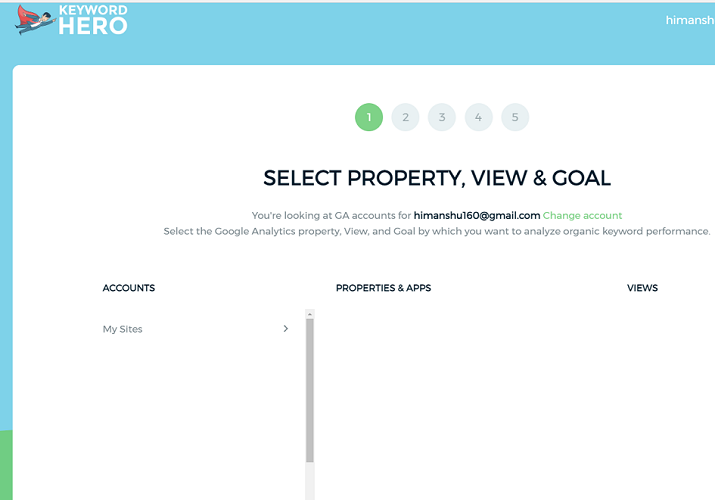
Step-7: Click on your Google Analytics account:
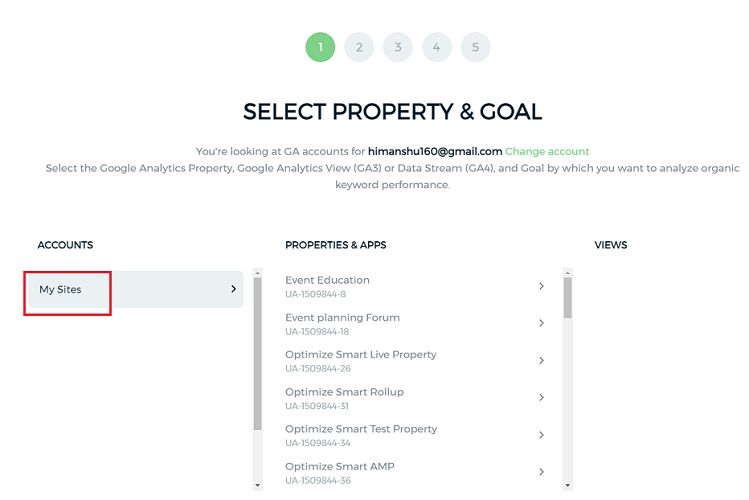
Step-8: Click on your GA4 property:
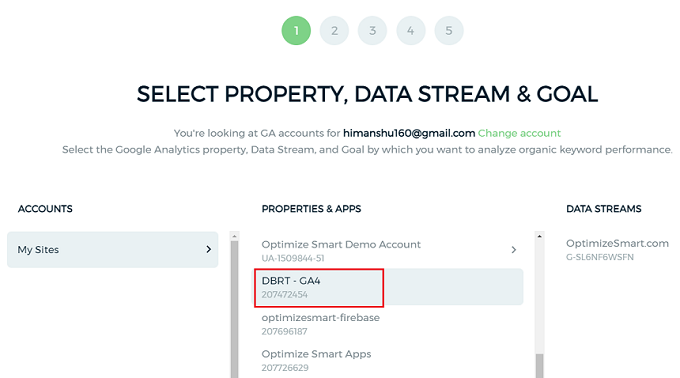
Step-9: Click on your data stream:
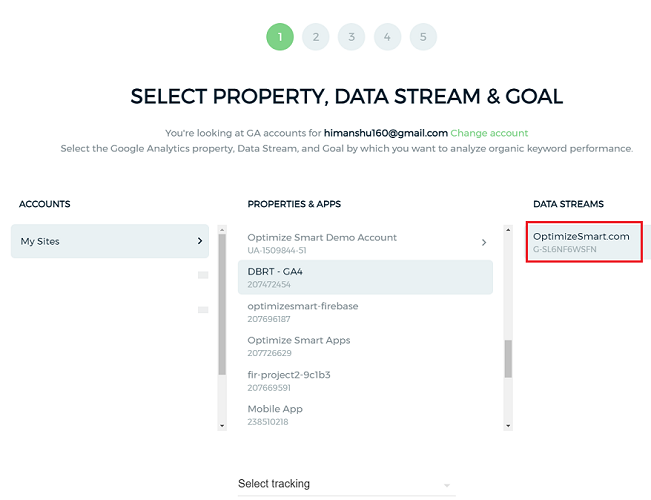
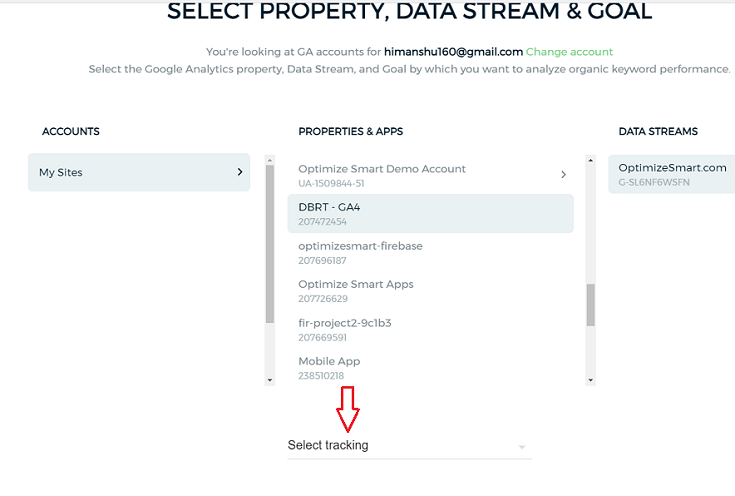
Step-10: Scroll down and then click on the ‘Select tracking’ drop-down menu:
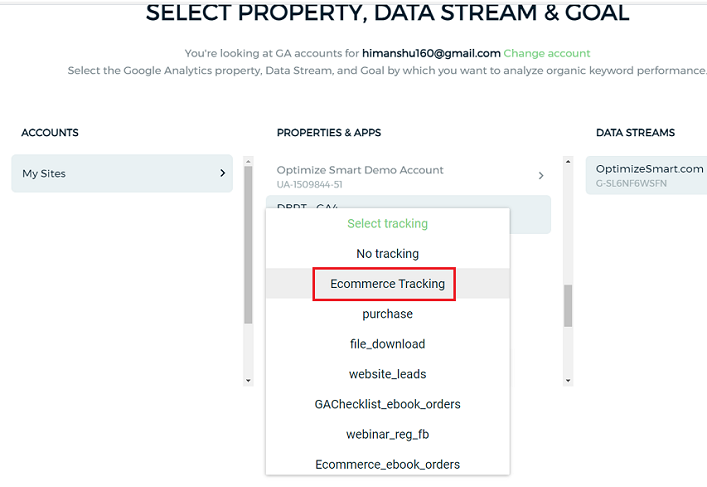
Step-11: Select ‘Ecommerce Tracking’ from the drop-down menu:
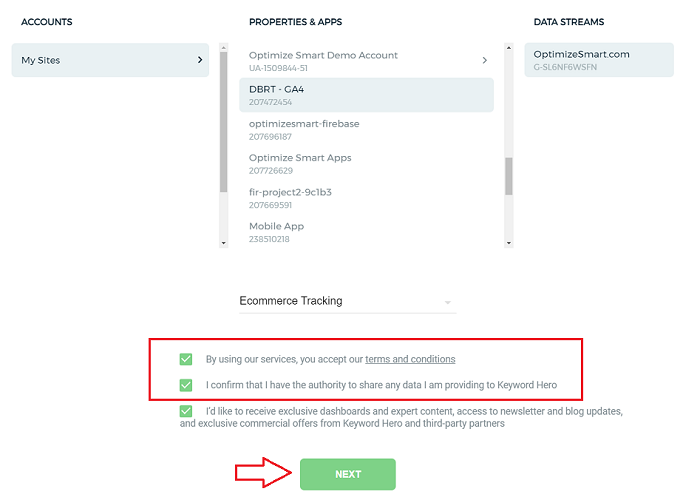
Step-12: Scroll down further, select the two checkboxes below and then click on the ‘NEXT’ button:
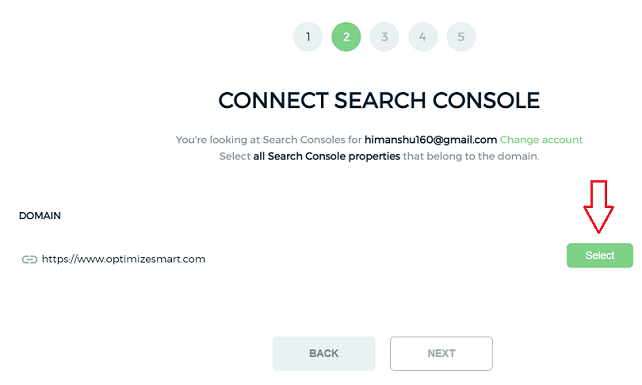
Step-13: Select the search console property that belongs to your website by clicking on the ‘Select’ button next to it:
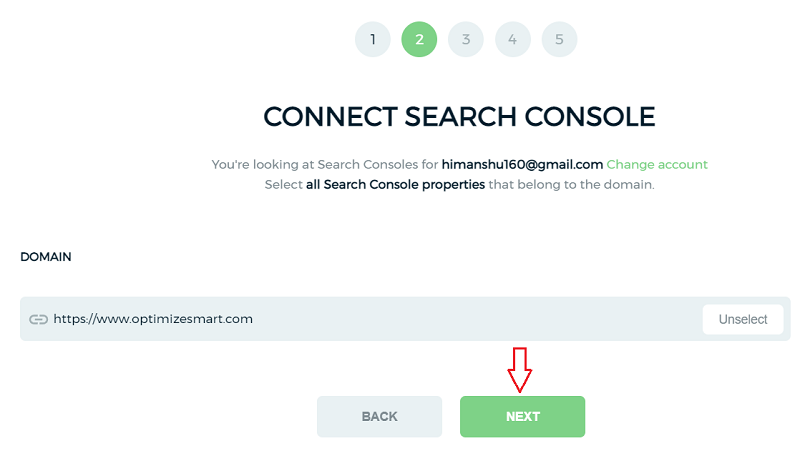
Step-14: Click on the ‘NEXT’ button:
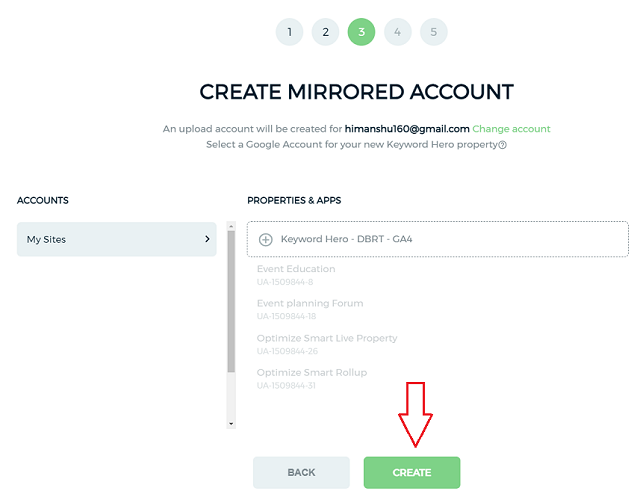
Step-15: Click on the ‘Create’ button:
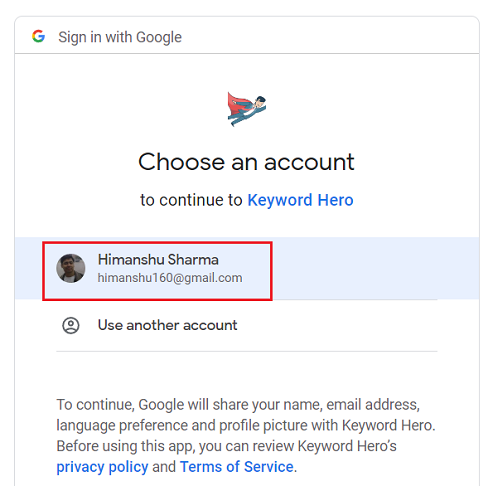
Step-16: Select your Google Account to continue to Keyword Hero:
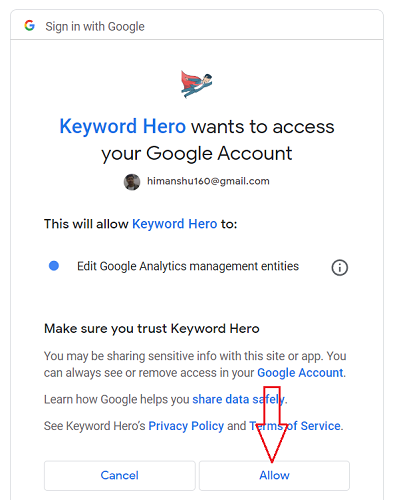
Step-17: Click on the ‘Allow’ button:
Keyword hero will now create a new GA4 property for you in the background.
Step-18: Choose your Keyword Hero plan and then click on the ‘TRY FOR FREE’ button to activate your 14 days free trial:
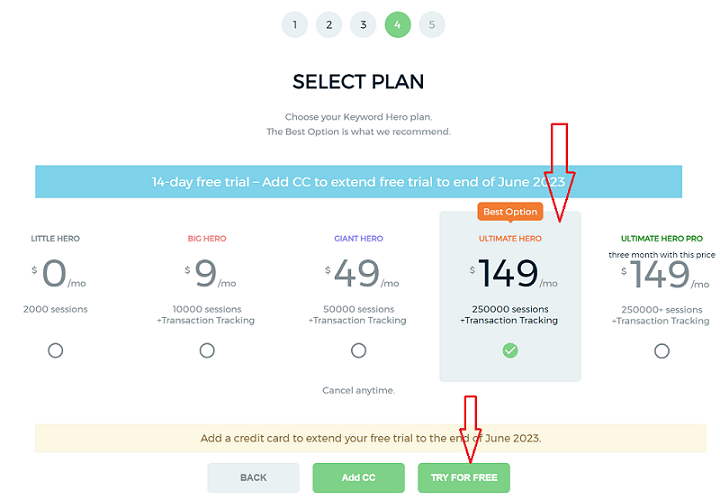
Select a Keyword Hero plan based on the organic search traffic your website gets each month.
If your website gets less than 2000 organic sessions a month, then choose the ‘Little Hero’ plan, which is free to use.
If your website gets up to 10,000 organic sessions a month, then choose the ‘Big Hero’ plan, which costs $9/month after the free trial ends.
If your website gets more than 10,000 but less than 50,000 organic sessions a month, then choose the ‘Giant Hero’ plan, which costs $49/month after the free trial ends.
If your website gets more than 50,000 but less than 250,000 organic sessions a month, then choose the ‘Ultimate Hero’ plan, which costs $149/month after the free trial ends.
Note: The Transaction tracking (aka ecommerce tracking) is only available for paid plans.
You should now see a screen like the one below:
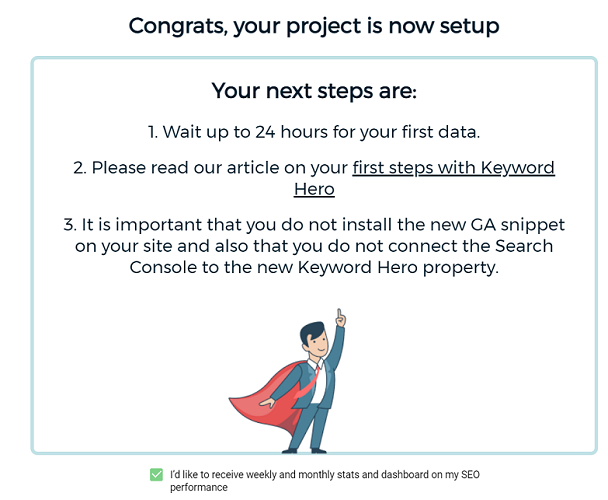
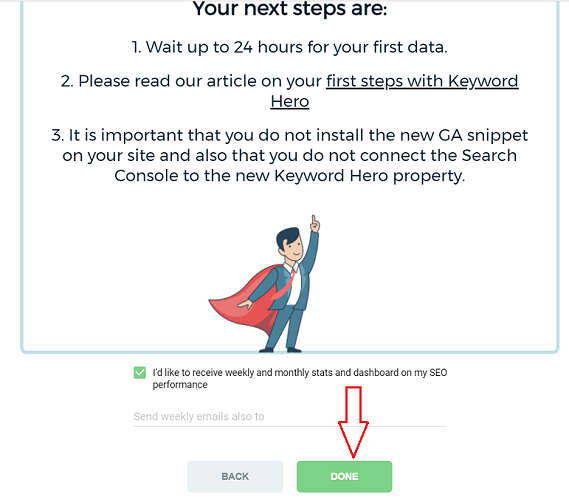
Step-19: Scroll down the screen and then click on the ‘Done’ button:
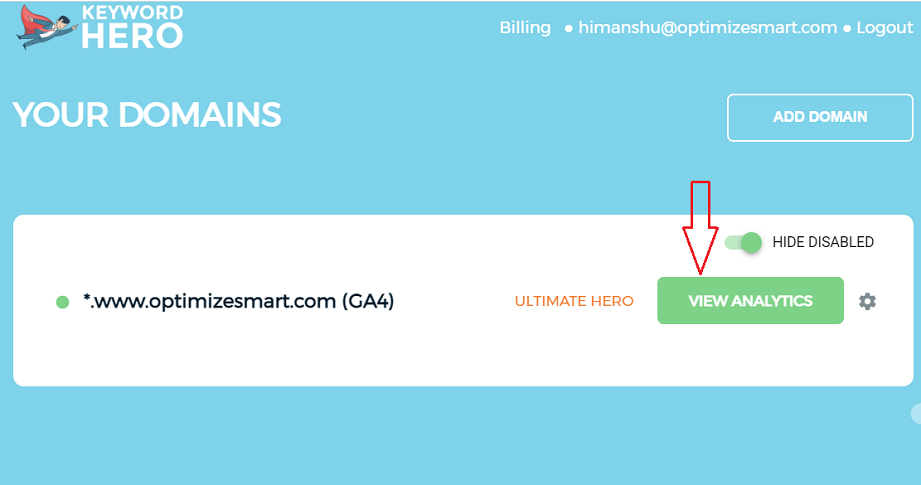
Step-20: Once 24 to 48 hrs have elapsed, navigate to https://app.keyword-hero.com/profile and then click on the ‘View Analytics’ button:
You will now be automatically redirected to the ‘Traffic Acquisition’ report of the new Keyword Hero GA4 property:
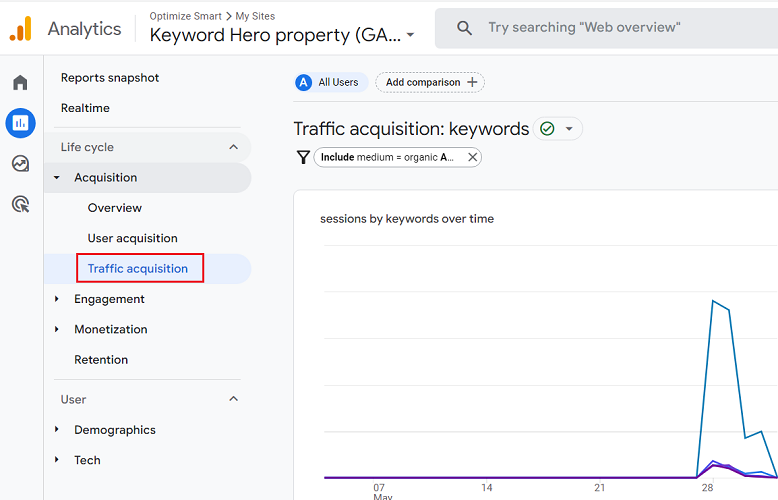
Step-21: Scroll down the ‘Traffic Acquisition’ report to see organic search keywords:
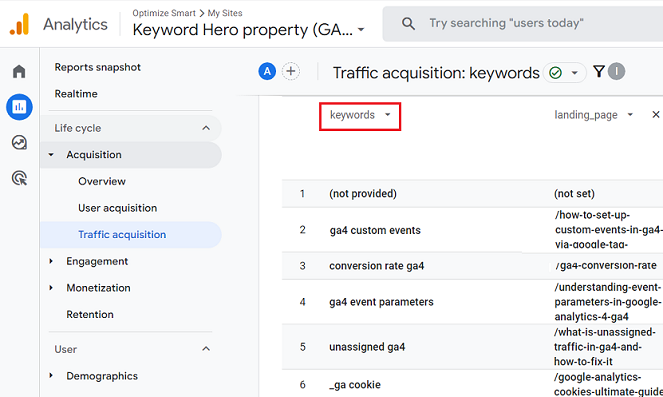
Here ‘, Keywords’ is a new custom dimension which was automatically created by ‘Keyword Hero’.
GA4 Custom Dimensions and Custom Metrics for Organic Search Keywords Data.
When ‘Keyword Hero’ creates a new GA4 property, it also automatically creates a new set of custom dimensions and metrics.
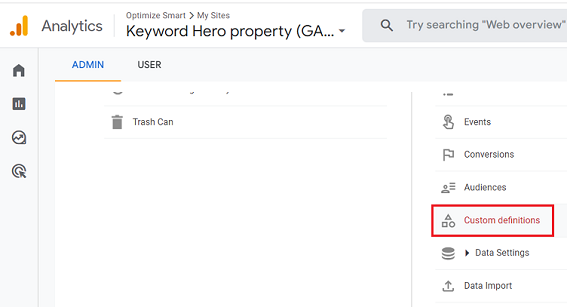
To see this new set of custom dimensions and metrics, navigate to the admin section of your ‘Keyword Hero’ GA4 property and then click on the ‘Custom Definitions’ link:
You should now be able to see the list of all the custom dimensions automatically created by ‘Keyword Hero’:
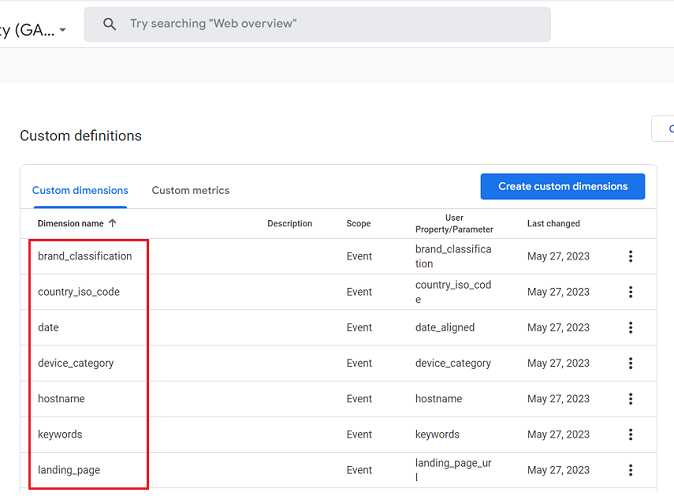
You can use these custom dimensions for creating customised reports via the exploration report templates.
Following is a brief description of each custom dimension:
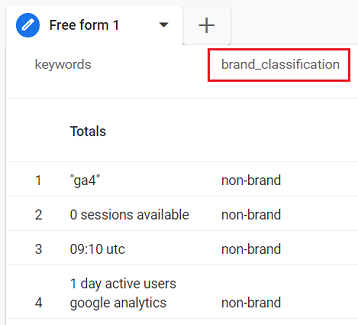
brand_classification – Use this custom dimension to classify the organic search traffic as branded or non-branded:
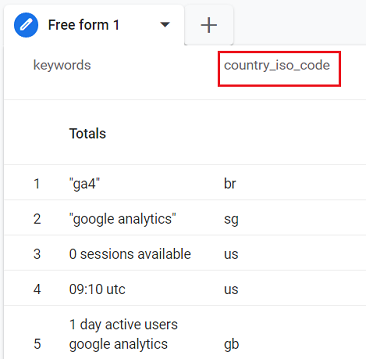
country_iso_code – Use this custom dimension to determine the country of the user who visited your website via a particular organic keyword:
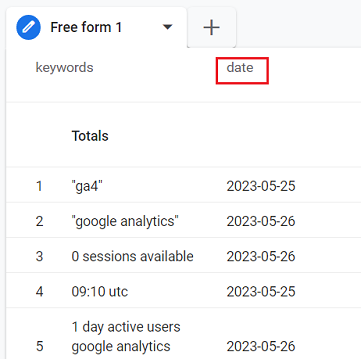
date – Use this custom dimension to analyse the organic keywords data by the correct date. The keywords data in your ‘Keyword Hero’ property has a latency of 3 days. So the keywords data that you see from today is really the data from three days ago.
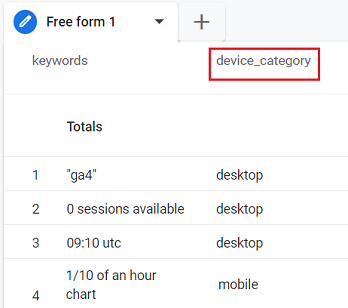
device_category – Use this custom dimension to determine the device category (web, mobile, tablet) of the user who visited your website via a particular organic keyword:
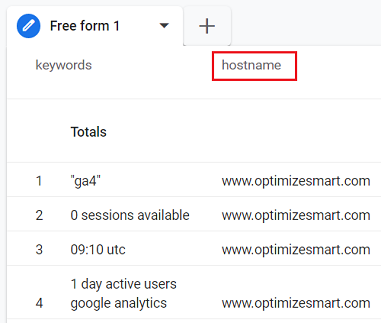
hostname – Use this custom dimension to determine the hostname (also known as the domain name or domain). This custom dimension comes in handy when you want to correlate keywords data with a subdomain:
keywords – Use this custom dimension to get the organic keywords data.
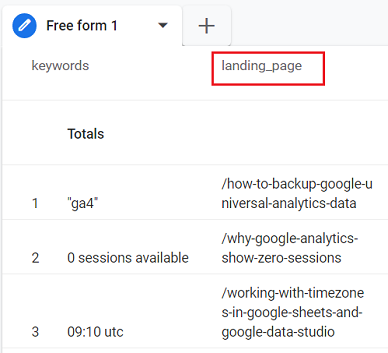
landing_page – Use this custom dimension to determine the landing page related to an organic search keyword.
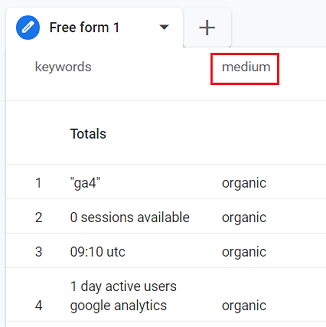
medium – Use this custom dimension to determine the traffic medium associated with an organic search keyword:
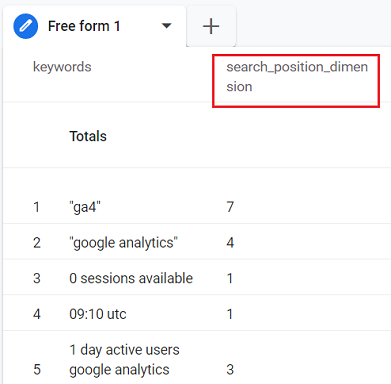
search_position_dimension – Use this custom dimension to determine the search engine ranking position of a particular keyword.
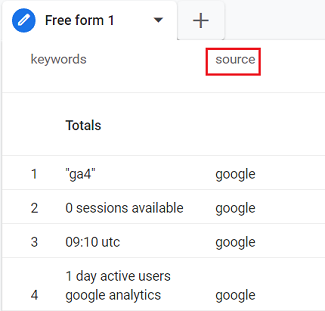
source – Use this custom dimension to determine the traffic source associated with an organic search keyword:
Click on the ‘Custom metrics’ tab to see the list of all the custom metrics automatically created by ‘Keyword Hero’:
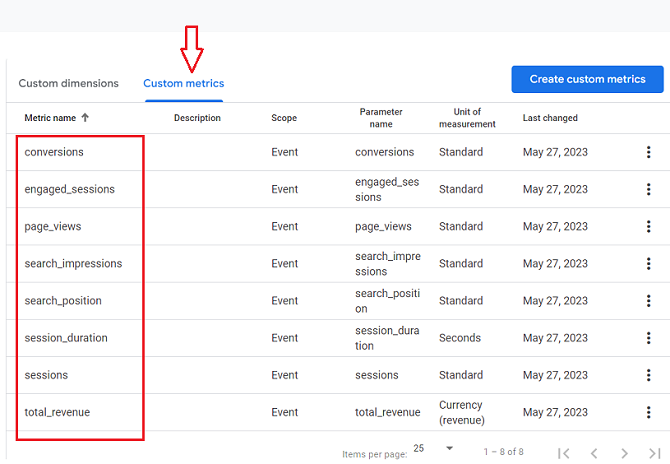
You can use these custom metrics for creating customised reports via the exploration report templates.
Advantages of using the Keyword Hero tool
The following are the key advantages of using this tool:
#1 You can see organic search keywords data and correlate this data with sales and other conversions in your GA4 reports. This will help you better understand the performance of your organic search marketing campaigns.
#2 By using organic keywords data you can optimize your landing pages for the keywords which are most likely to result in traffic, sales, leads or some other conversions.
#3 You can develop more content around the organic keywords that have already proven to generate traffic and conversions for your website.
#4 You can once again understand the performance of your branded organic keywords in terms of generating traffic and conversions.
#5 You can once again compare the performance of branded and non-branded keywords with each other.
#6 Once you understand the keywords for which your website is ranking really well on Google, you can stop bidding on them in Google Ads, which can greatly reduce your ad spend.
#7 You can discover new keywords for your paid search campaigns. So if an organic keyword is performing really well for your business but your website is not ranking very high for it, you can target that keyword through your paid search ad campaigns.
#8 You can see the search engine ranking position (SERP) of your website on Google for each keyword. This can help you in improving your SERP for profitable keywords and increase sales through organic search.
#9 By using the ‘keyword hero’ tool, you get a competitive advantage as a marketer/advertiser. I mean, how many marketers know that they can get back organic keyword data back in GA4? Only a handful. The majority think that organic keyword referral data is gone for good.
#10 Keyword Hero automatically emails weekly SEO performance report for your website, which includes:
- Your daily organic Google Sessions
- Your Top 10 keywords
- Your Top 10 mobile keywords
- Your Top 10 desktop/tablet keywords
- Your Top 10 organic landing pages
- Search engine traffic report
Limitations of the Keyword Hero tool
#1 It does not completely fix the problem of ‘not provided’ keywords. You will continue to see some ‘not provided’ keywords in your GA4 reports:
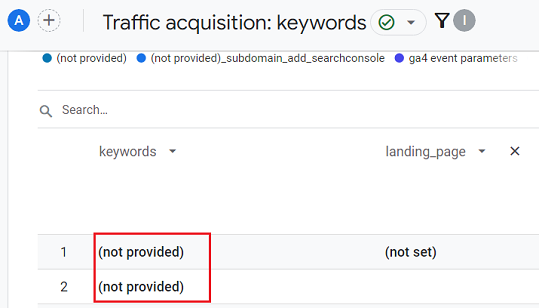
However, Keyword Hero still provides more details about the type of ‘not provided’ traffic.
(not provided)_bing is the ‘not provided keywords’ traffic from the Bing search engine.
(not provided)_yahoo is the ‘not provided keywords’ traffic from the Yahoo search engine.
(not provided)_subdomain_add_searchconsole is the ‘not provided keywords’ traffic from the subdomain which you have not yet added to the keywords hero account.
Other than (not provided) keywords, you may also see a couple of other keywords in your GA4 reports:
(not set) – tracking error or spam
(automatic matching) – Google Ads information
#2 In order to use the ‘Keyword Hero’ tool, you would need an active Google search console account with historical data, and this account must be linked to your live GA4 property.
#3 If you manage a low-traffic website (less than 100 sessions a day) or you get the majority of your website traffic through paid marketing campaigns, then this tool won’t be much beneficial for you.
#4 If you manage a high-traffic website but you continue to use their free plan or use a paid plan which is too small for your current organic search traffic, then it can negatively affect your keywords data quality. You are also more likely, to see a higher percentage of ‘not provided’ keywords in your GA4 reports. If you want to minimize the percentage of ‘not provided’ keywords in your reports, then use the appropriate paid plan.
#5 ‘Keyword Hero’ creates a new GA4 property and sends all of the keywords data to this property. Now there are both advantages and disadvantages to that.
The advantage is that the use of this tool does not skew your current analytics data. So if in the future you decide not to use this tool, it won’t affect your current analytics data.
This disadvantage is that the new GA4 property does not inherit many configuration settings from your live GA4 property.
What that means is if you have set up conversion events in your current GA4 property, then they will not automatically transfer to the new GA4 property created by ‘Keyword Hero’.
So you would have to set up conversion events once again in the new GA4 property.
If you have set up custom dimensions and metrics in your live GA4 property, then those dimensions and metrics will not automatically transfer to the new GA4 property.
So you would have to set up the custom dimensions and metrics once again for the new GA4 property created by ‘Keyword Hero’.
Similarly, data filters, content groups, channel groups and many other configuration settings do not automatically transfer to the new GA4 property created by the ‘keyword hero’ tool.
So you would need to set them all up all over again.
#6 When you use the ‘keyword hero’ tool, it creates a new GA4 property. This new property does not report data in real-time reports. That is because the data reported by the ‘keyword hero’ tool is 3 days old.
#7 By default, the GA4 property created by the ‘Keywords Hero’ tool only report on GA4 sessions related to keywords via the event ‘kwh_session_data’:
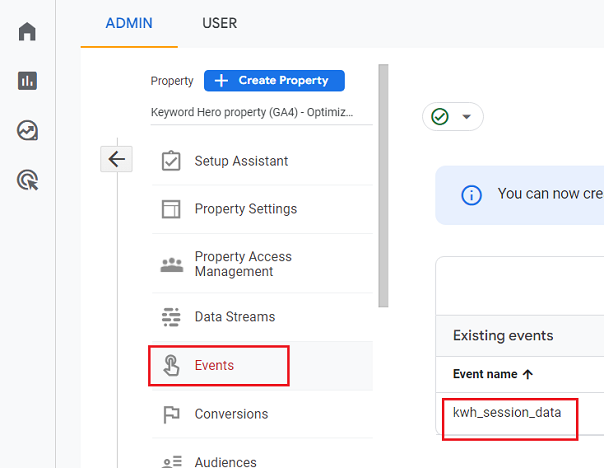
Long story short, the GA4 property created by the ‘Keywords Hero’ tool is useful only for organic keyword data analysis.
It is not, by default, useful for general website usage analysis.
Other methods to unlock organic search keywords
The following are some other methods to unlock organic search keywords.
- Use Search Console BigQuery export to unlock millions of new organic search keywords.
- Use competitive analysis tools like ‘SEMRush’ for keywords mining.
- Use Internal site search data.
- Run Non-branded Paid search campaigns.
- Run page level surveys.
- Use offline data to do keyword research.
- Go beyond the traditional Keyword Research Tools.
- Determine how the products are described on your website.
- Determine how people describe your products both online and offline.
- Determine how sales and marketing people describe and sell your products.
- Determine how people naturally link out to your website.
- Determine how competitors describe their products.
- Understand Searchers’ Intent & Capture it in the early stage of the buying cycle.
#1 Use Search Console BigQuery export to unlock millions of new organic search keywords.
GA4 hardly provides any keyword data on its own. The organic keywords data provided by Google Search Console User Interface (UI) is also limited.
But by using the Search Console Bulk Data Export feature, you can unlock millions of new organic search keywords in your BigQuery project.
For step-by-step instructions on how to use the Bulk Data Export feature, check out this article: How to send data from Google Search Console to BigQuery
#2 Use competitive analysis tools like ‘SEMRush’ for keywords mining
You may not know but SEMRush also provides keyword referral data.
SEMRush updates its database once a month and returns those organic keywords for a web page that are in its database and for which a webpage ranks in Google top 20.
According to SEMRush, they analyze the rankings of 95+ million most profitable and popular keywords.
SEMRush can be used to determine (not provided) data even today.
Through tools like SEMRush, you can determine the keywords (both paid and organic) which are generating traffic and revenue for your website or your competitors’ websites.
If certain keywords have proved to be profitable for your competitors, then they should be profitable for you too. Focus on keywords that have proved to work.
Note: You won’t get all of the (not provided) data through this method. SEMRush analyses the rankings of only those keywords which are in its database.
#4 Use Internal site search data
Place a search box at the top of every page on your website and allow users to search contents on your website:

This type of search is known as the internal site search, as this search is taking place on your website.
Now set up and configure site search in your Google Analytics account.
You can get more details regarding this set up from this article: GA4 Site Search – Tracking Site Search in Google Analytics 4.
Once you have implemented site search tracking in your GA4 property, you can see the list of keywords (called ‘Search terms’) used by your website visitors to find information on your website:
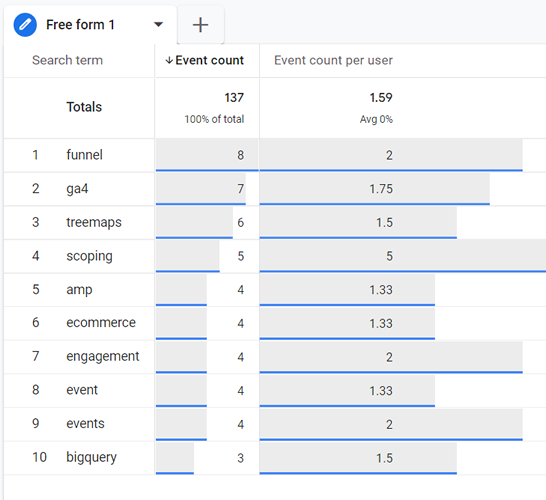
This insight can help you in finding new content development opportunities.
#5 Run Non-branded Paid search campaigns
It is highly unlikely that Google or any search engine will ever hide the paid keyword referral data from advertisers. So run paid search campaigns on Google and Bing.
Once you have got the PPC data, then target these keywords through SEO by developing content around them.
Note: There is no guarantee that what works for PPC may work equally well for SEO. But by and large, this strategy works, and it works really well.
#6 Run page level surveys
Page-level survey tools like Qualaroo can provide you with a lot of valuable keyword data, provided you use these tools correctly.
For example, do not ask questions like “which keywords you used to visit this landing page?”
Not only does this question sounds odd but you won’t get many replies either.
Ask questions like:
- What is the purpose of your visit to our website today?
- Were you able to complete your task? If not, then why were you not able to complete the task?
These two questions always provide me with a lot of keyword ideas every single day.
For example, if you get a lot of survey responses like “I was looking to get more details about conversion tracking through Google Tag Manager” then you know that you have to write an article that covers this topic in depth.
Satisfy your visitors’ queries, and you will get conversions.
Page-level surveys will also help you in understanding searchers’ perceptions of your content and brand.
#7 Use offline data to do keyword research
Many marketers/analysts overlook the offline data available to them like:
- Product catalogues
- Product brochures
- User guides
- Marketing material (flyers, posters, print ads)
- Sales pitches used by sales and marketing people
- Sales pitches used in radio ads, TV ads or banner ads
- Slides used in a sales presentation
- Sales pitches used in company newsletters or magazines
All of these data sources can provide tons of valuable keyword ideas.
Sales and marketing people are in constant touch with existing and potential clients, and the way they describe and sell their products is probably the way people talk about your products.
You can get this valuable insight only through the offline data sources mentioned above.
#8 Go beyond the traditional Keyword Research Tools
Many traditional keyword tools like Google Ads Keyword Planner generally report traffic only for fat head keywords (i.e. the keywords which seem to be getting high search volume).
On top of that, the tools’ search volume data is highly inaccurate.
For example, Google is notorious for showing inflated search volume, and this can be due to its vested interest in keeping keywords competitive for possible high bidding by Adwords advertisers.
It also fails to report all those keywords which have low or very low search volume.
Every SEO campaign I have worked on gets the majority of its organic search traffic through such low-volume keywords (also known as long-tail keywords).
The majority of traffic comes from long-tail keywords.
Still, marketers remain busy targeting fat head keywords (like care insurance, travel London, etc.) as Google reports high search volume for them.
Hitwise.com conducted research on the ‘long tail of search’ a few years ago and came out with these fantastic results:
If you had a monopoly over the top 1,000 search terms across all search engines (which is impossible), you’d still be missing out on 89.4% of all search traffic.
There’s so much traffic in the tail it is hard to even comprehend. To illustrate, if a search were represented by a tiny lizard with a one-inch head, the tail of that lizard would stretch for 221 miles.
So if you just rely on keywords tools like Google Keyword Planner for your keyword research, you will miss out on a great deal of traffic that comes from targeting long-tail keywords.
And above all fat head keywords are extremely competitive and difficult to rank for. Your website may not rank for them for years.
If you work with the mindset of targeting long-tail keywords, you will no longer select keywords just on the basis of their search volume.
You will select keywords that are frequently used by your visitors before they convert on your website.
#9 Determine how the products are described on your website
Just by reading a product description, you can determine several relevant keywords for the product.
For example, the following is a product description from an ecommerce website that sells shirts:
This shirt will keep your long sleeves and your awesome style in place.Buttoned stand-up Mandarin collar
FIT: Classic fitFABRIC: Cotton BlendCOLOR: Black / White
Just by reading this description, you can determine keywords like long sleeve shirts, black shirts, white shirts, mandarin collar shirts, etc.
#10 Determine how people describe your products both online and offline
Your customers do not always use the search terms you think they use (or as Google Keyword Planner Tool suggests) to find your products.
For example, you may be struggling hard to rank for the keyword ‘car insurance Southampton‘ while your client is, in fact, searching for the keyword ‘car insurance for young drivers Southampton‘.
The former is a competitive keyword and may not always produce the best results in terms of sales or conversion as it can fail to meet the intent of a searcher who is looking for a specific type of car insurance.
Whereas the latter keyword is easier to rank for and can result in higher conversions or sales.
Therefore it is very important that you understand how people describe your products and what they are looking for or are interested in.
You can get this insight by scanning the following:
- Product reviews on industry review sites.
- Reviews on product pages of your site.
- Comments on: industry news sites, journals, and magazines.
- Product reviews on popular retail sites like ebay.com, amazon.com, etc.
- Comments on industry blogs and youtube videos
- Customers feedback (you can get it through surveys or through your customer support team)
#11 Determine how sales and marketing people describe and sell your products
Sales and marketing people are in constant touch with your existing and potential clients and can provide a great deal of keyword insight.
The way they describe and sell their products is probably the way people talk about your products.
You can get this valuable insight by scanning the following;
- Product Catalogs
- Product Brochures
- User guides
- Marketing Material (flyers, posters, print ads)
- Sales pitches used by sales and marketing people
- Sales pitches used in Radio ads, TV ads or banner ads
- Slides used in a sales presentation
- Sales pitch used in Company’s newsletters or magazine
#12 Determine how people naturally link out to your website
The way people naturally link out to you can tell a great deal about what they think of your product/brand.
For e.g., if a lot of people link out to your product as a ‘cheap interactive whiteboard’ instead of a ‘ 78 inches Gin interactive power board’, then you should seriously think of optimizing your product page for that keyword.
You can determine the anchor text of your incoming links through tools like ‘open site explorer‘.
#13 Determine how competitors describe their products
Competitive analysis helps in all aspects of Internet marketing, and keyword research is no exception.
However, hereby competitors, I mean key industry players.
The way they describe their products choose keywords to target, and the way people talk about their products can give you a good insight into ‘what to target’.
You can get this valuable insight by scanning the following:
- Reviews on product pages of your competitors’ sites and review sites.
- Their product catalogues, brochures and user guides.
- Sales pitches used by them in their marketing material and radio/tv/banner ads.
- Use the SEMRush tool to quickly determine which organic and paid keywords are actually driving traffic and sales to your competitors’ websites.
#14 Understand Searchers’ Intent & Capture it in the early stage of the buying cycle.
In keyword research, the most important thing to consider is your searchers’ intent.
What is their state of mind while they are performing a search? Are they searching to buy a product, or are they searching to make a purchase decision?
When it comes to determining searchers’ intent, the search data shows the highest indicator of intent, followed by demographic data and behavioural data.
As an SEO, it a wise to capture your prospects in the early stage of the buying cycle when they are making a purchase decision through keywords like ‘which is the best ….‘ or ‘where to buy ……‘.
Such keywords are easier to rank for, and you have less competition to face.
But once your prospect is in full buying mode, he will search for keywords which you may find very difficult to rank for, expensive to bid on and predominantly captured by big brands like Amazon.
That is why it is wise to capture your prospect early in the buying cycle, esp. if you have got low marketing budget/resources.

Other Articles on GA4.
- Google Analytics 4 Channels, Source and Medium explained.
- Path exploration report in GA4 (Google Analytics 4) – Path analysis.
- How to use Microsoft Clarity with GA4 (Google Analytics 4).
- GA4 vs GA4 360 – Pricing, Limits, Billing and more.
- Setup Enhanced Conversions for Leads using Data Layer in Google Tag Manager.
- Self-referral Google Analytics 4 – Referral exclusion GA4.
- GA4 Attribution Paths (Conversion Paths) Report.
- Google Tag Manager Tutorial.
- GA4 Attribution Models Explained: How to Choose the Right One.
- Looker Studio (Google Data Studio) Tutorial.
- Google Tag Manager Data Layer Tutorial with Examples.
- Set up enhanced conversions for Web using ‘Code’ in Google Tag Manager.
- How to create Google Ads report in Google Analytics 4.
- Google Tag Manager Audit Checklist.
- Tracking Site Search in Google Analytics 4.
- How to see Organic Search Keywords in Google Analytics 4.