

In this article, I am going to talk about how to use the segment overlap report in Google Analytics 4 (GA4).
Overview of the segment overlap report in Google Analytics 4
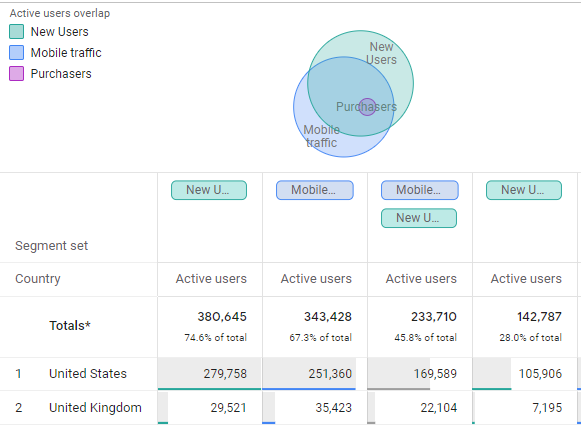
The segment overlap report in Google Analytics 4 allows you to compare up to three user segments and see how they overlap and relate to each other. In other words, an analysis technique that visualizes the relationship between multiple segments of users is known as a segment overlap report.
This report helps you to understand specific audiences by isolating them based on complex or advanced segments.
You can then create new segments based on your findings, which you can then apply to other analysis techniques and Google Analytics reports.
A sample segment overlap report looks like below
A few key points to note about the segment overlap report in GA4 are
- You can include up to three segments to compare
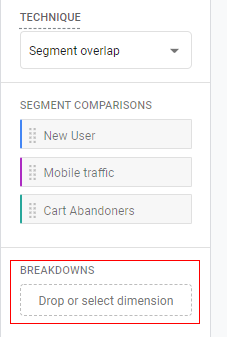
- You can also break down your report using another dimension, such as country, age group, gender, etc.
- You can create a new segment or audience using the overlap or intersection users and then use this audience across Google platforms like Google Ads, Display ads etc.
Let’s create a sample segment overlap report and understand it in more detail.
Creating a sample segment overlap report
Follow the below steps to create a segment overlap report in GA4
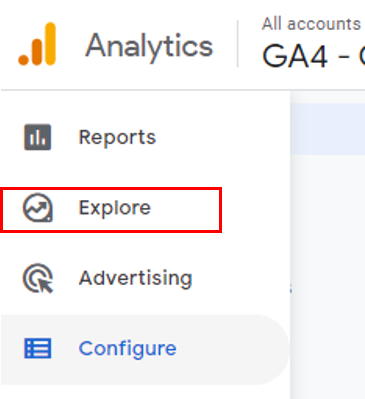
Step-1: Navigate to your Google Analytics 4 property and click on the ‘Explore’ link on the left-hand side.
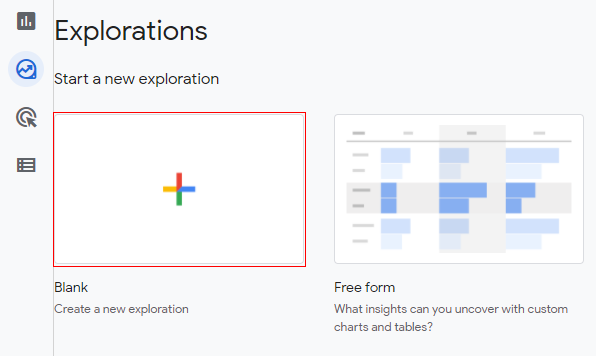
Step-2: Click on the ‘Blank’ template under ‘Explorations’.
Step-3: A new console will open like below.
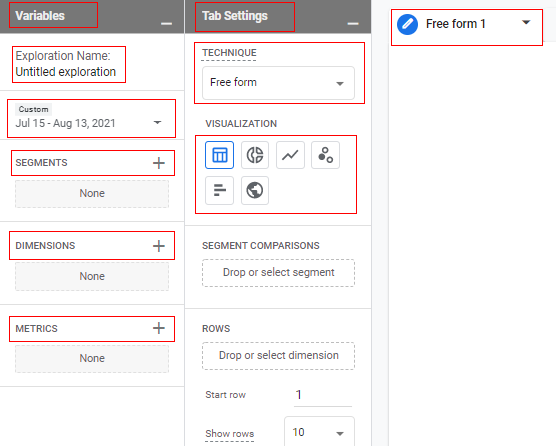
The screen is divided into three columns called ‘Variable’, ‘Tab Settings’ and ‘Free form 1’.
Variable column:
In the context of analysis, segments, dimensions and metrics are called variables. You can also change the date range and report name under the ‘Variable’ column.
Tab Settings column:
The ‘Tab Settings’ column is to configure the report technique like exploration, cohort analysis, path analysis, etc. You can also select the visualization type here like table, pie chart, bar chart, etc.
Free form column:
The ‘Free form’ tab is where the data is shown to the user. Whatever configuration that we do in the ‘Variables’ tab and in ‘Tab Settings’, will be reflected in the ‘Free form’ tab. Once we switch the reporting technique to segment overlap, this exploration tab will change to segment overlap view.
Step-4: Just click on the drop-down under ‘Technique’ at the top of the ‘Tab Settings’ column.
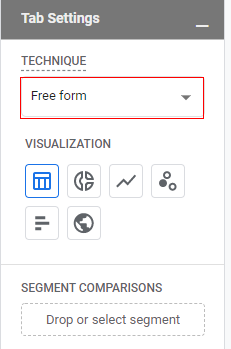
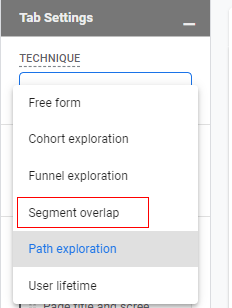
Step-5: Select ‘Segment overlap’ from the list.
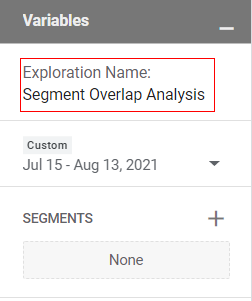
Step-6: Now click on ‘Analysis Name’ to give a descriptive name to the report.
Step-7: Now click on the drop-down arrow to change the date range.
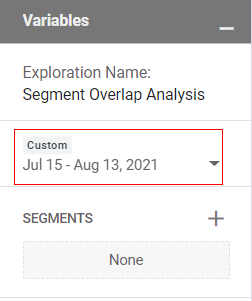
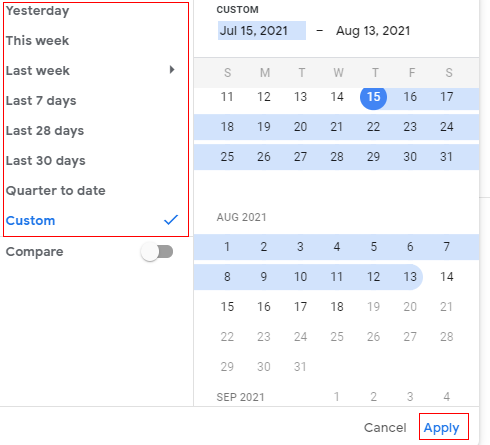
Step-8: You will get a small pop-up where you can specify the date range i.e. yesterday, this week, last 7 days, etc. and custom date range as well. Select your date range and click on ‘Apply’.
Selecting Segments
Step-9: Now let’s add segments to our report. Remember that you can add up to three segments
You can apply a segment by click on the three vertical dots on the segment name and then click on ‘Apply’.
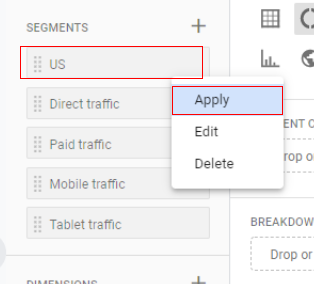
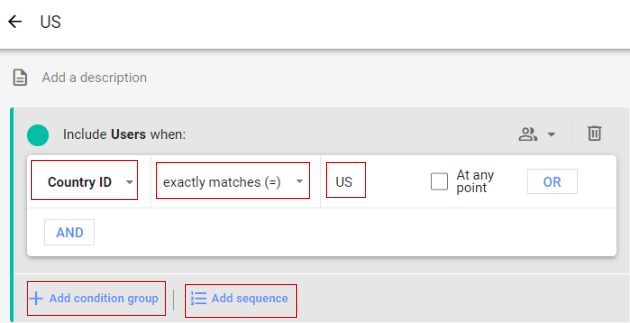
You also get the option to edit and delete the segments. Click on ‘Edit’ if you want to edit the segment configuration. A new overlay will show like below where you can modify the segments by adding more conditions.
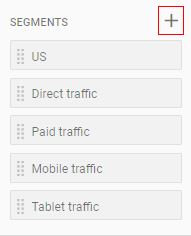
If you want to create a new segment then click on the ‘+’ button and define the conditions of your segment.
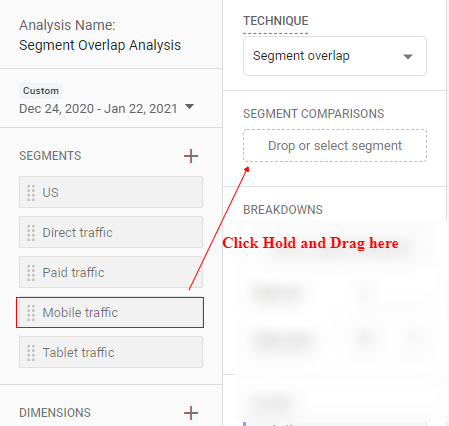
Another way to apply segments to the report is by the drag and drop method. Click and hold on to the segment you want to add to the report and then drag it over ‘Segment comparison’.
As an example of a segment overlap report, I am going to apply three segments like ‘New User’, ‘Mobile Traffic’ and ‘Cart Abandoners’. This will give me an idea of how these three segments are interlinked.
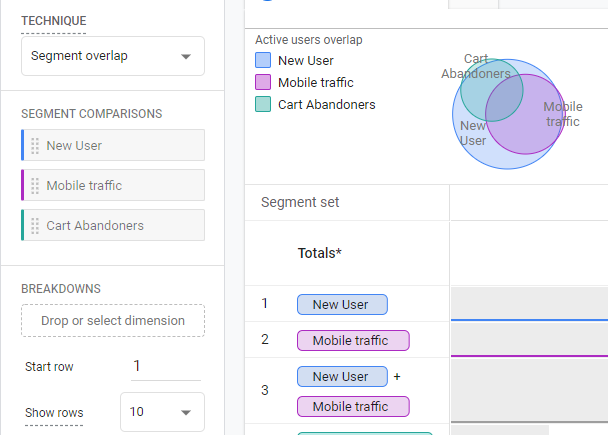
Congratulations! You have successfully created your first segment overlap report in GA4.
Working with segment overlap report
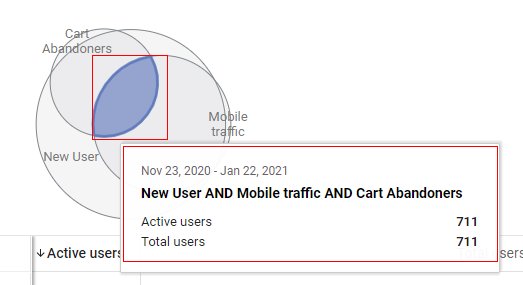
The segment overlap diagram is very interactive. You can hover your mouse pointer to the interior of a segment or union (the intersection of two or more segments) to see the exclusive numbers for that segment or union: this excludes any overlaps with other segments.
You can see in the below image that the intersection highlighted is a combination of all three segments. A total of 711 users are there who are new users and visited the website using mobile devices and abandoned the cart.
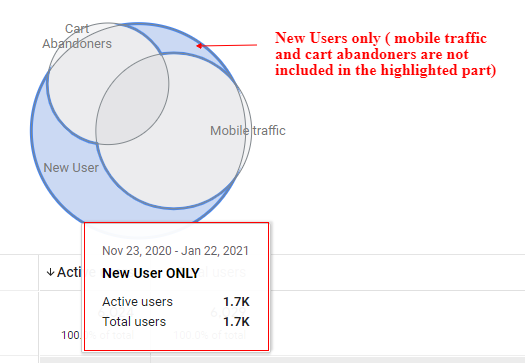
You can also move your pointer to the border of a segment to see the inclusive numbers for that segment: this includes any overlaps with other segments. For example in the below image this highlighted part is showing new users only (mobile traffic and cart abandoners are excluded).
You can also move your pointer to the intersection of any two segments.
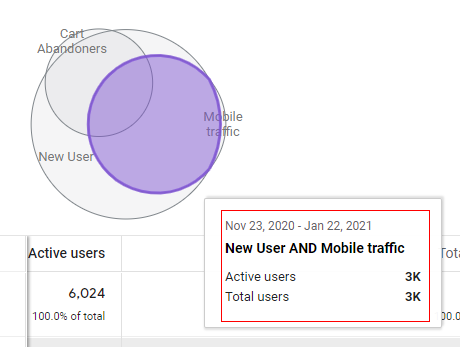
You can also see the correlation between these segments in the table provided below the diagram in the reporting panel.
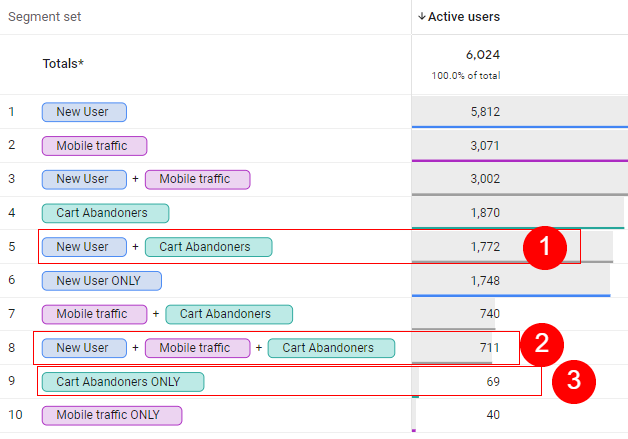
Circle 1 represents the number of common users who are new and are cart abandoners which is 1772.
Circle 2 represents the number of users common for all three segments like new users + mobile traffic + cart abandoners. There are a total of 711 users who belong to all three segments.
Circle 3 represents a single segment which is cart abandoners only (excluding mobile traffic and new users) there are a total of 69 users who are cart abandoners but they are not part of mobile traffic and new users as well.
Applying breakdown and filters
With segment overlap reports there are multiple settings you can select, let’s learn about them in more detail.
Applying breakdown
You can break down the segment overlap report by applying any dimensions.
Just click on the ‘Breakdown’ drop-down under ‘Tab settings’.
A pop-up will appear, like below. Select the dimension for which you want to see the breakdown.
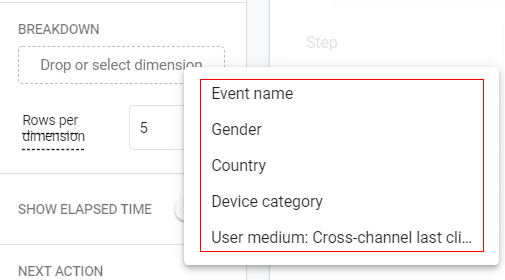
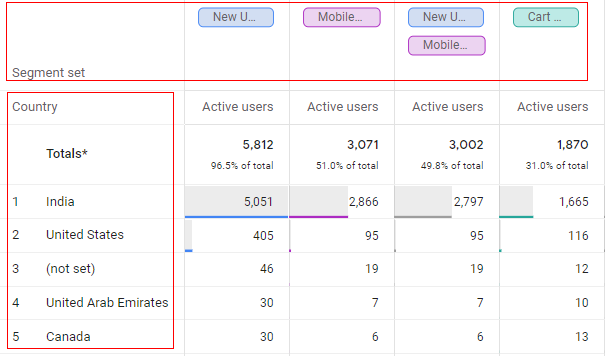
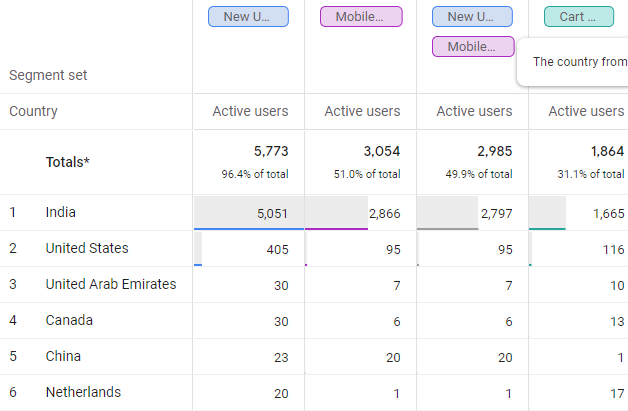
You can also drag and drop any dimension here. Let’s say I break down my report by country. I will see the following view of the report.
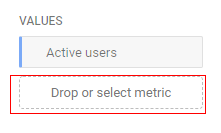
Just like dimensions, you can also apply a metric for the report by clicking on the ‘Drop or select metric’ button under ‘Values’.
Filters
If you don’t want to see any data, e.g. ‘(not set)’, you can also apply filters to restrict the data shown in the analysis according to the conditions you provide.
If your filter has multiple conditions, all of the conditions must be met to apply the filter.
To apply a filter click on the ‘Filters’ in ‘Tab Settings’.
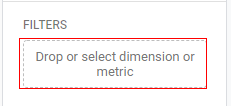
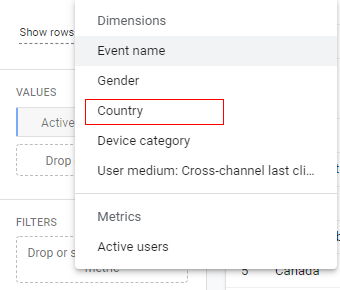
A small pop-up will open. Now since we are looking at ‘Country’ as the dimension in our example, select it from the pop-up.
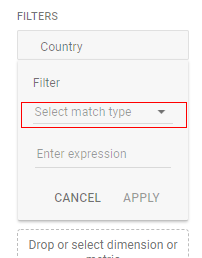
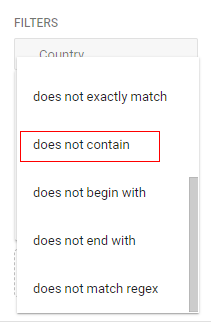
Click on the drop-down to select match type and then select ‘does not contain’ from the list.
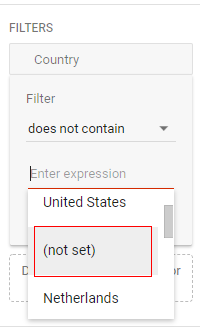
Now click on ‘Enter expression’ and select ‘(not set)’.
Click on ‘Apply’.
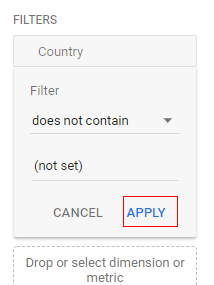
Now you will see in the ‘Reporting’ tab that the (not set) value is removed, as below.
Creating a new segment from segment overlap data
You can create new segments from the segment overlap data. This is very useful in case you want to see the users from different segments overlapping each other.
Such segments can be addressed at the same time. For example, I can create a remarketing segment from the report that we created earlier with the users who are new to the website and are cart abandoners. I can later use this segment to create a new custom audience in GA4 and use it in Google Ads or display ads etc.
To create a segment from the overlap data, right-click on a segment or union in the diagram, or a cell in the data table.
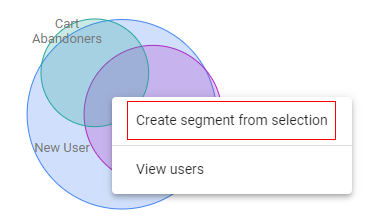
OR
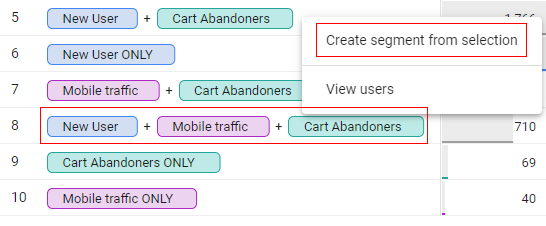
Then click on ‘Create segment from selection’.
A new overlay will appear like below with all the conditions of the segment predefined.
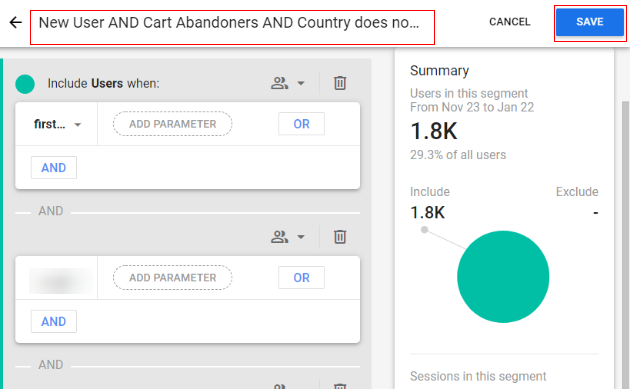
Click on ‘Save’ and you are done.
Sharing and downloading reports
You can share the report template with other colleges as well. Just click on the ‘Share’ icon available in the upper right corner of the ‘Reporting’ tab.
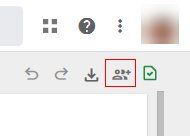
It will open an overlay with details as below. Click on ‘Share’.
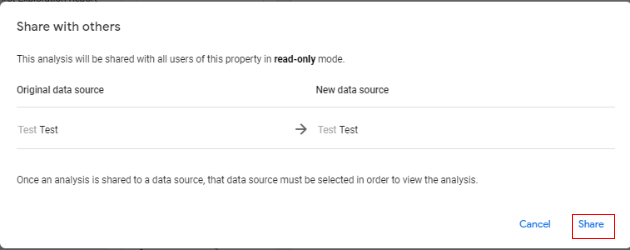
You also get an option to download the report. Click on the ‘Download’ button.
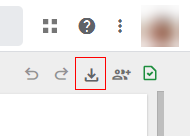
A small pop-up will come like below where you can specify the report format type.
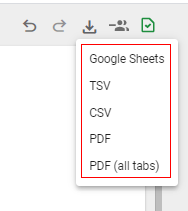
Available options are:
- Google Sheets
- TSV (tab separated values)
- CSV (comma separated values)
- PDF (all tabs) – this will download all the tabs in the reporting panel in PDF format, if you have multiple tabs.
That is how you can use the segment overlap report in Google Analytics 4 (GA4).

Other Articles on GA4.
- Cohort Exploration Report in Google Analytics 4 (GA4).
- Google Analytics 4 vs Google Ads conversion tracking.
- Google Analytics 4 Custom Dimensions Tutorial.
- Google Analytics 4 Dimensions Tutorial.
- Event Scoped Custom Dimensions in Google Analytics 4.
- Google Analytics 4 Search Console Integration Tutorial.
- Fixing unassigned issues with GTM Server Side Tagging.
- How to exclude internal traffic in Google Analytics 4.
- Understanding data filters in Google Analytics 4.
- Conversion Funnel Analysis in Google Analytics 4.
- How to use custom templates in Google Tag Manager.
- 6 Critical Flaws in Google Analytics 4 Attribution Paths.
- Google Analytics 4 Admin Settings Tutorial.
- How to Connect Google Ads to Google Analytics 4.
- Google Analytics 4 Predictive Audiences – Tutorial.
- How to use Segment Overlap Report in Google Analytics 4.
- Audience Triggers in Google Analytics 4.
- Google Tag Manager Regex Table Variable Explained.
- Understanding Lookup Table in Google Tag Manager.
- Google Tag Manager Variables and Triggers Tutorial.