

In this article, I will discuss how to create a predictive audience in Google Analytics 4 (GA4).
Predictive audience overview
Predictive audiences in Google Analytics 4 help you classify users who are likely to perform a certain action in the near future.
A predictive audience (prospects) is an audience based on the conditions of a predictive metric like purchase probability, churn probability, and revenue predictions.
You can learn more about predictive metrics here: What are predictive metrics in Google Analytics 4 (GA4).
Here are a few examples of predictive audiences:
- Likely 7-day purchasers: Users who are likely to purchase in the next 7 days.
- Likely first-time 7-day purchasers: Users who are likely to make their first purchase in the next 7 days.
- Likely 7-day churning users: Active users who are likely to not visit your website in the next 7 days.
- Likely 7-day churning purchasers: Purchasing users who are likely to not visit your website in the next 7 days.
Prerequisites for predictive audiences
Predictive audiences will only be available in your GA4 property if the underlying predictive metrics are eligible by meeting all prerequisites mentioned below:
- To become eligible for predictive metrics like purchase probability and churn probability, you must configure the purchase event and send it to the GA4 property.
- There must be a minimum of 1000 positive and negative samples (purchasers and churned users). This means there should be at least 1000 users who have triggered the predictive condition to purchase and 1000 users who did not.
- Model quality (regular traffic generating purchase events) must be sustained over a period which is generally 28 days.
You can use suggested predictive audiences that meet prediction-modeling prerequisites and are labeled as ‘ready to use’.
You can modify the template to your needs using the audience builder. You cannot edit the predictive condition, but you can add additional non-predictive conditions based on your business requirements.
If there is not sufficient data to use predictive modeling, an audience will be marked as ‘not eligible to use’.
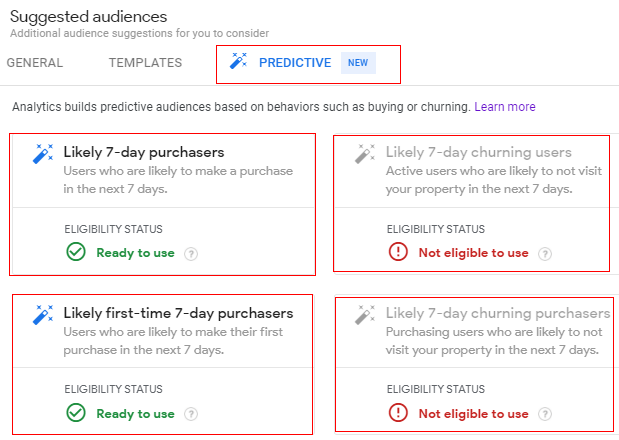
Now let’s create a predictive audience to understand it more:
How to create a new predictive audience in GA4
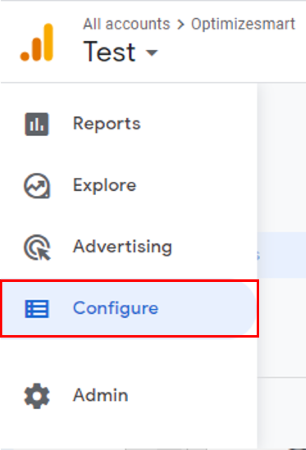
Step-1: Navigate to your Google Analytics 4 property and click on the ‘Configure’ link.
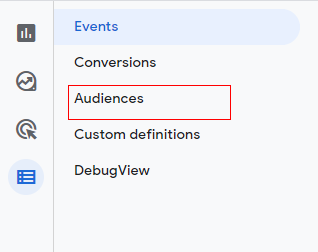
Step-2: Now click on ‘Audiences’.
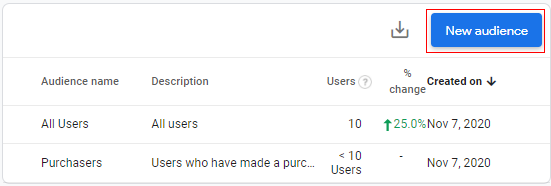
You will see a screen like below. There are two types of audiences by default: ‘All Users’ and ‘Purchasers’.
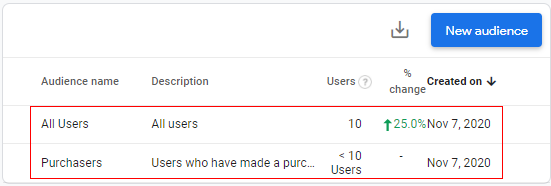
Step-3: Now click on the ‘New audience’ button.
Step-4: An overlay will appear like below. Click on ‘Predictive’ under ‘Suggested Audiences’.
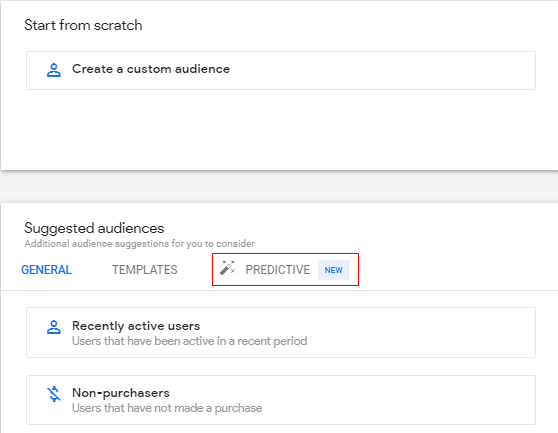
Note: The predictive audience option will be available to you only if you are eligible (meeting the prerequisites for predictive metrics).
Step-5: You will get a screen like below.
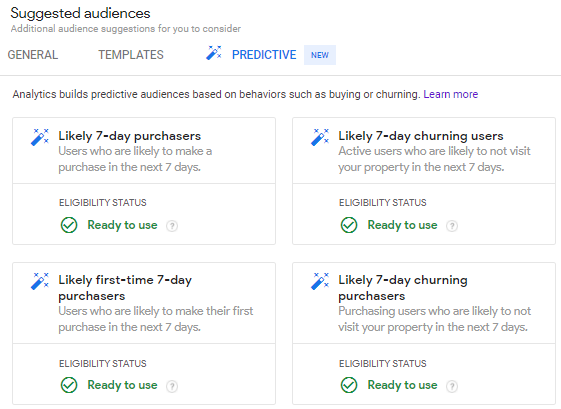
You can select any of the options from the available audiences. For example, let’s select ‘Likely 7-day purchasers’.
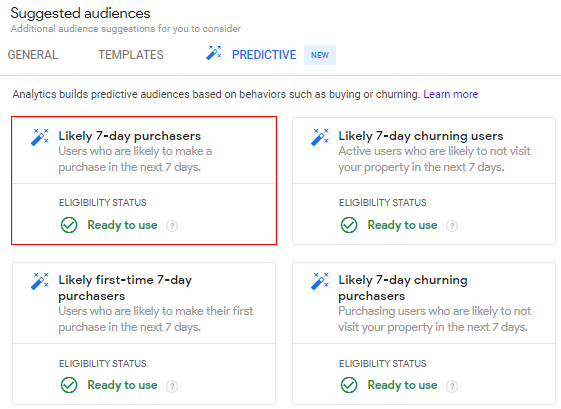
Step-6: A configuration panel will open like below.
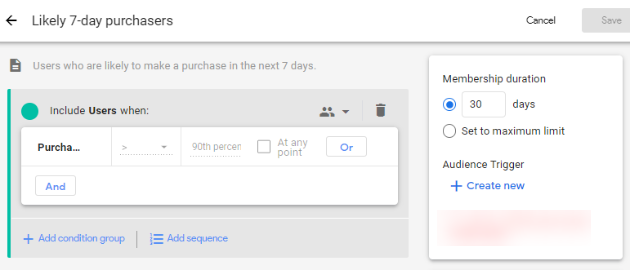
Now we need to define the scope of the audience.
Scope: When you set conditions for the audience, you need to set the scope of when the conditions must be met, e.g. across all sessions, in a single session, or a single event. This way GA4 will analyze the scope of the audience and it will be made available accordingly.
Click on the drop-down available beside the user icon.
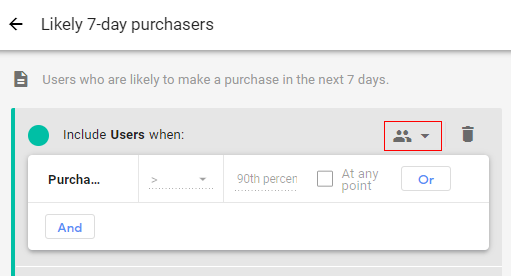
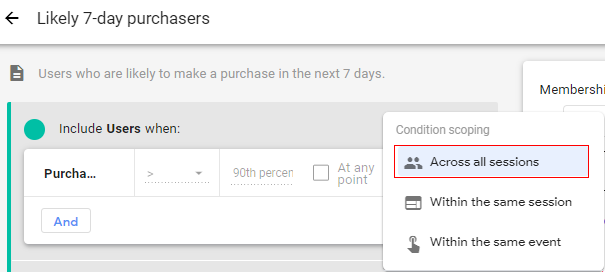
Step-7: A pop up called ‘Condition Scoping’ will appear, as below, with options like:
- Across all sessions: Add user to the audience if the condition is true for all the previous session.
- Within the same session: Add user to the audience if the condition is true for the single session.
- Within the same event: Add user to the audience if the condition is true for a particular event.
Here we will be selecting the first condition ‘Across all sessions’, since we want to focus on all audiences who are likely to purchase.
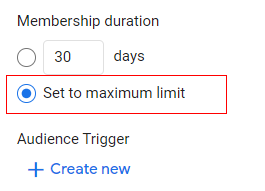
Step-8: Now we need to define the membership duration for the predictive audience.
Membership duration supports time-windowed metrics. You can specify that a metric condition can be true during any point in the lifetime of a user, or that it must be true during a specific number of days (30-day period).
In our case, we want to know all users who are likely to purchase a product irrespective of time. So, let’s select the radio button under membership duration for ‘Set to maximum limit.’
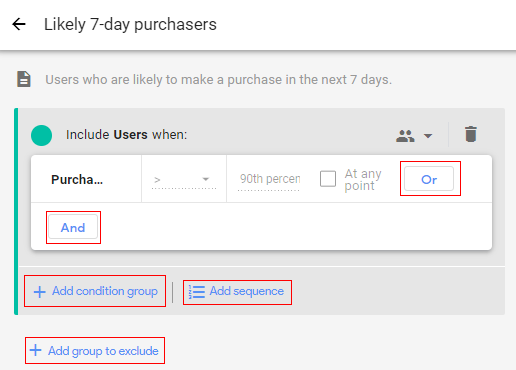
Step-9 (optional): You can add and modify the conditions to your predictive audience to suit your business needs and make it more granular.
You can learn more here: How to create a custom audience in Google Analytics 4 (GA4)
Step-10: Now click on ‘Save’ in the upper right corner.
Congratulations! You have successfully created your first predictive audience in Google Analytics 4.
Your audience is now available under the audiences tab.
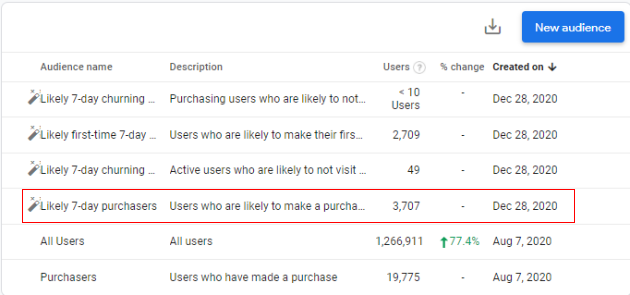
Note: It will take approx. 24 to 48 hrs to reflect data in your newly created predictive audience.
Using predictive audiences
You can use a predictive audience with any Google Ads accounts you have linked to your property.
As remarketing audiences:
A remarketing audience is a list of users grouped together to whom you want to re-engage because of their likelihood to convert.
You can use your predictive audience for users who are likely to convert and are more easily convinced to complete those conversions. For example, users who have already visited the product details or added items to their carts have given strong signals that they’re likely to purchase the product.
Google Analytics 4 automatically enriches your data by applying Google machine-learning algorithms on your dataset to predict the future behavior of such users to find deep patterns of behavior that are unique and the specific user is likely to convert.
A follow-up remarketing campaign can provide that last push they need to complete the purchase.
In re-engagement campaigns:
Another example could be to use a predictive audience for users who are likely to churn. Let’s suppose you are a blogger and planning to publish some new blog posts. Predictive metrics such as churn probability will give you the details of users who are not likely to visit your blog in the next 7 days. If the numbers are more you can think of running a re-engagement campaign to encourage them to read your blog.
That is how you can create and use a predictive audience in Google Analytics 4 (GA4).

Other Articles on GA4.
- The Best Tag Auditing Tools for Google Analytics 4.
- How to Exclude URL Query Parameters in Google Analytics 4.
- How to Track Email Campaigns in Google Analytics 4.
- Google Analytics 4 Attribution Modelling Tutorial.
- Understanding Service Worker in GTM Server Side Tagging.
- Cohort Exploration Report in Google Analytics 4 (GA4).
- Google Analytics 4 vs Google Ads conversion tracking.
- Google Analytics 4 Custom Dimensions Tutorial.
- Google Analytics 4 Dimensions Tutorial.
- Event Scoped Custom Dimensions in Google Analytics 4.
- Google Analytics 4 Search Console Integration Tutorial.
- Fixing unassigned issues with GTM Server Side Tagging.
- How to exclude internal traffic in Google Analytics 4.
- Understanding data filters in Google Analytics 4.
- Conversion Funnel Analysis in Google Analytics 4.
- How to use custom templates in Google Tag Manager.
- 6 Critical Flaws in Google Analytics 4 Attribution Paths.
- Google Analytics 4 Admin Settings Tutorial.
- How to Connect Google Ads to Google Analytics 4.
- Google Analytics 4 Predictive Audiences – Tutorial.