

Follow the steps below to connect Google Ads to Google Analytics 4:
Step-1: Make sure that you have the ‘editor’ permission on the GA4 property you want to link to your Google Ads account(s).
Step-2: Make sure that you have ‘admin’ access to the Google Ads account(s) you want to link to your GA4 property.
Note: You can link all your GA4 properties to individual Google Ads account and Google Ads Manager account as well. As far as limits are concerned you can create up to 400 links per GA4 property.
Step-3: Navigate to your Google Analytics 4 property.
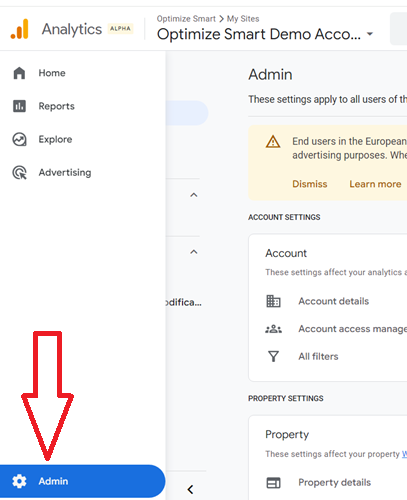
Step-4: Scroll down and then click on the ‘Admin’ section of your GA4 property:
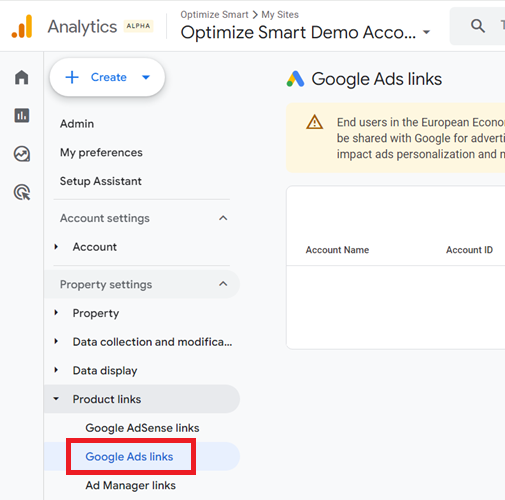
Step-5: Click on ‘Google Ads Links’ under the ‘Product Links‘:
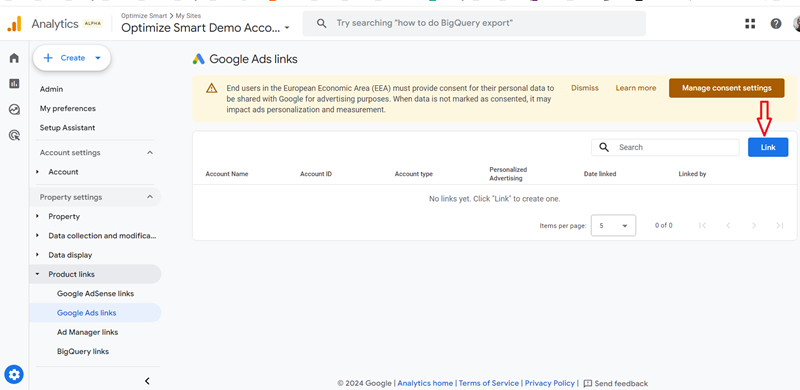
Step-6: Click on the ‘Link’ button.
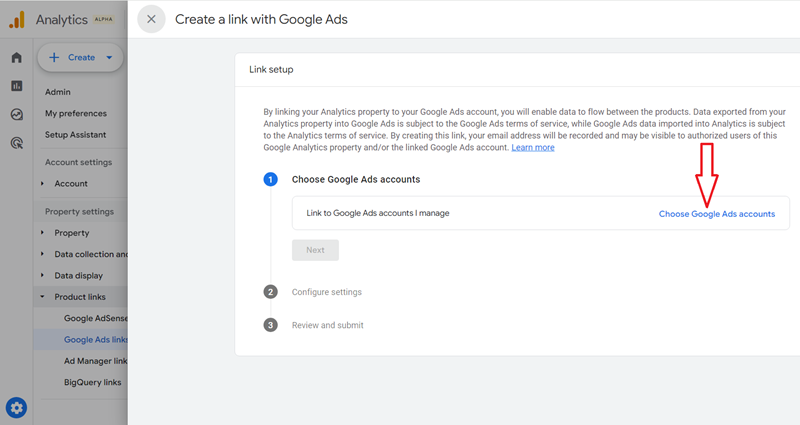
Step-7: Click on the link ‘Choose Google Ads Accounts’:
Step-8: Select the Google Ads account(s) you want to link to your GA4 property and then click on the ‘Confirm‘ button:
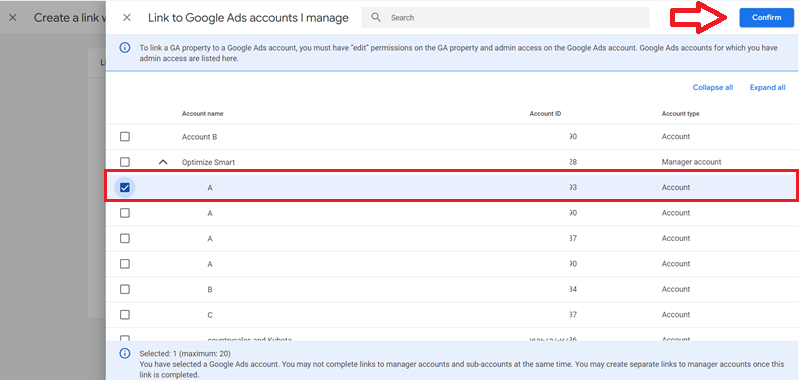
Note: You will see only those Google Ads accounts for which you have ‘admin’ access.
Step-9: Click on the ‘Next’ button:
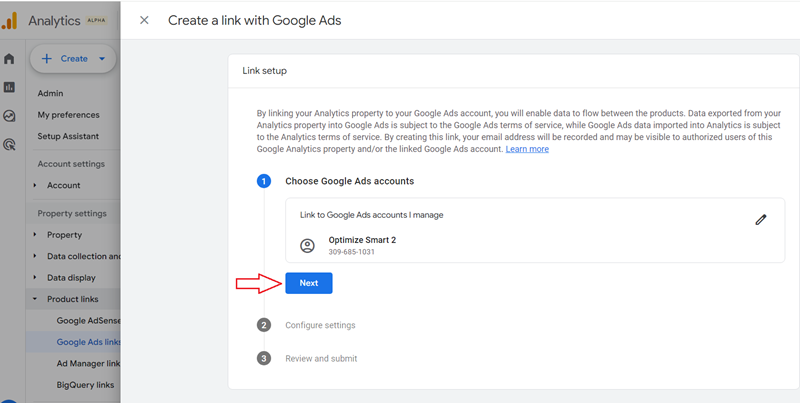
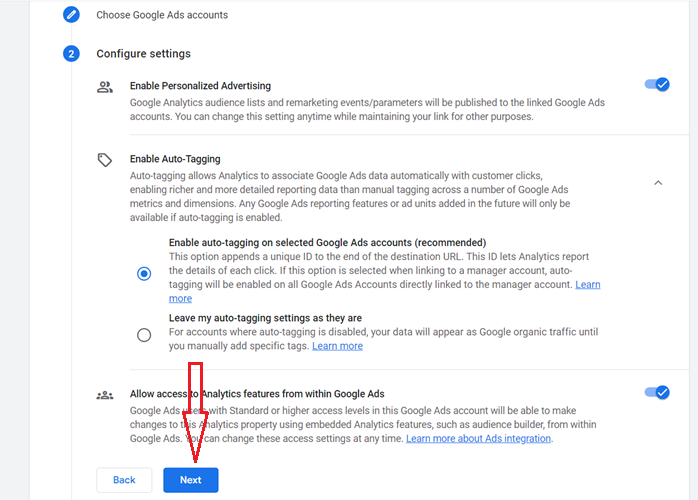
You should now see a screen like the one below:
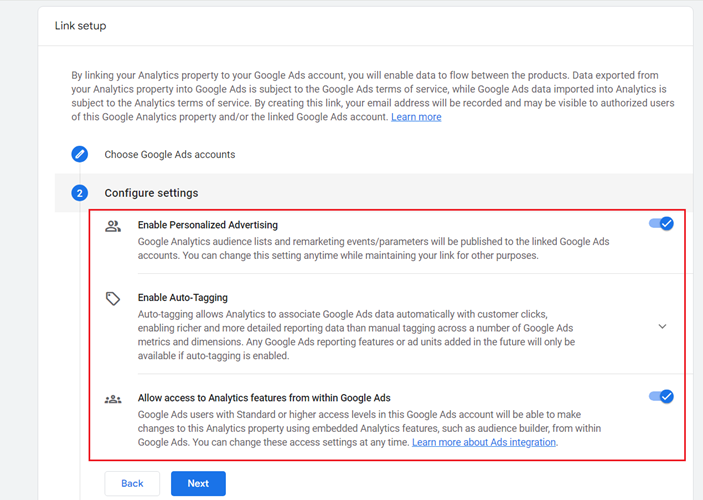
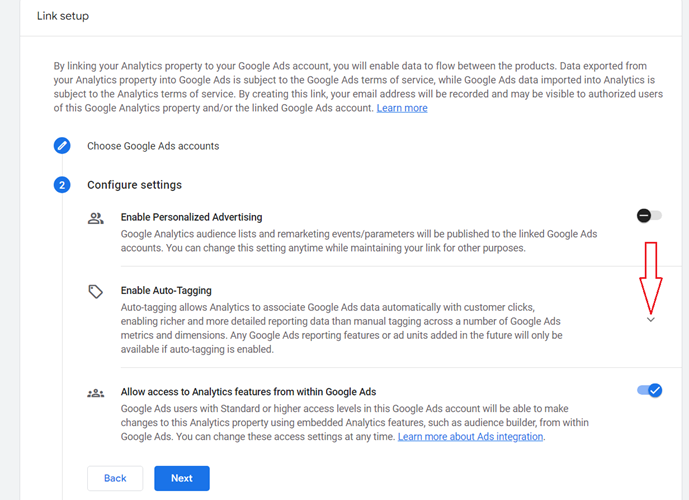
At this point, you can choose to disable ‘Personalized Advertising‘, ‘Auto-Tagging‘ and ‘Allow access to Analytics features from within Google Ads‘.
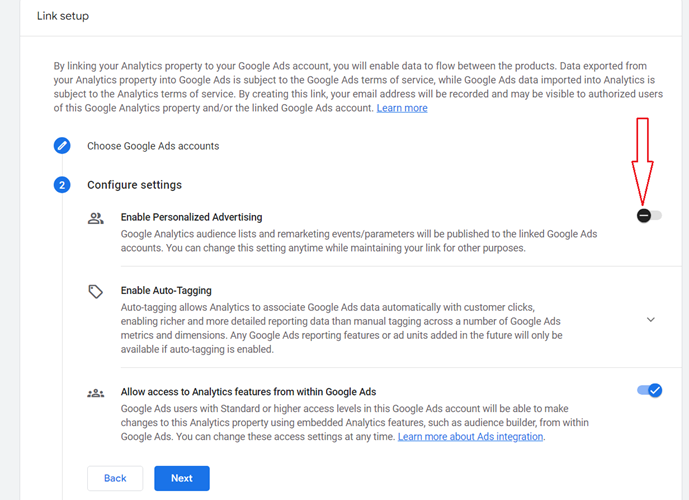
When you disable ‘Personalized Advertising’, the GA4 audience list and remarketing events/parameters will not be published to the linked Google Ads account.
To disable ‘Personalized Advertising’, click the toggle button to ‘OFF’:
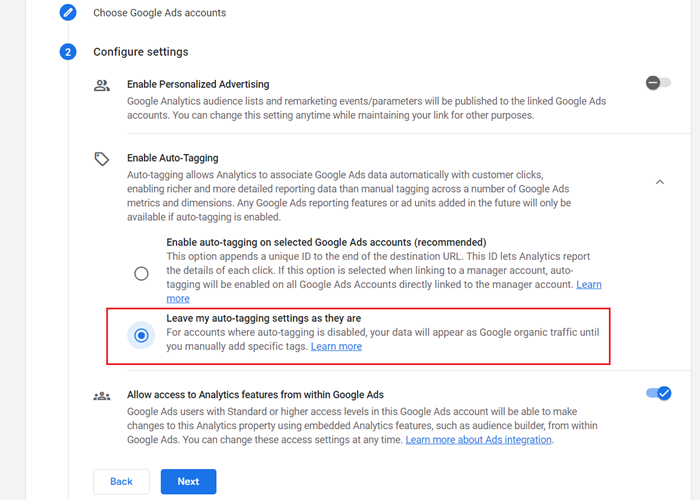
When you disable ‘Auto-Tagging’, Google Analytics will not automatically associate Google Ads data with customer clicks.
To disable auto-tagging, click on the down arrow button:
Select the option ‘Leave my auto-tagging settings as they are“:
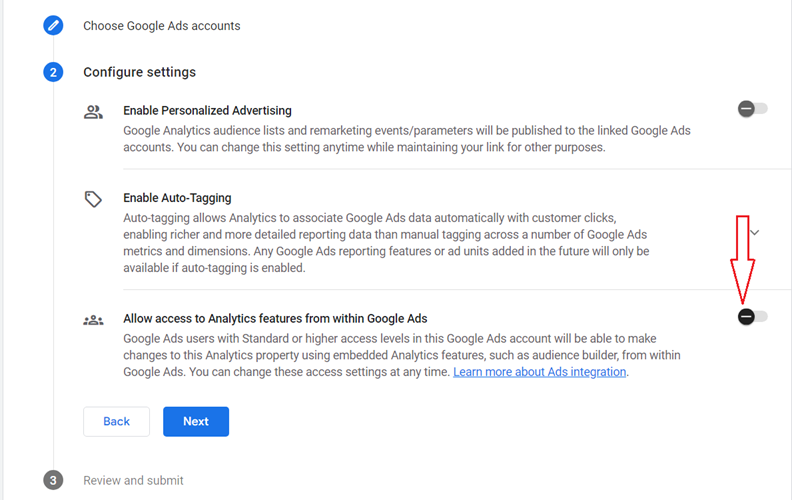
When you disable ‘Allow access to Analytics features from within Google Ads’, the linked Google Ads users will not be able to make changes to your GA4 property using embedded Analytics features from within Google Ads.
To disable ‘Allow access to Analytics features from within Google Ads’, click the toggle button to ‘OFF’
I like to keep all these three settings enabled:
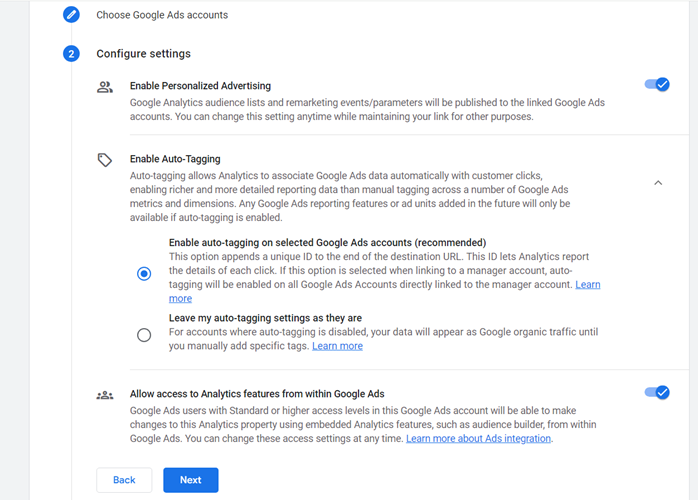
Step-10: Click on the ‘Next‘ button.
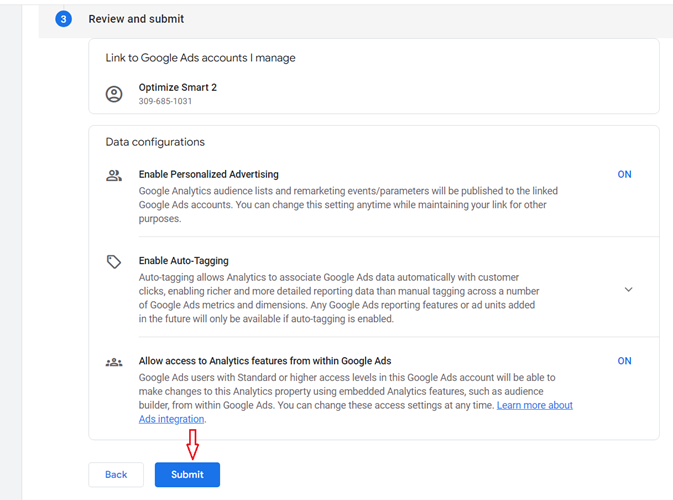
Step-11: Review all of your configuration settings and then click on the ‘Submit’ button:
You should now see a screen like the one below, which confirms that your GA4 property is linked to your selected Google Ads account(s):
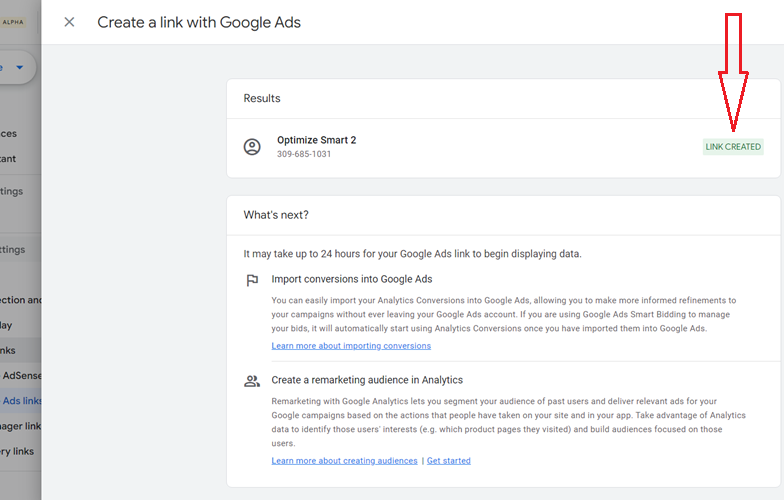
Note: It may take up to 24 hours for your Google Ads link to begin displaying data in your GA4 reports.
How to disconnect a Google Ads account from your Google Analytics 4 property
Follow the steps below to unlink your Google Ads account from your GA4 property:
Step 1: Make sure that you have ‘editor’ permission on the GA4 property you want to unlink from your Google Ads account(s).
Step-2: Make sure that you have ‘admin’ access to the Google Ads account(s) you want to unlink from your GA4 property.
Step-3: Navigate to the ‘Admin‘ section of your GA4 property.
Step-4: Click on ‘Google Ads Links’ under the ‘Product Links‘
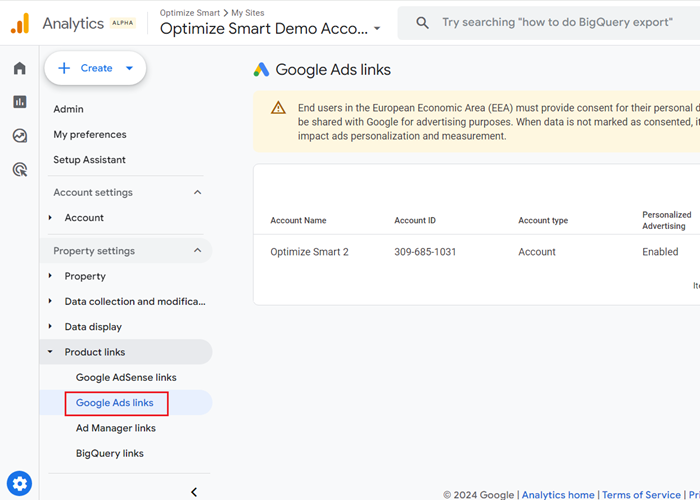
You should now see the list of all the Google Ads accounts linked to your GA4 property:
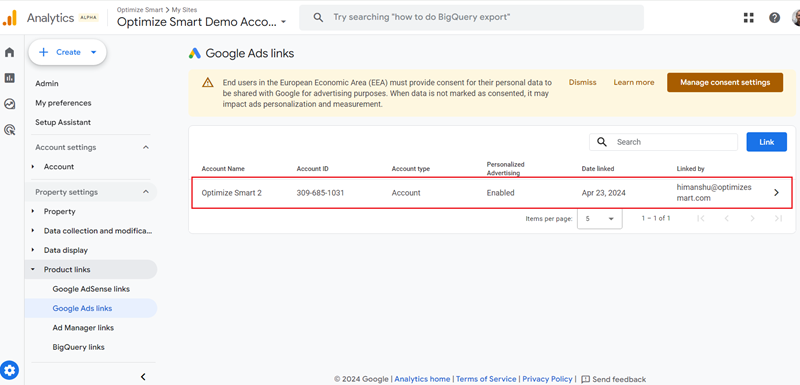
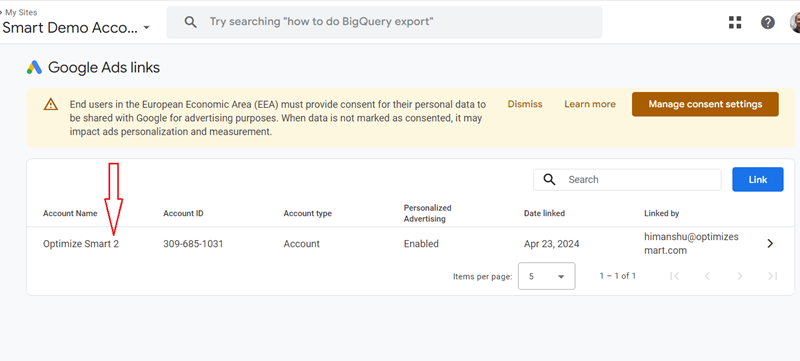
Step-5: Click on the Google Ads account you want to unlink from your GA4 property.
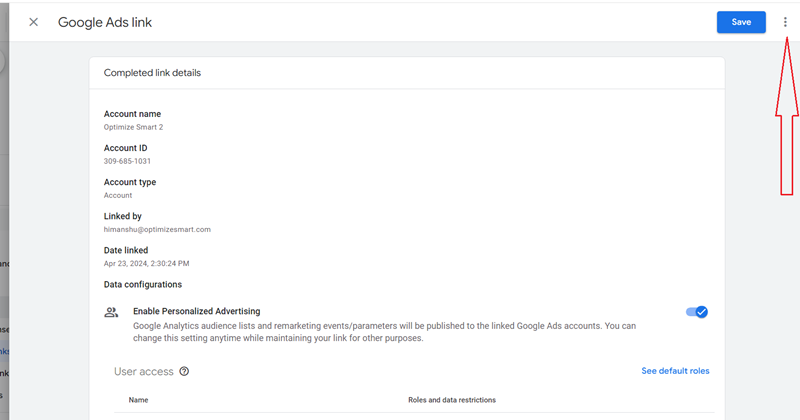
Step-6: Click on the three dots menu at the top right-hand side of your screen:
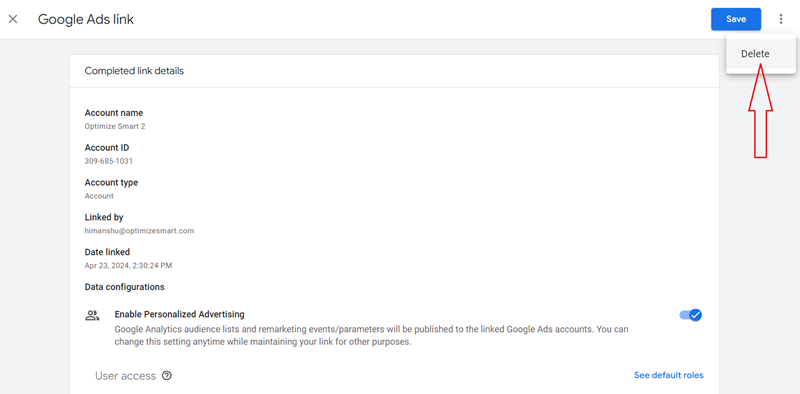
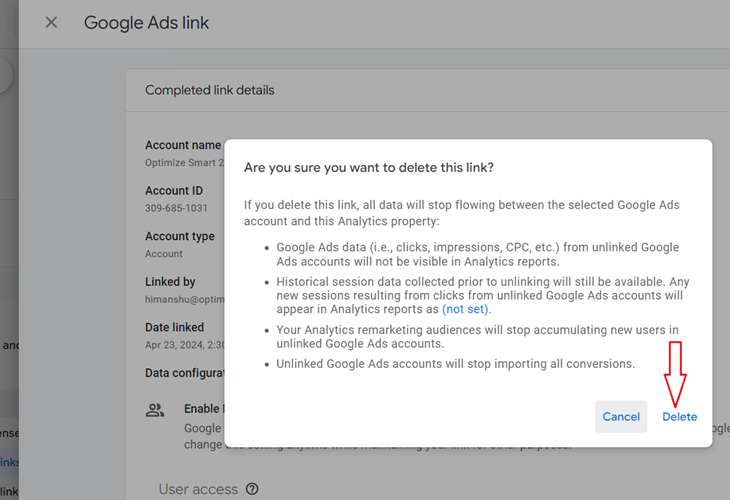
Step-7: Click on ‘Delete‘:
Step-8: Click on the ‘Delete‘ button:
Why link GA4 to Google Ads?
Following are the main advantages of connecting/linking your GA4 property to your Google Ads account:
#1 You can determine how users interact with your Google Ads campaigns in your GA4 reporting view.
#2 You can determine what users do on your website after interacting with your Google Ads. Do they make the purchase, generate a lead or complete some other conversion?
#3 You can import GA4 conversion into Google Ads.
Once you have created conversion events in your GA4 property, you can import them into your Google Ads account and use them for reporting (i.e., seeing GA4 conversion data in Google Ads) and bidding (optimizing bids to increase conversions and lower cost).
#4 You can import GA4 app conversion into Google Ads.
You can import app conversions from your GA4 property into your Google Ads account and can measure how your Google Ads campaigns drive app installs and in-app actions, including those collected via the Firebase SDK.
#5 You can enhance Google Ads remarketing campaigns with your GA4 audience data.
#6 You can exclude individual events and user-scoped custom dimensions from ad personalization.
Note: You can connect a GA4 property to an individual Google Ads account and/or to a Google Ads manager account. You can create up to 400 connections per GA4 property.
Google ads cost data not showing in GA4?
Sometimes, you may not see cost data in your GA4 reports even when your Google Ads account is correctly linked to your GA4 property, and more than 24 hrs have elapsed.
There is a good possibility that you do not have permission to access cost-related metrics for the GA4 property.
Ask your administrator to confirm that the following checkbox is not selected for you under Property > Property Access Management > {Your username} > Data restrictions (GA4 properties only)
No Cost Metrics.
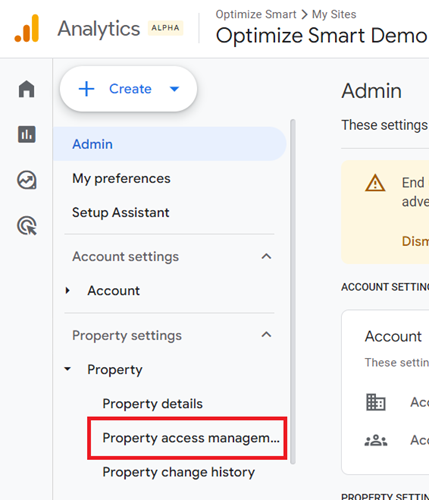
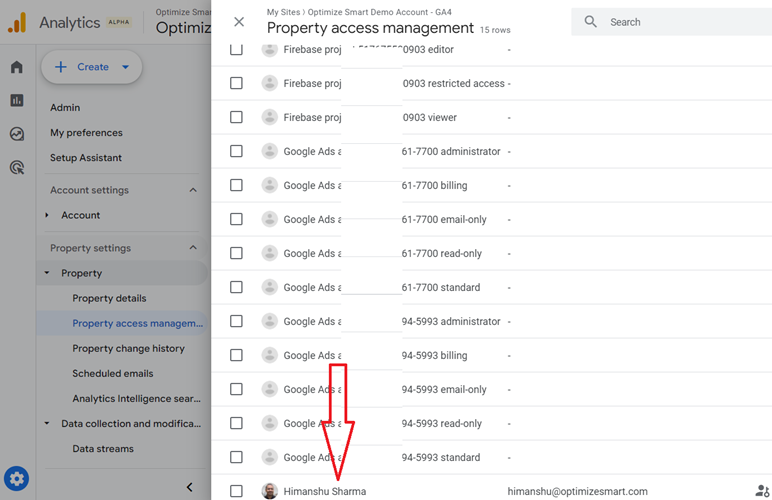
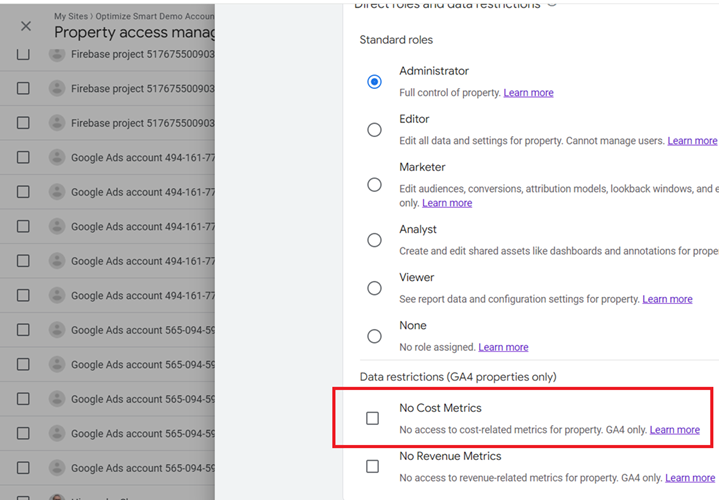
When the ‘No Cost Metrics’ checkbox is selected for you, advertising reports tend not to be accurate for you, and you can not access any of ‘cost-related metrics’ in your GA4 reports.

Other Articles on GA4.
- The Best Tag Auditing Tools for Google Analytics 4.
- How to Exclude URL Query Parameters in Google Analytics 4.
- How to Track Email Campaigns in Google Analytics 4.
- Google Analytics 4 Attribution Modelling Tutorial.
- Understanding Service Worker in GTM Server Side Tagging.
- Cohort Exploration Report in Google Analytics 4 (GA4).
- Google Analytics 4 vs Google Ads conversion tracking.
- Google Analytics 4 Custom Dimensions Tutorial.
- Google Analytics 4 Dimensions Tutorial.
- Event Scoped Custom Dimensions in Google Analytics 4.
- Google Analytics 4 Search Console Integration Tutorial.
- Fixing unassigned issues with GTM Server Side Tagging.
- How to exclude internal traffic in Google Analytics 4.
- Understanding data filters in Google Analytics 4.
- Conversion Funnel Analysis in Google Analytics 4.
- How to use custom templates in Google Tag Manager.
- 6 Critical Flaws in Google Analytics 4 Attribution Paths.
- Google Analytics 4 Admin Settings Tutorial.
- How to Connect Google Ads to Google Analytics 4.
- Google Analytics 4 Predictive Audiences – Tutorial.