

What are Audience Triggers in Google Analytics 4?
The Audience Triggers in Google Analytics 4 fire an event when users match the definition of an audience and become members. By using GA audience triggers you can create complex events (conversions) in GA4.
Here are a few examples
- Users reaching a key milestone, for example, a certain number of sessions in a given period, or reading a certain number of blog posts.
- If the condition of your custom audience, let’s say ‘Premium customers’, defines the users whose lifetime value is greater than $300, then each time a user meets that condition and becomes an audience member, you can trigger an event like ‘new_premium_customer’.
You can enable these events as conversions just like other events in GA4. Note that you can create up to 20 audience trigger events per property.
How to create audience trigger events in GA4?
Before you begin creating an audience trigger, you need to create a custom audience in GA4. You can read about creating a custom audience here: How to create a custom audience in Google Analytics 4 (GA4)
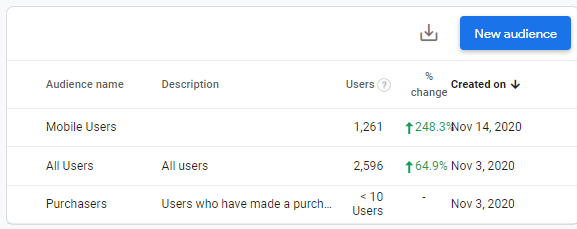
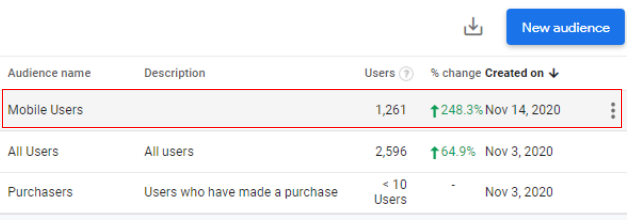
As an example, I already have ‘mobile users’ as a custom audience created in GA4. Now whenever a user becomes a member of this audience list, I will fire an event called ‘new_mobile_user’.
Follow the below steps to create an audience trigger event:
Step 1: Navigate to your Google Analytics 4 property and click on the ‘Configure’ link.
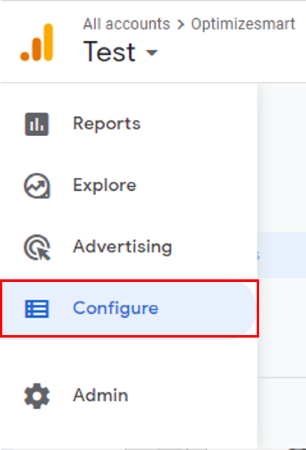
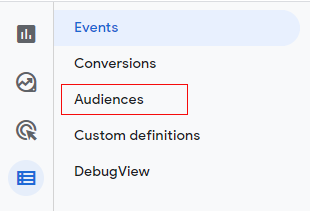
Step 2: Now click on ‘Audiences’.
You will get a screen like below with the list of your audiences.
Step 3: From the list, select the audience for which you want to edit/delete the audience trigger by clicking on the three vertical dots.
Step 4: Click on ‘Edit’.
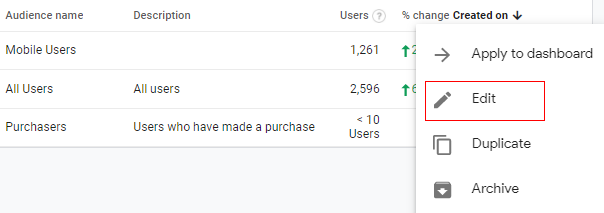
You will see the configuration panel of the audience similar to below.
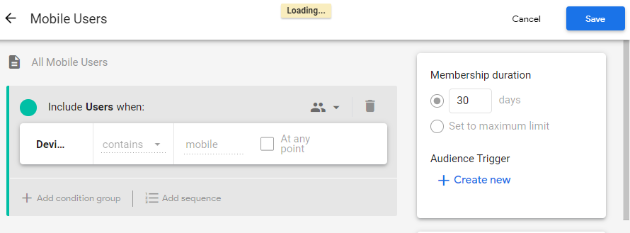
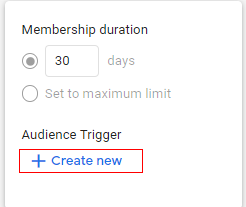
Step 5: To the right of the condition builder, under ‘Audience Trigger’, click ‘+ Create new’.
You will see a pop-up like below.
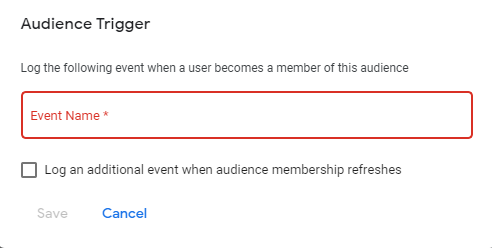
Step 6: Now click on the ‘Event Name *’ input box and give a descriptive name.
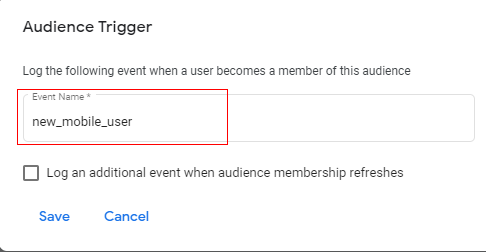
Step 7: Click on the checkbox named ‘Log an additional event when audience membership refreshes’.
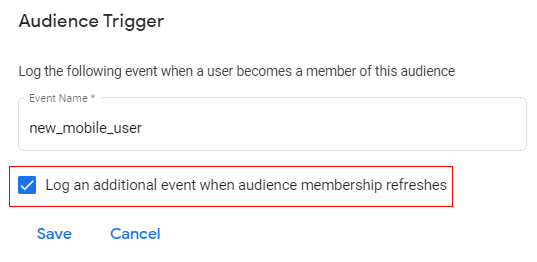
This will fire an event each time the user meets the audience criteria, even if they are already a member of that audience.
Step 8: Click on ‘Save’.
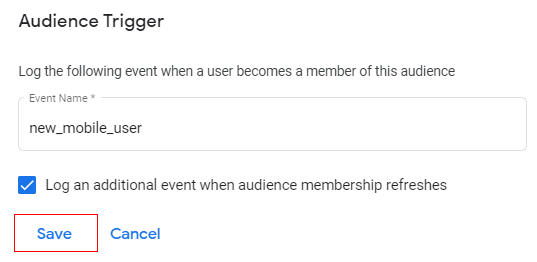
Once you save your audience trigger, you can see it to the right of the condition builder, under ‘Audience Trigger’.
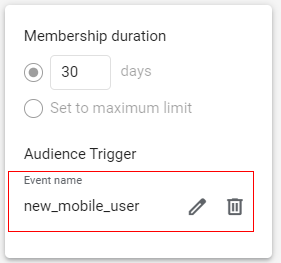
Congratulations! You have successfully created an audience trigger in Google Analytics 4.
Now wait for an hour or so, then you will see your custom audience (mobile users) and event triggered when a new user is added to the membership in Google Analytics real-time reports.
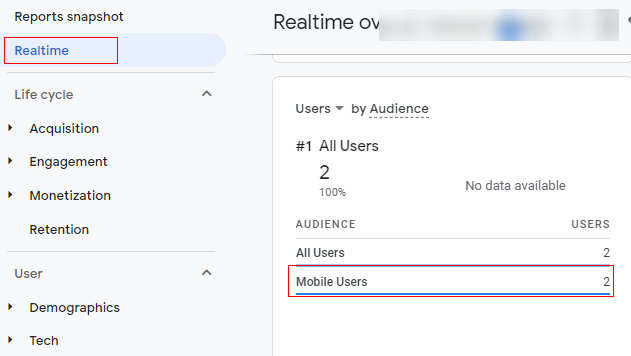
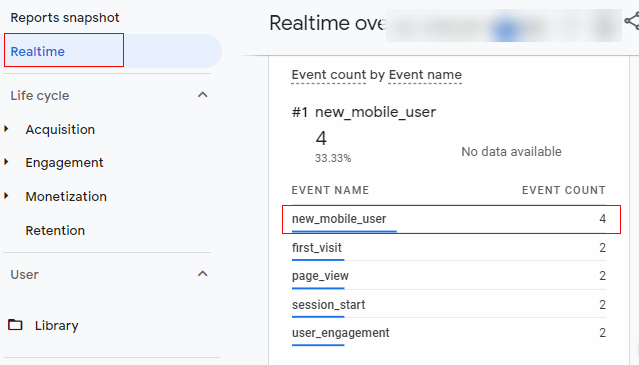
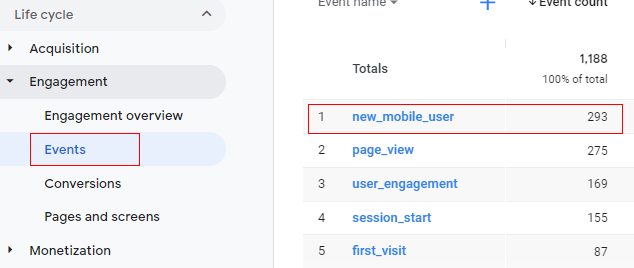
You can also check these events in the ‘All Events’ tab in Google Analytics 4.
How to edit/delete audience triggers in GA4?
If at any point in time you feel to edit or delete the audience trigger you can follow the below steps.
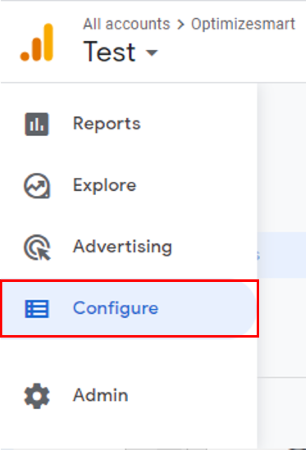
Step 1: Click on the ‘Configure’ link.
Step 2: Now click on ‘Audiences’.
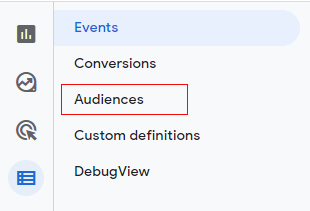
You will get a screen like below with the list of your audiences.
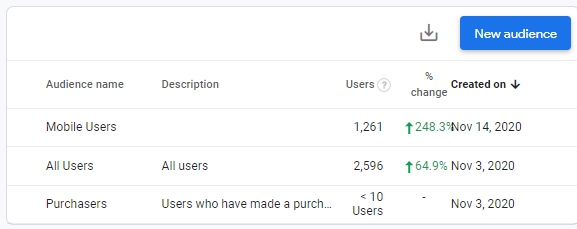
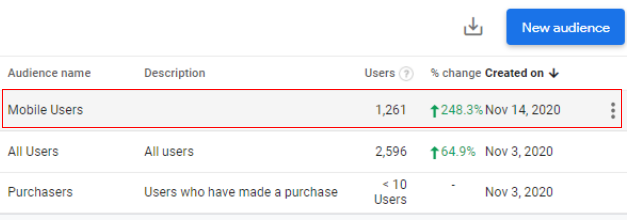
Step 3: From the list, select the audience for which you want to edit/delete the audience trigger by clicking on the three vertical dots.
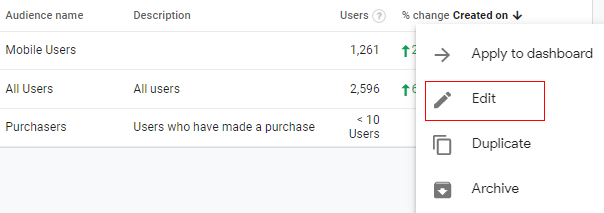
Step 4: Click on ‘Edit’.
You will see the configuration panel of an audience similar to below.
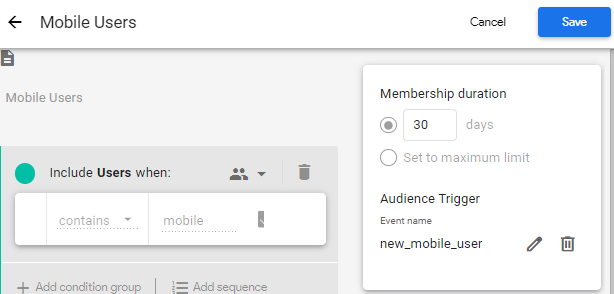
Step 5: Now to the right of the condition builder, under ‘Audience Trigger’, click on the pencil to edit your audience trigger event.
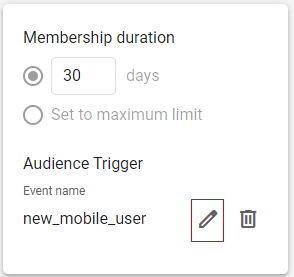
You will get a pop-up like below.
Click on the input box available under ‘Event Name *’ and edit the event name as you want and then click on ‘Save’.
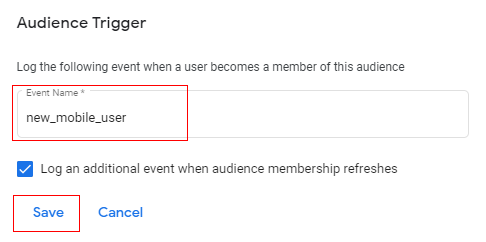
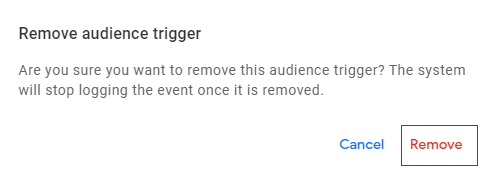
Step 6: If you want to delete the audience trigger, you can simply click on the delete option (trash can icon) available to the right of the condition builder, under ‘Audience Trigger’.
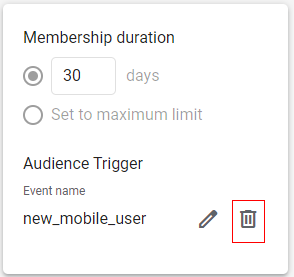
A pop-up will appear asking for confirmation. Click on ‘Remove’.
Using conversion thresholds
You can use an audience trigger to fire an event for threshold parameters. You can also use audience trigger events as proxies for more complex conversions. For example:
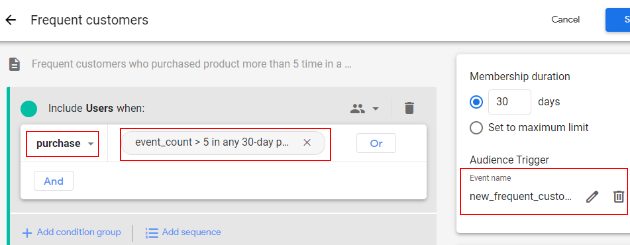
- If the condition of your custom audience, let’s say ‘frequent customers’, defines the users who are purchasing more than five products in a month, then each time a user meets that condition and becomes an audience member, you can trigger an event like ‘new_frequent_customer’.
In this case, your audience condition will be somewhat like below
- Event: purchase
- Parameter: event_count
- Parameter condition: > 5 in any 30-day period
Summary
Using GA4 audience triggers, you can create complex events and conversions from custom audiences.
This allows you to configure all sorts of advanced conversion logic based on the conditions of audiences. So that is how you can use audience triggers in Google Analytics 4 (AKA GA4).

Other Articles on GA4.
- Cohort Exploration Report in Google Analytics 4 (GA4).
- Google Analytics 4 vs Google Ads conversion tracking.
- Google Analytics 4 Custom Dimensions Tutorial.
- Google Analytics 4 Dimensions Tutorial.
- Event Scoped Custom Dimensions in Google Analytics 4.
- Google Analytics 4 Search Console Integration Tutorial.
- Fixing unassigned issues with GTM Server Side Tagging.
- How to exclude internal traffic in Google Analytics 4.
- Understanding data filters in Google Analytics 4.
- Conversion Funnel Analysis in Google Analytics 4.
- How to use custom templates in Google Tag Manager.
- 6 Critical Flaws in Google Analytics 4 Attribution Paths.
- Google Analytics 4 Admin Settings Tutorial.
- How to Connect Google Ads to Google Analytics 4.
- Google Analytics 4 Predictive Audiences – Tutorial.
- How to use Segment Overlap Report in Google Analytics 4.
- Audience Triggers in Google Analytics 4.
- Google Tag Manager Regex Table Variable Explained.
- Understanding Lookup Table in Google Tag Manager.
- Google Tag Manager Variables and Triggers Tutorial.