
Backfilling GA4 data in BigQuery means importing historical GA4 data into your BigQuery project.
If you are like me, you may have been collecting data in your GA4 property for years.
But if you have only recently connected GA4 with BigQuery, you may not have all the historical data in your BigQuery project.
This is because, by default, the GA4 data is imported to BigQuery only from the date you first connected your GA4 property to your BigQuery project.
If you want historical GA4 data in your BigQuery project, you will need to backfill GA4 data in BigQuery by creating a new data transfer.
Google native feature for backfilling GA4 data in BigQuery.
Google provides a native feature for backfilling GA4 data into BigQuery. However, this setup exports pre-aggregated, report-style GA4 tables and is still not a replacement for raw data exports.
You still can’t backfill historical events_* data tables, only the new summary tables. So, if you didn’t link GA4 to BigQuery a year ago, you still can’t recover that raw event-level data.
When you create a new data transfer, it does not affect your existing raw data exports.
Instead, it creates new summary tables and views like the one below (check the top part of the screenshot), which reflect standard GA4 UI reports and are transformed versions of Google’s internal reporting logic.
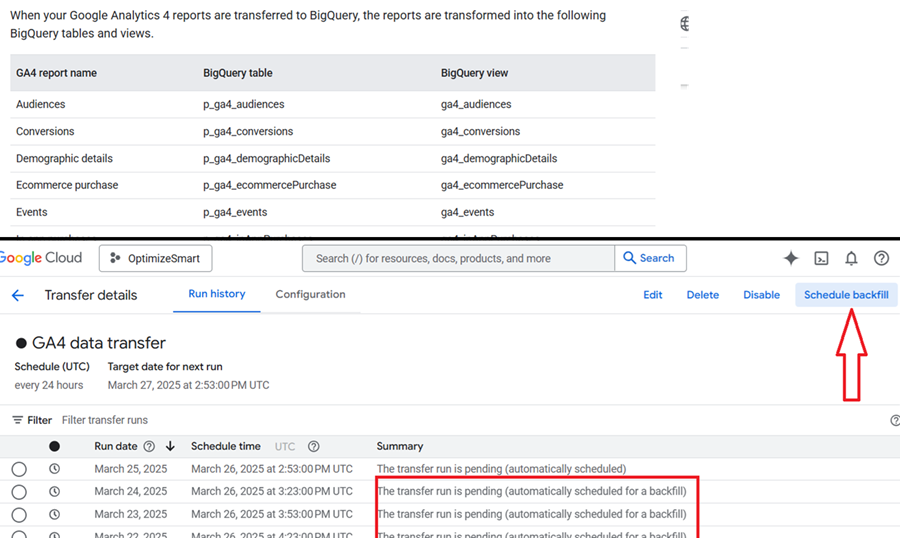
>> These are summarized tables. You don’t get raw event timestamps, event parameters, or full user/session flows.
>> These tables only include what Google chooses. No custom dimensions, custom events, or custom joins unless they have been pre-modelled.
>> Many tables lack user_pseudo_id or session_id, which limits advanced modeling like session stitching, pathing, or attribution.
>> These tables inherit the same limitations as the GA4 UI, thresholding, sampling (possibly), and lack of control.
>> The aggregated tables are built from GA4 report data, not from raw event data. Since these tables are meant to mirror GA4 UI reports, it’s likely they inherit the same privacy threshold logic.
Most of the ga4_* tables are actually views on top of base tables (p_ga4_), which may slow down queries or cost more over time.
If you want to backfill historical events_ data tables, the recommended approach is still a paid connector like ‘Supermetrics for BigQuery. ‘
If you have never linked GA4 to BigQuery before and you don’t want to use a paid connector, you can now backfill some historical data via the native feature.
Even though it’s aggregated, you at least get directional trends and reporting baselines.
The main downside of using multiple summary tables and views in BigQuery is a combination of higher query costs, slower performance, and complexity in managing inconsistent logic across views.
>> More views = more data scanned = higher costs.
>> If the views join or aggregate large datasets (even if they’re pre-aggregated), this can slow dashboard performance or increase latency for real-time querying. This is especially noticeable in Looker Studio or scheduled report jobs.
>> Having many narrow, summary-specific tables leads to fragmented reporting logic, duplicate metrics, overlapping metrics, inconsistent definitions, and hard-to-maintain SQL.
>> More tables = more clutter = harder governance.
Therefore, I am unlikely to use/recommend summary tables. But your call.
Prerequisites for backfilling GA4 data in BigQuery.
Before you can backfill GA4 data in your BigQuery project:
- You would need a Google Cloud Platform account with billing enabled.
- You would need a BigQuery project with billing enabled where you are going to store the GA4 data.
- You would need to connect your GA4 property with your BigQuery project.
- You would need a dataset in your existing project for storing historical GA4 data.
- You would need a paid connector (like ‘Supermetrics for BigQuery’) to backfill your GA4 data.
10,000 foot view for backfilling GA4 data in BigQuery.
#1 Create a new dataset.
Create a new dataset in your BigQuery project for storing historical GA4 data.
I prefer creating a new dataset for storing historical GA4 data instead of using the pre-built dataset (“analytics_<property_id>“). This makes data management easier.
#2 Decide your schema.
Decide the schema you will use for your data transfer.
You can either create and use your own schema (also called the custom schema) or use the default schema provided by your paid connector.
If you want to see your data tables with only the fields you want, then you need to first create your own schema and then use the custom schema while creating the data transfer.
We will use the standard schema to simplify the process of backfilling GA4 data in BigQuery.
#3 Create a new data transfer.
With the help of the paid connector, create a new data transfer.
You can create a new data transfer either via the Google Cloud Console or via the Supermetrics hub.


Regardless of the method you used to create a data transfer, you would still need to use a paid connector.
We will create a new data transfer via the Google Cloud Console.
Note: If you want to create a new data transfer via the supermetrics hub, then check out this article: Sending Custom GA4 data to BigQuery.
#4 Schedule backfill
The initial data transfer will backfill only two days of historical GA4 data. To backfill more historical GA4 data, you will need to schedule a backfill.
You can schedule a backfill once your initial data transfer has been completed successfully.
Note: The GA4 data retention policies could restrict the amount of data you are allowed to backfill.
The amount of data you are allowed to backfill will depend upon the connector being used.
For example, the ‘Supermetrics for BigQuery’ connector allows you to backfill up to six months’ worth of data at one time.
If you want to backfill more data, then you would need to do it in separate batches of six months sized.
Create a new dataset for storing historical GA4 data
Follow the steps below:
Step-1: Navigate to your BigQuery account: https://console.cloud.google.com/bigquery
Step-2: Make sure that you are in the correct project where you want to store the historical GA4 data:

Step-3: Click on the three dots menu next to the project ID where you want to store the historical GA4 data:

Step-4: Click on ‘Create Dataset’:

Step-5: Name your data set (e.g. ‘historical_ga4_data’) and then click on the ‘Create Dataset’ button:

You should now see the new dataset created under your project ID:

Note: The ‘historical_ga4_data’ dataset does not contain any data table or any data. For that, you would first need to create and run a data transfer.
Decide on your schema for the data transfer.
We will use the standard schema supplied by supermetrics to simplify the process of backfilling GA4 data in BigQuery.
Feel free to create a custom schema if you want to see your data tables with only the fields you want.
However, make sure that you select your custom schema when you configure your data transfer.
Create a new data transfer to backfill GA4 data in BigQuery
Step-1: Navigate to BigQuery data transfers: https://console.cloud.google.com/bigquery/transfers
Step-2: Click on the ‘+ CREATE TRANSFER’ button:

Step-3: Click on the ‘Source’ drop-down menu to select a data source:

Step-4: Click on ‘Explore Data Sources’:

You should now see a screen like the one below:

Step-5: Type ‘Google Analytics 4’ in the search box, press the enter key and then click on ‘Google Analytics 4 by Supermetrics’:

Step-6: Click on the ‘ENROLL’ button:

You should now see the ‘Google Analytics 4 by Supermetrics’ listed under the ‘Source’ menu:

Step-7: Select ‘Google Analytics 4 by Supermetrics’ as the source and then type ‘Backfill GA4 data to BigQuery’ under the ‘Transfer config name’ field:

Step-8: Select the ‘historical_ga4_data’ dataset from the drop-down menu:

Step-9: Click on the ‘CONNECT SOURCE’ button:

Step-10: Click on ‘ACCEPT AGREEMENT’ button:

Step-11: Click on ‘Sign in with Google’ button:

Step-12: Once you have signed in then click on the ‘Continue’ button:

Step-13: Select your schema from the drop-down menu. We will use ‘STANDARD’:

Step-14: Select your GA4 property from the drop-down menu and then click on the ‘Submit’ button:

You should now see the ‘Source Connected’ message:

Step-15: Click on the ‘SAVE’ button to save and start your data transfer:

You should now see a screen like the one below, which shows the current status of your data transfer: ‘The Transfer run is pending’:

Step-16: Refresh your browser window to check the current status of your data transfer.
You should now see a screen like the one below, which shows the current status of your data transfer: ‘The Transfer run is in progress’:

Step-17: After a couple of minutes, again refresh your browser window to check the current status of your data transfer.
You should now see a screen like the one below, which shows the current status of your data transfer: ‘The transfer run has completed successfully.’:

Congratulations. You have now successfully backfilled two days of GA4 data in your BigQuery project.
Now let’s check this new historical GA4 data.
Step-18: Click on the ‘SQL Workspace’ from the left navigation menu:

Step-19: Navigate to the data set you created earlier for storing the historical GA4 data (in our case, it would be ‘historical_ga4_data’). You should now be able to see a new set of data tables listed under your dataset:

Step-20: Click on a data table and then click on the ‘PREVIEW’ tab to see the imported historical GA4 data:

Schedule backfill.
The initial data transfer backfilled only two days of historical GA4 data. To backfill more historical GA4 data, you will need to schedule a backfill.
You can schedule a backfill once your initial data transfer has been completed successfully.
Follow the steps below to backfill more GA4 data in BigQuery:
Step-1: Navigate to BigQuery data transfers: https://console.cloud.google.com/bigquery/transfers
Step-2: Click on the link ‘Backfill GA4 data to BigQuery’:

Step-3: Click on the ‘SCHEDULE BACKFILL‘ button:

You should now see a screen like the one below:

Step-4: Click on the option ‘Run for a date range‘, select your start date and time and then your end date and time from the date selector:

Note: The ‘Supermetrics for BigQuery’ connector allows you to backfill up to six months’ worth of data at one time. If you want to backfill more data, then you would need to do it in separate batches of six months sized.
Step-5: Click on the ‘OK’ button to start the backfill:

You should now see the backfilled scheduled message at the bottom of your screen:

Step-6: Refresh your browser window to see the current status of various data transfers.
You should now see a screen like the one below:

When you run a data transfer, you may see one or all of the following four messages under the ‘Summary’ columns:
- The transfer run has completed successfully.
- The transfer run is in progress.
- The transfer run is pending (manually requested)
- The transfer run has failed.
If a transfer run has failed, then click on the ‘RETRY’ button:

Step-7: Wait for the data transfer to complete. This could take some time, depending on how much data you requested to be backfilled.
Step-8: Click on the ‘SQL workspace‘ link from the left-hand side navigation:

Step-9: Navigate to the data set you created earlier for storing the historical GA4 data (in our case, it would be ‘historical_ga4_data’). You should now be able to see all of the historical GA4 data in your dataset.
That’s how you can backfill GA4 data in BigQuery.
