
Follow me on LinkedIn - AI, GA4, BigQuery

Here is how you can create a ‘Video Tracking‘ report in GA4 BigQuery to track how users engage with videos embedded on your website.
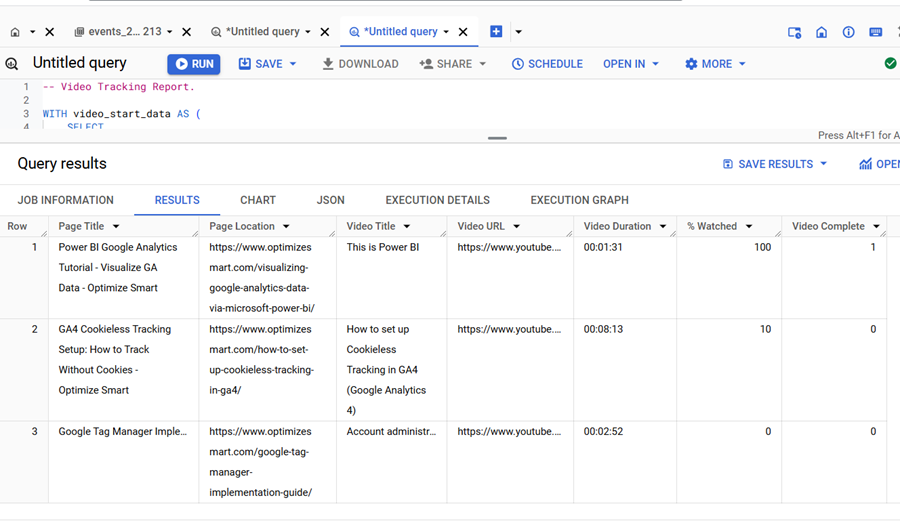
GA4 BigQuery Video Tracking Report

Through video tracking:

  1. You can measure how users engage with the videos embedded in your website. For example, how many users play, pause, or complete watching a video.
  2. You can determine the videos which resonated the most with your audience.
  3. You can correlate the video engagement data with website usage data and conversions.

A GA4 property provides built-in video tracking via its ‘Video engagement’ enhanced measurement feature:
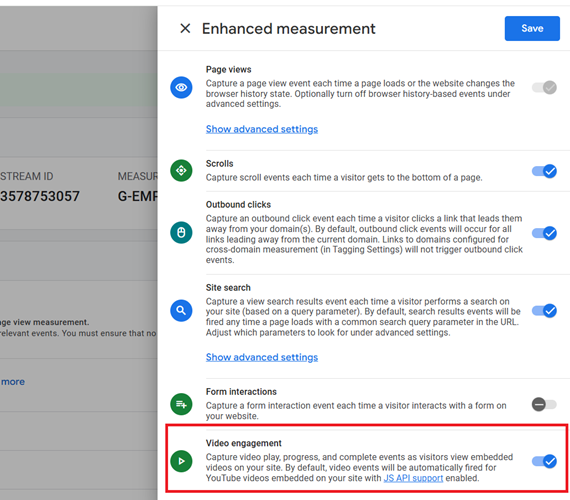
‘Video engagement enhanced measurement feature

GA4 built-in Video tracking works for embedded YouTube videos that have the JavaScript API enabled (enablejsapi=” true”).

The GA4 built-in Video tracking can track the following video events by default:

video_startThis event is recorded by GA4 when a user starts watching a video.

video_progress – This event is recorded by GA4 when a user has watched/reached a particular threshold of the video (10%, 25%, 50%, 75%).

video_complete – This event is recorded by GA4 when a user has watched/reached the end of the video, i.e. the video progress is 100%

Once you have enabled/setup Video tracking in your GA4 property, whenever a user engages with a video embedded on your website, GA4 fires the video events.

You can see the video events in your GA4 property via the ‘Events’ report:
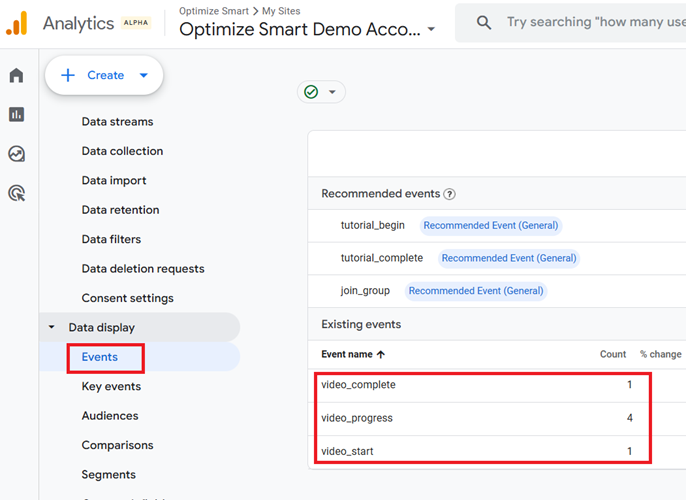
via the ‘Events report

The following video event parameters are automatically sent along with the default GA4 Video Events:

  1. video_current_time – The current timestamp of the video where a viewer is at (measured in seconds).
  2. video_duration – The total duration of the video (measured in seconds).
  3. video_percent – The percentage of video completion at predefined thresholds (e.g., 10, 25, 50, 75, 90, and 100). The % sign is not reported.
  4. video_provider – The provider of the video. For embedded YouTube videos, the value is always “youtube”.
  5. video_title – The title of the video.
  6. video_url – The URL of the video.
  7. visible – returns “1” if the player is visible on the screen when the video event was tracked. But it’s not always guaranteed to be reported in all cases.

You can see the various default GA4 video event parameters via the DebugView report.
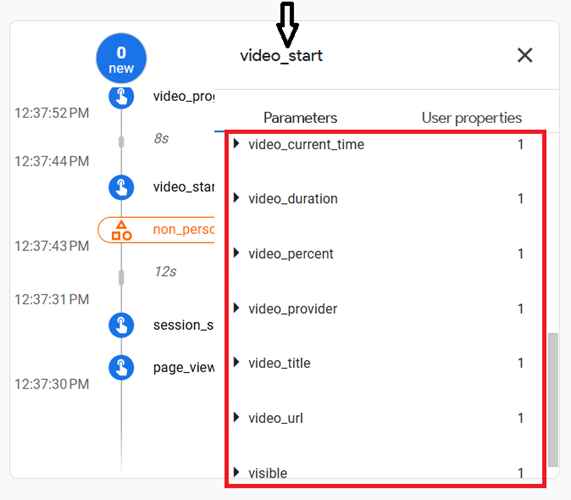
via the DebugView report

Important points about the default GA4 Video Event Parameters.

#1 These event parameters are automatically sent only for embedded YouTube videos when Enhanced Measurement for “Video engagement” is enabled in your GA4 property.

#2 For self-hosted videos (e.g. MP4, Vimeo, Wistia, etc.), these parameters are not automatically tracked unless custom video tracking is implemented via GTM.

You should check how the video events are being recorded in the GA4 BigQuery data tables and what event parameters are being passed along with these events.

This knowledge will later help you in building SQL queries.

Follow the steps below to create a video tracking report in GA4 BigQuery:
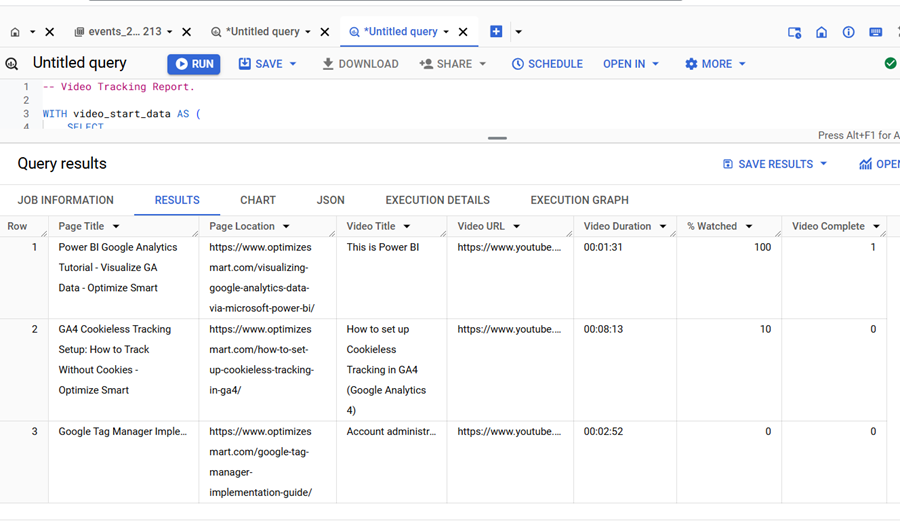
GA4 BigQuery Video Tracking Report

Step-1: Make sure you have collected at least a few days of video events both in your GA4 property and BigQuery data tables.

Step-2: Calculate the values of the ‘Page Title’ column by extracting the values from the ‘page_title’ event parameter where the ‘event_name’ top-level field is ‘video_start’.

Step-3: Calculate the values of the ‘Page Location’ column by extracting the values from the ‘page_location’ event parameter for each ‘Page Title’.

Step-4: Calculate the values of the ‘Video Title’ column by extracting the values from the ‘video_title’ event parameter where the ‘event_name’ top-level field is ‘video_start’.

Step-5: Calculate the values of the ‘Video URL’ column by extracting the values from the ‘video_url’ event parameter where the ‘event_name’ top-level field is ‘video_start’.

Step-6: Calculate the values of the ‘Video Duration’ column for each unique ‘Video Title’ by extracting the values from the ‘video_duration’ event parameter where the ‘event_name’ top-level field is ‘video_start’.

Step-7: Display the values of the ‘Video Duration’ column in HH:MM:SS format. Where HH stands for hours, MM stands for minutes, and SS stands for seconds. For example: 01:23:52.

Step-8: Calculate the values of the ‘% Watched’ column by extracting the highest recorded values from the ‘video_percent’ event parameter where the ‘event_name’ top-level field is ‘video_progress’.

8.1 If a video has been completed at least once (‘video_complete’ event exists for the video), set ‘% Watched’ to 100%. Otherwise, report the highest recorded ‘% Watched’ value.

Step-9: Calculate the values of the ‘Video Complete’ column by counting the total number of ‘video_complete’ top-level field occurrences for each unique ‘Video Title’.

Step-10: Sort the table in descending order for the ‘% Watched’ column.

Once you understand the logic, creating a Video tracking report is easy. Feel free to modify, if my logic does not meet your unique tracking requirements.

The SQL below (95 lines of code) is automatically generated via a text prompt in ChatGPT.

-- Video Tracking Report.

WITH
  video_start_data AS (
    SELECT
      user_pseudo_id,
      COALESCE(
        (
          SELECT value.string_value
          FROM UNNEST(event_params)
          WHERE key = 'page_title'
        ),
        '(not set)') AS page_title,
      (
        SELECT value.string_value
        FROM UNNEST(event_params)
        WHERE key = 'page_location'
      ) AS page_location,
      (
        SELECT value.string_value
        FROM UNNEST(event_params)
        WHERE key = 'video_title'
      ) AS video_title,
      (
        SELECT value.string_value
        FROM UNNEST(event_params)
        WHERE key = 'video_url'
      ) AS video_url,
      (
        SELECT value.int_value
        FROM UNNEST(event_params)
        WHERE key = 'video_duration'
      ) AS video_duration
    FROM `dbrt-ga4.analytics_207472454.events_*`
    WHERE
      event_name = 'video_start'
      AND _TABLE_SUFFIX BETWEEN '20240601' AND '20241031'
  ),
  latest_video_progress_data AS (
    SELECT
      user_pseudo_id,
      (
        SELECT value.string_value
        FROM UNNEST(event_params)
        WHERE key = 'video_title'
      ) AS video_title,
      MAX(
        (
          SELECT value.int_value
          FROM UNNEST(event_params)
          WHERE key = 'video_percent'
        )) AS max_percent_watched
    FROM `dbrt-ga4.analytics_207472454.events_*`
    WHERE
      event_name = 'video_progress'
      AND _TABLE_SUFFIX BETWEEN '20240601' AND '20241031'
    GROUP BY user_pseudo_id, video_title
  ),
  video_complete_data AS (
    SELECT
      (
        SELECT value.string_value
        FROM UNNEST(event_params)
        WHERE key = 'video_title'
      ) AS video_title,
      COUNT(*) AS video_complete
    FROM `dbrt-ga4.analytics_207472454.events_*`
    WHERE
      event_name = 'video_complete'
      AND _TABLE_SUFFIX BETWEEN '20240601' AND '20241031'
    GROUP BY video_title
  )
SELECT
  vsd.page_title AS `Page Title`,
  vsd.page_location AS `Page Location`,
  vsd.video_title AS `Video Title`,
  vsd.video_url AS `Video URL`,
  FORMAT_TIMESTAMP('%T', TIMESTAMP_SECONDS(CAST(vsd.video_duration AS INT64)))
    AS `Video Duration`,
  CASE
    WHEN vcd.video_complete > 0 THEN 100
    ELSE COALESCE(MAX(vpd.max_percent_watched), 0)
    END AS `% Watched`,
  COALESCE(vcd.video_complete, 0) AS `Video Complete`
FROM video_start_data vsd
LEFT JOIN latest_video_progress_data vpd
  ON
    vsd.user_pseudo_id = vpd.user_pseudo_id
    AND vsd.video_title = vpd.video_title
LEFT JOIN video_complete_data vcd
  ON vsd.video_title = vcd.video_title
GROUP BY
  vsd.page_title, vsd.page_location, vsd.video_title, vsd.video_url,
  vsd.video_duration, vcd.video_complete
ORDER BY `% Watched` DESC;

If you want to learn to automate SQL generation via text prompts in ChatGPT, enrol in my GA4 BigQuery course.


Instead of teaching you SQL, I teach you to create effective text prompts in chatGPT, which will automatically create your desired SQL.

The focus is entirely on teaching the underlying logic (instead of the actual SQL). So that you can scale across ‘N’ SQL use cases and generate consistent outputs repeatedly with 100% accuracy.

[No prior knowledge of BigQuery or SQL required.]

  1. Tracking Pages With No Traffic in GA4 BigQuery.
  2. First User Primary Channel Group in GA4 BigQuery
  3. How to handle empty fields in GA4 BigQuery.
  4. Extracting GA4 User Properties in BigQuery.
  5. Calculating New vs Returning GA4 Users in BigQuery.
  6. How to access BigQuery Public Data Sets.
  7. How to access GA4 Sample Data in BigQuery.
  8. Understanding engagement_time_msec in GA4 BigQuery.
  9. GA4 BigQuery Attribution Tutorial.
  10. How to backfill GA4 data in BigQuery.
  11. How to send data from Google Search Console to BigQuery.
  12. Google Advanced Consent Mode and GA4 BigQuery Export.
  13. Google Analytics 4 BigQuery Tutorial for Beginners to Advanced.
  14. Prompt Engineering for GA4 BigQuery SQL Generation.
  15. How to create a new BigQuery project.
  16. How to create a new Google Cloud Platform account.
  17. How to overcome GA4 BigQuery Export limit.
  18. BigQuery Cost Optimization Best Practices.
  19. event_timestamp vs user_first_touch_timestamp GA4 BigQuery.
  20. GA4 BigQuery Video Tracking Report.