

What is Advertising Snapshot in Google Analytics 4?
The Advertising Snapshot report is an advertising workspace in your GA4 property that gives an overview of your conversion performance and your customers’ purchase journeys.
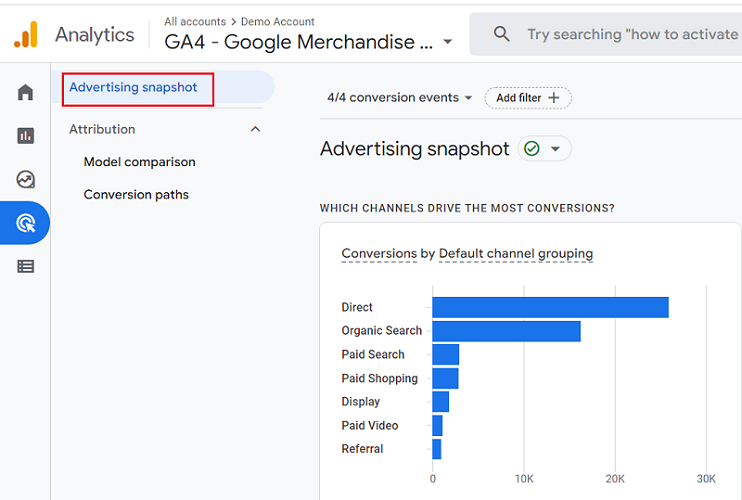
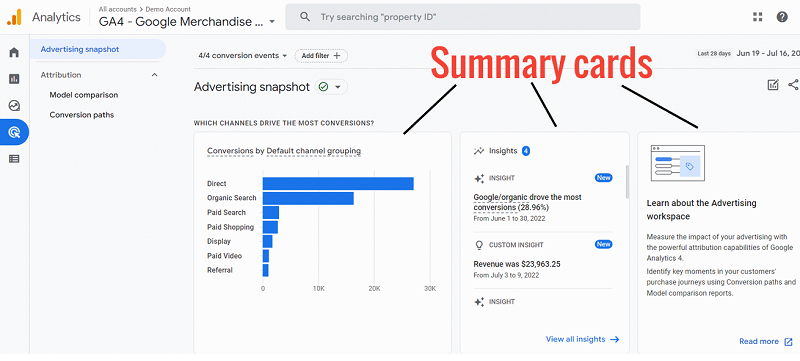
The advertising snapshot report is made up of summary cards and reports through which you can get answers to questions like:
- Which channels drive the most conversions?
- What are the significant changes or emerging trends in your advertising data?
- What touchpoints do customers take to convert?
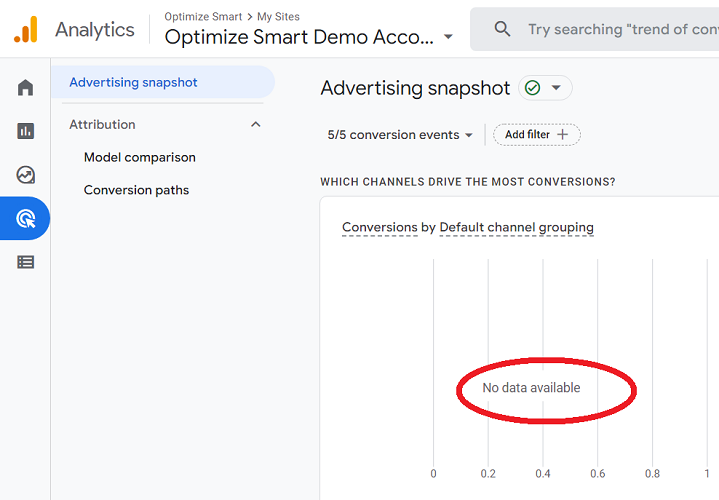
Note: If you are not tracking any conversion events in GA4, then you are not going to see any data in your Advertising Snapshot report.
How to access the Advertising Snapshot in Google Analytics 4?
In order to access the Advertising Snapshot report in GA4, follow the steps below:
Step-1: Navigate to your GA4 property.
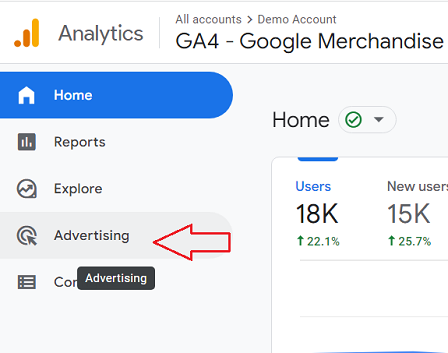
Step-2: Click on the ‘Advertising’ link from the left-hand side navigation:
You should now be able to see the Advertising Snapshot report:
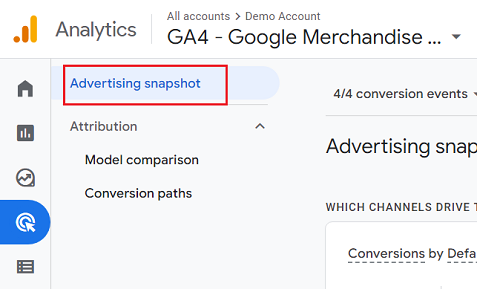
Conversion events for the Advertising Snapshot report
By default, the Advertising Snapshot report gives an overview of all your conversion events:
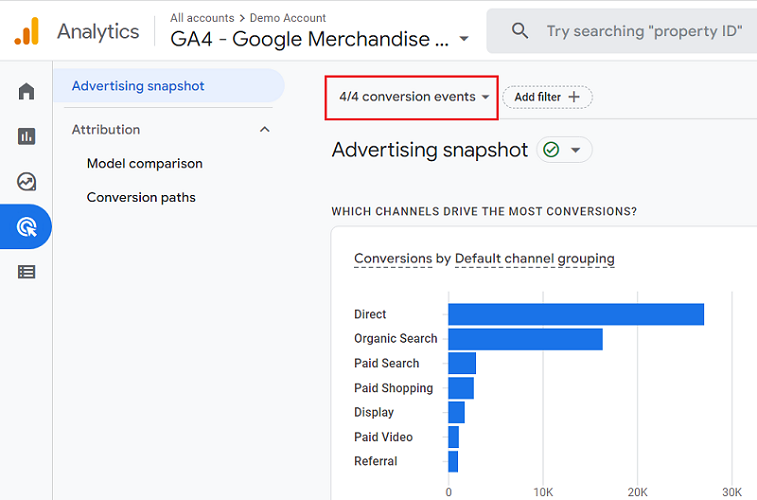
If you want to see the Advertising Snapshot report only for a particular conversion event, then follow the steps below:
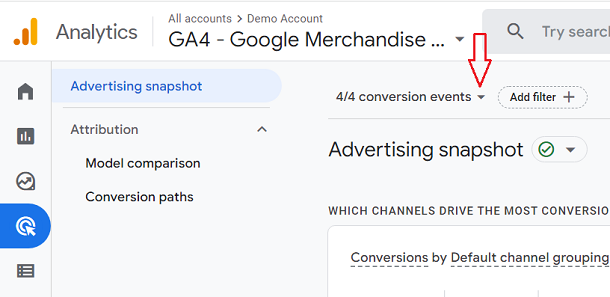
Step-1: Click on the ‘conversion events’ drop-down menu:
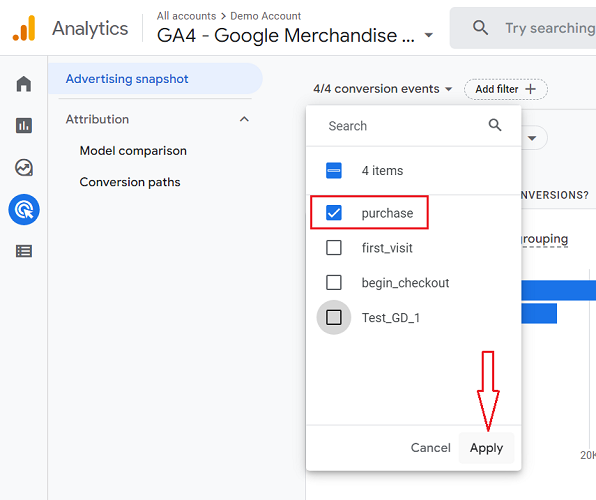
Step-2: Select the conversion event for which you want to see the data in your Advertising Snapshot report. Deselect all other conversion events and then click on the ‘Apply‘ button:
You would now see the Advertising Snapshot report only for the selected conversion event (in our case the ‘purchase’ conversion event):
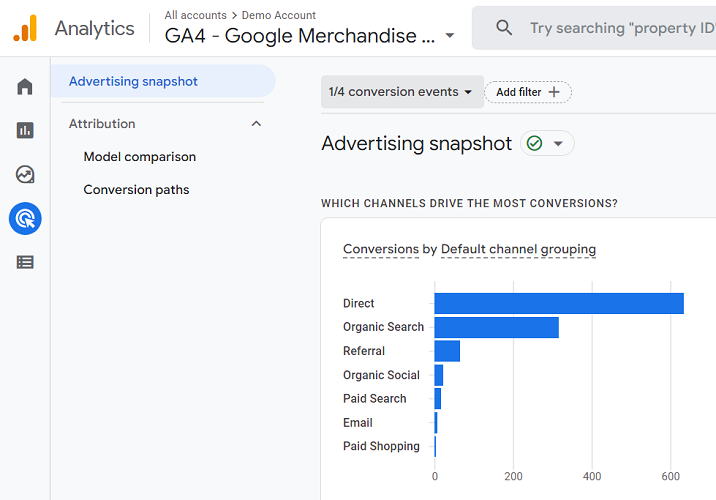
From the screenshot above, we can conclude that majority of purchases came from direct traffic, followed by organic search traffic, referral traffic, organic social etc, in the selected time period.
The time period of your advertising snapshot report
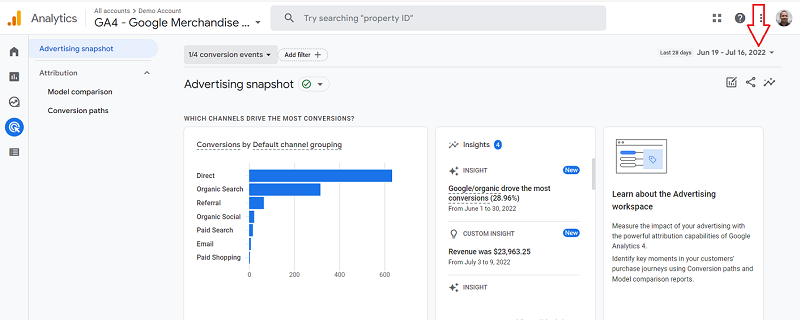
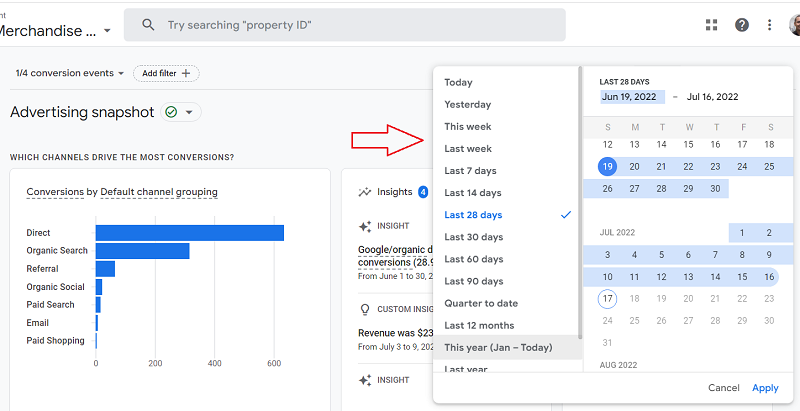
You can change the time period of your advertising snapshot report by clicking on the date selector:
Adding filters to the Advertising Snapshot report
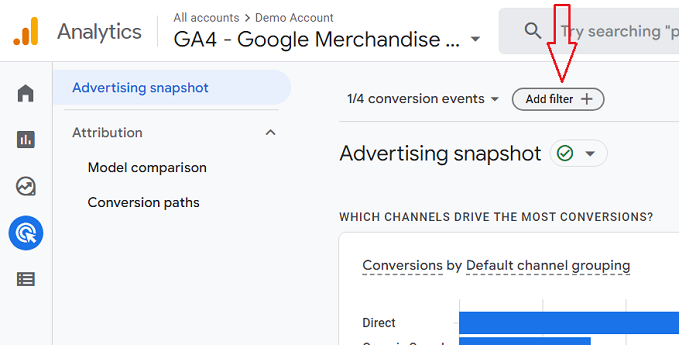
By default, the Advertising Snapshot report shows data for all users. If you want to see data for only a particular segment of users, then click on the ‘Add filter’ button:
You would then see an overlay on the right-hand side of your screen through which you can define and apply a filter:
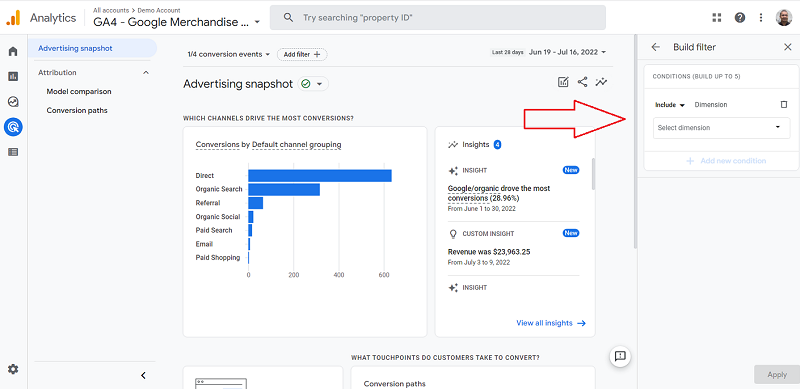
For example, you can create a filter that includes only those users who visited your website from the United States:
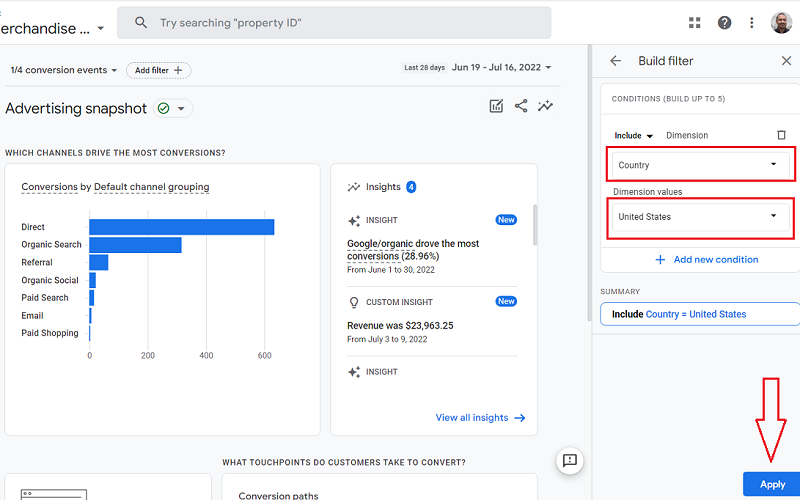
Here is what the applied filter on the ‘Advertising Snapshot’ report would look like:
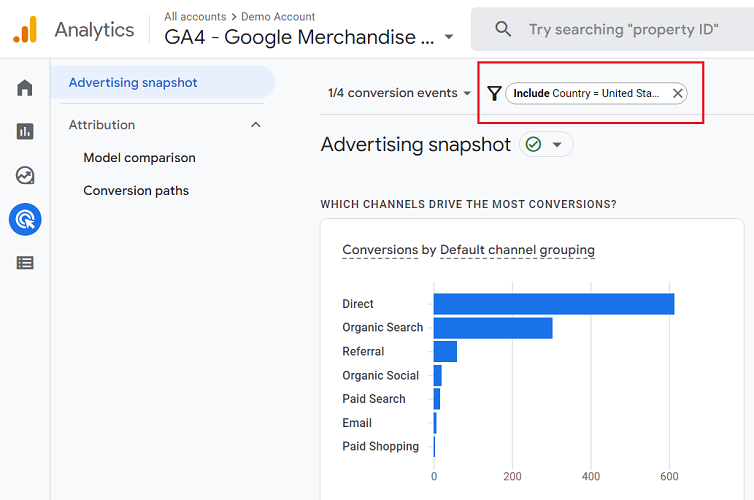
Now all the data that you see in your advertising snapshot report is from United States users only.
Click on the cross button next to the filter name to remove the filter from the advertising snapshot report:
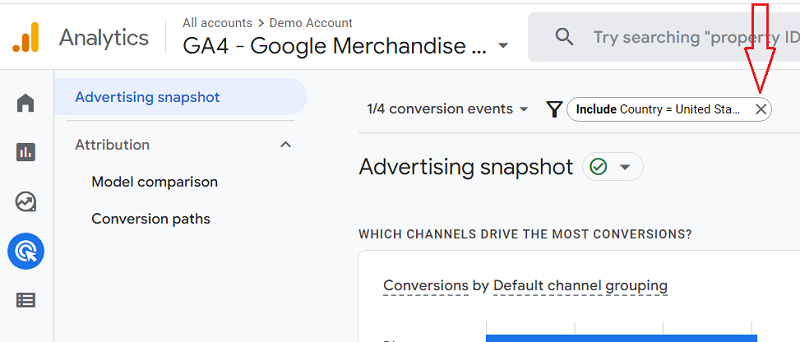
Note: The ‘Add filter’ feature works just like the GA4 Comparisons feature.
Summary cards of the Advertising Snapshot report
Following are the various summary cards available in the Advertising Snapshot report:
- Which channels drive the most conversions?
- Insights
- Learn about the advertising workspace.
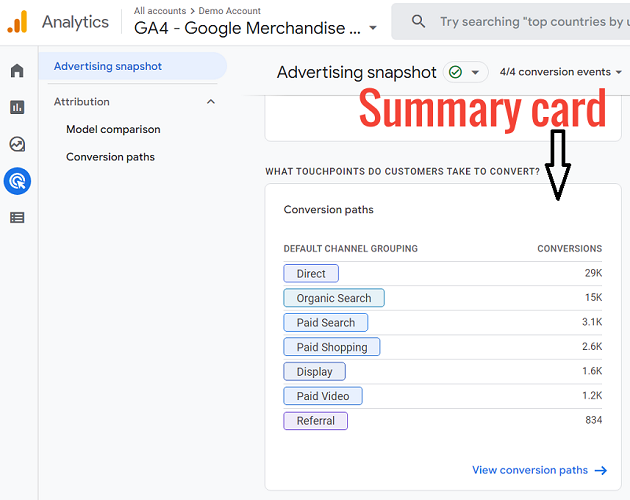
- What touchpoints do customers take to convert?
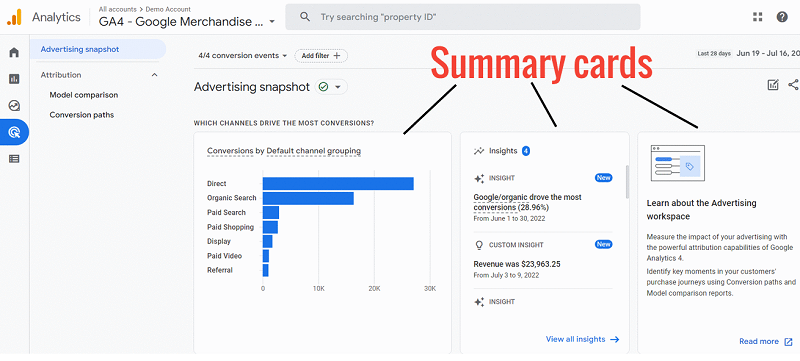
Note: The summary cards include data from June 14, 2021, onwards.
#1 Which channels drive the most conversions?
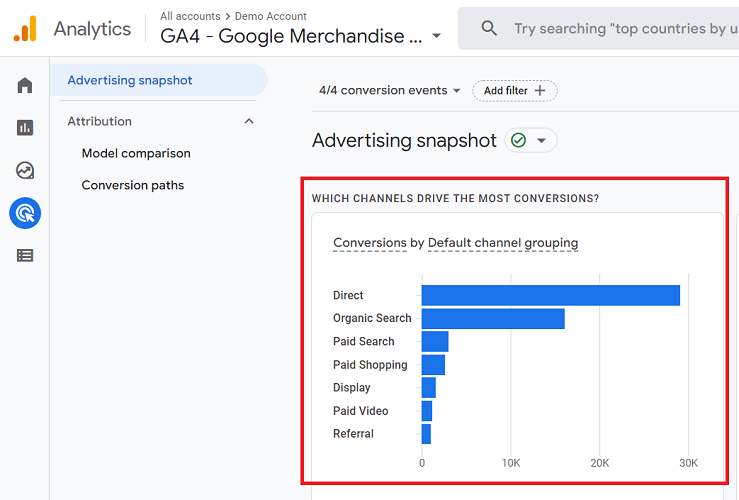
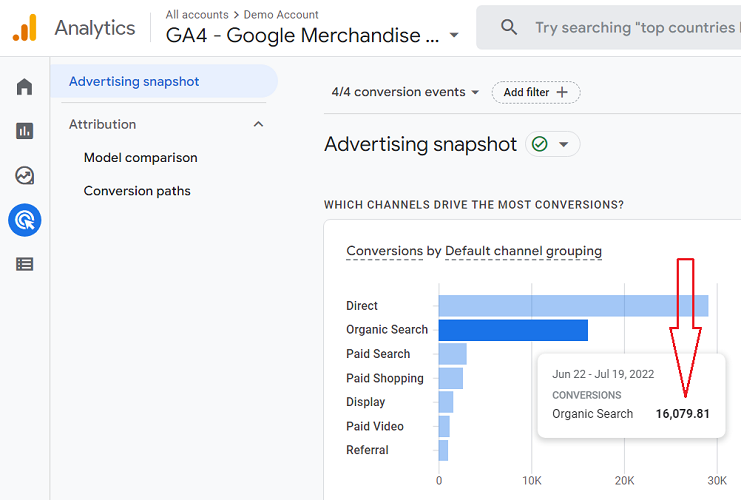
Through this card, you can determine the top marketing channels (in the default channel grouping) in terms of conversions.
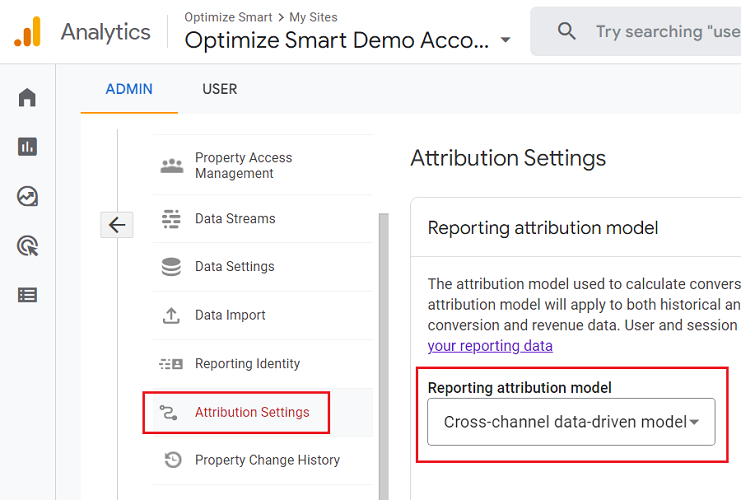
This card uses the attribution model you set as the reporting attribution model (via ‘Attribution Settings’ in the GA4 admin) to attribute conversions to marketing channels:
If you hover your mouse over the bar chart, you can see the number of conversions generated by a particular marketing channel:
#2 Insights
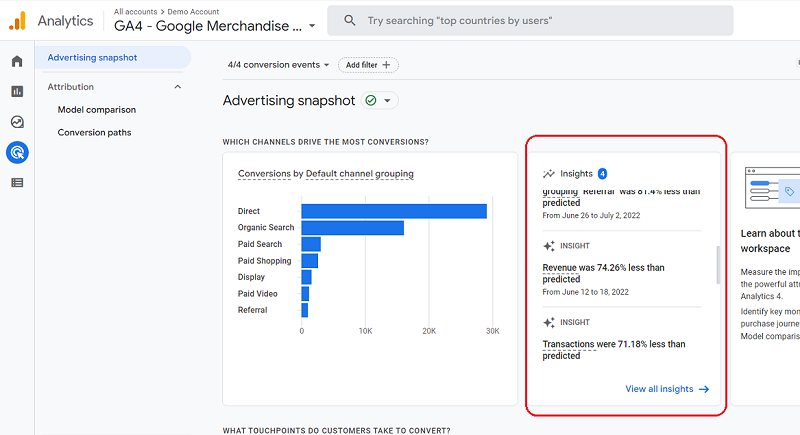
The insights card generates automated insights and custom insights through which you can determine any significant changes or emerging trends in your advertising data.
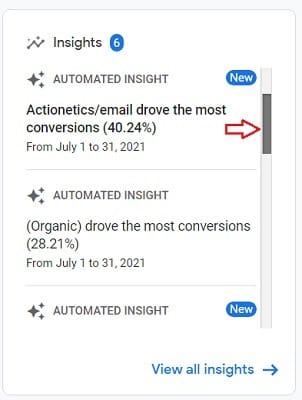
The Insight card contains a vertical scrollbar through which you can see more insights:
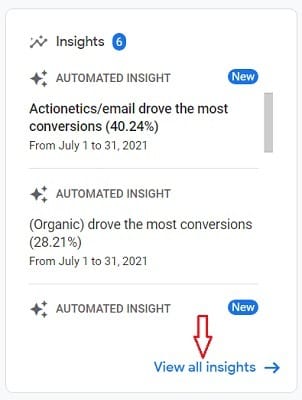
If you want to see the complete list of insights cards, then click on the ‘View all insights’ link:
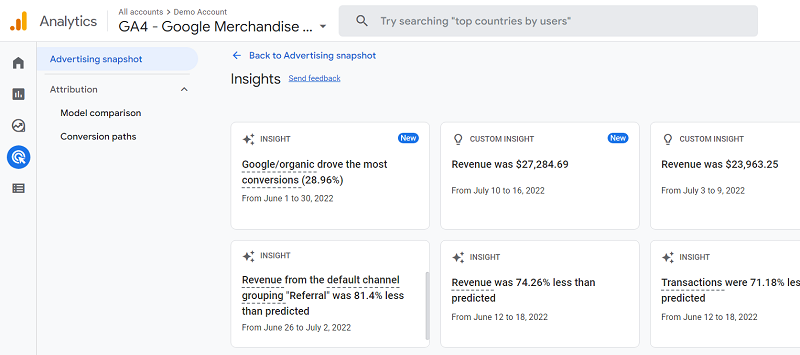
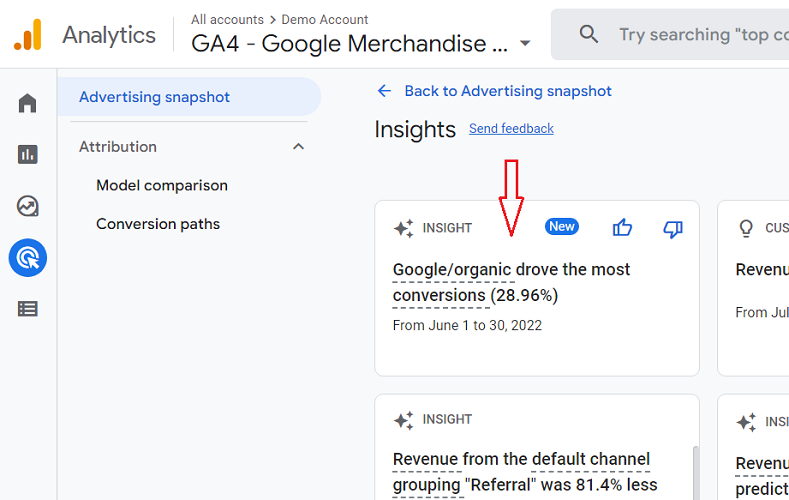
Click on an Insight card to see more details about the insight:
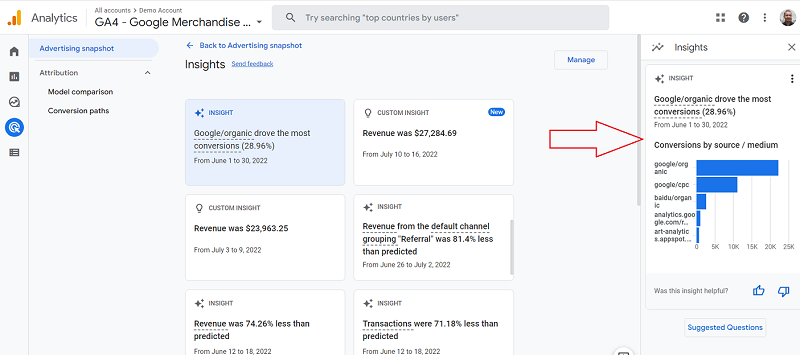
You should now see an overlay on the right-hand side of your screen:
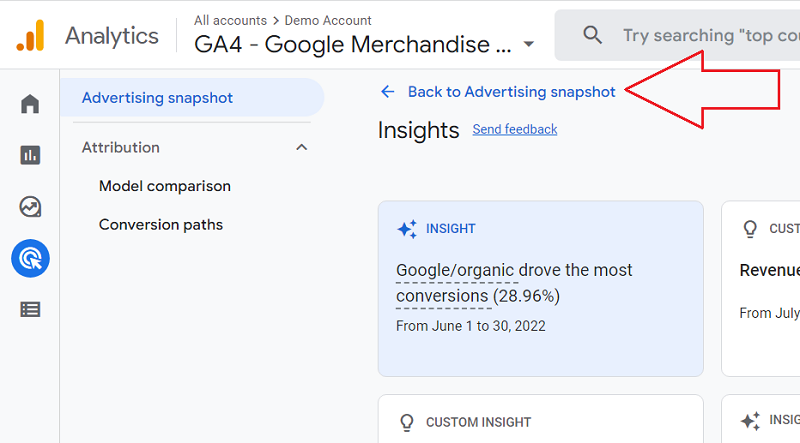
If you want to navigate back to the ‘Advertising Snapshot’ report, then click on the link ‘<- Back to Advertising snapshot’:
#3 Learn about the Advertising workspace
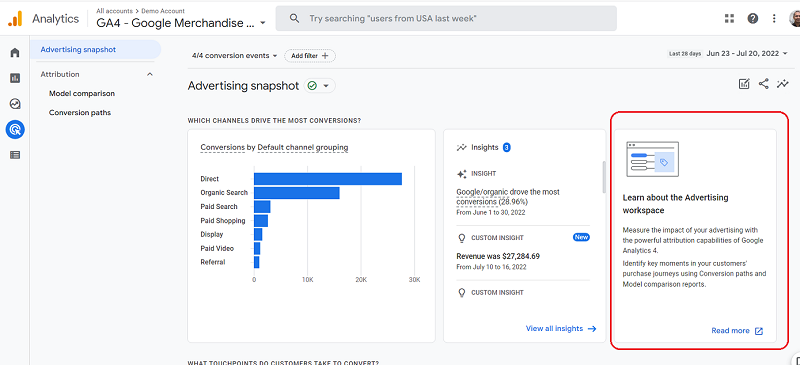
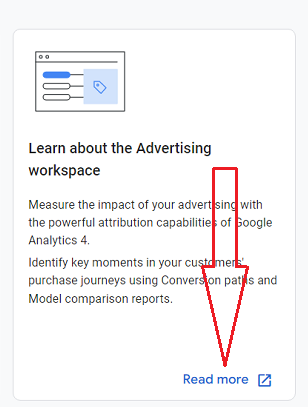
The ‘Learn about the Advertising workspace’ card links out to a help article on Google.
To access this article, click on the ‘Read more’ link at the bottom of the article:
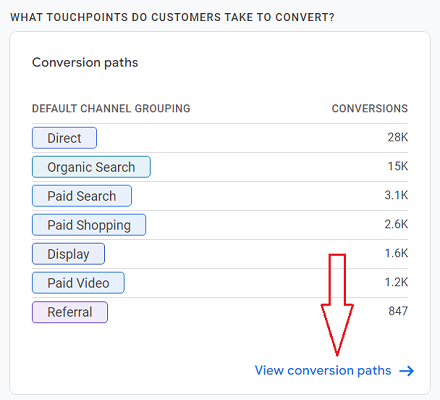
#4 What touchpoints do customers take to convert?
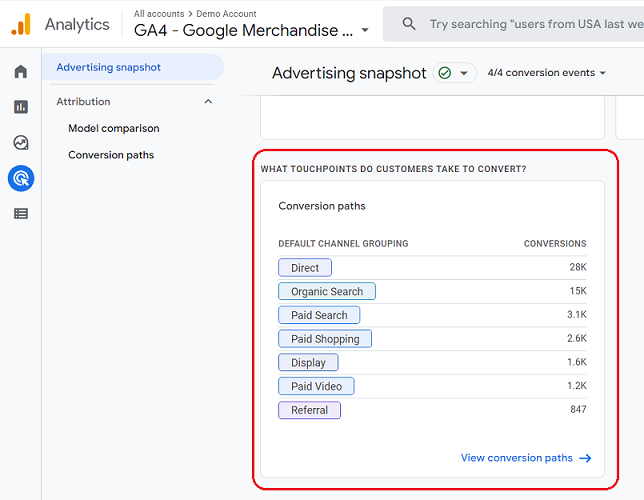
Through the ‘what touchpoints do customers take to convert’ summary card, you can determine the top conversion paths in terms of the number of conversions generated.
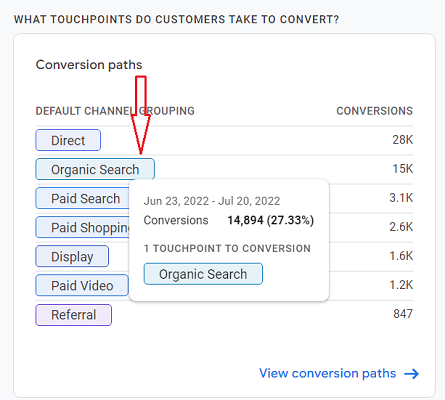
If you hover your mouse over a conversion path, you can see the length of the conversion path (in terms of the number of touchpoints) as well as the total conversions assigned to the conversion path:
Through this card, you can also access the GA4 conversion paths report.
To do that, just click on the link ‘View conversion paths ->’:

Other Articles on GA4.
- Google Analytics 4 not working? Here is how to fix it.
- Google Analytics 4 for Low Traffic Websites.
- Google Tag Manager Implementation Guide.
- Google Tag Manager Server Side Preview Mode.
- How to learn Google Analytics without a website.
- Key Benefits of Using Google Analytics 4 (GA4).
- Google Marketing Platform Cost and is it Worth it?
- How to export GA4 data to Google Sheets for free.
- Top Google Analytics 4 Tools, add-ons and resources.
- Google Analytics 4 Audiences Tutorial.
- Understanding Automated Insights in Google Analytics 4 (GA4).
- How to build Comparisons in Google Analytics 4 (GA4).
- How to create a remarketing audience in Google Analytics 4 (GA4).
- Advanced Google Analytics Tracking – HTML DOM – Tutorial.
- Google Analytics 4 Migration Checklist - Upgrade to GA4.
- How to Install Google Analytics 4 on Shopify.
- How to link Google Analytics 4 with AdSense.
- Google Analytics 4 Subproperties Tutorial.
- How to connect Google Analytics 4 with Google Data Studio.
- Advertising Snapshot in Google Analytics 4 (GA4).