

Why you should link Google Analytics 4 with Adsense.
The following are the advantages of linking your GA4 property with your Google Adsense account:
#1 You can access your AdSense data in GA4 via:
- The Publisher dimensions and metrics.
- The ‘Publisher Ads’ report.
- The Exploration reports.
#2 You can correlate your AdSense data with website usage metrics (like ‘First User Source Medium’) to gain deeper insight and detect trends that can assist you in maximising your advertising revenue.
Prerequisites for linking Google Analytics 4 with Adsense
#1 Make sure that you have set up GA4 tracking on all the web pages using Adsense (esp. for content ad units). Otherwise, you may see discrepancies when comparing page impressions in Adsense with pageviews in GA4.
Note: AdSense Page Impressions is the number of pageviews during which an AdSense ad was displayed.
#2 Make sure that you are using the standard implementation of Adsense, where you copy the code from your AdSense account and paste it into your web pages. This is because only the standard implementation of Adsense is supported by GA4 reporting. The non-standard implementation of Adsense (like serving Adsense through an ad server may invalidate your Adsense reporting in GA4.
#3 Make sure that the timezone in your GA4 property matches the timezone in your Adsense account. If the time zones don’t match, then you could see a lot more data discrepancies between your GA4 and Adsense data.
#4 Make sure you are using a Google account with both Administrator access to your AdSense account and Edit permission on the GA4 property for the purpose of linking GA4 with Adsense.
#5 Avoid applying data filters to your GA4 property if you plan to link it with your Adsense account. This is because the Adsense data associated with the missing Analytics data is not reported in GA4. For the same reason, avoid linking a GA4 sub-property with your Adsense account.
How to link your GA4 property with your Google Adsense Account
Follow the steps below to link your Google Analytics 4 property with your Google Adsense account:
Step-1: Login to your Google Adsense account.
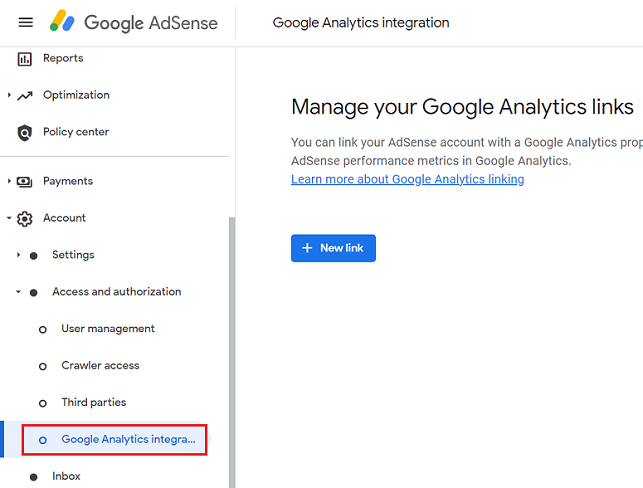
Step-2: Navigate to Account >> Access and Authorization >> Google Analytics Integration
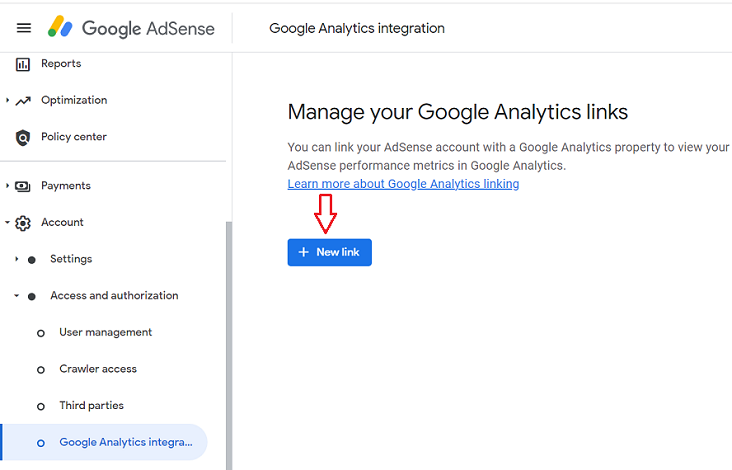
Step-3: Click on the ‘+New Link’ button:
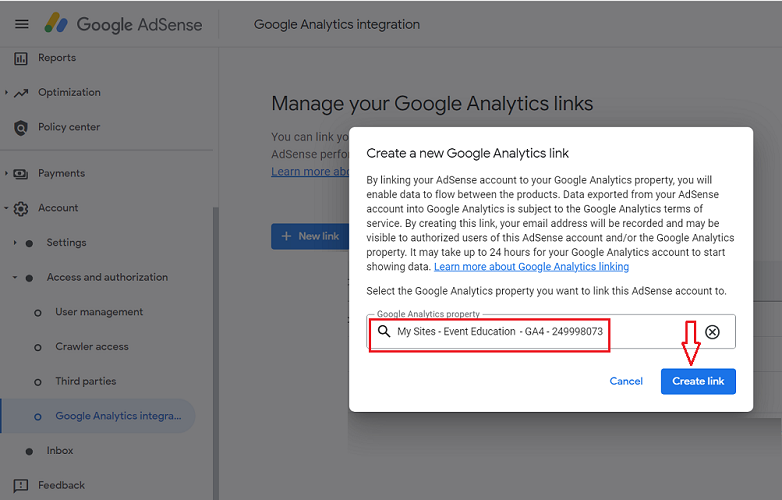
Step-4: Select your GA4 property from the drop-down menu and then click on the ‘Create Link’ button:
You should now see a screen like the one below, which shows that your Adsense account is linked to your GA4 property:
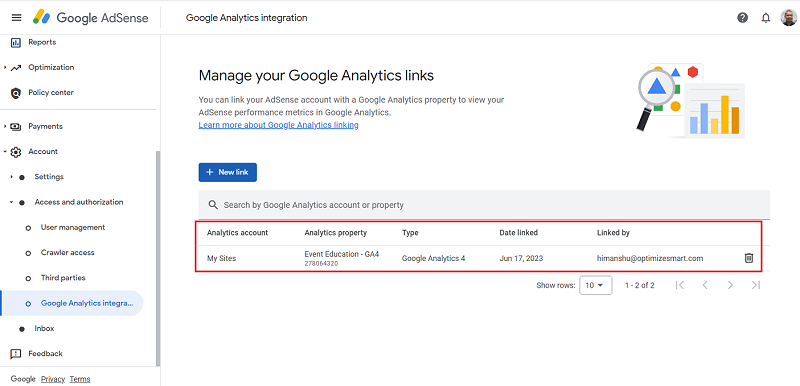
Note(1): You can link your Adsense account with multiple GA4 properties:
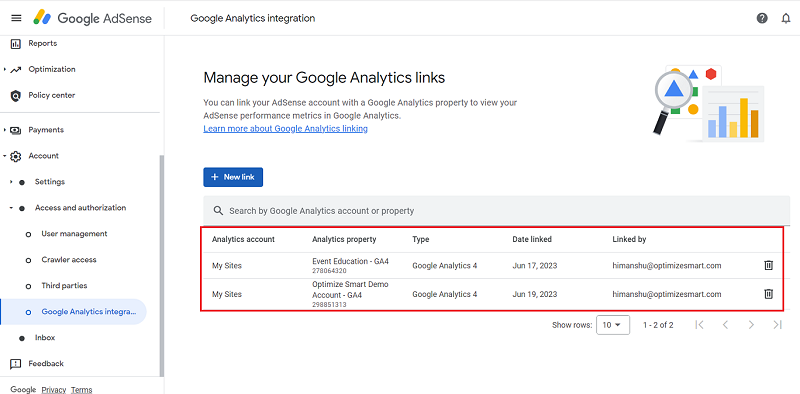
Note(2): You can also link multiple Adsense accounts to one GA4 property.
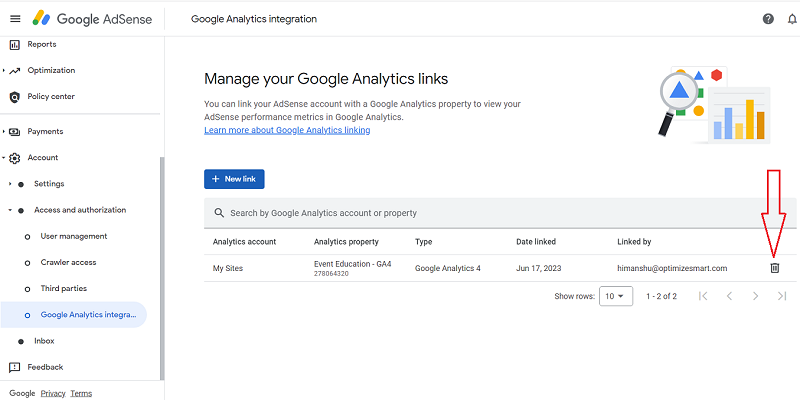
Note(3): If you need to unlink a GA4 property from your Adsense account, then click on the delete button:
Step-5: After you have linked your accounts, wait for 24 to 48 hrs for your GA4 property to start showing the Adsense data.
Note: AdSense data that was collected before you linked your accounts will not appear in GA4 reports.
Where can you see Adsense data in GA4?
The following things happen when you link the GA4 property with an Adsense account and more than 24 hrs have elapsed:
#1 Your GA4 property starts collecting the following events automatically: ‘ad_click’ and ‘ad_impression’ which you can see through the Events report:
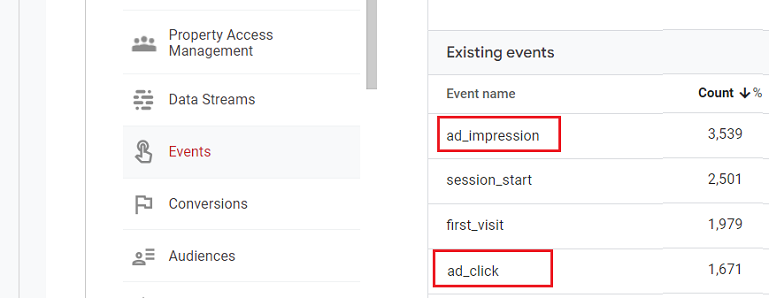
Note(1): With the AdSense integration, GA4 collects each of these events for each Google ad on a page, which can cause an increase in the number of billable events for 360 properties.
Note(2): GA4 also collects the ‘ad_query’ event for joining GA4 and Adsense data. However, this event does not appear in GA4 reports and is not exported to BigQuery.
#2 You can access your AdSense data in the ‘Publisher Ads’ report (under ‘Reports’ > ‘Monetization’).
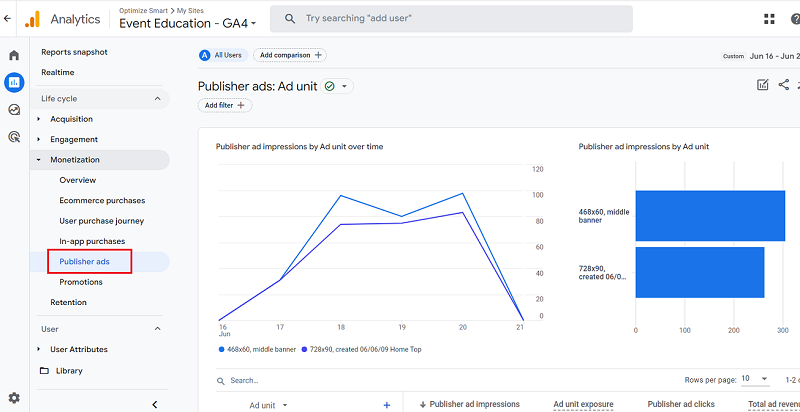
#3 Your GA4 property starts collecting the data for the following ‘Publisher’ dimensions:
- Ad format.
- Ad source
- Ad unit
- Page path and screen class
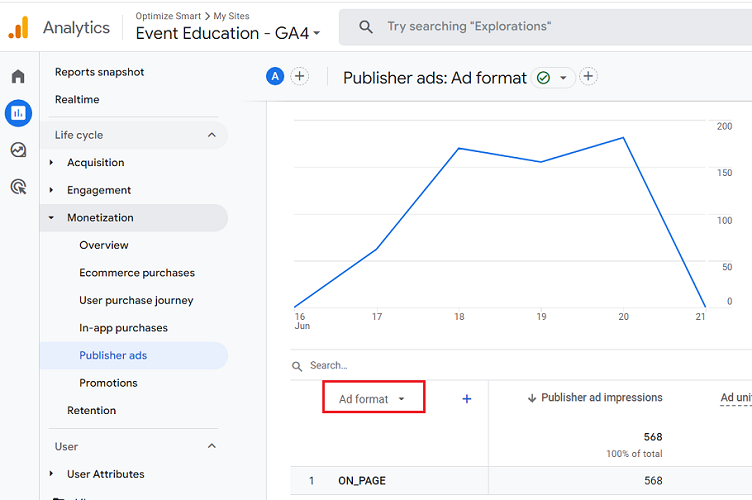
‘Ad format’ – This dimension reports the format of an ad. It uses the value of AdSense ad format dimension:
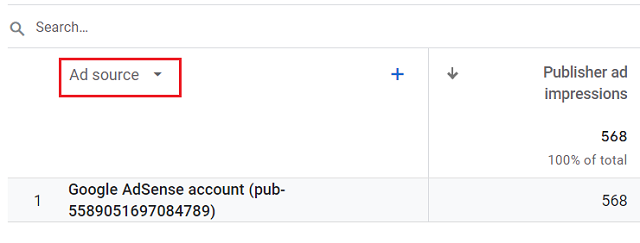
‘Ad source’ – This dimension reports the name of the source network that served an ad. It uses the value of AdSense publisher ID:
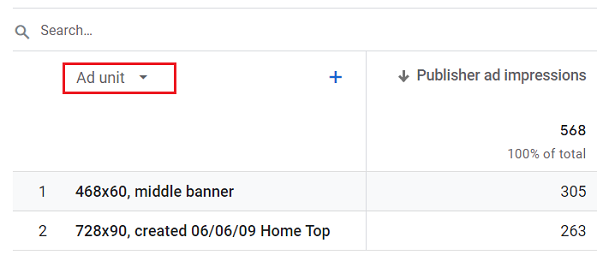
‘Ad unit’ – This dimension reports the name you chose for an ad unit. It uses the value of AdSense ad unit dimension.
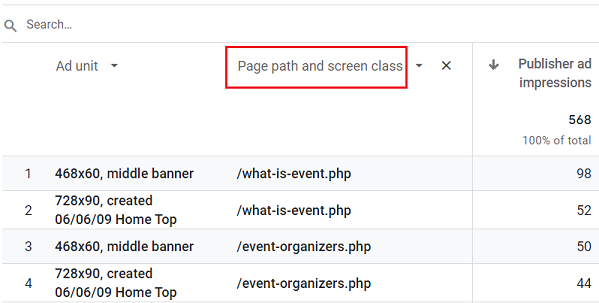
Page path and screen class – This dimension reports on the placement of Adsense Ad units:
#4 Your GA4 property starts collecting the data for the following ‘Publisher’ metrics:
- Publisher ad impressions
- Ad unit exposure
- Publisher ad clicks
- Total Ad revenue
‘Publisher ad impressions’ – This metric reports on Adsense impressions:
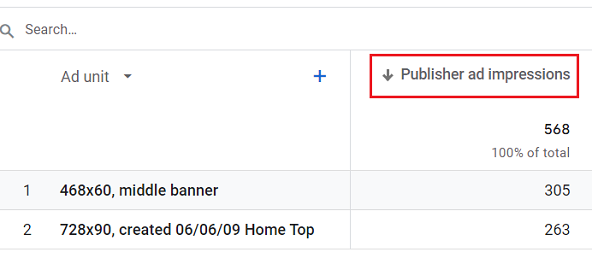
‘Ad unit exposure’ – This metric reports the time (measured in milliseconds) that a given ad unit was shown to a user.
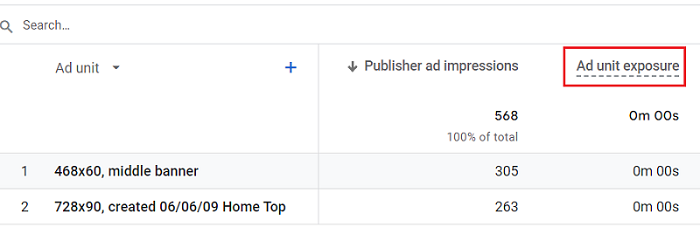
‘Publisher ad clicks’ – This metric reports on Adsense clicks:
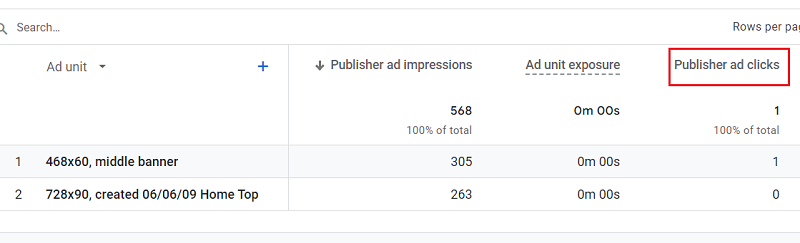
‘Total Ad revenue’ – This metric reports on the sum of all advertising revenue (i.e., AdSense revenue + other ad revenue):
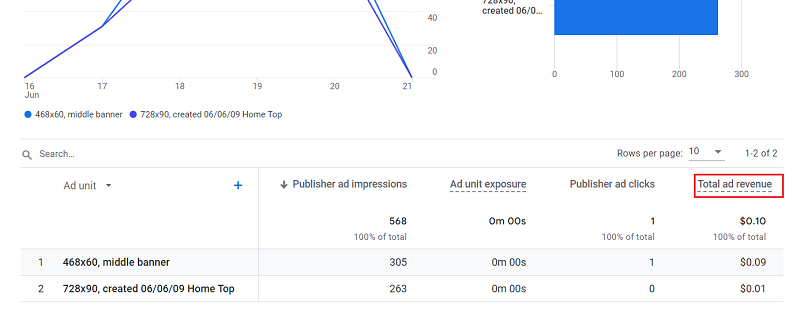
Data discrepancies between GA4 and Adsense data
When you compare GA4 and Adsense data, keep the following points in mind:
#1 GA4 does not report on the Adsense data that was collected before you linked your GA4 property with your Adsense account.
#2 It can take up to 48 hrs for the Adsense data to fully appear in your GA4 reports after you linked your GA4 property with your Adsense account.
#3 GA4 does not report on the Adsense data associated with the missing analytics data. If the GA4 configuration tag does not fire for whatever reason (maybe it is blocked by a browser privacy extension or ad blocker), then the Adsense data associated with the missing analytics data won’t be reported.
#4 The Adsense reports in GA4 only track AdSense for content ad units and do not include link units, search boxes, mobile ads or any other AdSense products.
#5 GA4 can report more pageviews than AdSense counts page impressions if the Adsense code is not executed for whatever reasons (maybe it is blocked by a browser privacy extension or ad blocker).

Other Articles on GA4.
- Google Analytics 4 not working? Here is how to fix it.
- Google Analytics 4 for Low Traffic Websites.
- Google Tag Manager Implementation Guide.
- Google Tag Manager Server Side Preview Mode.
- How to learn Google Analytics without a website.
- Key Benefits of Using Google Analytics 4 (GA4).
- Google Marketing Platform Cost and is it Worth it?
- How to export GA4 data to Google Sheets for free.
- Top Google Analytics 4 Tools, add-ons and resources.
- Google Analytics 4 Audiences Tutorial.
- Understanding Automated Insights in Google Analytics 4 (GA4).
- How to build Comparisons in Google Analytics 4 (GA4).
- How to create a remarketing audience in Google Analytics 4 (GA4).
- Advanced Google Analytics Tracking – HTML DOM – Tutorial.
- Google Analytics 4 Migration Checklist - Upgrade to GA4.
- How to Install Google Analytics 4 on Shopify.
- How to link Google Analytics 4 with AdSense.
- Google Analytics 4 Subproperties Tutorial.
- How to connect Google Analytics 4 with Google Data Studio.
- Advertising Snapshot in Google Analytics 4 (GA4).