

This GA4 migration checklist will teach you how to upgrade to Google Analytics 4. You will learn to set up GA4 step by step.
#1 Plan the structure of your GA4 account.
Ask yourself the following questions:
- How many Google Analytics Accounts do you need?
- How many GA4 Properties do you need?
For step by step instructions, check out this article: Google Analytics Account Hierarchy (structure explained)
#2 Install Google Analytics 4 (GA4) tracking on your website.
Installing Google Analytics 4 tracking on your website involves the following major steps:
- Creating a new GA4 property.
- Creating a new Google Tag Manager (GTM) account and a web container.
- Placing GTM container code on a website.
- Using GTM to deploy Google Tag on the website.
#2.1 Creating a new GA4 property.
Follow the steps below to create a new GA4 property:
Step-1: Navigate to https://analytics.google.com/
Step-2: Sign in with your Google username and password.
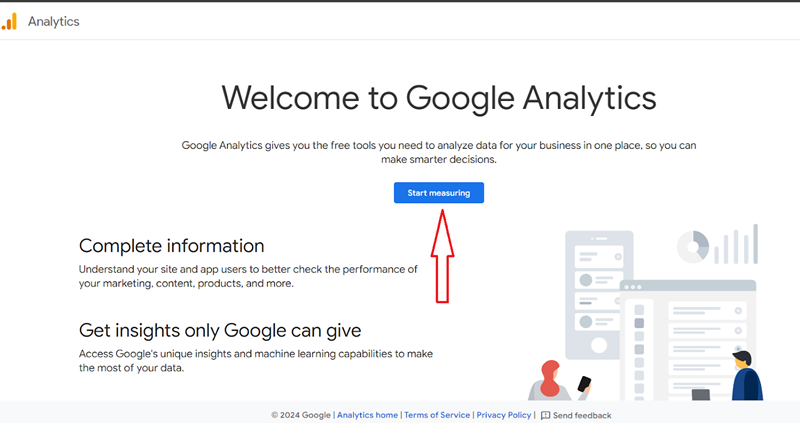
Step-3: Click on the ‘Start Measuring’ button:
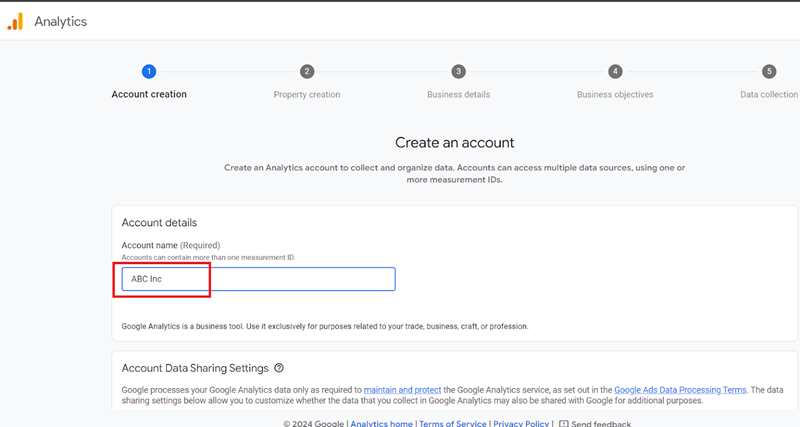
Step-4: Enter your account name (it is generally your company name):
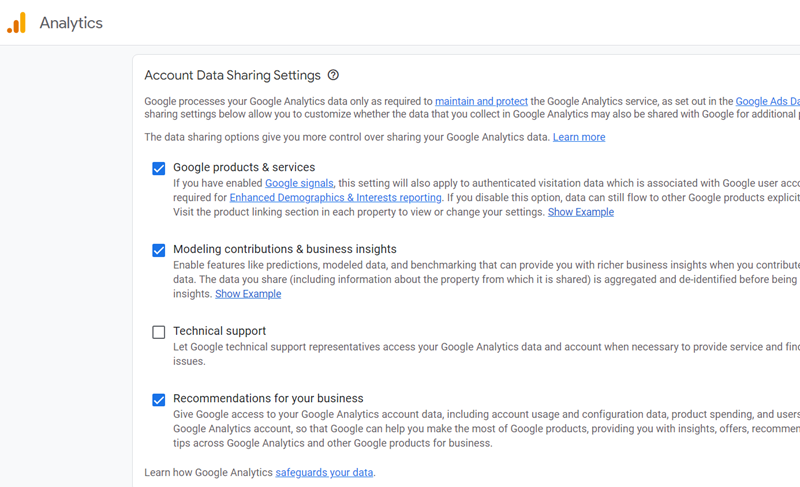
Step-5: Scroll down and select the ‘Account data sharing’ settings that are applicable to you:
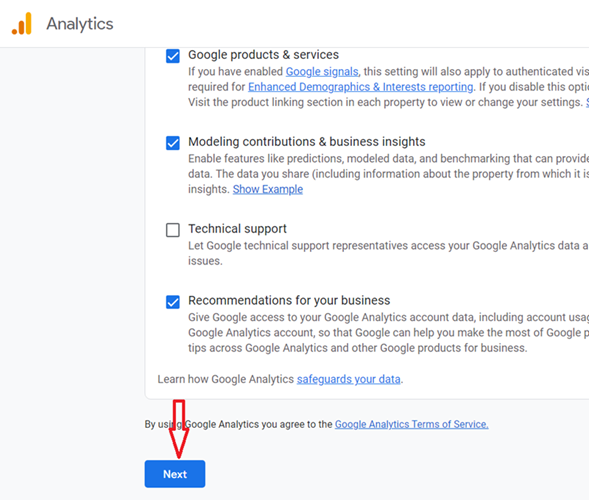
Step-6: Scroll down and click on the ‘Next’ button:
Step-7: Enter the name of your GA4 Property (it is generally your website name):
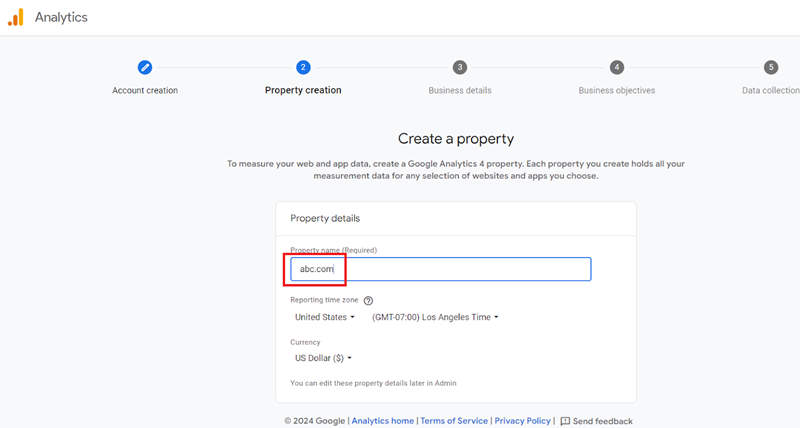
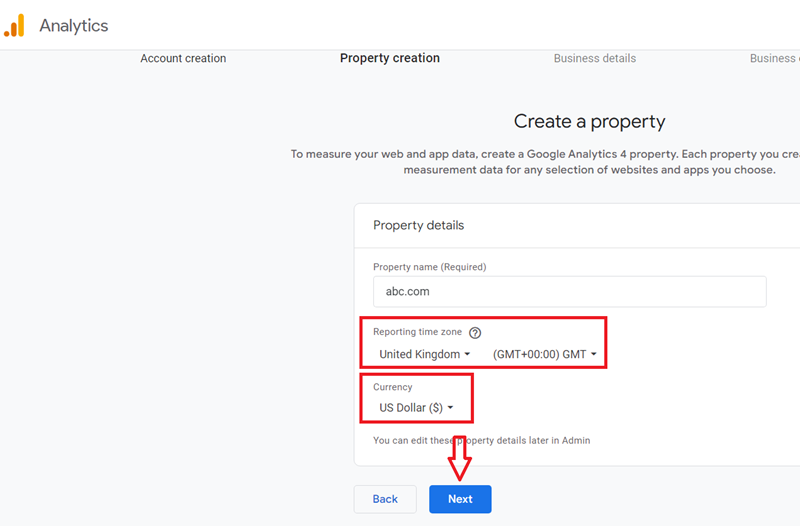
Step-8: Set your reporting timezone and currency and then click on the ‘Next‘ button
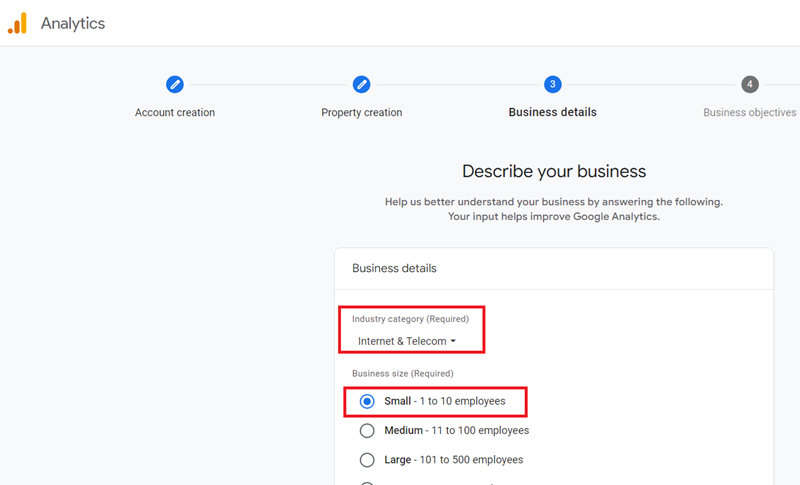
Step-9: Select your industry category and business size:
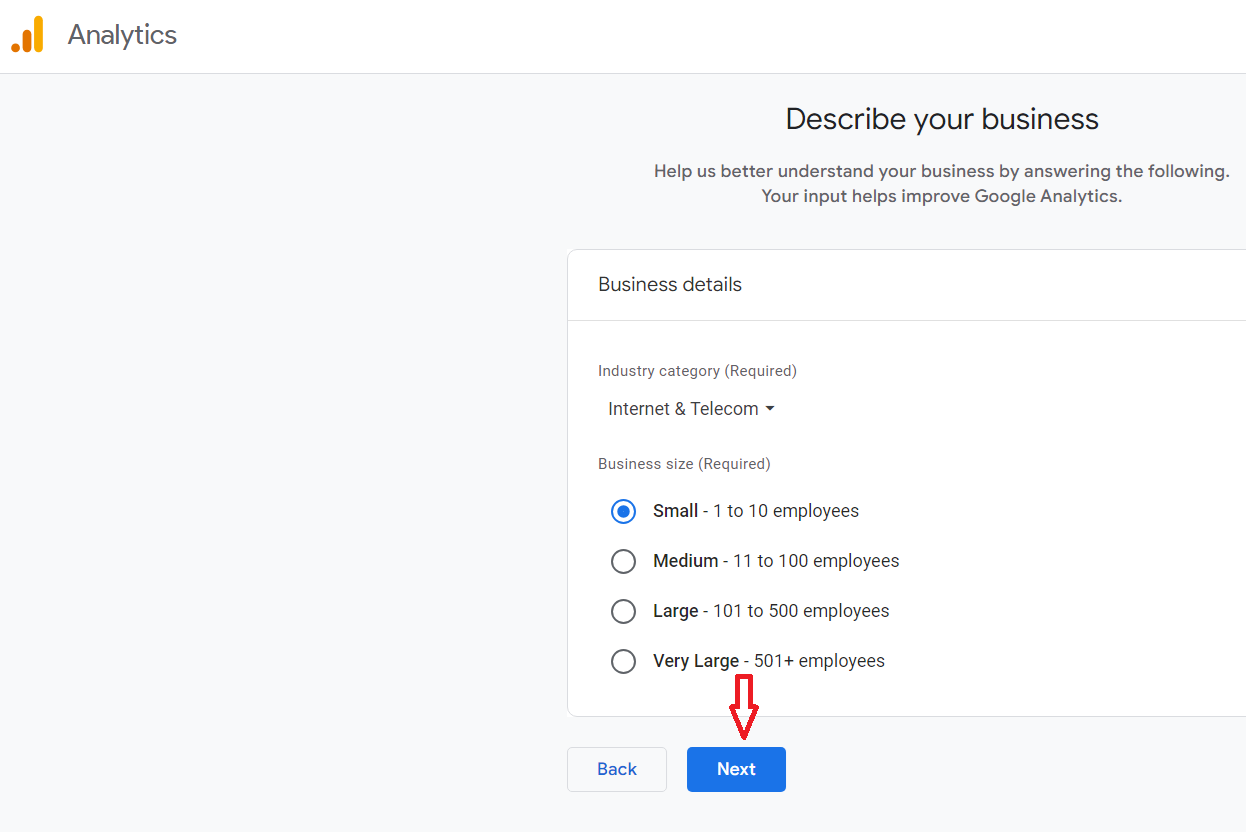
Step-10: Scroll down and click on the ‘Next’ button:
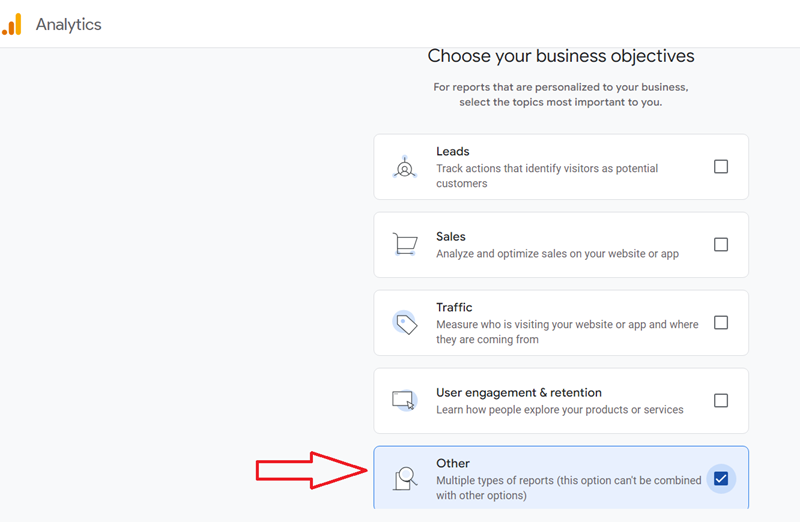
Step-11: Specify how you intend to use GA4 with your business. Check all the boxes that apply to you. I prefer to use the ‘Other’ option:
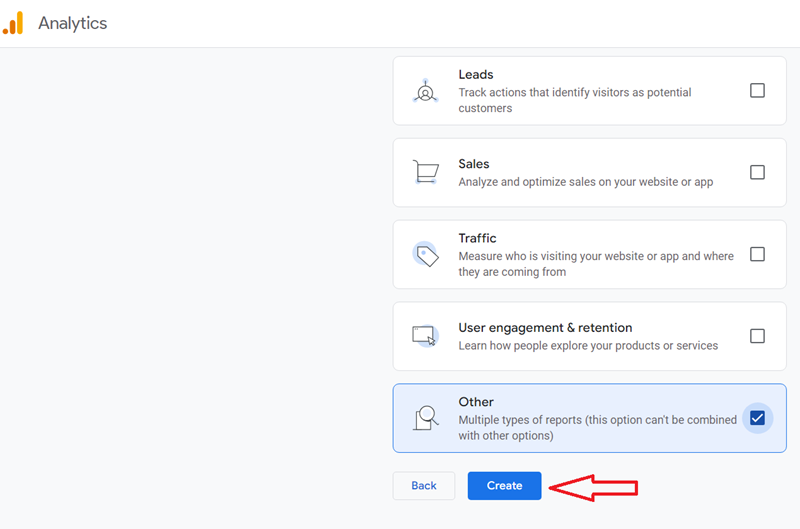
Step-12: Scroll down and click on the ‘Create’ button to create your GA4 property:
You should now see a screen like the one below:
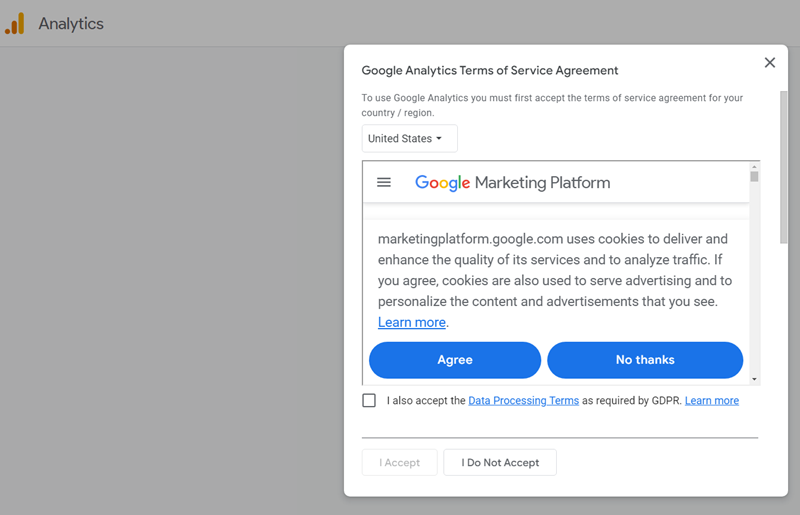
Step-13: Select your country from the drop-down menu so that you can see the Google Analytics Terms of Service relevant to your country:
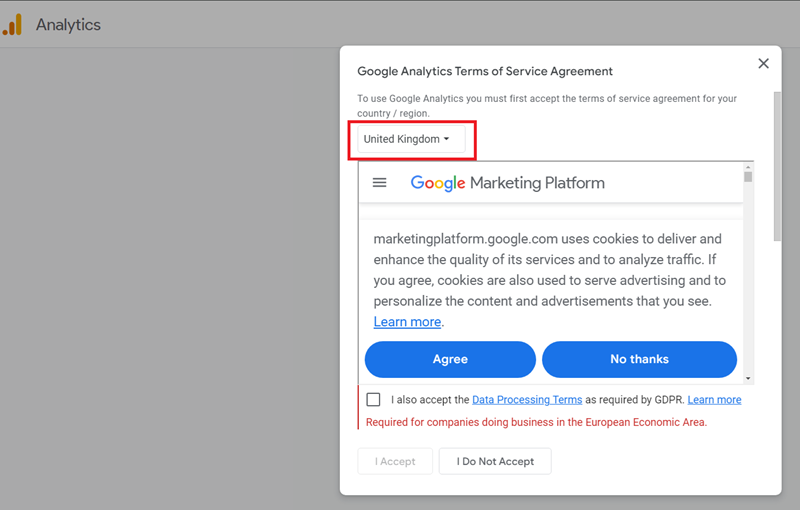
Step-14: Go through ‘Google Analytics Terms of Service’ and then click on the ‘Agree’ button:
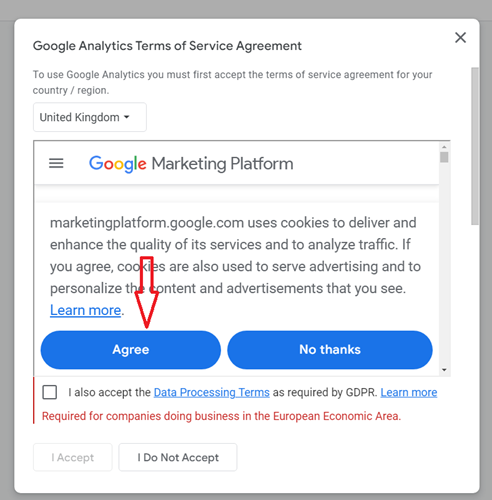
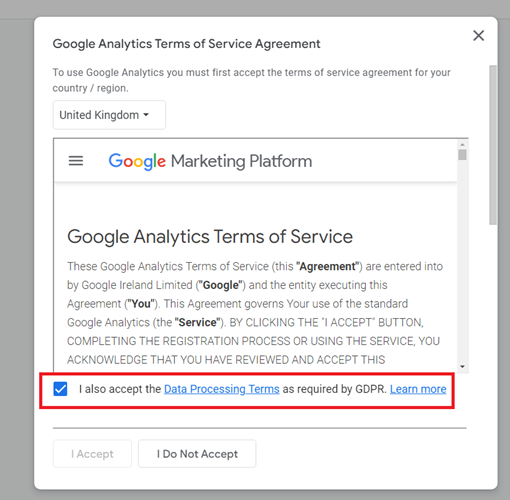
Step-15: Click on the check box ‘I also accept the Data Processing Terms as required by GDPR’.
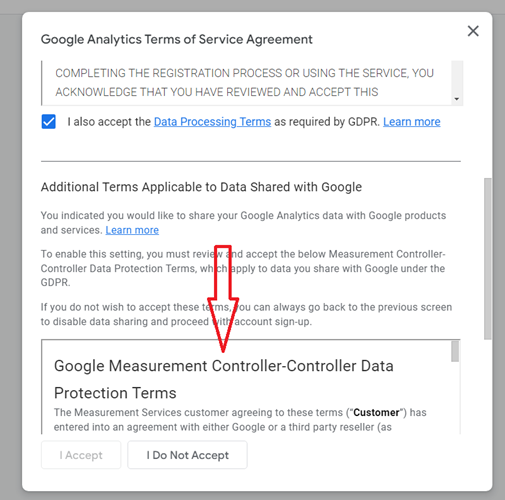
Step-16: Scroll down and go through ‘Google Measurement Controller-Controller Data Protection Terms‘:
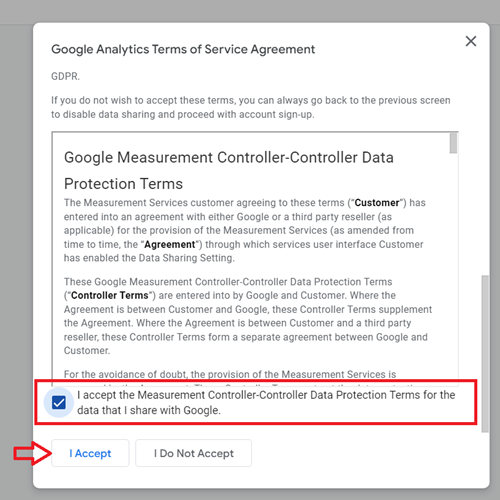
Step-17: Click on the checkbox ‘I accept the Measurement Controller-Controller Data Protection Terms for the data that I share with Google.‘ and then click on the ‘I Accept‘ button:
You should now see a screen like the one below:
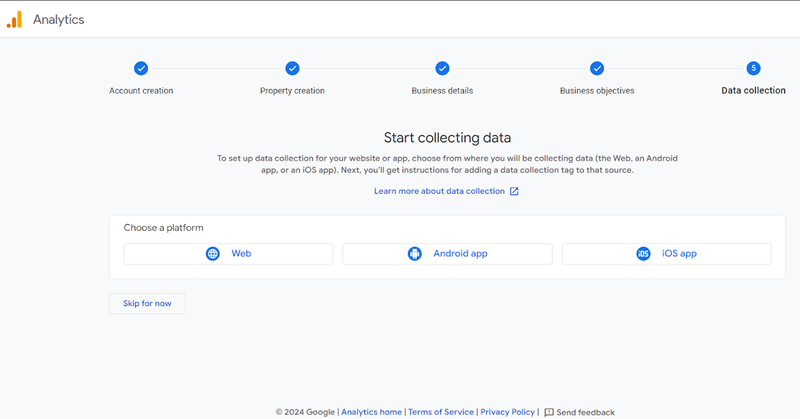
Congratulations!
You have now created a new GA4 property from scratch.
Step-18: Choose a platform for your data stream.
The platform could be Web, Android App or IOS App. Let’s select ‘Web‘:
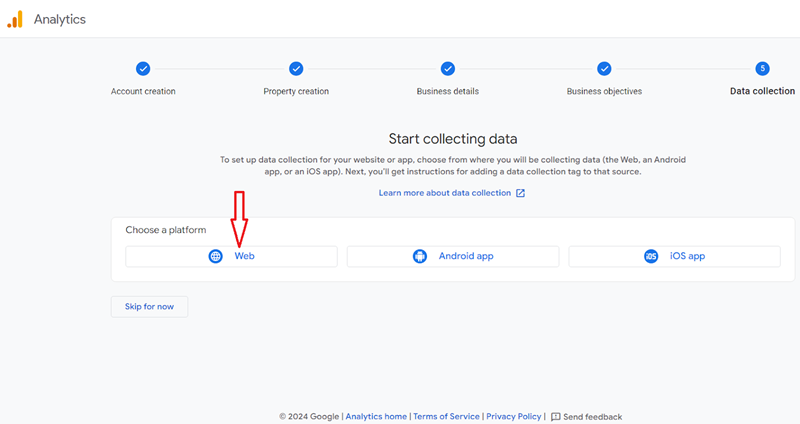
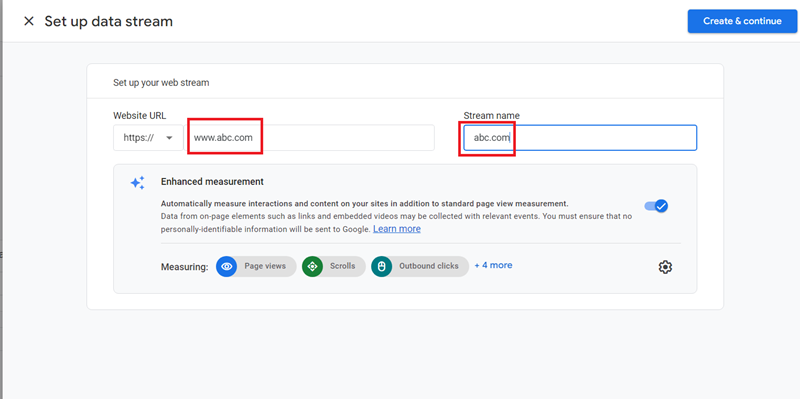
Step-19: Enter your website URL and webstream name:
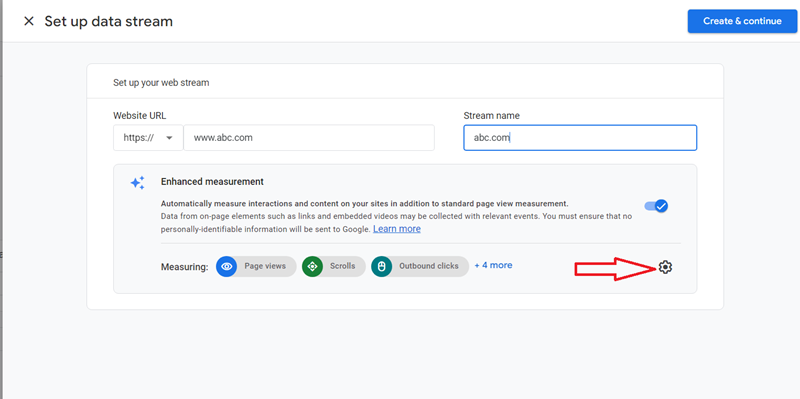
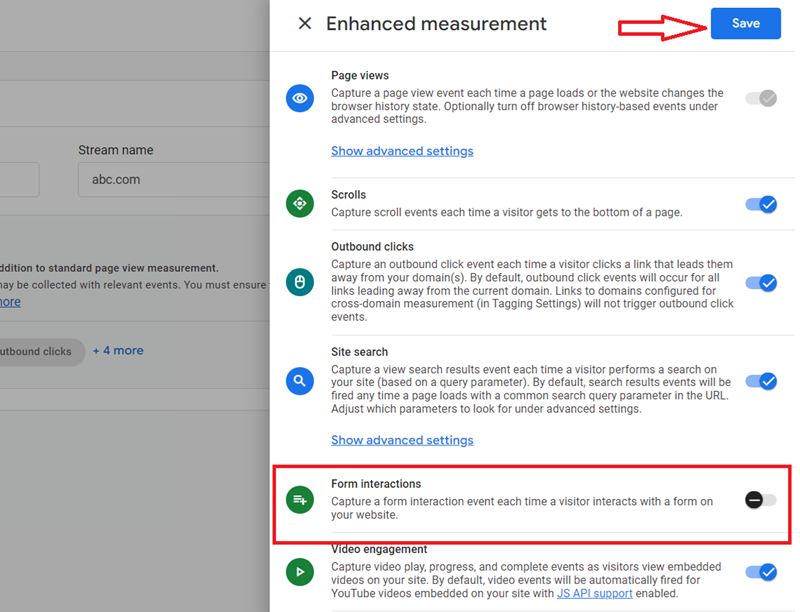
Step-20: Click on the wheel button to configure enhanced measurement:
Step-21: Disable ‘Form interactions‘ and then click on the ‘Save‘ button:
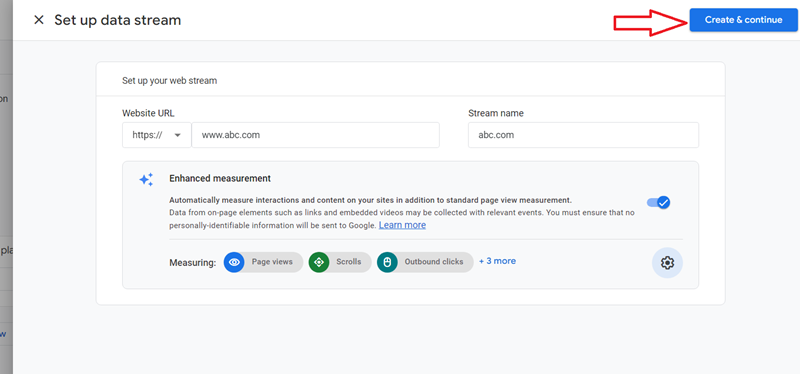
Step-22: Click on the ‘Create and Continue’ button:
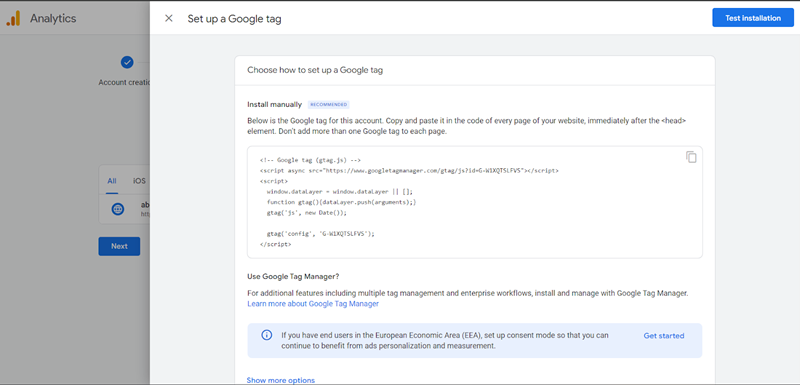
You should now see a screen like the one below:
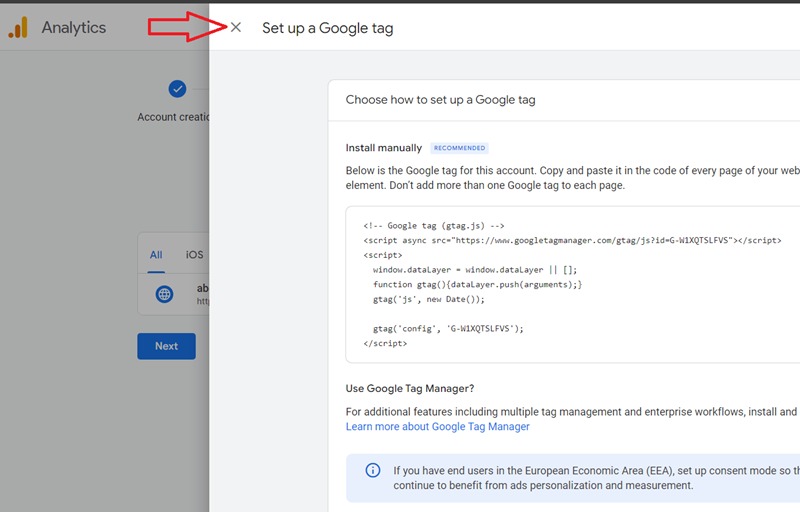
Step-23: Close the overlay by clicking on the cross button:
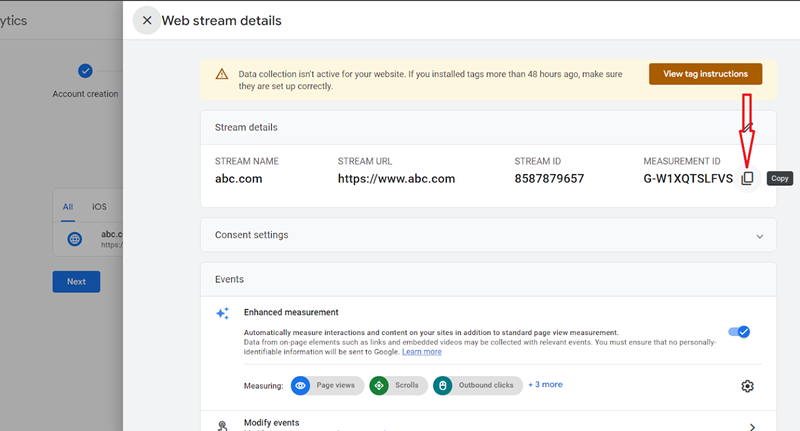
Step-24: Copy the measurement ID by clicking on the ‘copy’ button and save this ID somewhere for easy reference.
#2.2 Creating a new Google Tag Manager account and a web container.
Follow the steps below to create a new constant variable that stores the value of the measurement ID:
Step-1: Navigate to https://tagmanager.google.com/
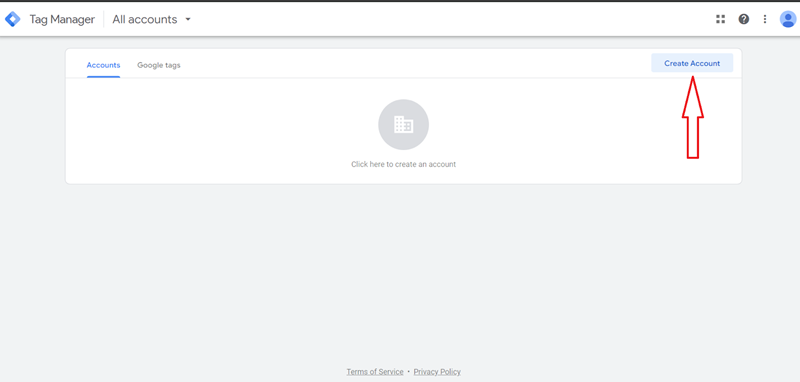
Step-2: Click on the ‘Create account’ button to create a new Google Tag Manager account:
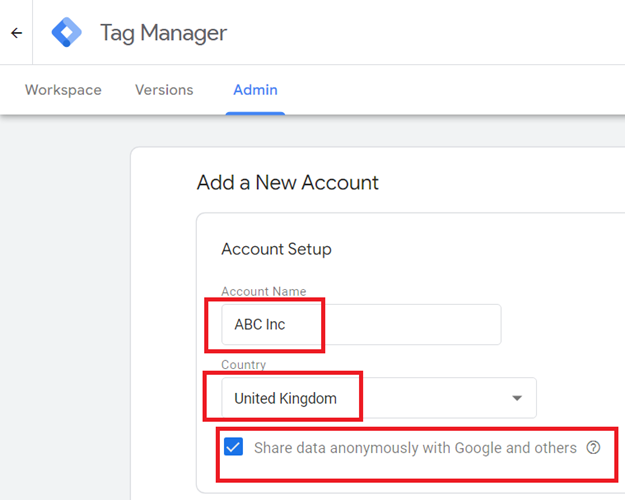
Step-3: Enter your account name (same as company name), select your country and click on the checkbox ‘Share data anonymously with Google and others’:
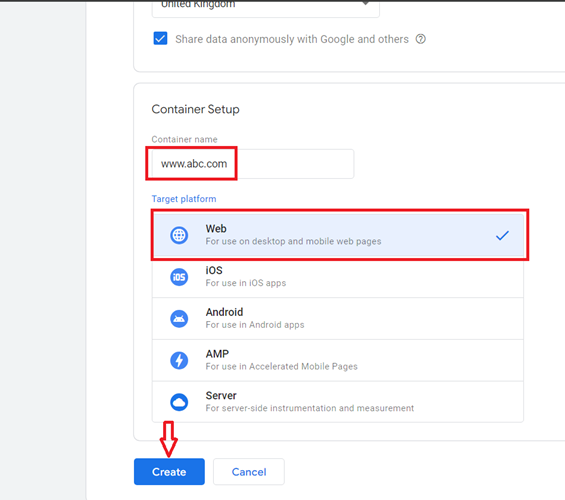
Step-4: Scroll down, type your container name (same as your website address), select ‘Web’ (as we are creating a website container) and then click on the ‘Create’ button:
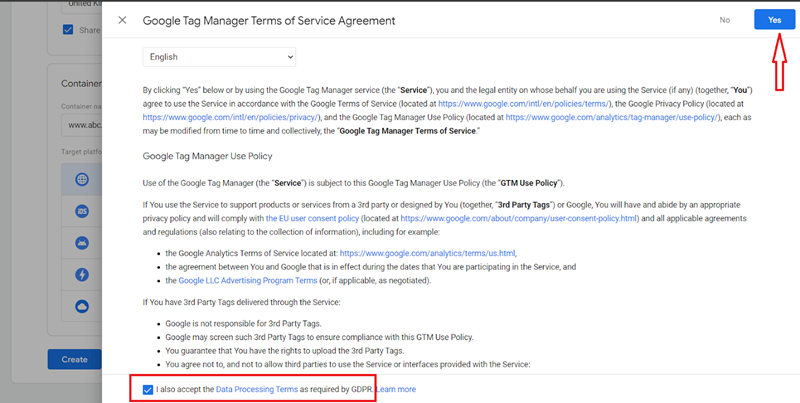
Step-5: Go through ‘Google Tag Manager Terms of Service Agreement’, click on the checkbox ‘I also accept the Data Processing Terms as required by GDPR’ and then click on the ‘Yes’ button:
You should now see a screen like the one below:
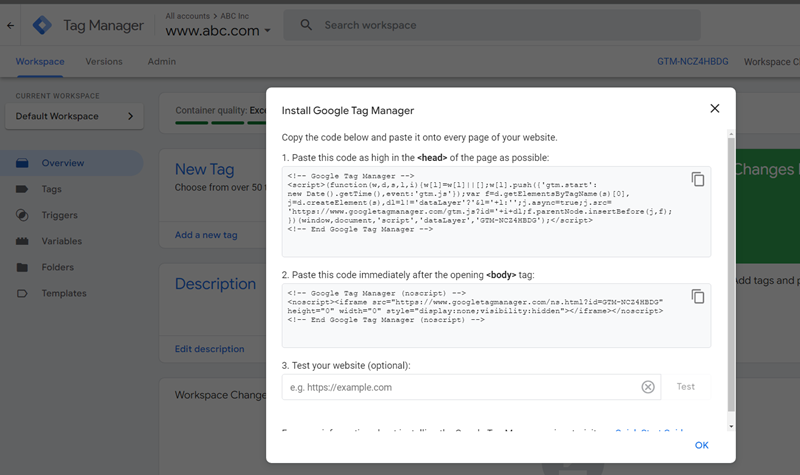
#2.3 Placing GTM container code on a website.
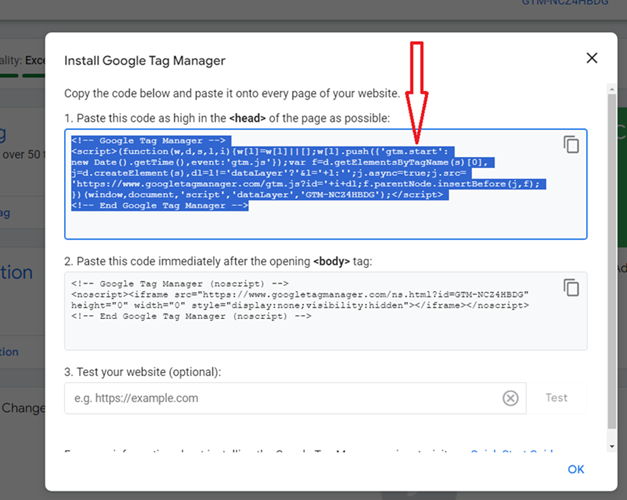
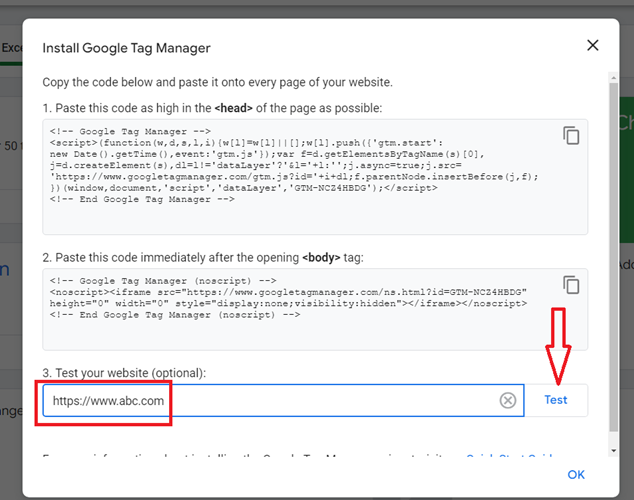
#1 Copy the first part of the GTM container code and paste this code as high as possible in the <head> of all your website pages:
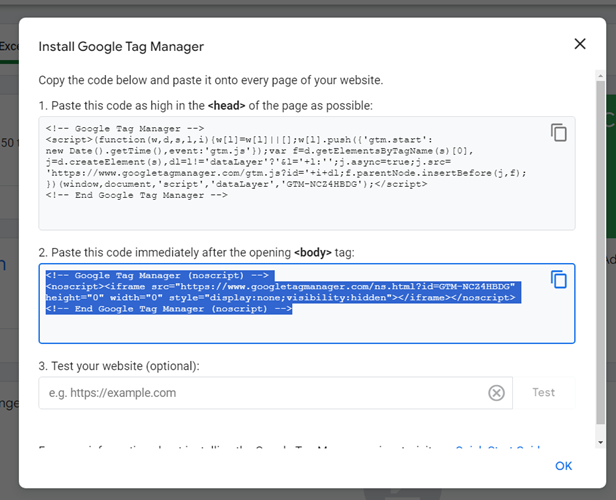
#2 Copy the second part of the GTM container code and paste this code immediately after the opening <body> tag of all your website pages:
#3 Once you have copy-pasted the required code, type your website URL and then click on the ‘Test’ button:
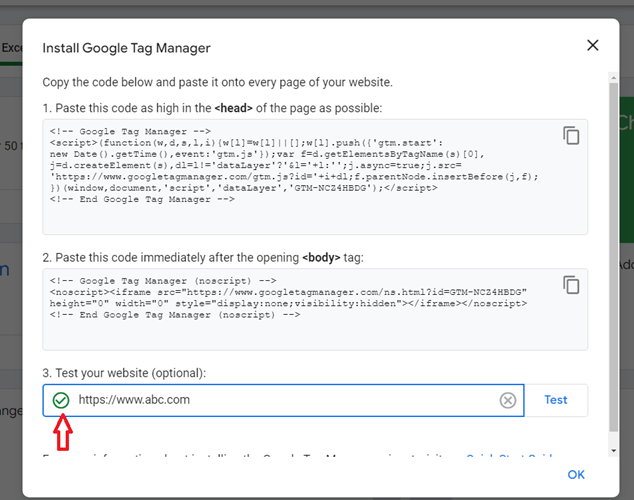
You should now see the green checkmark next to your website address which indicates the GTM container code is successfully found on your website:
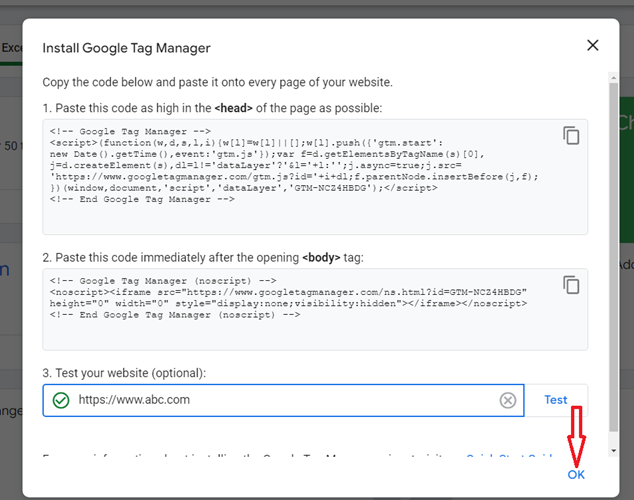
#4 Click on the ‘Ok’ button:
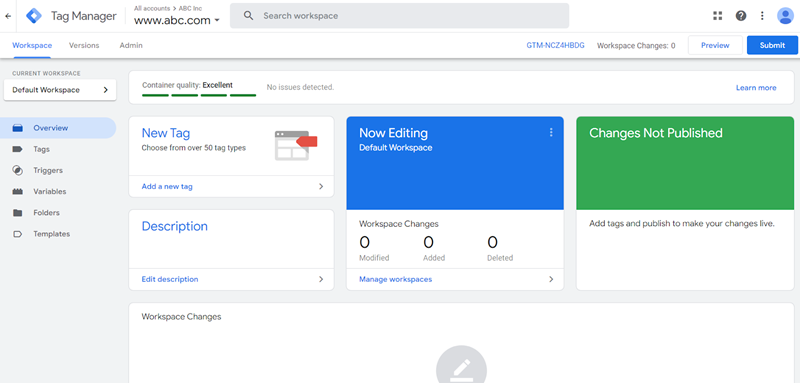
You should now see a screen like the one below:
#2.4 Using GTM to deploy Google Tag on the website.
By deploying Google Tag via GTM, you can finish the process of installing Google Analytics 4 on your website:
Using GTM to deploy Google Tag on the website involves the following major steps:
- Creating a new constant variable to store measurement ID.
- Creating a new Google Tag.
- Testing the implementation of the Google Tag.
#2.4.1 Creating a new constant variable to store measurement ID.
Follow the steps below:
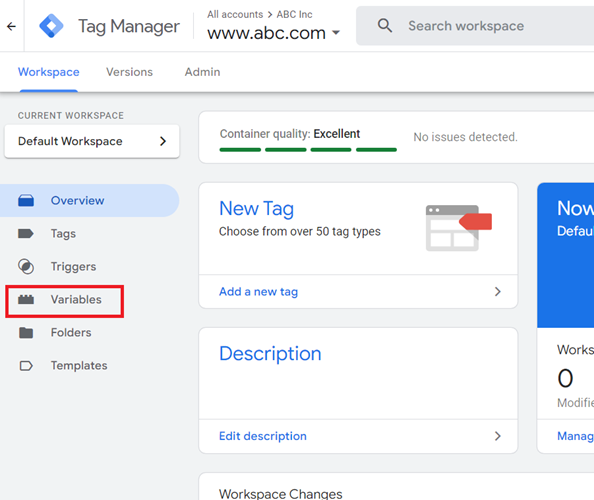
Step-1: Click on the ‘Variables’ link from the left-hand side navigation bar in your Google Tag Manager account:
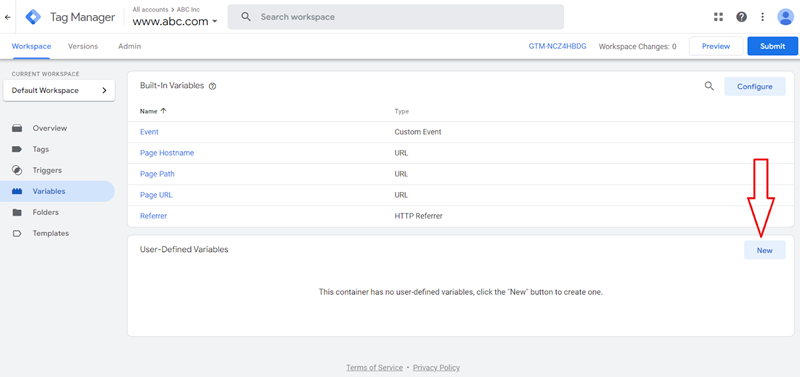
Step-2: Click on the ‘New’ button to create a new user defined variable:
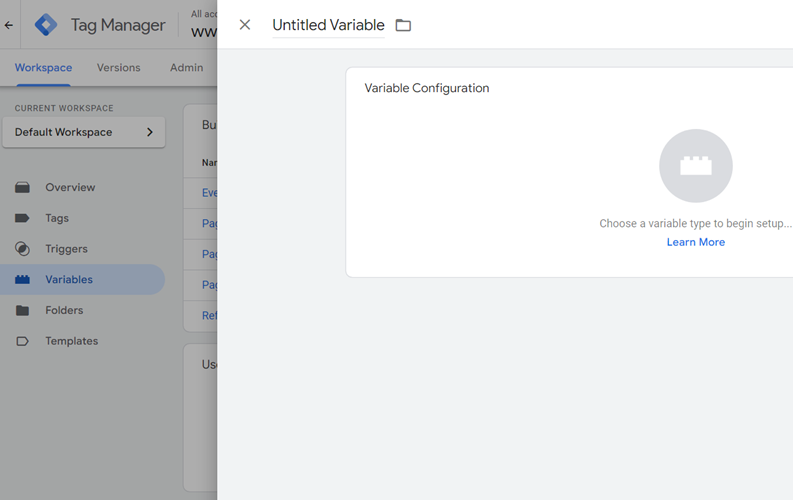
You should now see a screen like the one below:
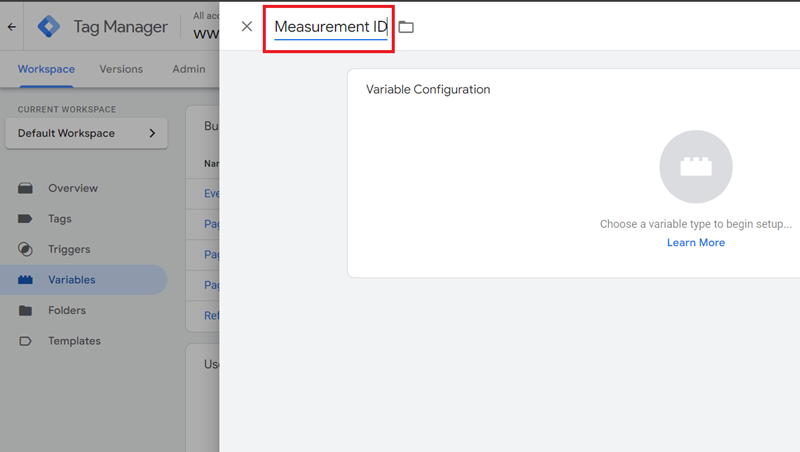
Step-3: Name your variable ‘Measurement ID’:
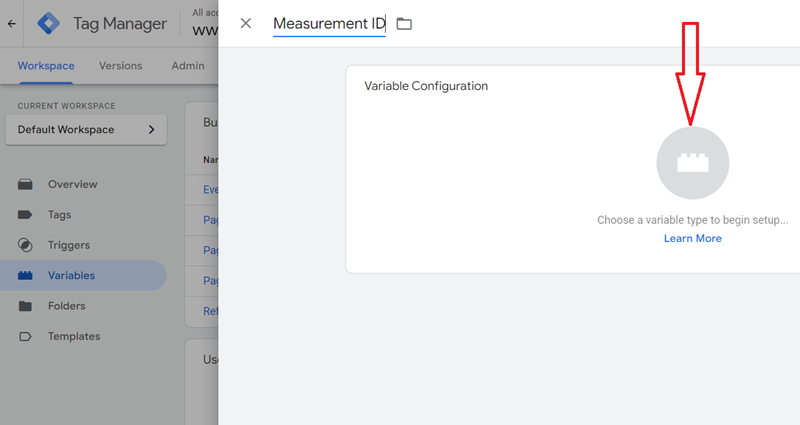
Step-4: Click on the ‘Choose a variable type to begin setup…’ button:
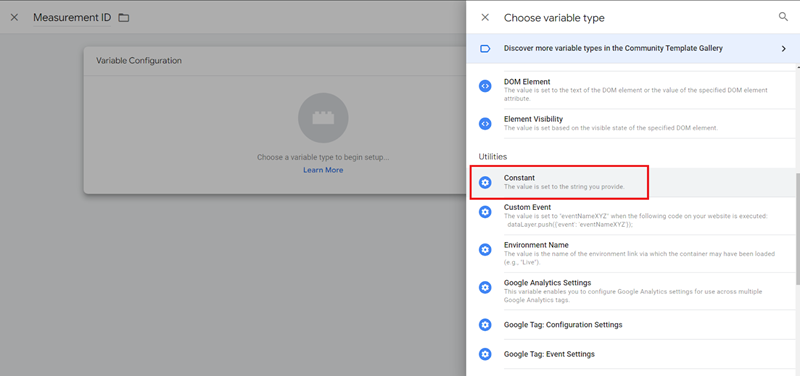
Step-5: Scroll down, find and click on ‘Constant’:
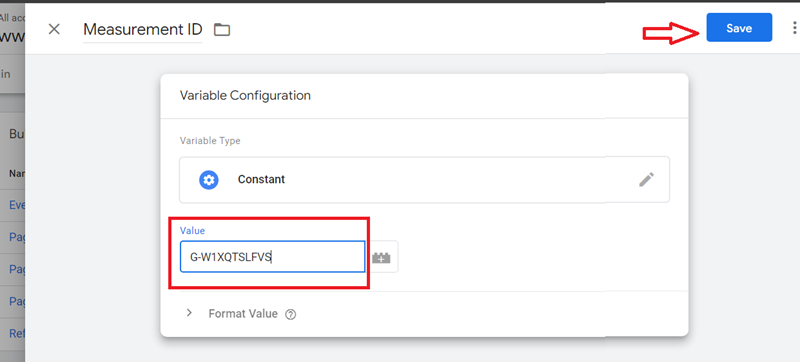
Step-6: Enter your measurement ID in the ‘Value’ text box and click on the ‘Save’ button:
#2.4.2 Creating a new Google Tag.
Follow the steps below to create a new Google Tag to install GA4 tracking on your website:
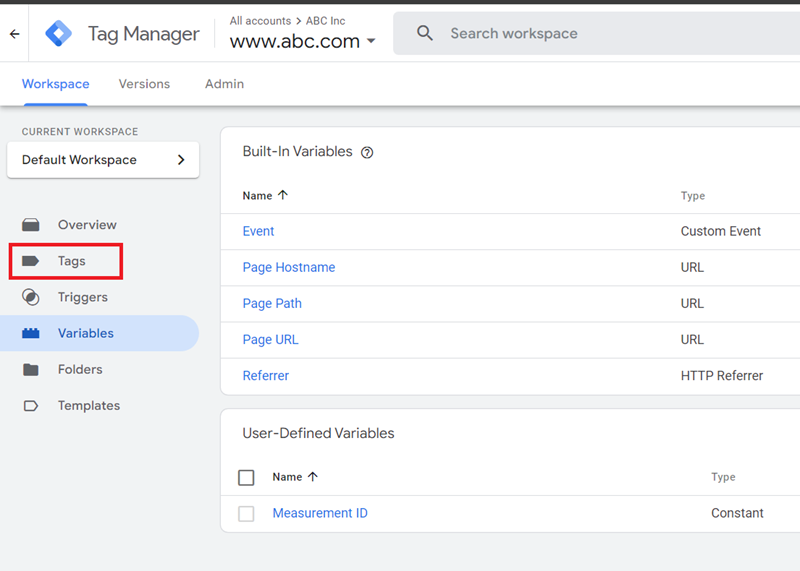
Step-1: Click on the ‘Tags’ link from the left-hand side navigation bar:
Step-2: Click on the ‘New’ button to create a new tag:
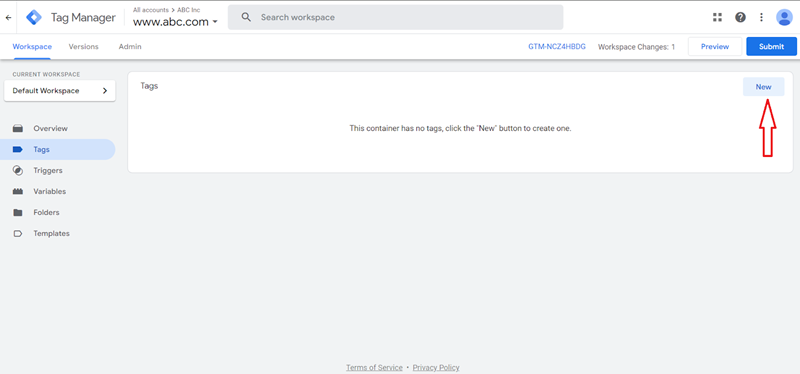
You should now see a screen like the one below:
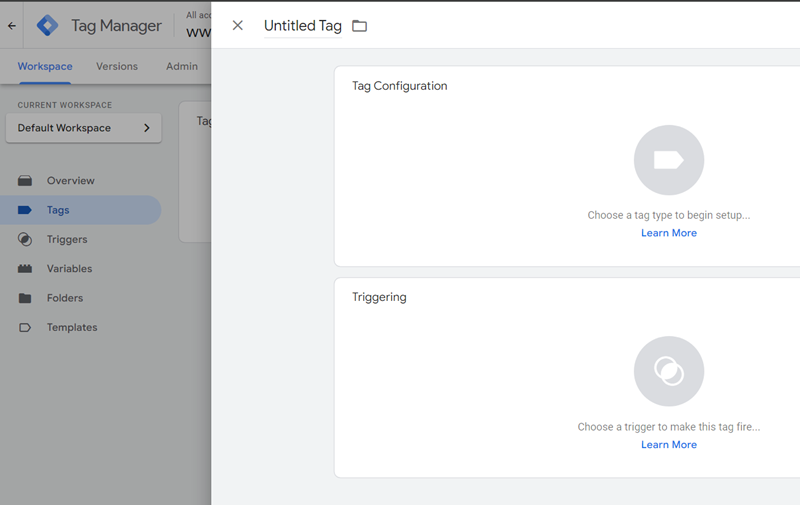
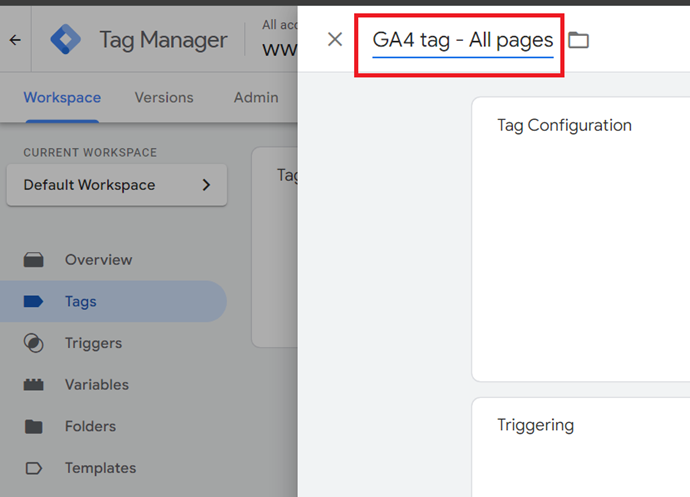
Step-3: Name your tag ‘GA4 tag – All pages’
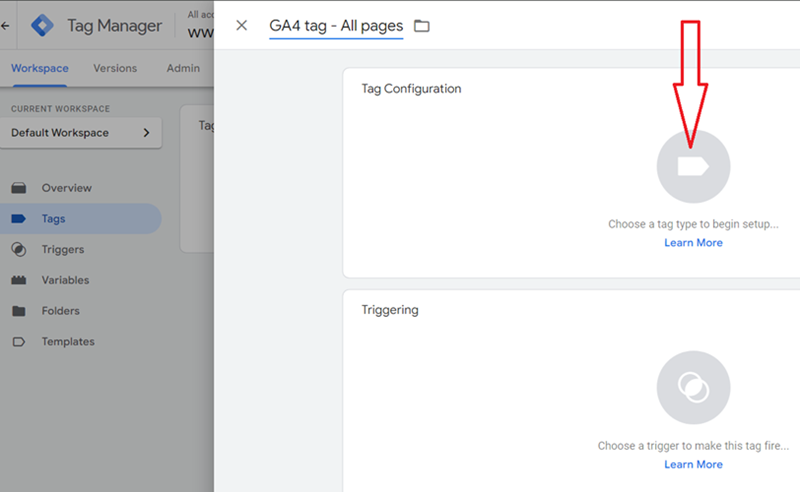
Step-4: Click on the button name ‘Choose a tag type to begin setup…’:
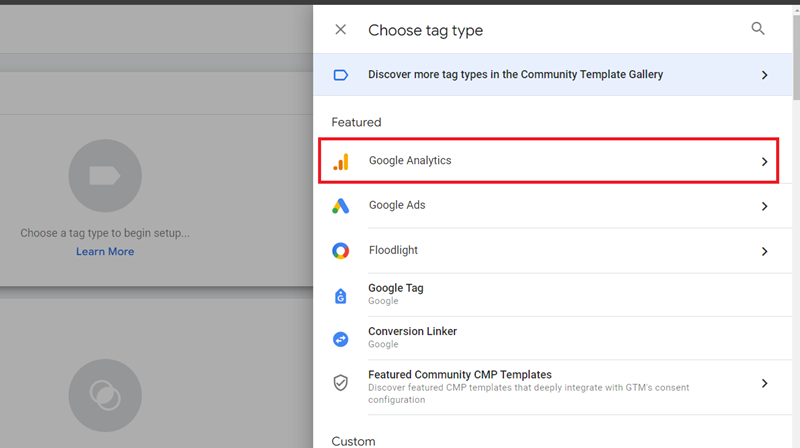
Step-5: Click on ‘Google Analytics’:
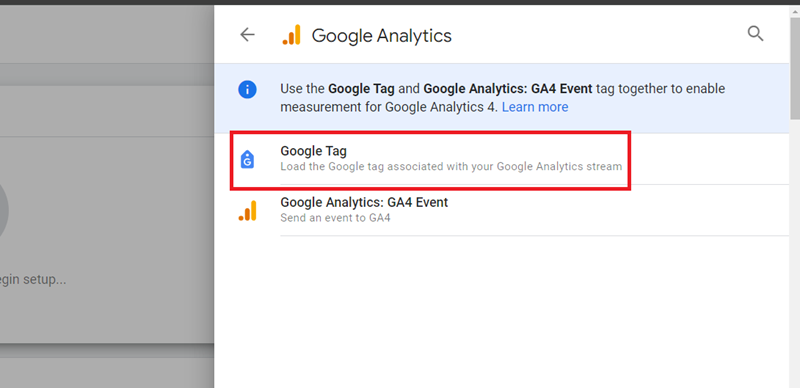
Step-6: Click on ‘Google Tag’:
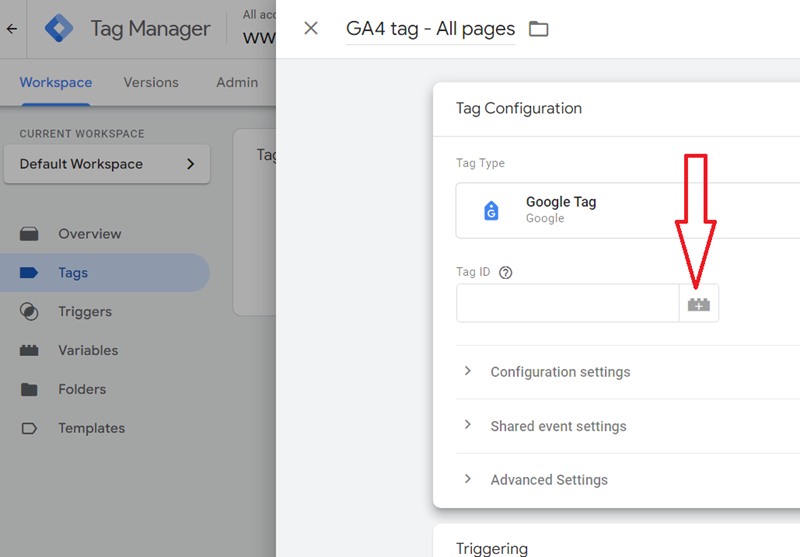
Step-7: Click on the ‘+’ button:
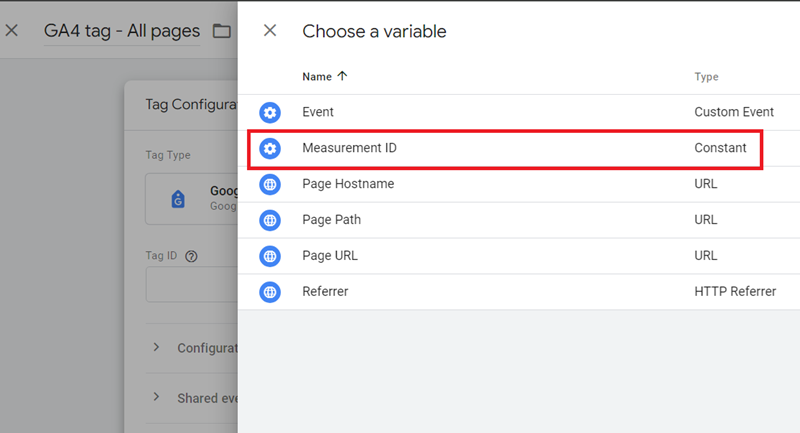
Step-8: Click on the ‘Measurement ID’ variable (we created earlier):
Step-9: Click on the button ‘Choose a trigger to make this tag fire…’:
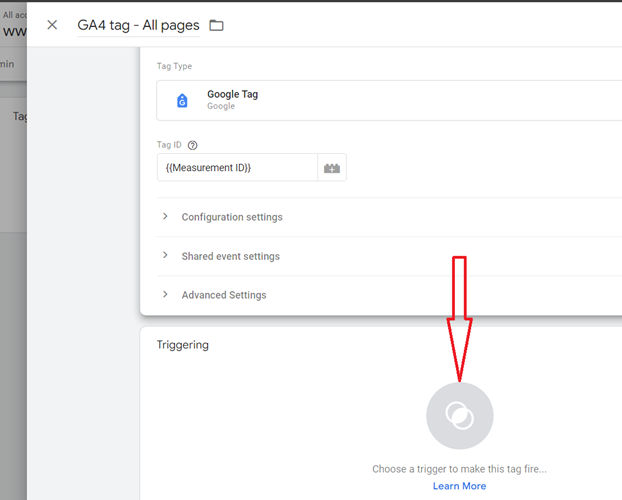
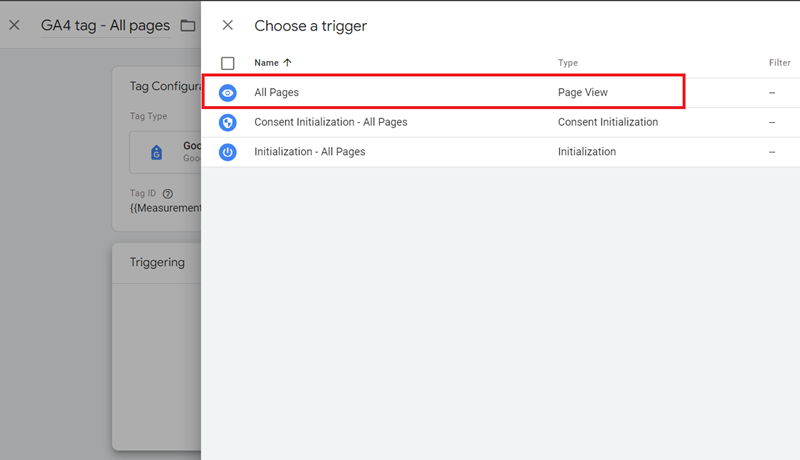
Step-10: Click on ‘All Pages’:
Step-11: Click on the ‘Save’ button to save your tag.
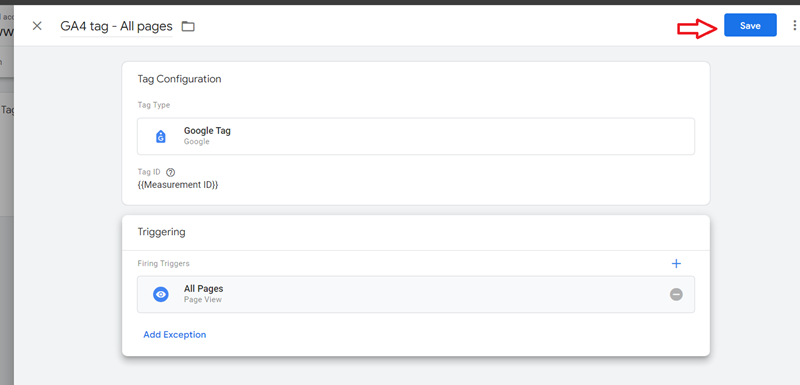
You should now see a screen like the one below:
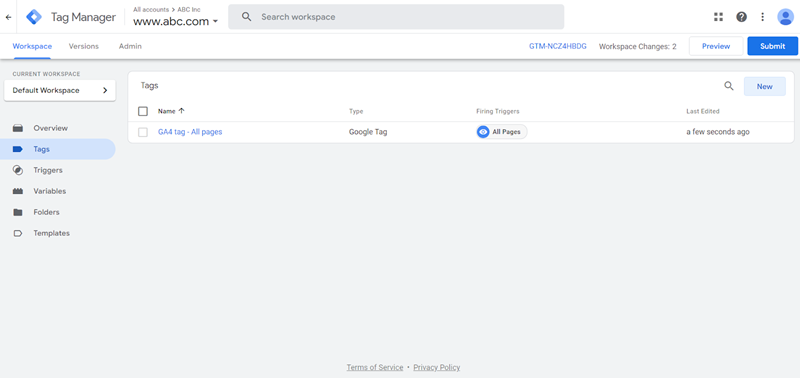
#2.4.3 Testing the implementation of the Google Tag.
Follow the steps below:
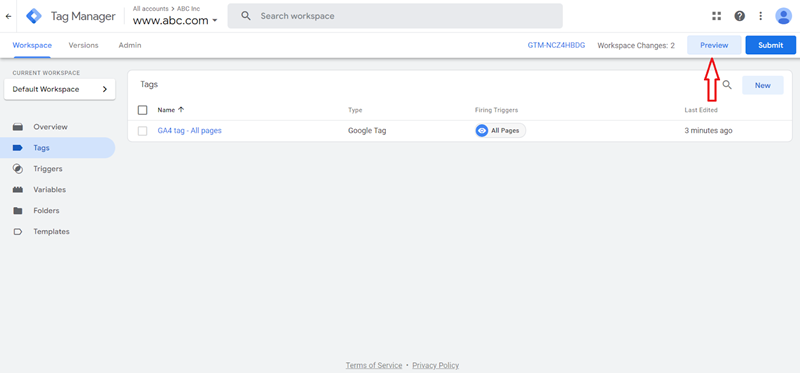
Step-1: Click on the ‘Preview’ button:
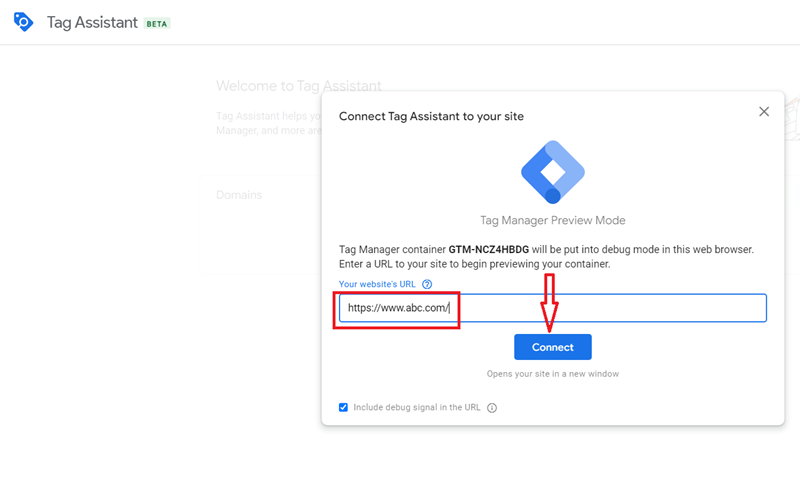
Step-2: Enter your website URL and then click on the ‘Connect’ button:
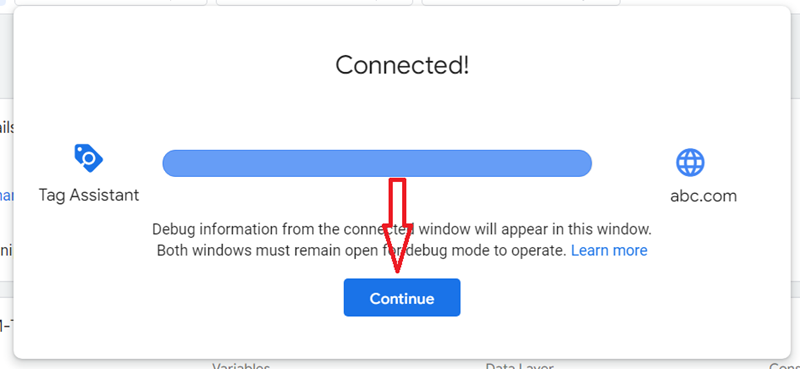
Step-3: Click on the ‘Continue’ button:
You should now see the tag ‘GA4 tag – All pages’ listed under the ‘Tag fired’ section:
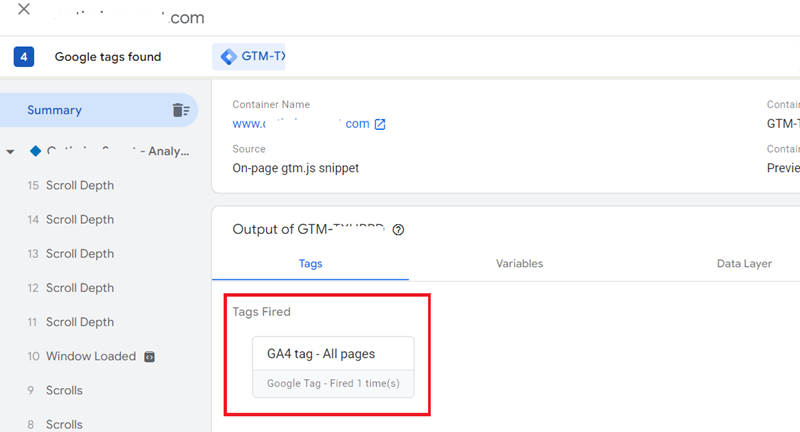
This process that the Google Tag is fring on the website and GA4 tracking is successfully installed.
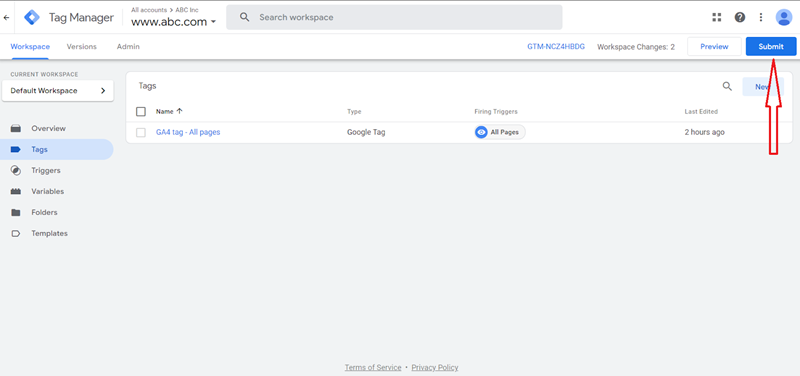
Step-4: Navigate back to your GTM account and click on the ‘Submit’ button:
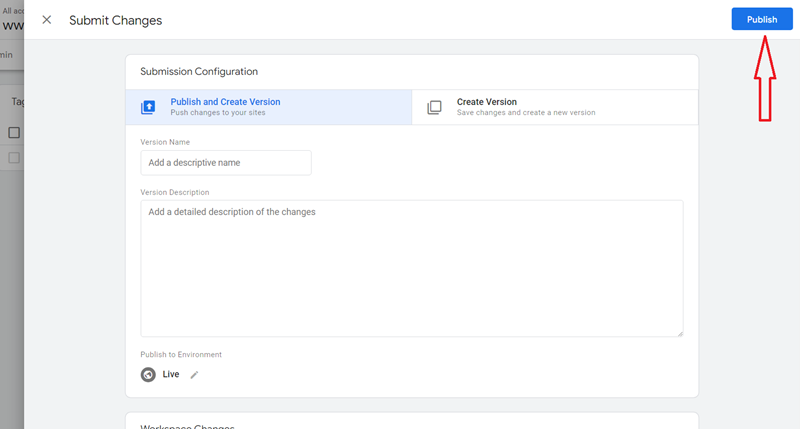
Step-5: Click on the ‘Publish’ button to make the changes made to the GTM container live:
Congratulations!
You have successfully installed GA4 tracking on your website.
#2.5 Check for data in your GA4 property.
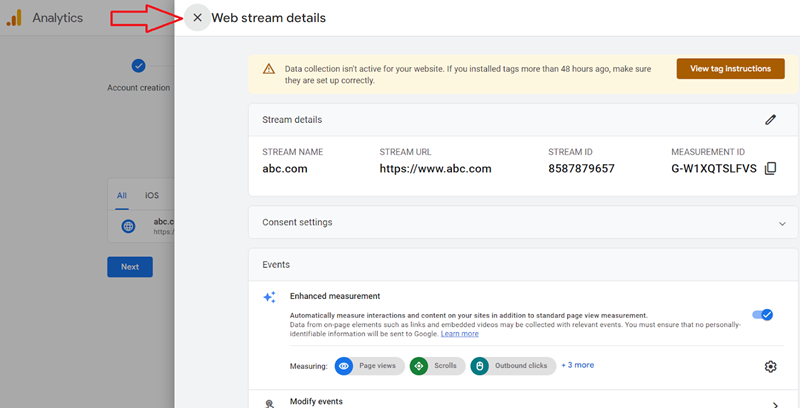
#1 Navigate back to your GA4 property and click on the cross button:
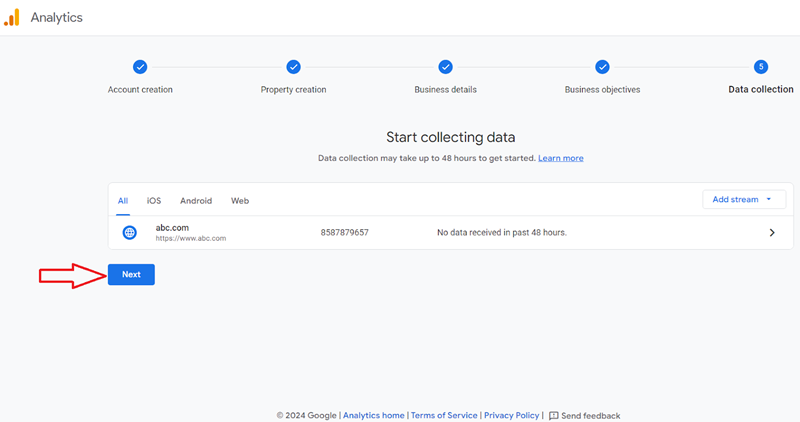
#2 Click on the ‘Next’ button:
You should now see a screen like the one below:
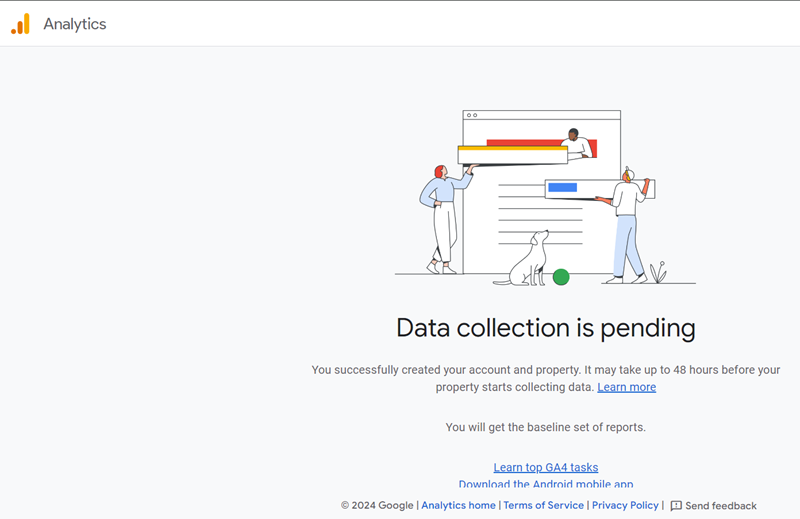
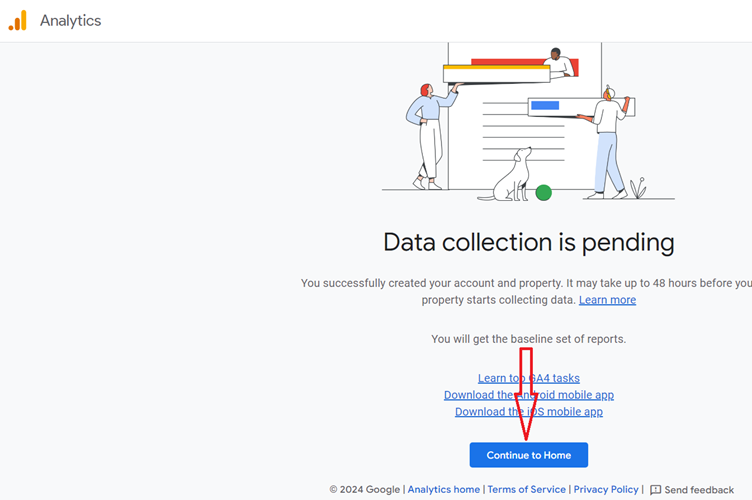
#3 Scroll down and click on the ‘Continue to Home’ button:
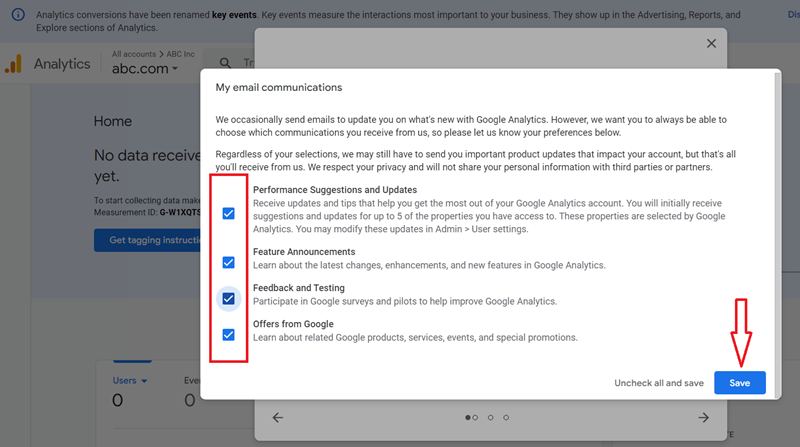
#4 Select your email communication preferences with Google and then click on the ‘Save’ button:
#5 You now get the option to view a mini slide show (by clicking on the arrow buttons) to see the latest updates made to GA4 or close the slide show by clicking on the cross button.
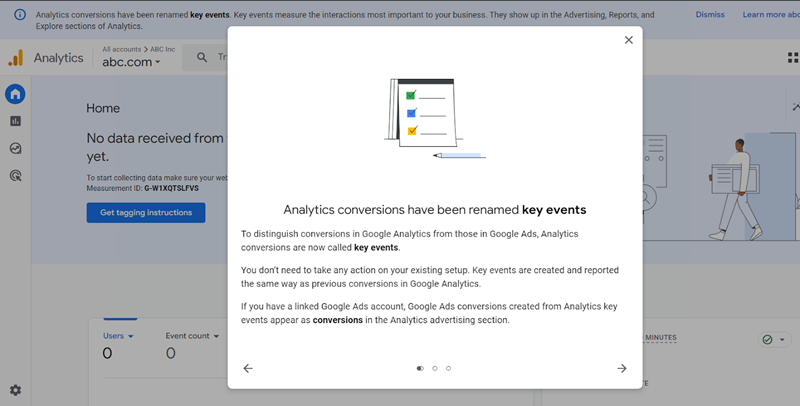
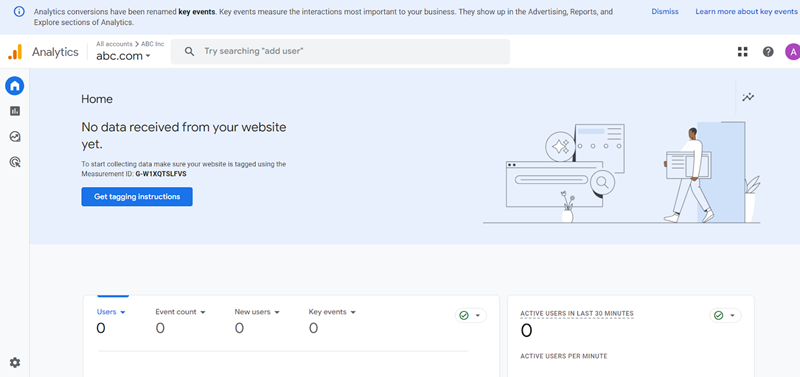
#6 Once you have seen and closed the slide show, you should see a screen like the one below:
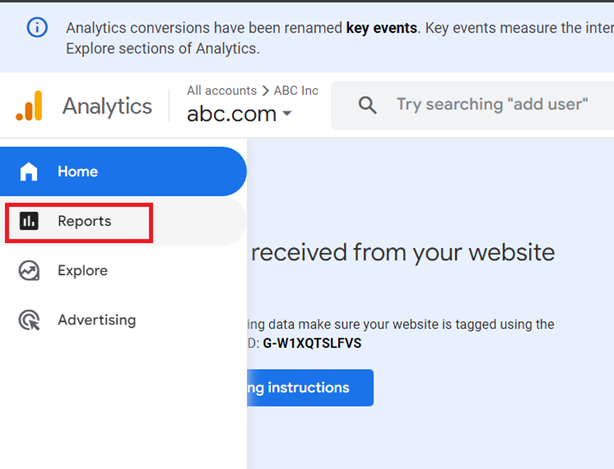
#7 Hover your mouse over the left-hand side navigation and then click on ‘Reports’:
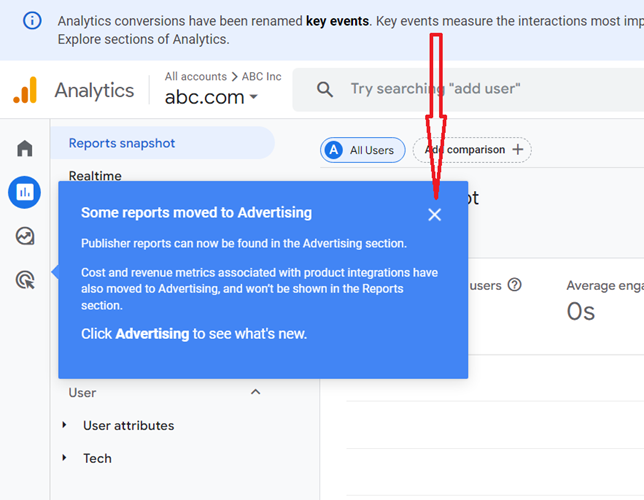
#8 Click on the cross button to remove the notification:
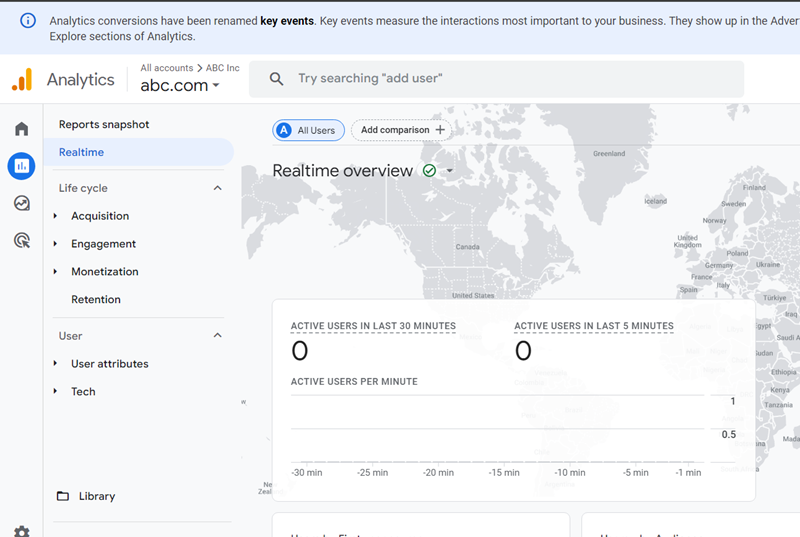
#9 Click on the ‘Realtime’ link:
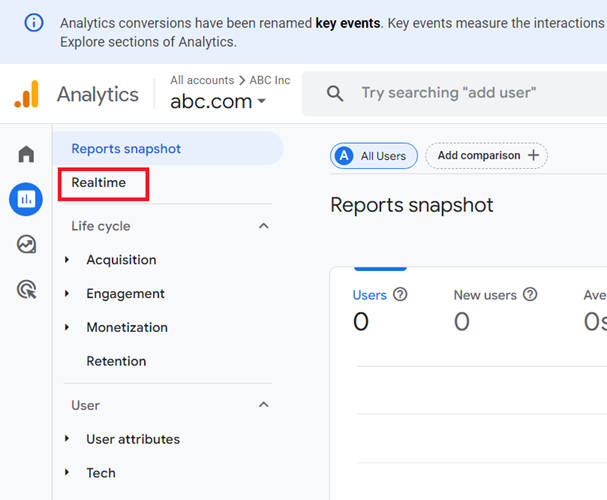
You now see the ‘Real time report’ in GA4:
#10 Navigate to your website and browse a couple of pages.
#11 Navigate back to your Real time report after 5-10 minutes. You should see some data being recorded:
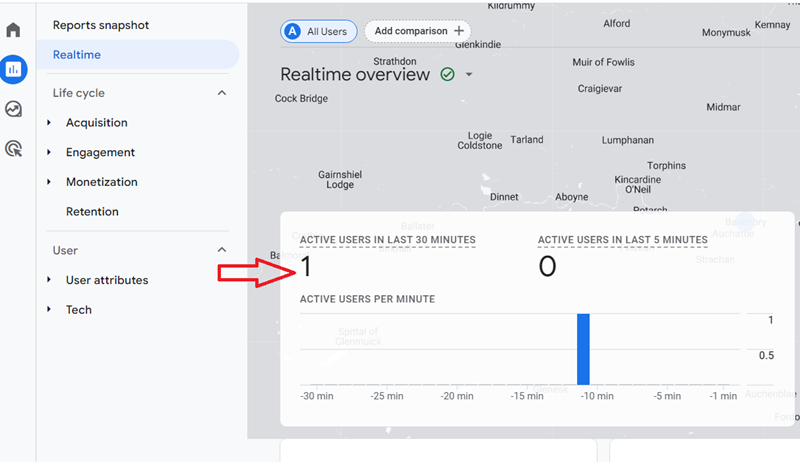
This proves that your GA4 property is successfully tracking user acitivitiyes on your website.
#12 After 12 to 48 hrs have elapsed, navigate back to your GA4 property. You should now see the data for all of your website users.
#3 Create sub-properties in GA4 (optional)
If you want to create a filtered reporting view in GA4 and you have access to GA4 360 (the paid version of GA4), create a sub-property.
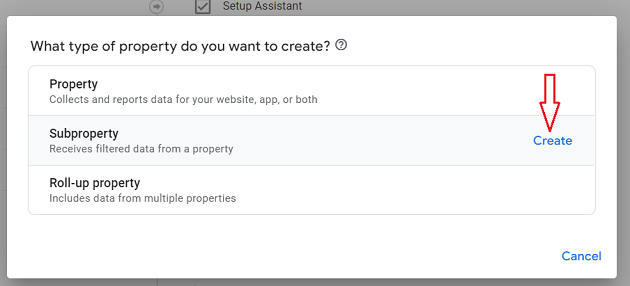
A sub-property is like a typical GA4 property, but it gets its data from another property (also called the source property).
For step by step instructions on creating sub properties in GA4, check out this article: Google Analytics 4 Sub Properties Tutorial
#4 Set up rollup property in GA4 (optional)
A roll-up property is a special type of GA4 property whose event data comes from other GA4 properties (also known as source properties).
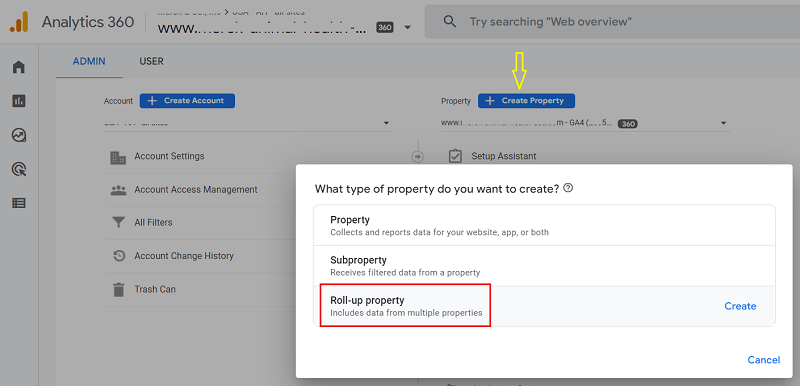
When you use a roll-up property, you can easily and automatically measure the overall performance of your websites/apps without manually exporting and aggregating data from different GA4 properties repeatedly.
Create a rollup property in the following cases:
- You want to understand the overall performance of a company that operates several websites and/or mobile apps to promote various brands or regional business units.
- You want to compare the performance of individual brands/ business units to each other.
For step by step instructions on creating roll-up properties in GA4, check out this article: Roll up Property in Google Analytics 4 (GA4) – Tutorial
#5 Add mobile app data streams to GA4 property (optional).
In order to send mobile app data to your GA4 property, you would need to link your Firebase project to your GA4 property.
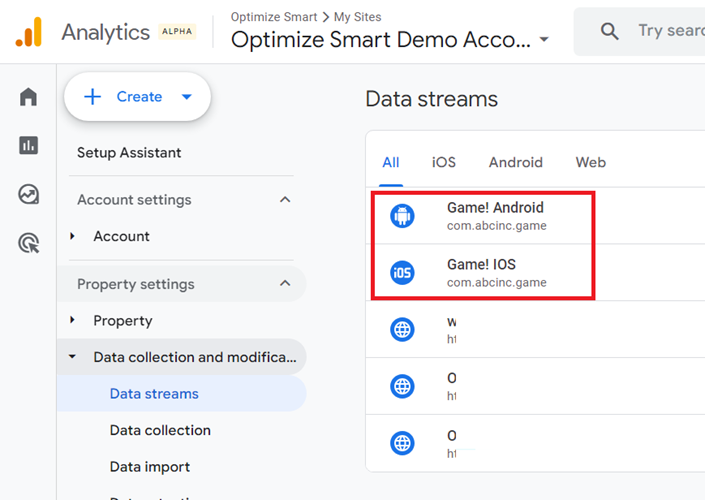
We use Firebase to add mobile app data streams to our GA4 property.
For step by step instructions on adding app data streams to your GA4 property, check out this article: GA4 Firebase Integration – Correctly add App data streams to GA4 property
#6 Set up Enhanced Measurement Tracking in GA4.
Through the ‘Enhanced Measurement Tracking’ feature you can automatically track file downloads, scrolling, clicks on outbound links, clicks on video play buttons, site search etc sitewide.
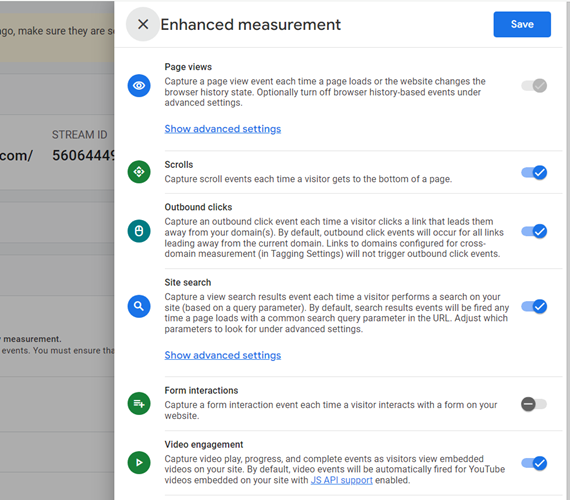
For step by step instructions on enabling GA4 enhanced measurement tracking, check out this article: GA4 (Google Analytics 4) Enhanced Measurement Tracking Tutorial
#7 Activate Google Signals for your GA4 property.
Google Signals is an advertising reporting feature through which GA4 can collect cross-device data from those website users who have signed in to one of their Google accounts (Gmail, YouTube, etc) and have turned on ad personalization.
When you set up Google Signals for your GA4 property, you can:
- More accurately track users across different devices and platforms.
- Remarket to more website users across devices.
- Analyze users’ data by age, gender and interest.
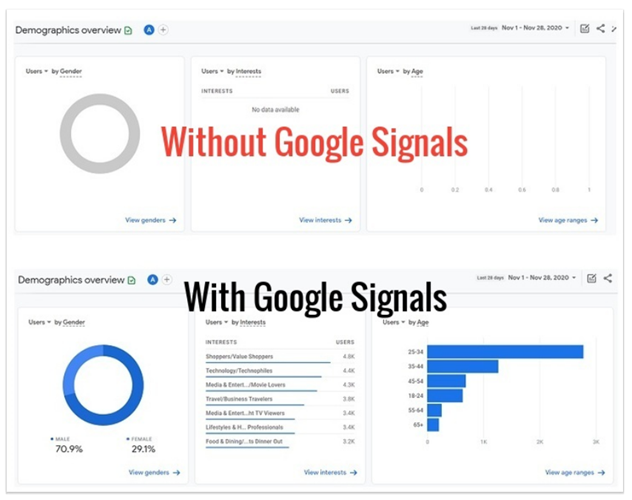
For step by step instructions on activating Google Signals for your GA4 property, check out this article: Google Signals GA4 – See demographics (gender, age) in Google Analytics 4
#8 Exclude internal traffic in GA4.
There is always a good possibility that you and your staff may be inflating your own website traffic data by visiting your website every day or so.
Internal traffic is the traffic coming from you, your employees, suppliers and other service providers to your website.
These people are not your target audience, and therefore, we don’t need to track them.
Internal traffic can easily inflate your website usage metrics (sessions, page views, time on site, etc.) and should, therefore, be filtered out of your GA4 reports.
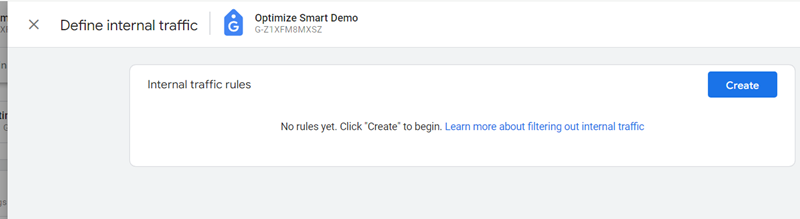
For step by step instructions on excluding internal traffic from your reporting in GA4 property, check out this article: Exclude internal traffic in GA4 (Google Analytics 4) via IP filter
#9 Connect your GA4 property with Google Ads.
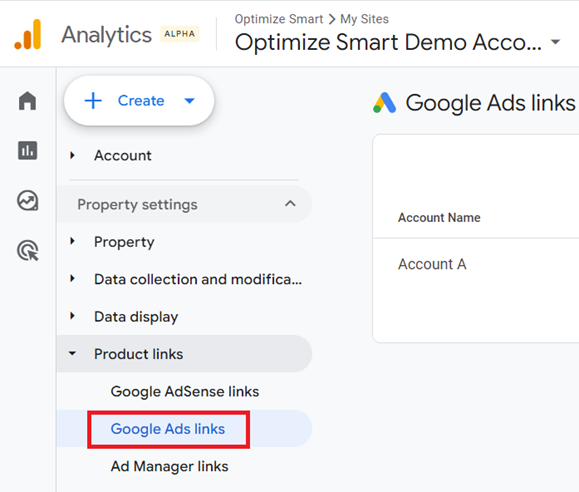
You should link your GA4 property with your Google Ads account if you use Google Ads.
The following are the main benefits of integrating GA4 with Google Ads:
- You can see your Google Ads data in your GA4 reports. This data appears in the Acquisition Overview report, Advertising Snapshot report and attribution reports.
- You can import conversions from your GA4 property to your Google Ads account.
- You can use GA4 remarketing audience to enhance your Google Ads remarketing campaigns.
For step by step instructions on linking your GA4 property with Google Ads, check out this article: How to link GA4 (Google Analytics 4) with Google Ads
#10 Connect your GA4 property with Google Search Console.
Through such integration, you can view the Google search console data (queries, impressions, clicks, CTR, landing pages etc) in the Search Console reports of your GA4 reporting view.
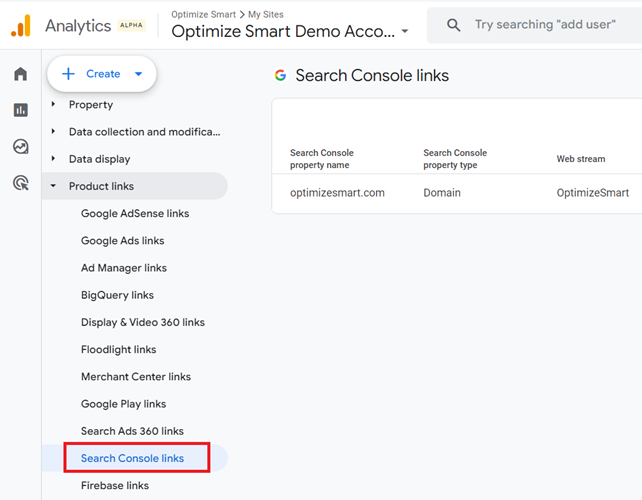
Google search console provides data about what users see in Google search results before they decide to click on your website.
You can use this data to identify opportunities and prioritize development efforts to increase the number of visitors to your website.
For step by step instructions on connecting your GA4 property to your Google Search Console account, check out this article: How to link Google Search Console to Google Analytics 4 (GA4)
#11 Connect your GA4 property with Adsense.
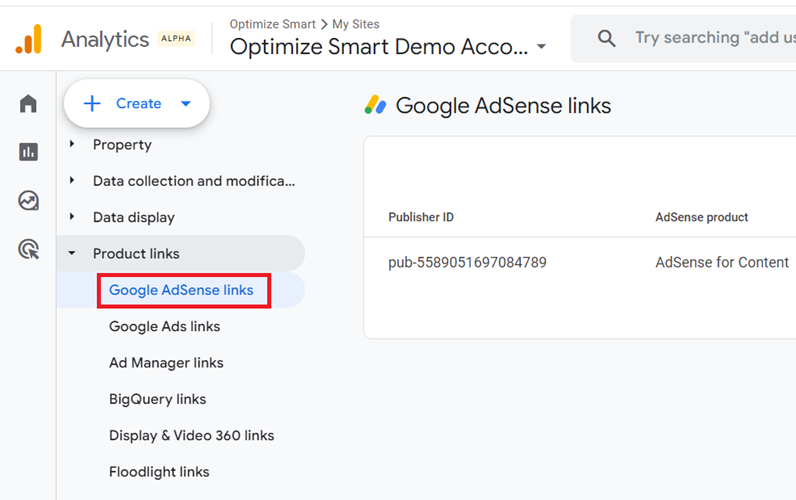
The following are the advantages of linking your GA4 property with your Google Adsense account:
- You can access your AdSense data in GA4 via:
- The Publisher dimensions and metrics.
- The ‘Publisher Ads’ report.
- The Exploration reports.
- You can correlate your AdSense data with website usage metrics (like ‘First User Source Medium’) to gain deeper insight and detect trends that can assist you in maximising your advertising revenue.
For step by step instructions on connecting your GA4 property to your Google Adsense account, check out this article: How to link Google Analytics 4 with Adsense.
#12 Connect your GA4 property with BigQuery.
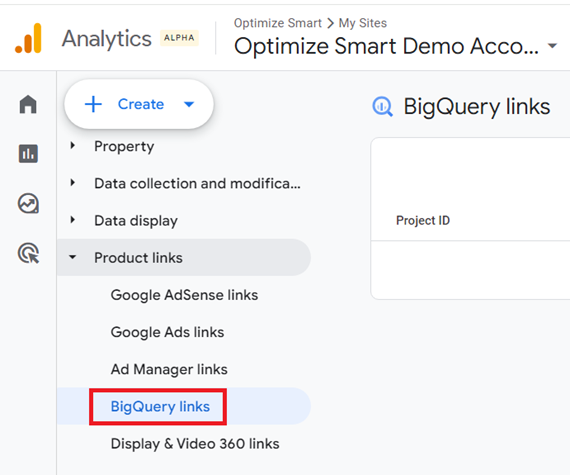
Connect your GA4 property with BigQuery to access the raw GA4 data and run SQL queries.
When you use BigQuery, you can manipulate GA4 data in a way that is often not possible by using the GA4 user interface.
For step by step instructions on connecting your GA4 property with BigQuery, check out this article: GA4 BigQuery – Connect Google Analytics 4 with BigQuery
#13 Set up GA4 test property.
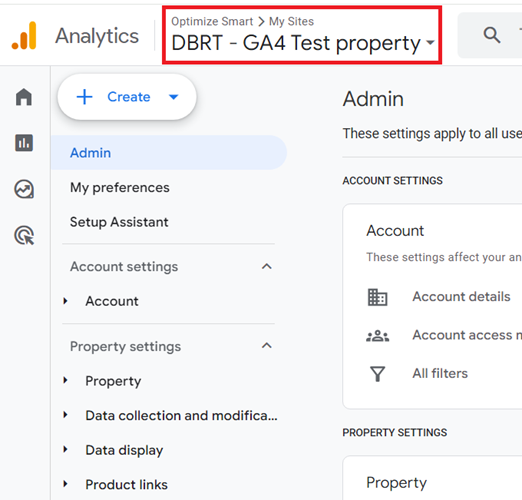
A Google Analytics 4 property comes with only one reporting view.
So whenever you change one of the settings of your GA4 property, you permanently change the way the data is collected, processed and reported in your reporting view.
Every change you make to your GA4 property setting(s) has the potential to permanently inflate/skew your current analytics data.
So you need to create a separate GA4 property just for testing purposes. We call this property a GA4 test property.
For step by step instructions on setting up your GA4 test property, check out this article: Using the GA4 (Google Analytics 4) Test Property
#14 Make GA4 GDPR Compliant.
GDPR is European Union (EU) privacy law. It applies to any organization that processes or controls the personal data of data subjects, regardless of whether the organization is based in the EU.
If you are processing the personal data of ‘data subjects,’ then you must comply with GDPR regardless of where you live.
For step by step instructions on making GA4 GDPR compliant, follow the checklist: GA4 (Google Analytics 4) GDPR Compliance Checklist.
#15 Set up UTM tracking in GA4.
UTM tracking refers to the tagging of your website URL with UTM parameters.
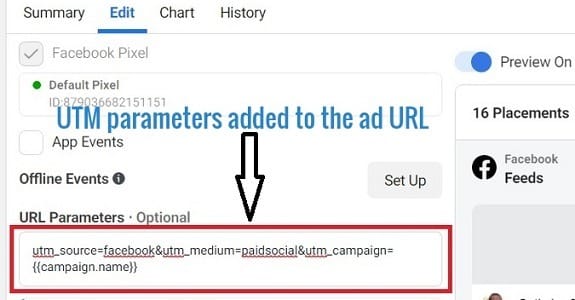
Through UTM tracking, you can send detailed information about a marketing campaign to GA4.
For step by step instructions on setting up UTM tracking in GA4, check out this article: utm_source, utm_medium, utm_campaign Parameters – GA4 (Google Analytics 4).
For step by step instructions on fixing UTM tracking, check out this article: GA4 UTM parameters not working? Here is how to fix it.
#16 Set up GA4 Custom Events.
Custom events are the events that you create and use.
Custom events can be any interaction on your website that is not tracked by default. For example, button click, sign up events, form submission, etc.
For step by step instructions on setting up GA4 custom events via GTM, checkout this article: How to set up GA4 Custom Events via Google Tag Manager
#17 Set Up Goal Conversion Tracking in GA4.
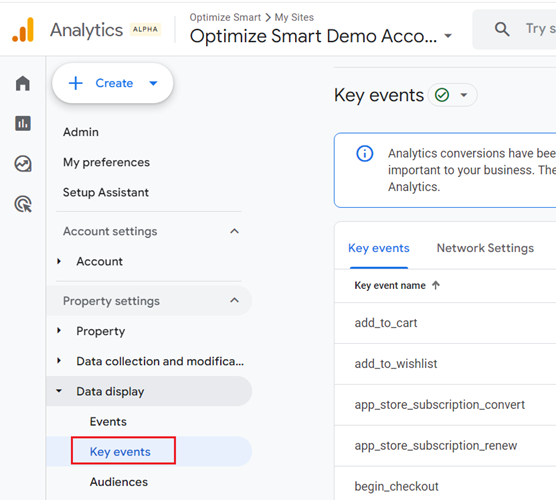
Goals (aka Key Events) measure how well your website fulfils your target objectives.
Your website goals can be something like which graduate programs are viewed the most, how many users contact the student service, how many are contacting guidance and admissions etc.
Defining Goals is a fundamental component of any digital analytics measurement plan.
Having properly configured Goals allows Google Analytics to provide you with critical information, such as the number of conversions and the conversion rate for your website.
Without this information, it’s almost impossible to evaluate the effectiveness of your website and marketing campaigns.
For step by step instructions on setting up conversion tracking in GA4, check out this article: Google Analytics 4 Conversion Tracking Guide – GA4 Goals
#18 Setup Content Grouping in GA4.
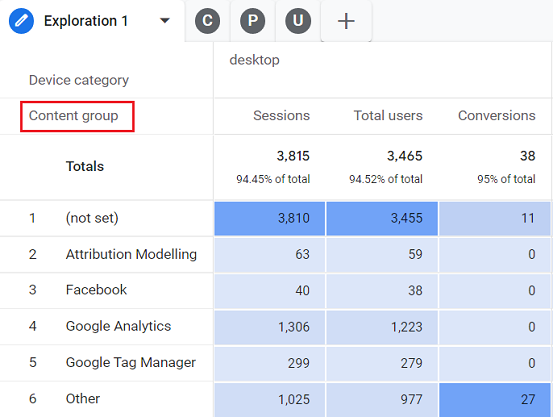
A content group is a set of web pages that are based on the same theme.
So in the case of a blog, a content group can be a set of web pages that are based on the same topic e.g. Google Tag Manager.
In the case of an ecommerce website, a content group can be a set of web pages that sell similar products e.g. shirts.
Through content grouping in GA4, you can quickly check the performance of a content group or compare the performance of different content groups with each other.
Content groups allow you to measure the performance of a set of web pages at the content category or product category level.
For step by step instructions on setting up content grouping in GA4, check out this article: Google Analytics 4 Content Grouping – Create Content Groups in GA4
#19 Create User properties in GA4.
User properties are attributes that are used to define segments of your user base, such as language preference or geographic location.
In the context of GA4, the user properties are user scoped custom dimensions. User-scope means the value of the custom dimension is calculated and sent once for each user.
Google recommends that you use a user-scoped custom dimension when you want to identify static or slowly changing attributes of your website/app users like changes in the subscription plan, membership level, game difficulty level, etc.
For step by step instructions on creating user properties in GA4, check out this article: GA4 User Properties (User Scoped Custom Dimensions) – Tutorial
#20 Create custom insights in GA4.
It is extremely difficult to keep an eye on significant variations in your website traffic or any of your marketing campaign/traffic sources manually and that too 24/7.
Here is where GA4 custom insights come in handy.
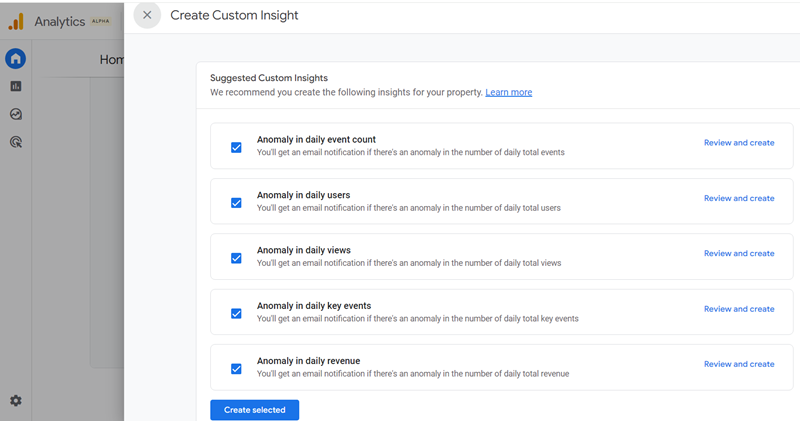
Through GA4 custom insights you can monitor significant variations in your website traffic and marketing campaigns.
Whenever such variation occurs you get an email alert from Google asking you to take immediate action.
Custom insights are generated when traffic reaches a specific threshold that you have specified.
For example, if your website traffic dropped by more than 90% in comparison to the last day, then you can get an alert via email from Google.
Without setting up such an alert, you may never know when the website tracking stopped working.
For step by step instructions on creating custom insights in GA4, check out this article: How to create custom insights in Google Analytics 4 (GA4)
#21 Create remarketing audiences in GA4.
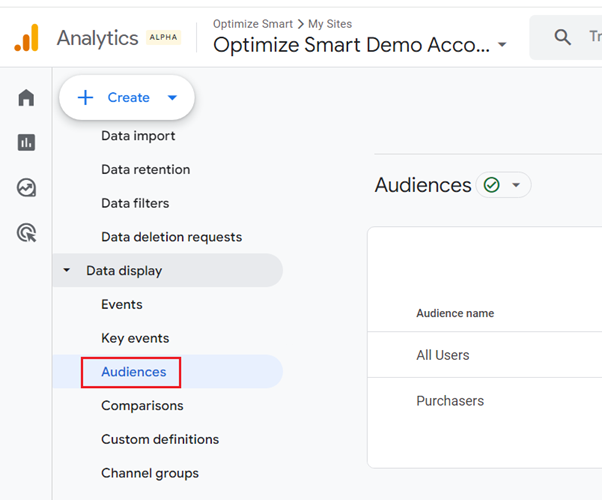
You would need to set up Remarketing audiences in your GA4 property.
Remarketing audience is a list of users to which you want to show one or more targeted ads.
Once you have created the remarketing audiences in GA4, these audiences will be available in your Google Ads account for retargeting.
You can then run remarketing campaigns in Google Ads using these GA4 Audiences. Remarketing campaigns have proved to increase the ROI for many businesses and are almost always profitable.
For step by step instructions on creating remarketing audiences in GA4, check out this article: How to create a remarketing audience in Google Analytics 4 (GA4)
#22 Upload data from external data sources via GA4 Data Import.
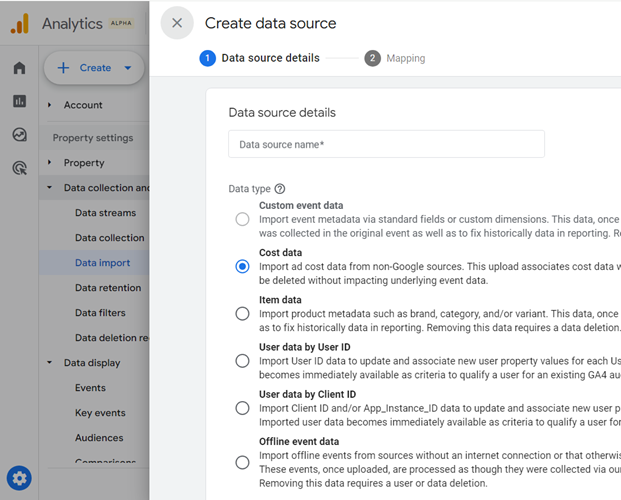
Through data import feature in GA4, you can upload data from external data sources (like point of sale, offline data, CRM data, etc.) to your GA4 property.
For example, if you run a business that generates leads online but sales happen in a physical shop (offline), you can track conversions in Google Analytics by uploading the transaction data from the offline system.
For step by step instructions on uploading data from external data sources in GA4, check out this article: GA4 (Google Analytics 4) Data Import Tutorial
#23 Setup Channel Groups in GA4.
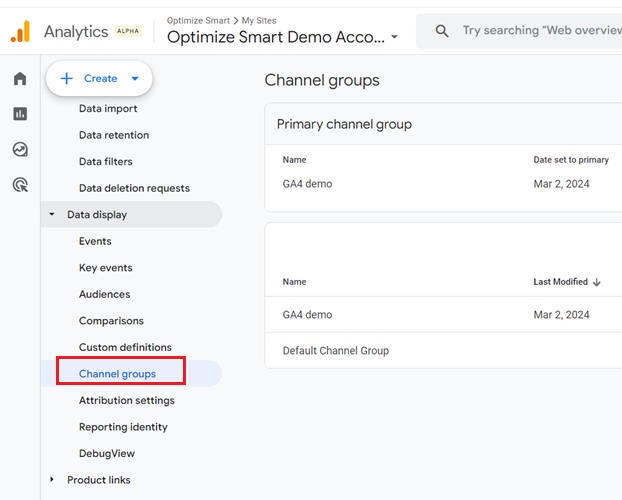
Channel groups in Google Analytics 4 are rule-based groups of traffic sources. GA4 can report the performance of a marketing channel via several different referrers.
But GA4 is not going to automatically consolidate all of this data and report it to you as traffic from a particular marketing channel. This is something you would need to do manually.
For step by step instructions on setting up channel groups in GA4, check out this article: Understanding Channel Groupings in Google Analytics 4 (GA4).
#24 Get Organic Keywords data back in GA4.
By default, GA4 provides fewer keyword referral data than Universal Analytics (GA3).
Unlike Universal Analytics, GA4 does not provide the ‘Organic Keywords’ report, and it also does not provide the ‘Keyword’ dimension.
Use a tool like ‘Keyword Hero’ to collect more keyword data in your GA4 property.
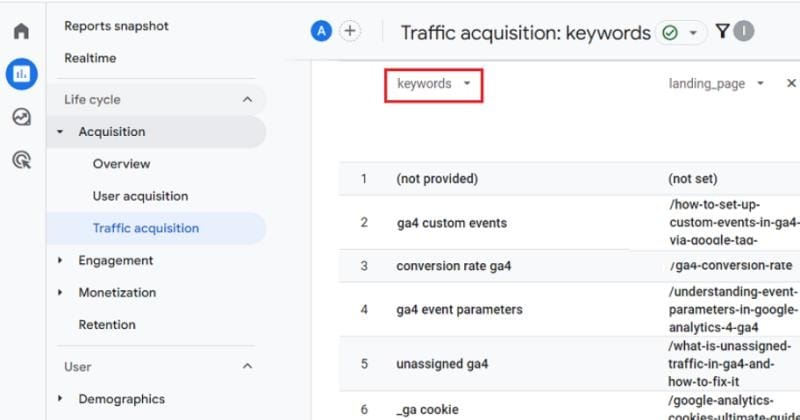
For step by step instructions on getting organic keywords data back in GA4, check out this article: How to see Organic Search Keywords in GA4 (Google Analytics 4).
#25 Configure GA4 Admin Settings
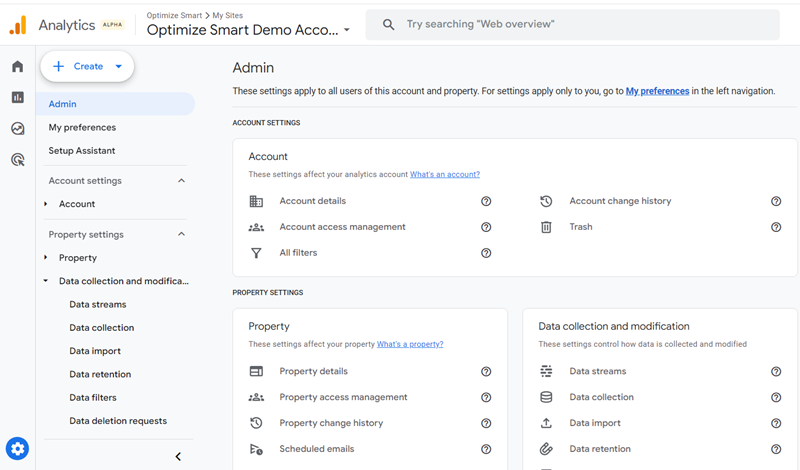
Google has completely changed the GA4 admin area and make it a bit easier to configure various type of settings at the account, property and data stream level.
For step by step instructions on configuring the various GA4 admin settings, checkout this article: GA4 Admin Settings Tutorial.
#26 Set up Ecommerce Tracking in GA4.
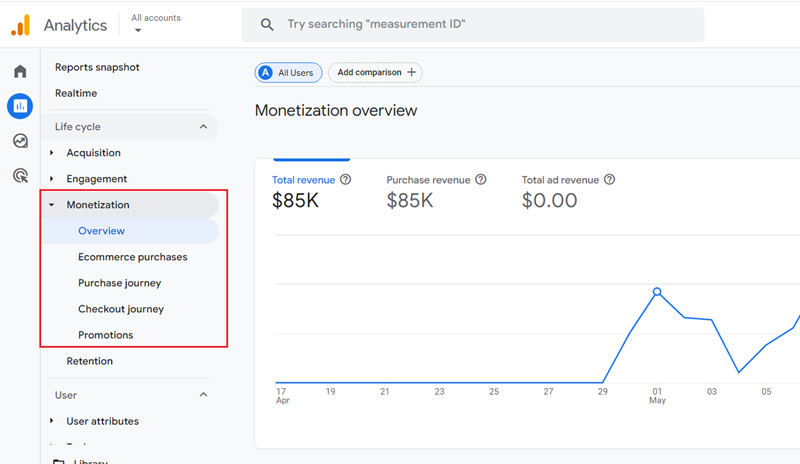
If you run an online store where ecommerce transactions take place, you cannot just depend upon the analytics reports provided by your shopping cart.
You would need GA4 e-commerce tracking set up for your website.
It is only by using ecommerce tracking that you can correlate sales data with website usage data (like traffic source/medium, landing pages etc).
Such type of correlation analysis is required in order to understand the performance of your website landing pages and marketing campaigns.
Otherwise, you may never know which landing pages or campaigns are driving sales and which are not.
Through e-commerce reports in GA4 you can get detailed information about e-commerce activity on your website like total revenue generated by the website, the number of orders placed, average order value, e-commerce conversion rate etc.
For step by step instructions on setting up ecommerce tracking in GA4, check out this article: GA4 (Google Analytics 4) Ecommerce Tracking via GTM – Tutorial
#27 Export data from GA4 to BigQuery.
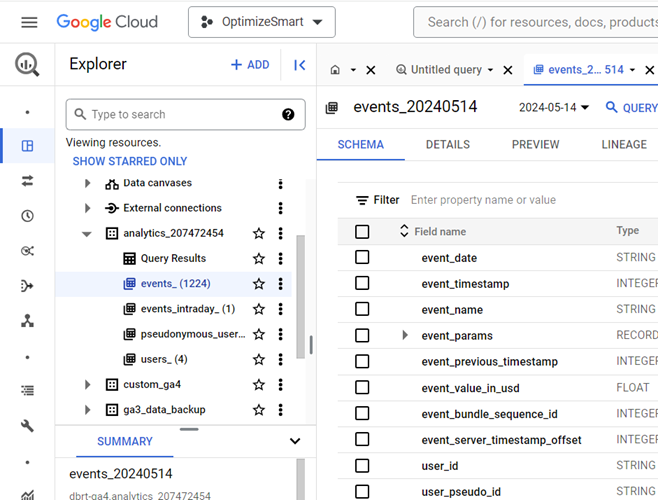
You can export all of the events from GA4 to BigQuery and then use SQL-like syntax to query the data.
Below are few reasons why you should consider exporting data to BigQuery:
- You can perform advanced analysis on the raw data from GA4 property.
- You can pull data into BigQuery from multiple data streams (Android apps, IOS apps, and website).
- You can join your data with other marketing or CRM tools.
For step by step instructions on exporting GA4 data into BigQuery, check out this article: How to connect and export data from GA4 to BigQuery
#28 Backfill GA4 data in BigQuery.
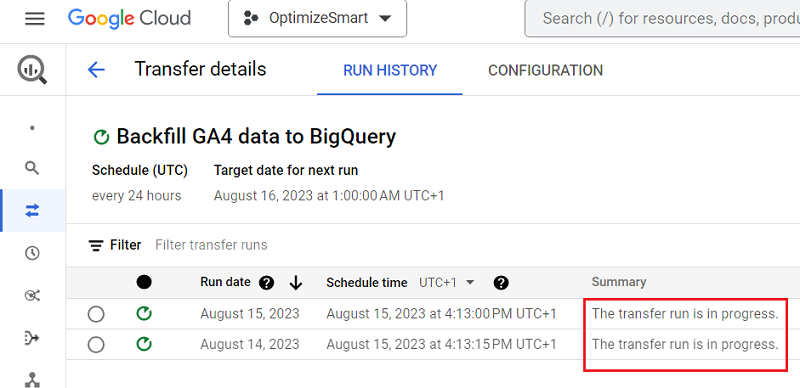
Backfilling GA4 data in BigQuery means importing historical GA4 data into your BigQuery project.
If you have only recently connected GA4 with BigQuery, you may not have all the historical data in your BigQuery project.
This is because, by default, the GA4 data is imported to BigQuery only from the date you first connected your GA4 property to your BigQuery project.
If you want historical GA4 data in your BigQuery project, then you would need to backfill GA4 data in BigQuery.
For step by step instructions on backfilling GA4 data in your BigQuery project, check out this article: How to backfill GA4 data in BigQuery
#29 Setup GA4 via GTM Server Side Tagging.
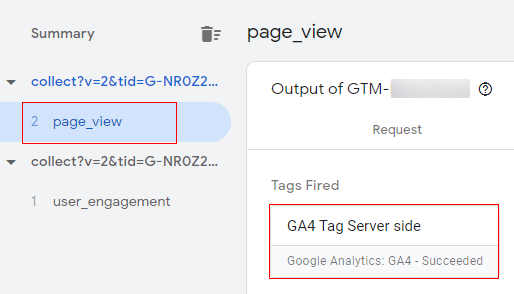
You probably know that the Brave web browser blocks both Google Analytics and GTM by default.
An increasing number of users are now using ad blockers.
To make the matter worse, Google also announced a plan to end the support of third-party cookies in the near future.
Web browsers continue to restrict access to more and more users’ data.
All of these tracking restrictions are creating big data gaps on the conversion paths and making it very difficult to understand customers’ purchase journeys and advertise profitably.
So how do you track users’ data then? One efficient way of tracking data is to use server side tagging.
For step by step instructions on setting up GA4 via GTM server side tagging, check out this article: How to set up GA4 via GTM Server Side Tagging
#30 Setup Phone Call Tracking in GA4.
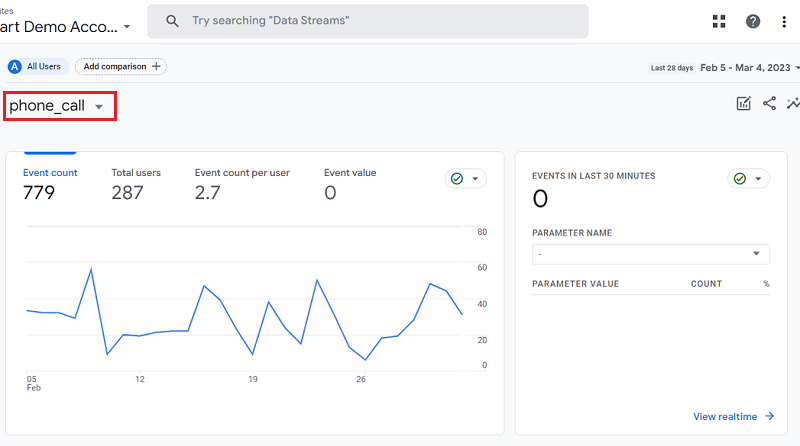
Phone call tracking refers to tracking leads or sales resulting from a phone call.
Phone call tracking is used to attribute phone calls to the correct marketing channel, traffic source or keyword, collect customers’ feedback and optimize the phone call experience for conversions.
Understanding exactly which marketing channels and keywords are driving phone calls is invaluable.
Attributing phone calls to the correct marketing channels/keywords means you can increase the budget of the marketing channels/keywords which drive phone calls and reduce the budget of those that do not.
For step by step instructions on setting up phone call tracking in GA4, checkout this article: How to Track Phone Calls in Google Analytics 4 – Call Tracking Tutorial.
#31 Set up User ID in GA4.
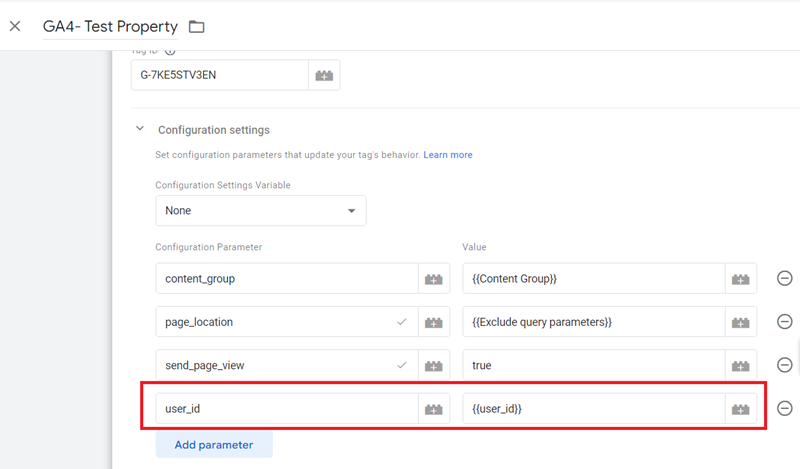
GA4 User ID is a unique set of alphanumeric characters (like GdffTeeD453589) assigned to a user so that they can be identified across devices/ browsers and over the course of multiple sessions.
The usage of the user ID feature makes cross-device measurement possible in GA4 for the logged-in users. Which in turn helps to fix cross-device attribution issues. This is the biggest benefit of using user IDs.
For step by step instructions on setting up User ID, check out this article: How to setup User ID in Google Analytics 4 and Universal Analytics.
#32 Send GA4 data via Measurement Protocol.
The measurement protocol (MP) is a set of rules your application must follow to send raw event data from your client or server directly to your GA4 property.
The measurement protocol is not a substitute for automatic data collection via gtag.js, Google Tag Manager, and/or Google Analytics for Firebase SDK.
The primary purpose of GA4 MP is to allow developers to send additional data to GA4 for analysis and reporting purposes.
For step by step instructions on sending GA4 data via Measurement Protocol, check out this article: GA4 (Google Analytics 4) Measurement Protocol Tutorial.
Pro Tip >> Use the checklist built into your GA4 property.
Most users do not understand the purpose of Setup Assistant in their GA4 property.
It is a checklist built into your GA4 property to constantly remind you of the important GA4 tasks that you need to complete.
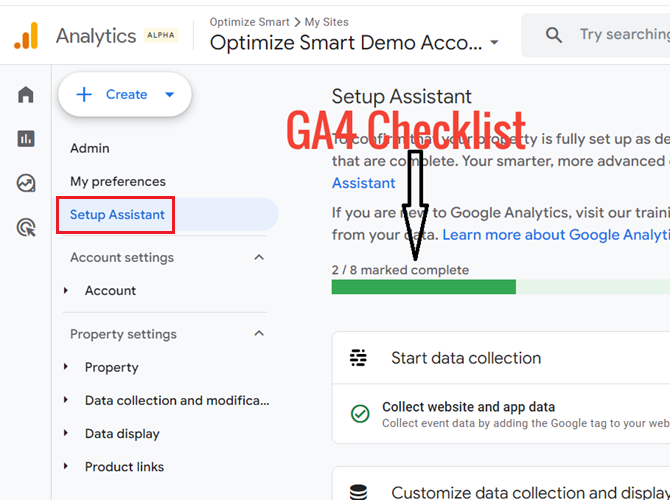
Once you complete a task, you are expected to mark that task as complete. However, that is not clear because of poor UI design.
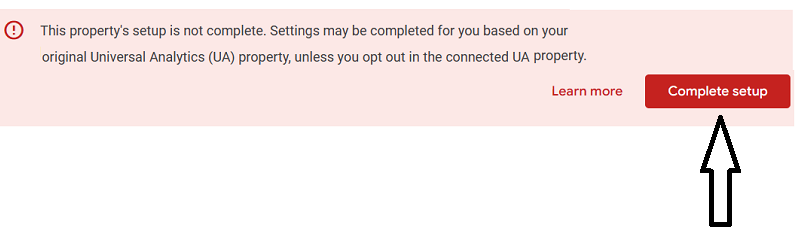
When you don’t follow this checklist and mark tasks as complete, you are likely to see the following banner at the top of your GA4 property:

Some clients often complain that their GA4 property setup is not complete because they see this banner at the top, which just does not seem to go away
Follow the steps below to hide this banner for good:
Step-1: Click on the ‘Complete Setup‘ button on the banner:
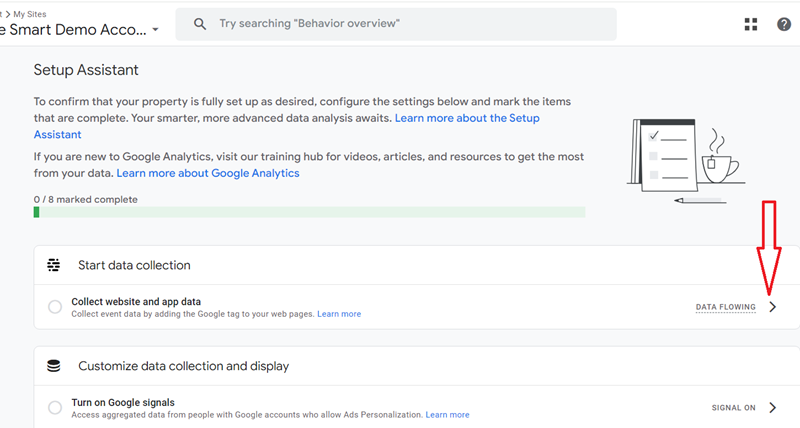
You will then be redirected to the ‘Setup Assistant’ page in your GA4 property.
Step-2: Click on the arrow button next to the task you want to mark as complete.
Step-3: Click on the ‘Mark as complete‘ option:
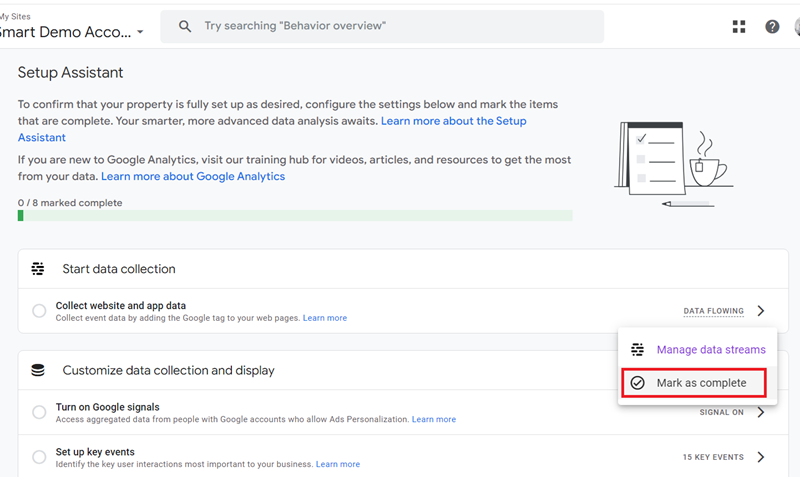
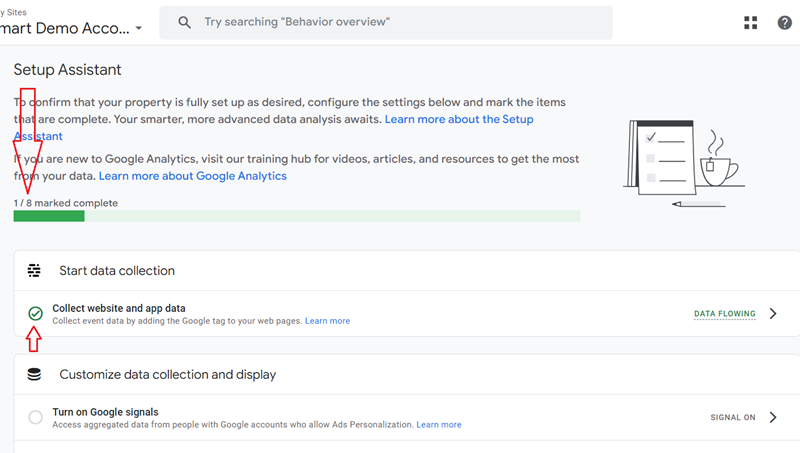
You should now see the increase in the progress bar as well as the green tick mark next to the task you marked as complete:
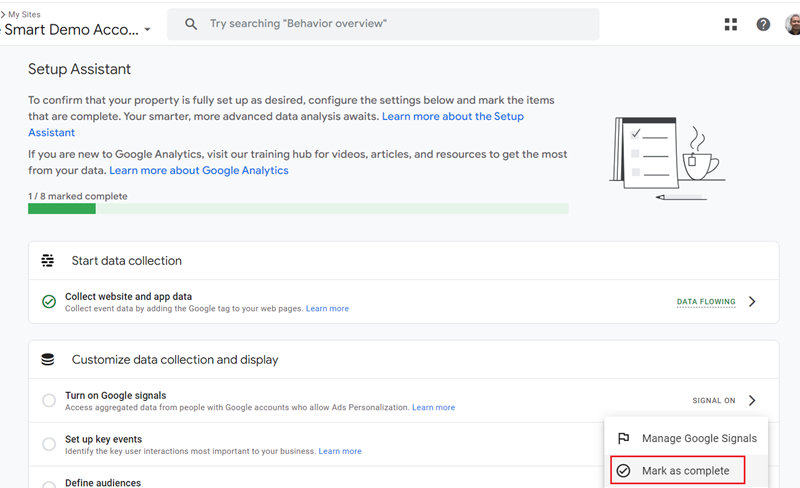
Step-4: Click on the arrow button next to ‘Turn on Google Signals‘ and then click on the option ‘Mark as complete‘:
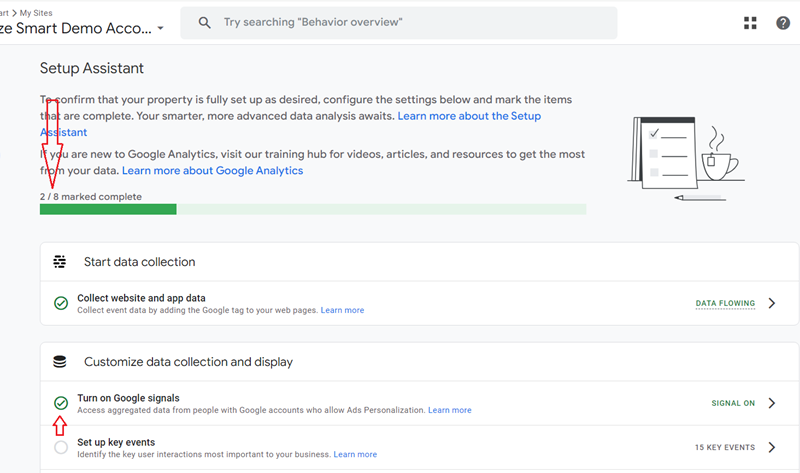
You should now see the increase in the progress bar as well as the green tick mark next to the task you marked as complete:
Step-5: Repeat steps 2 and 3 for all other tasks (including the tasks listed under ‘Advanced Setup (optional)’) listed on the ‘Setup Assistant’ page.
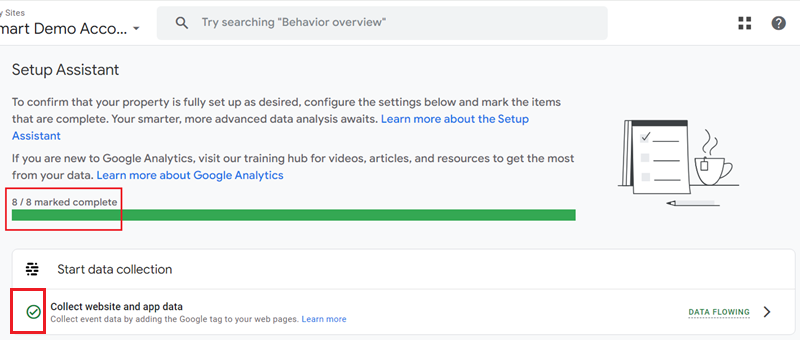
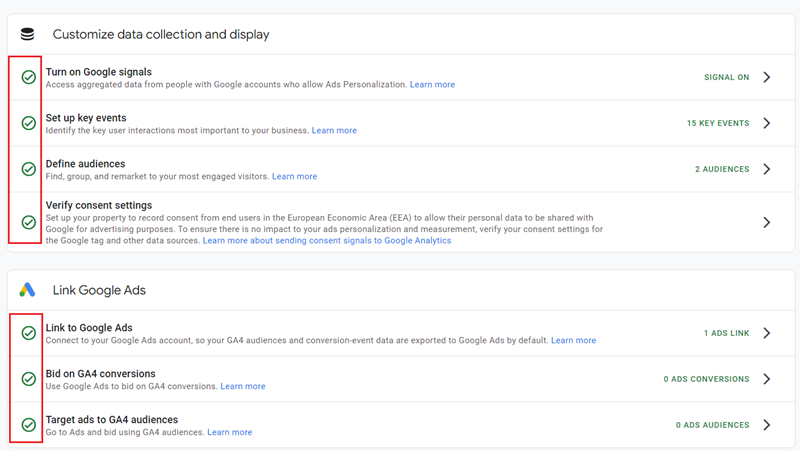
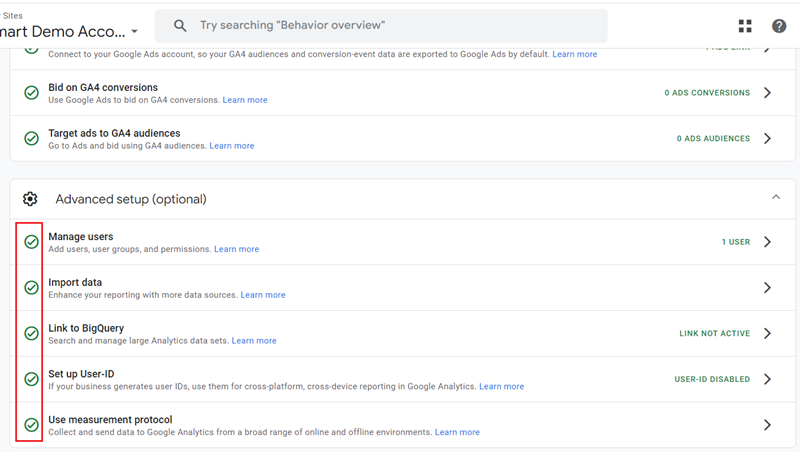
Step-6: Refresh the setup assistant page through your web browser.
The annoying banner should now disappear for good, and clients should no longer be pestered that their GA4 setup is incomplete and you haven’t done your job.
#33 Things you must do as soon as you set up a new GA4 property.
As soon as you set up a new GA4 property, you must adjust some settings to prevent data loss.
- Change the data retention settings for event and user data from 2 months to 14 months.
- Link your GA4 property to a BigQuery project so that you don’t lose user-specific data for inactive website users every 14 months.
- Disable automatic form tracking (via enhanced measurement).
- Change the reporting identity to ‘device based’ to minimise the negative impact of data threshold on GA4 reports.
- Change the session timeout setting in GA4 to 7 hours and 55 minutes.
- Change the ‘Adjust timer for engaged sessions’ setting to 60 seconds.
- Filter out internal traffic in your GA4 property.
- Configure the List unwanted referrals.
- Activate Google Signals for your GA4 property.
- Set up a Google Analytics 4 test property.
- Link your GA4 property to your Google Search Console Account to start populating your GA4 reports with search console data ASAP.
- Link your GA4 property to your Google Ads account, as Google ads data does not flow retroactively into your GA4 reports.
- Remove all unwanted query parameters from your page path ASAP to reduce the impact of ‘(other)’ in GA4 reports.
- Adjust your conversion window.
- Verify Data Consent Settings.
- Monitor average daily event volume at the GA4 property level (Reports > Engagement > Events).

Other Articles on GA4.
- Google Analytics 4 not working? Here is how to fix it.
- Google Analytics 4 for Low Traffic Websites.
- Google Tag Manager Implementation Guide.
- Google Tag Manager Server Side Preview Mode.
- How to learn Google Analytics without a website.
- Key Benefits of Using Google Analytics 4 (GA4).
- Google Marketing Platform Cost and is it Worth it?
- How to export GA4 data to Google Sheets for free.
- Top Google Analytics 4 Tools, add-ons and resources.
- Google Analytics 4 Audiences Tutorial.
- Understanding Automated Insights in Google Analytics 4 (GA4).
- How to build Comparisons in Google Analytics 4 (GA4).
- How to create a remarketing audience in Google Analytics 4 (GA4).
- Advanced Google Analytics Tracking – HTML DOM – Tutorial.
- Google Analytics 4 Migration Checklist - Upgrade to GA4.
- How to Install Google Analytics 4 on Shopify.
- How to link Google Analytics 4 with AdSense.
- Google Analytics 4 Subproperties Tutorial.
- How to connect Google Analytics 4 with Google Data Studio.
- Advertising Snapshot in Google Analytics 4 (GA4).