

What is a subproperty in Google Analytics 4 (GA4)?
A subproperty is like a typical GA4 property, but it gets its data from another property (also called the source property).
In other words, a sub property inherits its data from the source property. The inheritance takes place by inheriting the data streams of the source property.
The inherited data is often filtered. As a result, the data in a sub property is often the subset of the data in its source property.
Note: You can create up to 400 subproperties from each source property.
What type of data a Google Analytics 4 sub property can inherit?
A GA4 sub property can inherit the following types of data from its source property:
#1 All or subset of the event data from the source property.
#2 All data from source-property product integrations.
So if the source property is connected to your Google Search Console and Google Ads accounts, then the sub property can inherit all of this data without being directly linked to either your Google Search Console or Google Ads accounts.
When to create a sub property
Create a sub property when:
#1 You want to create a filtered reporting view in GA4.
#2 You want to give a user access to only the subset of data in the source property.
For example, suppose your target market is the US, Canada, and the UK.
You can then create one GA4 property which collects data from the US, Canada and UK.
Then create one sub property for each of your target markets.
So you can have one sub property for the US market, one sub property for the Canadian market and one sub property for the UK market.
Once you have sub properties in place, you can then give access to different markets to different users.
Note: A source property can have one or more sub properties.
How to work with a sub property
You work with a sub property the same way you would work with any GA4 property.
For example:
- You can add or remove users from your sub property.
- You can mark events as conversions.
- You can create custom dimensions.
- You can create custom metrics.
- You can link to Google Ads.
- You can delete data etc.
Note: The events processed by a sub property are called sub property events. The events processed by a source property are called source property events.
Limitations of a sub property
The following are the limitations of a sub-property:
#1 Only a GA4 360 property can be used as a source property for a sub property. Consequently, you can use the GA4 sub properties feature only when you have access to a GA4 360 account.
#2 Currently, a sub property can not inherit custom dimensions and custom metrics from its source property. You would need to re-create them in your sub property.
#3 A sub property cannot have events of its own. It can only inherit event data from its source property. As a result, you can not create or modify events in a sub property.
#4 You can not add or delete data streams in a sub property.
#5 You can not import offline events to a sub property.
#6 Currently, a sub property can only be directly linked to Google Ads. They can not be linked to other accounts like the Google search console.
#7 A sub property does not automatically process the Google Signals data from its source property.
You would first need to activate Google Signals in the sub property before the Google Signals data can be processed.
#8 There is an additional cost associated with creating and using sub properties. They are not free to use.
As per the terms of your 360 contract, the cost of processing the sub property events is one half of the cost of processing the source property events.
#9 You can not move a sub property from one GA account to another as the sub property relies on its source property for its data.
#10 You can not downgrade a sub property from 360 to standard as a sub property can exist only as a GA360 entity.
#11 You can not create a sub property from another sub property or a roll-up property.
Dependencies of a sub property on its source property
Following are the various ways a sub property is dependent on its source property:
#1 A sub property cannot have events of its own. It can only inherit event data from its source property. So if the source property does not have the required event data, its sub property won’t have that data either.
#2 Any data you delete from a source property is automatically deleted from its sub property. However, any data that you delete from a sub property is only deleted from that sub property.
#3 If you delete a source property (i.e. move it to the trash can), all its sub properties are also deleted. However, you can delete a sub property without affecting its source property.
#4 If you restore a source property, all its sub properties are also restored.
#5 If you remove a user from a source property, that user is also automatically removed from its sub property. However, when you remove a user from a sub property, that user is removed only from the sub property.
Dependencies of a source property on its sub properties
#1 If you want to move a source property from one GA account to another, you would first need to delete all its sub properties (i.e. move all the sub properties to the trash can and then wait 35 days for Google to delete them permanently).
#2 If you want to downgrade a source property from 360 to Standard, you would first need to delete all of its sub properties.
Note(1): A source property and its sub property can all have independent integrations with the same product (like Google Ads). In such a case, the source property exports only its data and the sub property exports only its data.
Note(2): Google recommends that you link products (like Google Ads and Google Search Console) to the source property and not to its sub property to ensure data integrity.
How to create a GA4 sub property
Follow the steps below to create a sub-property in GA4:
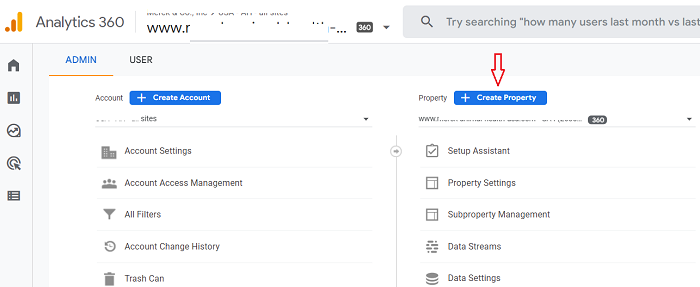
#1 Navigate to the admin section of your GA360 property.
#2 Click on the + Create Property button:
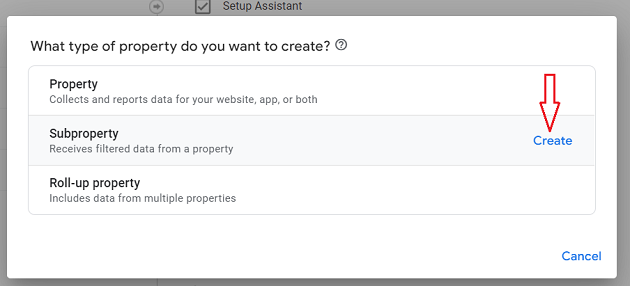
#3 Hover your mouse over ‘SubProperty’ and then click on the ‘Create’ button:
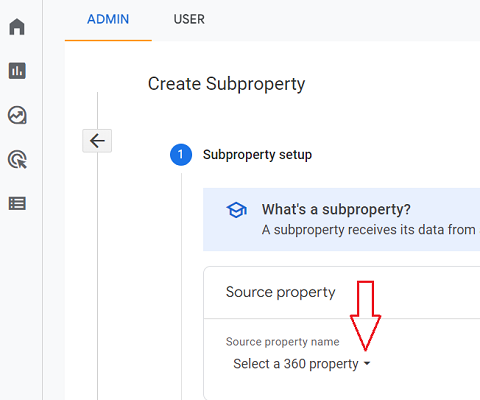
#4 Select a GA360 source property under the Source property name drop-down menu.
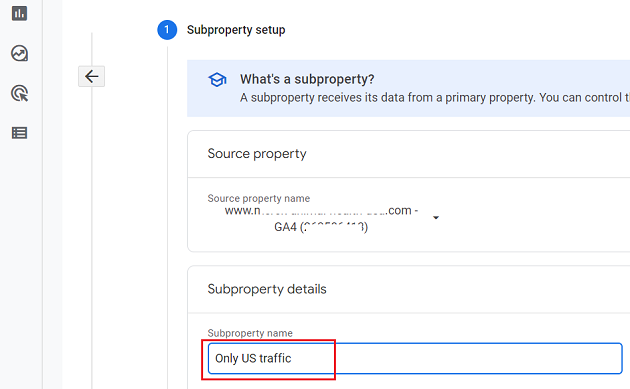
#5 Enter a name for your sub property.
#6 Select your timezone and currency.
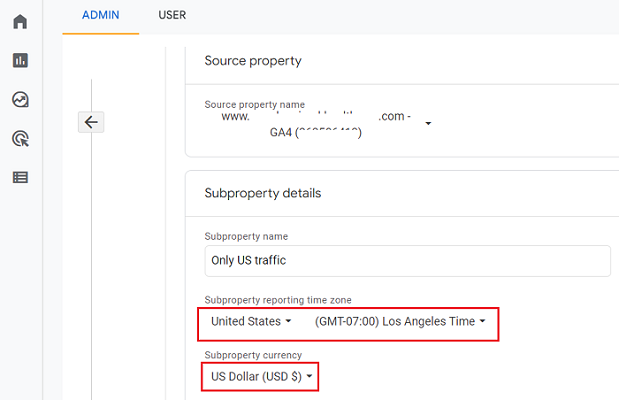
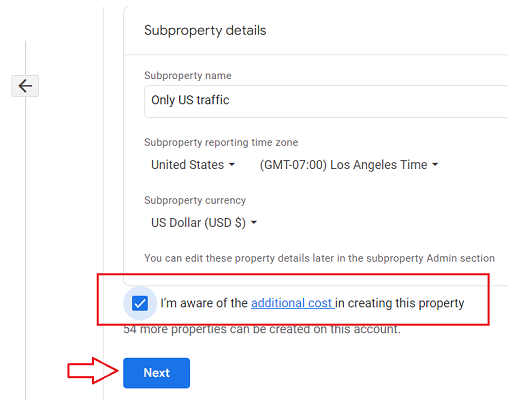
#7 Click on the checkbox “I’m aware of the additional cost of creating this property“. and then click on the ‘Next‘ button.
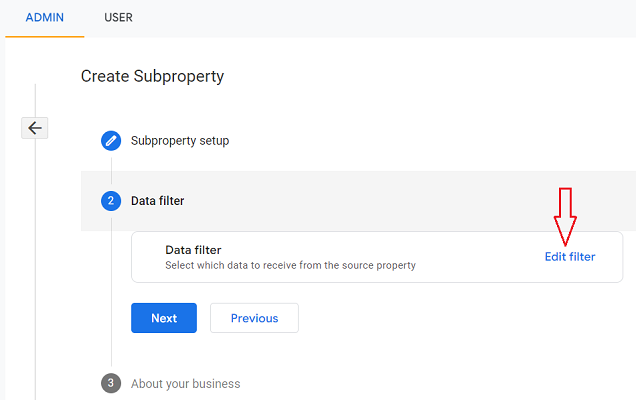
#8 Click the Edit filter link.
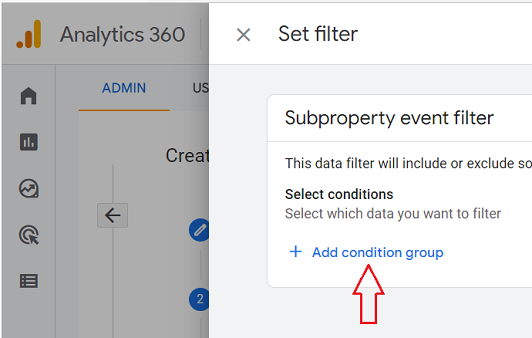
#9 Click on the ‘+Add condition group‘ link.
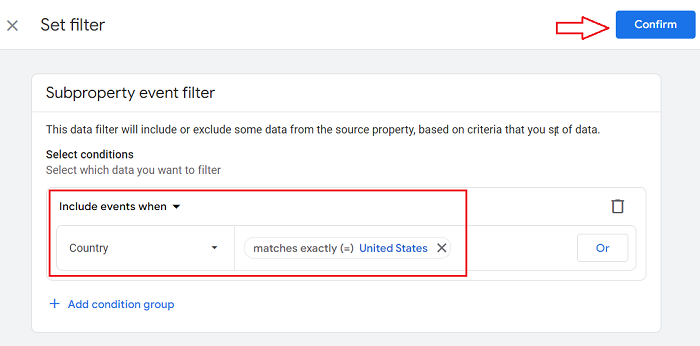
#10 Configure the include and/or exclude conditions that define which event data from the source property appears in your sub property and then click on the ‘Confirm‘ button:
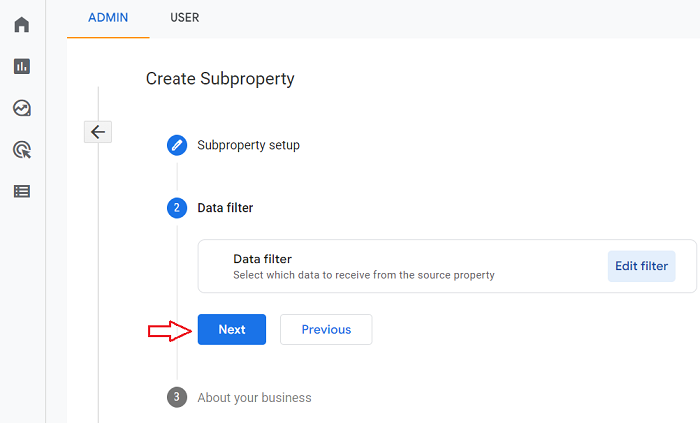
#11 Click on the Next button.
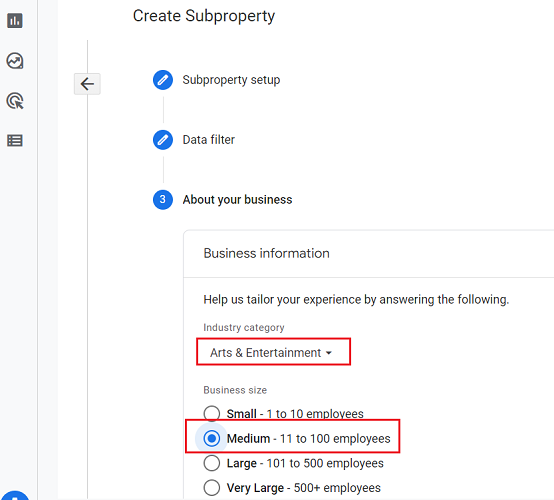
#12 Select your industry category for the sub property and the size of your business:
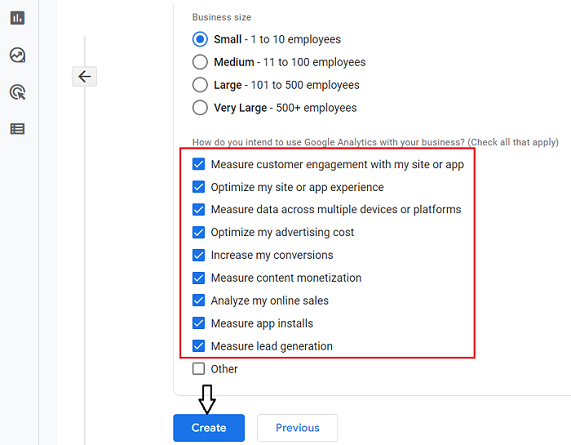
#13 Define ‘how do you intend to use Google Analytics with your business?‘ and then click on the ‘Create‘ button.
Congratulations!
You have now created your GA4 sub property.
Editing a GA4 sub property
You can edit a GA4 sub property when you want to:
- Edit the filter which determines the events that flow to the sub property.
- Edit any of the settings that appear in the Admin > Property column for the sub property (like property settings, access management etc.).
How to edit the event filter of a GA4 sub property
Follow the steps below:
#1 Navigate to the admin section of your GA360 property.
#2 Click on the ‘Subproperty Management’ link under the Property column.
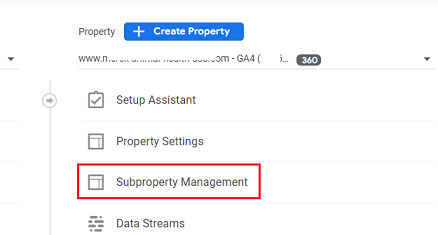
#3 Click on the edit filter in the row for the sub property.
#4 Modify the filter conditions according to your requirements.
#5 Click on the ‘Save’ button.

Other Articles on GA4.
- Google Analytics 4 not working? Here is how to fix it.
- Google Analytics 4 for Low Traffic Websites.
- Google Tag Manager Implementation Guide.
- Google Tag Manager Server Side Preview Mode.
- How to learn Google Analytics without a website.
- Key Benefits of Using Google Analytics 4 (GA4).
- Google Marketing Platform Cost and is it Worth it?
- How to export GA4 data to Google Sheets for free.
- Top Google Analytics 4 Tools, add-ons and resources.
- Google Analytics 4 Audiences Tutorial.
- Understanding Automated Insights in Google Analytics 4 (GA4).
- How to build Comparisons in Google Analytics 4 (GA4).
- How to create a remarketing audience in Google Analytics 4 (GA4).
- Advanced Google Analytics Tracking – HTML DOM – Tutorial.
- Google Analytics 4 Migration Checklist - Upgrade to GA4.
- How to Install Google Analytics 4 on Shopify.
- How to link Google Analytics 4 with AdSense.
- Google Analytics 4 Subproperties Tutorial.
- How to connect Google Analytics 4 with Google Data Studio.
- Advertising Snapshot in Google Analytics 4 (GA4).