

The following is the 10,000-foot view of installing Google Analytics 4 (GA4) with Shopify:
- Understand the correct way to install GA4 with Shopify.
- Add the Google & YouTube Channel App to your Shopify Store.
- Create a Google Tag Manager Custom Pixel.
- Configure Google Tag Manager for Shopify Tracking.
- Configure your Shopify store for Google Tag Manager tracking.
- Configure your GA4 property for Shopify tracking.
- Connect your Google Tag Manager Custom Pixel.
- Test your GA4 Shopify Tracking Setup.
#1 Understand the correct way to install GA4 with Shopify.
Many businesses use the Google & YouTube Channel App to install GA4 to their Shopify Store.
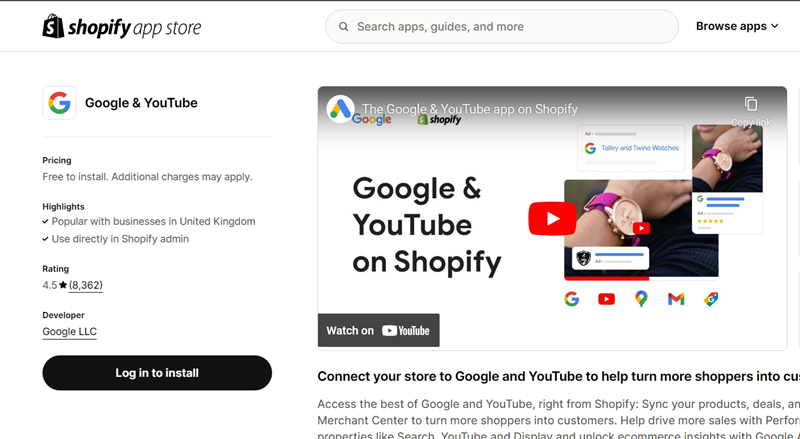
The use of the Google & YouTube Channel app for installing GA4 is called the Shopify native integration.
When you connect your GA4 property to your Shopify Store via this app, the GA4 tracking is automatically installed for your store.
You also automatically start tracking ecommerce events in your GA4 property without any additional configuration. The e-commerce data layers are automatically set up for your store.
The following ecommerce events are automatically tracked when you use the Google & YouTube Channel App for Shopify:
- view_item
- add_to_cart
- add_payment_info
- begin_checkout
- purchase
It is best advised to use Shopify native Integration only for the above events and not try to implement them using Google Tag Manager.
The following are the main reasons:
#1 If you do not use Shopify native integration for the above events, there could be issues in ecommerce parameters like revenue, shipping, and taxes.
#2 Using Google Tag Manager can make it very difficult to pass Products with variants and may lead to multiple products in GA4 reports with incorrect revenue numbers.
For example,
If the product name is ‘Magnet perfume’ and has various variants like ‘30 ml bottle’, ‘50 ml bottle’, and ‘100 ml bottle’. GTM could consider these three variants as different product names, and you may see incorrect reporting.
This happens because the product name in the data layer changes, which is generally used for custom event tracking from the backend of the website.
But if you use native Shopify Integration, Shopify assigns the product variant correctly, and there are no issues in the GA4 reporting.
Upgrade to checkout extensibility.
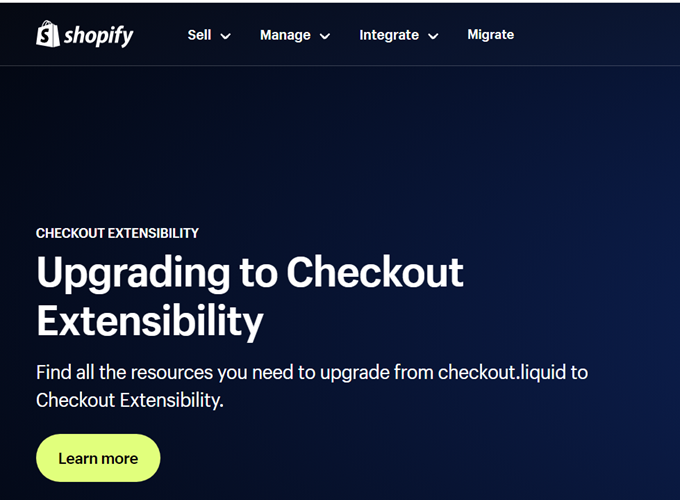
If you currently use ‘checkout.liquid’, you need to upgrade to ‘Checkout Extensibility’ before the aforementioned deadlines.
Only Shopify Plus merchants can use checkout extensibility to customise their checkout pages without needing to edit code directly.
The following ecommerce events are not automatically tracked when you use the ‘Google & YouTube Channel’ App for Shopify:
- add_shipping_info
- remove_from_cart
- select_item
- select_promotion
- view_cart
- view_item_list
- view_promotion
However, these events can be tracked via GTM and Shopify Custom pixels.
Because of the aforementioned reasons, you can not rely just on the ‘Google & Youtube’ Channel App for a complete GA4 Shopify tracking setup.
For a complete GA4 Shopify tracking setup, you will need to use both the Google & YouTube Channel App and GTM and custom pixels.
Before getting started, make sure that you have set up your Google Analytics 4 property and that you have an active Shopify store.
#2 Add the Google & YouTube Channel App to your Shopify Store.
Follow the steps below:
#1 Navigate to the ‘Admin’ section of your Shopify Store and then click on the ‘App’ menu:
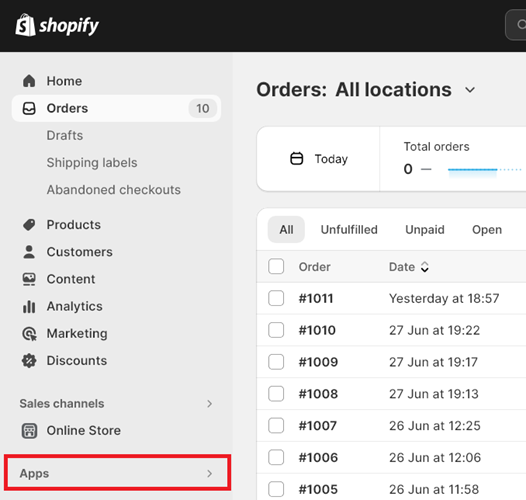
You should now see a screen like the one below:
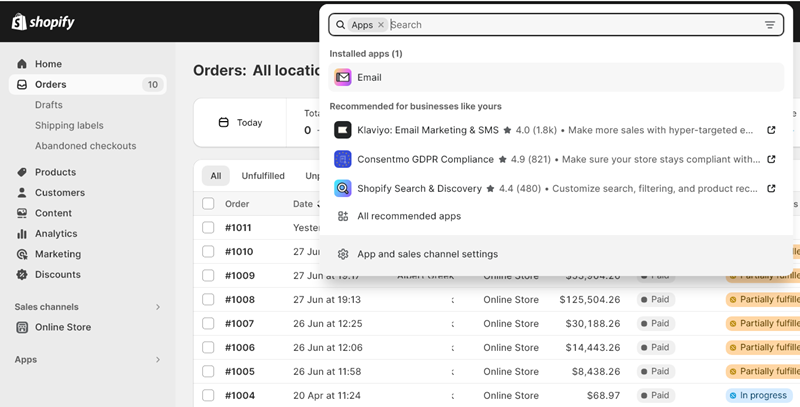
#2 Enter the text ‘google and youtube’ in the search box and then press the enter key:
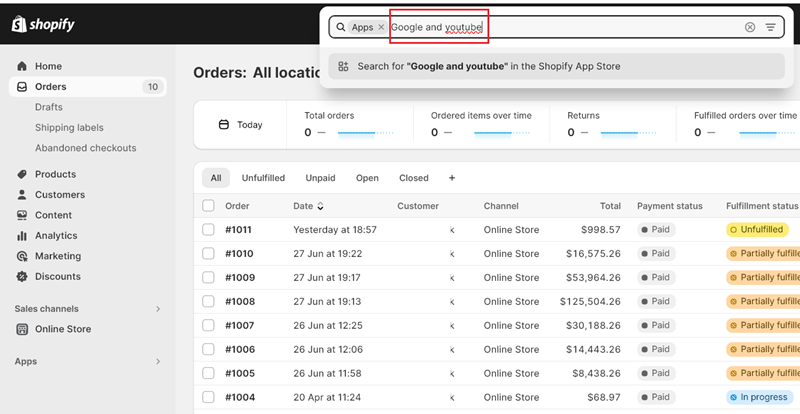
Once you press the enter key, you should be automatically redirected to another tab in your browser which shows the Shopify App Store:
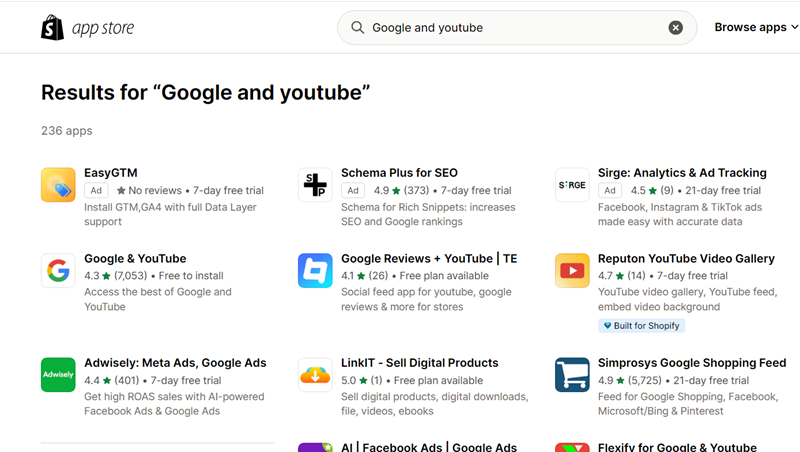
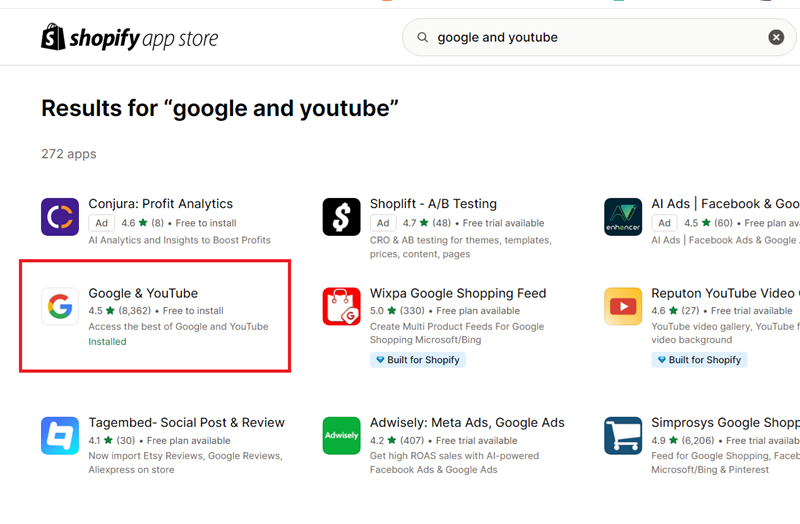
#3 Click on the ‘Google & YouTube’ app:
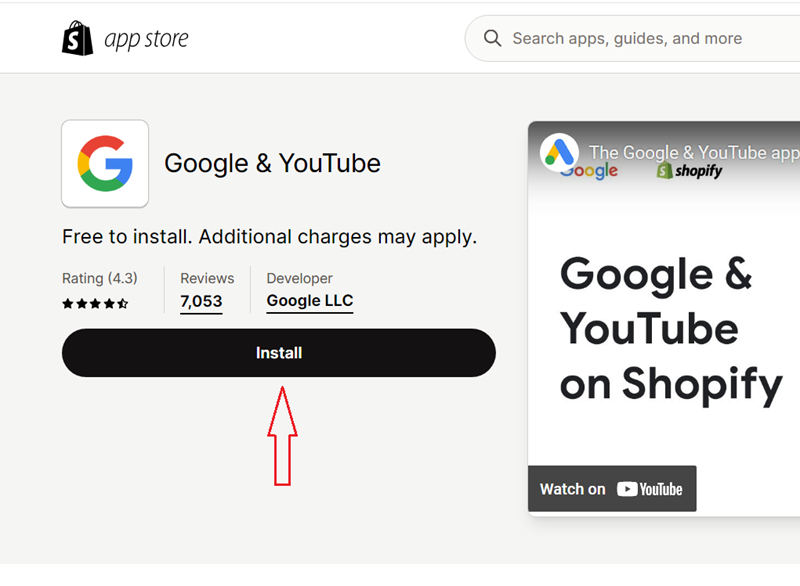
#4 Click on the ‘Install’ button:
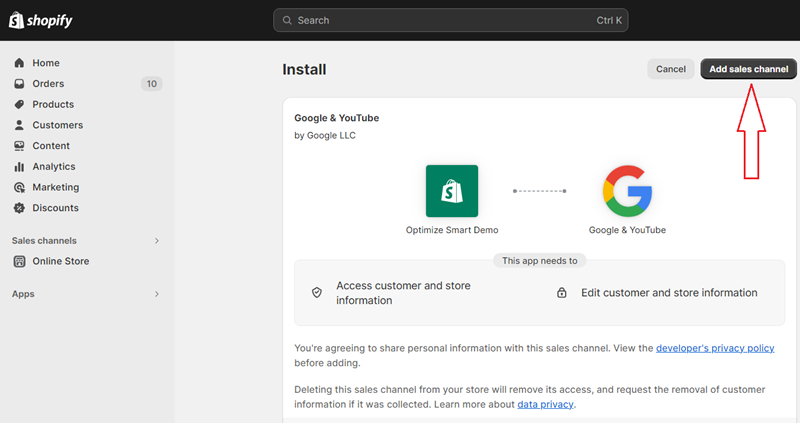
#5 Click on the ‘Add Sales Channel‘ button:
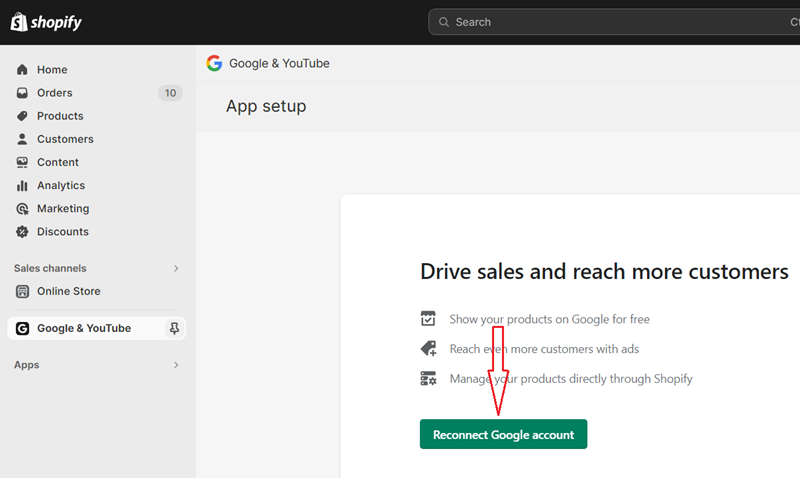
#6 Click on the ‘Connect Google Account‘ (in my case, it is ‘Reconnect Google Account’ because I am reconnecting my account just for demonstration purposes):
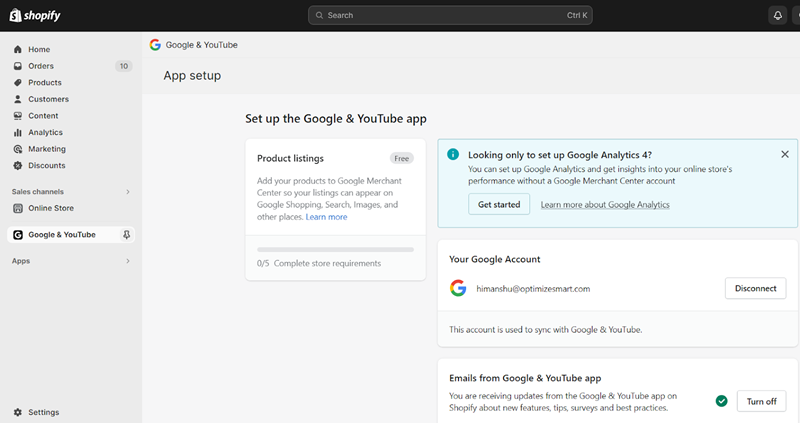
Once you have connected your Google account to your Shopify store, you should see a screen like the one below:
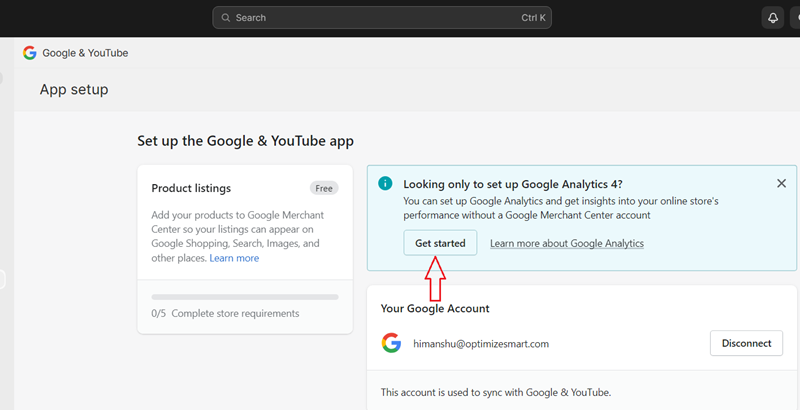
#7 Click on the ‘Get Started‘ button under the section ‘Looking only to set up Google Analytics 4?‘:
#8 Select your GA4 property from the drop-down menu and then click on the ‘connect‘ button:
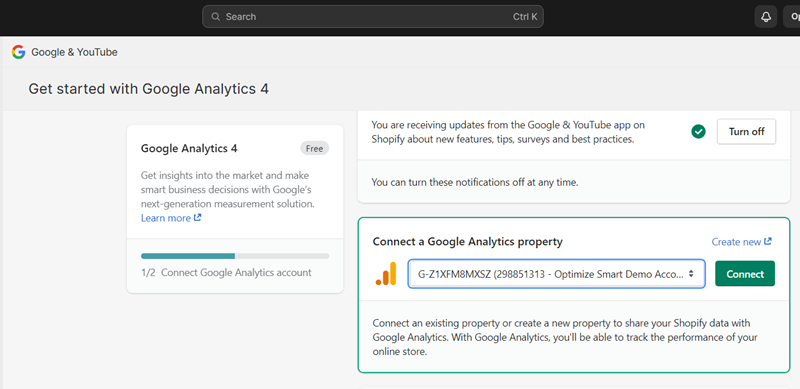
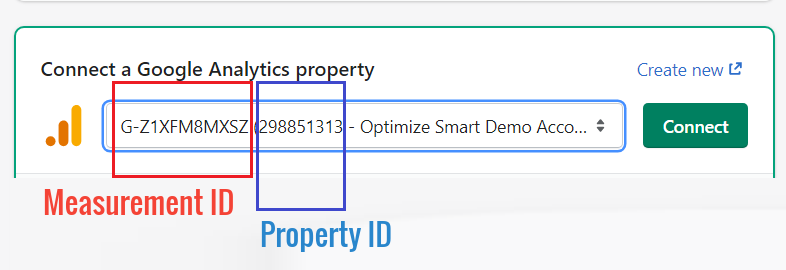
Note: When you select your GA4 property from the drop-down menu, make sure that the selection matches your measurement ID and property ID. The measurement ID determines the web data stream that you connect to your Shopify Store.
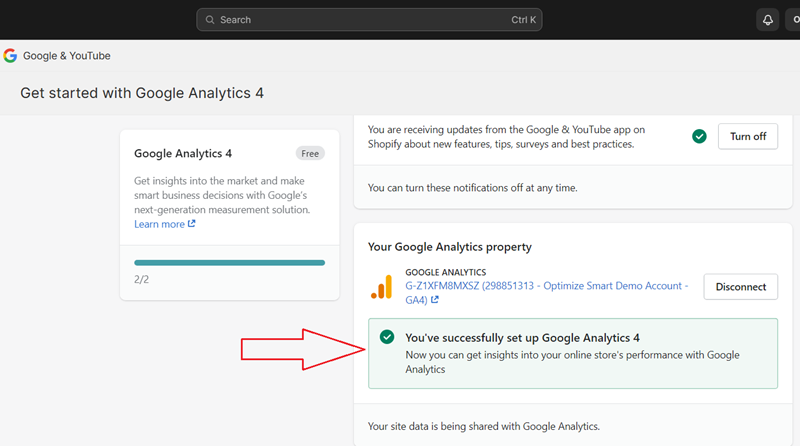
You should now see the message ‘You’ve successfully set up Google Analytics 4’:
#3 Create a Google Tag Manager Custom Pixel.
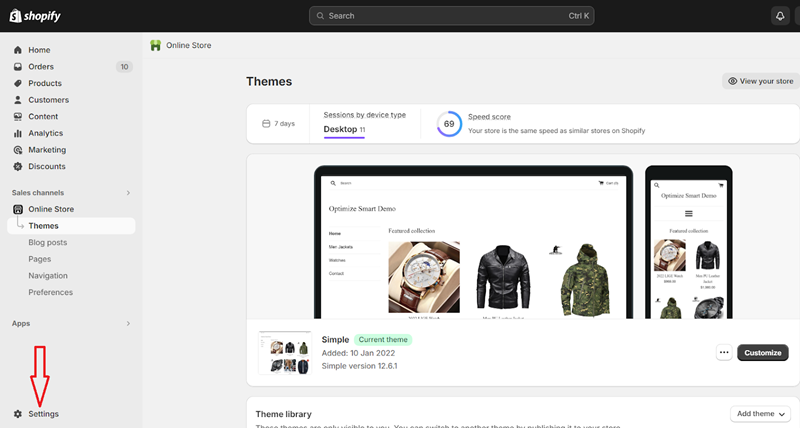
#1 Navigate to the admin section of your Shopify store and click on ‘Settings’:
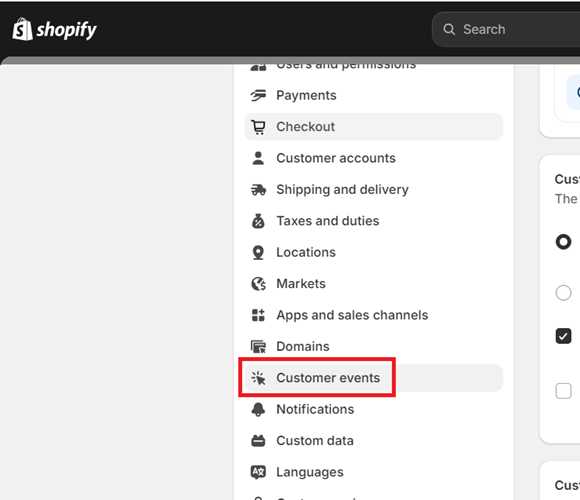
#2 Click on the ‘Customer events’ link from the left-hand side navigation menu:
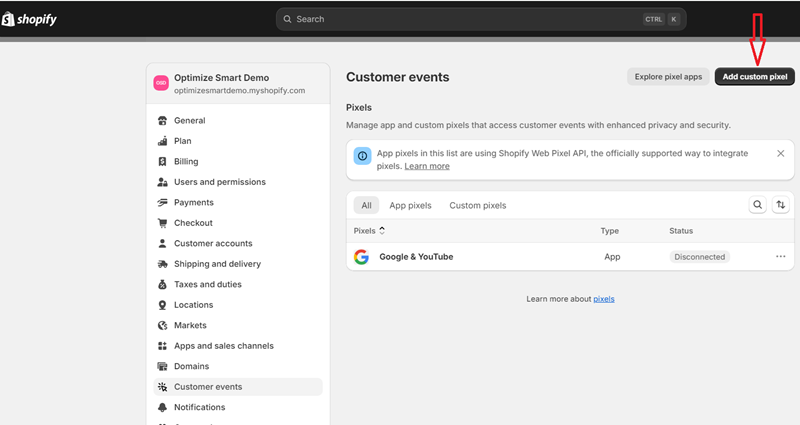
#3 Click on the ‘Add custom pixel’ button:
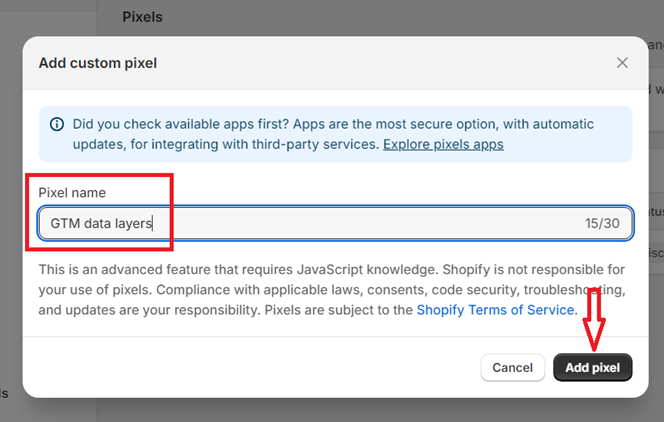
#4 Give your pixel name and then click on the ‘Add Pixel’ button.
You can now add a code like GTM container code and/or data layers to track various ecommerce events, which the Shopify native tracking does not automatically track.
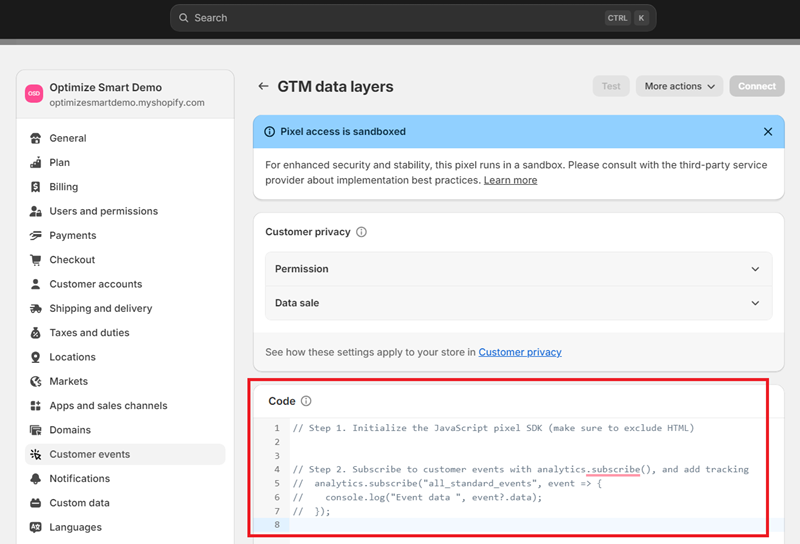
Note: Do not add any HTML tag in the ‘Code’ box.
Shopify recommends that you add the code by following the steps below:
Step 1. Initialize the JavaScript pixel SDK (make sure to exclude HTML)
Step 2. Subscribe to customer events with analytics.subscribe(), and add tracking
// analytics.subscribe(“all_standard_events”, event => {
// console.log(“Event data “, event?.data);
// });
Shopify offers a set of standard customer events that you can subscribe to. You can get details of these customer events from here: https://shopify.dev/docs/api/web-pixels-api/standard-events
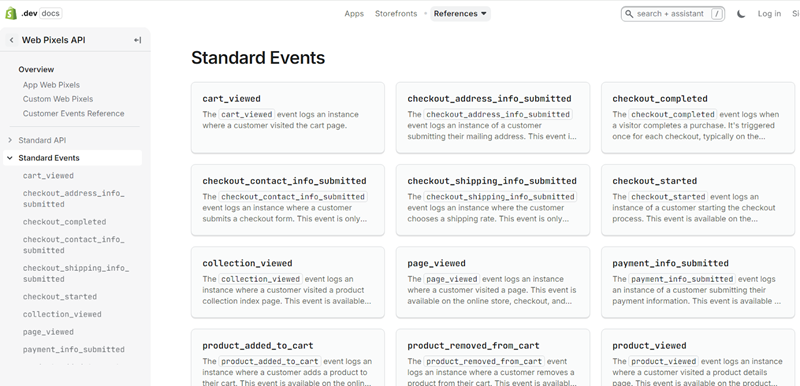
For creating Google Tag Manager Customer pixel and subscribing to customer events, check out this help article: https://help.shopify.com/en/manual/promoting-marketing/pixels/custom-pixels/gtm-tutorial
#5 Once you have added the required code, click on the ‘Save’ button:
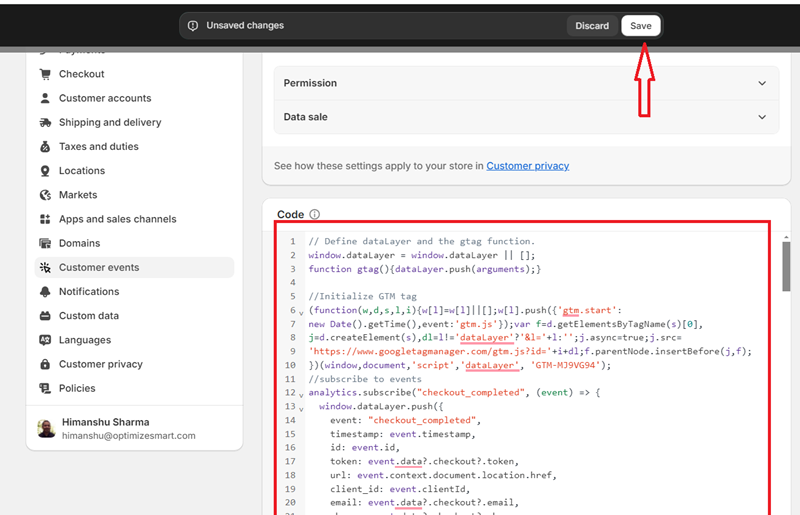
#4 Configure Google Tag Manager for Shopify tracking.
Configuring Google Tag Manager for your Shopify store involved the following two tasks:
#1 Configure Google Tag Manager to accept Shopify custom pixel events by adding the required tags, triggers and data layer variables.
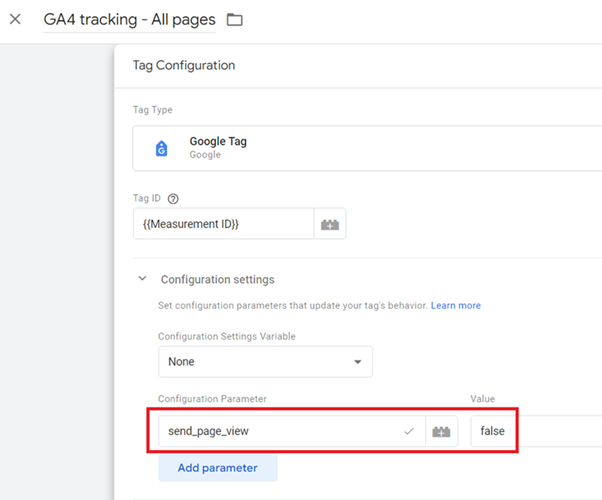
#2 Editing the GA4 configuration tag so that it does not fire the ‘page_view’ event:
#3 Finding and removing all the conflicting tags (if any) so that you don’t end up tracking the same ecommerce event twice.
#5 Configure your Shopify store for Google Tag Manager tracking.
Configuring your Shopify store for Google Tag Manager tracking involves the following tasks:
#1 Removing the GTM container code from various theme files (like ‘theme.liquid’ file, ‘checkout.liquid’ file).
#2 Finding and removing all the data layers (if any) hard coded in one or more of your theme files and ‘Additional Scripts’ which are related to the GA4 e-commerce events.
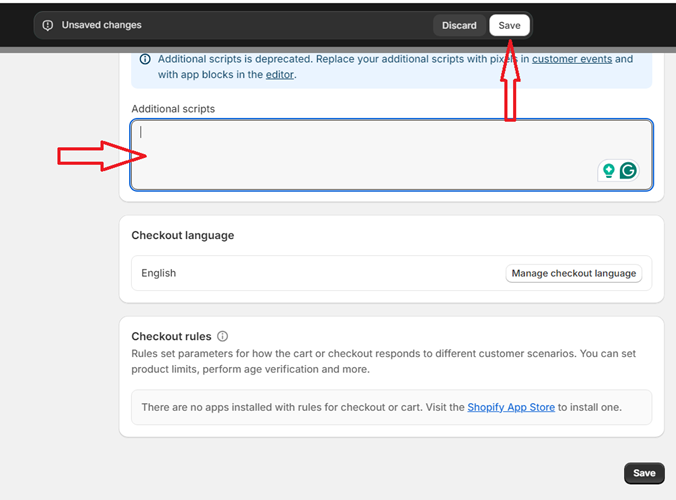
These ecommerce events are automatically tracked when you use the Google & YouTube App and custom pixels. So you don’t need to fire these events twice.
#6 Configure your GA4 property for Shopify tracking.
If you use the standard version of Shopify, then navigate to the List Unwanted Referrals setting in your GA4 property and then add myshopify.com or your custom domain (if you have one) to the List Unwanted referrals:
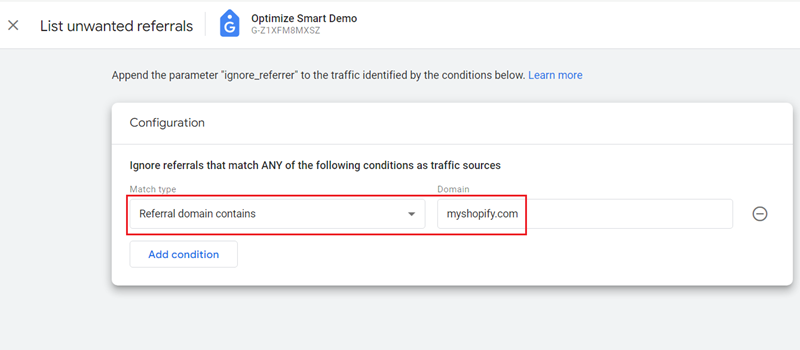
By adding the domain, we are making sure that the checkout pages do not appear as self-referrals in the GA4 reports.
Note(1): If you use Shopify Plus, then don’t add the domains to the list ‘unwanted referrals’.
Note(2): To learn more about adding domains to the list unwanted referrals, check out this article: Self-referral Google Analytics 4 – Referral exclusion GA4.
#7 Connect your Google Tag Manager Custom Pixel.
Once you have removed the GTM container code from your Shopify store, navigate back to ‘Customer events’ and click on ‘Connect’ next to your ‘Custom Pixel’:
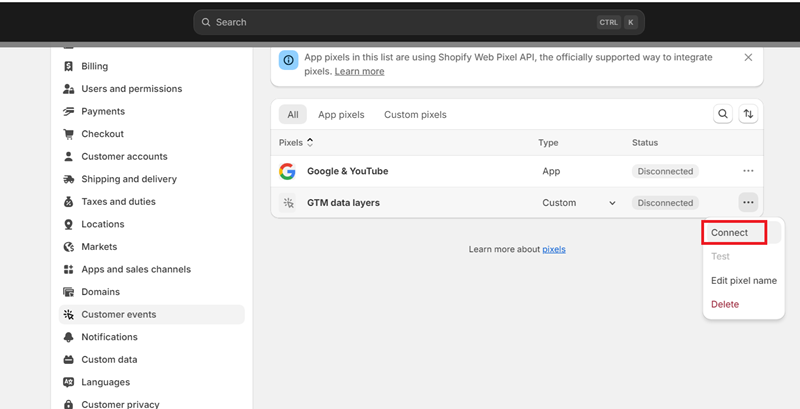
Click on the ‘Connect’ button:
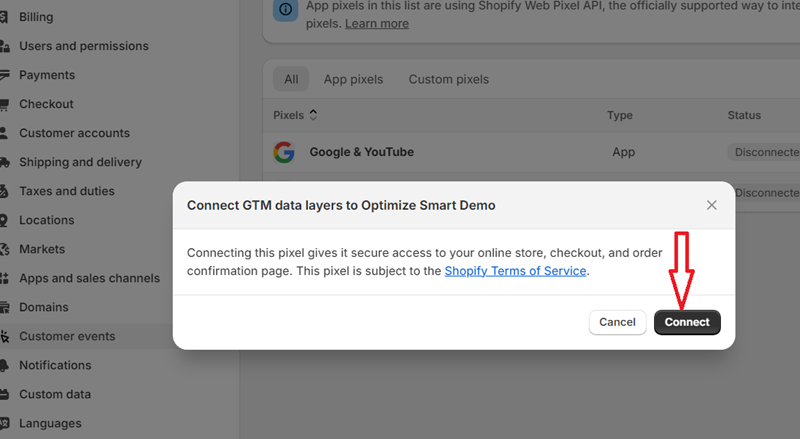
#8 Test your GA4 Shopify Tracking Setup.
Google Tag Assistant does not work with Shopify custom pixels. If you want to test Shopify custom pixels, use ‘Google Developer Console’:
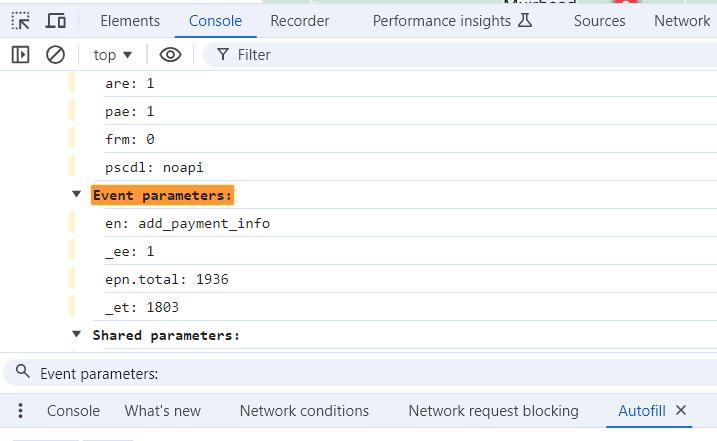
To test the GA4 ecommerce tracking set-up, use the DebugView report.
Follow the steps below:
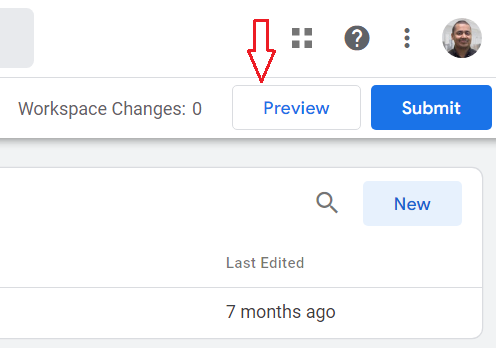
#1 Navigate to the GTM account for your Shopify Store and then click on the ‘Preview’ button:
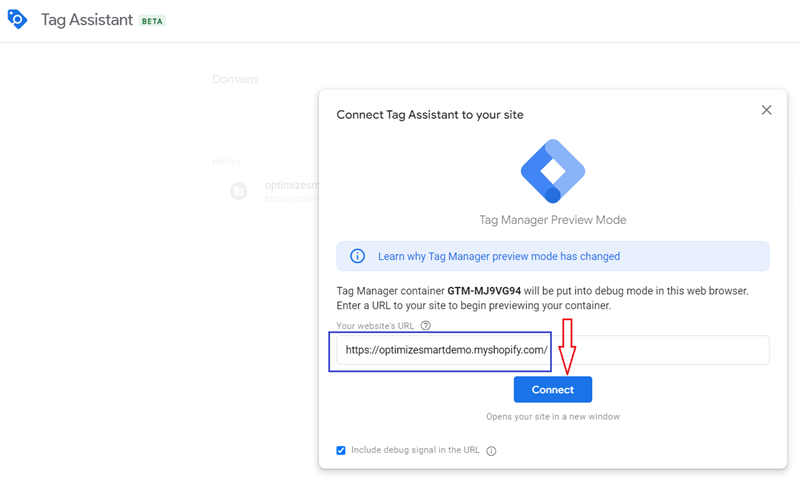
#2 Enter the URL of your Shopify Store and then click on the ‘Connect’ button:
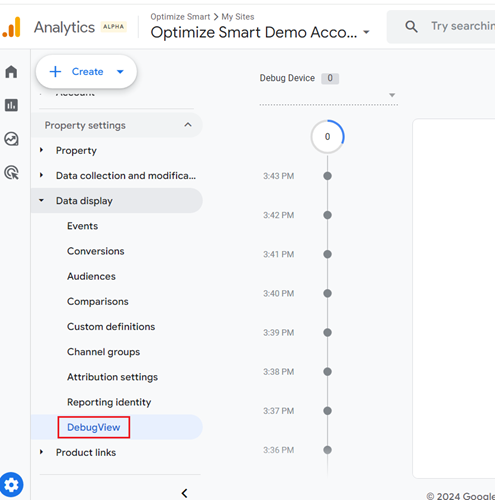
#3 Navigate to the admin area of your GA4 property and then click on the ‘DebugView’ report under ‘Data Display’:
#4 Navigate to your Shopify store and then place a test transaction.
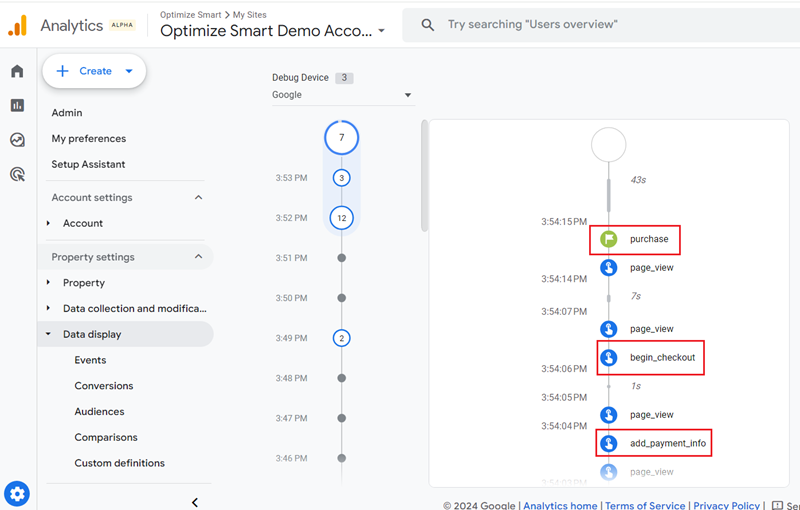
#5 Navigate back to your Debug View report, and select the debug device.
You should now be able to see ‘purchase’, ‘begin checkout’, ‘add_payment_info’and other e-commerce events in the ‘DebugView’ report:
That’s how you can test the GA4 Shopify tracking setup.

Other Articles on GA4.
- Google Analytics 4 not working? Here is how to fix it.
- Google Analytics 4 for Low Traffic Websites.
- Google Tag Manager Implementation Guide.
- Google Tag Manager Server Side Preview Mode.
- How to learn Google Analytics without a website.
- Key Benefits of Using Google Analytics 4 (GA4).
- Google Marketing Platform Cost and is it Worth it?
- How to export GA4 data to Google Sheets for free.
- Top Google Analytics 4 Tools, add-ons and resources.
- Google Analytics 4 Audiences Tutorial.
- Understanding Automated Insights in Google Analytics 4 (GA4).
- How to build Comparisons in Google Analytics 4 (GA4).
- How to create a remarketing audience in Google Analytics 4 (GA4).
- Advanced Google Analytics Tracking – HTML DOM – Tutorial.
- Google Analytics 4 Migration Checklist - Upgrade to GA4.
- How to Install Google Analytics 4 on Shopify.
- How to link Google Analytics 4 with AdSense.
- Google Analytics 4 Subproperties Tutorial.
- How to connect Google Analytics 4 with Google Data Studio.
- Advertising Snapshot in Google Analytics 4 (GA4).