

Google Analytics 4 (GA4) gives you insight into website performance, how users come to your website, and their behaviour.
You can use Google Data Studio to visualize the same data available in Google Analytics for more in-depth and detailed insights.
In this article, I will discuss how you can connect Google Data Studio to your GA4 property and a few basic reporting configurations.
Please note that connecting your Google Analytics 4 property to Google Data Studio is still in beta version and is a lab feature; hence, many new improvements and features will be expected soon.
How to connect Google Analytics 4 with Google Data Studio
To connect Google Analytics 4 with Google Data Studio, follow the below steps.
Step-1: Navigate to https://datastudio.google.com/. You will get a screen like below. Click on ‘Use it for free’:

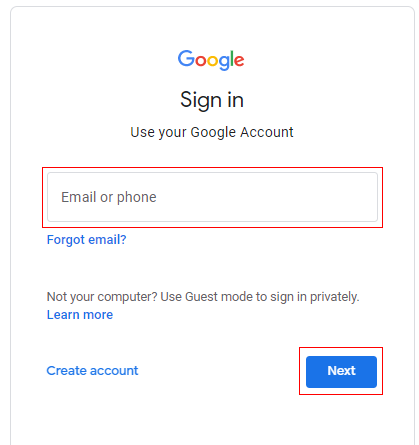
Step-2: Enter your Google credentials to log in. Enter the credentials which give you edit level access to your Google Analytics 4 property:
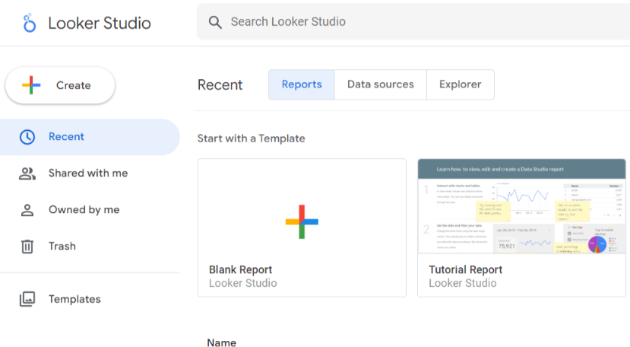
Step-3: Once you are signed in, you will get a screen like below:
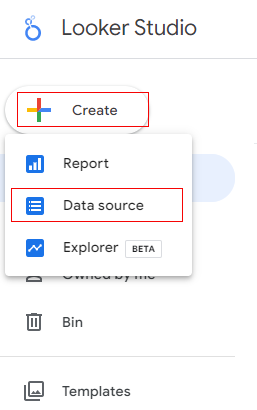
Step-4: Click on ‘Create’ and then click on ‘Data Source’:
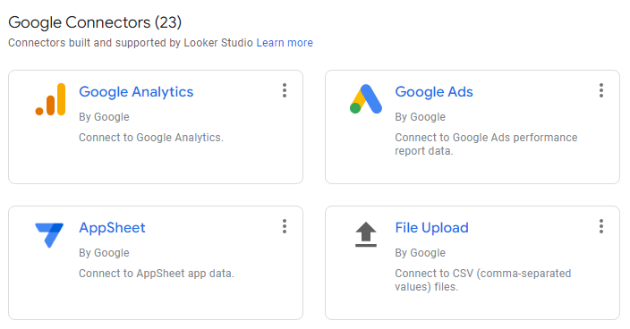
Step-5: Select ‘Google Analytics’ from the available data sources:
Step-6: An overlay will appear like below. It contains the list of Google Analytics accounts to which you have access. Now select the account which has Google Analytics 4 property:
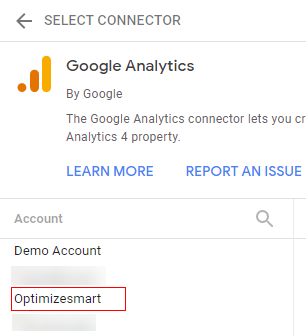
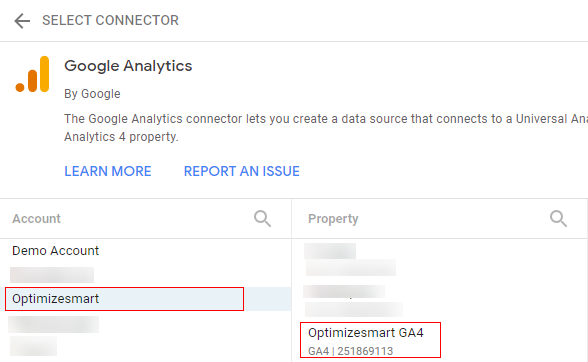
Step-7: Now select your GA4 property from the new overlay that appears on the right-hand side of the clicked account:
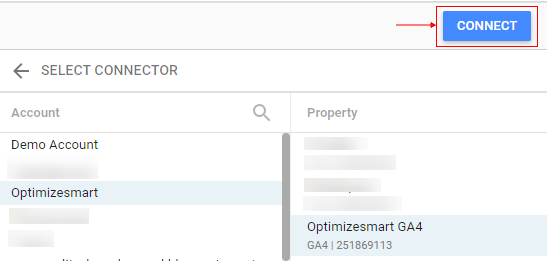
Step-8: Now click on ‘Connect’. It will connect the data source with the data source schema:
Step-9: You will get the below screen where you can modify or define new schemas:
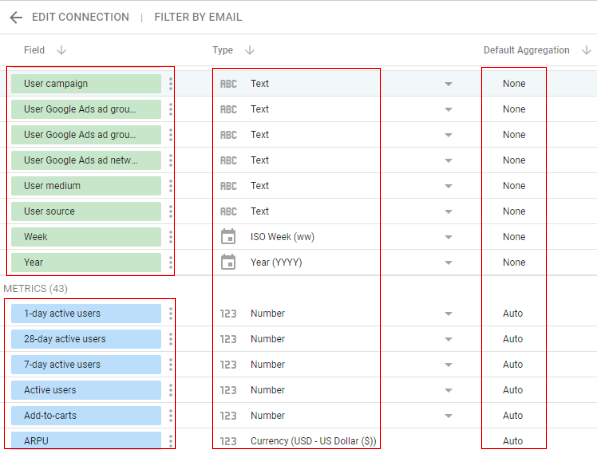
You get all the dimensions and metrics from the Google Analytics 4 property in the fields option. The ‘Type’ field describes the data type of the metric/dimension. You also get an option aggregation method for all the metrics and dimensions.
Step-10: Now click on ‘Create report’.
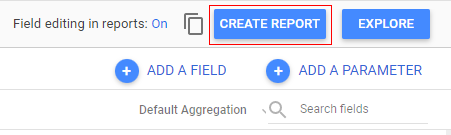
Congratulations!! You have successfully connected your Google Data Studio account to your Google Analytics 4 Property.
You can now start building your dashboard for the GA4 property.
To learn more about Google Data Studio read this article: Google Data Studio Tutorial
What data is available from Google Analytics 4?
Google is actively working to introduce new features to Google Data Studio for GA4 properties.
Since GA4 analytics properties are very different from the earlier legacy version of Google Analytics (Universal Analytics), it isn’t easy to accommodate all the new features of GA4 in the current Google Data Studio available options.
Even though you can connect the GA4 property with Google Data Studio, it does have some limitations:
No data control option
Currently, you cannot use a data control option for Google Analytics properties. A data control option allows you to select the account, property, and view that provides the data to the report in Google Data Studio.
This makes it easy for you to share reports with colleges who want to use that report with their own data or another account or view. Using a data control eliminates the need to create separate reports and data sources for your various accounts. I guess soon there will be another type of data control option.
No segment options
Since segments are not a part of Google Analytics 4 properties, you won’t get this functionality in Google Data Studio as well. Now the segments are replaced by ‘Audiences’ in GA4, where you can define the conditions to filter the users. However, you won’t see the same functionality to select the audience available in Google Data Studio.
Adding Custom Dimensions and Metrics
In GA4, you can create custom dimensions (Event scoped and user scoped) and custom metrics. These custom dimensions are available to use in Google Data Studio.
You cannot add custom created metrics in Google Data Studio
Earlier in Google Data Studio, you couldn’t add the custom dimension you created in Google Analytics 4, but now Google Data Studio supports all the custom dimensions of GA4.
You can add custom created metrics in Google Data Studio
Earlier in Google Data Studio, you couldn’t add the custom metrics you created in Google Analytics 4, but now Google Data Studio supports all the custom metrics of GA4.
There is also a way to have all your reporting needs, and you can connect both your Google Analytics properties (Universal Analytics and Google Analytics 4) to the Google Data Studio report. This way, you will benefit from both versions in one place.

Other Articles on GA4.
- Google Analytics 4 not working? Here is how to fix it.
- Google Analytics 4 for Low Traffic Websites.
- Google Tag Manager Implementation Guide.
- Google Tag Manager Server Side Preview Mode.
- How to learn Google Analytics without a website.
- Key Benefits of Using Google Analytics 4 (GA4).
- Google Marketing Platform Cost and is it Worth it?
- How to export GA4 data to Google Sheets for free.
- Top Google Analytics 4 Tools, add-ons and resources.
- Google Analytics 4 Audiences Tutorial.
- Understanding Automated Insights in Google Analytics 4 (GA4).
- How to build Comparisons in Google Analytics 4 (GA4).
- How to create a remarketing audience in Google Analytics 4 (GA4).
- Advanced Google Analytics Tracking – HTML DOM – Tutorial.
- Google Analytics 4 Migration Checklist - Upgrade to GA4.
- How to Install Google Analytics 4 on Shopify.
- How to link Google Analytics 4 with AdSense.
- Google Analytics 4 Subproperties Tutorial.
- How to connect Google Analytics 4 with Google Data Studio.
- Advertising Snapshot in Google Analytics 4 (GA4).