

What is a GA4 Custom Dimension?
Custom dimensions in GA4 are user-defined dimensions.
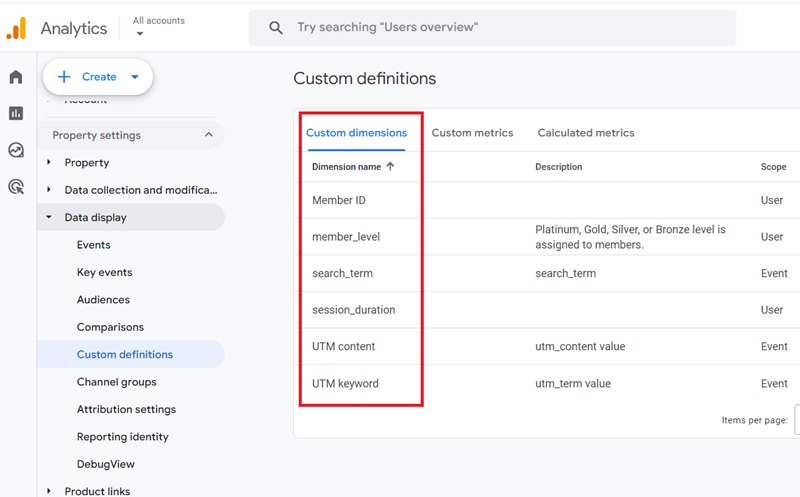
Technically speaking, a custom dimension is an event parameter. This parameter can be an automatically collected parameter, custom parameter or user property.
When to create a custom dimension in GA4?
If you want to measure a user’s characteristics that no default dimension can, you need to create and use your own dimension.
For example, GA4 does not have a default dimension, which allows you to measure the behaviour of signed-in and non-signed-in users.
Similarly, GA4 does not have a default dimension for measuring the behaviour of high-value and low-value customers.
In such cases, you should consider creating custom dimensions in GA4.
GA4 treats all values of custom dimensions as strings.
In GA4, the values of all custom dimensions are stored and processed as strings, even if the original data you are sending is a number, date, boolean, or any other data type.
Because all values are treated as strings, this can affect how data is sorted or analyzed in GA4 reports.
Numerical values sorted alphabetically (as strings) will be out of order.
For example, “10” would appear before “2” because “1” comes before “2” alphabetically.
Filtering and calculations involving numbers might not work as expected.
For example, filtering for “product ID greater than 100” would also include “2”, “20”, “30”, etc., because these strings come after “100” alphabetically.
In alphabetical order:
“2” comes after “100” because ‘2’ is greater than ‘1’.
“20” comes after “100” because ‘2’ is greater than ‘1’.
“30” comes after “100” because ‘3’ is greater than ‘1’.
Even though these IDs are numerically less than 100, they’ll be included in the filter results.
Note: There is no direct way to force GA4 to treat numerical values of a custom dimension as numbers and not strings.
One practical solution to the issue of numerical values being sorted alphabetically is to consider adding leading zeros to your numerical custom dimension values before sending data to GA4.
This simple step ensures proper alphabetical sorting when treated as strings.
For example, by adding your product IDs with leading zeros (e.g., “0002” instead of “2”), you ensure they sort and filter correctly based on their numerical value when treated as strings.
Instead of sending “2”, “20”, “30”, “100”, you could send: “0002”, “00020”, “00030”, “000100”.
So,
“2” becomes “0002”
“20” becomes “00020”
“30” becomes “00030”
“100” becomes “000100”
When sorted as strings, these values will appear in the correct numerical order: “0002”, “00020”, “00030”, “000100”
This approach maintains the numerical order when values are treated as strings.
Implementation Considerations:
- Determine the maximum number of digits you expect in your data set to ensure your padding scheme can accommodate the largest possible number.
- Pad all numbers to this maximum length (in our example, it’s six digits).
Note: When exporting data to BigQuery, GA4 defines the schema with all custom dimensions as strings. You still need to consider the string format and convert them back to numbers within your SQL queries.
Advantages of using custom dimensions in GA4
The following are the top advantages of creating and using custom dimensions in GA4:
#1 Through custom dimensions, you can import data into your GA4 property that GA4 does not automatically collect, like CRM data, phone call data, logged-in user data, etc.
Note: Do not send personally identifiable information (like name, email address, house address, phone number, social security number, etc) to your GA4 property as a value of the custom dimension. This is against the Google Analytics terms of service.
#2 Through custom dimensions, you can correlate non-Google Analytics data (like CRM data, phone call data, logged-in user data, etc) with GA4 data.
#3 You can understand your audience at a deeper level by using custom dimensions for audience segmentation. This deeper insight helps identify trends, patterns, and opportunities that might not be visible through default dimensions.
#4 Custom dimensions enhance reporting capabilities by allowing you to capture additional data points specific to your unique business needs.
#5 In your event report, a new data card is added for every logged event parameter you registered as a custom dimension.
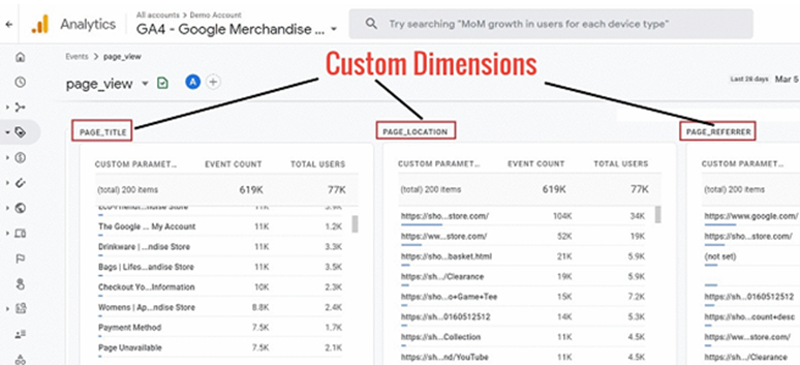
This data card appears in every event report where you (or GA4) are passing the same event parameter along with the event.
Thus, the use of custom dimensions enriches your existing event reports.
#6 The key advantage of using a custom dimension is that you can report on the same event parameter for as many events as you like (via add comparison and Free Form reports) without passing the same parameter repeatedly for each event.
You create a single, unified data point within GA4 by registering event parameters as custom dimensions. This data point can then be associated with multiple events.
Categories of GA4 Custom Dimensions
The custom dimensions in GA4 can be categorised into:
- Event-scoped custom dimensions.
- User-scoped custom dimensions.
- Item-scoped custom dimensions.
Event-scoped custom dimensions.
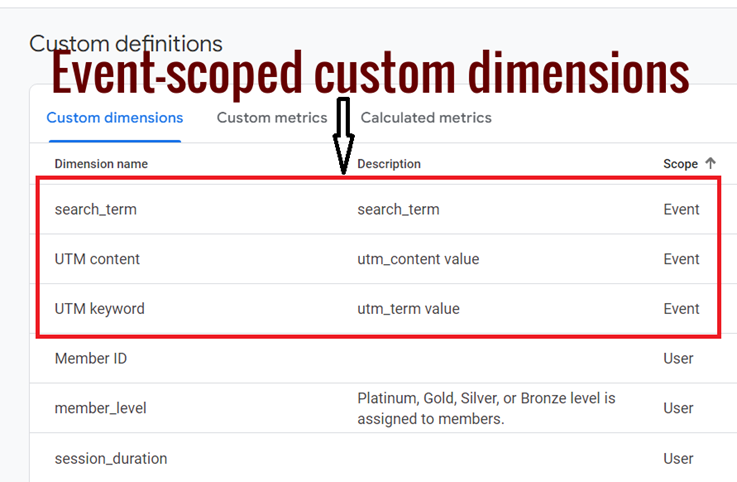
A custom dimension which has an event scope is called an event-scoped custom dimension.
Event scope means that the value of the dimension is calculated and sent for each event.
We create an event-scoped custom dimension by registering a parameter with event scope in the GA4 user interface.
To learn more about event-scoped custom dimensions, check out this article: Event-Scoped Custom Dimensions in GA4 – Tutorial.
To learn more about GA4 scopes, read this article: GA4 Scopes explained – User, Session, Event & Item scopes.
User-scoped custom dimensions (user properties)
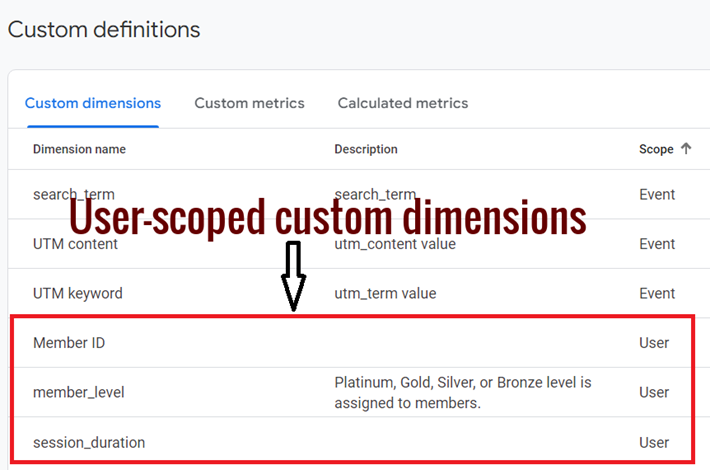
A custom dimension which has a user scope is called a user-scoped custom dimension (also known as user property).
User scope means that the value of the dimension is calculated and sent once for each user.
We create a user-scoped custom dimension by registering a parameter with user scope in the GA4 user interface.
To learn more about the user-scoped custom dimensions, check out this article: GA4 User Properties (User-Scoped Custom Dimensions) – Tutorial
Item-scoped custom dimensions
Item-scoped custom dimensions are user-defined item-scoped dimensions.
The Item scoped dimensions are used to capture detailed information about individual products or services within e-commerce events.
If a built-in item scoped dimension does not capture any product-specific detail relevant to your business, create its corresponding custom item scoped dimension.
We create an item-scoped custom dimension by registering a parameter with item scope in the GA4 user interface.
How to create a custom dimension in GA4
In GA4, creating a custom dimension involves the following two steps:
- Sending an event parameter along with an event.
- Registering the logged event parameter as a custom dimension in the GA4 user interface.
Of course, this is just an overview.
The actual steps depend upon your tracking requirements and the scope of your custom dimension.
How to edit a custom dimension
Follow the steps below to edit a custom dimension:
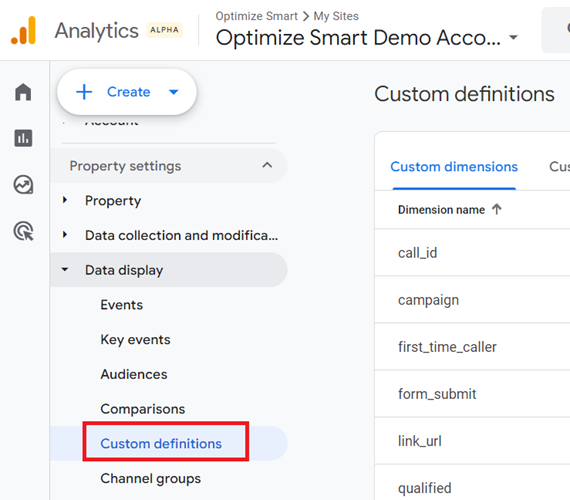
Step-1: Navigate to your GA4 admin area and then click on ‘Custom definitions’ under ‘Data display’:
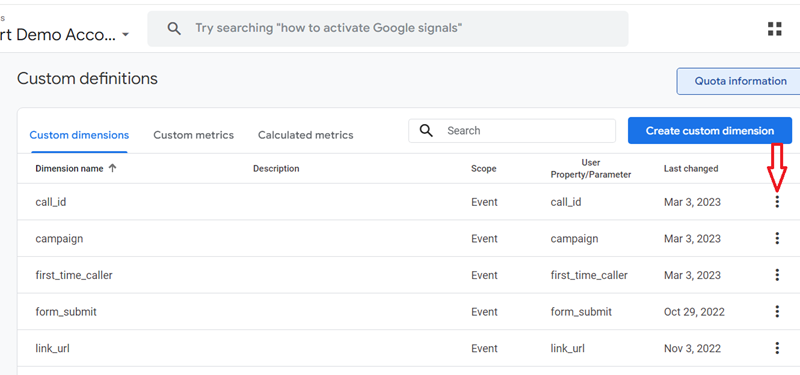
Step-2: Click on the three dots menu next to the custom dimension you want to edit:
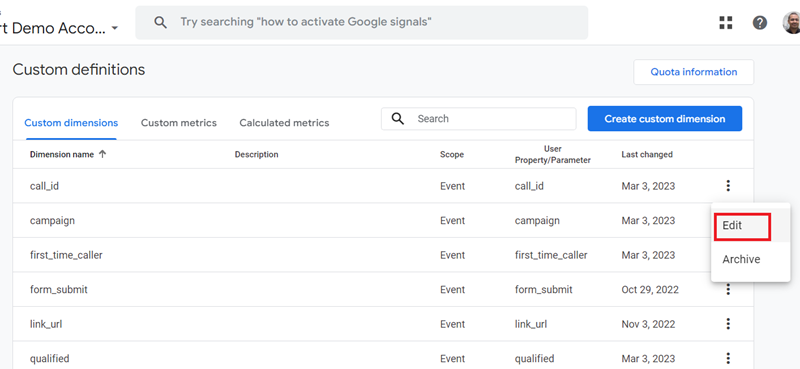
Step-3: Click on the ‘Edit’ option:
Step-4: You can now change the name of your custom dimension and/or edit its description. Then click on the save button:
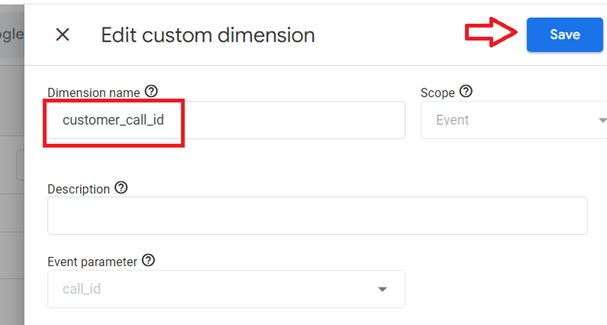
Note: When you edit a custom dimension in GA4, you can not change its scope or the event parameter.
Quota information for custom dimensions
You can create up to 25 user-scoped custom dimensions, up to 50 event-scoped custom dimensions and up to 10 item-scoped dimensions per GA4 standard property.
Per the GA4 360 property, you can create up to 100 user-scoped custom dimensions, up to 125 event-scoped custom dimensions, and up to 25 item-scoped custom dimensions.
The table below summarises the quota limit for custom dimensions:
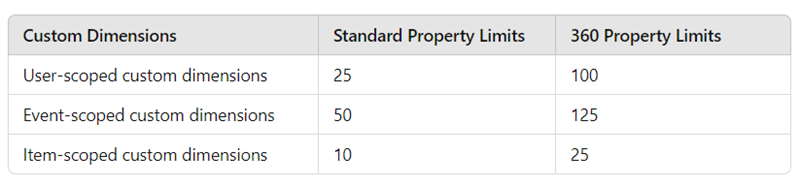
That’s the dimensions quota allocated to you.
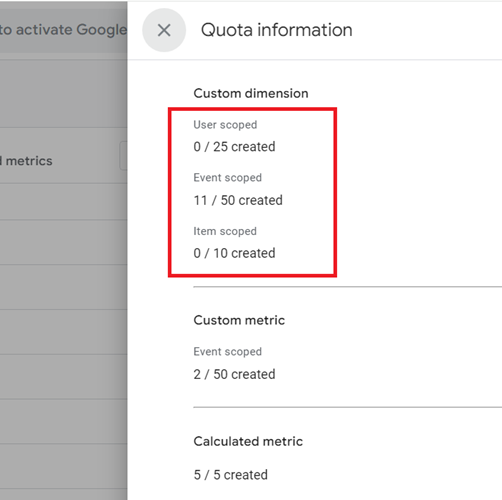
If you want to know the total number of user-scoped, event-scoped and item-scoped custom dimensions you have already created and the number of dimensions you are still allowed to create, you can get this information through GA4’s ‘Quota information’ feature.
Follow the steps below to find the quota information:
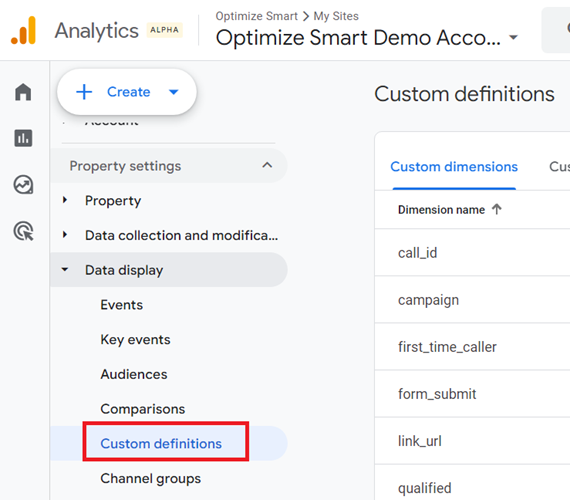
Step-1: Navigate to your GA4 admin area and then click on ‘Custom definitions’ under ‘Data display’:
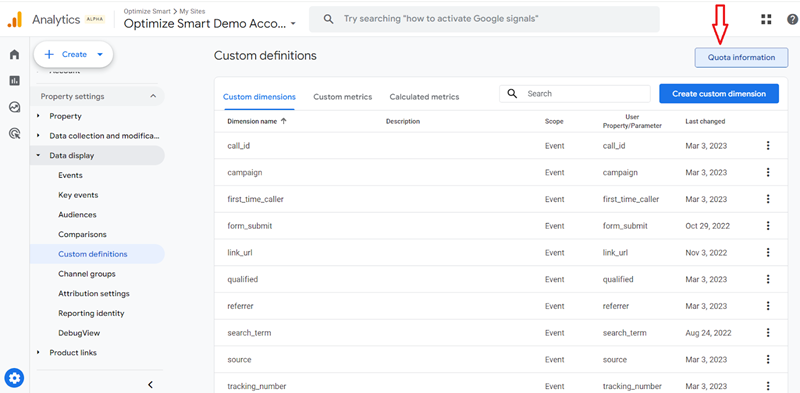
Step-2: Click on the ‘Quota information’ button on the top right-hand side of your screen:
You should now be able to see the total number of user-scoped, event-scoped and item-scoped custom dimensions you have already created and the number of dimensions you are still allowed to create:
How to delete a custom dimension
In GA4, once you have reached your custom dimensions quota, you can then no longer create any new custom dimensions.
In that case, if you still want to create new custom dimensions, then you would need to first delete the ones you are no longer using.
Follow the steps below to delete a custom dimension:
Step-1: Navigate to your GA4 admin area and then click on ‘Custom definitions’ under ‘Data display’:
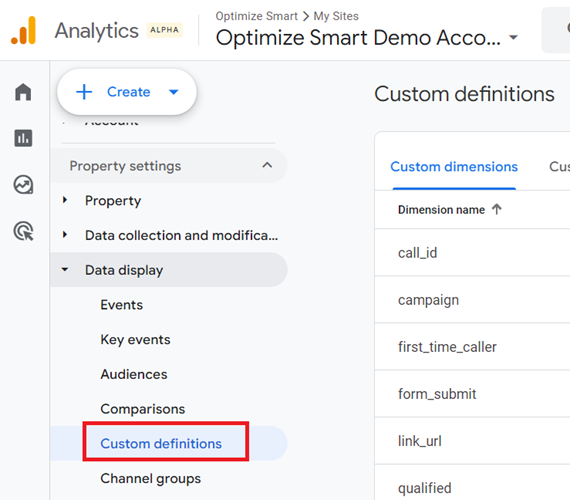
Step-2: Click on the three dots menu next to the custom dimension you want to delete:
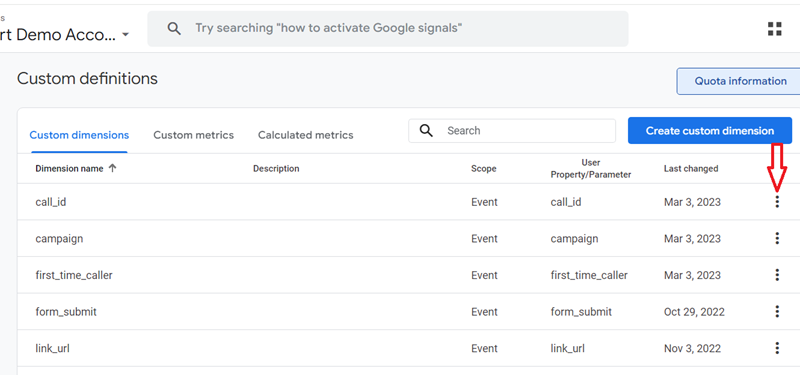
Step-3: Click on the ‘Archive‘ option:
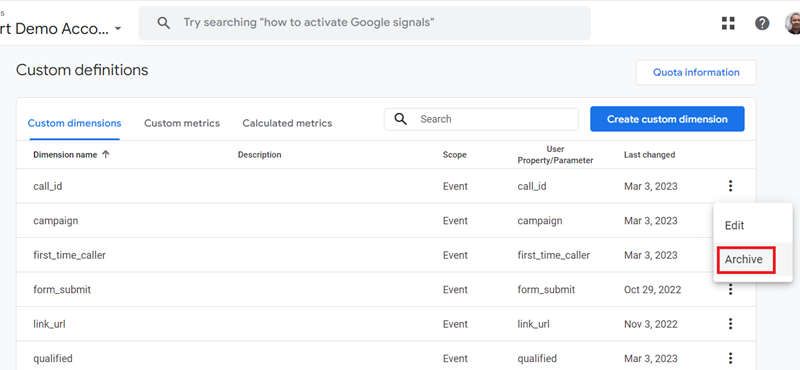
Step-4: Click on the ‘Archive‘ button:
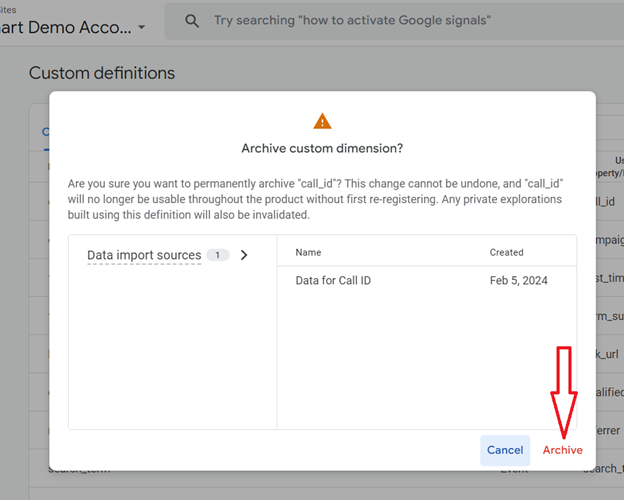
Note: Archiving a custom dimension is permanent. It can not be undone, and the corresponding event parameter will no longer be usable without first re-registering. Any explorations built using this custom dimension will also be invalidated.

Other Articles on GA4.
- User Explorer Google Analytics 4 Tutorial.
- Google Analytics 4 Explorations Tutorial.
- How to Change Attribution Models in Google Analytics 4.
- Google Analytics Real-time report not working? Here is the fix.
- Google Signals in Google Analytics 4 - See demographics (gender, age) data.
- How to Create Landing Page Report in Google Analytics 4.
- How to segment Google Analytics 4 data by data stream.
- Setup Cross Domain Tracking in Google Analytics 4.
- How to see full page URLs in Google Analytics 4.
- Roll up Property in Google Analytics 4 – Tutorial.
- The Best Tag Auditing Tools for Google Analytics 4.
- How to Exclude URL Query Parameters in Google Analytics 4.
- How to Track Email Campaigns in Google Analytics 4.
- Google Analytics 4 Attribution Modelling Tutorial.
- Understanding Service Worker in GTM Server Side Tagging.
- Cohort Exploration Report in Google Analytics 4 (GA4).
- Google Analytics 4 vs Google Ads conversion tracking.
- Google Analytics 4 Custom Dimensions Tutorial.
- Google Analytics 4 Dimensions Tutorial.
- Event Scoped Custom Dimensions in Google Analytics 4.