

The following are the various methods through which you can change the Admin settings of your GA4 property:
Admin
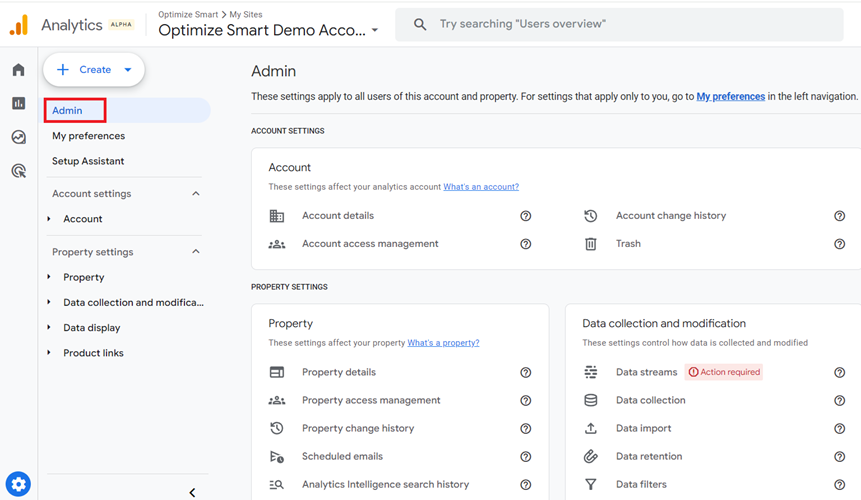
Through ‘Admin’ page, you can access all the account and property settings from one centralised location.
It saves you from clicking on drop-down menus.
I use the ‘Admin’ page a lot.
My Preferences
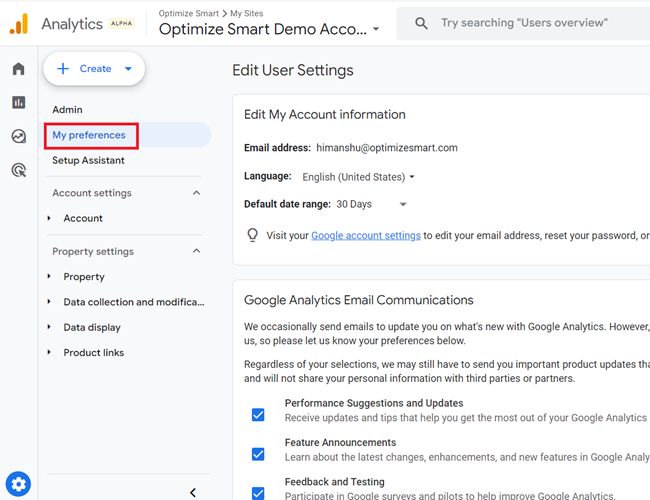
Through ‘My preferences‘, you can change the following settings:
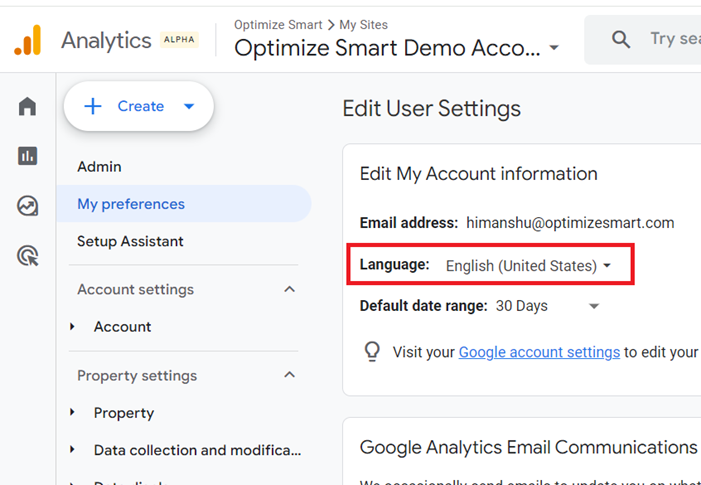
#1 The language used by the GA4 User Interface.
#2 Default data range.
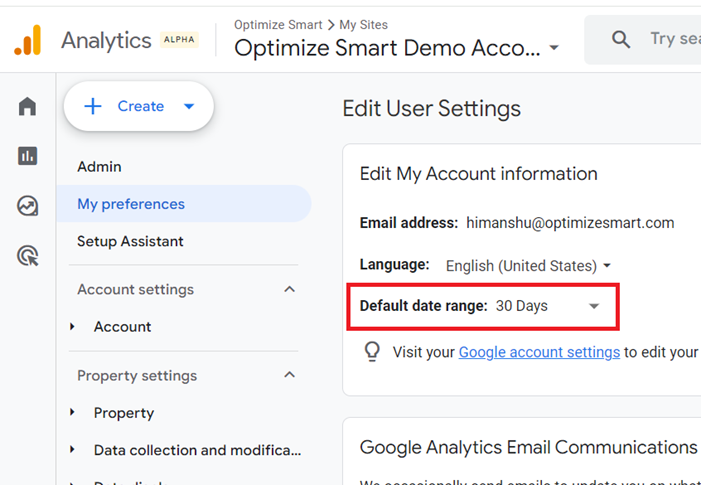
If you don’t like the 28-days default data range for your GA4 reports, you can select 7 days, 14 days or 30 days as the default data range.
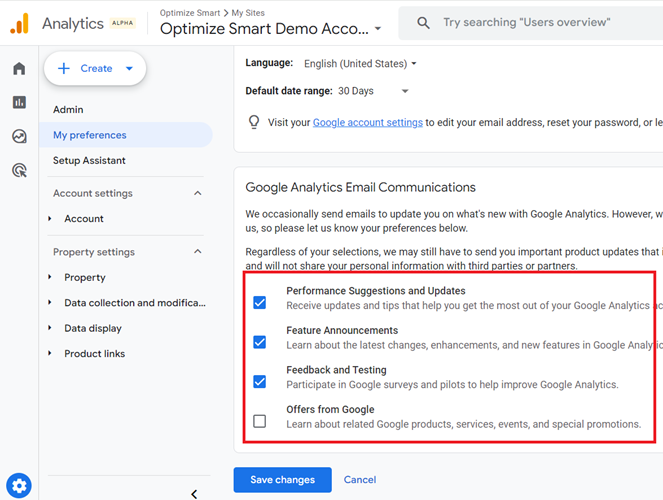
#3 Your email communication preferences:
Setup Assistant
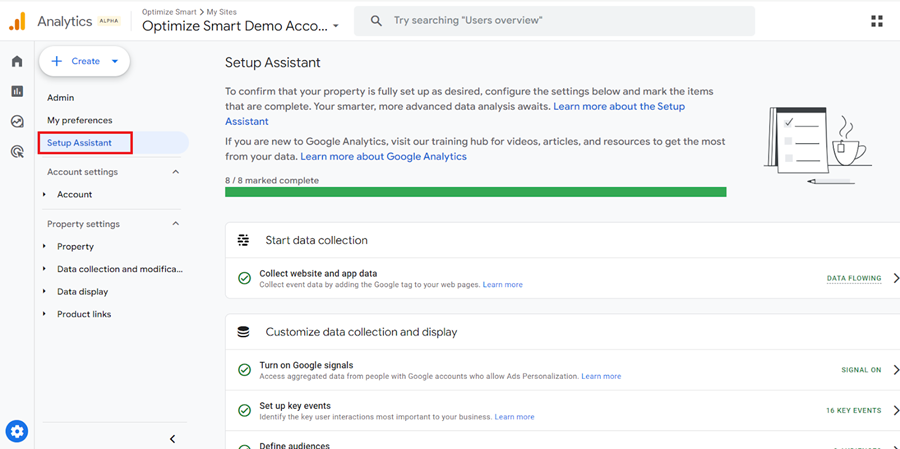
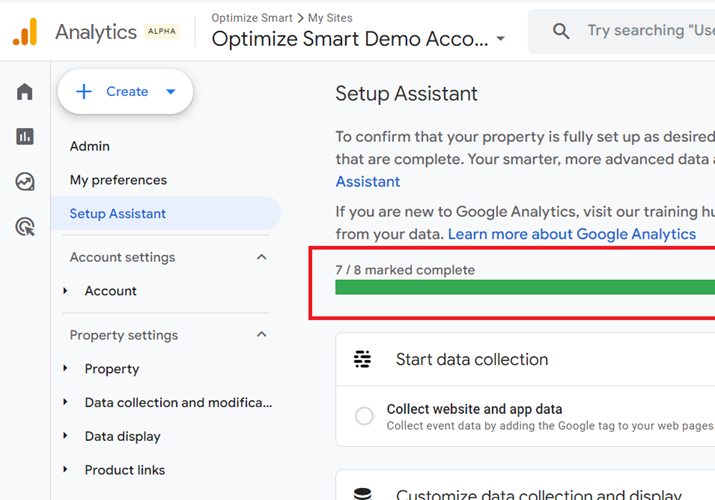
Setup Assistant is a checklist built into your GA4 property to remind you of the important GA4 tasks that you need to complete.
Once you complete a task, you are expected to mark that task as complete.
However, that is not clear because of poor User Interface design.
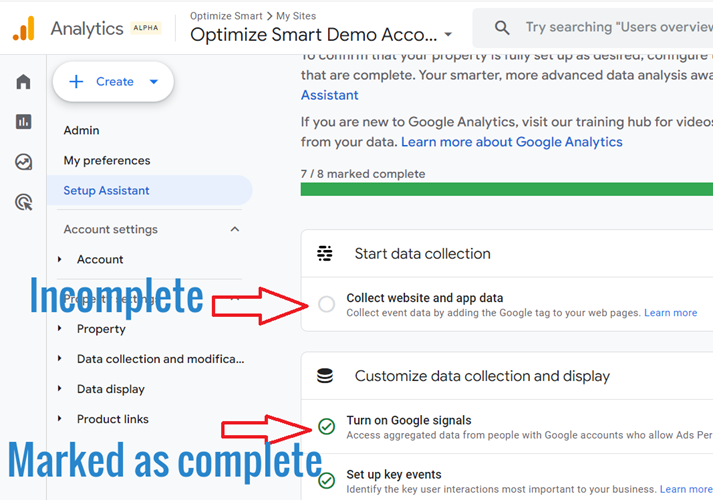
You can click on the empty circle next to a task to mark it as completed:
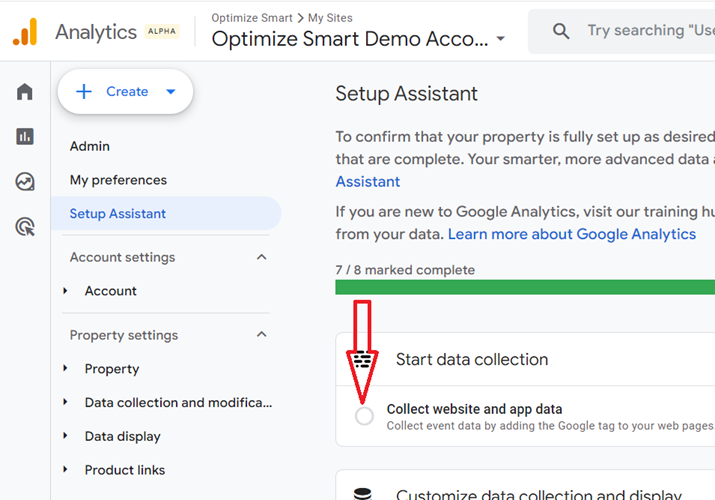
Pay attention to the status bar, which shows the number of tasks completed so far:
Additional Resource: GA4 Migration Checklist – Upgrade to Google Analytics 4.
Account > Account Details
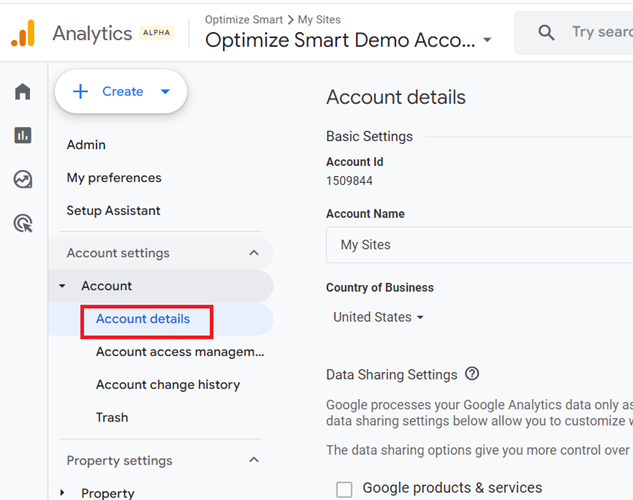
You can change the following account details: Account name, country of business and data sharing settings.
You can also accept the ‘Data Processing Terms‘ from account details in order to comply with GDPR and other privacy regulations.

Account > Account Access Management
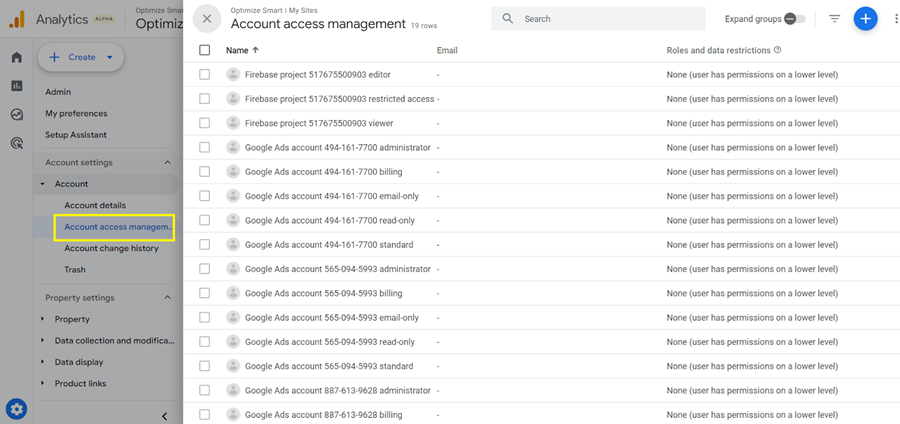
Use the ‘Account access management’ setting to add or remove users from your GA account.
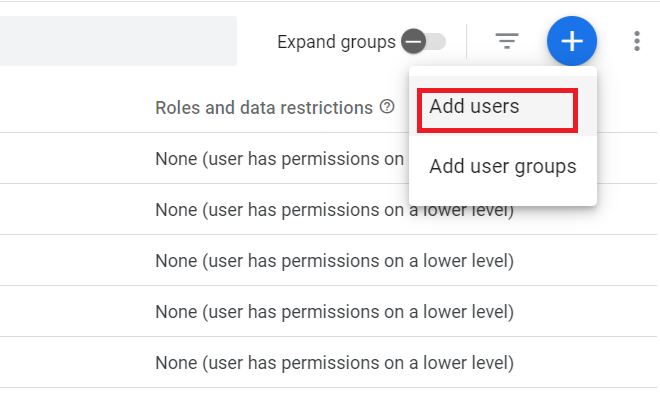
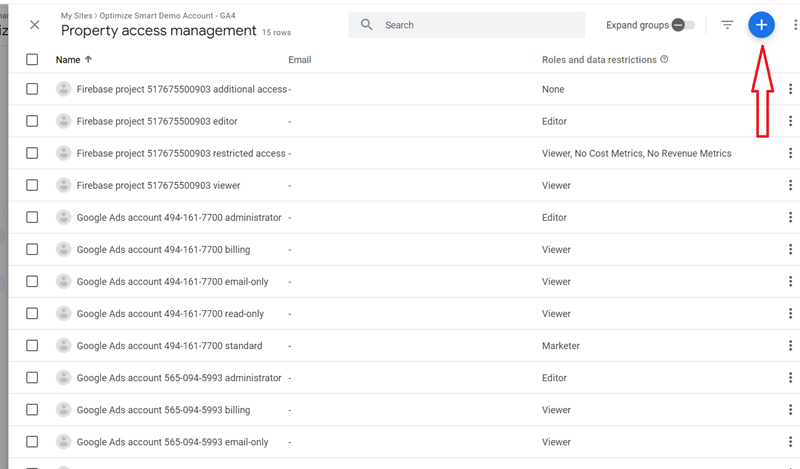
To add a user, click on the ‘+’ button:
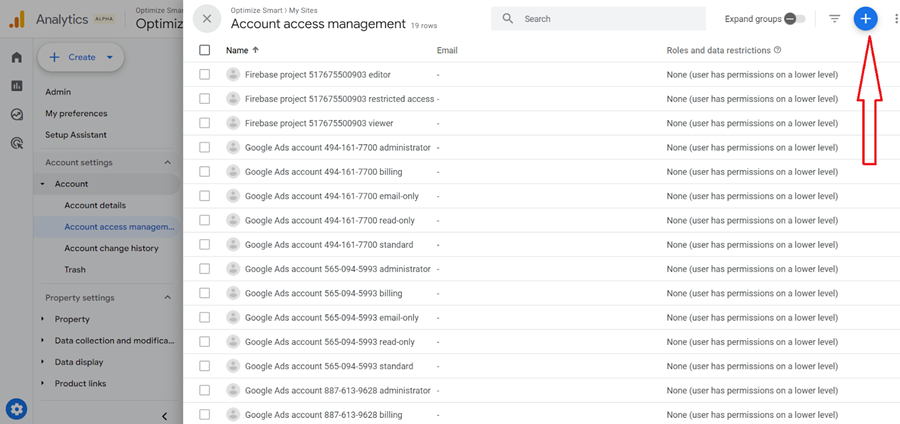
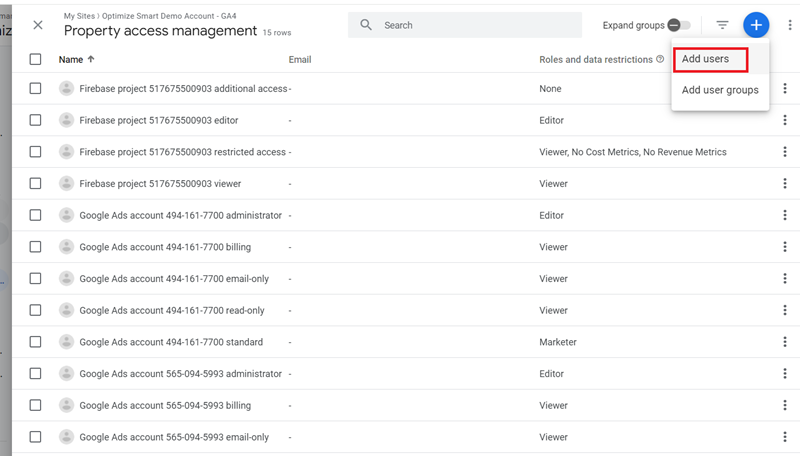
Click on ‘Add Users’ from the drop-down menu:
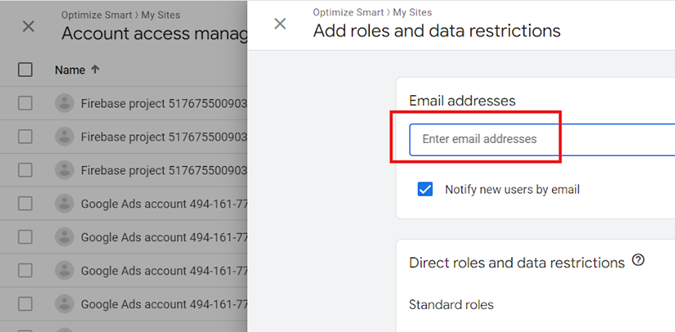
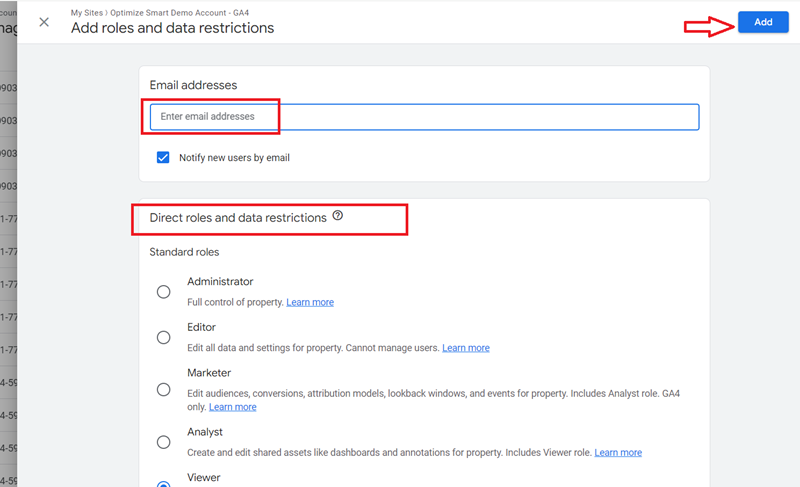
Enter the email address of the person you want to add to your GA property:
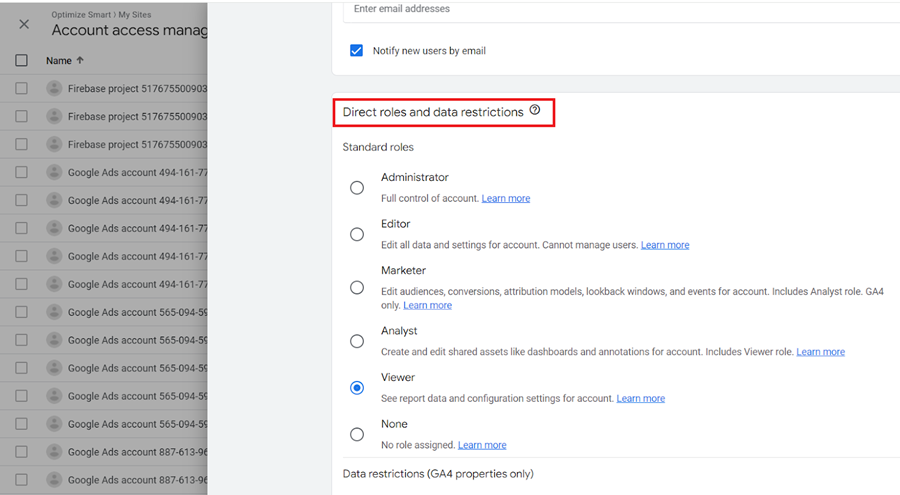
Click on the appropriate permission level under ‘Direct roles and data restrictions’:
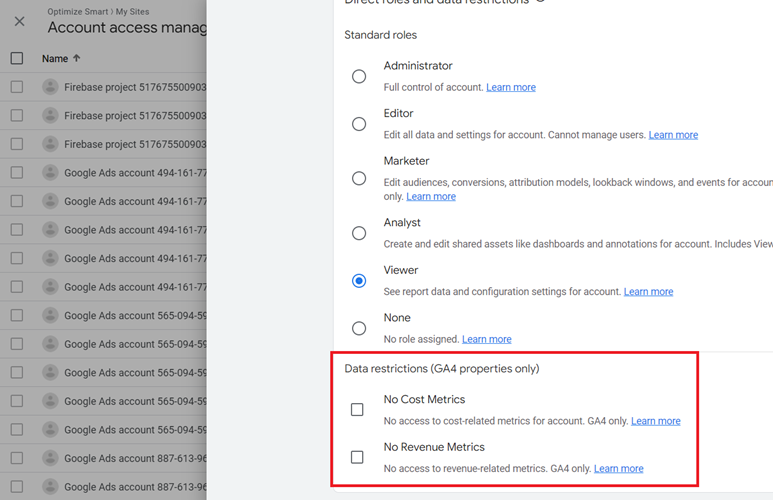
Scroll down and select the appropriate ‘Data restrictions’ (if required):
Scroll up and click on the ‘Add’ button to add a user to your GA account:
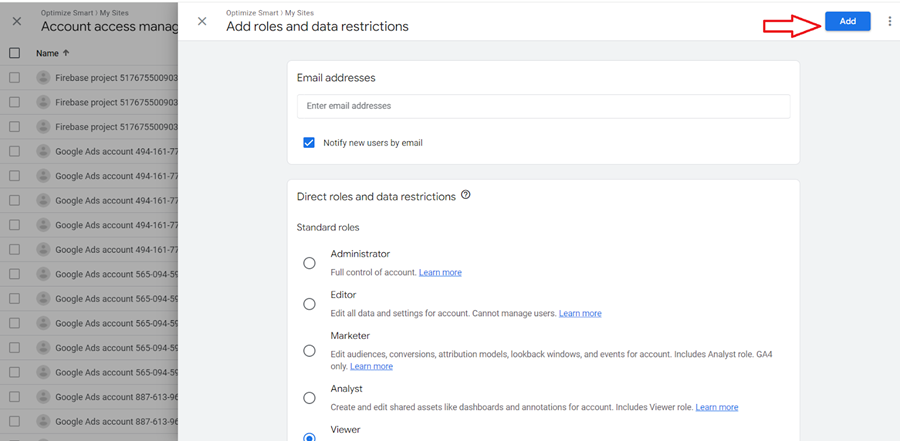
Additional Resource: [GA4] Access and data-restriction management.
Account > Account Change History
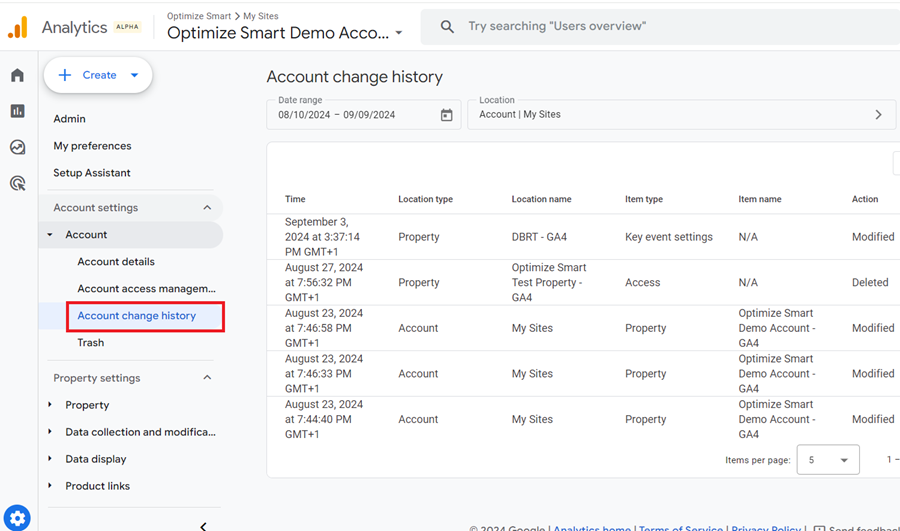
The ‘Account Change history‘ setting lists all the changes user(s) have made to your GA account during the past two years.
These changes can be like creating or modifying a particular GA4 property, deleting a particular custom dimension etc.
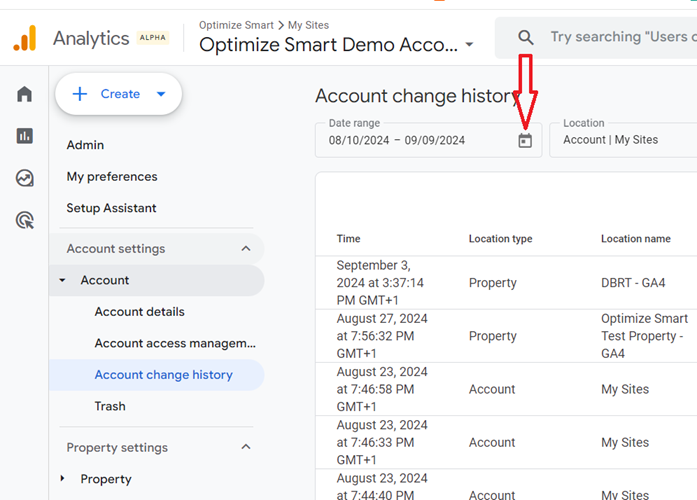
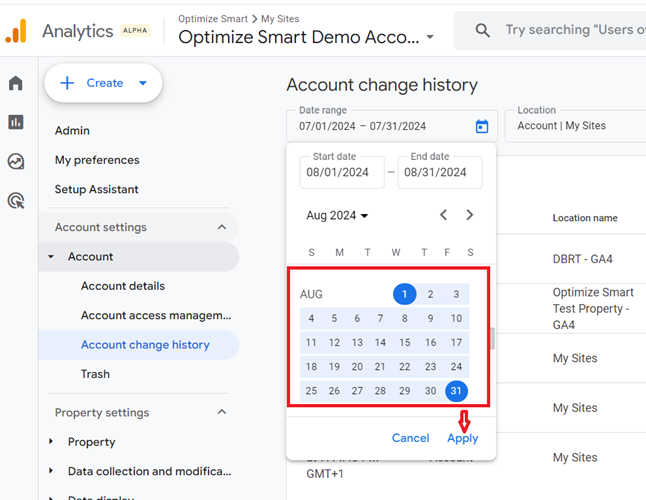
You can view all changes for a particular date range by clicking on the date button, selecting a date range and then clicking on the ‘Apply‘ button twice.
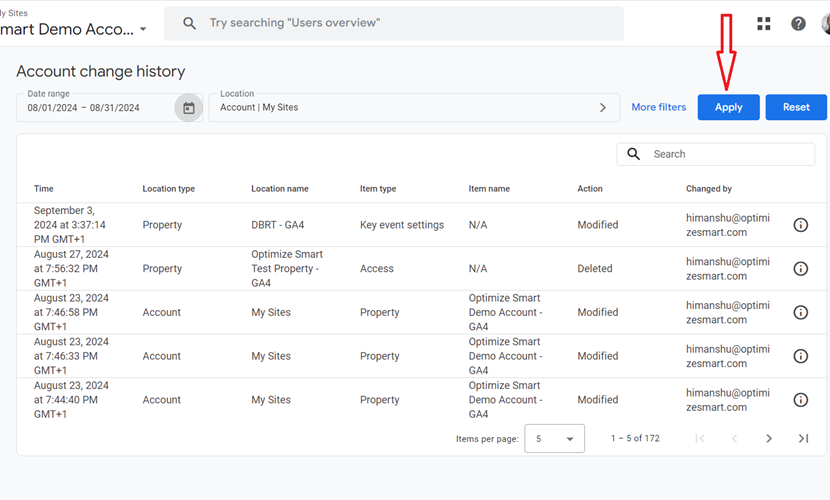
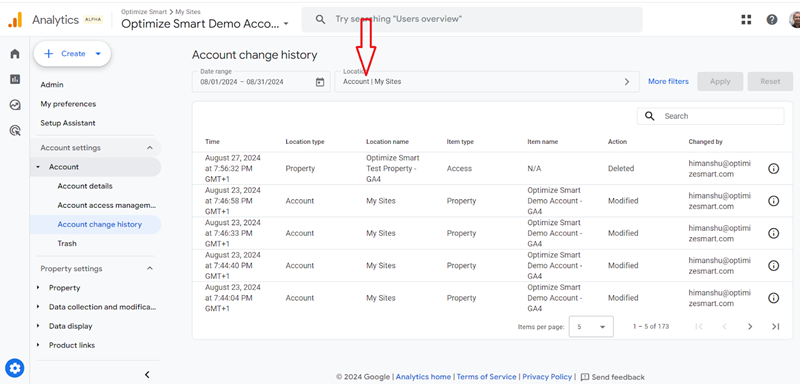
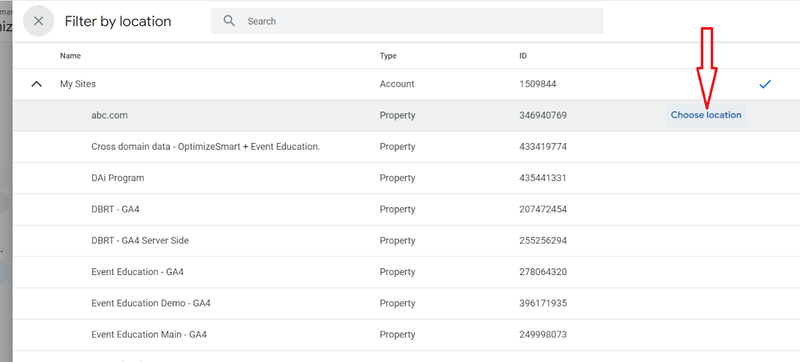
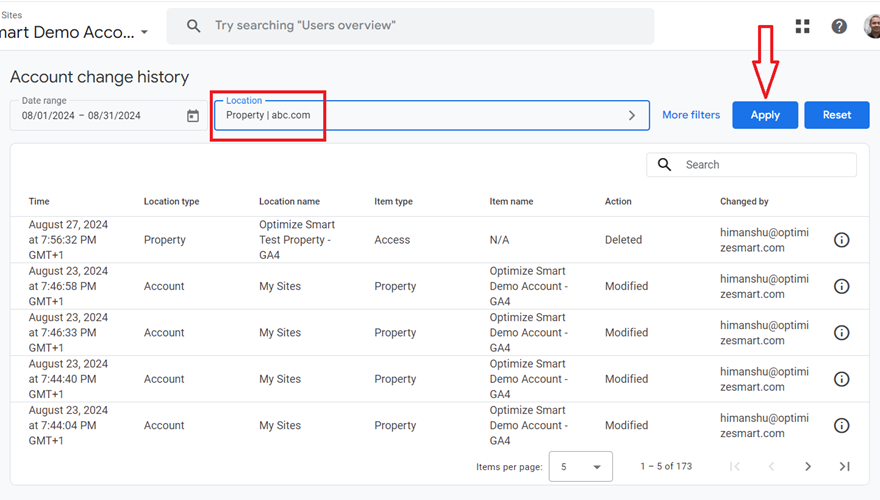
To view changes made only to a particular property, click on the ‘Location‘ drop-down menu, click on the ‘Choose location‘ link next to the property name whose change history you want to retrieve and then click on the ‘Apply‘ button:
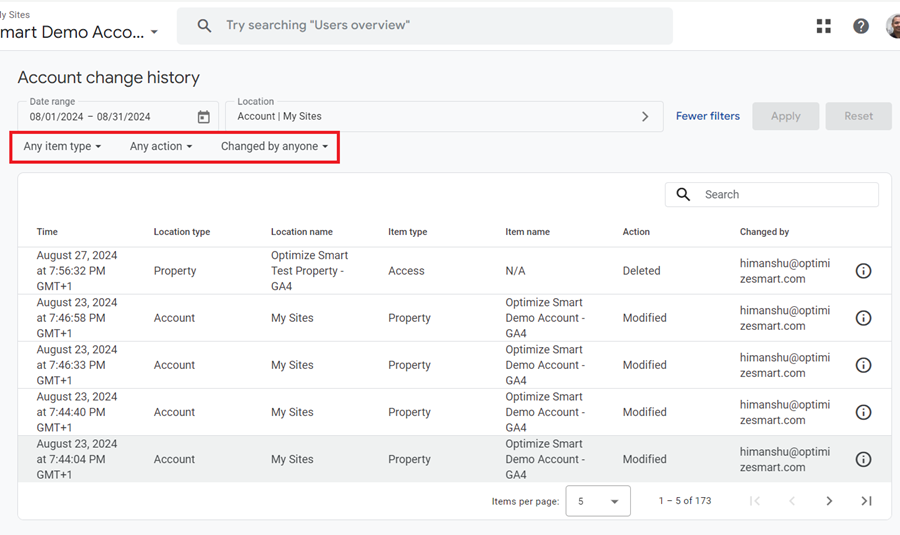
Click on the ‘More filters’ link to filter the results by type of change.
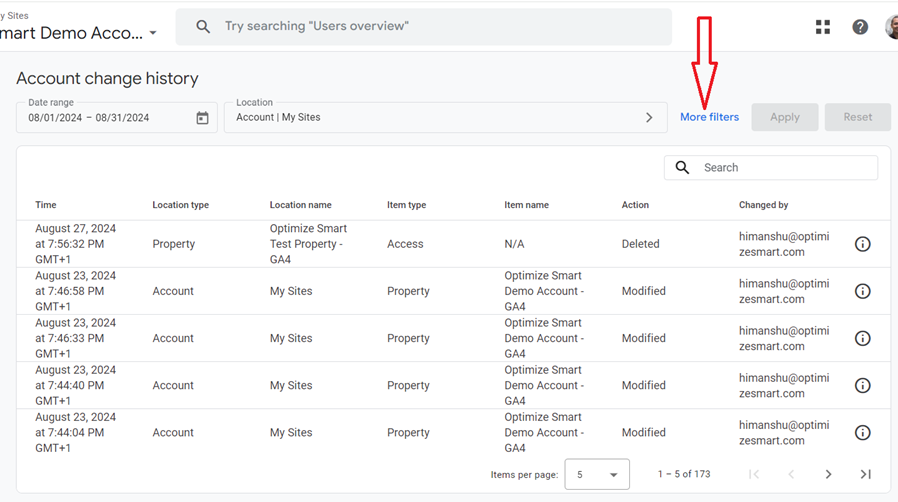
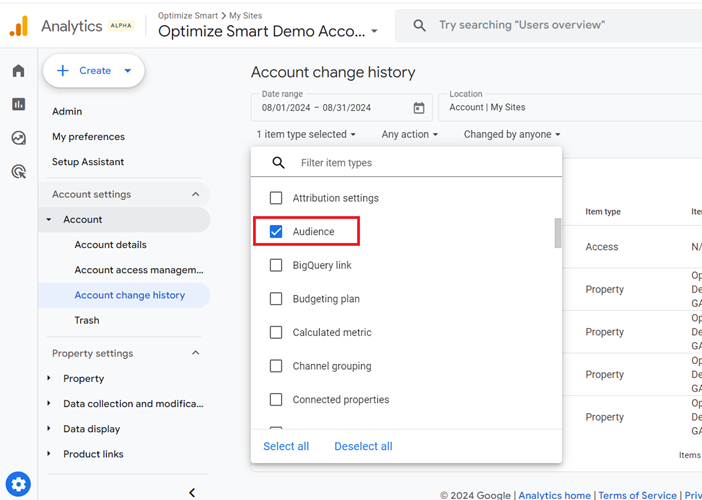
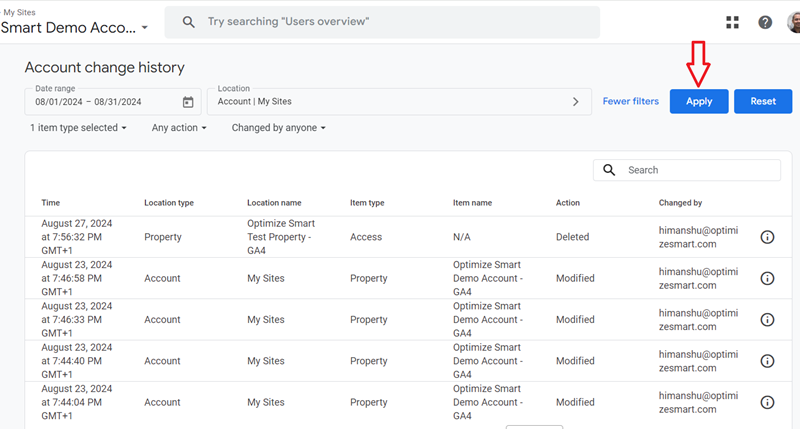
Use one or any of the following drop-down menus and then click on the ‘Apply’ button:
Additional Resource: [GA4] View the history of account/property changes.
Account > Trash
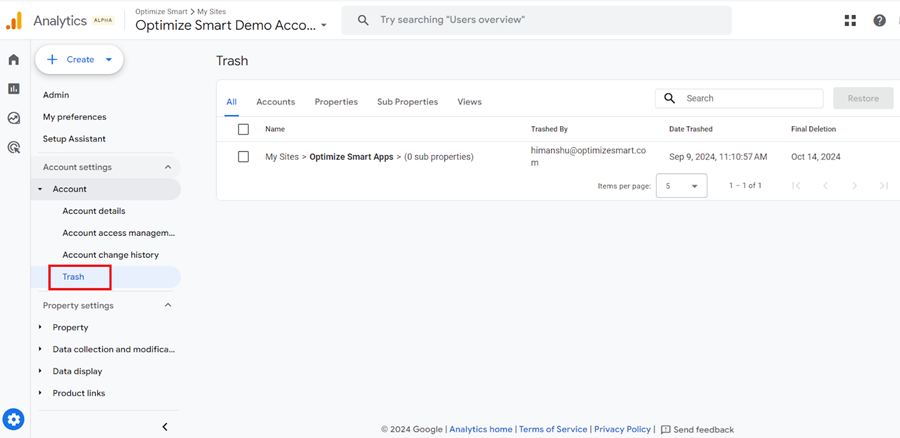
The ‘Trash‘ (also known as ‘Trash Can’) contains GA4 accounts, properties and/or subproperties that have been marked for deletion by a user.
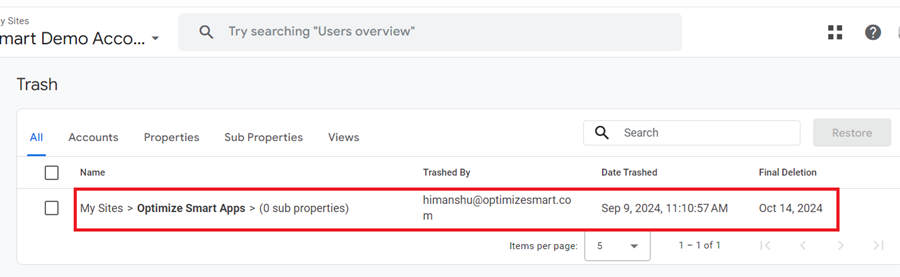
You can see the user who marked them for deletion and the date that will be permanently deleted (‘Final deletion’).
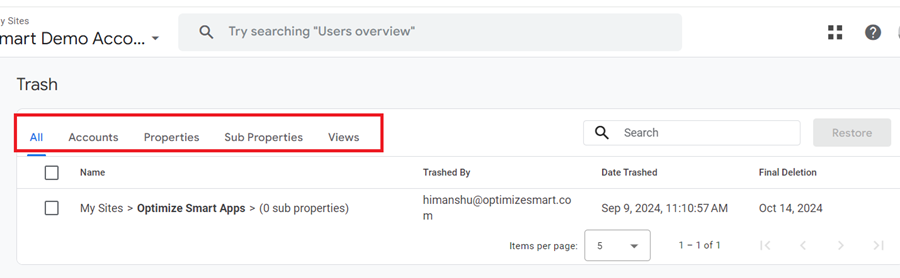
Click on the appropriate tab to see the list of only accounts, properties or sub-properties:
Note: You have 35 days to restore accounts and/or properties from the ‘Trash’ before they are permanently deleted.
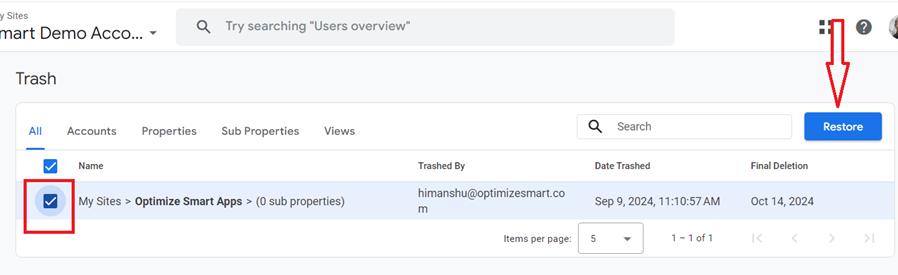
To restore an account/property/sub property, click on the checkbox next to it and then click on the ‘Restore’ button:
Additional Resource: [GA4] Delete / restore accounts and properties.
Property > Property Details
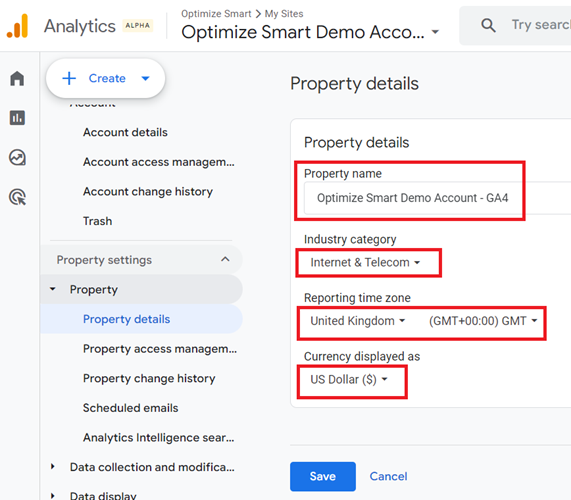
Through ‘Property Details’ settings, you can change the following settings:
- Name of your GA4 property.
- Industry category of your GA4 property.
- Reporting time zone.
- Current displayed in GA4 reports.
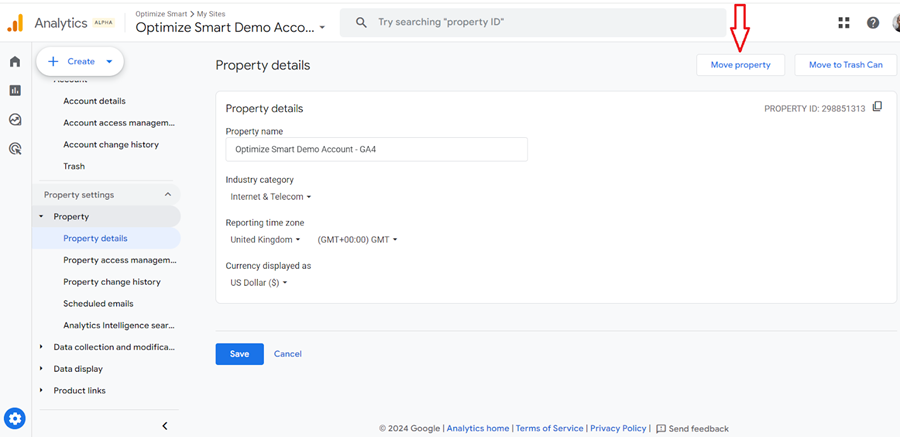
To move your GA4 property to another GA4 account, click on the ‘Move Property’ button:
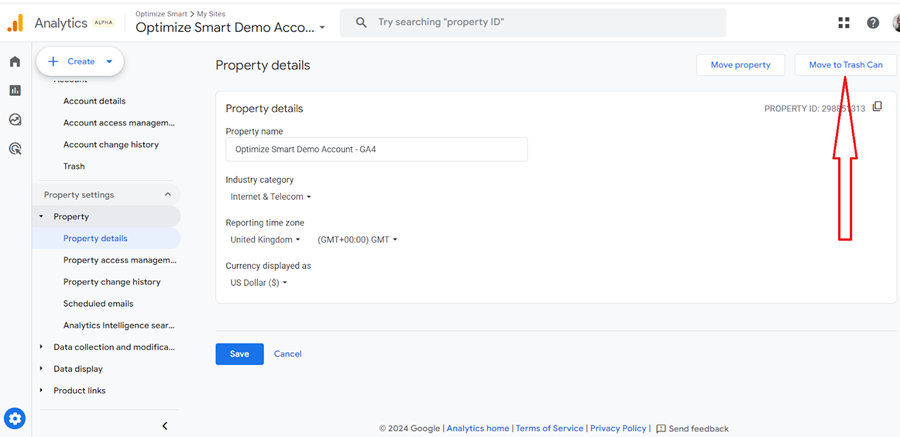
To delete your GA4 property, click on the ‘Move To Trash Can’ button:
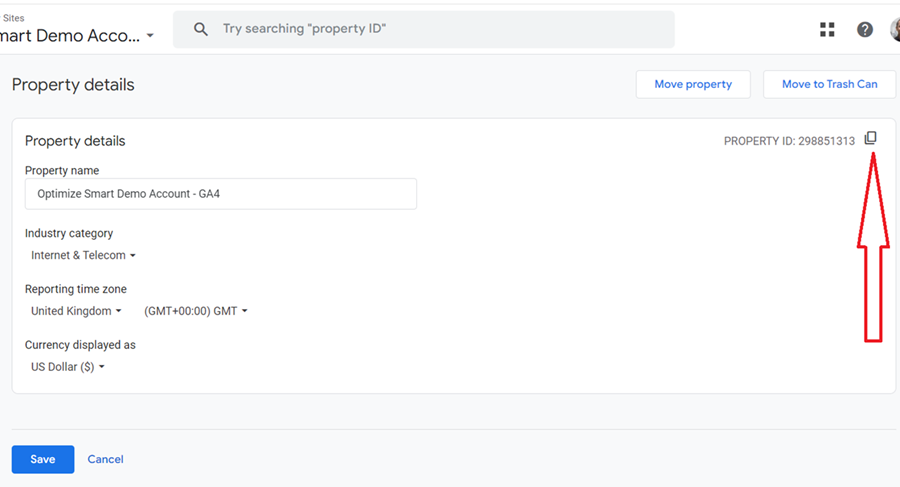
Click on the copy button to copy your property ID:
Property > Property access management
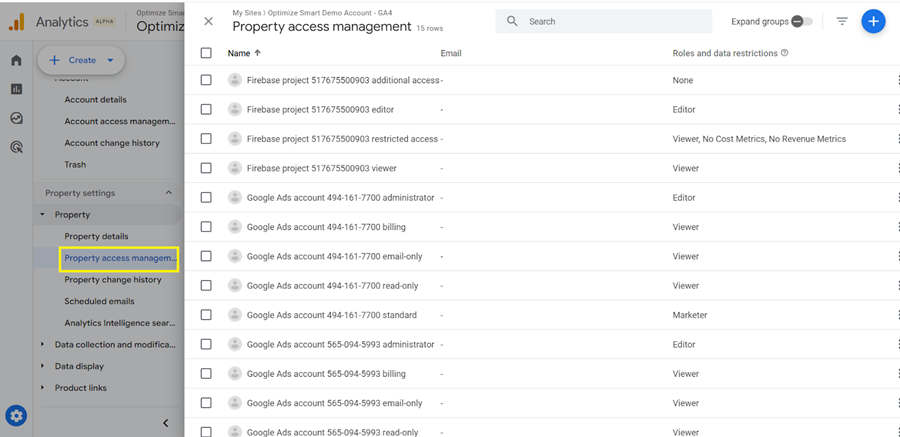
Use ‘Property access management’ to add or remove users from your GA4 property.
Property > Property change history
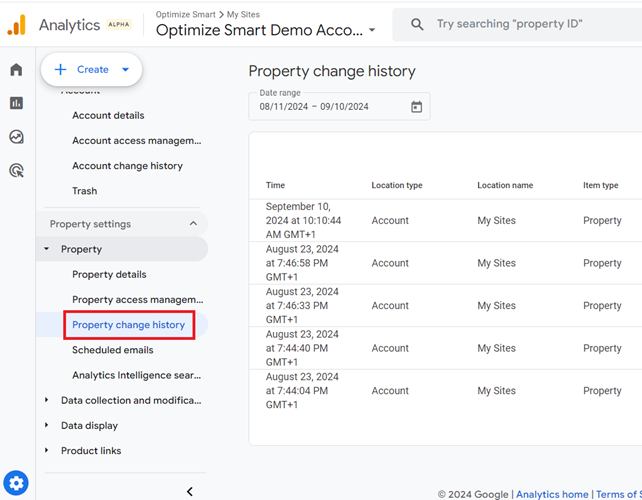
Use ‘Property change history’ to check out the change history of your GA4 Property.
Note: The ‘property change history’ works pretty much like the ‘account change history’ report.
Property > Scheduled emails
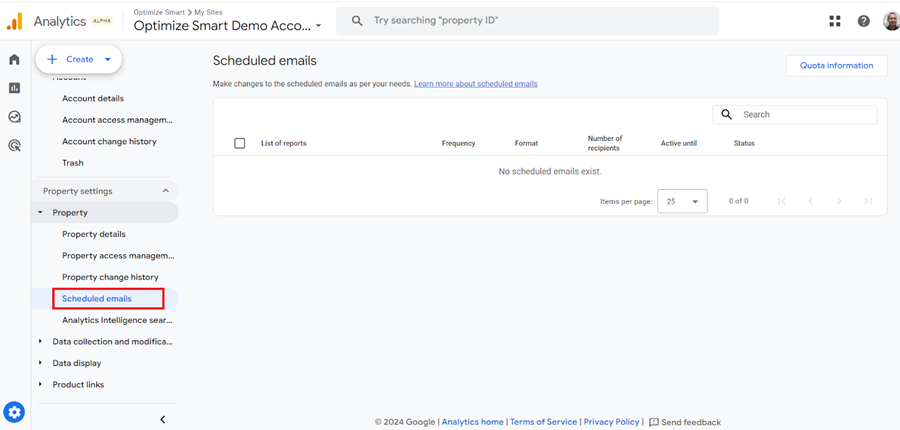
Use the ‘Scheduled emails’ report to edit or delete scheduled emails.
You can schedule a report to be emailed to you or others by following the steps below:
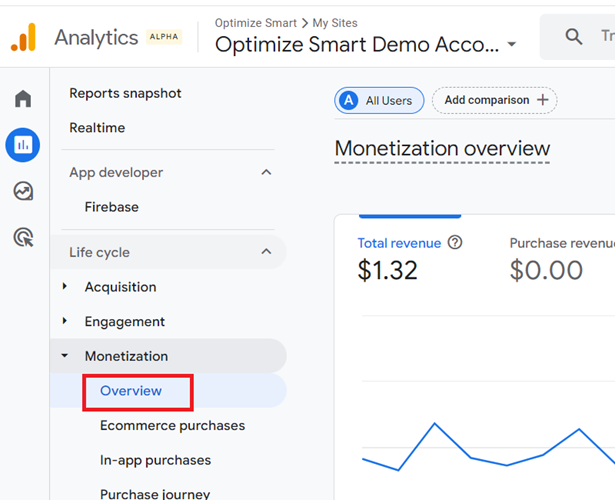
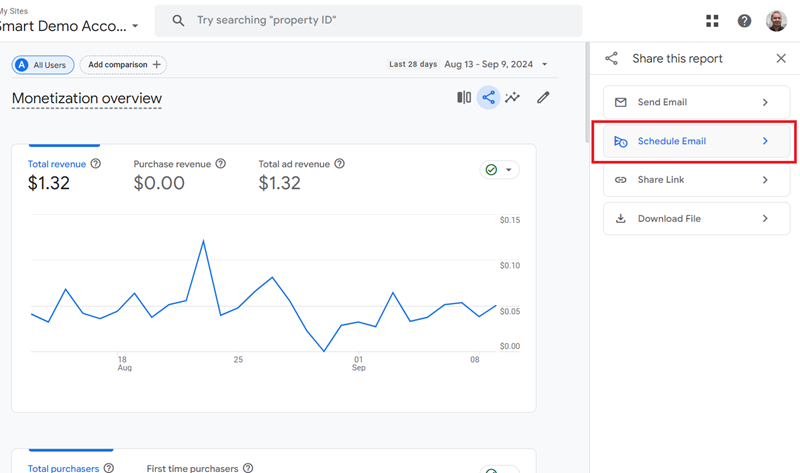
#1 Navigate to a GA4 report, let’s say ‘Monetization Overview’ report:
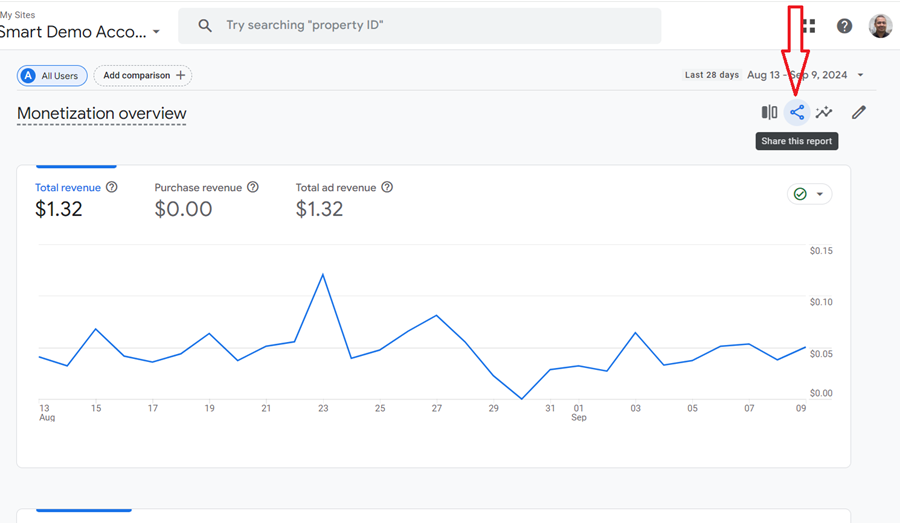
#2 Click on the ‘Share this report’ button:
#3 Click on ‘Schedule Email’ from the drop-down menu:
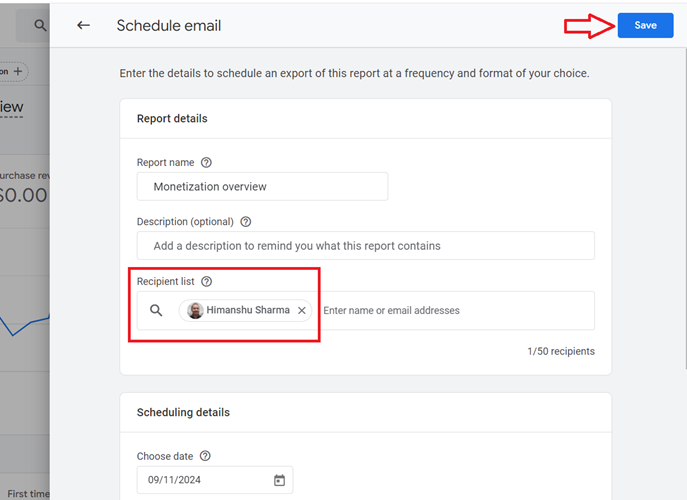
#4 Enter the details to schedule an export of the ‘Monetization Overview’ report at a frequency and format of your choice and then click on the ‘Save’ button:
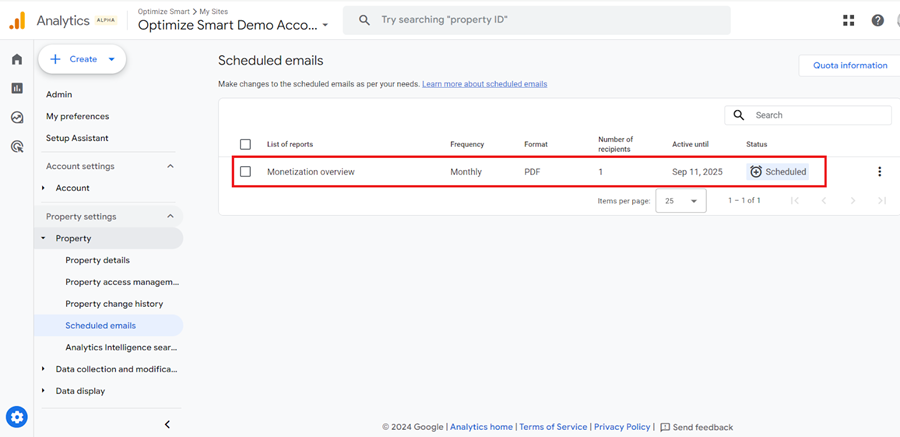
#5 Navigate back to ‘Property’ > ‘Scheduled emails’ in your GA4 admin area.
You should now see a new scheduled email:
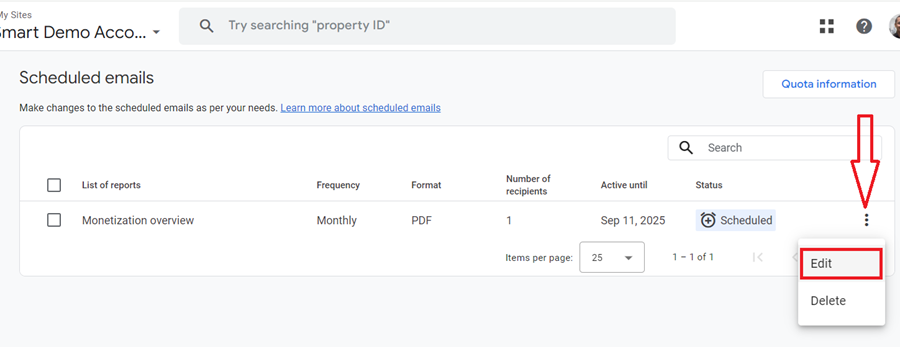
To edit this scheduled email, click on the three dots menu next to it and then click on ‘Edit’
Property > Analytics Intelligence search history
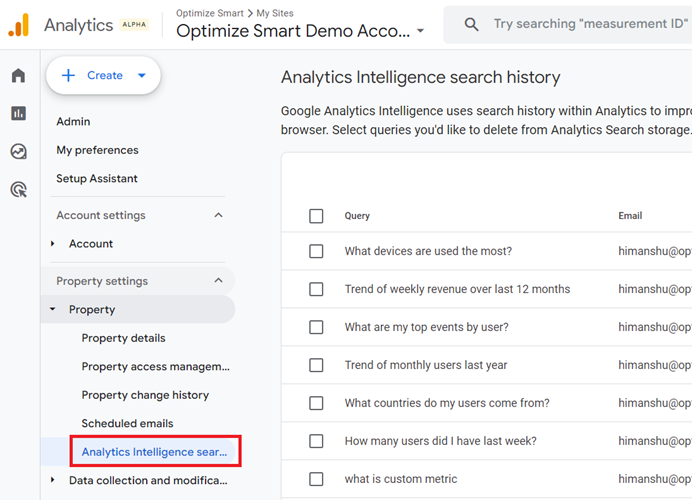
Through ‘Analytics Intelligence search history’, you can see the list of all the search queries you made via the search box embedded in your GA4 property.
Select the search queries you would like to delete and then click on the button ‘Delete selected queries’:
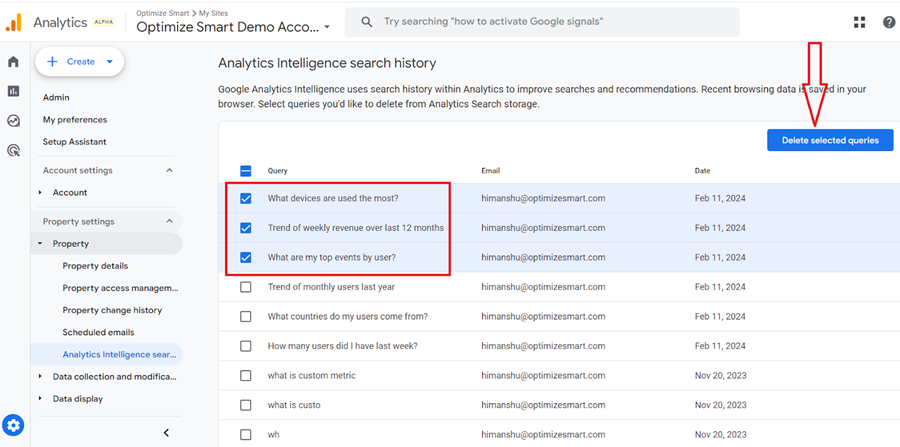
Analytics Intelligence uses your search history within GA4 to improve searches and recommendations.
Deleting search queries from your Analytics Intelligence search history can help improve the relevance of future suggestions and search results.
Removing queries that led to unhelpful or irrelevant results can help streamline your analysis process by reducing noise in your search history.
Data Collection and Modification > Data streams
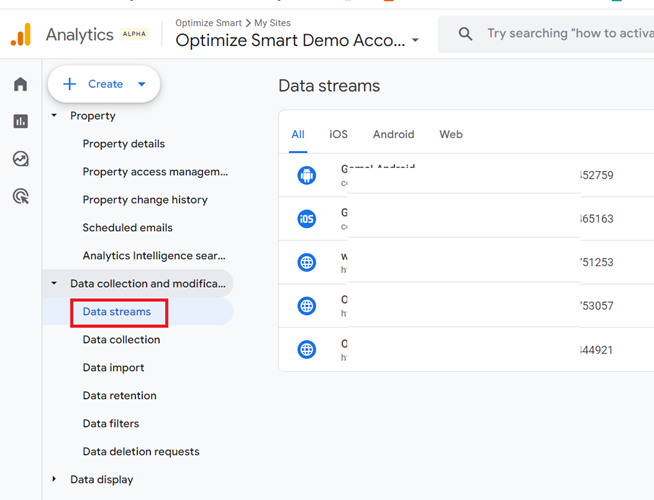
Through the ‘Data Streams’ settings, you can see the list of all the data streams connected to your GA4 property.
Click on the iOS tab to see the list of IOS data streams connected to your property.
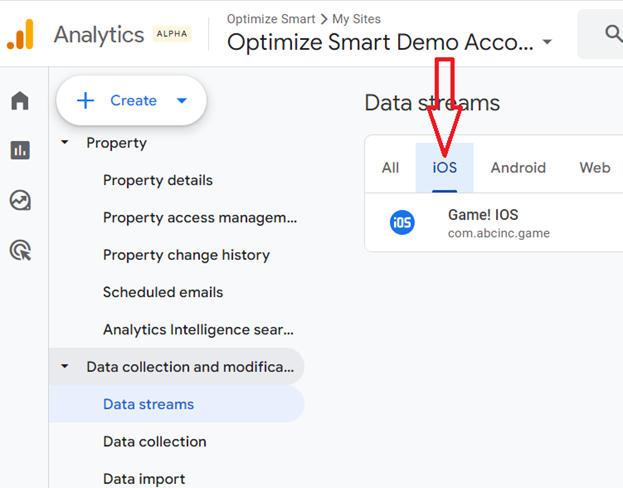
Click on the ‘Android’ tab to see the list of all Android data streams connected to your GA4 property.
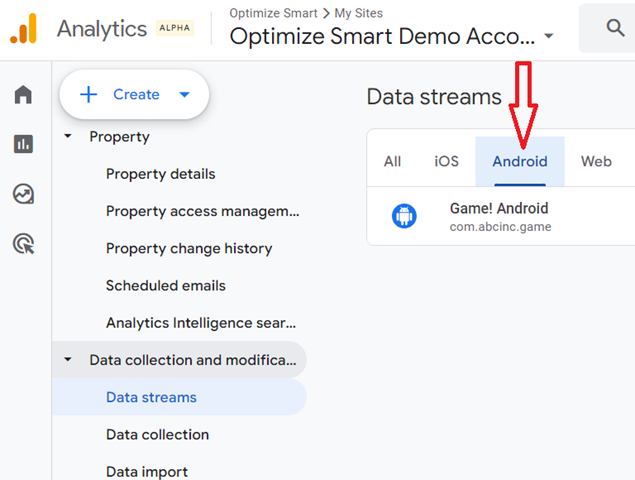
To see the list of web data streams, click on the ‘Web’ tab.
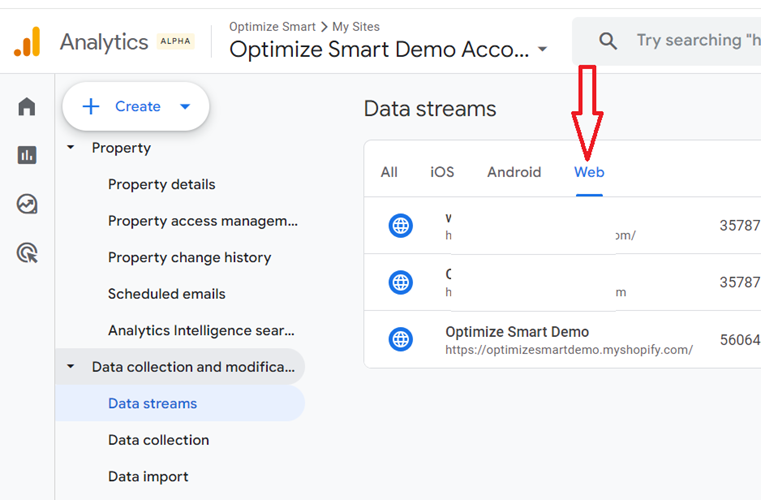
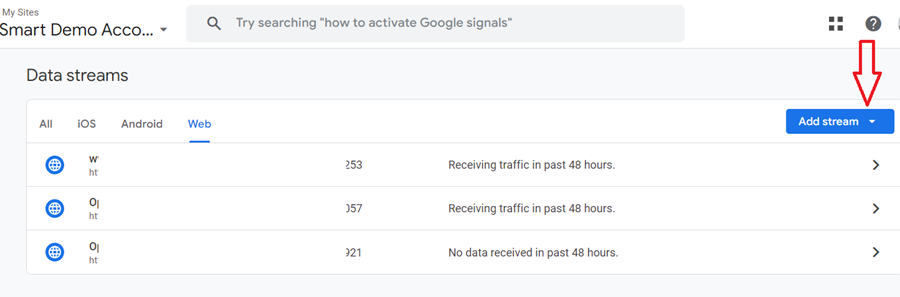
Click on the ‘Add stream’ drop-down menu to add a new data stream to your GA4 property:
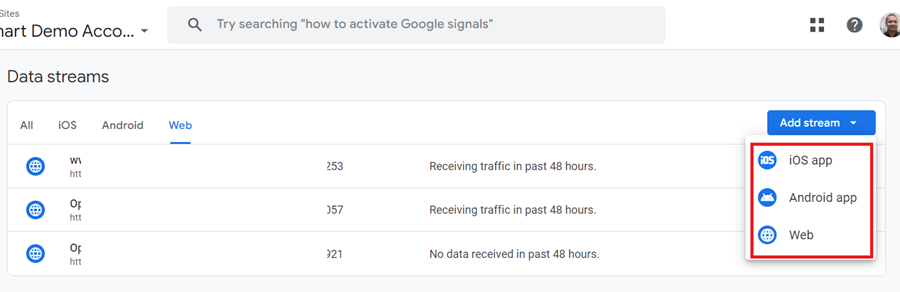
Select the type of data stream (IOS, Android or Web) you want to add to your GA4 property:
Editing a data stream.
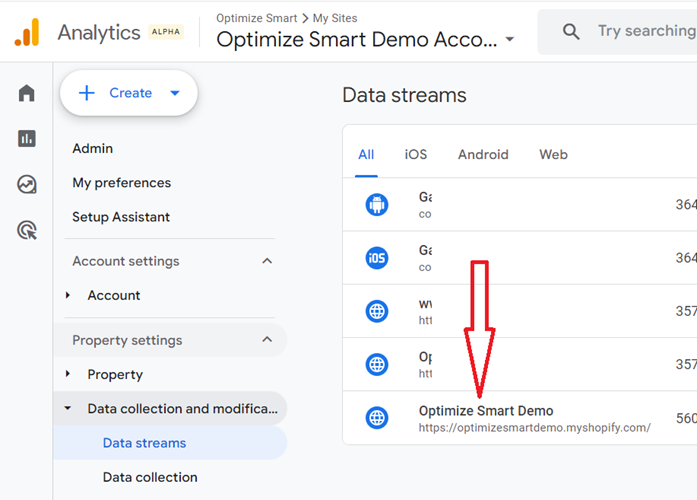
Click on a data stream to edit it:
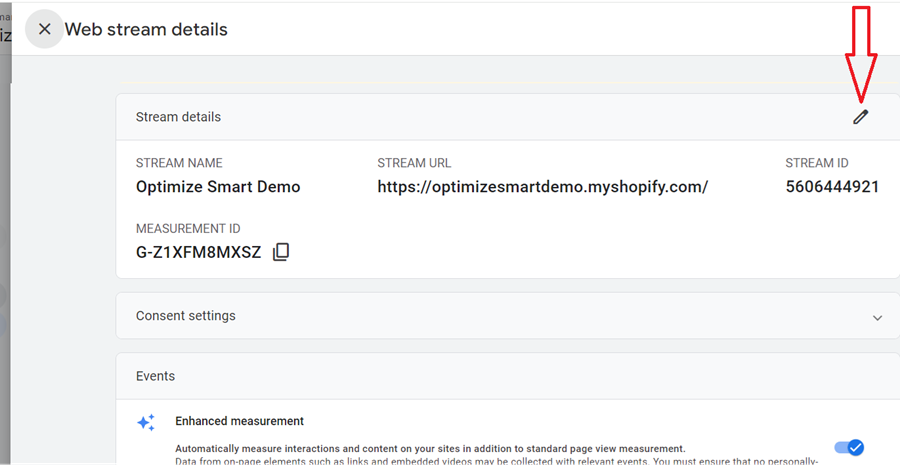
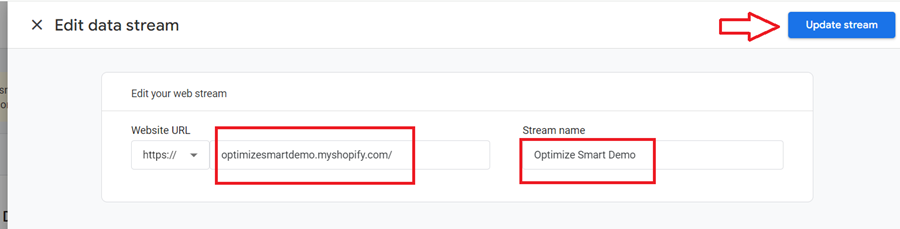
Click on the pencil icon to edit stream details (like stream name and stream URL):
Deleting a data stream.
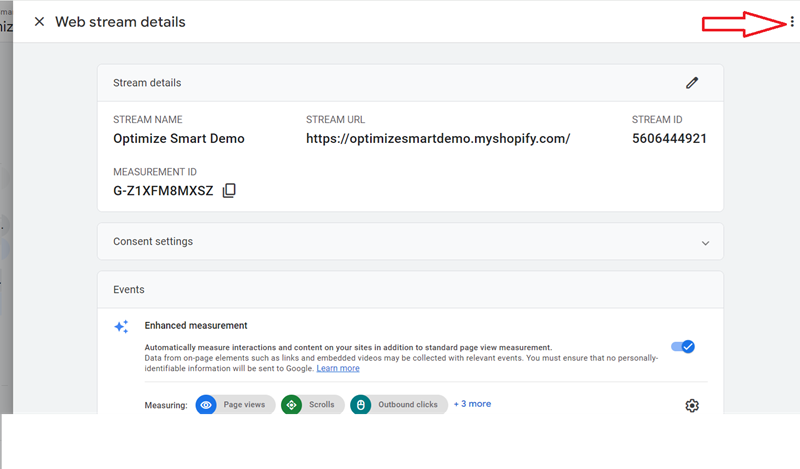
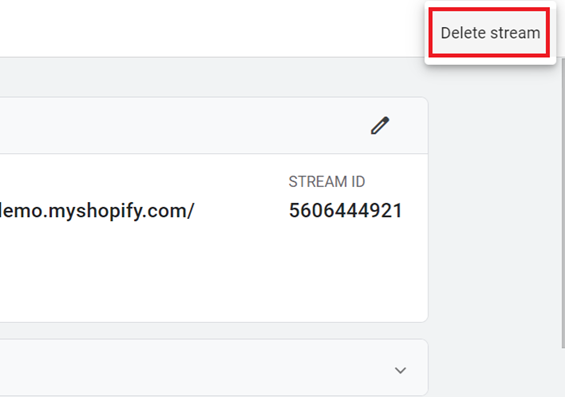
Click on the three dots menu and then select ‘Delete Stream’ to delete a data stream:
Data Collection and Modification > Data Streams > Web stream details > Consent Settings
Through GA4 consent settings, you can configure how GA4 should collect and process data based on the consent choices of your users.
This is required for compliance with regulations like the GDPR (General Data Protection Regulation) and CCPA (California Consumer Privacy Act), where user consent is important for data processing.
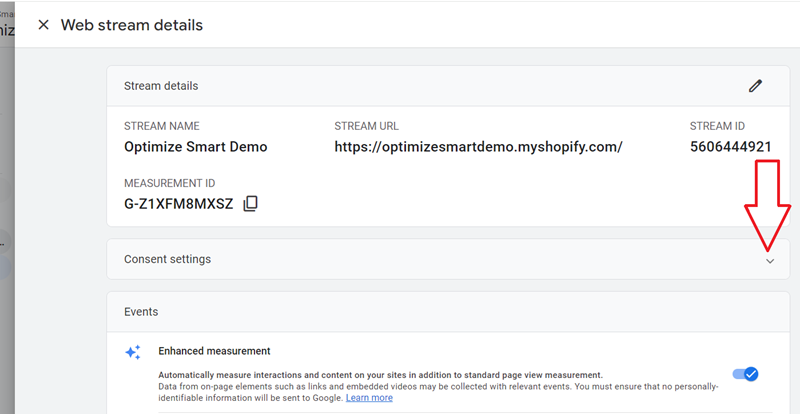
Click on the drop-down menu to edit consent settings:
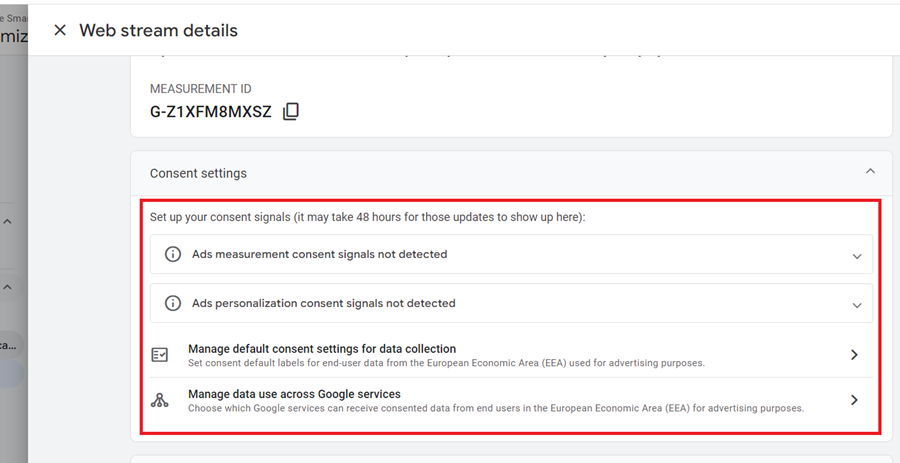
Through GA4 consent settings, you can:
#1 Set up consent mode for Ads measurement –
#2 Set up consent mode for Ads personalization.
#3 Manage default consent settings for data collection.
#4 Manage data use across Google services.
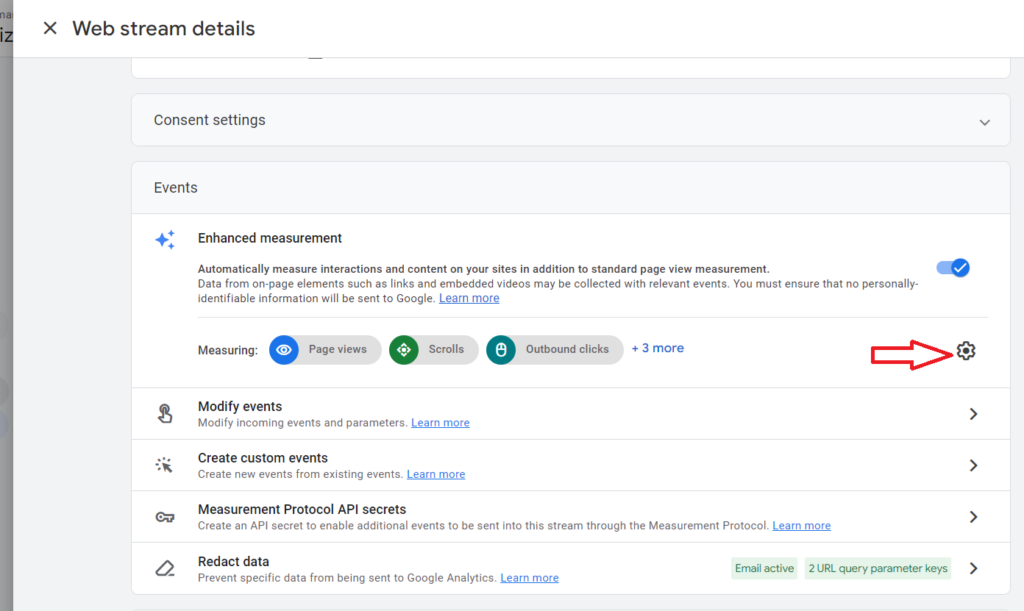
Data Collection and Modification > Data Streams > Web stream details > Events > Enhanced measurement
Use the toggle button to enable/disable the enhanced measurement events in your GA4 property:
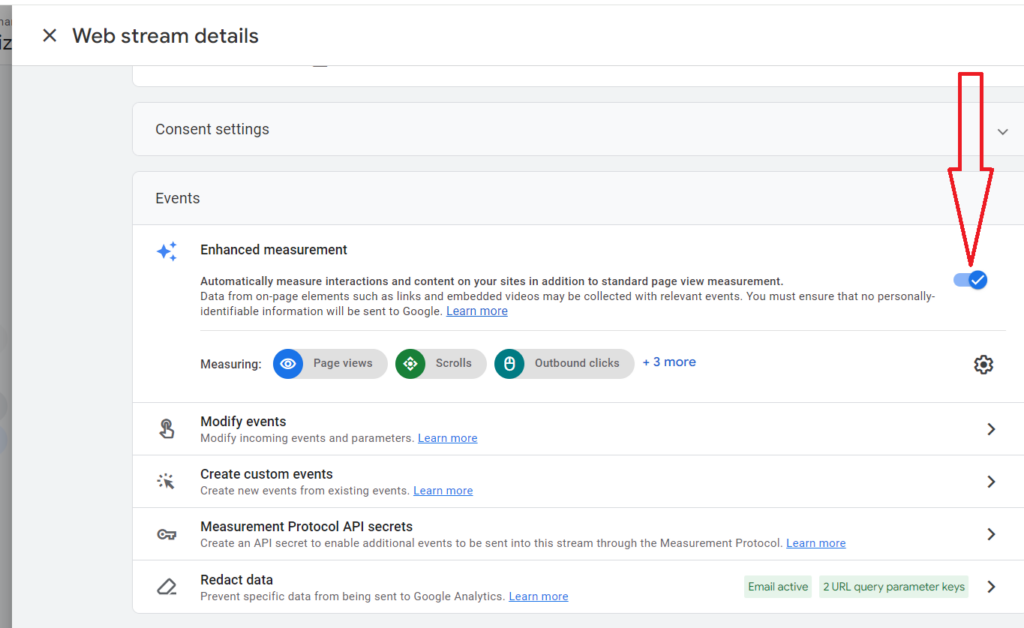
Enhanced Measurement Events are one of the categories of events in GA4. These events are automatically triggered and logged (i.e. recorded) on certain pre-defined user activities.
But the events (excluding the ‘page_view’ event) are logged only when you have enabled enhanced measurement in your GA4 property.
Click on the wheel button to change the settings of the enhanced measurement events:
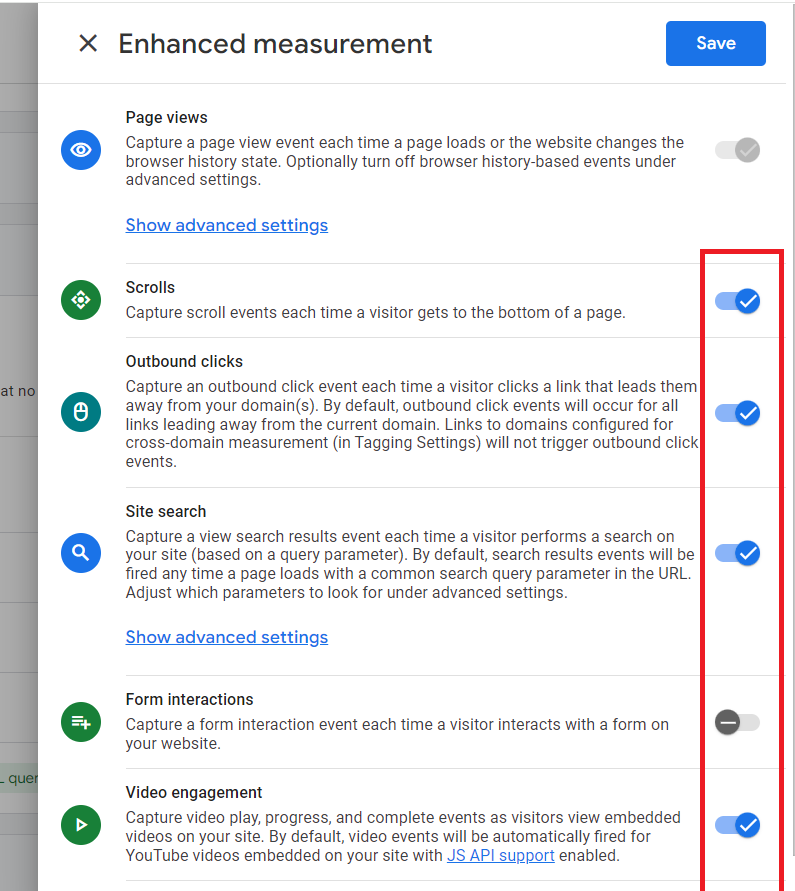
Use the toggle buttons to enable/disable a particular enhanced measurement event:
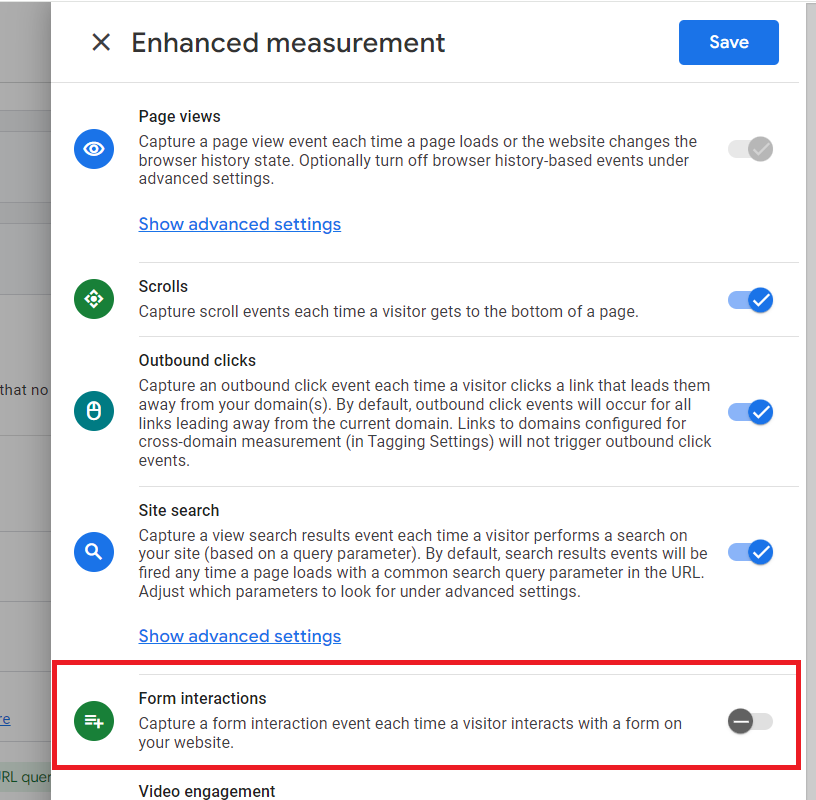
Note: Disable automatic form tracking (via enhanced measurement), as it is completely way off and will skew your event data for good.
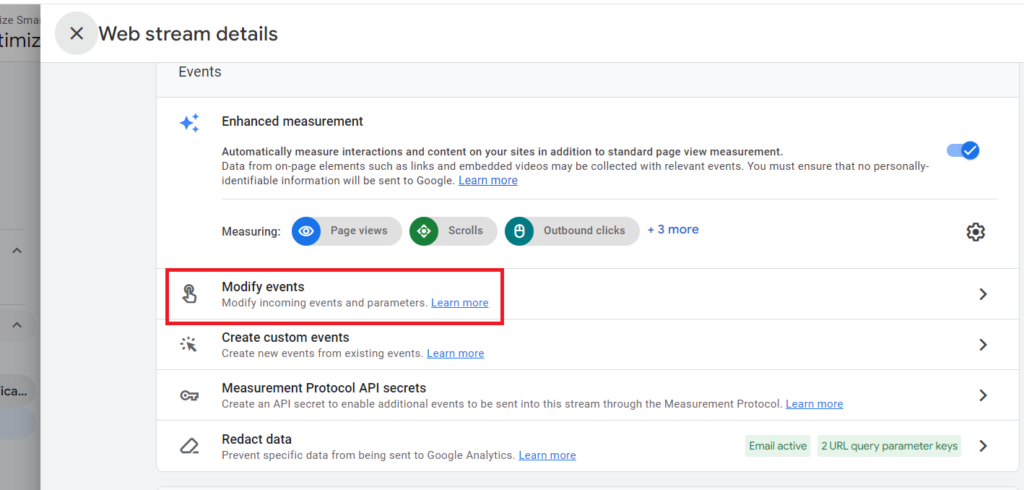
Data Collection and Modification > Data Streams > Web stream details > Events > Modify Events
Click on ‘Modify events’ settings to modify incoming events and parameters.
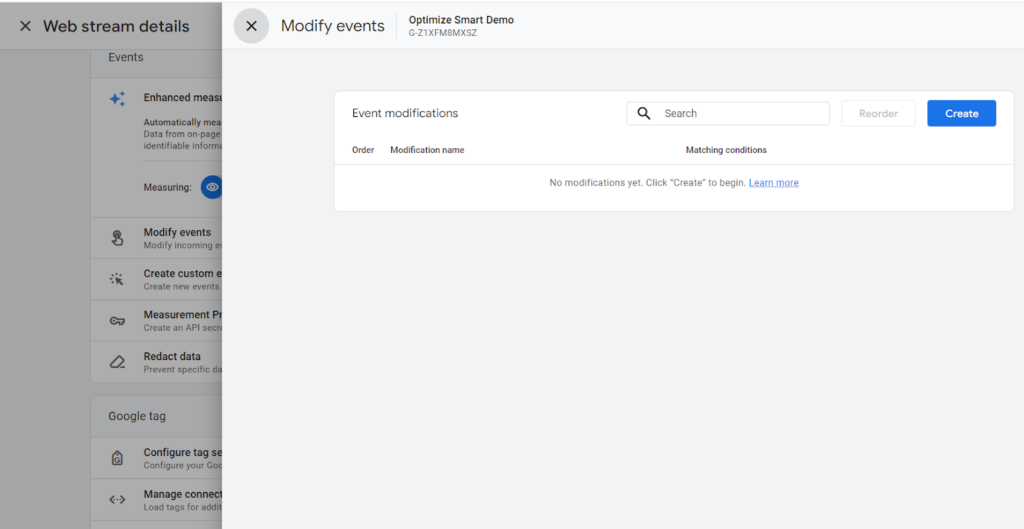
Additional resources on GA4 events:
- GA4 (Google Analytics 4) Event Tracking Setup Tutorial
- Understanding Event Parameters in Google Analytics 4 (GA4)
- Recommended Events in Google Analytics 4 (GA4)
- Enhanced Measurement Events in Google Analytics 4 (GA4)
- Automatically Collected Events in Google Analytics 4 (GA4)
- How to Set Up GA4 Custom Events via Google Tag Manager
- Events Report in Google Analytics 4 (GA4)
- How to Rename Events in Google Analytics 4 (GA4)
- How to Use Google Analytics 4 Event Builder
- GA4 Form Interactions Tracking – Enhanced Measurement
- How to fix duplicate events in GA4.
Data Collection and Modification > Data Streams > Web stream details > Events > Create Custom Events
Click on the ‘Create custom events’ settings to create new events from existing events (custom events).
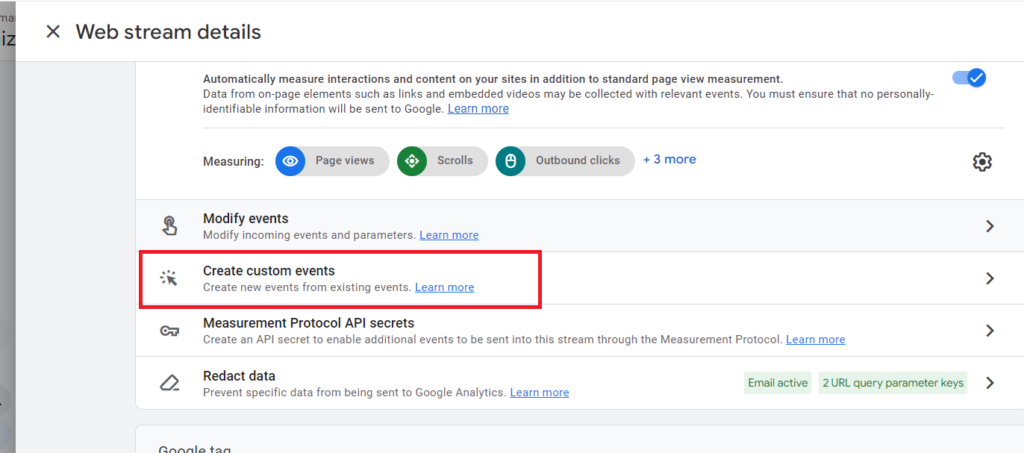
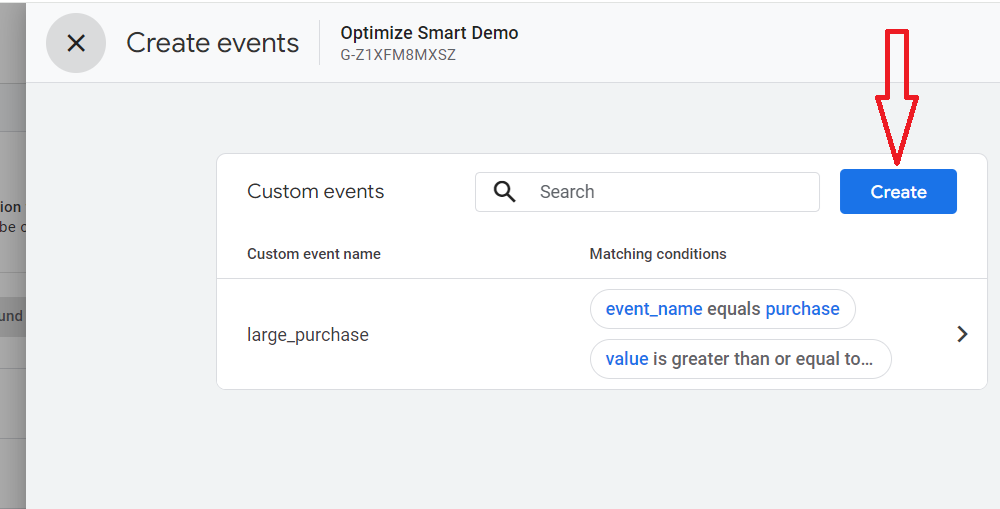
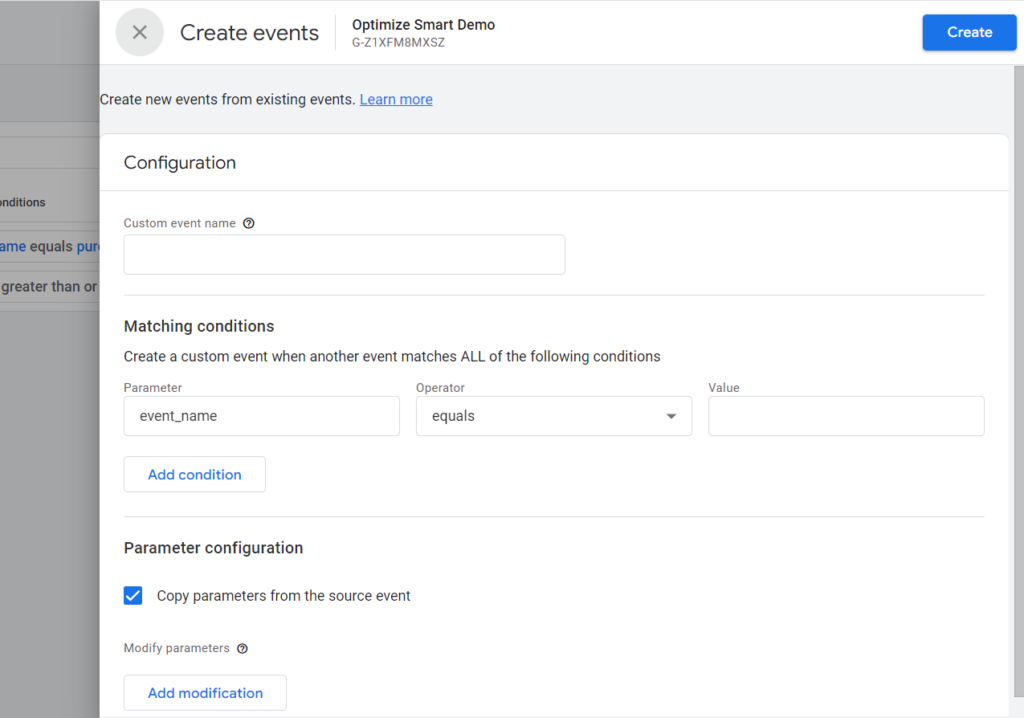
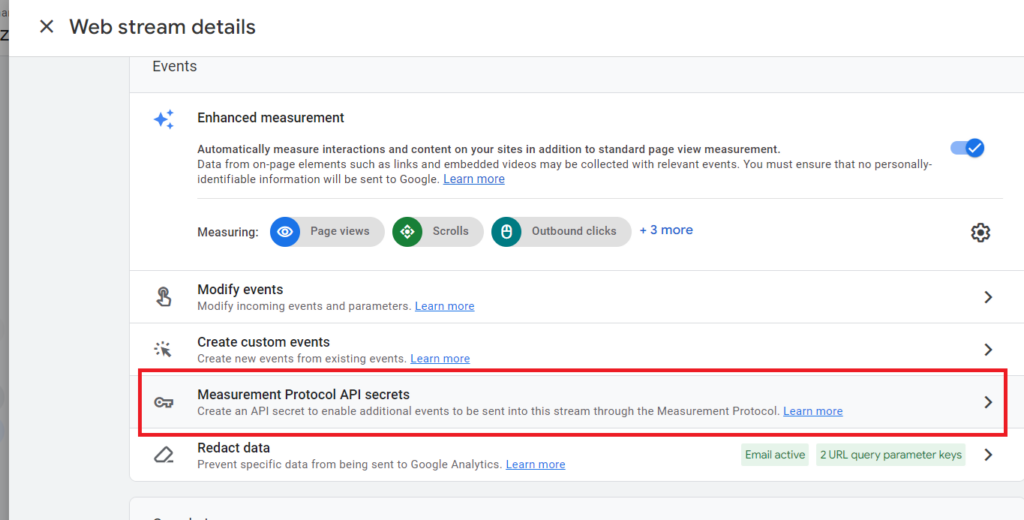
Data Collection and Modification > Data Streams > Web stream details > Events > Measurement Protocol API secrets
Click on the ‘Measurement Protocol API secrets’ settings to create an API secret to enable additional events to be sent through the Measurement Protocol.
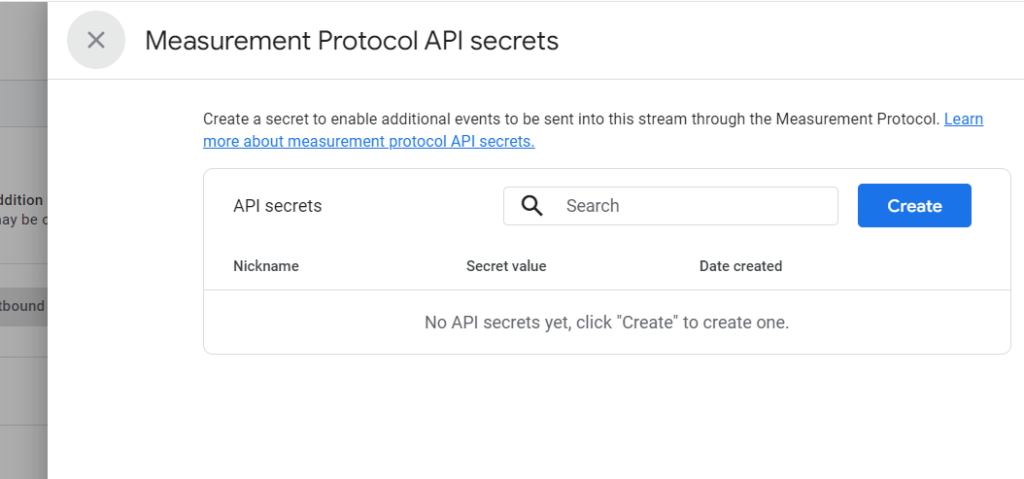
The Universal Analytics measurement protocol request was easy to abuse as any person can use it to send unauthorized data to your GA property.
To stop this protocol abuse in GA4, Google came up with the concept of API Secret Key.
When you use measurement protocol to send event data to a GA4 property, you need to use the API Secret Key. This key is data stream specific. So it can not be used across data streams or properties.
This key is used as a security feature so that spammers can not abuse the protocol request.
Otherwise, any person can use measurement protocol to send event data to your GA4 property. They just need to know your measurement ID.
Google recommends that you keep the API secret keys private to your organisation.
You are able to revoke API secret key if you believe it has been compromised.
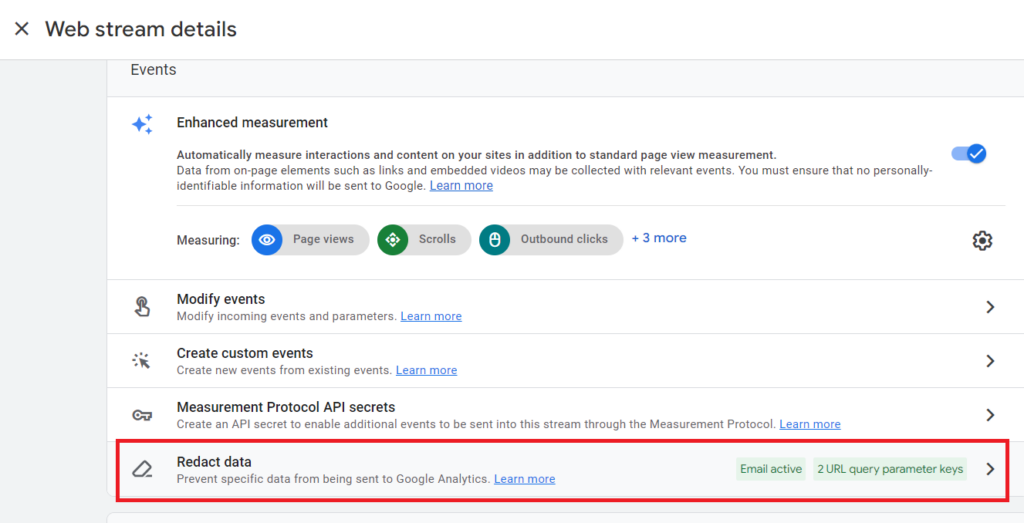
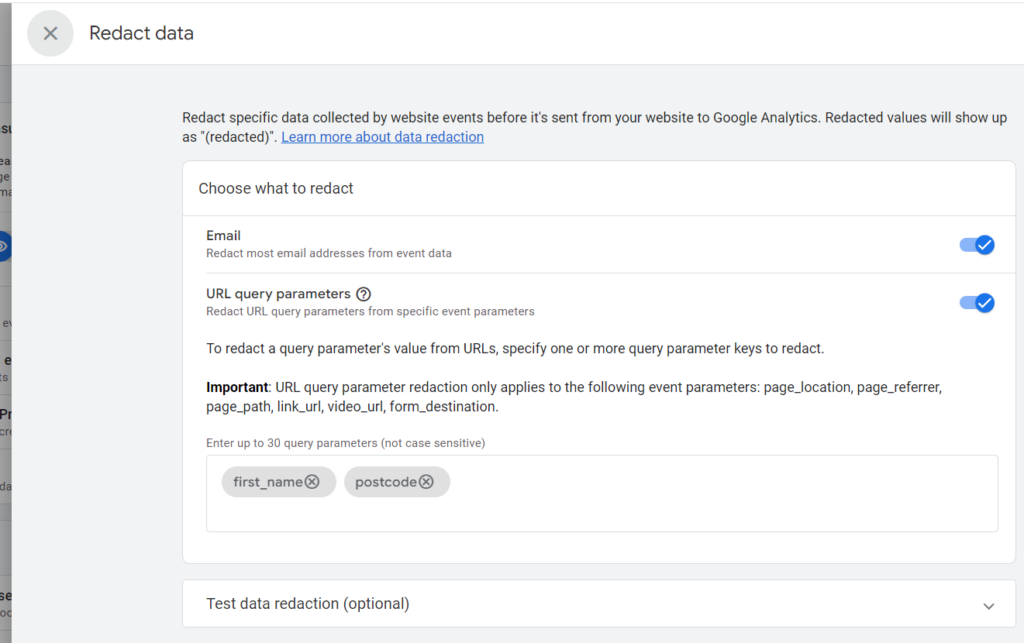
Data Collection and Modification > Data Streams > Web stream details > Events > Redact data
Click on the ‘Redact data’ setting to prevent data like email addresses and URL query parameters from being sent to your GA4 property:
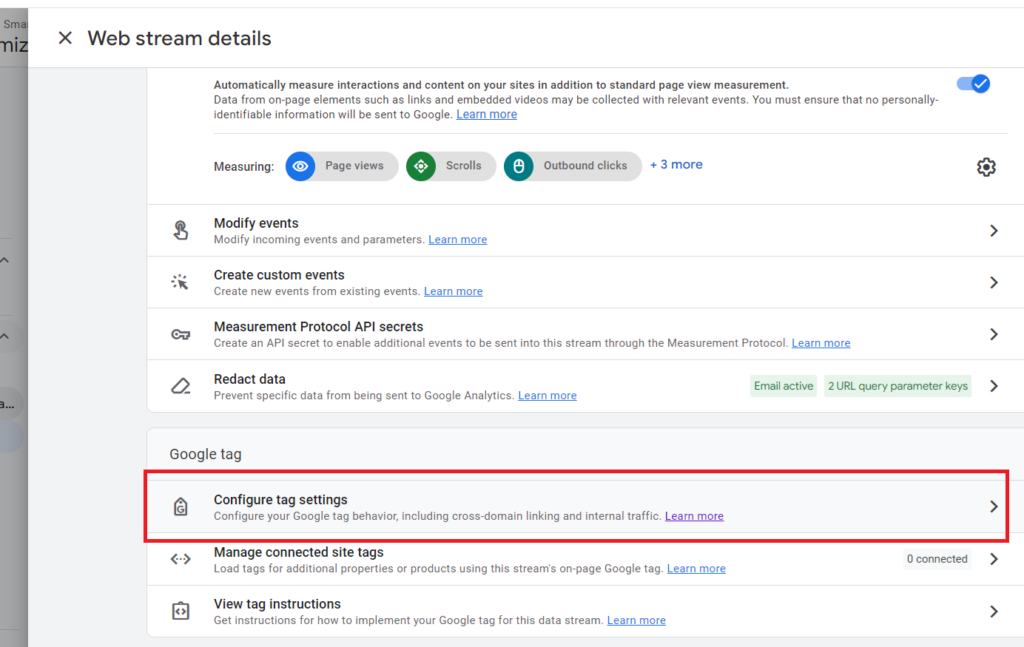
Data Collection and Modification > Data Streams > Web stream details > Google Tag > Configure tag settings
Click on the ‘Configure tag settings’ to change the behaviour of your Google Tag:
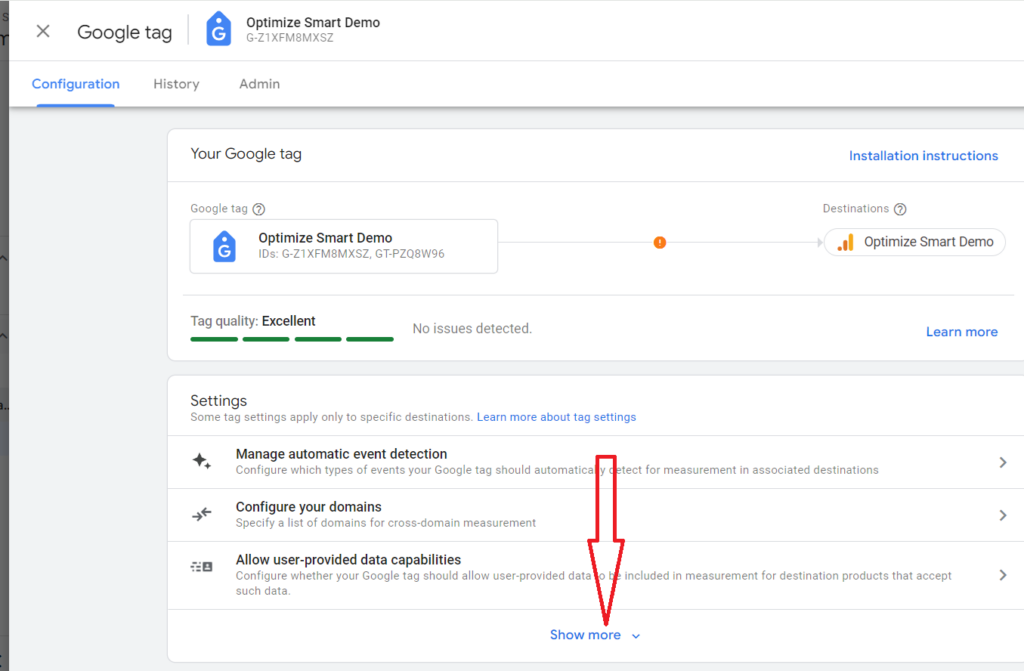
Click on the ‘Show more’ drop-down menu to see the list of all the Google tag settings you can change:
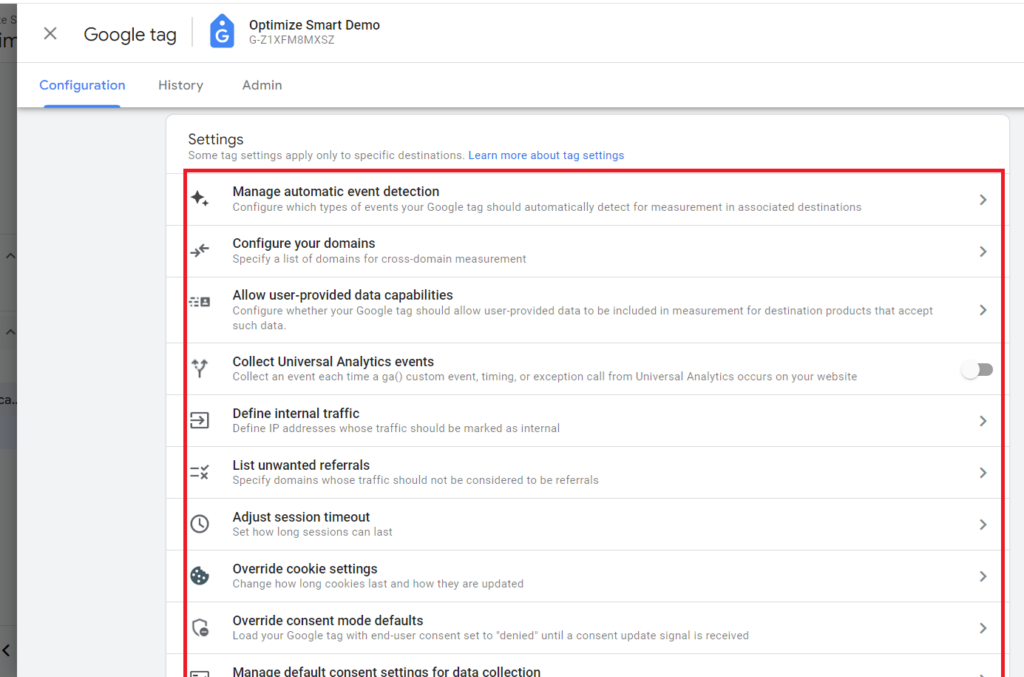
#1 Manage automatic event detection – Configure which events your Google tag should automatically detect for measurement in linked destinations. (Relevant to GA4 and Google Ads).
#2 Configure your domains – Define a list of domains for cross-domain measurement. (Relevant to GA4, Google Ads, Campaign Manager 360).
#3 Allow user-provided data capabilities – Configure whether your Google tag should include user-provided data for destination products that accept it. (Relevant to Google Ads and Campaign Manager 360).
#4 Define internal traffic – Add IP addresses to mark their traffic as internal and exclude internal traffic from being tracked. (Relevant to GA4).
The traffic generated by you or your employees, suppliers and other service providers (like your developer) to your website is called ‘Internal Traffic‘.
These people are not your target audience, so we don’t need to track them.
Internal traffic can easily skew your website usage metrics and, therefore, must be filtered out from your GA4 reports.
#5 List unwanted referrals – Specify domains to exclude from being treated as referrals. (Relevant to GA4).
#6 Adjust session timeout – Set the duration of user sessions. (Relevant to GA4).
By default, a GA4 session expires after 30 minutes of users’ inactivity.
You can change this setting by changing the session timeout settings in your GA4 property.
For most websites, a GA4 session that is 7 hours and 55 minutes long is ideal.
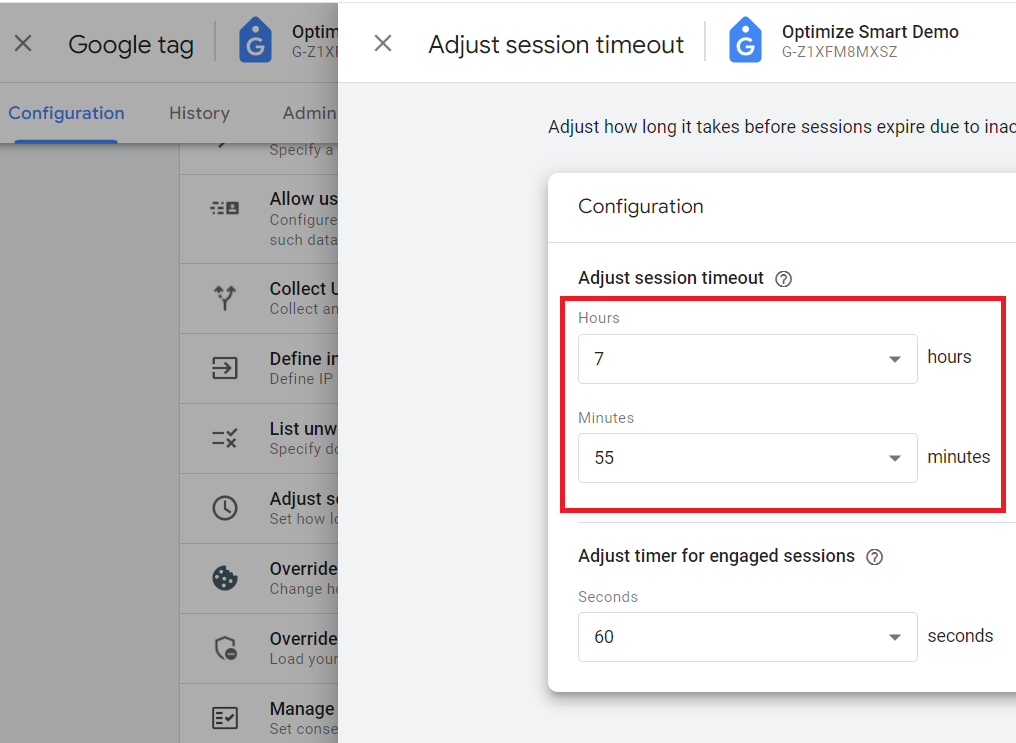
If a user returns to your website multiple times within a few hours on the same day, then all such user activities should be a part of the same session; hence, only one session should be recorded by GA4.
You can accomplish this by using the maximum session timeout allowed by GA4, which is 7 hours 55 minutes. Basically, the entire working day.
The session timeout of 30 minutes or less is not recommended unless your website automatically signs out a user after being inactive for 30 minutes or less.
I like to use the maximum value allowed by GA4 for ‘Adjust timer for engaged sessions’, which is 60 seconds.
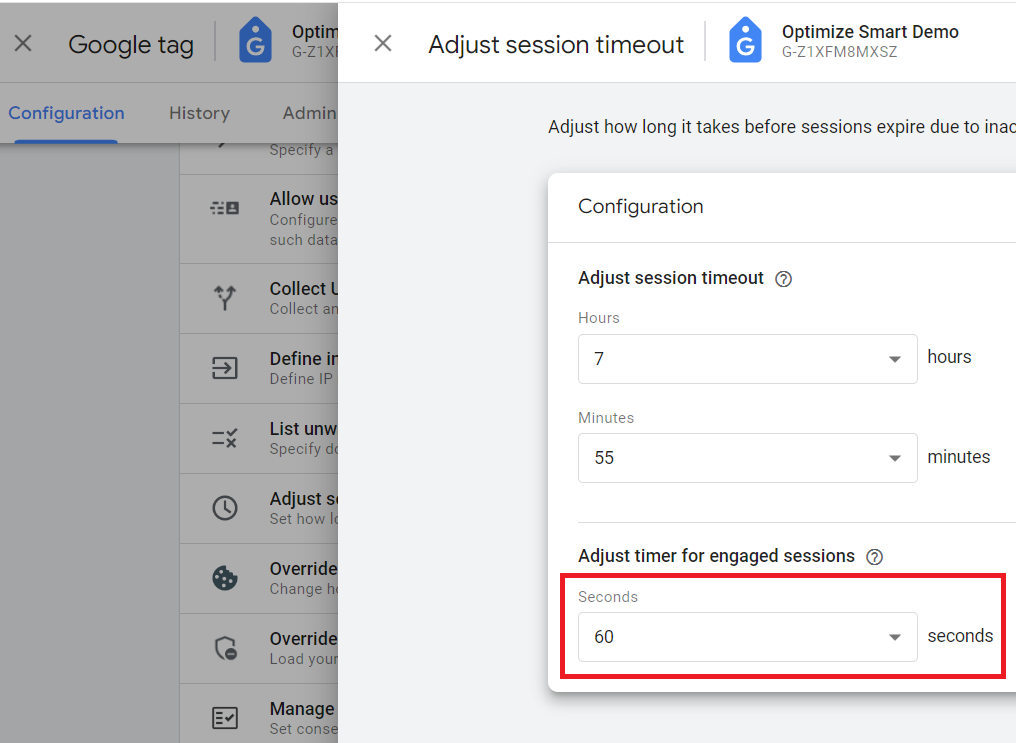
So, a session would not be recorded as engaged until it is at least 60 seconds long.
The default 10-second threshold for an engaged session does not make sense.
After watching countless session recordings, the sessions that last for a few seconds are generally low-quality sessions.
It takes around 8 to 10 seconds for an average website to fully load on a desktop device. On mobile, it could be even longer.
You can’t really do anything meaningful on a website in under 60 seconds. May be check the latest weather report on an app or check your bank balance.
GA4 defines an ‘engaged session’ as one that:
- Lasted 10 seconds or longer or
- Had one or more conversion events (aka Key Events) fired or
- Had two or more pageviews or screenviews.
#7 Override cookie settings – Adjust how long cookies last and how they are updated. (Relevant to GA4).
#8 Set consent mode override – Override default consent settings in your website code and set it to ‘denied’ for selected regions. (Relevant to GA4, Google Ads, Campaign Manager 360).
#9 Manage default consent settings – Specify whether user consent has been obtained for data sent to Google. (Relevant to GA4, Google Ads, Campaign Manager 360).
#10 Manage data use across Google services – Choose which Google services can access consented data from users in the European Economic Area for advertising purposes. (Relevant to GA4, Google Ads, Campaign Manager 360).
Data Collection and Modification > Data Streams > Web stream details > Google Tag > Configure tag settings > History
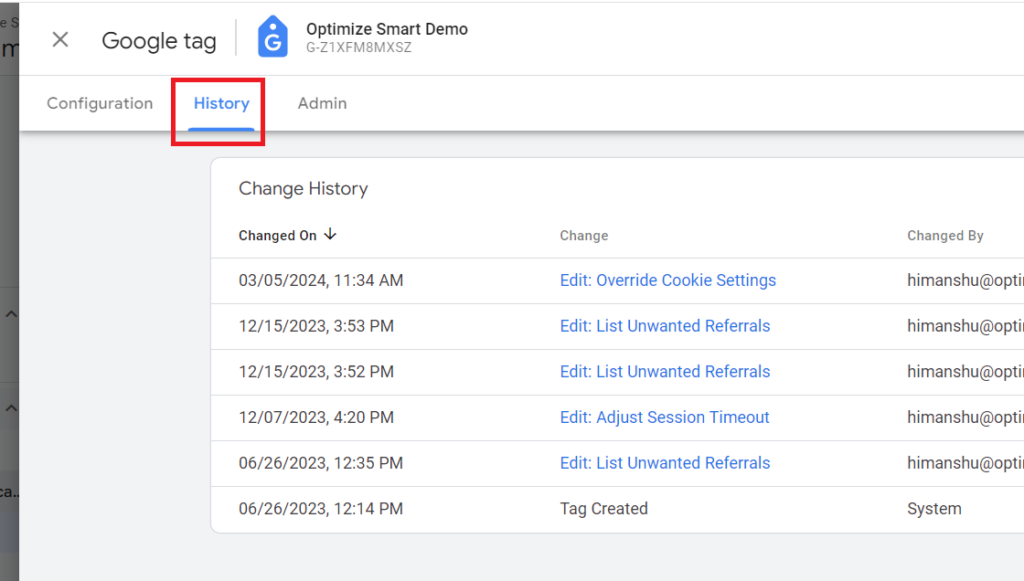
The ‘History’ setting provides a log of changes made to the Google tags associated with your GA4 property.
You can track and review any modifications made to the Google tag.
This setting is especially useful when multiple team members are involved in managing the analytics setup.
Data Collection and Modification > Data Streams > Web stream details > Google Tag > Configure tag settings > Admin
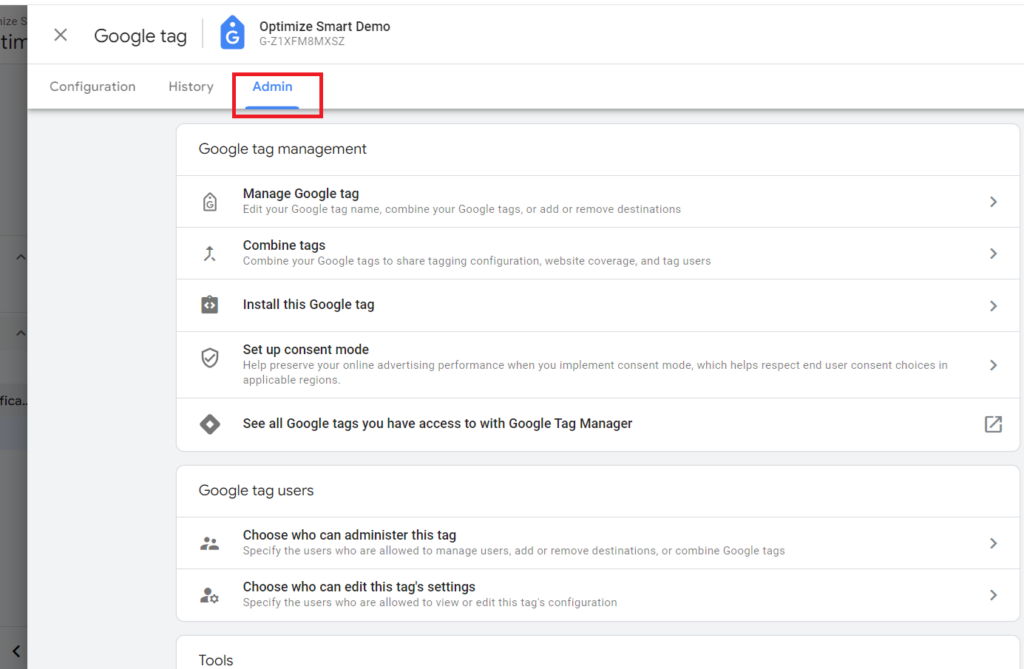
Through the ‘Admin’ page within the Google Tag Configuration settings, you can:
- Manage Google tag – Edit your Google tag name, combine your Google tags, or add or remove destinations.
- Combine tags – Combine Google tags to share tagging configuration, website coverage, and tag users.
- Install this Google tag – Get instructions on installing Google tag either manually or for a particular website builder or CMS.
- Set up consent mode.
- See all Google tags you have access to with Google Tag Manager.
- Choose who can administer this tag – Specify the users who are allowed to manage users, add or remove destinations, or combine Google tags.
- Choose who can edit this tag’s settings – Specify the users who are allowed to view or edit the Google tag’s configuration.
- Launch Tag Assistant – Launch Google Tag Assistant from within your GA4 property.
- Tag coverage – Launch the tag coverage summary report which shows the list of pages that are tagged and not tagged.
Data Collection and Modification > Data Collection
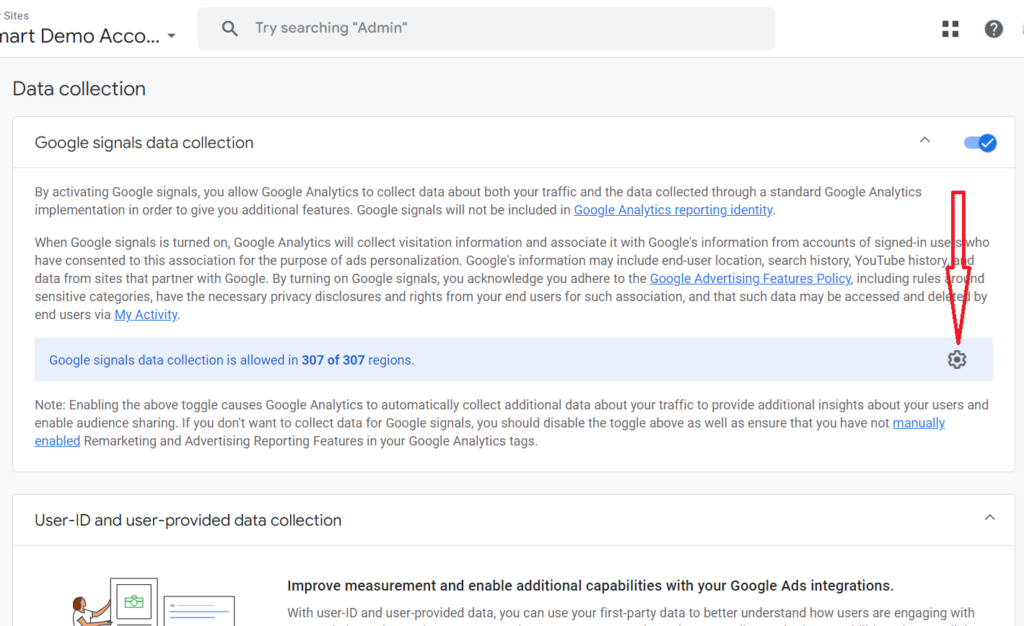
Through the ‘Data collection’ setting, you can enable/disable Google Signals Data Collection:
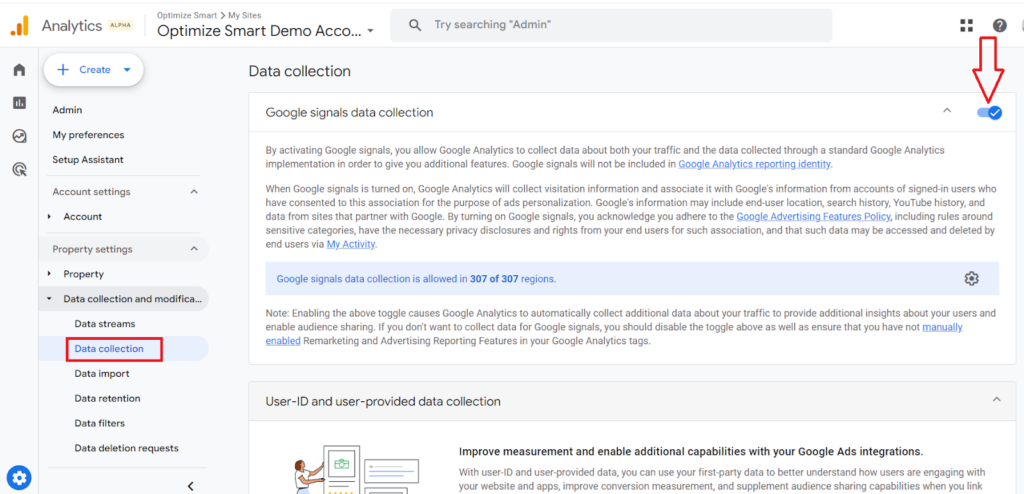
Google Signals is an advertising reporting feature through which GA4 can collect cross-device data from those website users who have signed in to one of their Google accounts (Gmail, YouTube, etc) and have turned on ad personalization.
To enable/disable Google Signals Data Collection in a particular country, click on the wheel button:
User-ID and user-provided data collection
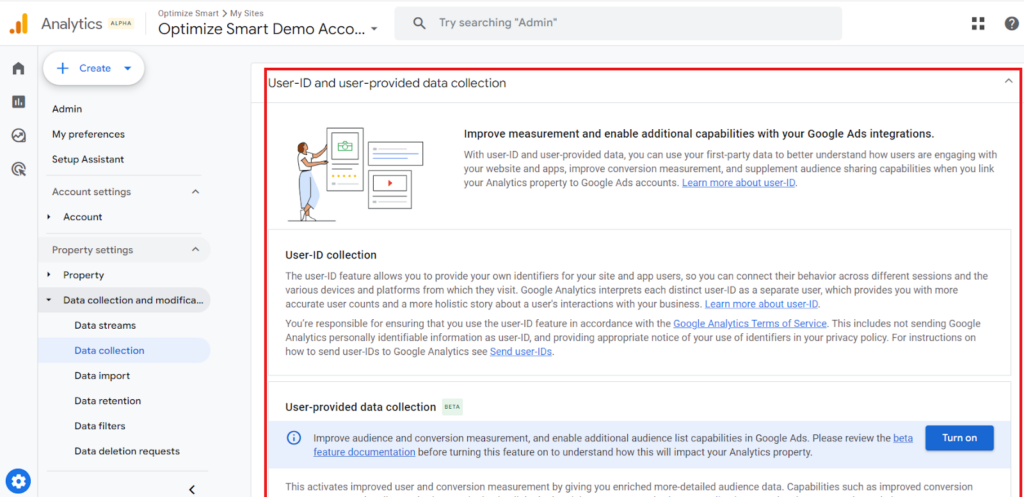
The ‘User-provided data collection’ setting allows you to manage whether GA4 is allowed to collect and process data directly provided by users.
This data typically includes information entered by users into forms, such as names, email addresses, or phone numbers, which can then be used for measurement, analysis, and other purposes.
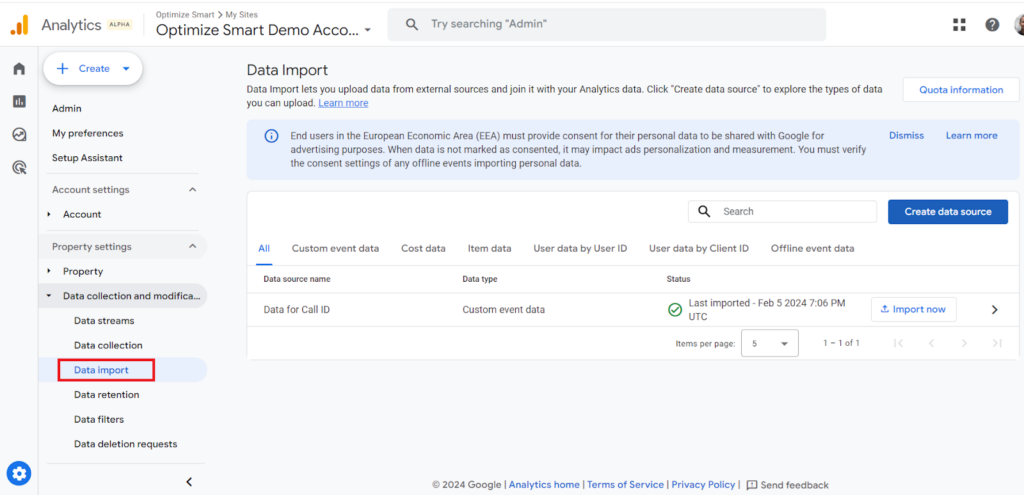
Data Collection and Modification > Data import
Use the ‘Data import’ setting to upload data from external data sources to your GA4 property and then join it with your GA4 data:
Click “Create data source” to explore the types of data you can upload to your GA4 property:
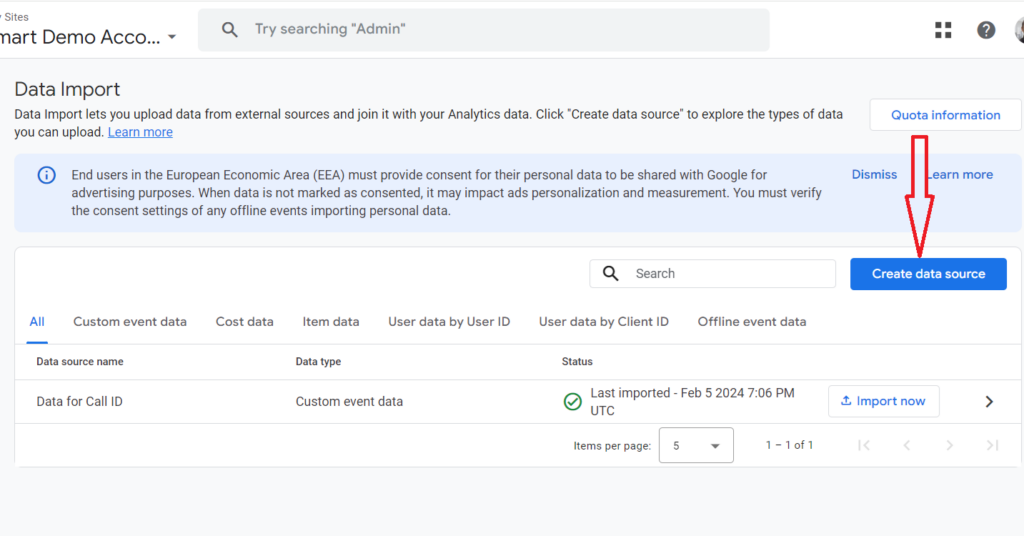
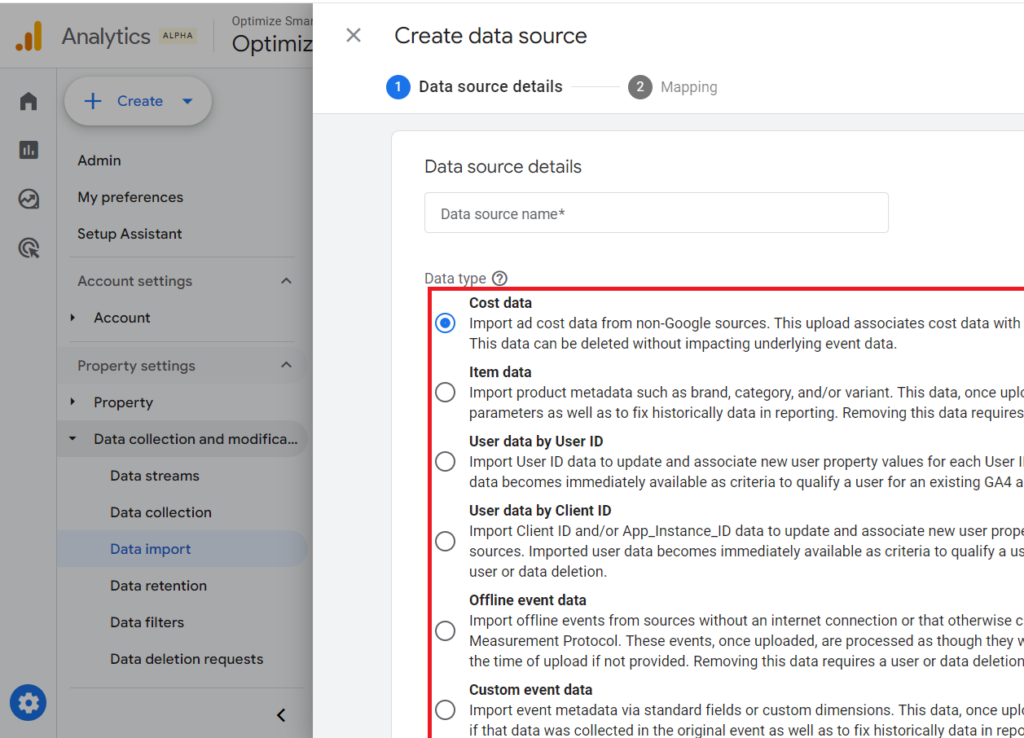
Note: Previously, users had to handle each data source separately, which often meant re-uploading or overwriting existing data. Now, GA4 allows you to upload and manage several data sources of the same type (e.g., cost data, product attributes) without the need to reload previous data.
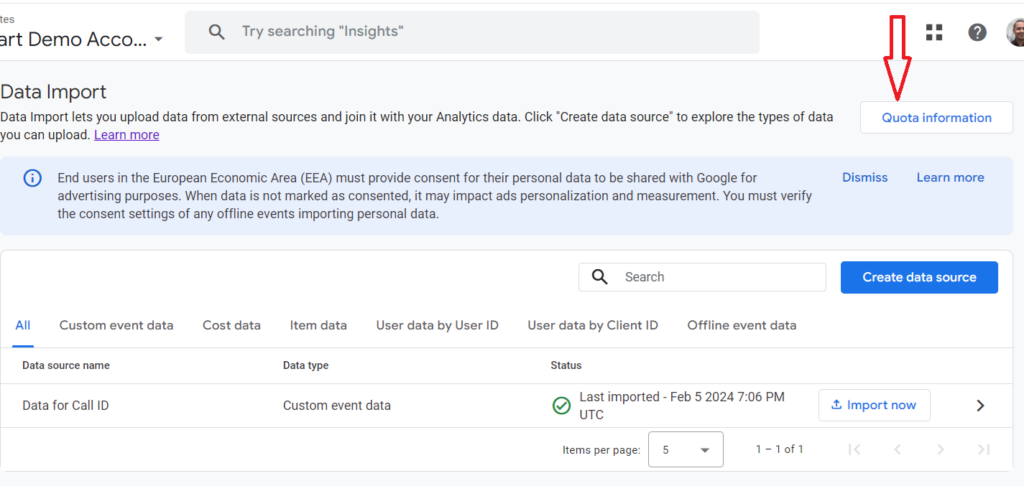
Click on the ‘Quota information’ button to easily monitor quota usage for data imports, ensuring you stay within storage limits:
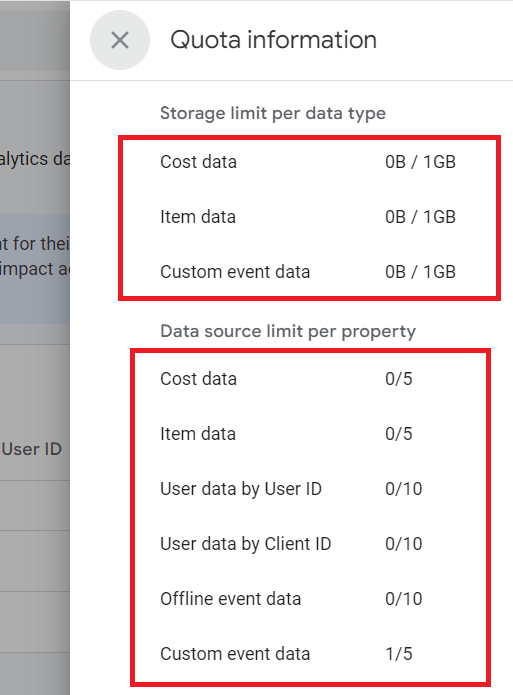
Related Article: GA4 (Google Analytics 4) Data Import Tutorial.
Data Collection and Modification > Data Retention
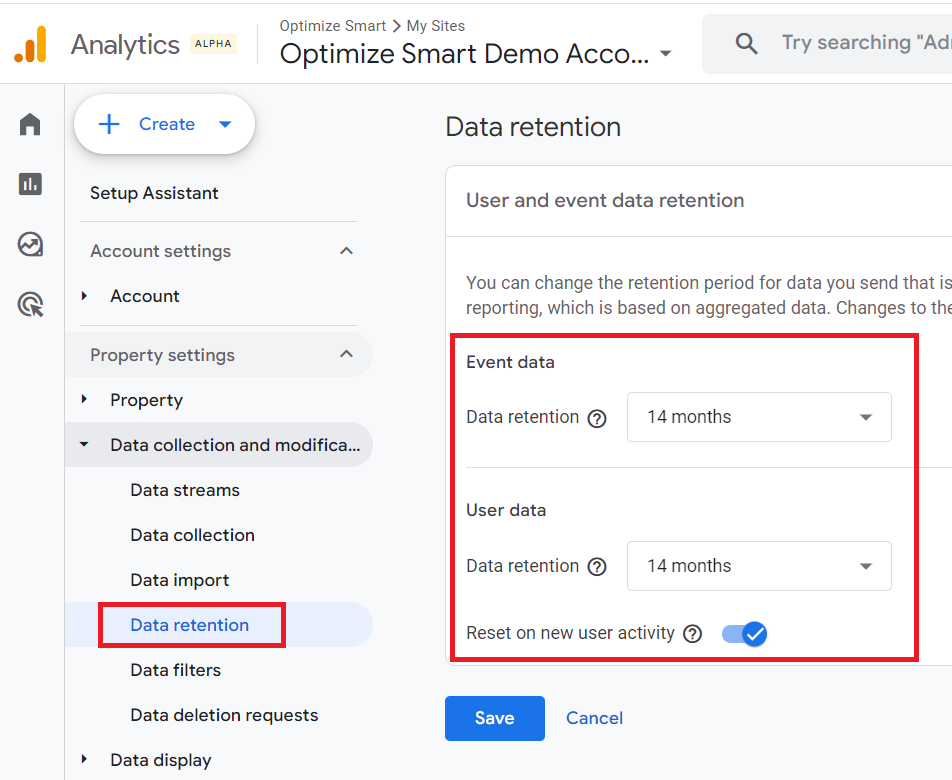
Use the ‘Data retention’ setting to change the data retention for event and user data.
Through the ‘User and event data retention’ feature, you can set the amount of time for which GA4 retains event specific and user-specific data for an inactive website user before automatically deleting it.
The user-specific data is the data that is associated with cookies, user identifiers, or advertising identifiers.
The ‘Reset on new user activity’ refreshes the user data retention period whenever a user returns to your website and engages in new activity. This means the retention clock is restarted with each new interaction from the user.
I prefer to set the Event and user data retention settings to 14 months and reset user data on new activity. However, you should use the data retention settings according to your privacy policy.
Data Collection and Modification > Data filters
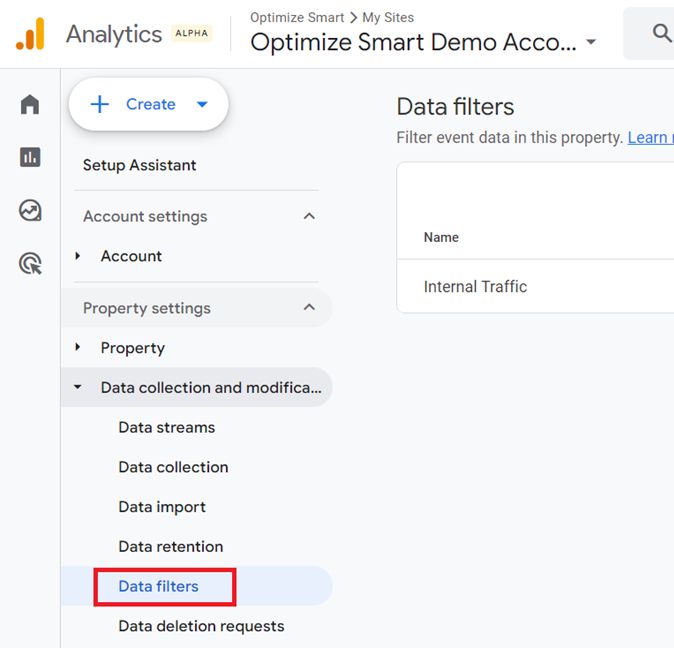
Use the ‘Data filters’ settings to add, remove or edit data filters.
In GA4, you can include or exclude certain event data from your GA4 property via a setting called ‘Data Filters‘.
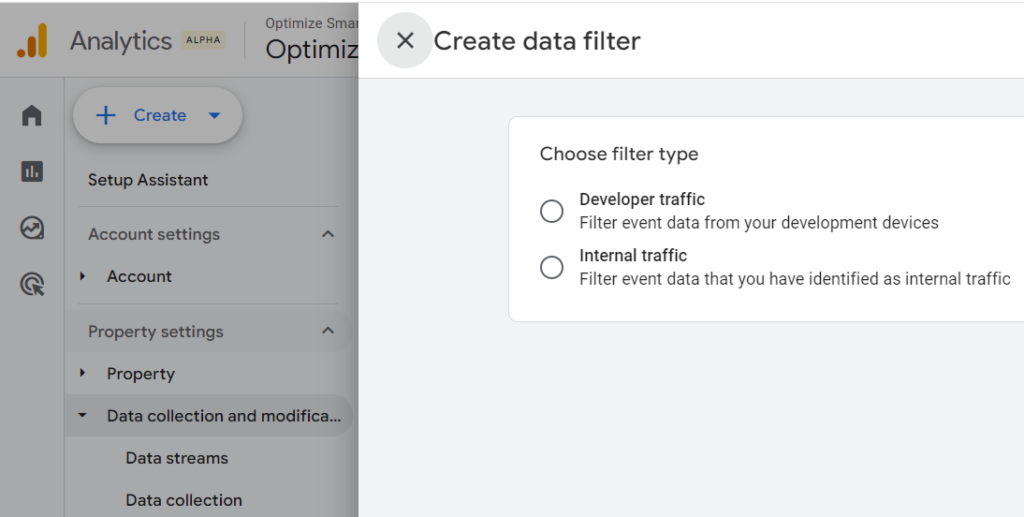
GA4 supports two types of data filters:
1) Developer traffic – Use this data filter to include or exclude event data from your GA4 reports when debug mode is enabled (e.g., using GTM Preview mode or when the ‘debug_mode’ parameter is set). The developer traffic, when excluded, does not appear in any GA4 report except the ‘DebugView’ report of your GA4 property.
2) Internal traffic – Use this data filter to include or exclude event data from your GA4 reports that you identified as internal traffic. Internal traffic is the traffic generated by you or your employees, suppliers and other service providers to your website. The internal traffic, when excluded, does not appear in any GA4 report, including the ‘DebugView’ report.
The key difference between these filters is that developer traffic, when excluded, can still be viewed in the DebugView report, allowing for testing and troubleshooting without affecting main reports.
Internal traffic, when excluded, is completely removed from all reports, including DebugView.
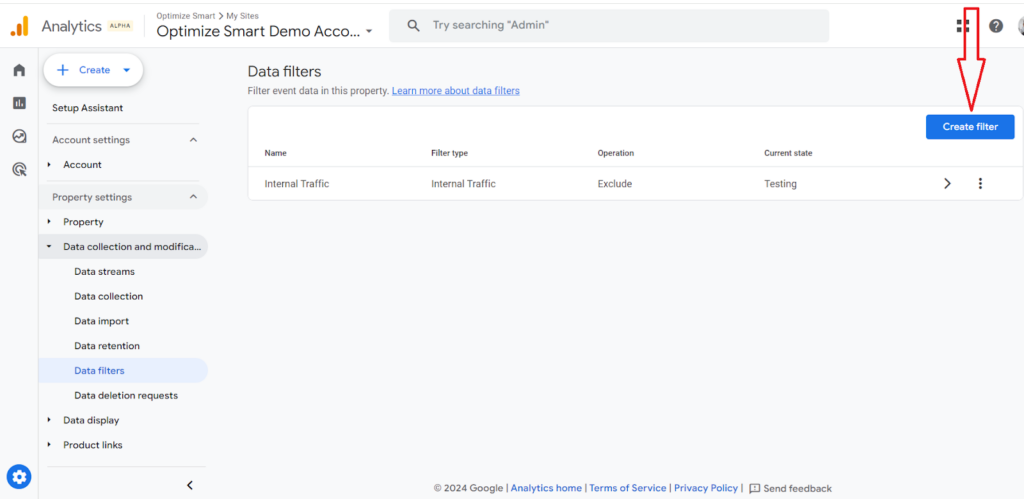
To create a new data filter, click on the ‘Create filter’ button:
Additional Resources
- GA4 filters – Understanding data filters in Google Analytics 4.
- How to create and test filters in Google Analytics 4 (GA4).
- Exclude internal traffic in GA4 (Google Analytics 4) via IP filter.
Data Collection and Modification > Data deletion requests
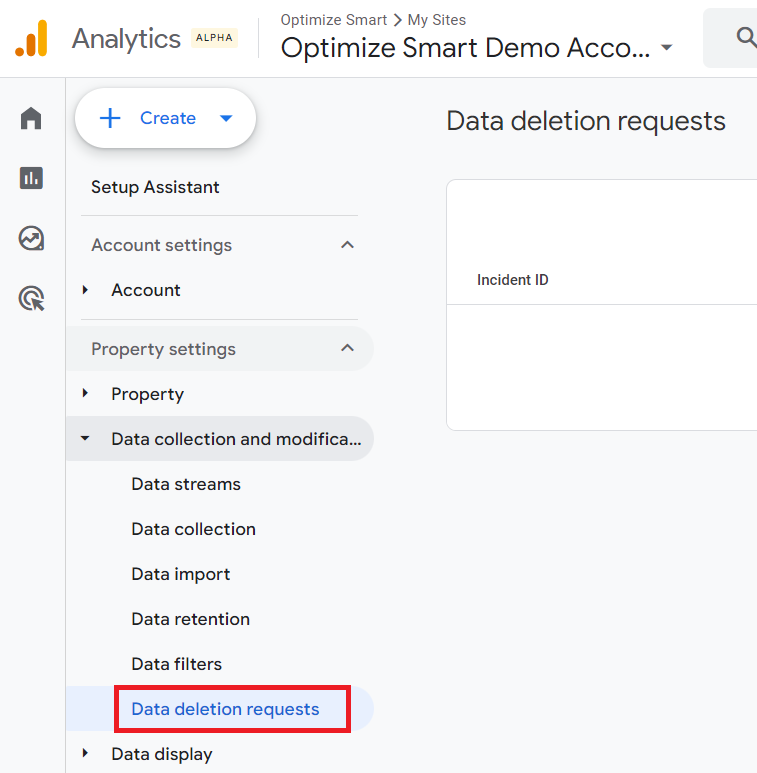
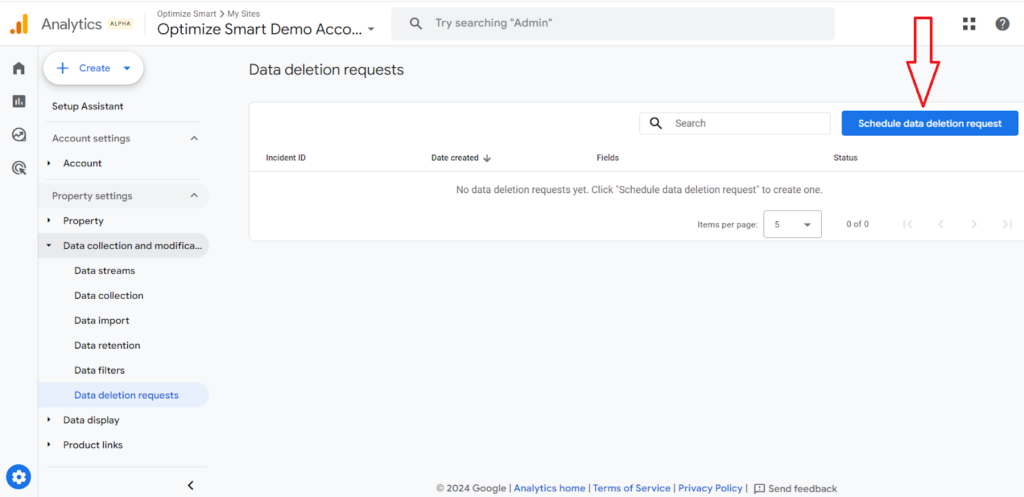
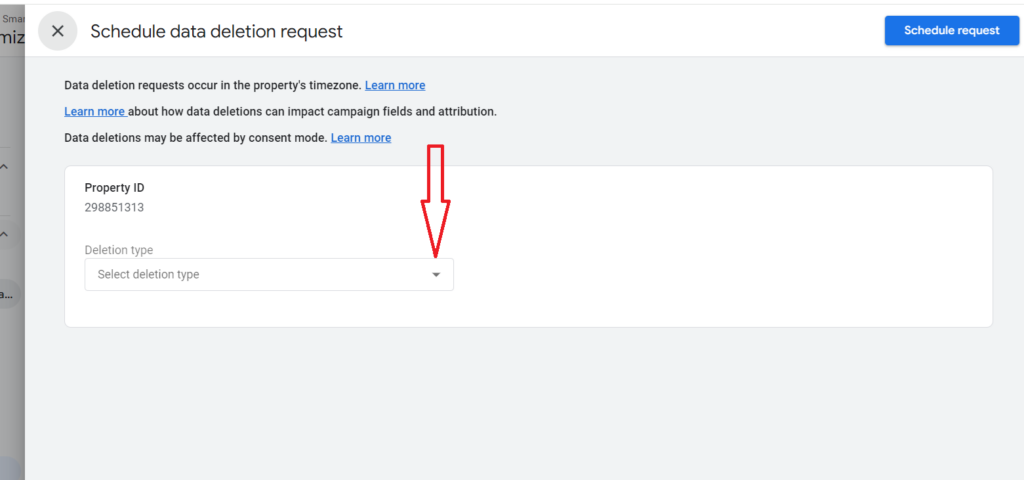
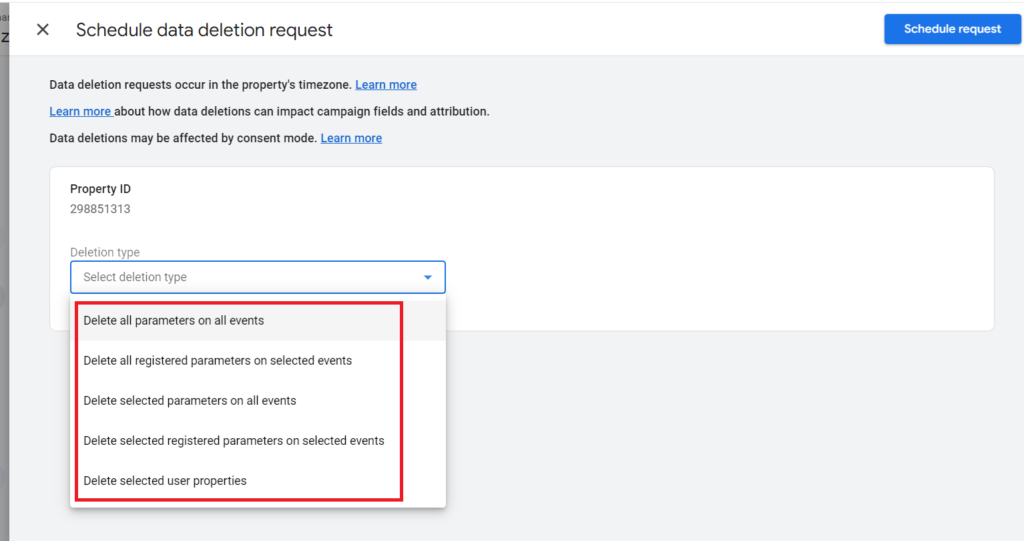
Use the ‘Date deletion requests’ setting to:
#1 Delete all parameters on all events – This option removes all registered and automatically collected parameters from every event.
#2 Delete all registered parameters on selected events – This option removes all registered parameters from the specific events you choose in the next step.
#3 Delete selected parameters on all events – This option removes specific parameters, which you will select in the next step, from all events.
#4 Delete selected parameters on selected events – This option removes specific parameters, chosen in the next step, from specific events you also select in the next step.
#5 Delete selected user properties: This option removes the user properties (user-scoped custom dimensions) that you choose in the next step.
Click on “Schedule data deletion request” to create a new data deletion request:
The data deletion request will erase and replace the specific text data with “(data deleted)”.
However, the event will continue to be counted in the overall metrics in your reports.
Data Display > Events
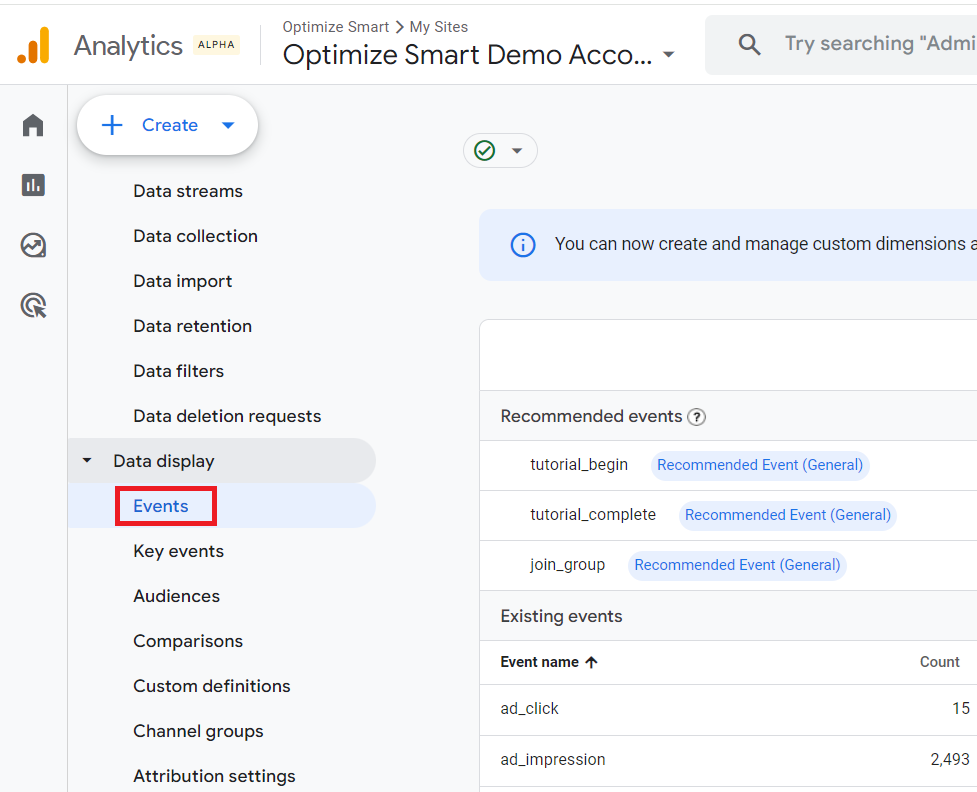
Use the ‘Events’ setting to see the list of all the events recorded in your GA4 property.
You can also use the ‘Event’ setting to:
- Modify existing events.
- Create new events.
- Search for an existing event.
- Download event data as CSV file.
- Mark or unmark an event as a key event.
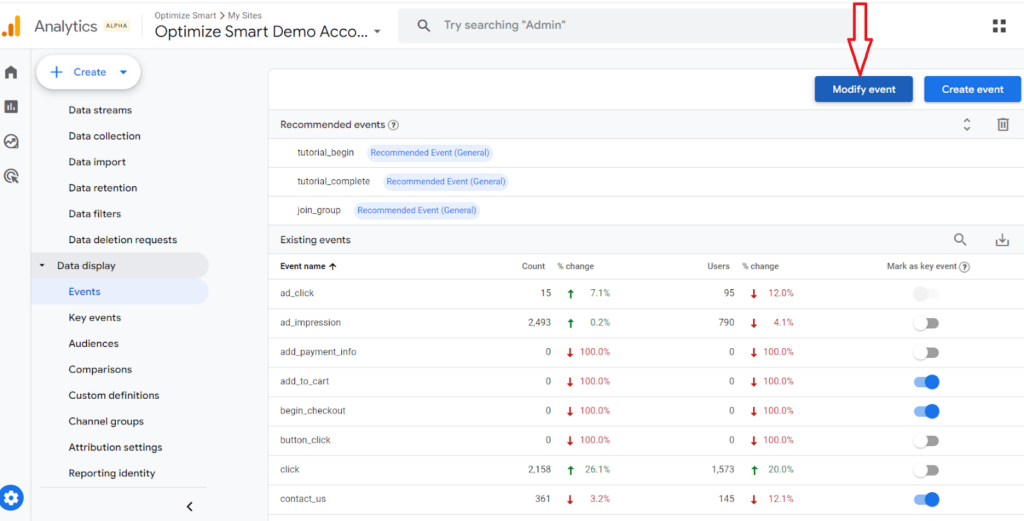
Modify existing events.
Click on the ‘Modify event’ button to modify an existing event:
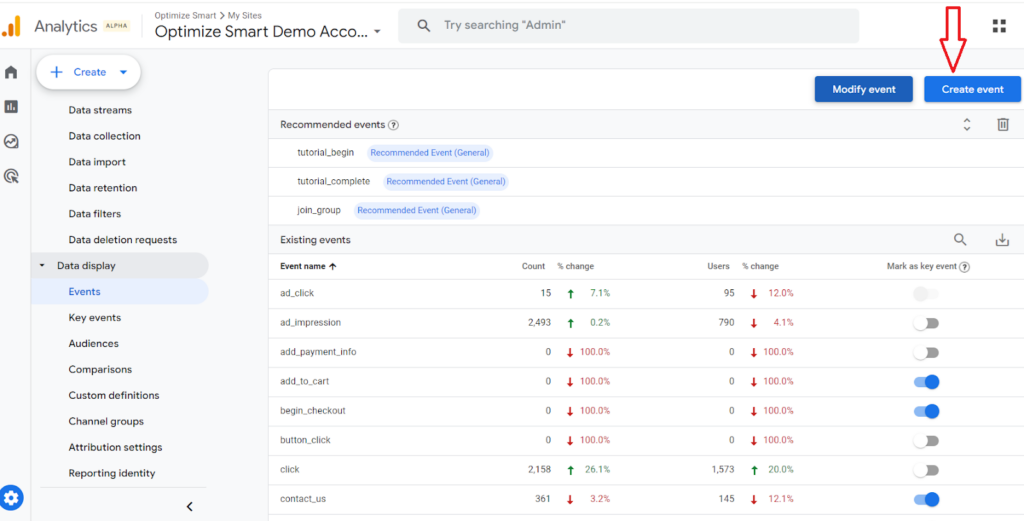
Create new events.
Click on the ‘Create event’ button to create a new event:
Additional Resources:
- GA4 (Google Analytics 4) Event Tracking Setup Tutorial
- Understanding Event Parameters in Google Analytics 4 (GA4)
- Recommended Events in Google Analytics 4 (GA4)
- Enhanced Measurement Events in Google Analytics 4 (GA4)
- Automatically Collected Events in Google Analytics 4 (GA4)
- How to Set Up GA4 Custom Events via Google Tag Manager
- Events Report in Google Analytics 4 (GA4)
- How to Rename Events in Google Analytics 4 (GA4)
- How to Use Google Analytics 4 Event Builder
- GA4 Form Interactions Tracking – Enhanced Measurement
- How to fix duplicate events in GA4.
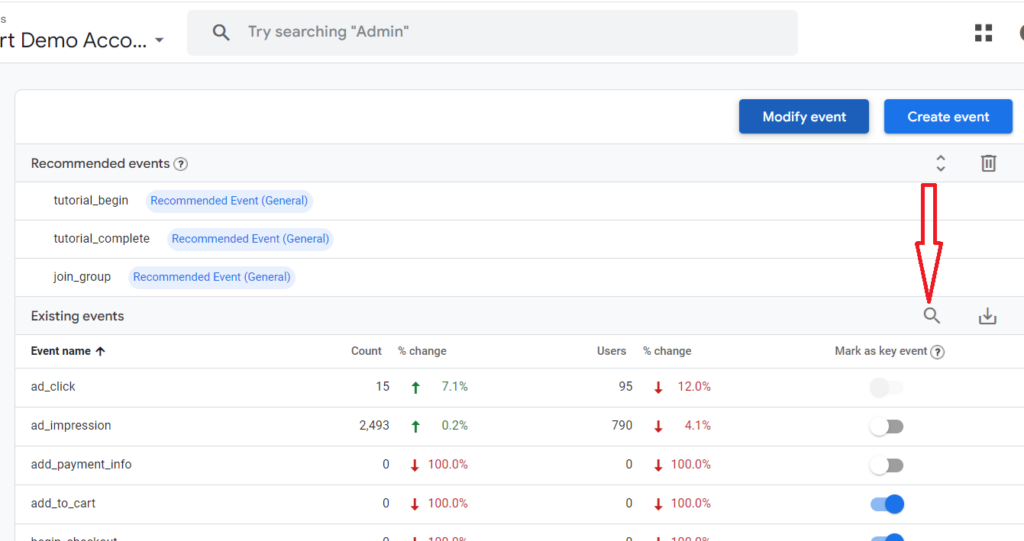
Search for an existing event.
Click on the magnifying glass to search for a particular event:
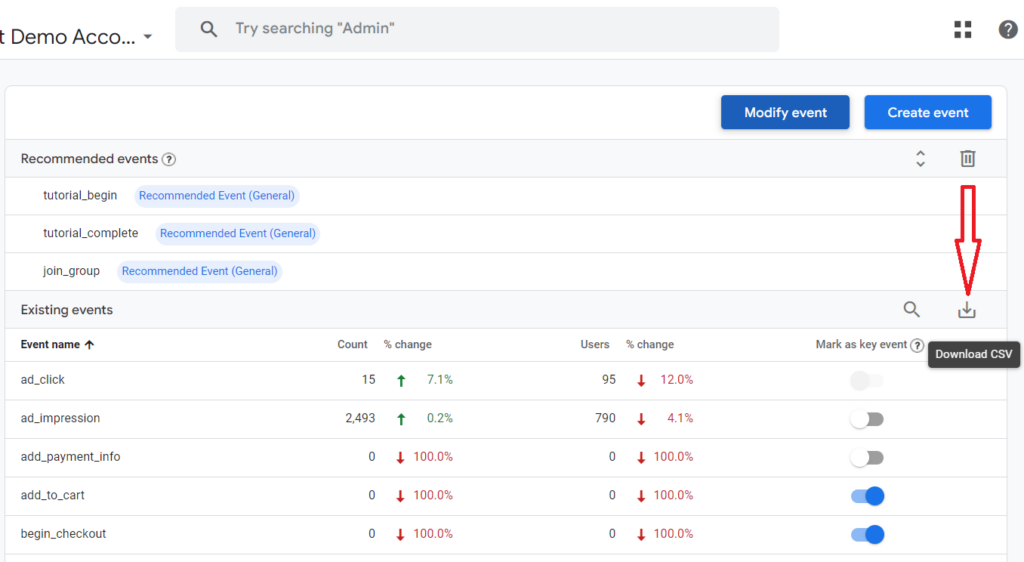
Download event data as a CSV file.
Click on the ‘Download CSV’ button to download the event data as a CSV file:
Mark or unmark an event as a key event.
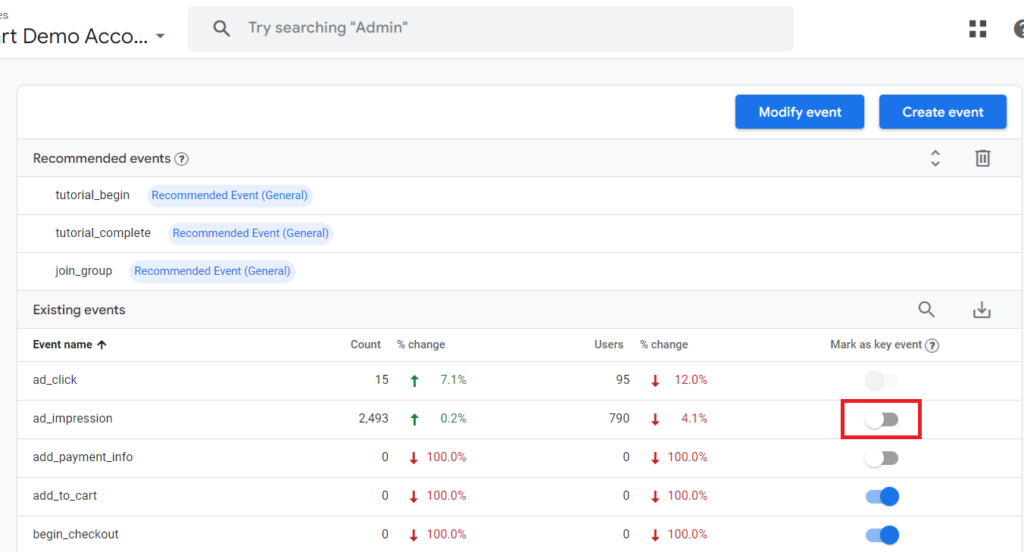
Use the toggle button next to an event to mark an event as a key event:
Use the toggle button next to an event to unmark an event as a key event:
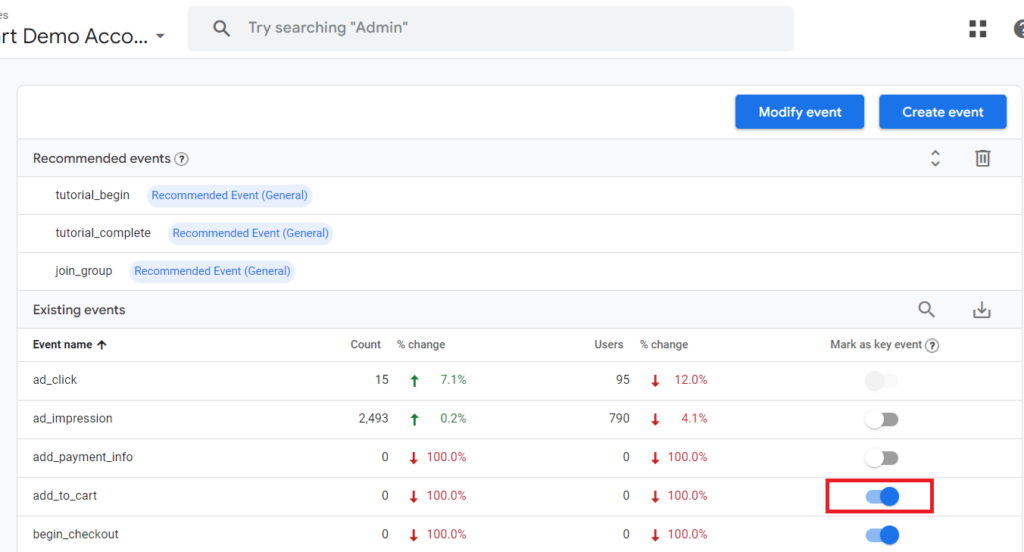
Note: Only mark those events as key events (aka conversions) which are critical to your business. The ‘page_view’ event is not one of them.
Additional Resources:
- Google Analytics 4 Conversion Tracking Guide – GA4 Goals
- How to import GA4 Conversions into Google Ads.
- GA4 Conversion Rate – How to find it and use it
- Difference between Google Ads and Google Analytics Conversion Tracking.
Data Display > Key events
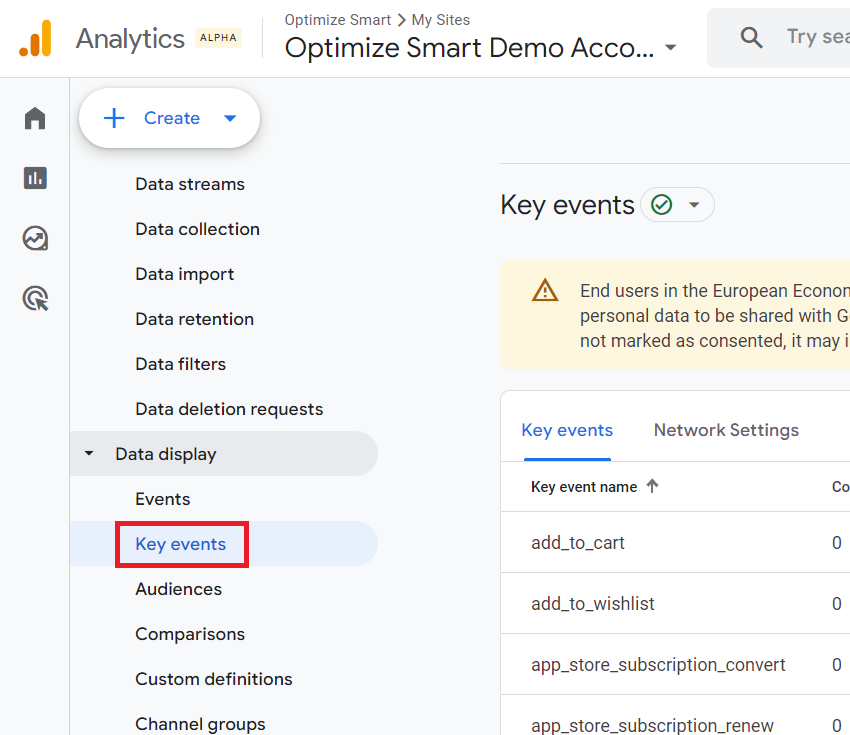
Use the ‘Key events’ setting to see the list of all the key events recorded in your GA4 property.
You can also use the ‘Key events’ setting to:
- Download key events data as a CSV file.
- Create a new key event.
- To mark or unmark a key event.
- Change the counting method used for a key event.
- Set default key event value.
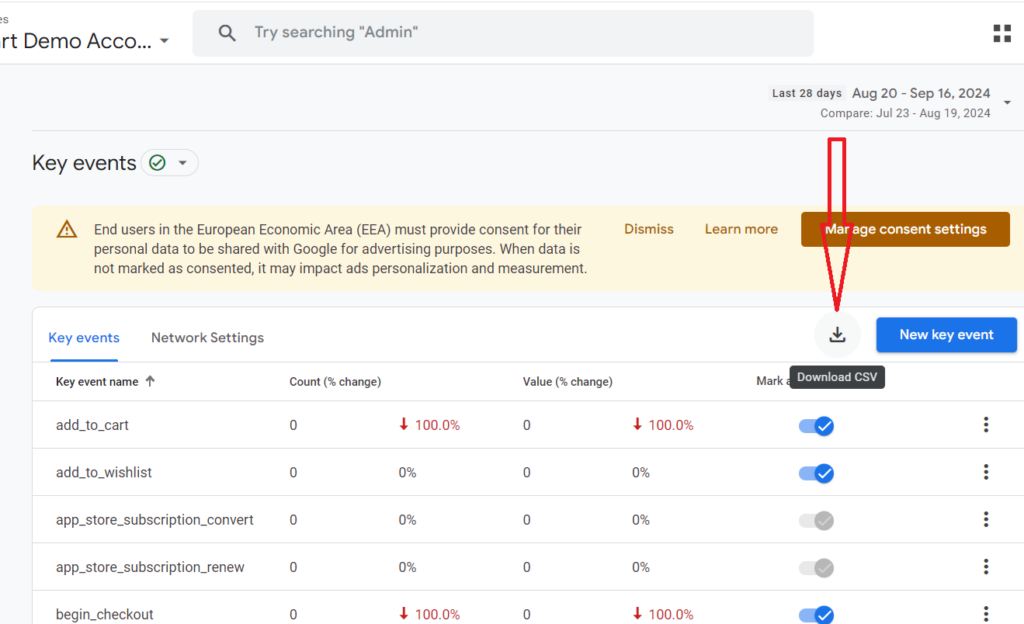
Download key events data as a CSV file.
Click on the ‘Download CSV’ button to download the key events data as a CSV file:
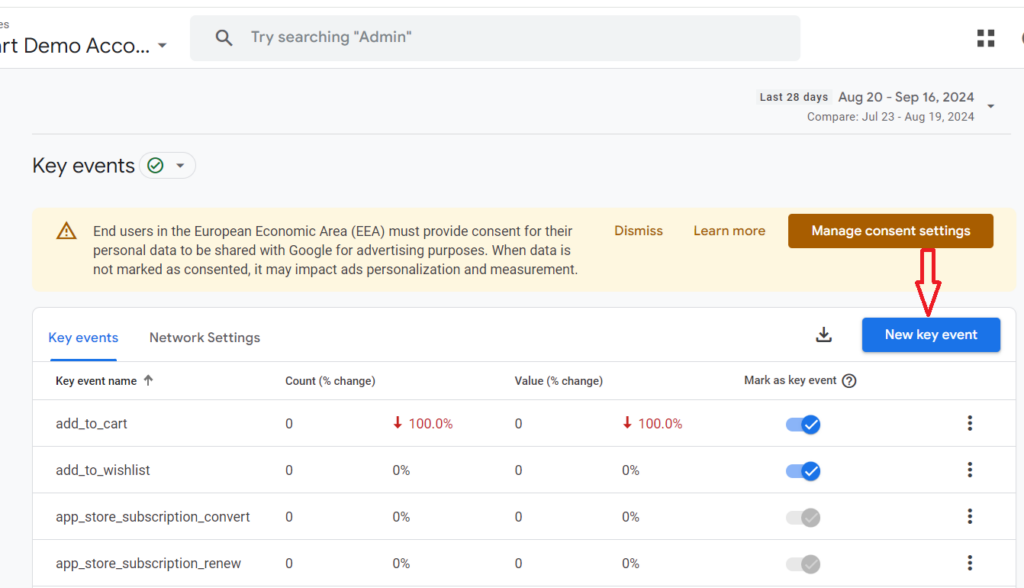
Create a new key event.
Click on the ‘New Key event’ button to create a new key event:
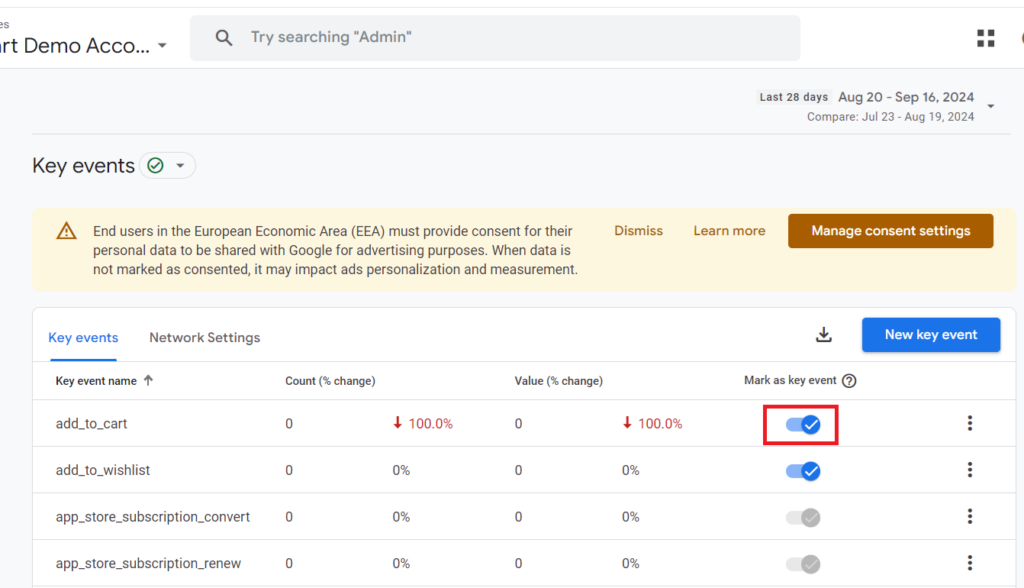
To mark or unmark a key event.
Use the toggle button next to a key event to mark or unmark it as a key event:
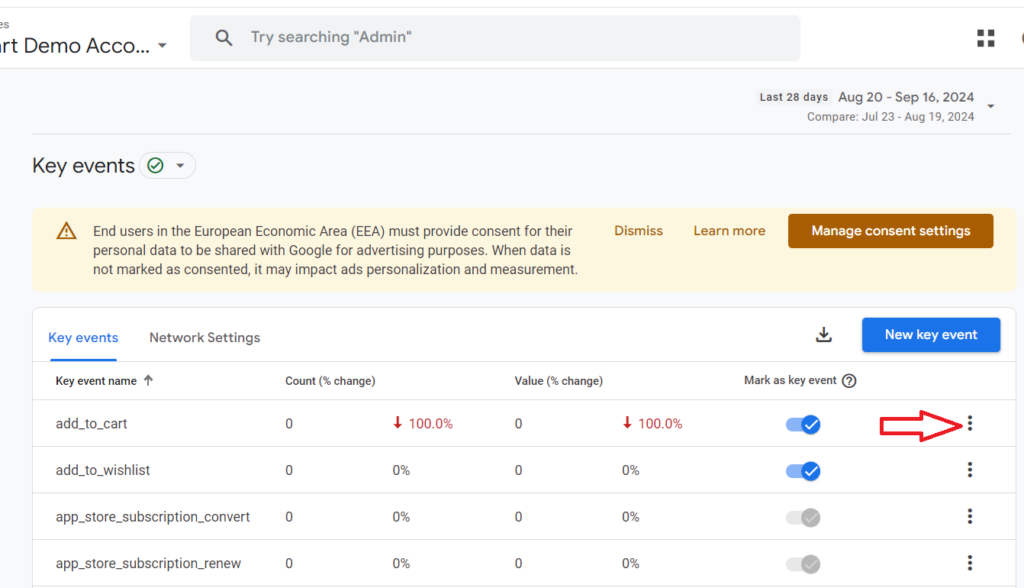
Change the counting method used for a key event.
Click on the three dots menu next to a key event to change the counting method used for it:
Click on the ‘Change counting method’ from the drop-down menu:
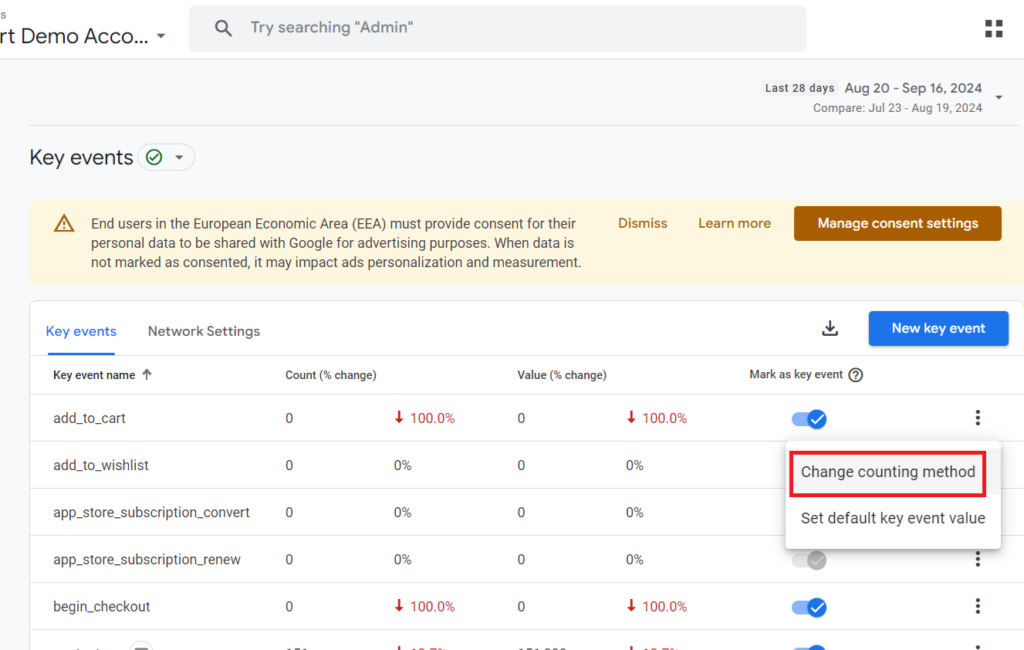
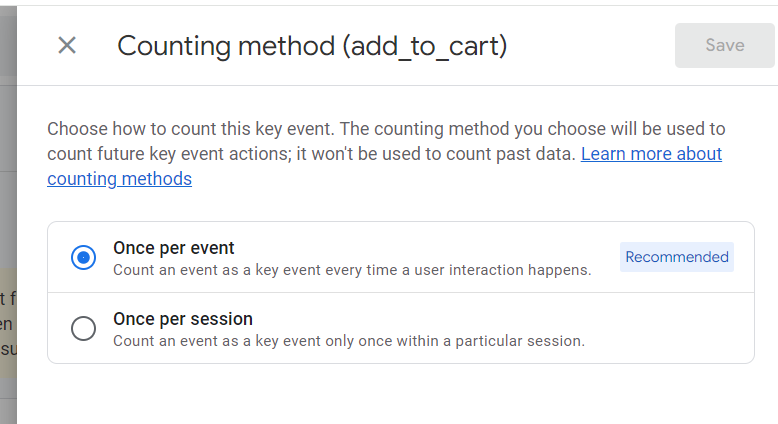
You can ask GA4 to count an event as a key event every time it occurs (once per event), or you can ask to count an event as a key event only once within a particular session (once per session).
GA4 recommends the ‘once per event’ counting method, but you should be using the ‘once per session’ method to avoid inflating the key event count for non-transactional conversions.
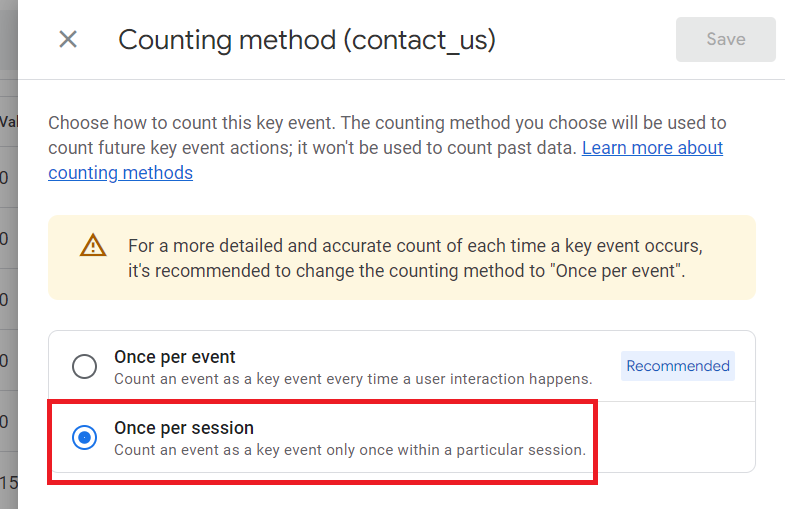
The ‘Once per event’ counting method is useful only for tracking actions that provide significant value to the business bottom line each time they occur, such as multiple purchases.
If the conversion is typically a one-time action per session, where repeats in the same session are less relevant (like a newsletter signup, download or form submission), using the ‘once per event’ counting method can inflate key event/conversion count esp., if your GA4 property is already suffering from duplicate events issues.That’s why so many GA4 properties report inflated key event counts.Most of them use the ‘once per event’ counting method and, to make it worse, suffer from duplicate events issues.
Understand the context in which duplicate events occur to determine whether they are due to user behaviour, technical issues, or both.The ‘Once per session’ counting method provides a more accurate reflection of user behaviour and conversion performance.
Also, use the longest possible session timeout setting, which works well for your business (like 7 hours, 55 min) to avoid duplicate key events count, esp. when dealing with conversions that should typically occur once per session.
By extending the session duration, you reduce the likelihood of the same conversion being counted multiple times across multiple sessions.Longer sessions can provide a better view of the user journey, capturing extended interactions and behaviours that might otherwise be split into separate sessions.
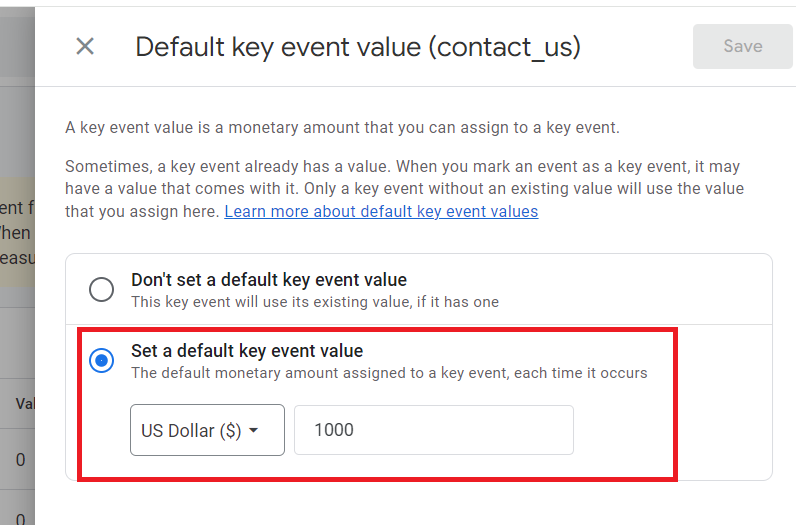
Set default key event value.
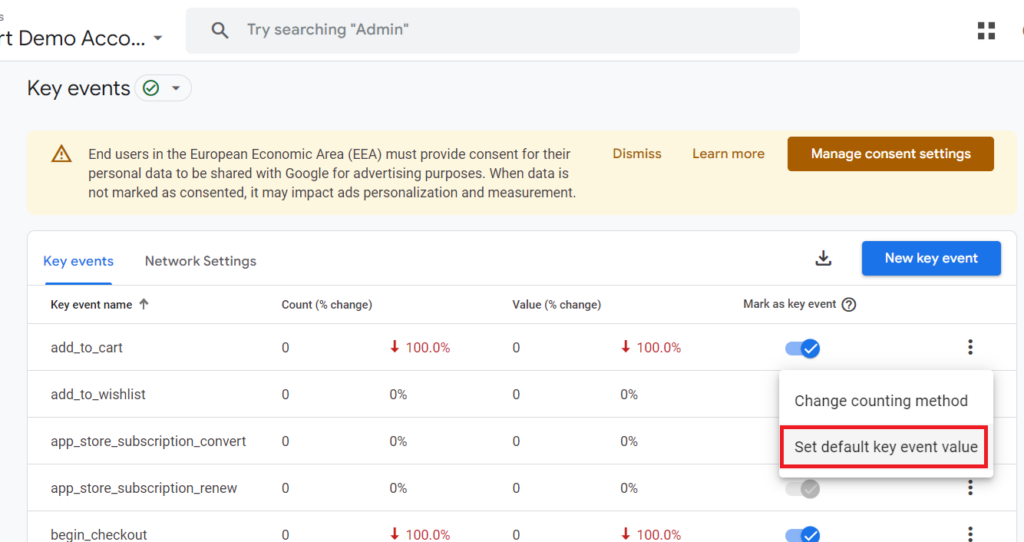
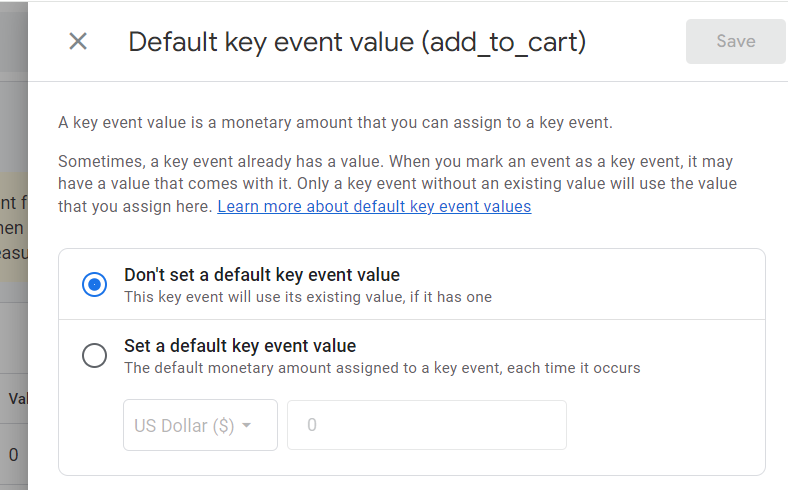
Use the ‘Set default key event value’ setting to assign a monetary value to a key event.
Note: Only assign a monetary value to a key event that is not directly tied to a transaction (like ‘contact us’).
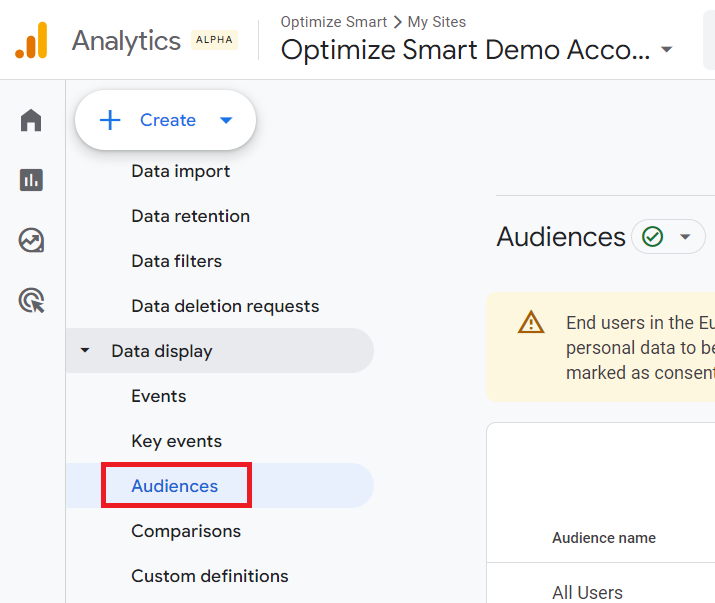
Data Display > Audiences
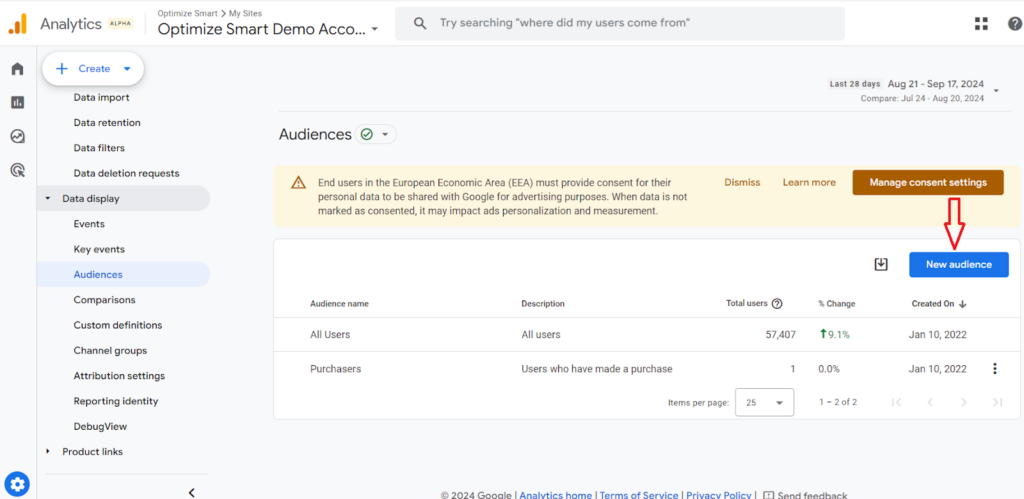
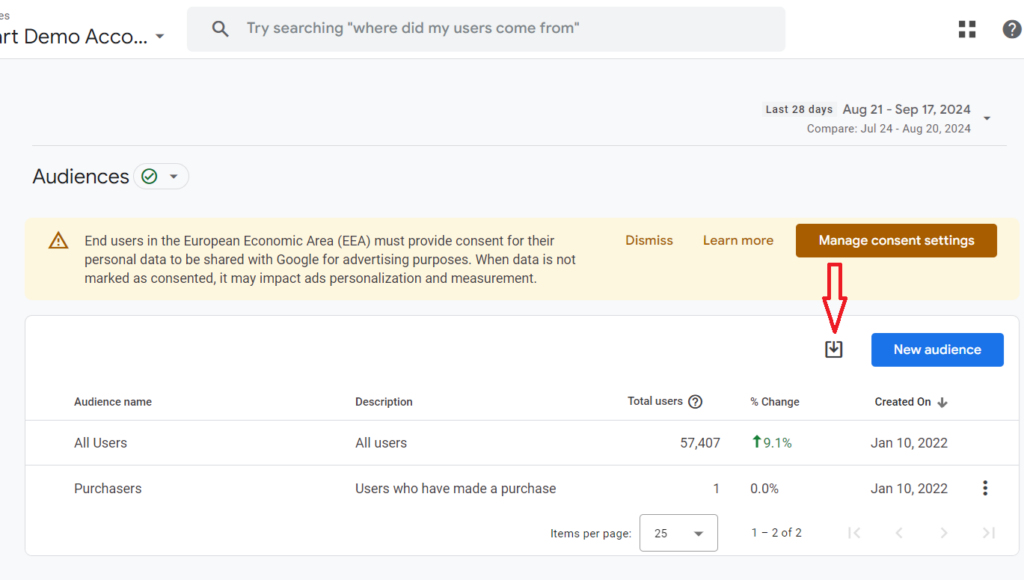
Click on the ‘New Audience’ button to create a new audience:
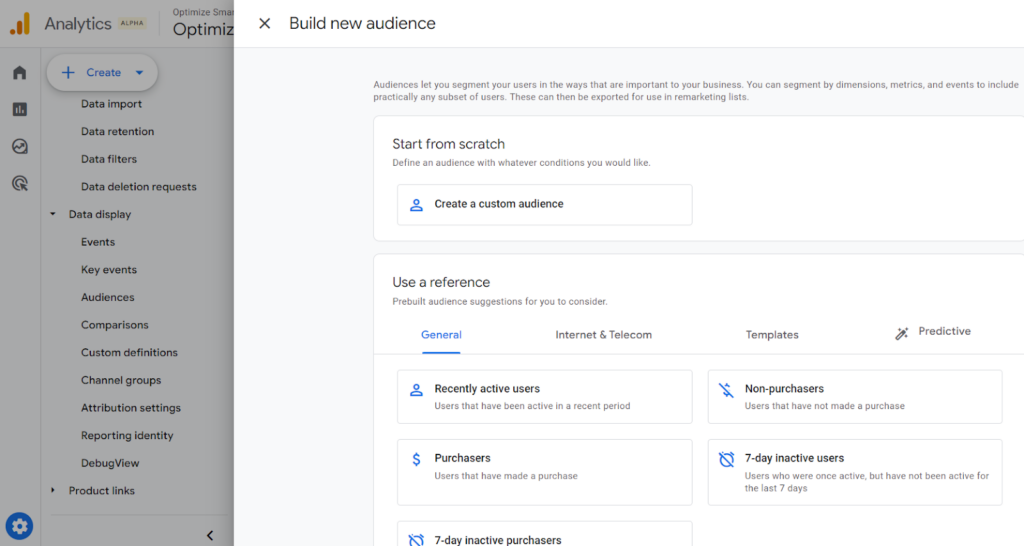
In GA4, you can create a new audience from scratch by creating a custom audience or you can use one of the available audience templates to create a new audience.
In the context of GA4, an audience is a group of users from your website or app who share the same characteristics.
For example, users who made a purchase in the last 7 days could be used as an audience.
Once you have created your audience, you can then segment your GA4 data by that audience.
You can also use the audiences created in GA4 in Google Ads for the purpose of remarketing.
Click on the download button to download audience information as a CSV file:
Additional Resources:
- GA4 Audiences – Creating custom audience in Google Analytics 4.
- Understanding Audience Triggers in Google Analytics 4 (GA4).
- How to create a remarketing audience in Google Analytics 4 (GA4).
- Google Analytics 4 (GA4) Predictive Audiences – Tutorial.
Data Display > Comparisons
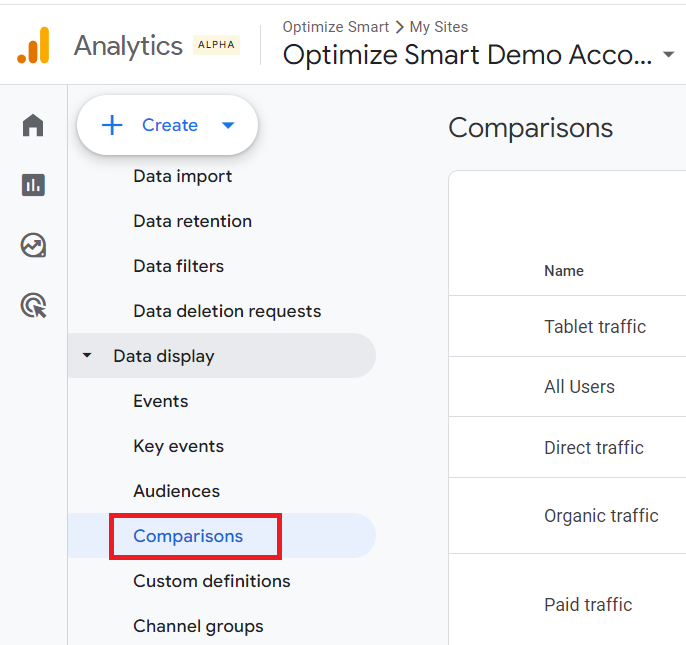
Comparisons is a GA4 feature that allows you to compare different subsets of data side by side.
There are two categories of comparisons:
#1 Prebuilt (pre-configured) comparisons – They are already available in your GA4 property. For example: All users, Direct Traffic, Organic Traffic, Paid Traffic, Web Traffic, Mobile traffic etc.
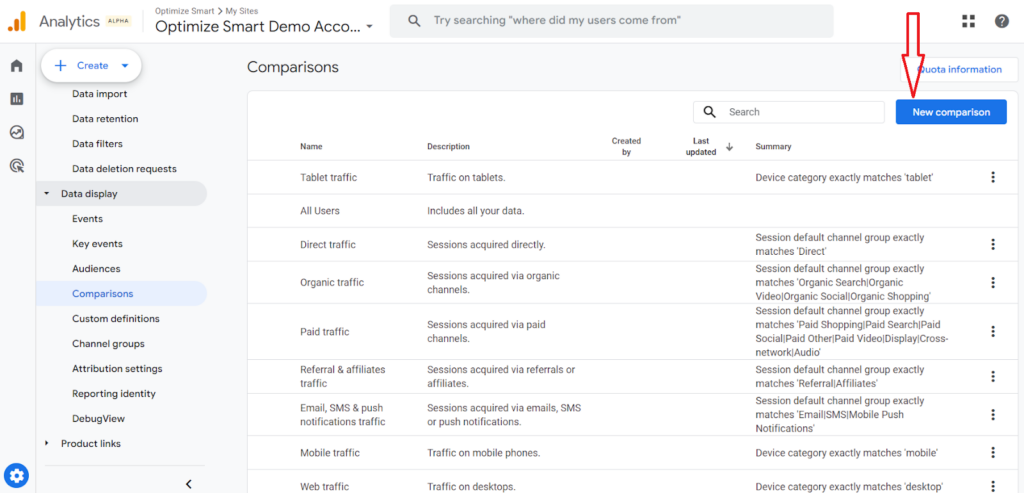
#2 Custom-built comparisons – These are user-defined comparisons. You can create your own comparisons based on specific dimensions relevant to your needs.
To create a custom comparison, click on the ‘New Comparison’ button:
You can create up to 50 comparisons per GA4 property.
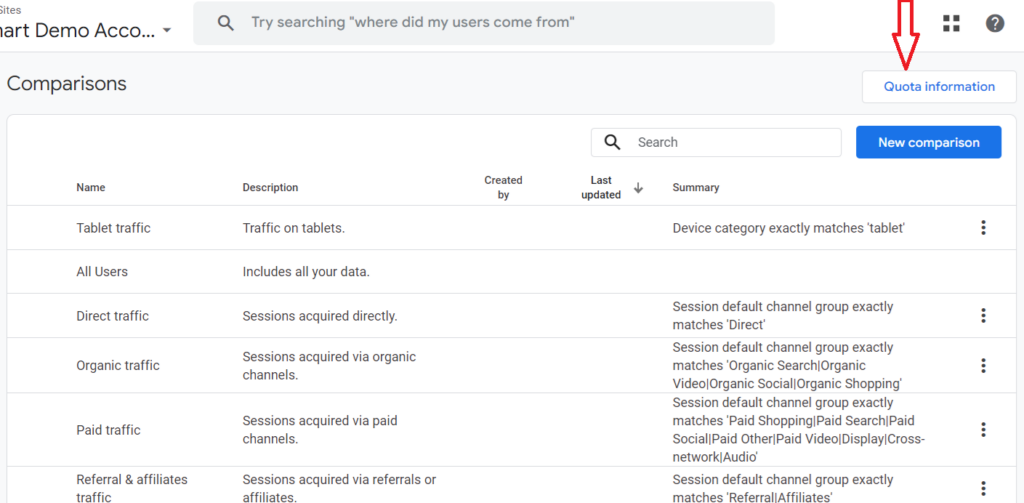
To see the number of comparisons you are allowed to create, click on the ‘Quota Information’ button:
Note: Comparisons are available in standard reports but not in Exploration reports, where segments are used instead.
Data Display > Custom definitions
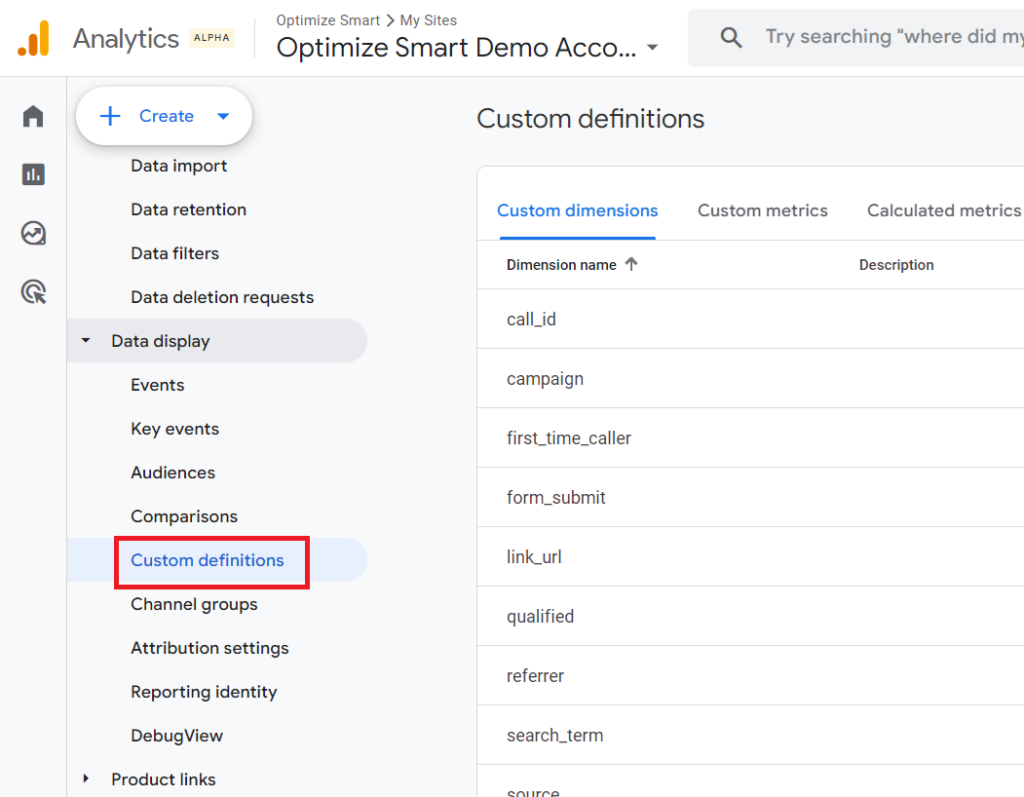
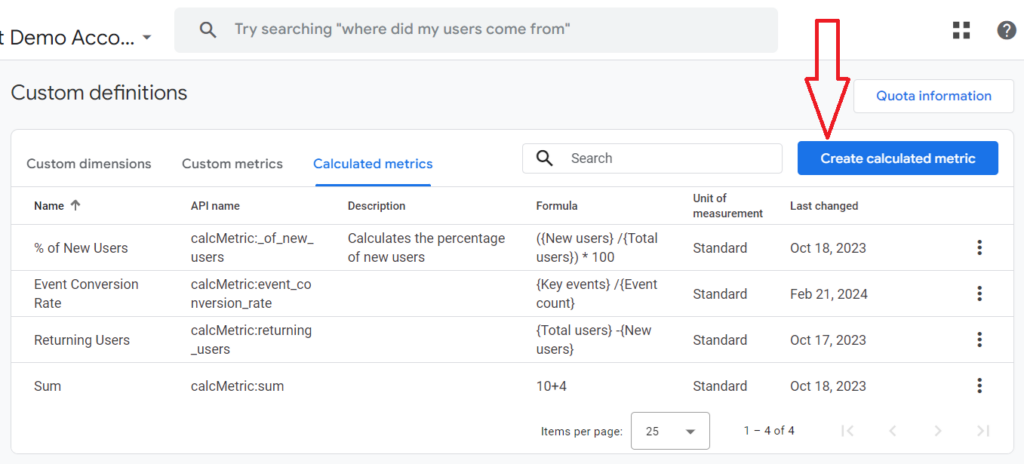
Use the ‘Custom Definitions’ setting to create or edit custom dimensions, custom metrics and calculated metrics.
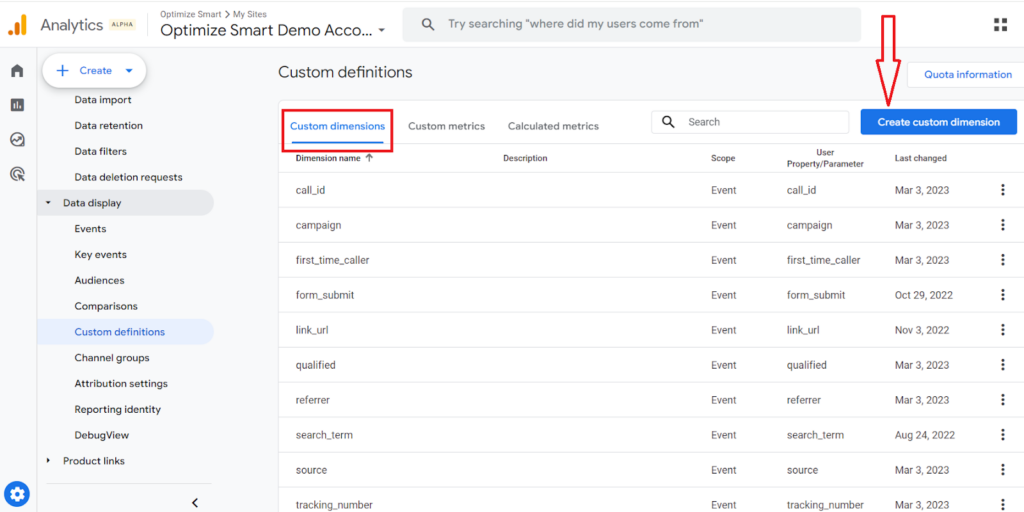
Creating a new custom dimension.
Learning resources on GA4 Dimensions:
- GA4 (Google Analytics 4) Dimensions Tutorial
- GA4 (Google Analytics 4) Custom Dimensions Tutorial
- GA4 User Properties (User Scoped Custom Dimensions) – Tutorial
- Event Scoped Custom Dimensions in GA4 – Tutorial
Editing or archiving custom dimensions.
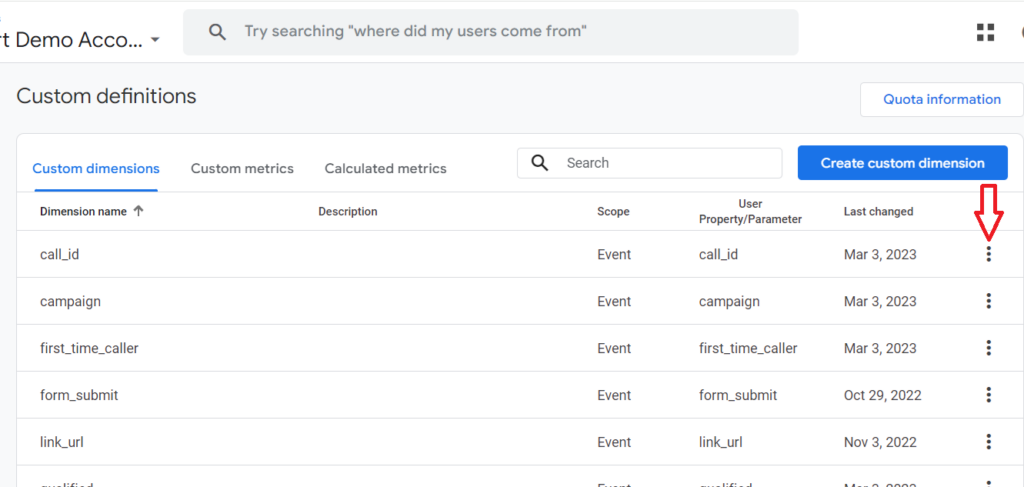
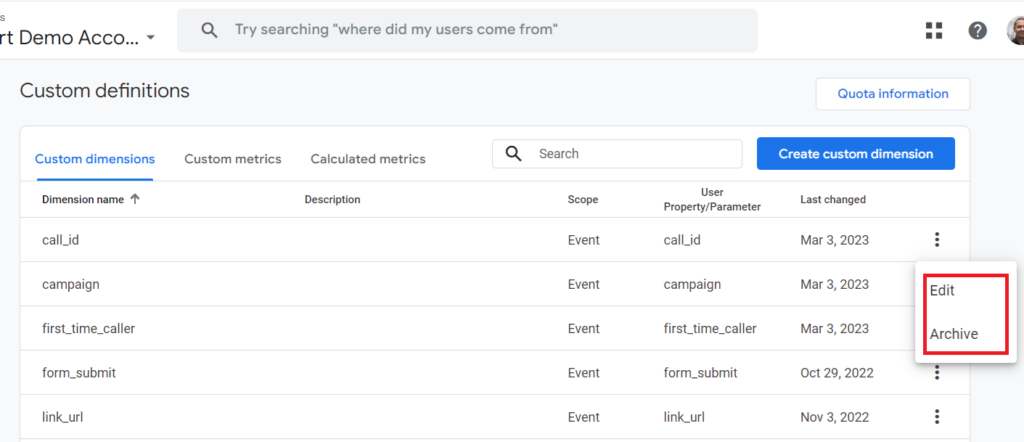
Note: Archiving a custom dimension in GA4 is not exactly the same as deleting it, but it is the closest equivalent. It’s not exactly the same as deletion because all historical data associated with the dimension is preserved.
Creating a new custom metric.
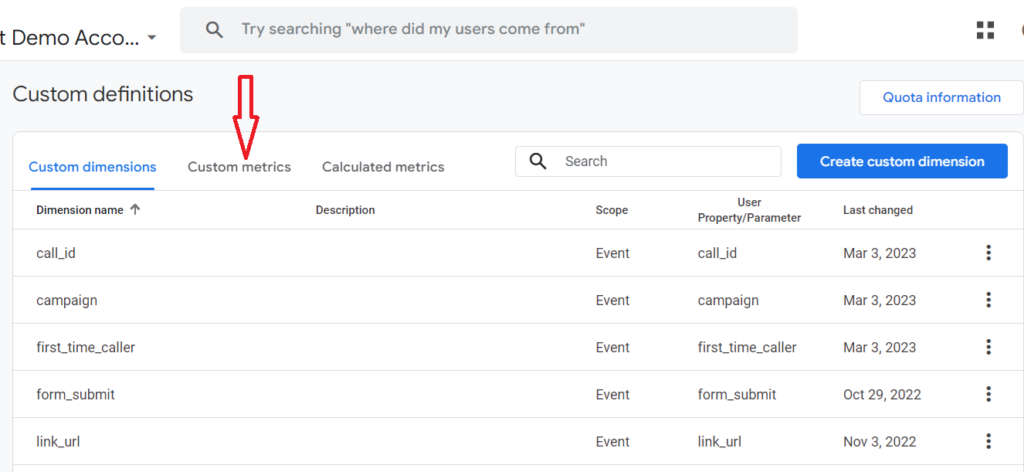
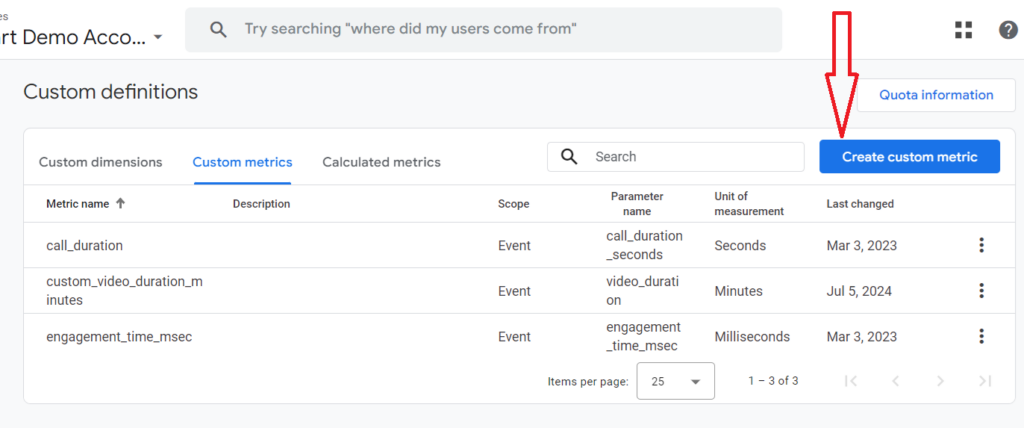
Editing or archiving custom metrics.
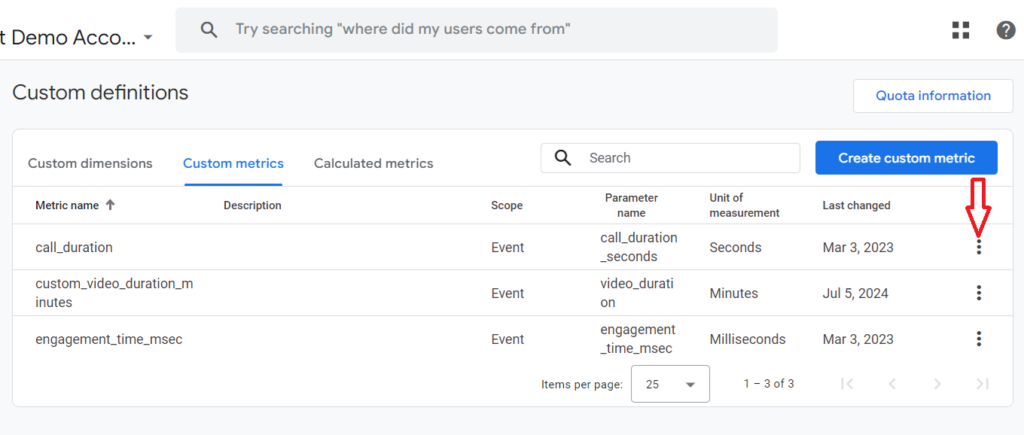
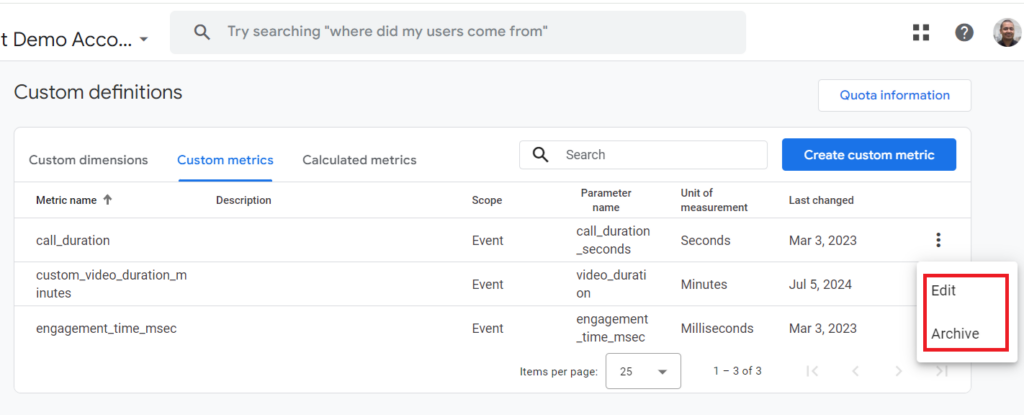
Note: Archiving a custom metric in GA4 is not exactly the same as deleting it, but it is the closest equivalent. It’s not exactly the same as deletion because all historical data associated with the metric is preserved.
Learning resources on GA4 Metrics
- GA4 (Google Analytics 4) Metrics Tutorial with Free Google Analytics 4 Ebook
- GA4 (Google Analytics 4) Custom Metrics Tutorial
- What are Predictive Metrics in Google Analytics 4 (GA4)
- GA4 Ecommerce Conversion Rate – How to find and use it.
- Google Analytics 4 Calculated Metrics with Examples.
Creating a new calculated metric.

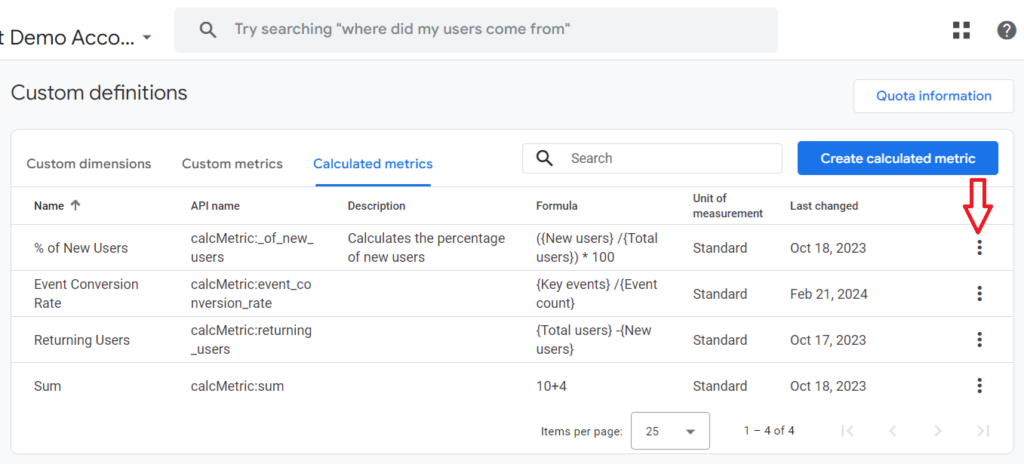
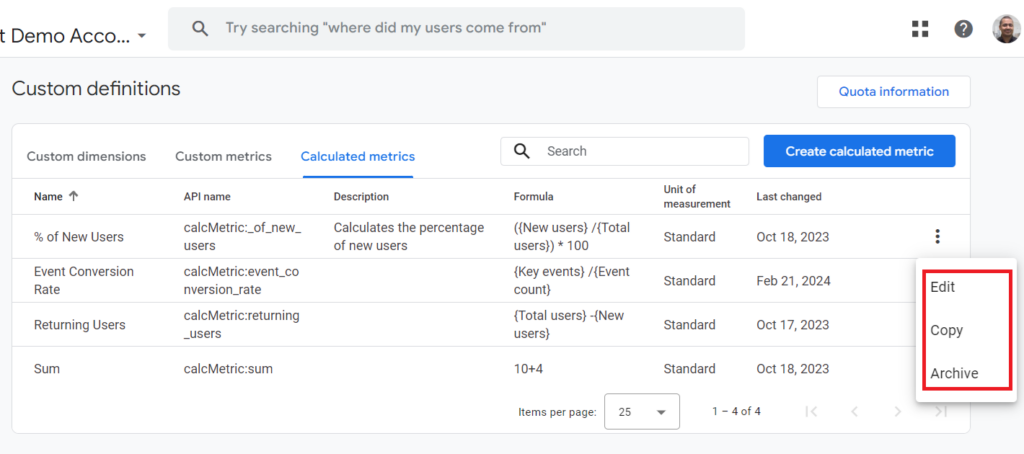
Editing, copying or archiving calculated metrics.
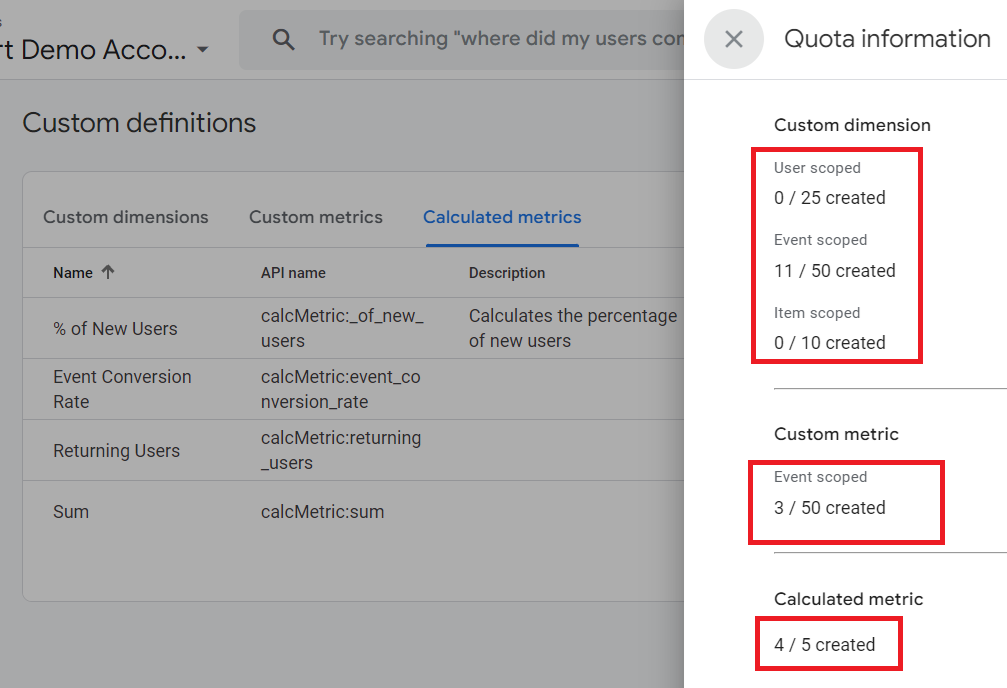
Quota information
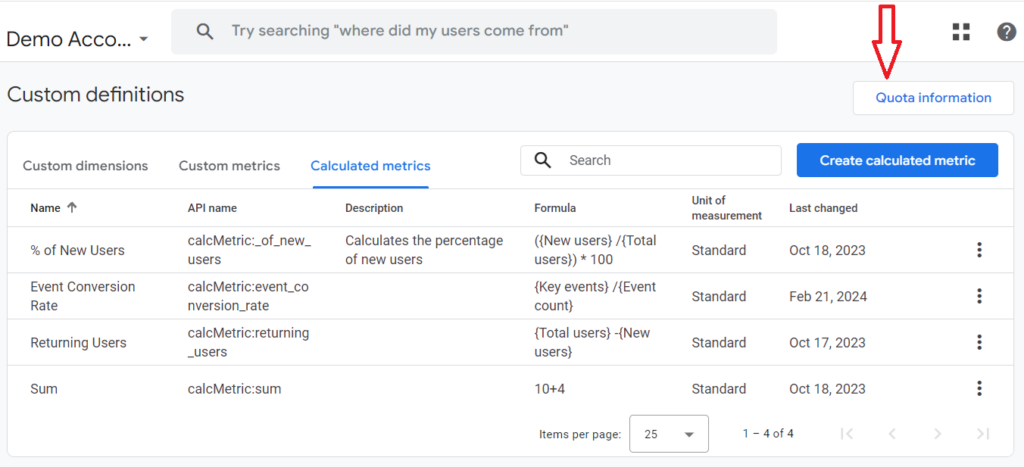
Click on the ‘Quota information’ button to check how many custom dimensions, custom metrics and calculated metrics you are allowed to create in your GA4 property:
Data Display > Channel groups
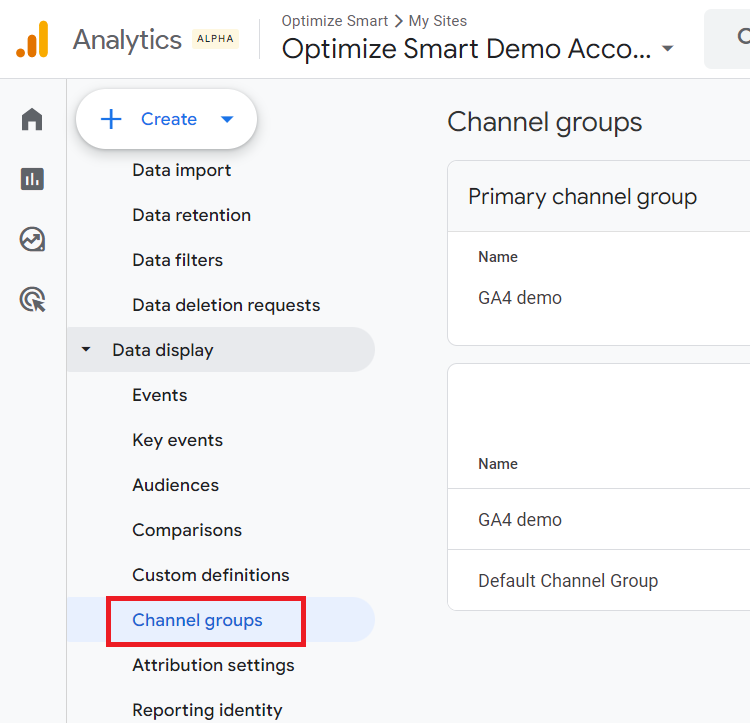
A Channel group is a rule-based grouping of marketing channels.
There are two categories of channel groups:
- Default Channel Group.
- Custom Channel groups.
Through the ‘Channel groups’ setting, you can carry out the following tasks:
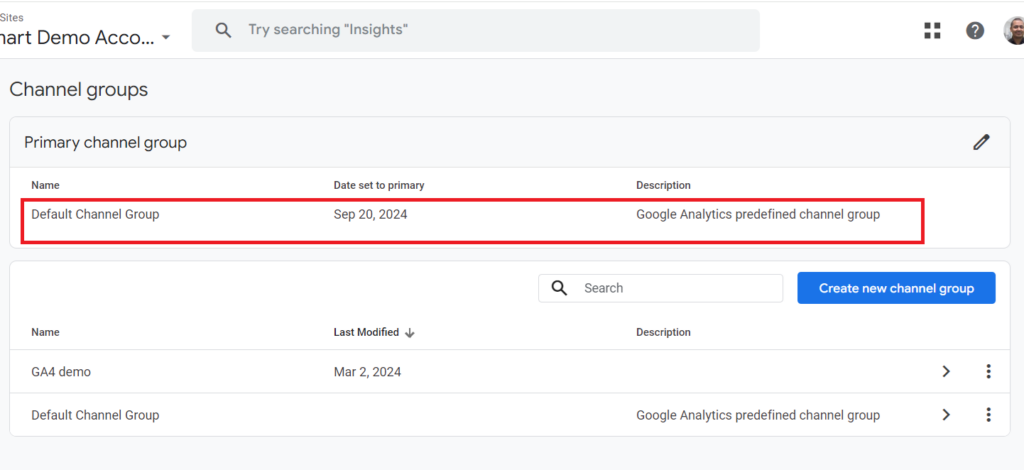
- Choose a channel group to set to primary.
- Create a new custom channel group.
- Edit an existing channel group.
- View the default channel group to see what it is made up of.
Choose a channel group to set to primary.
Click on the pencil button:
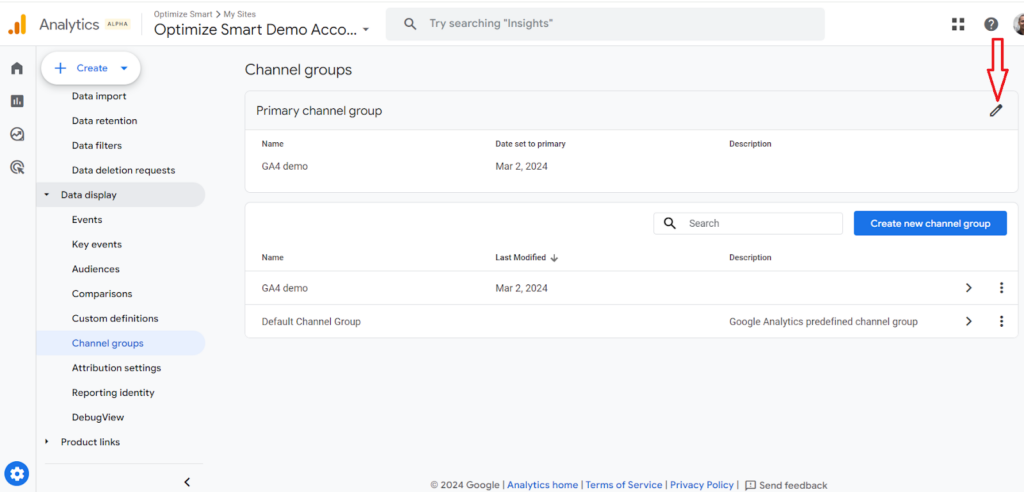
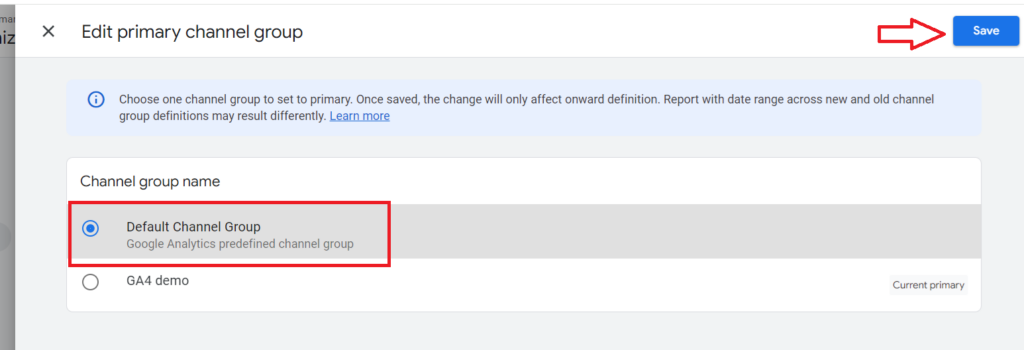
You should now see a screen like the one below:
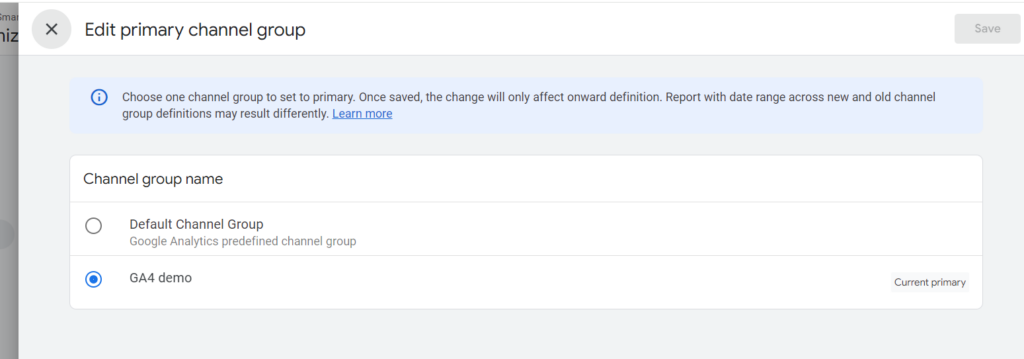
Select the channel group you want to make primary and then click on the ‘Save’ button:
Create a new custom channel group.
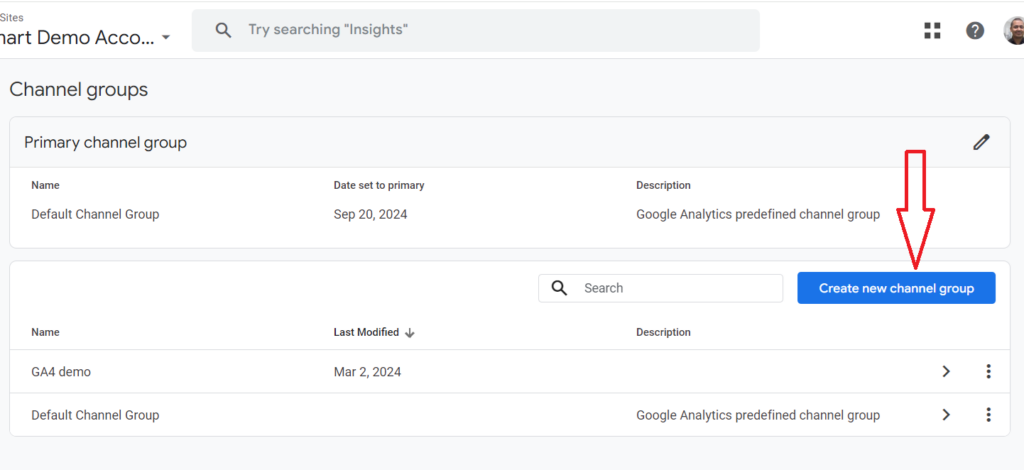
Click on the ‘Create new channel group’ button to create a new custom channel group:
Edit an existing channel group.
Click on an existing channel group to edit it:
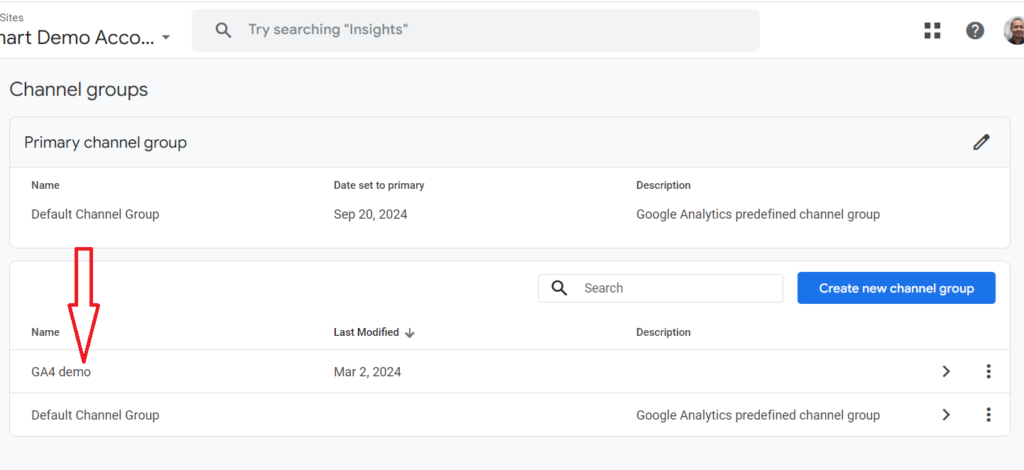
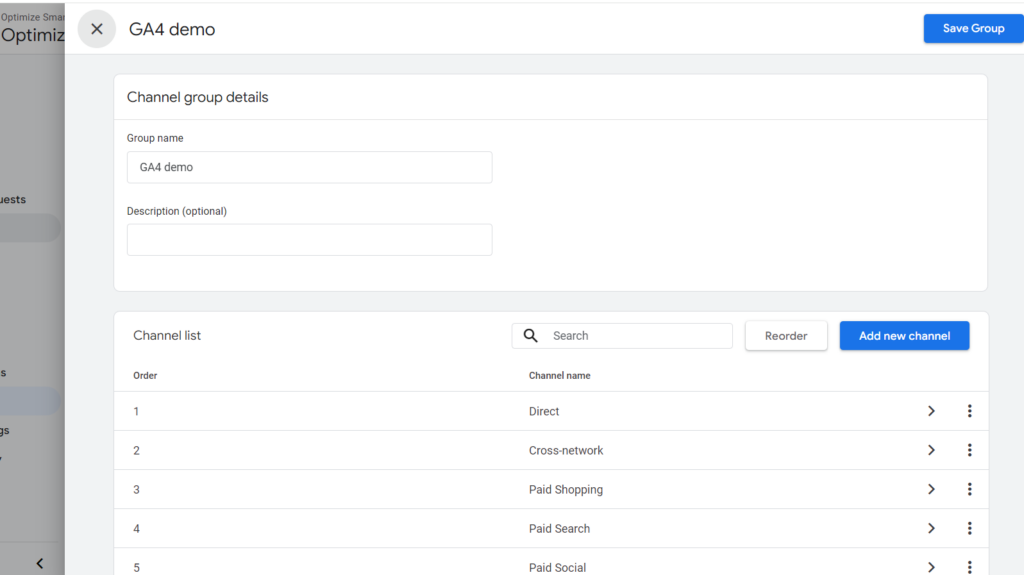
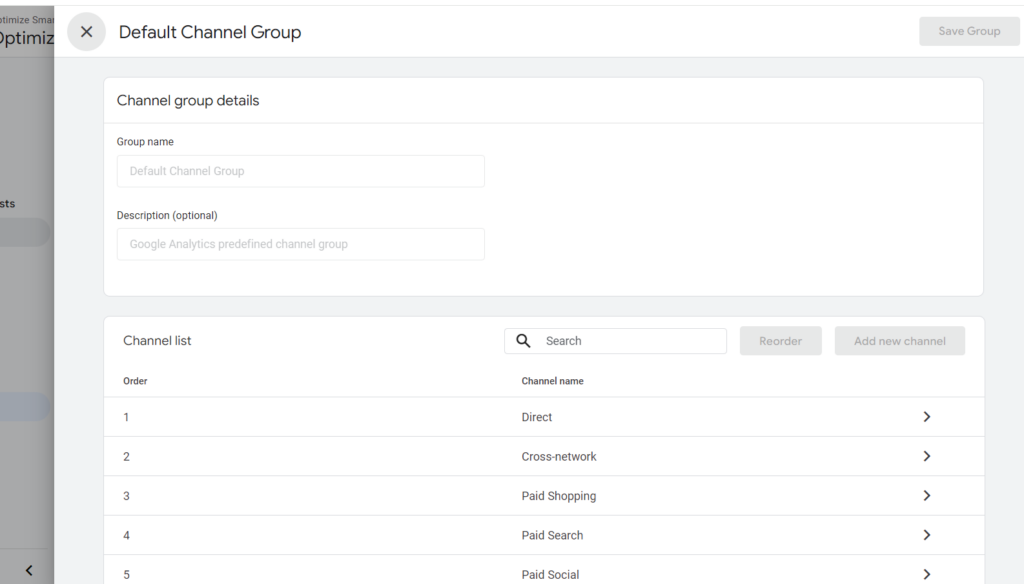
Note: You can not edit a default channel group in GA4.
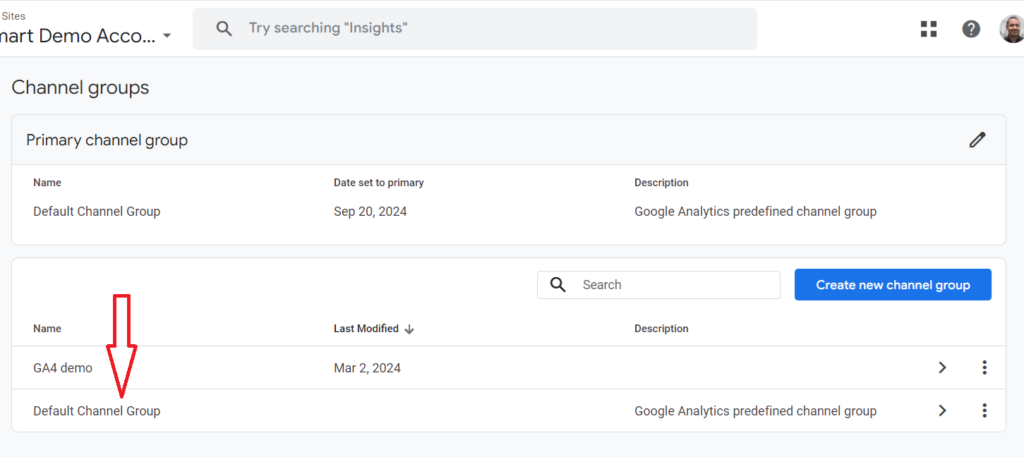
View the default channel group to see what it is made up of.
Click on the default channel group to view it:
Additional Resources
- Understanding Channel Groupings in Google Analytics 4 (GA4).
- Google Analytics 4 Channels, Source and Medium explained.
Data Display > Attribution Settings
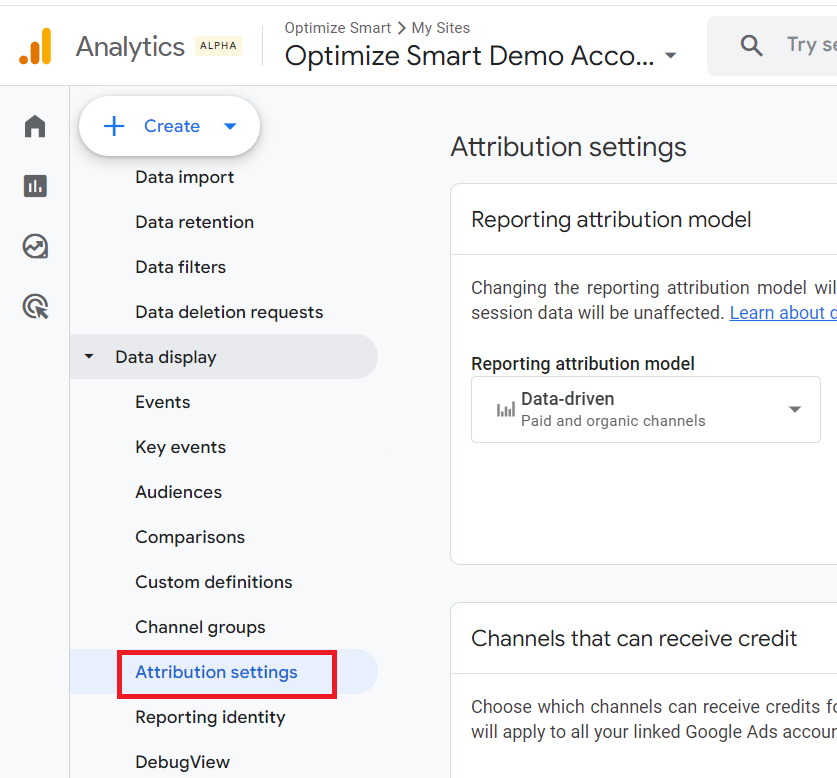
Use the ‘Attribution settings’ to carry out the following tasks:
- Change the reporting attribution model.
- Choose which channels can receive credits for web conversions shared with Google Ads.
- Change the key event lookback windows.
Change the reporting attribution model.
Click on the ‘Reporting attribution model’ drop-down menu to change the reporting attribution model:
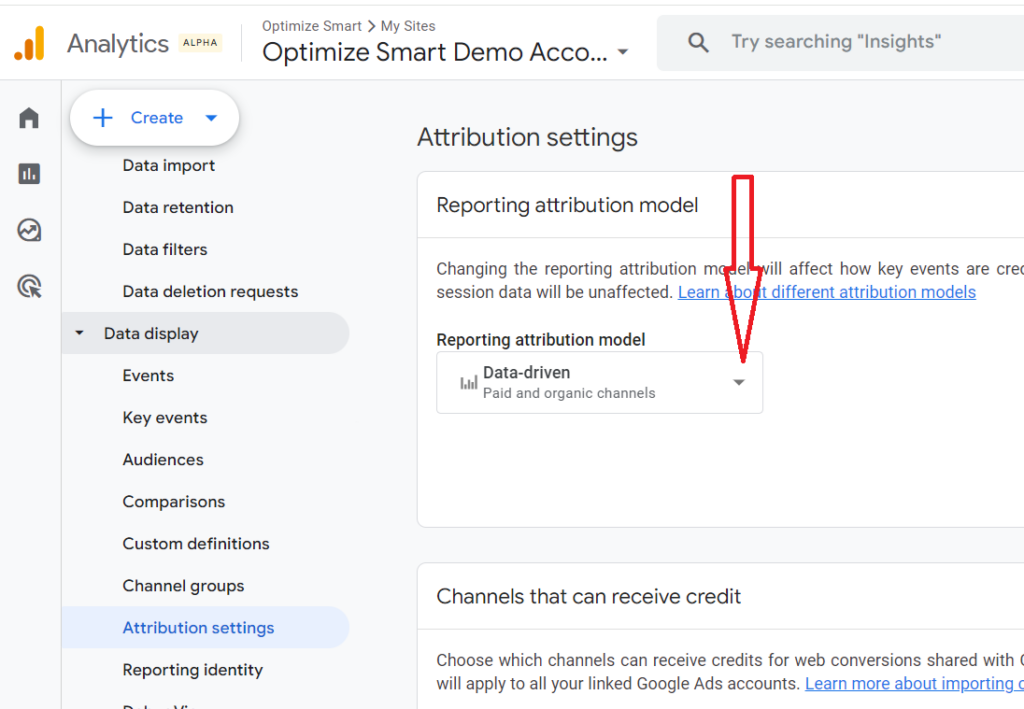
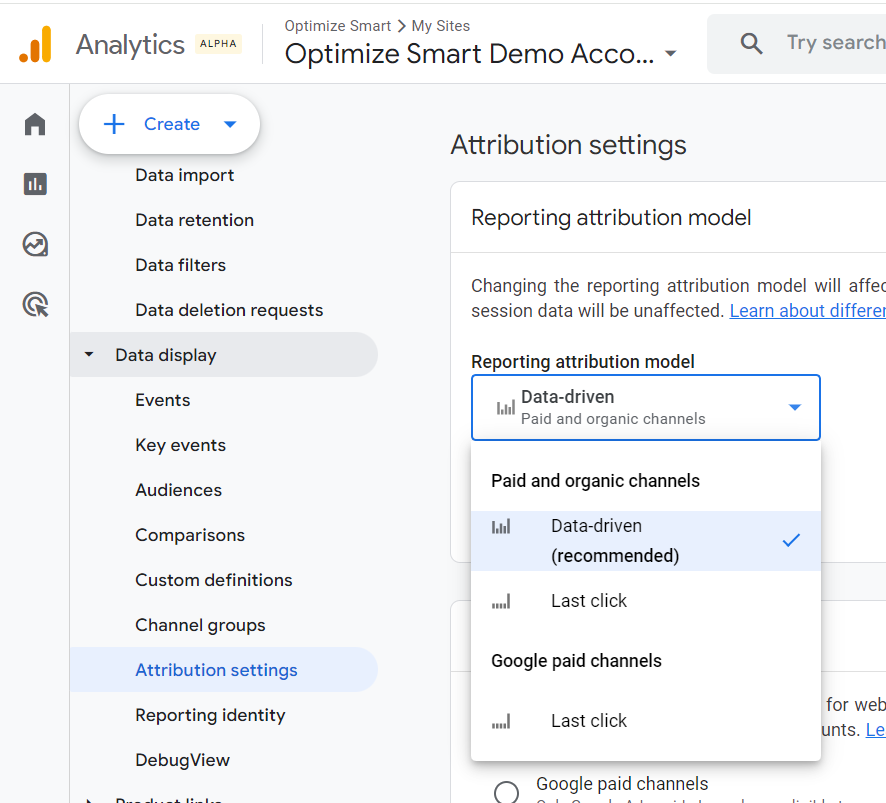
GA4 uses the reporting attribution model to attribute credit to key events in your GA4 reports and the reports of any linked Firebase projects. Changing the reporting attribution model applies to historical and future data.
However, it’s important to note that user and session data remain unaffected by changes to the reporting attribution model.
In other words, only event-scoped traffic dimensions are affected by changes to the reporting attribution model. The User- and session-scoped traffic dimensions are not affected.
By default, GA4 uses the data-driven (Paid and organic channels) model as the reporting attribution model.
Google also recommends that you use the data-driven model as the reporting attribution model.
Additional Resources:
- How to Change Attribution Models in GA4 (Google Analytics 4)?
- Guide to Attribution Models in GA4 (Google Analytics 4).
- GA4 Attribution Modelling Tutorial.
Choose which channels can receive credits for web conversions shared with Google Ads.
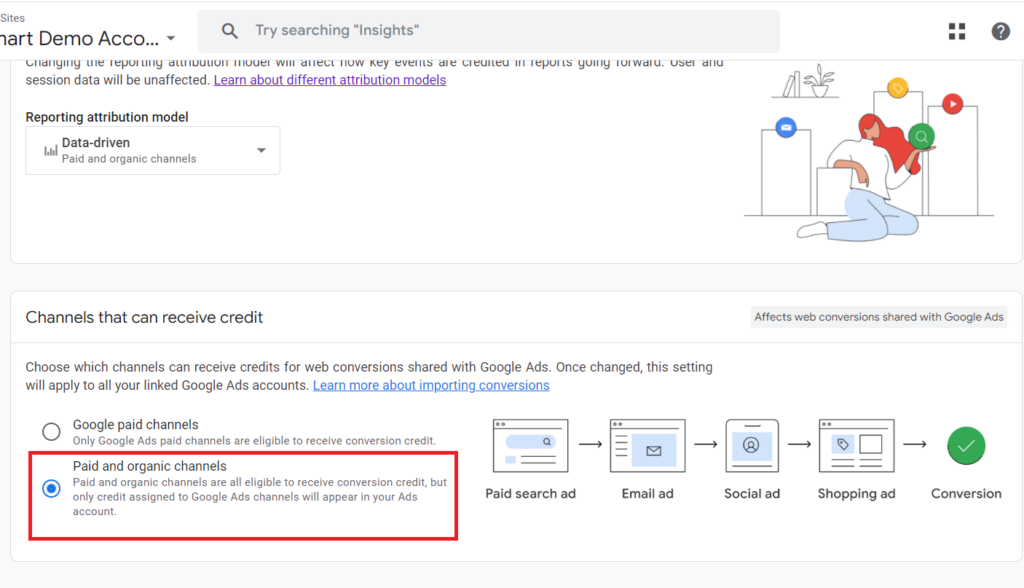
When you select ‘Google paid channels’, only Google Ads are eligible to receive conversion credit.
When you select ‘’Paid and organic channels’, both Paid and organic channels are eligible to receive conversion credit, but only credit assigned to Google Ads channels will appear in your Ads account.
I recommend using the ‘Paid and organic channels’ option.
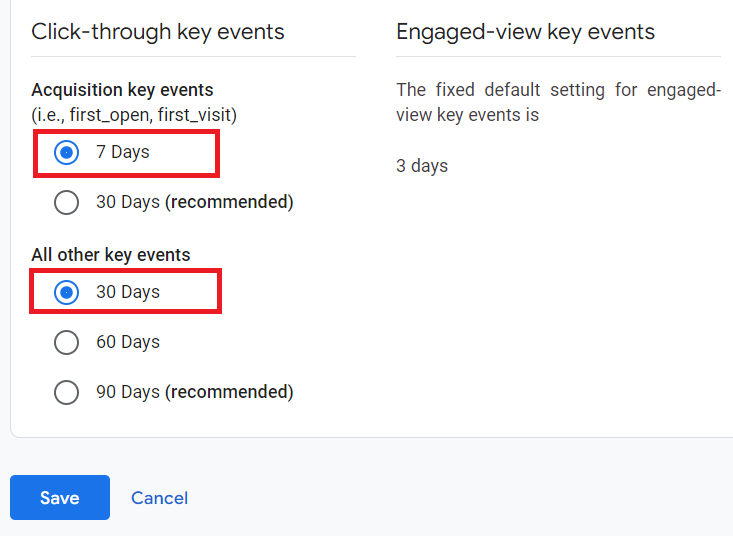
Change the key event lookback windows.
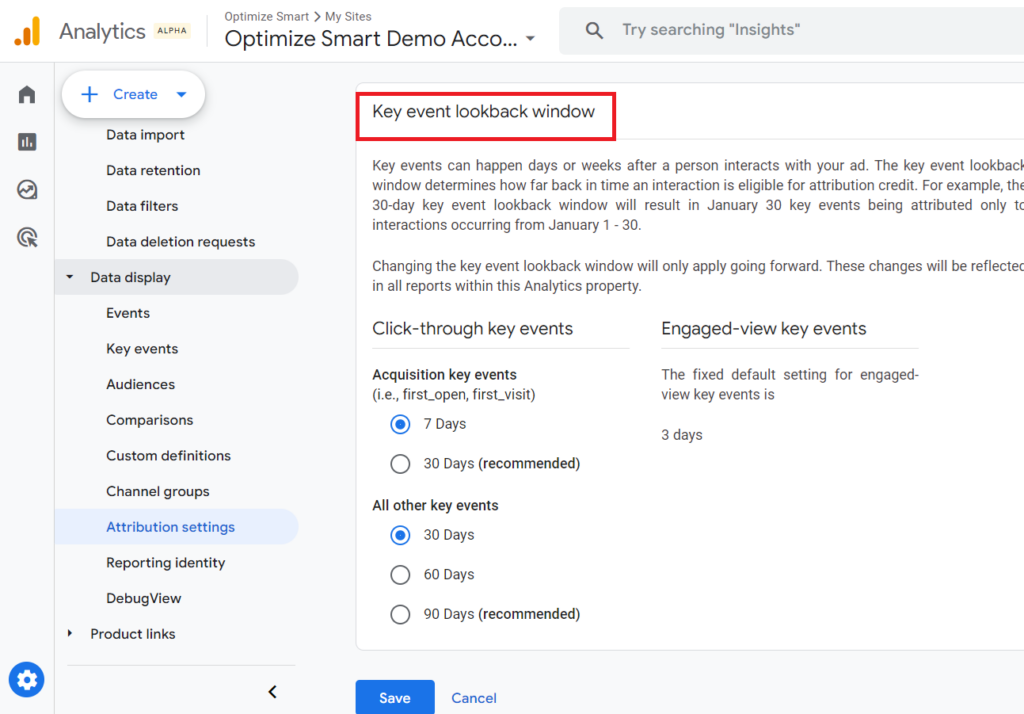
In the context of GA4, the ‘Key event lookback window’ is the time period (measured in a number of days) that determines how far back in time a touchpoint (i.e. exposure to a marketing channel) is eligible for getting conversion credit.
For example, a 30 days key event lookbackwindow means a touchpoint is eligible for getting conversion credit for up to 30 days from the day it first occurred.
I recommend using the 7 day lookback window for ‘Acquisition key events’ and the 30 days lookback window for ‘All other key events’.
Additional Resource: Which Conversion Window to use in GA4 (Google Analytics 4).
Data Display > Reporting identity
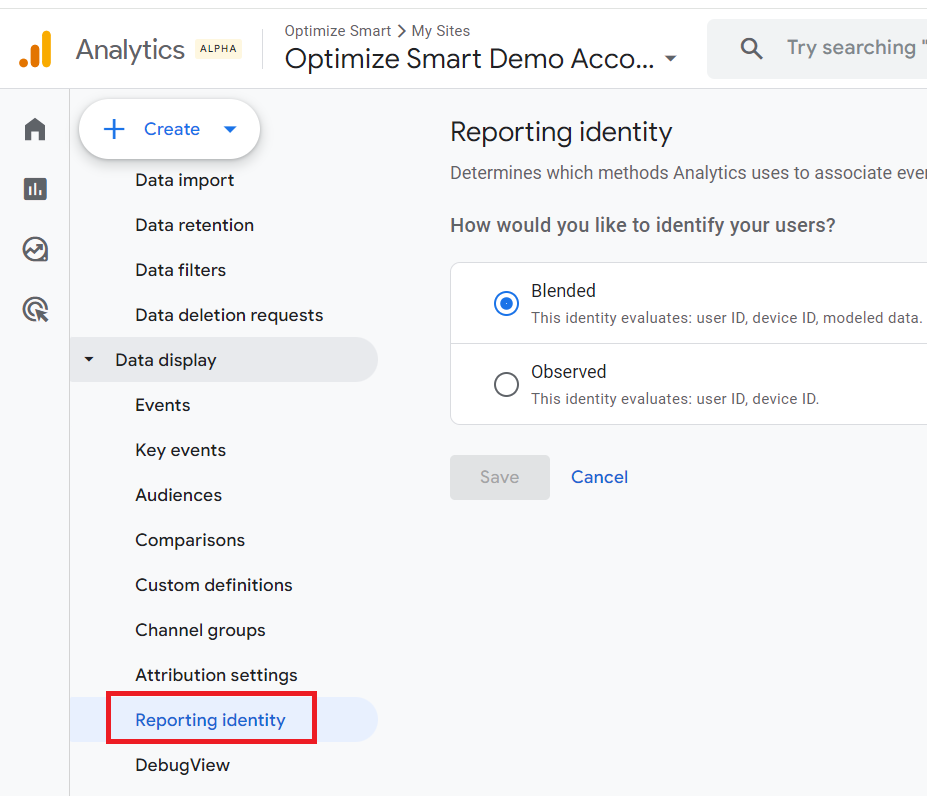
Use the ‘Reporting identity’ setting to change the reporting identity.
‘Reporting Identity’ in GA4 refers to the system’s ability to track and unify a user’s interactions with a business across various devices and platforms into a coherent user journey.
In the context of GA4, ‘system‘ denotes the comprehensive suite of technologies, algorithms, and processes GA4 employs to track, analyse, and report user interactions.
Often, a customer may engage with a business using multiple devices, like a tablet, a work computer, and a smartphone, at different times of the day.
GA4 uses a combination of identifiers: User-ID, Google signals, Device ID (‘client ID’ for websites or the ‘app Instance ID’ for mobile apps.), and Modeled data to merge these interactions, which may otherwise appear as separate sessions, into a single, continuous journey.
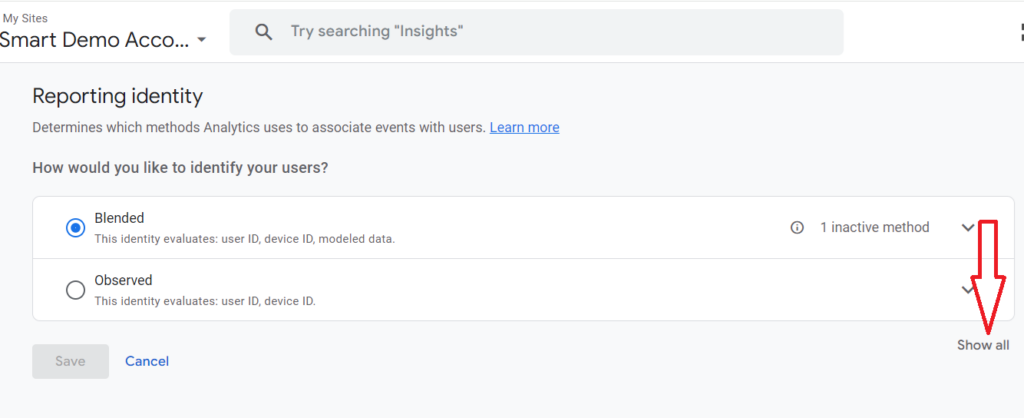
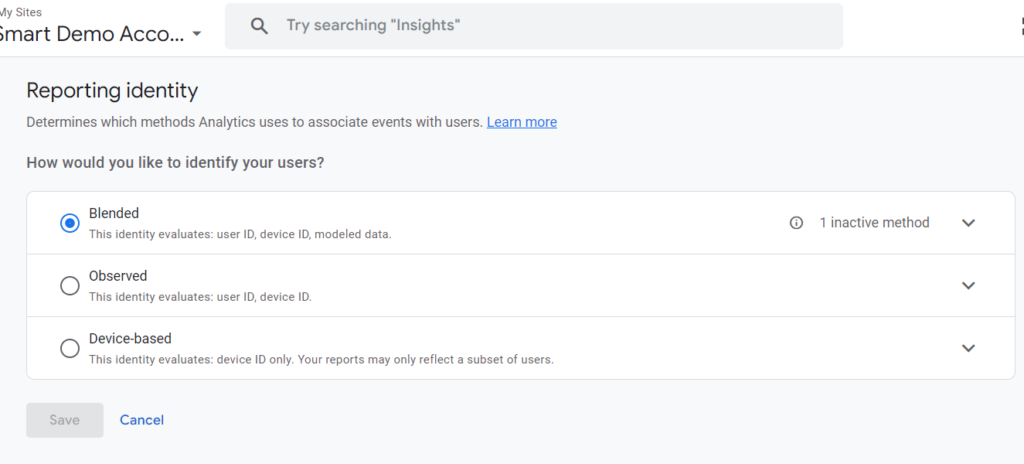
I prefer to use the ‘Blended’ reporting identity to identify my website users.
If you want to use some other reporting identity, click on the ‘Show all’ button and select another reporting identity:
Additional Resources:
- User ID in Google Analytics Explained with Examples.
- Google Signals GA4 – See demographics (gender, age) in Google Analytics 4.
- [GA4] Reporting identity.
Data Display > DebugView
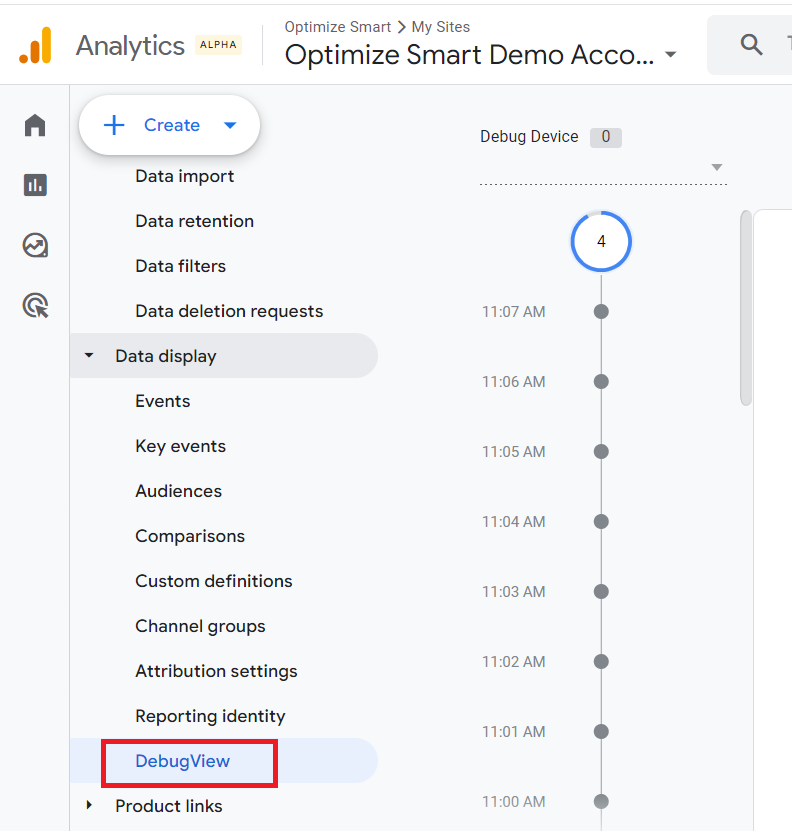
Use the ‘DebugView’ setting to monitor debugging events from your website or mobile app in real time along with all the custom parameters and user properties set.
Additional Resources:
- How to use DebugView report in Google Analytics 4 (GA4).
- GA4 Debug View not working? Here is how to fix it.
Product links
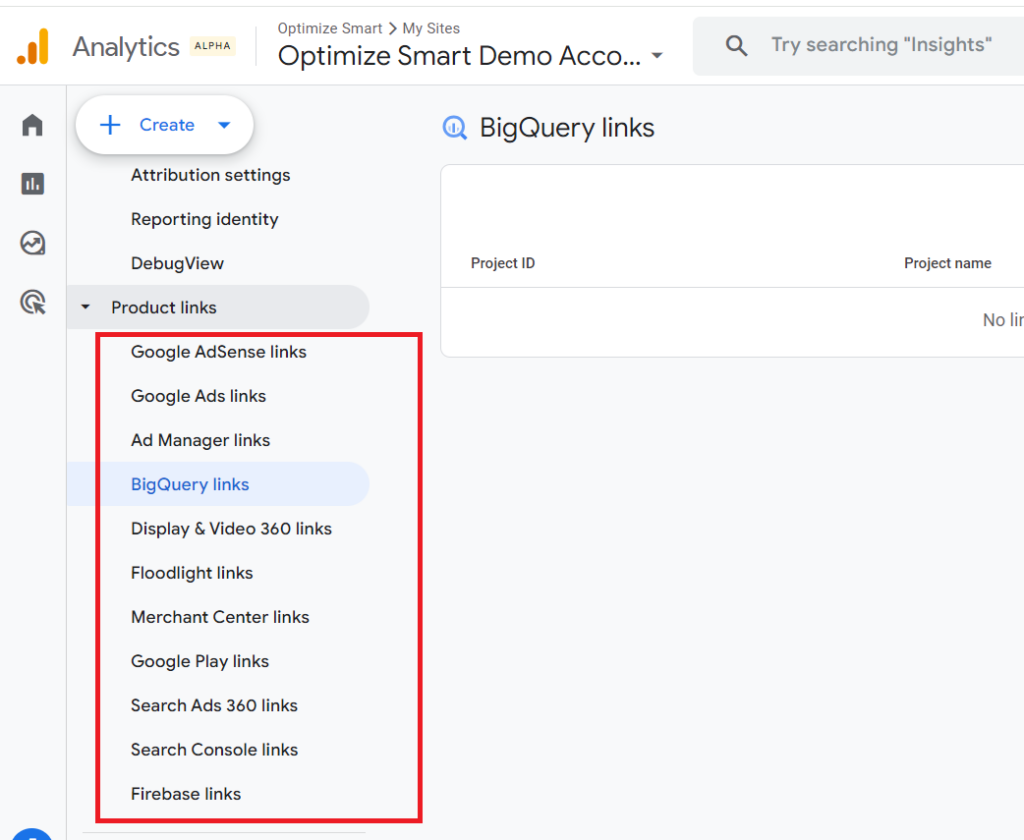
The ‘Product links’ provide several settings to connect your GA4 property with other Google products:
Other Articles on GA4.
- The Best Tag Auditing Tools for Google Analytics 4.
- How to Exclude URL Query Parameters in Google Analytics 4.
- How to Track Email Campaigns in Google Analytics 4.
- Google Analytics 4 Attribution Modelling Tutorial.
- Understanding Service Worker in GTM Server Side Tagging.
- Cohort Exploration Report in Google Analytics 4 (GA4).
- Google Analytics 4 vs Google Ads conversion tracking.
- Google Analytics 4 Custom Dimensions Tutorial.
- Google Analytics 4 Dimensions Tutorial.
- Event Scoped Custom Dimensions in Google Analytics 4.
- Google Analytics 4 Search Console Integration Tutorial.
- Fixing unassigned issues with GTM Server Side Tagging.
- How to exclude internal traffic in Google Analytics 4.
- Understanding data filters in Google Analytics 4.
- Conversion Funnel Analysis in Google Analytics 4.
- How to use custom templates in Google Tag Manager.
- 6 Critical Flaws in Google Analytics 4 Attribution Paths.
- Google Analytics 4 Admin Settings Tutorial.
- How to Connect Google Ads to Google Analytics 4.
- Google Analytics 4 Predictive Audiences – Tutorial.