

What is a GA4 dimension?
In GA4, a dimension is one of the attributes of your website users.
For example,
Let us suppose 2147 people visited your website yesterday via Google organic search.
Now, all these 2147 people who visited your website have one common attribute: they all visited your website via Google organic search (which is reported as ‘google/organic’ in GA4).
As a result, ‘google / organic’ is one of the attributes of your 2147 website users.
GA4 reports the attributes of your website users as a dimension:
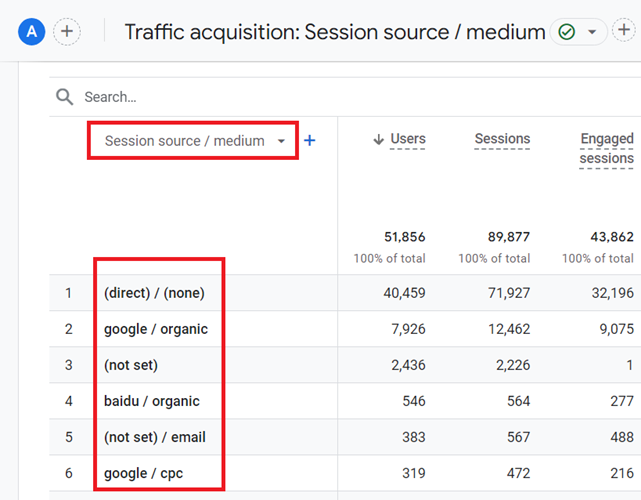
Each GA4 dimension is made up of names and values.
For example, ‘Session source/medium’ is the dimension name and ‘google/organic‘ is one of the values of this dimension.
The other values of the ‘Sessions source/medium’ dimension are
- (direct) / (none)
- (not set)
- baidu / organic
- (not set) / email
- google / cpc
So, a single dimension (like ‘Sessions source/medium’) can have multiple values.
Another example
Let’s say a woman aged 35-44 from New York visited your website after clicking on a paid Google search listing.
Let us also assume that she visited your website via a Safari web browser installed on an IOS mobile device.
Now following are the attributes of the website user along with their values:
Gender – female
Age – 35-44
City – New York
Source / Medium – google / cpc
Browser – safari
Device Category – mobile
Operating System – IOS
Here, ‘Gender’, ‘Age’, ‘City’, ‘Source /Medium’, ‘Browser’, ‘Device Category’ and ‘Operating System’ are all reported as dimensions in GA4 because they are the characteristics of your website user.
Classifications of dimensions in GA4
The dimensions in GA4 can be broadly classified into two categories:
- Default dimensions.
- Custom dimensions.
The dimensions in GA4 can also be categorised in terms of scope (i.e. the level at which dimensions are aggregated and analysed):
- User-scoped dimensions
- Session-scoped dimensions
- Event-scoped dimensions
- Item-scoped dimensions
The dimensions in GA4 can also be categorised in terms of their usage:
- Primary dimension.
- Secondary dimension.
The default dimensions can be further classified into the following sub-categories:
- Attribution dimensions.
- Demographics dimensions.
- Ecommerce dimensions.
- Event dimensions.
- Gaming dimensions.
- General dimensions.
- Geography dimensions.
- Link dimensions.
- Page / screen dimensions.
- Platform / device dimensions.
- Publisher dimensions.
- Time dimensions.
- Traffic source dimensions.
- User dimensions.
- User lifetime dimensions.
- Video dimensions.
Note: The official help documentation from Google provides a complete list of all the default dimensions available in GA4, along with their descriptions and usage.
GA4 Default Dimensions
Default dimensions are already available via the GA4 user interface or GA4 data API. These are ready-to-use dimensions.
The following are examples of default dimensions:
- Default channel group
- Source / medium
- Google Ads campaign
- Transaction ID
- Event name
- Country
- First user campaign
- First user source / medium
- Session campaign
- Session source / medium
GA4 Custom Dimensions
Custom dimensions are user-defined dimensions.
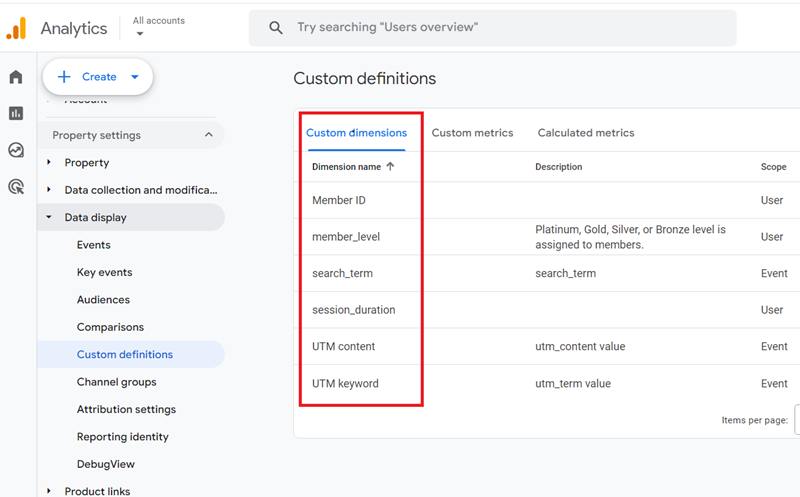
If you want to measure a user’s characteristics that no default dimension can, you need to create and use your own dimension.
For example, no default dimension is available in GA4 through which you measure the behaviour of signed-in and not signed-in users.
Similarly, GA4 does not have a default dimension for measuring the behaviour of high-value and low-value customers.
In such cases, you should consider creating custom dimensions in GA4.
You can import data through custom dimensions that GA4 does not automatically collect (like CRM data, phone call data, logged-in user data, etc.) and correlate this non-Google Analytics data with GA4 data.
The custom dimensions in GA4 can be categorised into:
- Event-scoped custom dimensions.
- User-scoped custom dimensions.
- Item-scoped custom dimensions.
To learn more about custom dimensions in GA4, check out this article: GA4 Custom Dimensions Tutorial
Primary dimensions in GA4
A primary dimension is the default dimension applied to a GA4 report.
When you navigate to a report, say Traffic Acquisition report in your GA4 property then the default dimension that you see being applied to the report is the primary dimension:
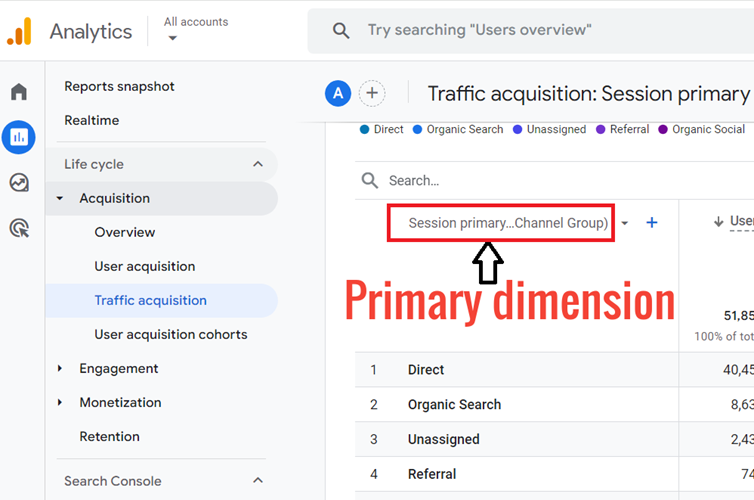
Here, the primary dimension is the ‘Session primary channel group (Default channel group)’.
Changing Primary dimension in GA4
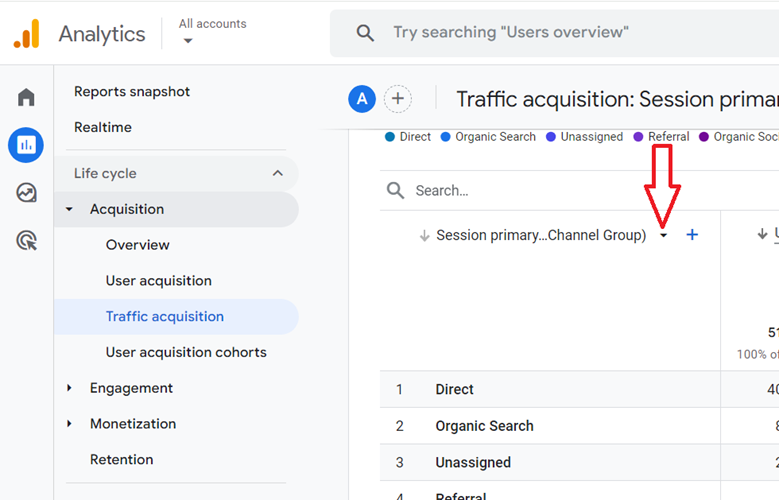
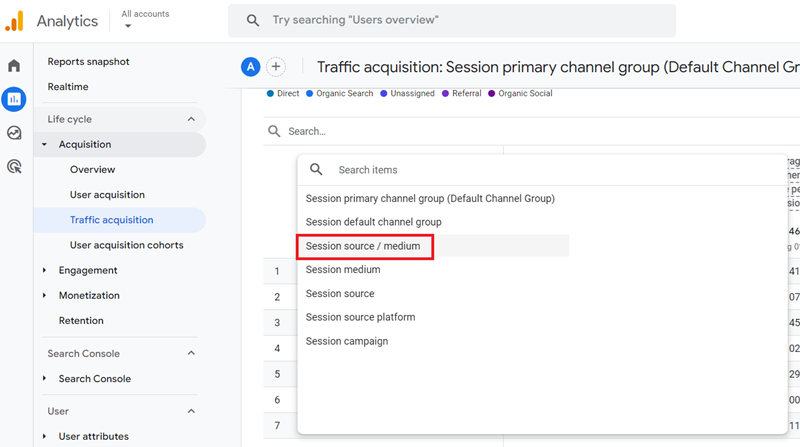
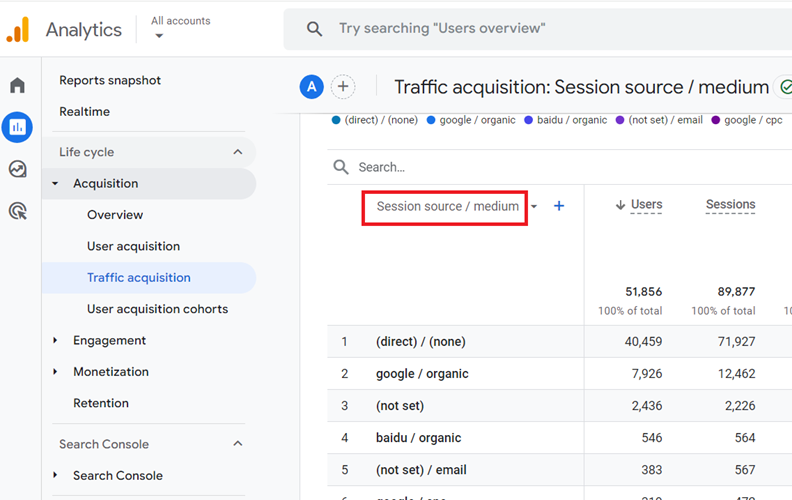
You can change the primary dimension applied to a GA4 report.
Within a GA4 report, just click on the dimensions drop-down menu and then select the dimension you want to use:
Secondary dimensions in GA4
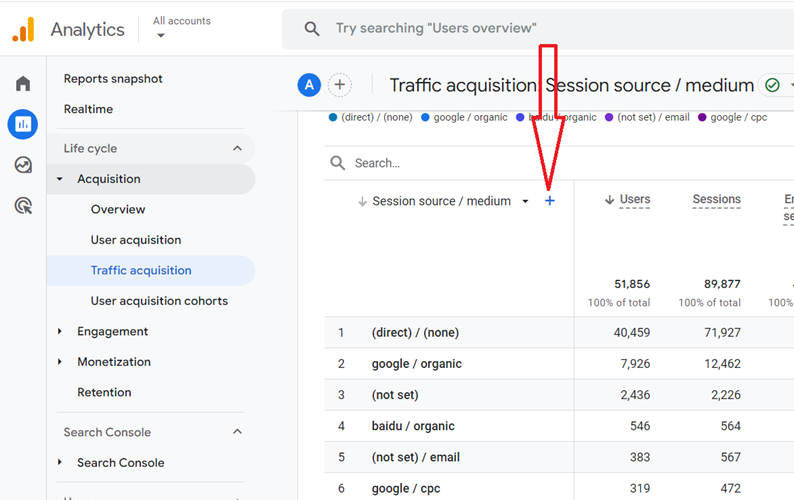
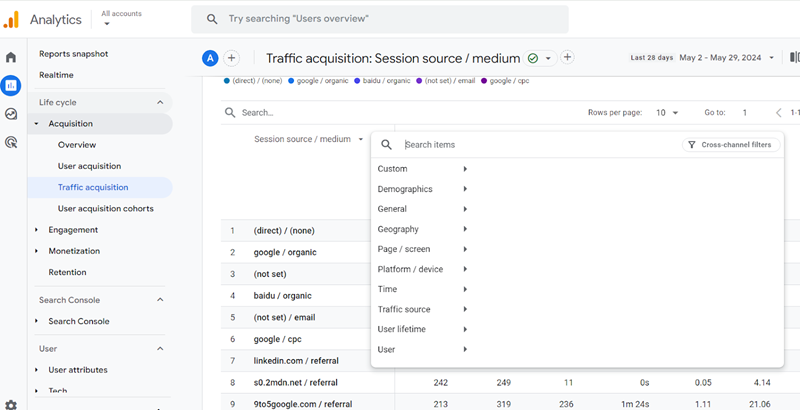
The second dimension you apply to a GA4 report is the secondary dimension.
In order to apply a secondary dimension to a report, click on the ‘+’ button next to the primary dimension:
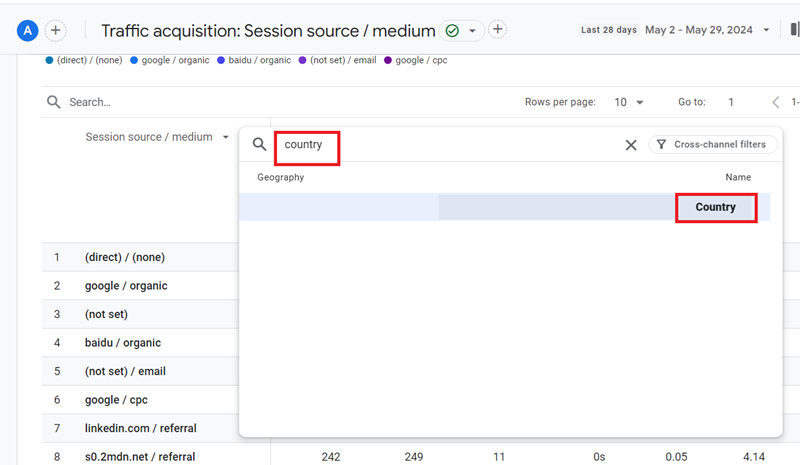
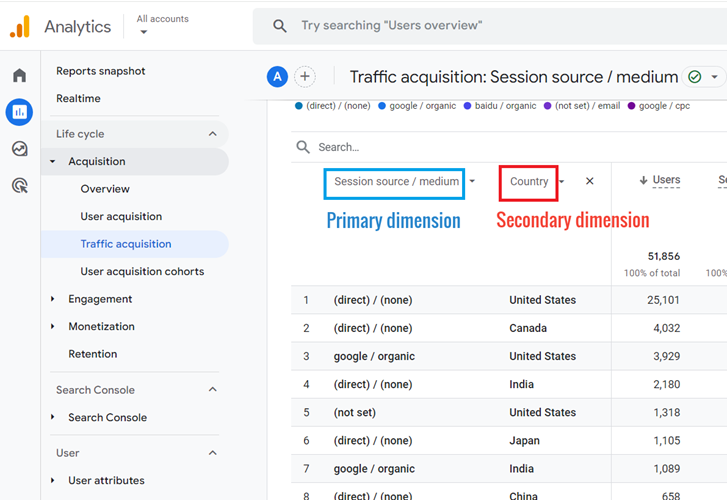
You can use a primary dimension as a secondary dimension and vice versa via the Exploration reports:
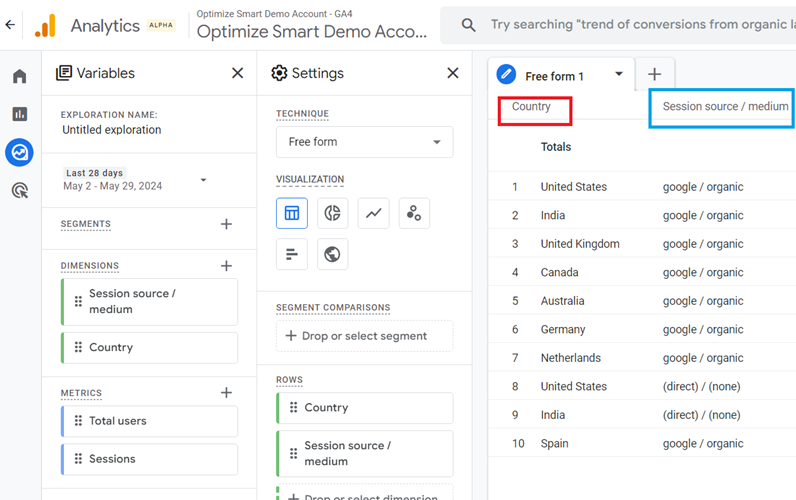
Note: You can use custom dimensions as primary dimensions in exploration reports or as a secondary dimension in standard GA4 reports, but you can not use custom dimensions as primary dimensions in standard GA4 reports.
How to apply more than two dimensions to a GA4 report
By default, you can apply a maximum of two dimensions to a standard GA4 report: one primary dimension and one secondary dimension.
But if you want to apply more than two dimensions, you can do that via the Exploration reports.
For example, through the Free form report, you can apply up to five dimensions at a time to a report:
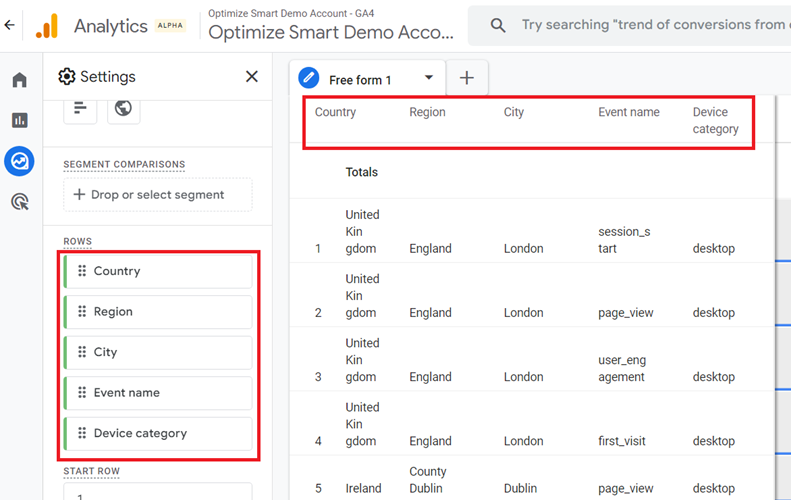
The additional dimensions can help you in doing a more meaningful analysis.
User acquisition dimensions
The user acquisition dimensions give insight related to how your website/app acquired users.
Following are the examples of various user acquisition dimensions:
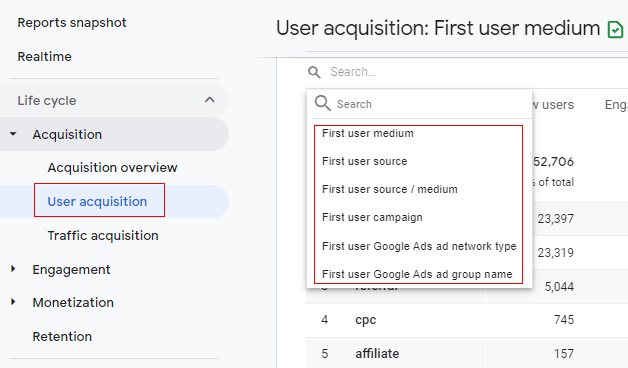
- First user medium – The marketing channel by which the user was first acquired.
- First user source – The website by which the user was first acquired.
- First user source/medium – The website and marketing channel by which the user was first acquired.
- First user campaign – The marketing campaign by which the user was first acquired.
- First user Google Ads Network type – First Ad network type by which user was acquired.
- First user Google Ads ad group name – First Ad Group name that bought users to the website.
Check out this help documentation to see the complete list of user acquisition dimensions: https://support.google.com/analytics/answer/9143382?#zippy=%2Cacquisition
Where can you find user acquisition dimensions in GA4?
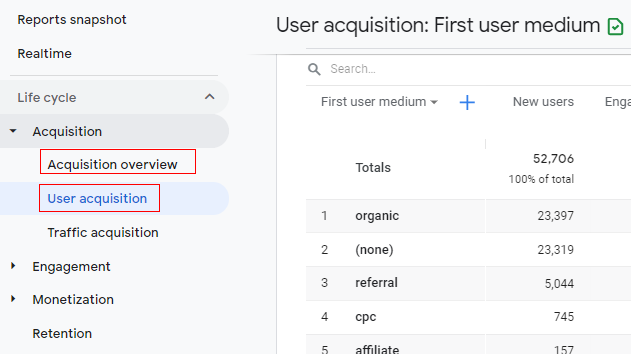
You can see the user acquisition dimensions in the following GA4 reports:
- Acquisition Overview report
- User Acquisition report
Session acquisition dimensions
The session acquisition dimensions give insight related to how your website/app acquired users’ sessions (aka visits).
Following are the examples of various session acquisition dimensions:
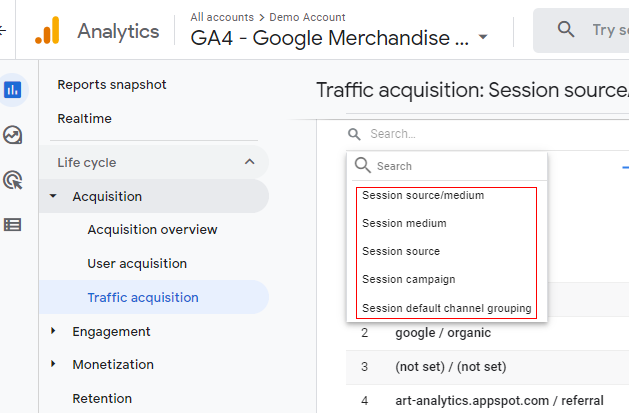
- Session source/medium – the website and marketing channel that referred the user’s session.
- Session medium – the marketing channel that referred the user’s session.
- Session source – the website that referred the user’s session.
- Session campaign – the marketing campaign that referred the user’s session.
- Session default channel grouping – the default channel grouping that referred the user’s session. The Default Channel grouping is a rule-based grouping of default marketing channels.
Check out this help documentation to see the complete list of session acquisition dimensions: https://support.google.com/analytics/answer/9143382?#zippy=%2Cacquisition
Where can you find session acquisition dimensions in GA4?
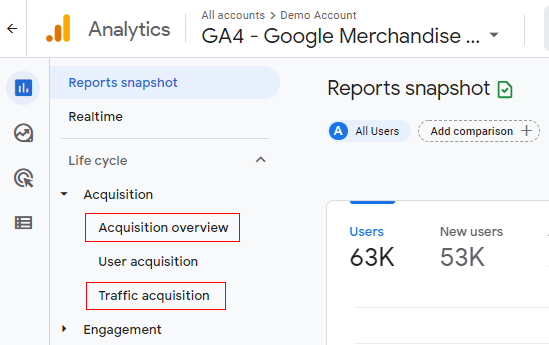
You can see session acquisition dimensions in the following GA4 reports:
- Acquisition Overview report
- Traffic Acquisition report
User engagement dimensions
The user engagement dimensions give insight related to how users engaged with your website/app.
Following are the examples of various user engagement dimensions:
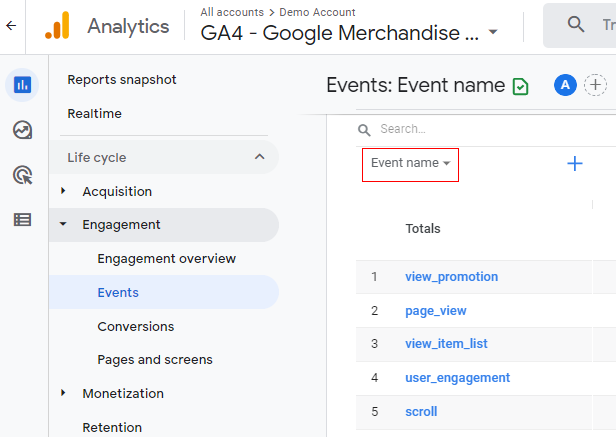
- Event name – The name of an event. This name can be default (i.e. predefined) or user-defined.
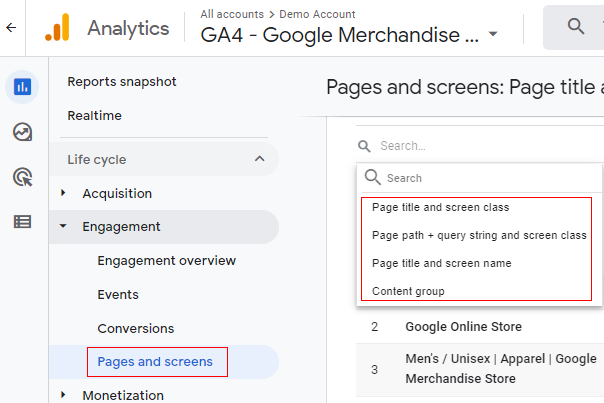
- Page title and screen class – web page title and default app screen class.
- Page path and screen class – web page path and default app screen class.
- Page title and screen name – web page title and default app screen name.
- Content group – It is a user-defined set of content.
Where can you find user engagement dimensions in GA4?
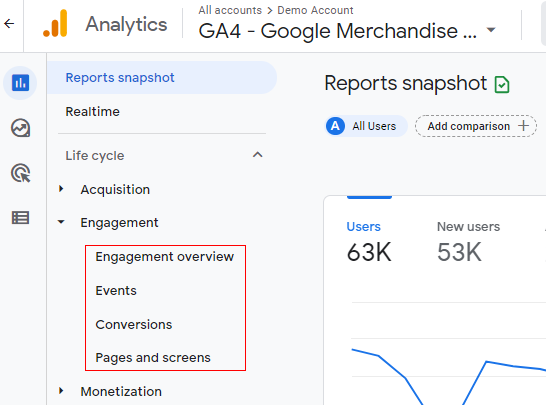
You can see user engagement dimensions in the following GA4 reports:
- Engagement Overview report
- Events report
- Conversion report
- Pages and Screens report
Monetization dimensions
The monetization dimensions give insight related to how your website/app monetize users.
Following are examples of various monetization dimensions:
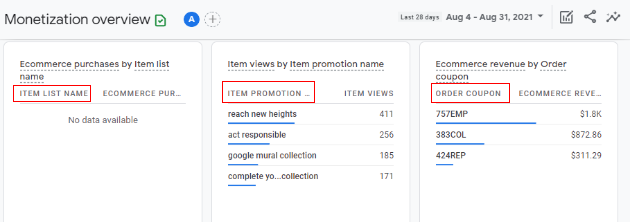
- Item list name – the name of the item list.
- Item promotion name – the name of the promotion for the sold item.
- Order coupon – code for the order-level coupon.
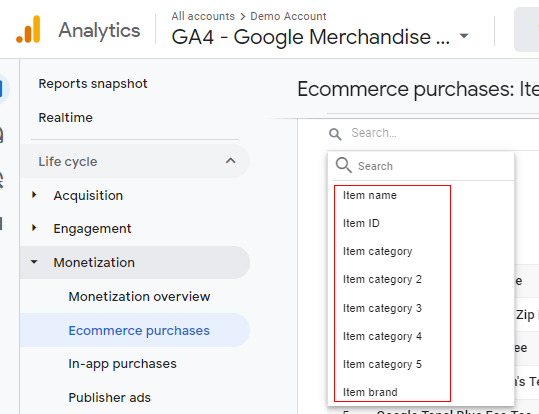
- Item name – the name of the item sold.
- Item ID – ID of the item sold
- Item category – Hierarchical category in which the sold item is classified. For example, in Shoes/Mens/Nike, ‘shoes’ is the item category.
- Item category 2 – Hierarchical category in which the sold item is classified. For example, in Shoes/Mens/Nike, ‘Mens’ is the item category 2.
- Item category 3 – Hierarchical category in which the sold item is classified. For example, in Shoes/Mens/Nike, ‘Nike’ is the item category 3.
- Item brand – brand name of the sold item.
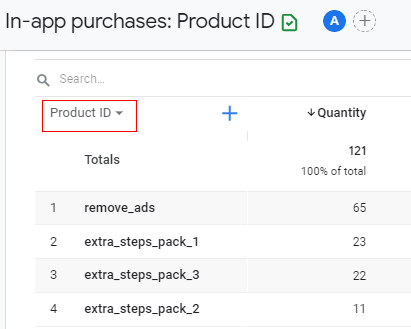
- Product ID – Product code of items sold.
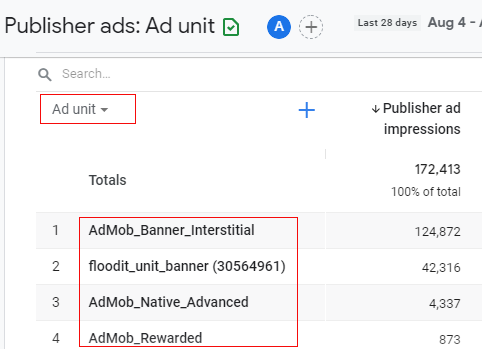
- Ad Unit – space on your website or app that displayed the ad.
Check out this help documentation to see the complete list of monetization dimensions: https://support.google.com/analytics/answer/9143382#zippy=%2Cmonetization
Where can you find monetization dimensions in GA4?
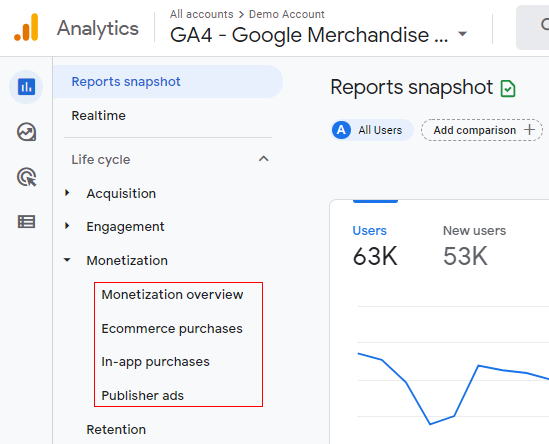
You can see monetization dimensions in the following GA4 reports:
- Monetization Overview report
- Ecommerce Purchases report
- In-app Purchases report
- Publisher Ads report
User demographics dimensions
The user demographics dimensions give insight related to the demographics (age, gender, interest, country, etc) of your website/app users.
Following are the examples of various user demographics dimensions:
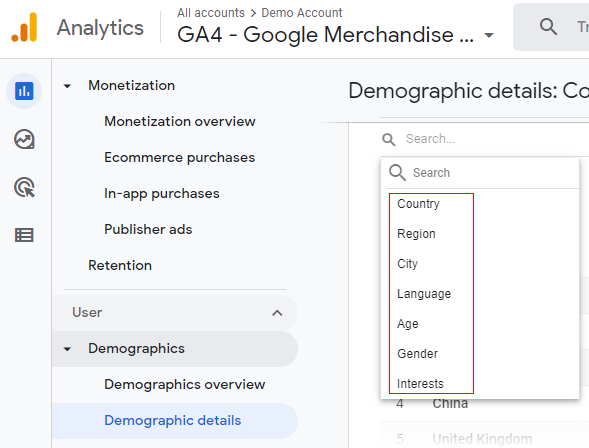
- Country – the name of the country from which the user’s activity originated.
- Region – the name of the region from which the user’s activity originated.
- City – the name of the city from which the user’s activity originated.
- Language – the language setting for the device used by the user.
- Age – the age group your website/app users belong to.
- Gender – the gender (male or female) of your users.
- Interests – the interest(s) demonstrated by your users.
Where can you find user demographic dimensions in GA4?
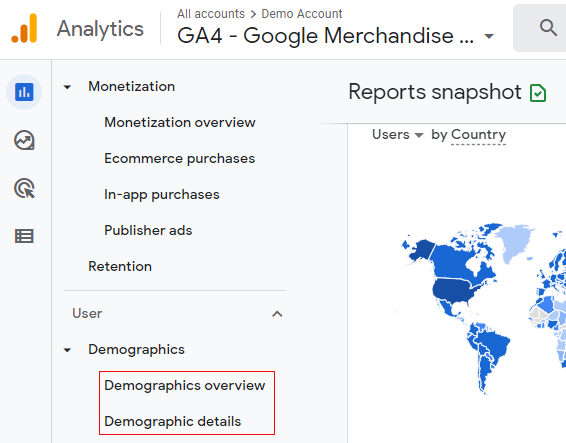
You can see user demographics dimensions in the following GA4 reports:
- Demographics Overview report
- Demographic Details report
Tech dimensions
The tech dimensions give insight related to the technology (device, browser, operating system, screen resolution, etc) used by your website/app users.
Following are the examples of various tech dimensions:
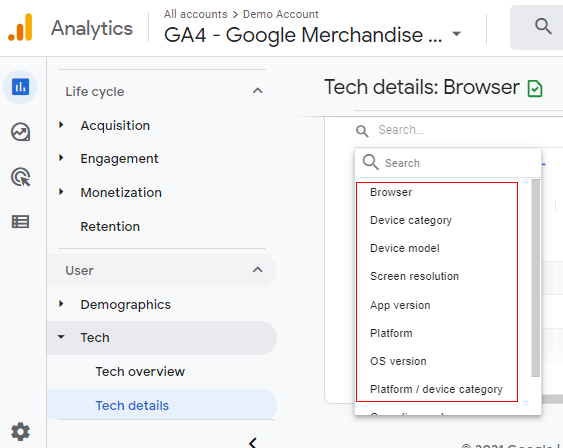
- Browser – the name of the web browser used by your users to engage with your website.
- Device Category – the type of device (Desktop, Tablet, or Mobile) used to engage with your website/app.
- Device Model – the model of the device (Chrome, Safari, iPhone etc) used to engage with your website/app.
- Screen Resolution – the resolution of the screen used to engage with your website/app.
Check out this help documentation to see the complete list of the tech dimensions: https://support.google.com/analytics/answer/9143382#zippy=%2Ctech
Where can you find the tech dimensions in GA4?
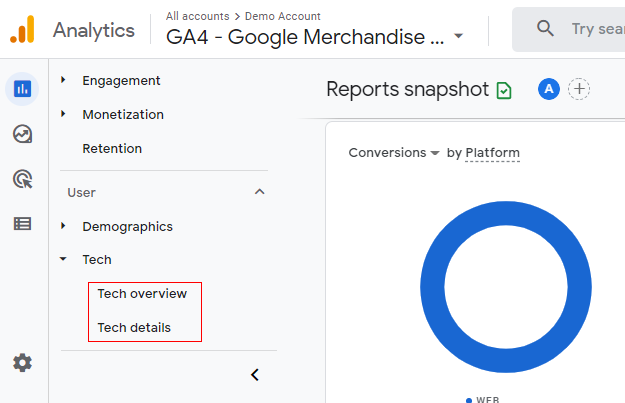
You can see the tech dimensions in the following GA4 reports:
- Tech Overview report
- Tech Details report
Prioritize user-scoped dimensions and metrics
Prioritize user-scoped dimensions and metrics (over session and event-scoped) in GA4 for data analysis and reporting.
Focus on users, not sessions or events, in your data analysis, as you want to understand users’ behaviour rather than the behaviour of sessions or events.
User-scoped data track users’ characteristics and actions across their entire journey, not just isolated sessions or events.
While session-scoped and event-scoped data are useful for understanding specific interactions or short-term behaviours, they are less effective in providing a holistic, long-term view of user behaviour and preferences.
These data scopes do not track users consistently over multiple sessions and time periods.
As a result, they don’t provide a continuous narrative of a user’s interaction with your product or service.Session and event data can result in a fragmented view of users, as each session is treated independently, leading to potential misinterpretation of users’ behaviour.
When it comes to understanding users’ behavior in GA4, prioritizing user-scoped dimensions and metrics is the way to go.

Other Articles on GA4.
- User Explorer Google Analytics 4 Tutorial.
- Google Analytics 4 Explorations Tutorial.
- How to Change Attribution Models in Google Analytics 4.
- Google Analytics Real-time report not working? Here is the fix.
- Google Signals in Google Analytics 4 - See demographics (gender, age) data.
- How to Create Landing Page Report in Google Analytics 4.
- How to segment Google Analytics 4 data by data stream.
- Setup Cross Domain Tracking in Google Analytics 4.
- How to see full page URLs in Google Analytics 4.
- Roll up Property in Google Analytics 4 – Tutorial.
- The Best Tag Auditing Tools for Google Analytics 4.
- How to Exclude URL Query Parameters in Google Analytics 4.
- How to Track Email Campaigns in Google Analytics 4.
- Google Analytics 4 Attribution Modelling Tutorial.
- Understanding Service Worker in GTM Server Side Tagging.
- Cohort Exploration Report in Google Analytics 4 (GA4).
- Google Analytics 4 vs Google Ads conversion tracking.
- Google Analytics 4 Custom Dimensions Tutorial.
- Google Analytics 4 Dimensions Tutorial.
- Event Scoped Custom Dimensions in Google Analytics 4.