

What is internal traffic in GA4 (Google Analytics 4)?
The traffic generated by you or your employees, suppliers and other service providers (like your developer) to your website is called ‘Internal Traffic‘.
These people are not your target audience, so we don’t need to track them.
Internal traffic can easily skew your website usage metrics and therefore must be filtered out from your GA4 reports.
How to exclude internal traffic in Google Analytics 4?
Follow the steps below to exclude internal traffic from your reporting in GA4 property:
Step-1: Navigate to your GA4 property.
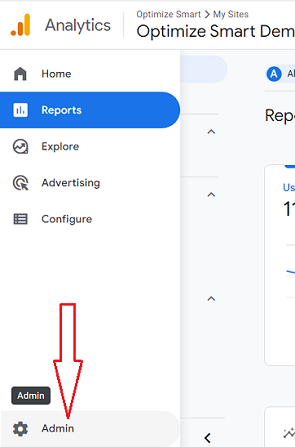
Step-2: Click on the ‘Admin’ link at the bottom left-hand side:
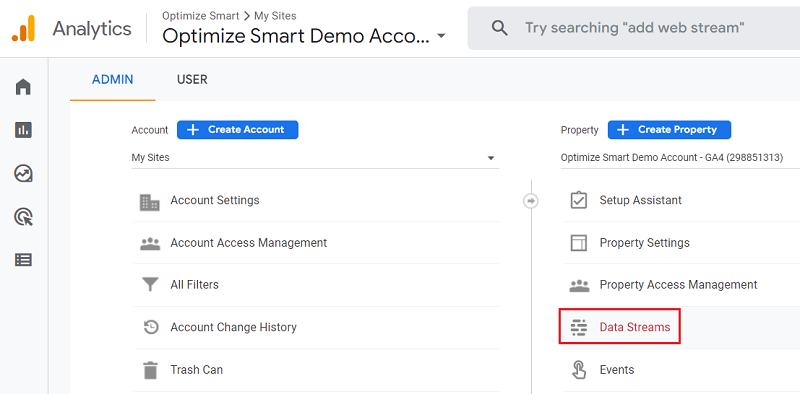
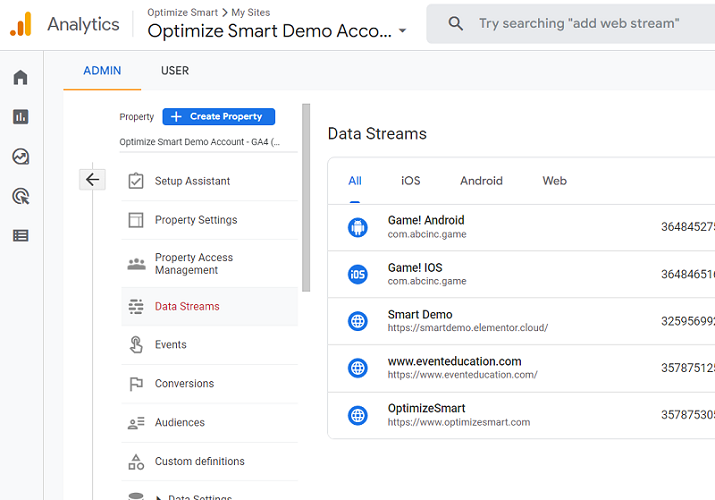
Step-3: Click on ‘Data Streams’ under the ‘Property‘ column:
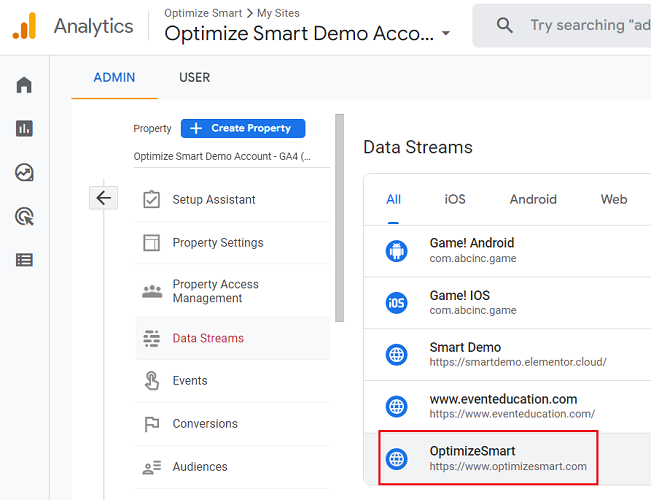
Step-4: Click on the data stream name for which you want to exclude internal traffic.
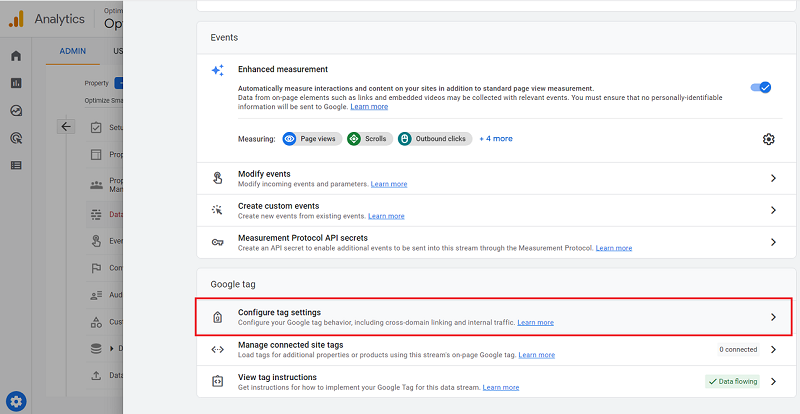
Step-5: Scroll down your screen and then click on ‘Configure tag settings’ under the ‘Google tag’ section:
Step-6: Scroll down the screen and then click on the ‘Show all‘ drop-down menu:
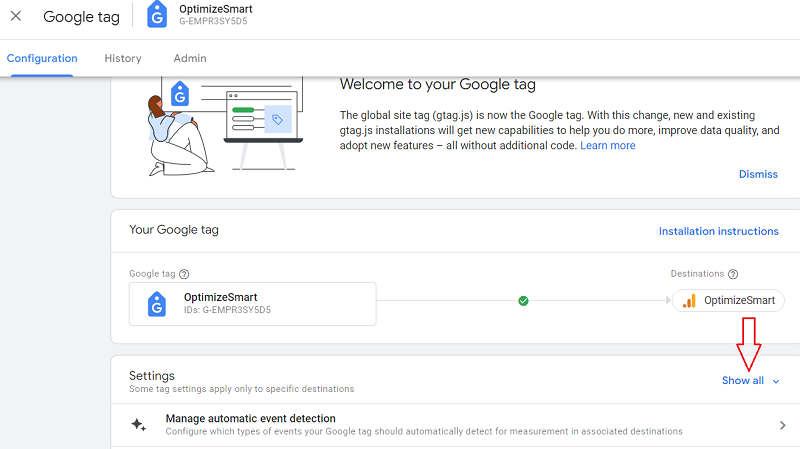
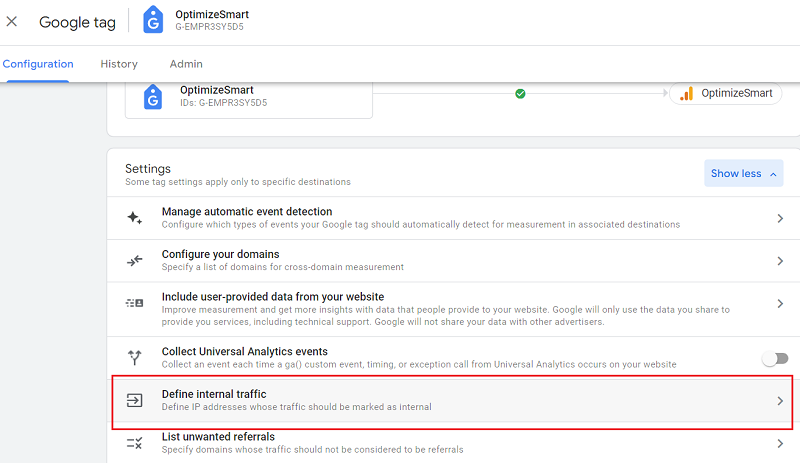
Step-7: Scroll down your screen and then click on ‘Define internal traffic’:
Step-8: Click on the ‘Create’ button:
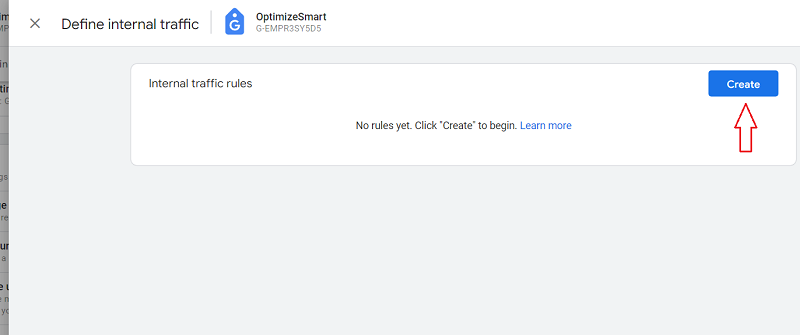
You should now see a screen like the one below:
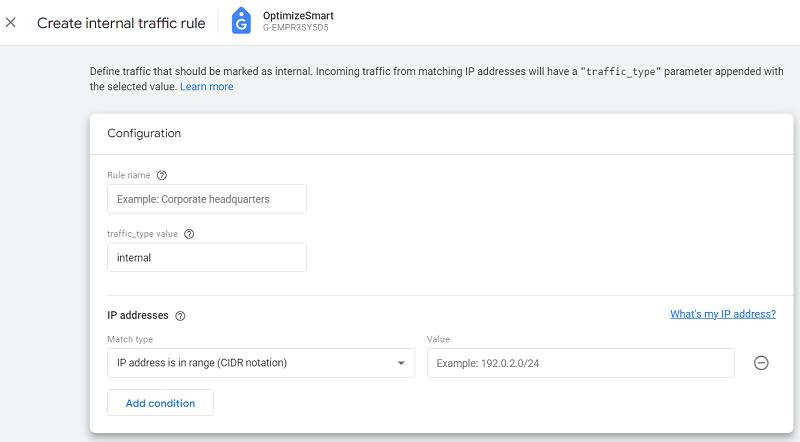
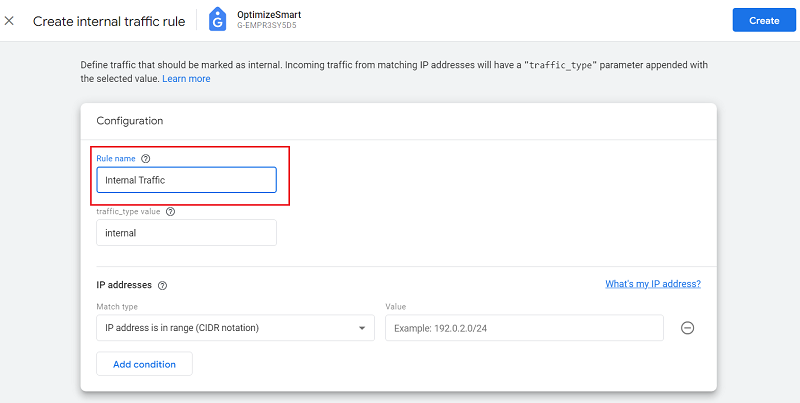
Step-9: Give your filter a name by typing in the text box under ‘Rule Name’. Let’s name our filter ‘Internal Traffic’:
Step-10: Leave the ‘traffic_type value’ as ‘internal’ since we are creating a filter to exclude internal traffic from the website:
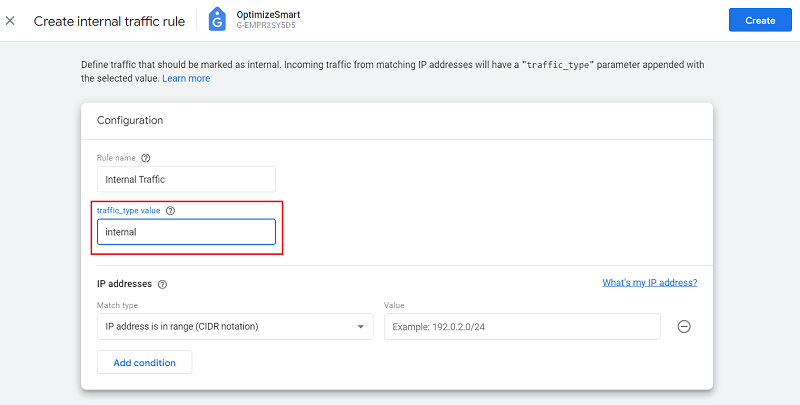
However, you can change this value if you pass some other parameter as an internal traffic identifier.
Note: The next step will use whatever value you pass for the ‘traffic_type value’ in the data filter settings.
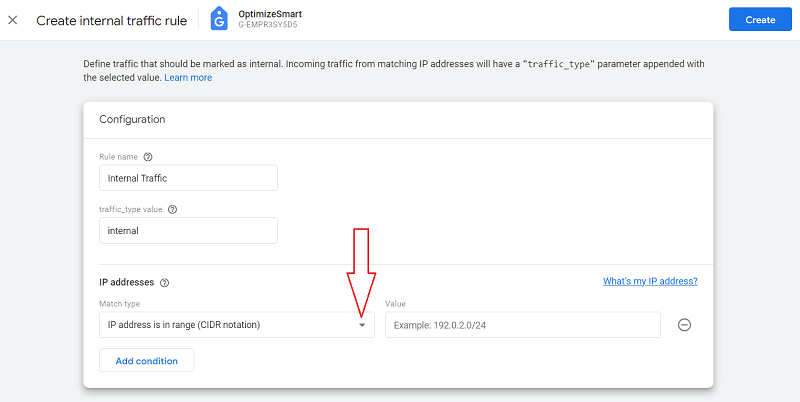
Step-11: Click on the drop-down menu under ‘Match Type’:
You should now see a drop-down list like the one below:
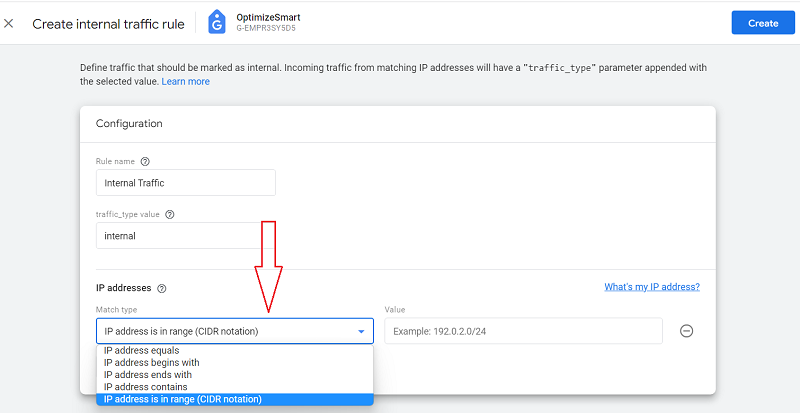
IP address equals: This option will match only one IP address.
For example, ‘165.204.156.26’.
IP address begins with: This option will match all the IP addresses that begin with the provided input.
For example, if you provide input as ‘165’, it will match ‘ 165.204.156.26’, ‘165.203.156.28’ but not ‘167.204.156.26’.
IP address ends with: This option will match all the IP addresses that end with the provided input.
For example, if you provide input as ‘26’, it will match ‘ 165.204.156.26’, ‘167.203.155.26’ but not ‘165.204.156.28’.
IP address contains: This option will match all the IP addresses that contain the provided input.
For example, if you provide input as ‘165’, it will match ‘ 165.204.156.26’, ‘190.165.156.28’ but not ‘167.204.156.26’.
IP address is in range (CIDR notation): This default option will match a range of IP addresses.
For example, 168.208.156.28/32
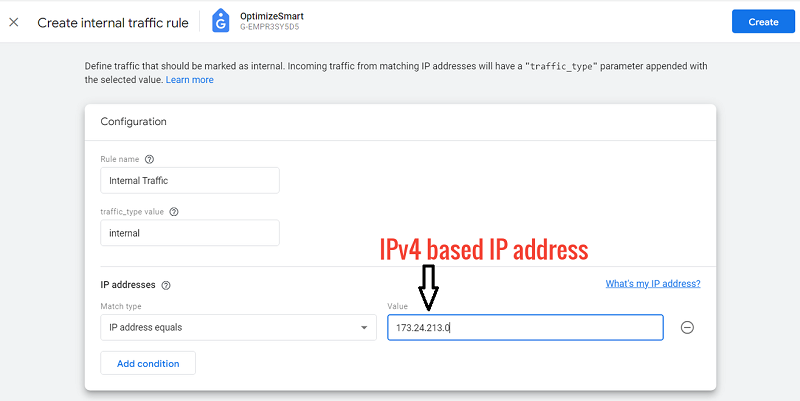
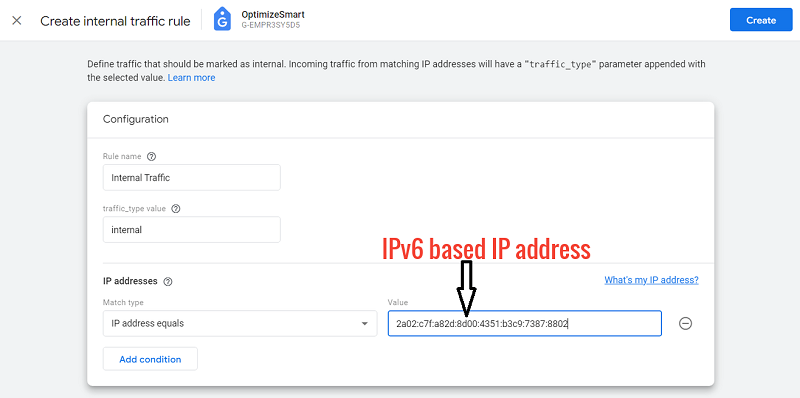
Note(1): You can enter IPv4 or IPv6 addresses in the IP address field in GA4:
Following is an example of IPv4 based IP address:
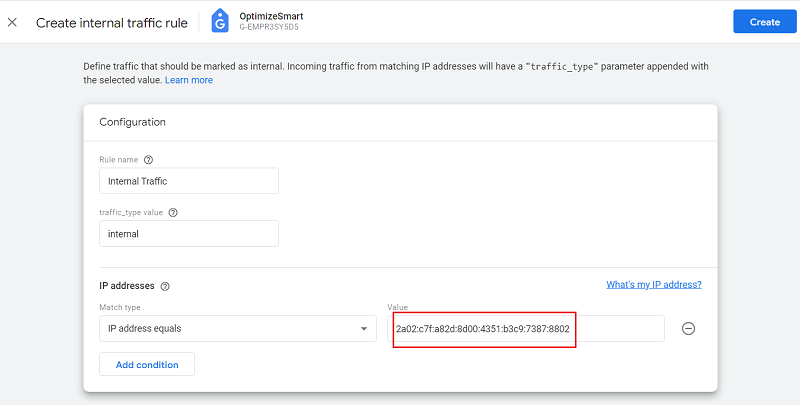
Following is an example of IPv6 based IP address:
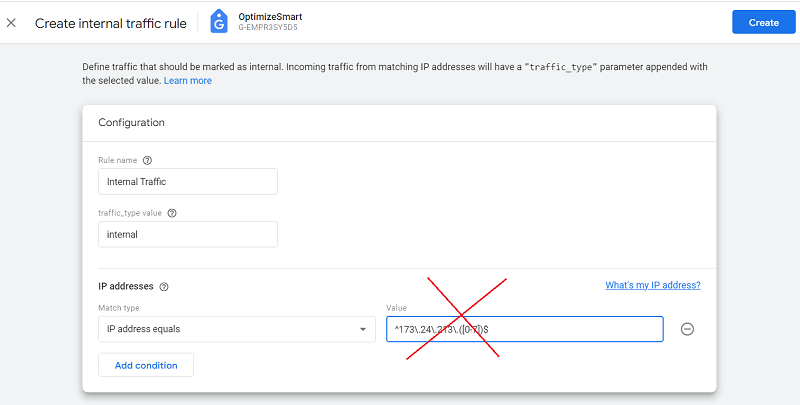
Note(2): The IP address field in GA4 does not support the use of regular expressions.
Note(3): Click on the ‘Add Condition‘ button if you want to set multiple conditions to identify internal IP addresses:
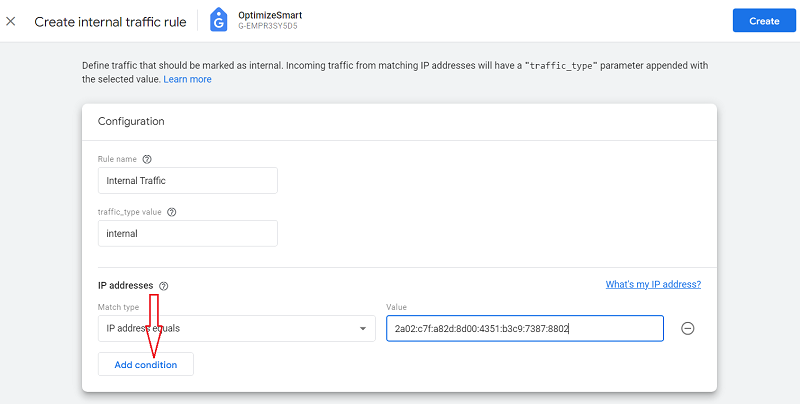
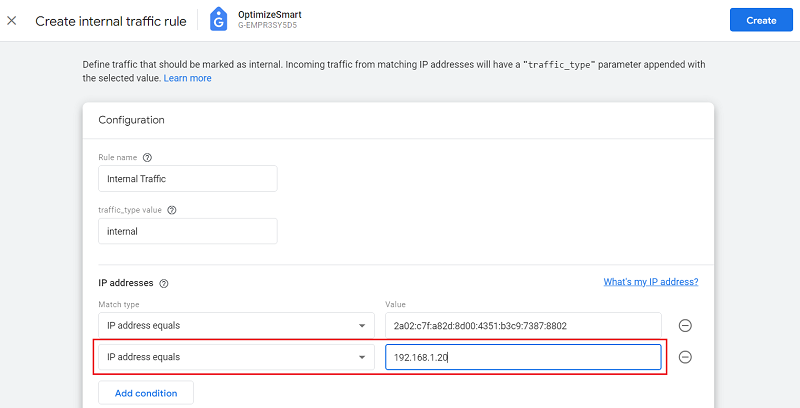
When you set multiple conditions to identify internal IP addresses, they are joined by logical OR.
For example, IP addresses that match 2a02:c7f:a82d:8d00:4351:b3c9:7387:8802 or 192.168.1.20 will be marked as internal traffic.
Step-12: Enter the IP address from which you want to exclude your internal traffic:
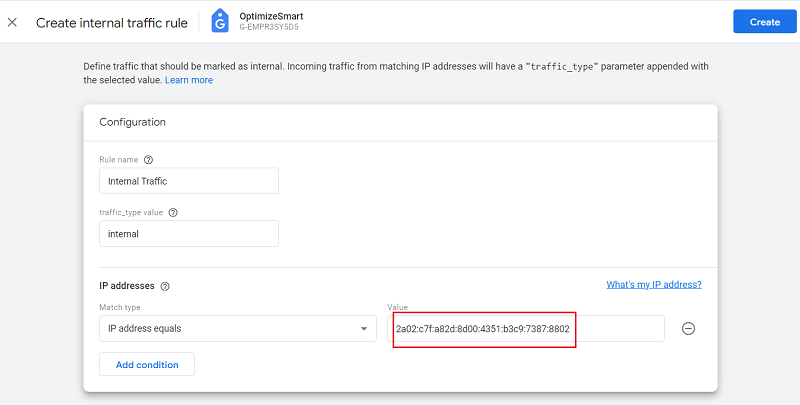
If you want to exclude all the traffic originating from your device, but you don’t know your IP address, you should then click on the link ‘What’s my IP address’:
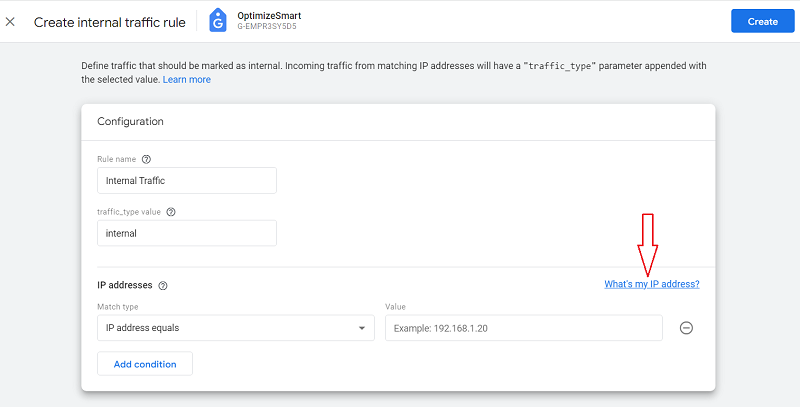
You will automatically be redirected to a new tab in your browser window from where you can see your IP address:
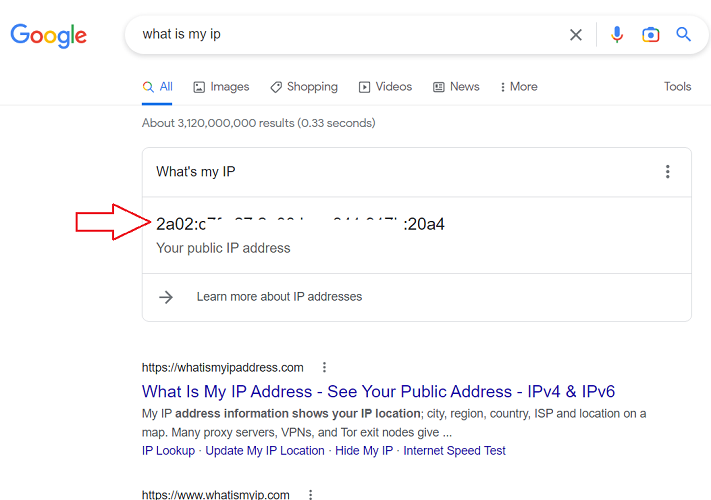
Step-13: Copy your IP address and then paste it into the text box under ‘IP address’:
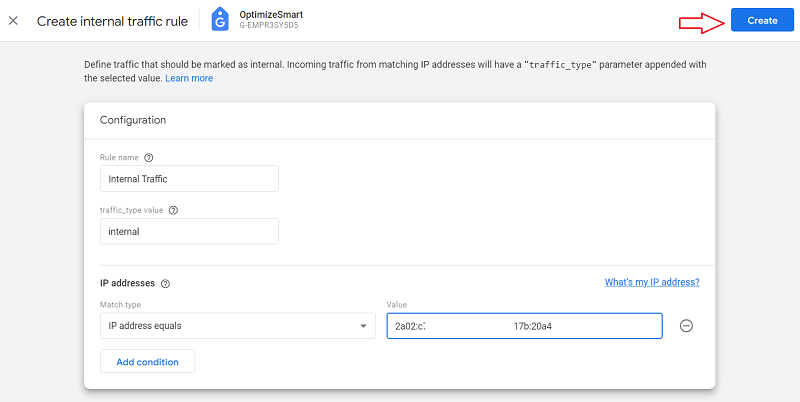
Step-14: Click on the ‘Create’ button to create your internal traffic data filter:
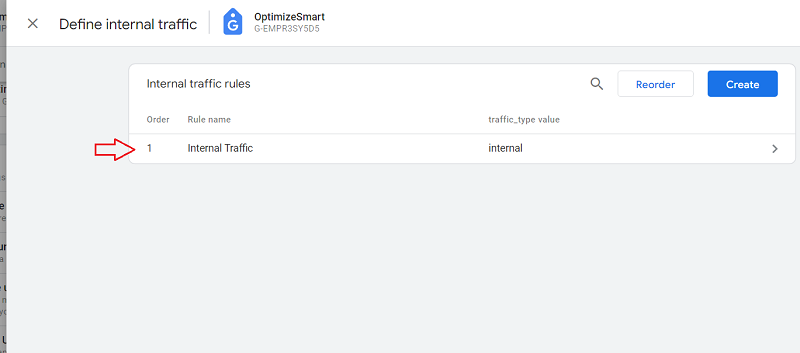
Your new internal traffic rule will appear like the one below.
Step-15: Click on the cross button (at the top left of your screen) three times to navigate back to the admin section of your GA4 property. You should now see a screen like the one below:
How to test the exclude internal traffic data filter in Google Analytics 4?
Follow the steps below:
Step-1: If you are excluding traffic from your own device, then navigate to your website via your device.
If you are excluding traffic from an IP address that doesn’t belong to your device, then ask the person whose IP address you added (while creating the exclude internal filter) to visit your website.
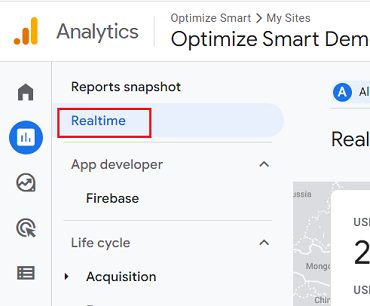
Step-2: Navigate to the ‘Realtime’ report in your GA4 property:
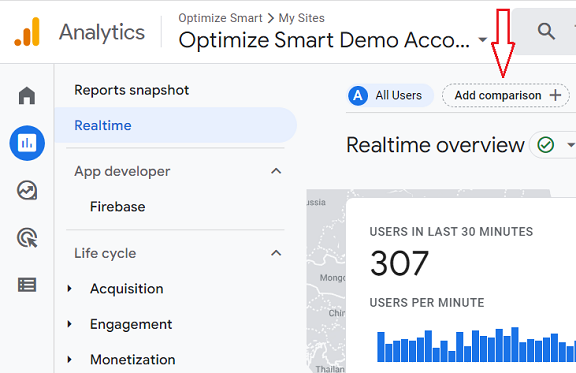
Step-3: Click on the ‘Add Comparison’ button:
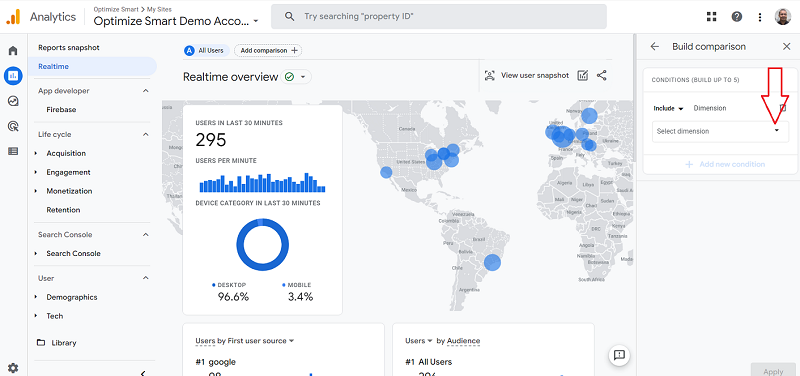
Step-4: Click on the drop-down menu under ‘Dimension’:
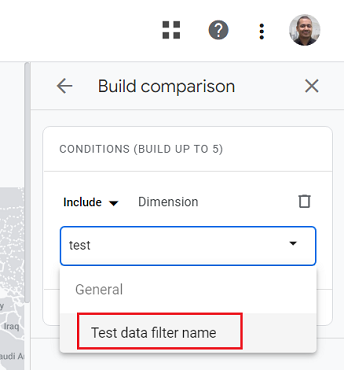
Step-5: Type ‘Test’, and you should see the dimension ‘Test data filter name‘ in the drop-down list:
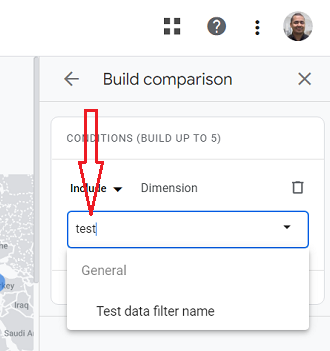
Note: If this dimension appears disabled, you may need to wait for 12-24 hrs.
Step-6: Click on the dimension name (‘Test data filter name’) in order to select it.
Step-7: Click on the drop-down under ‘Dimension Values and then click on the checkbox next to ‘Internal Traffic’:
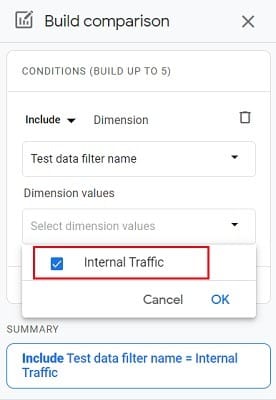
Step-8: Click on the ‘ok‘ button.
Step-9: Click on the ‘Apply’ button:
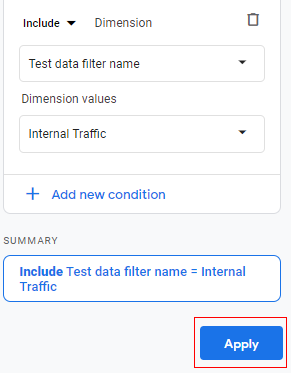
You should now see the new comparison applied to your report:
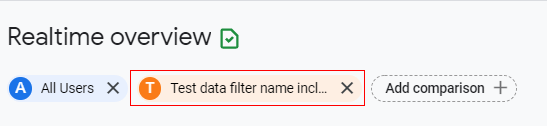
Step-10: Refresh your browser window.
You should now also be able to see the filtered data under ‘Test data filter name..”:
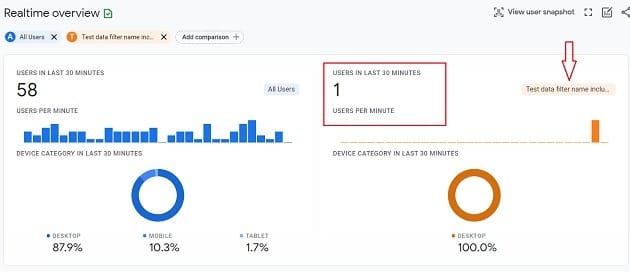
The real-time view in the orange column shows us the traffic from the internal IP address we defined earlier.
This proves that our filter works perfectly fine, and we can now make it live.
How to activate the exclude internal traffic data filter in GA4?
Follow the steps below:
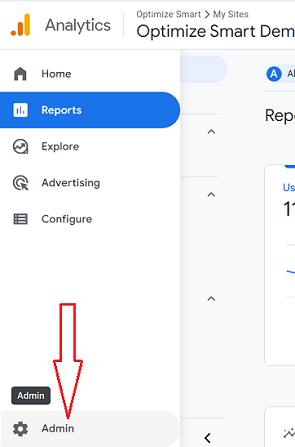
Step-1: Navigate to your GA4 property and then click on the ‘Admin’ link:
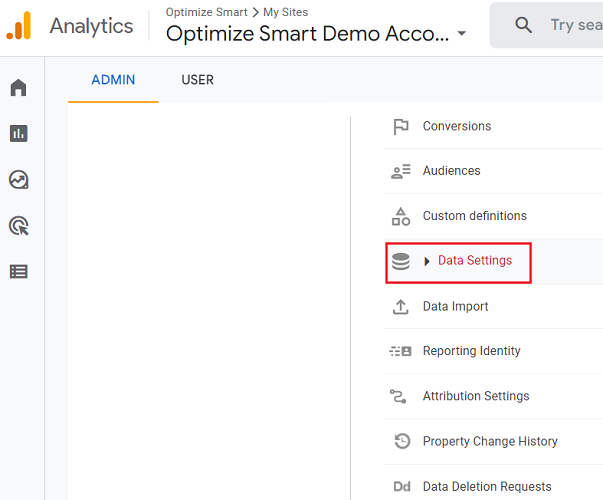
Step-2: Click on the ‘Data Settings’ drop-down menu:
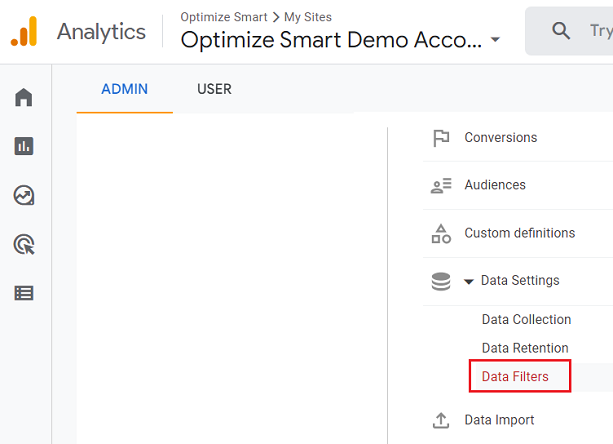
Step-3: Click on ‘Data Filters’.
Step-4: Click on the ‘Internal Traffic‘ data filter:
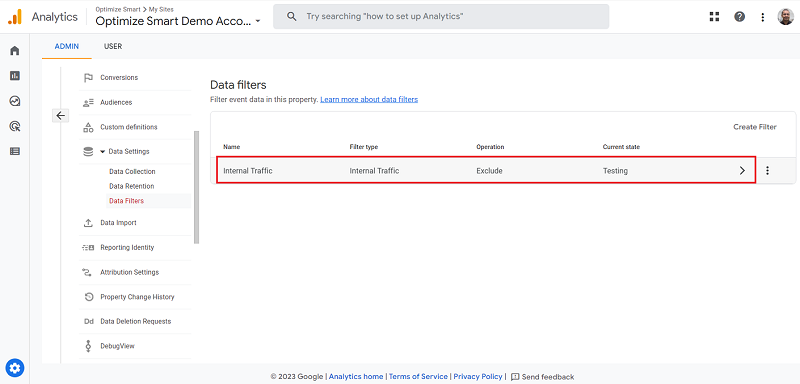
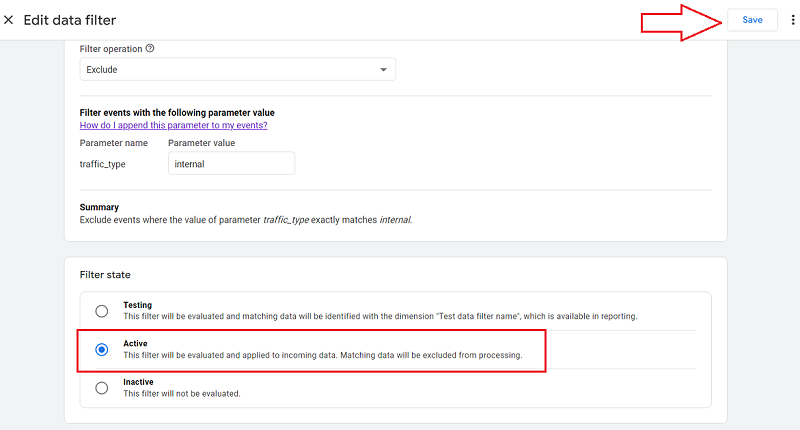
Step-5: Scroll down to the ‘Filter state‘ section, click on ‘Active’ and then click on the ‘Save‘ button at the top right-hand corner of your screen:
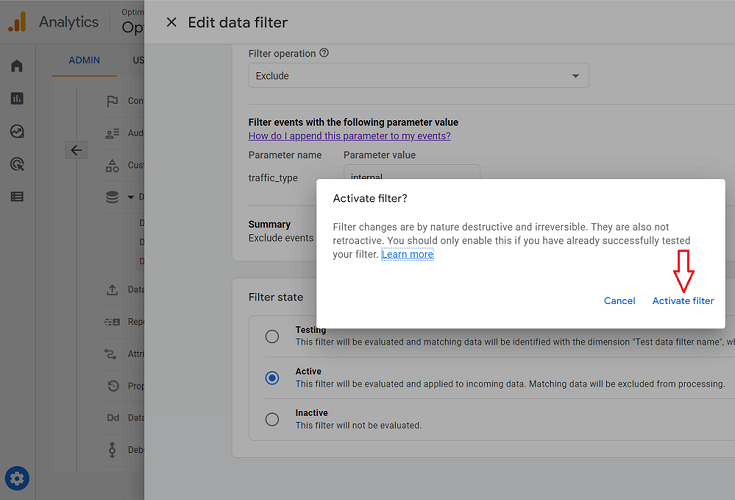
Step-6: Click on the ‘Activate Filter‘ button:
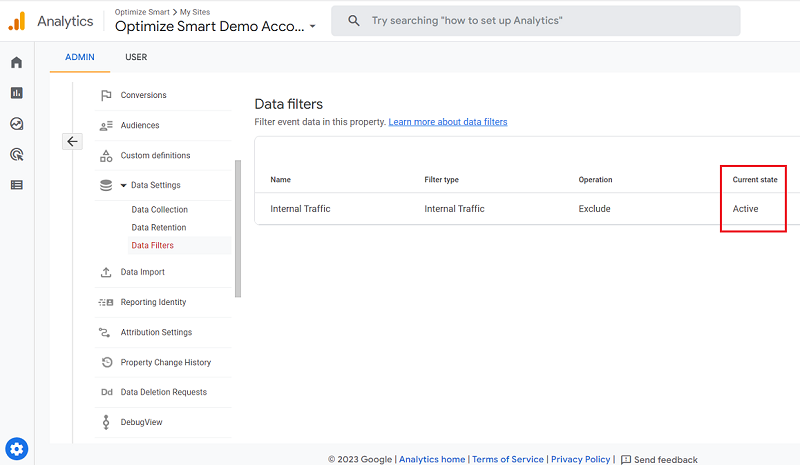
You should now see the exclude internal traffic filter listed as ‘Active’:
That’s it.
Congratulations!
You have successfully set up your filter in GA4 to exclude internal traffic.
How to deactivate the exclude internal traffic data filter in GA4?
To de-activate your data filter, follow the steps below:
Step-1: Navigate to the ‘admin’ section of your GA4 property.
Step-2: Click on the ‘Data Settings’ drop-down menu under the ‘Property’ column.
Step-3: Click on ‘Data Filters’.
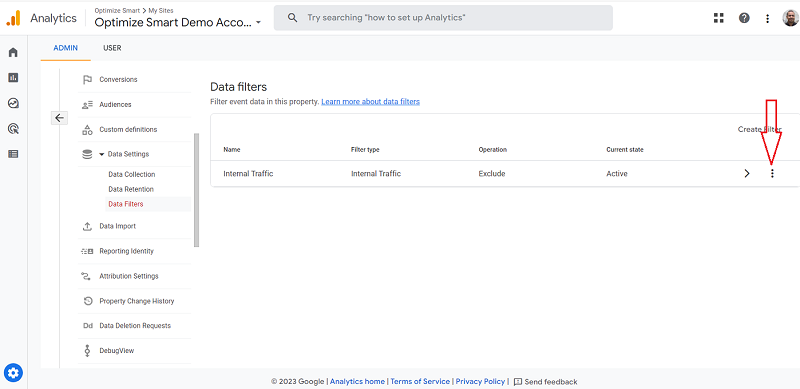
Step-4: Click on the three dots menu next to the data filter you want to deactivate:
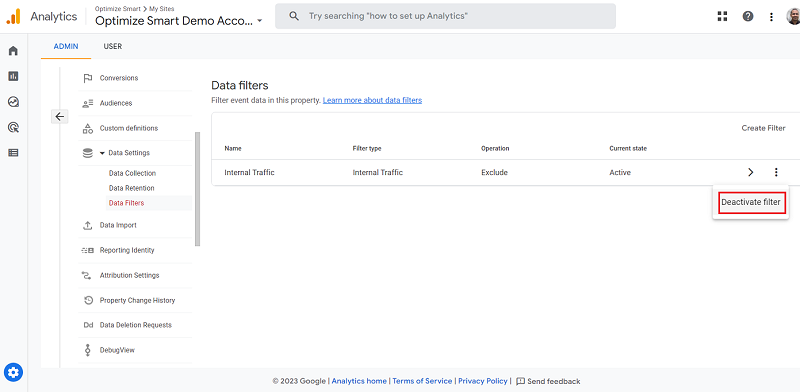
Step-5: Click on ‘Deactivate filter’:
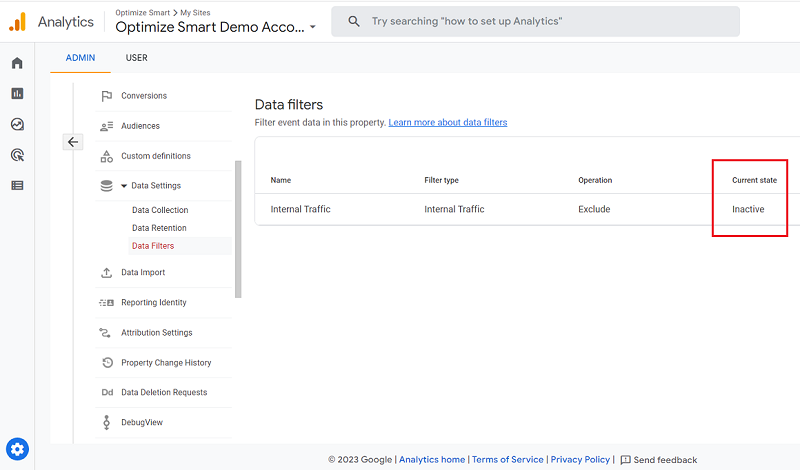
You should now see the ‘Current Status’ of your filter as ‘Inactive’:
How to reactivate Exclude internal traffic data filter in GA4?
To reactivate your data filter, follow the steps below:
Step-1: Navigate to the ‘admin’ section of your GA4 property.
Step-2: Click on the ‘Data Settings’ drop-down menu under the ‘Property’ column.
Step-3: Click on ‘Data Filters’.
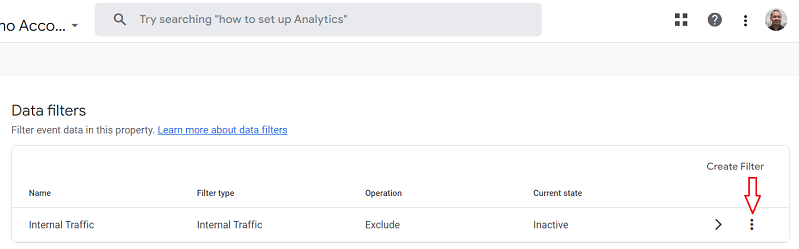
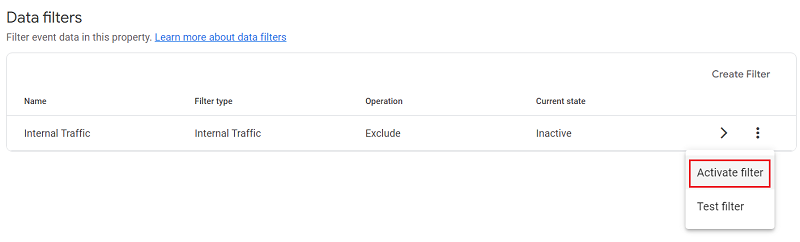
Step-4: Click on the three dots menu next to the data filter you want to re-activate:
Step-5: Click on ‘Activate filter‘:
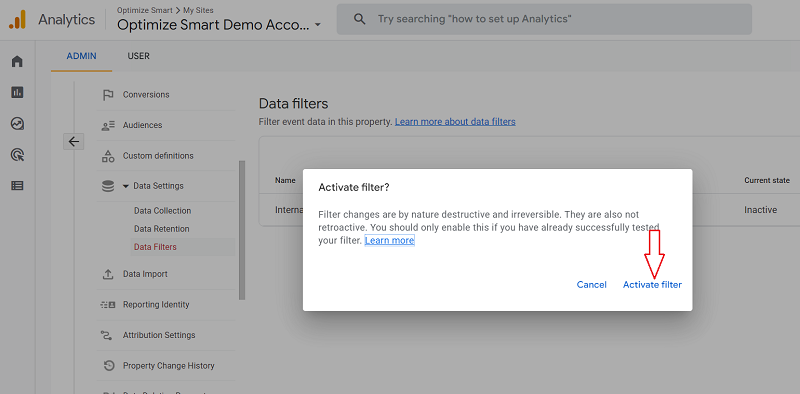
Step-6: Click on the ‘Activate filter‘ button:
How to edit an Exclude Internal traffic data filter in GA4?
To edit your data filter, follow the steps below:
Step-1: Navigate to the ‘admin’ section of your GA4 property.
Step-2: Click on the ‘Data Settings’ drop-down menu under the ‘Property’ column:
Step-3: Click on ‘Data Filters’.
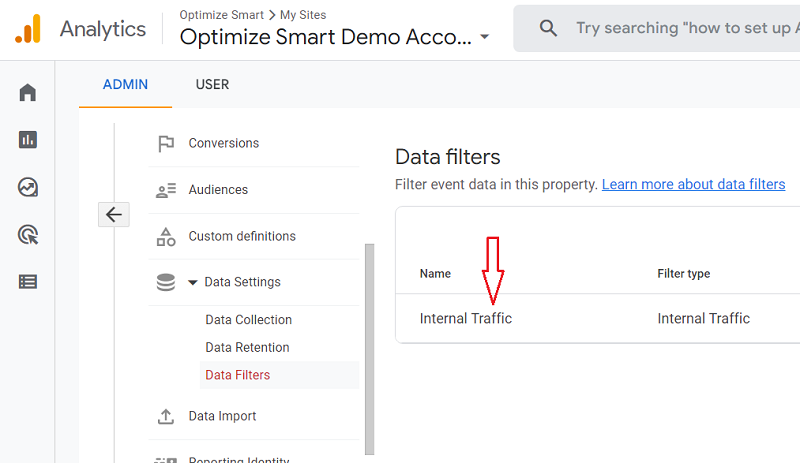
Step-4: Click on the data filter you want to edit:
Step-5: Make necessary changes and then click on the ‘Save‘ button.
How to delete an Exclude Internal traffic data filter in GA4?
To delete your data filter, follow the steps below:
Step-1: Navigate to the ‘admin’ section of your GA4 property.
Step-2: Click on the ‘Data Settings’ drop-down menu under the ‘Property’ column:
Step-3: Click on ‘Data Filters’.
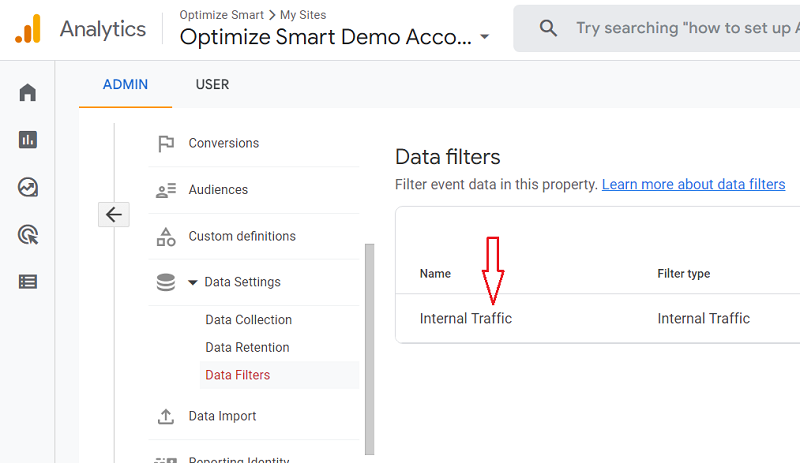
Step-4: Click on the data filter you want to delete:
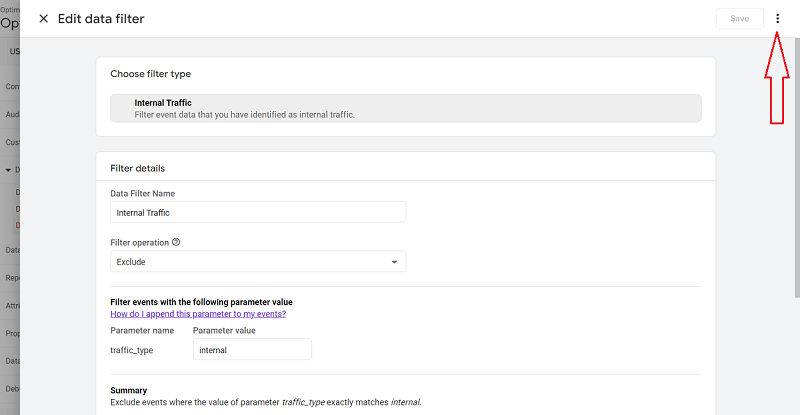
Step-5: Click on the three dots menu at the top right-hand side of your screen:
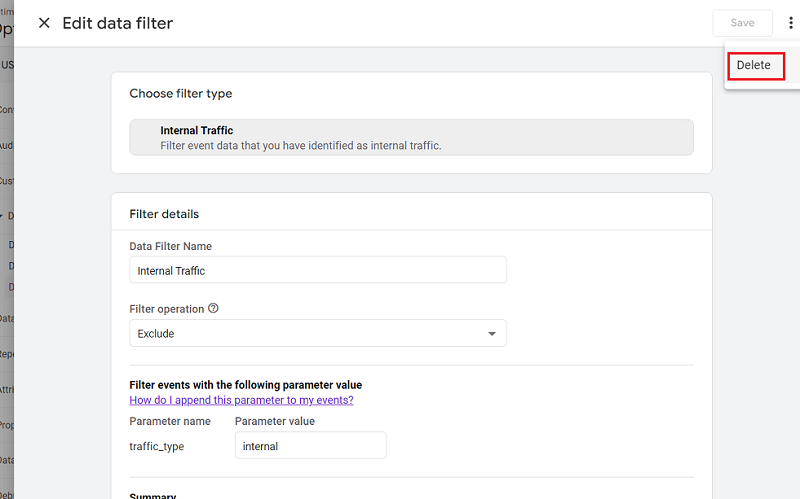
Step-6: Click on ‘Delete‘:

Other Articles on GA4.
- How to Create Landing Page Report in Google Analytics 4.
- How to segment Google Analytics 4 data by data stream.
- Setup Cross Domain Tracking in Google Analytics 4.
- How to see full page URLs in Google Analytics 4.
- Roll up Property in Google Analytics 4 – Tutorial.
- The Best Tag Auditing Tools for Google Analytics 4.
- How to Exclude URL Query Parameters in Google Analytics 4.
- How to Track Email Campaigns in Google Analytics 4.
- Google Analytics 4 Attribution Modelling Tutorial.
- Understanding Service Worker in GTM Server Side Tagging.
- Cohort Exploration Report in Google Analytics 4 (GA4).
- Google Analytics 4 vs Google Ads conversion tracking.
- Google Analytics 4 Custom Dimensions Tutorial.
- Google Analytics 4 Dimensions Tutorial.
- Event Scoped Custom Dimensions in Google Analytics 4.
- Google Analytics 4 Search Console Integration Tutorial.
- Fixing unassigned issues with GTM Server Side Tagging.
- How to exclude internal traffic in Google Analytics 4.
- Understanding data filters in Google Analytics 4.
- Conversion Funnel Analysis in Google Analytics 4.