

Google Analytics 4 Cohort exploration report overview.
In terms of web analytics, a cohort is a group of users who share some common characteristics by any analytics dimension in the report. For example, a list of all active users who share a common (same) acquisition date.
In other words, cohorts are meant to identify demographics. Cohort exploration provides great insights, especially on broader pictures of returning visitors over time.
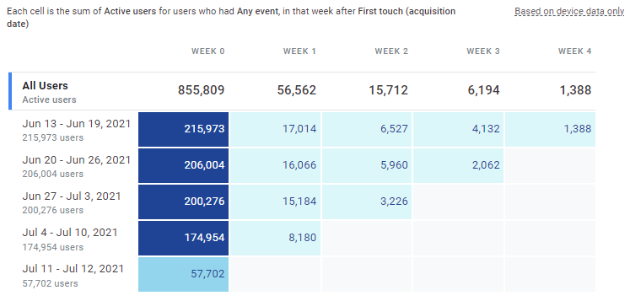
A sample cohort analysis report will look like the below image.
Note: The cohort exploration report is based on users’ device data and not on User ID.
Each cell in the cohort exploration report shows the total number of users who fulfil return criteria.
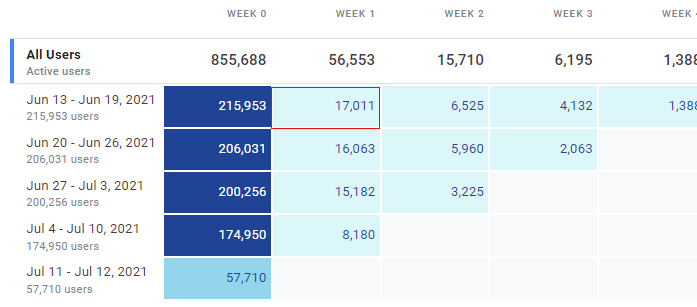
For example, in week 0, which is from June 13th to June 19th, there are a total of 215,973 users who are included in the report. In Week 1 (same row), which is from June 20th to June 26th, you see a total of 17,014 users who met the return criteria.
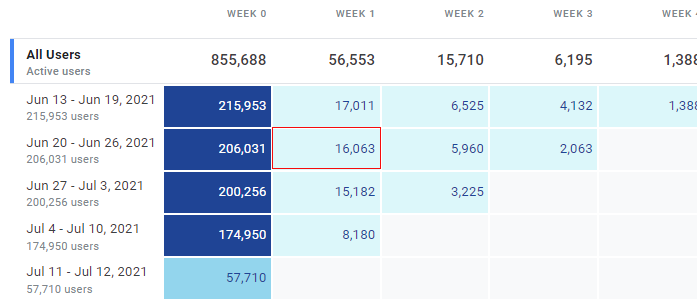
At the same time, you can also see a total of 206,004 users who are included in the report as a starting week (June 20th to June 26th). And then in the same row, the next corresponding week (week 1) shows a total of 16,066 users who met the return criteria.
Now let’s create a sample cohort exploration report.
Creating a cohort exploration report
To create a cohort exploration report, follow the below steps.
Step-1: Navigate to your Google Analytics 4 property.
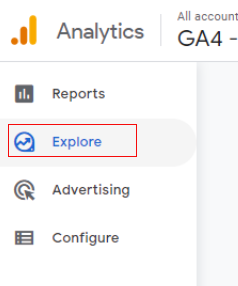
Step-2: Now on the left-hand side navigation menu, click on ‘Explore’.
Step-3: Click on ‘Template Gallery’.
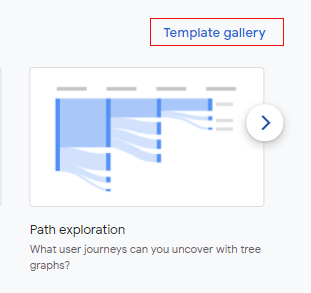
Step-4: Click on the ‘Cohort exploration’ template.
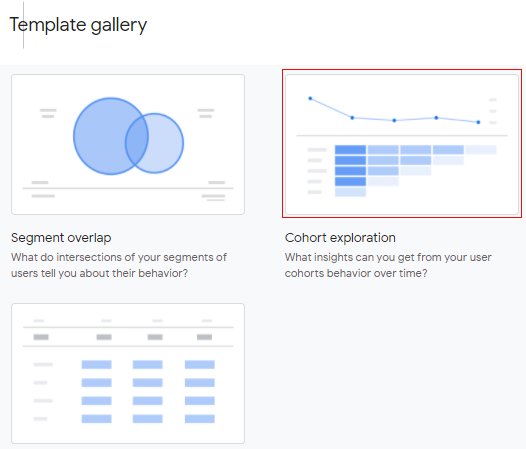
Step-5: Wait for a few seconds and your first cohort exploration report will load, like below.
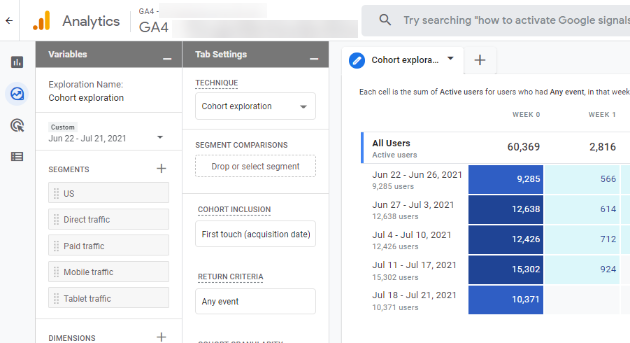
Congratulations! You have created the cohort exploration report. Now let’s see how you can configure the report.
Configure the cohort exploration report
You can configure the cohort exploration in the following way.
Cohort inclusion settings
This setting involves the inclusion of the initial condition for which users will have to meet to be included in the report.
You can select the following conditions from the drop-down available under ‘Cohort Inclusion’.
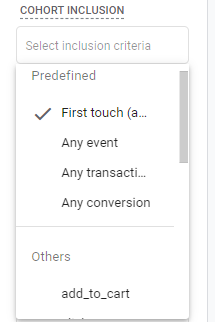
The conditions can be following
- First touch (acquisition date): This includes the first time a user visited your application or website.
- Any event: The first event generated by the user within the date range specified for the cohort exploration report.
- Any transaction: The first transaction event generated by the user within the date range specified for the cohort exploration report.
- Any conversion: The first conversion event generated by the user within the date range specified for the cohort exploration report.
- Others: Any other event generated by the user within the date range specified for the cohort exploration report.
Return criteria
This setting defines the return criteria that have to be met by the user to be included in the cohort exploration report.
You can select the following conditions from the drop-down available under ‘Return Criteria’.
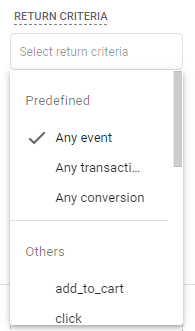
- Any event: If the user has generated a single event during the data range specified for the cohort exploration report.
- Any transaction: If the user has generated a single transaction event during the data range specified for the cohort exploration report.
- Any conversion: If the user has generated a single conversion event during the data range specified for the cohort exploration report.
- Others: Any other event generated by the user within the date range specified for the cohort exploration report.
Cohort granularity
This setting defines the initial and return cohort time frame. You can have the following types of granularity.
You can select this setting by clicking on the dropdown available under ‘Cohort Granularity’.
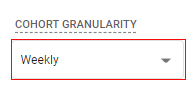
- Daily: From midnight to next midnight 11:59 PM as per timezone set for the analytics property.
- Weekly: From Sunday midnight to Saturday midnight 11.59 PM included, and not on a rolling 7 days.
- Monthly: From the 1date of the month to the last date of a month.
Cohort calculation type:
This setting will determine how each cell will have its metric calculated for the selected period of the cohort exploration report.
You can do this by selecting the type of calculation by using the drop-down available under ‘Calculation’.
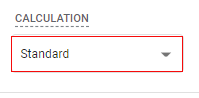
There are three types of calculation as follows
- Standard: In this type of calculation, each cell will contain the number of users who met return criteria for that period (selected day, week, or month) only regardless of what activity they do in other periods.
- Rolling: In this type of calculation, each cell will contain the number of users who met return criteria for that period (selected day, week, or month) as well as the previous period.
- Cumulative: In this type of calculation, each cell will contain the number of all users who met return criteria for any period (selected day, week, or month) in the exploration report.
Breakdown of cohort
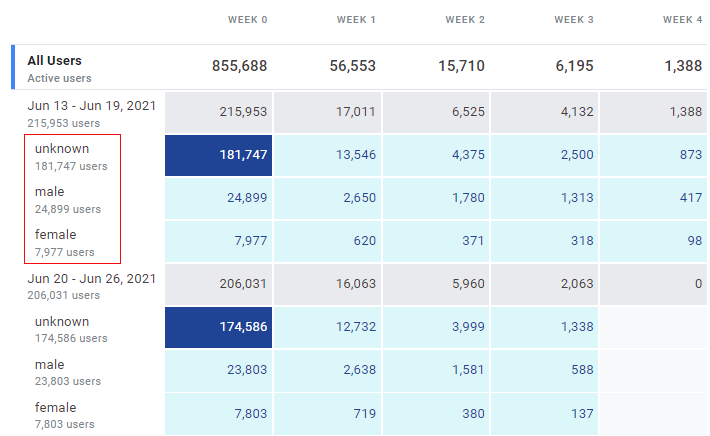
Using this setting you can break down the cohort report into different subgroups based on a particular dimension. This is very useful when you want to compare the changes in cohort exploration among different dimensions.
For example, I have broken down the users based on their gender to see their performance.
Cohort values
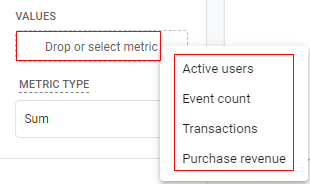
You can also configure the metric that is shown in the cohort cells by clicking and selecting a metric under ‘Values’.
Limits of cohort exploration reports
Even though the cohort report has great significance, there are few limitations of the report as below
- Number of cohorts: The cohort exploration report can show only up to 60 cohorts (cells)
- Breakdown issue: When you break down the cohort using any dimension then only the top 15 values of that dimension are shown.
- Demographics dimension: Demographic dimensions are subject to thresholding. If the numbers are small then it won’t show any number and the reason behind this is to safeguard individual user identity and to protect their anonymity.
Sharing and downloading reports
You can share the report with other colleagues as well (who have at least read-only access to the GA4 property.). Just click on the ‘Share’ icon available in the upper-right corner of the ‘Reporting’ tab.
You also get an option to download the report. Click on the ‘Download’ button.
A small pop-up will come like below where you can specify the report format type.
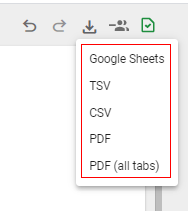
Available options are:
- Google Sheets
- TSV (tab-separated values)
- CSV (comma separated values)
- PDF (all tabs) – this will download all the tabs in the reporting panel in PDF format if you have multiple tabs.
So this is how you can use the cohort exploration report.

Other Articles on GA4.
- User Explorer Google Analytics 4 Tutorial.
- Google Analytics 4 Explorations Tutorial.
- How to Change Attribution Models in Google Analytics 4.
- Google Analytics Real-time report not working? Here is the fix.
- Google Signals in Google Analytics 4 - See demographics (gender, age) data.
- How to Create Landing Page Report in Google Analytics 4.
- How to segment Google Analytics 4 data by data stream.
- Setup Cross Domain Tracking in Google Analytics 4.
- How to see full page URLs in Google Analytics 4.
- Roll up Property in Google Analytics 4 – Tutorial.
- The Best Tag Auditing Tools for Google Analytics 4.
- How to Exclude URL Query Parameters in Google Analytics 4.
- How to Track Email Campaigns in Google Analytics 4.
- Google Analytics 4 Attribution Modelling Tutorial.
- Understanding Service Worker in GTM Server Side Tagging.
- Cohort Exploration Report in Google Analytics 4 (GA4).
- Google Analytics 4 vs Google Ads conversion tracking.
- Google Analytics 4 Custom Dimensions Tutorial.
- Google Analytics 4 Dimensions Tutorial.
- Event Scoped Custom Dimensions in Google Analytics 4.