

What is the advantage of linking Google Search Console to Google Analytics 4 (GA4)?
Google Analytics 4 allows you to connect your GA4 property with Google Search Console property.
You should link/connect your GA4 property with your Google Search Console account.
Through such integration, you can view the Google search console data in your GA4 property.
The Search Console data is made up of:
- Queries
- Impressions
- Clicks
- CTR
- Organic Google search average position
- Landing pages etc
Through Google search console data, you can determine what users saw in Google search results before they decided to click on your website.
You can then use this data to identify new content development opportunities and prioritize content development and marketing efforts to increase your website traffic.
For example,
You can identify landing pages on your website that have good clickthrough rates (CTR) on search result pages but have poor average ranking positions.
These could be pages that people want to see but have trouble finding. You can then work on improving their search engine rankings.
Similarly,
You can identify search queries (keywords) for which your website has good CTR on search result pages but poor average positions.
You can then work on improving the search engine rankings of your landing pages for their search queries.
When you link your GA4 property to your search console account, the following two new search console reports become available in your GA4 property:
- Queries report.
- Google organic search traffic report.
Connect Google Search Console to Google Analytics 4 (GA4).
Follow the steps below to link your Google Search Console property to your GA4 property:
Step-1: Make sure that both your GA4 property and the search console property you are planning to link to each other are collecting data for the same set of web pages (i.e. website).
Step-2: Make sure that your GA4 property has at least one web data stream.
Note(1): You can link a search console property to only one web data stream at a time.
Note(2): You can link a web data stream to only one search console property at a time.
Step-3: Make sure that you have either the ‘Administrator’ or ‘Editor’ permission for the GA4 property you want to link to your search console account:
Step-4: Make sure that the email address you are using for the GA4 property (with either the ‘Administrator’ or ‘Editor’ permission) is also used to log in to your Google Search Console property, for which you must be a verified site owner.
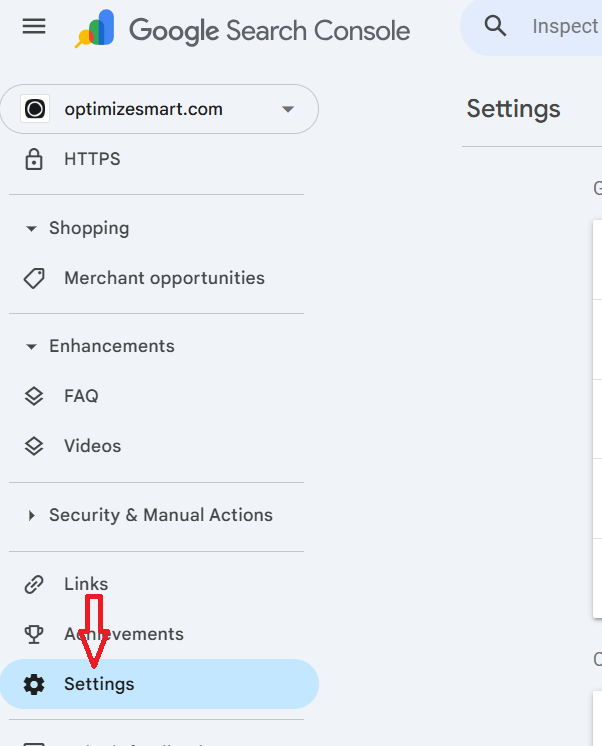
Step-5: Login to your Google Search Console account and then click on the ‘Settings’ link:
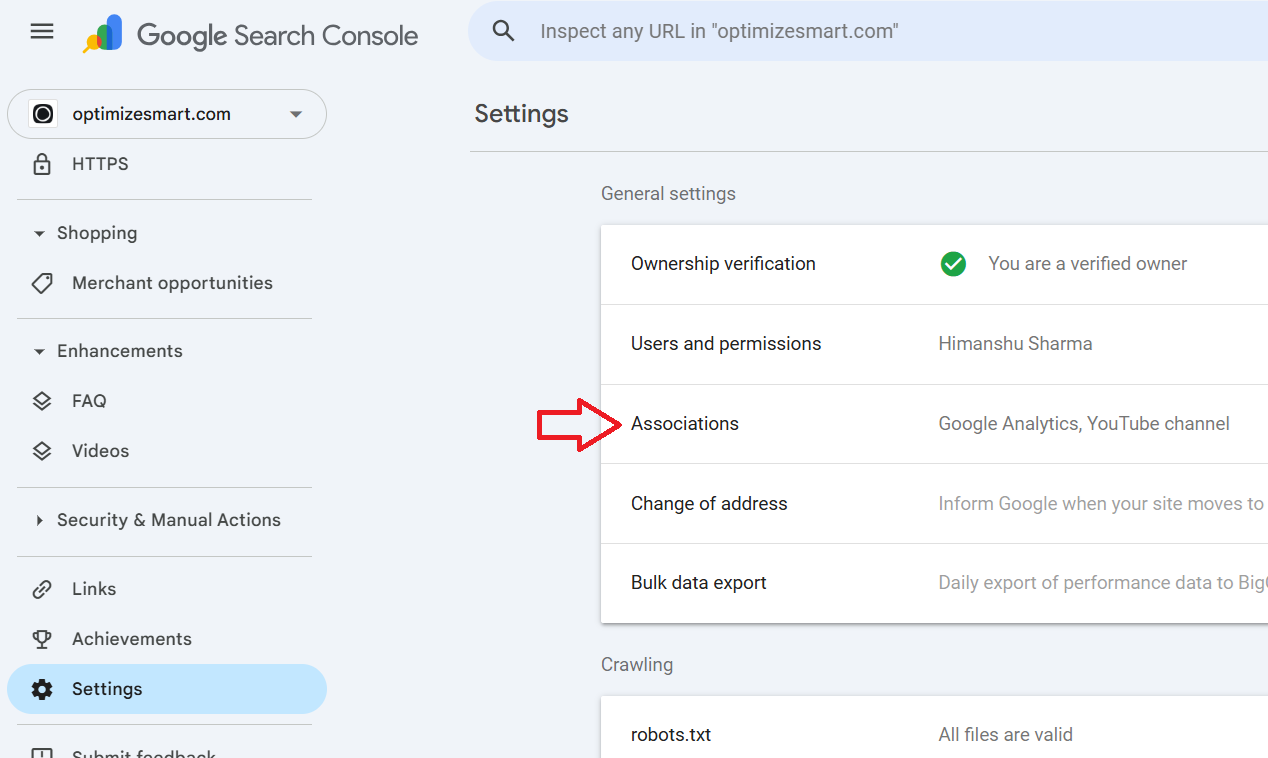
Step-6: Click on ‘Associations’.
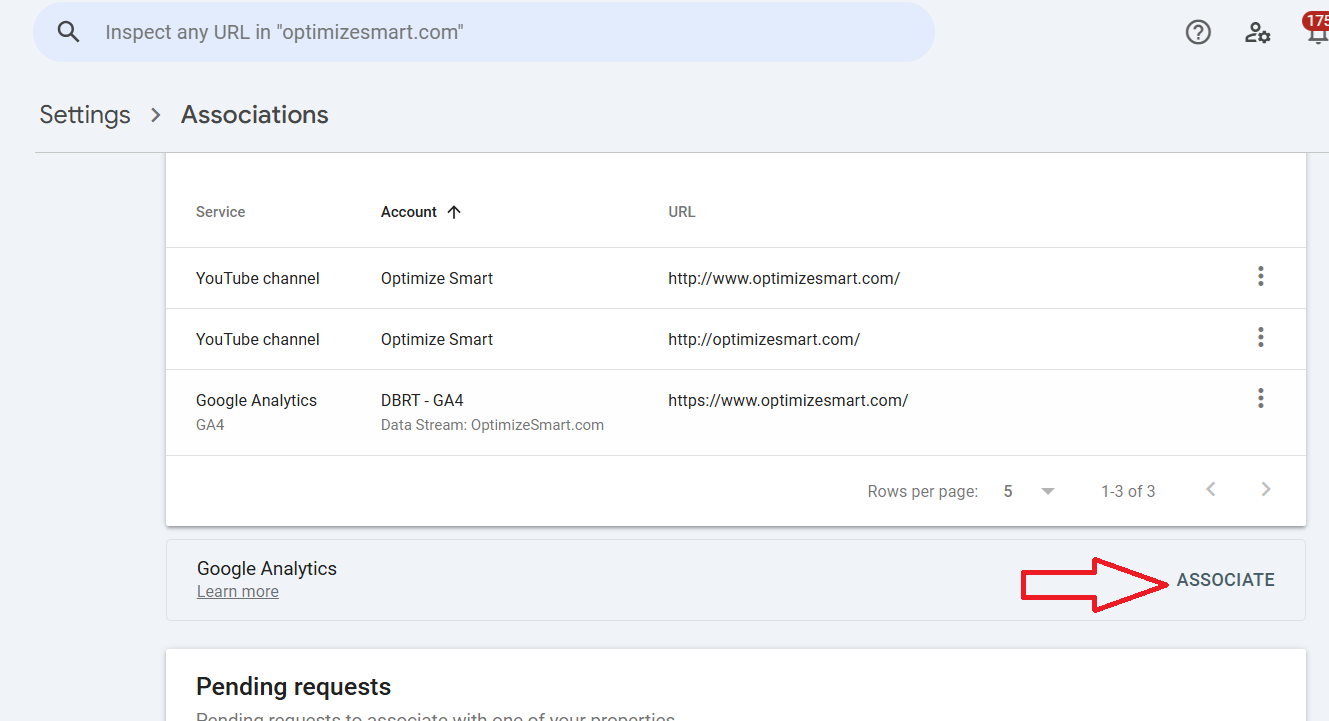
Step-7: Click on the ‘Associate’ button next to ‘Google Analytics’:
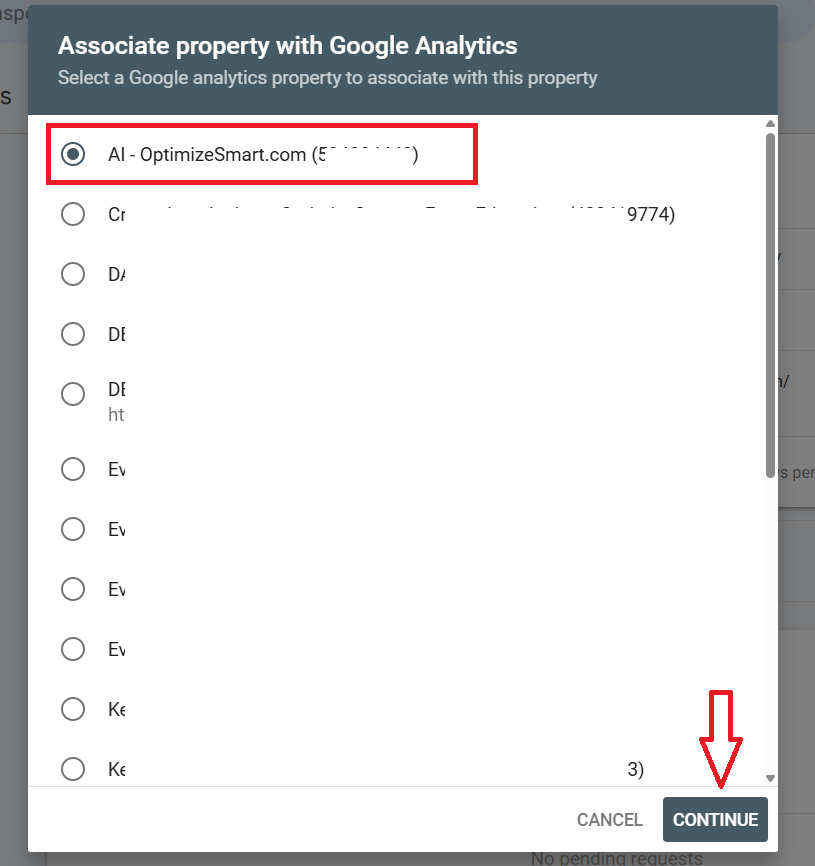
Step-8: Select the Google Analytics property you want to associate with your search console property and then click on the ‘Continue’ button:
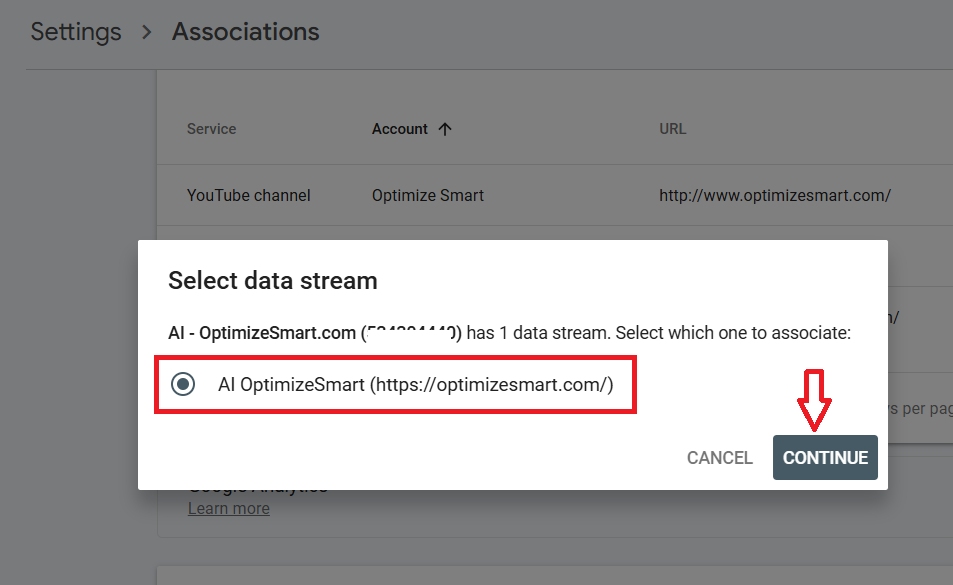
Step-9: Select your web data stream and then click on the ‘Continue’ button:
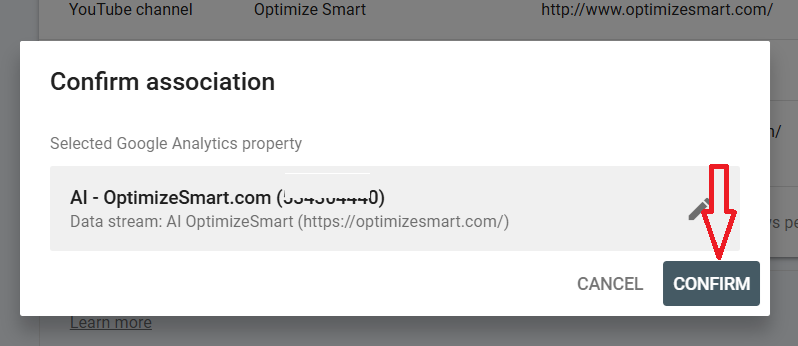
Step-10: Click on ‘Confirm’:
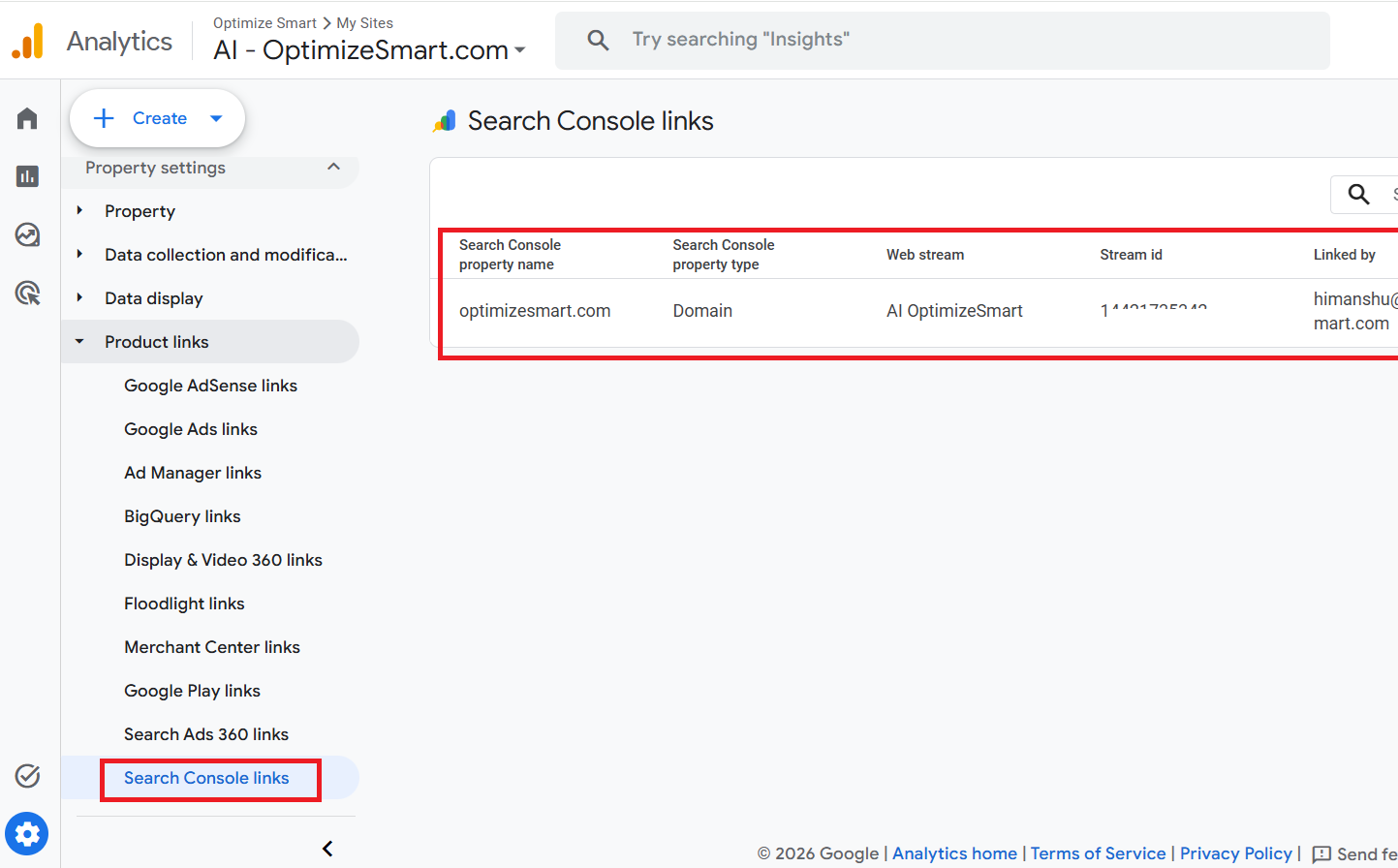
Step-11: Navigate to the Admin area of your GA4 Property, then go to Product Links > Search Console links. You should now see your search console property listed:
Congratulations!
You have successfully connected your GA4 property to your Google Search Console property.
Note: You can not edit a Search Console link. If you need to change the link, delete the existing link and create a new one.
How to see Google Search Console data in Google Analytics 4?
Follow the steps below to see Google Search Console data in GA4 (Google Analytics 4):
Step-1: Make sure that you have successfully connected your GA4 property to your Google Search Console property first.
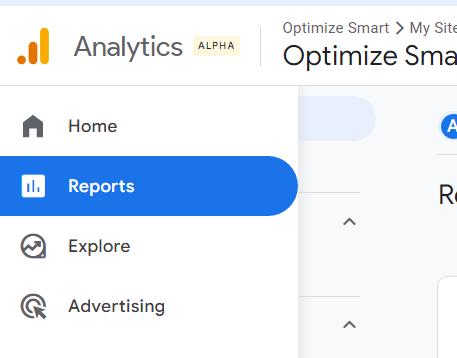
Step-2: Click on the ‘Reports’ link from the left-hand side navigation menu in your GA4 property:
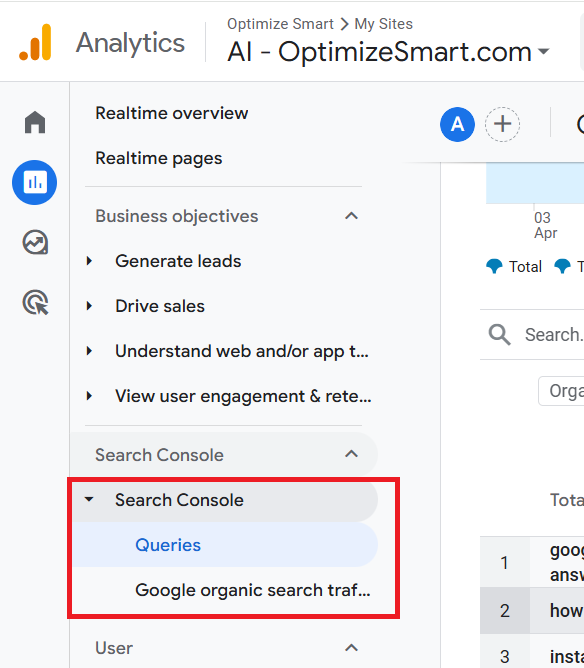
Step-3: Navigate to the ‘Search Console’ drop-down menu. You should now see the following two reports: Queries and Google Organic Search Traffic:
Important points to remember about seeing Search Console data in GA4.
#1 If you do not see the search console reports even after linking your GA4 property to your search console property, then follow the steps below:
- Click on the ‘Reports’ link from the left-hand side navigation menu in your GA4 property.
- Scroll all the way down and click on the ‘Library’ link from the menu.
- Under the ‘Collections’ section, look for the new collection named ‘Search Console’.
- If the ‘Search Console’ collection is not yet published, you would need to publish it first. To do that, click on the three dots menu.
- Click on the ‘Publish’ button. If you do not see the ‘Publish’ button, then click on the ‘Edit’ link to edit the ‘Search Console’ collection and then click on the ‘Save’ button.
- You should now see the ‘Published‘ status as well as the new ‘Search Console’ menu.
#2 Your Search Console data becomes available in GA4 depending on when you created the web data stream and when you completed site verification in Search Console.
- So, if you created a web data stream in GA4 and then completed site verification in the search console, the search console data in GA4 is available from the time of site verification.
- On the other hand, if you completed site verification first and then created a new web data stream in GA4, the search console data is available in GA4 from the creation date of the web data stream.
#3 The Google Search Console data is usually available in GA4 Search Console reports 48 hours after it is collected by your linked Search Console property.
Google Search Console Reports in Google Analytics 4.
Once you have successfully connected your GA4 property to your Google Search Console property and published the reports, you can see search console data in GA4.
There are two types of search console reports available in GA4:
#1 Queries: Organic Google Search Query report.
#2 Google Organic Search Traffic: Landing page report.
About ‘Queries: Organic Google Search Query’ Report
Through the ‘Queries’ search console report in your GA4 property, you can get the following insight:
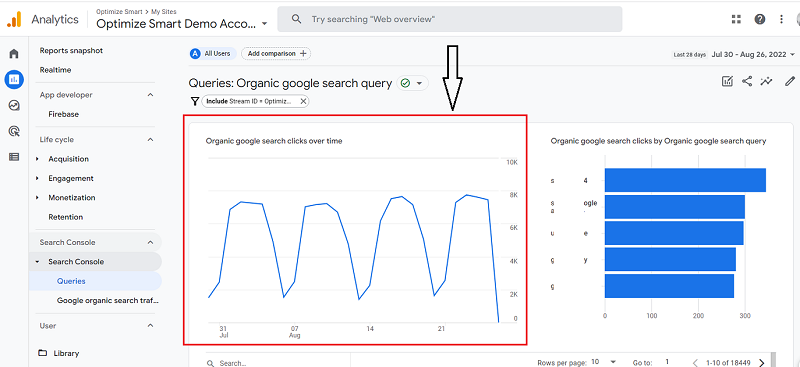
#1 You can see the trend of Google organic search clicks over time:
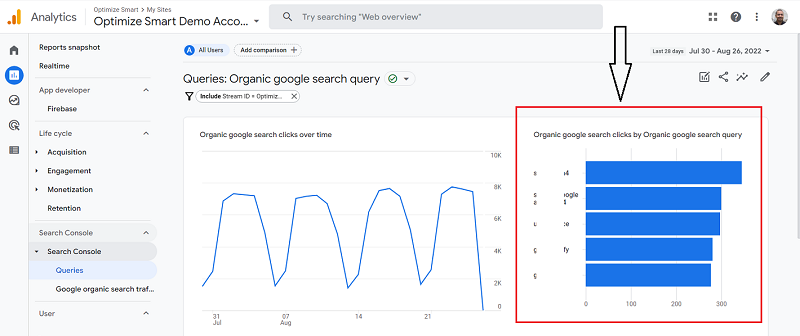
#2 You can determine the top 5 Google Organic search queries that generated organic search traffic on your website:
Note: Search Console reports in GA4 do not support the time series chart.
#3 You can see the search console dimensions and metrics
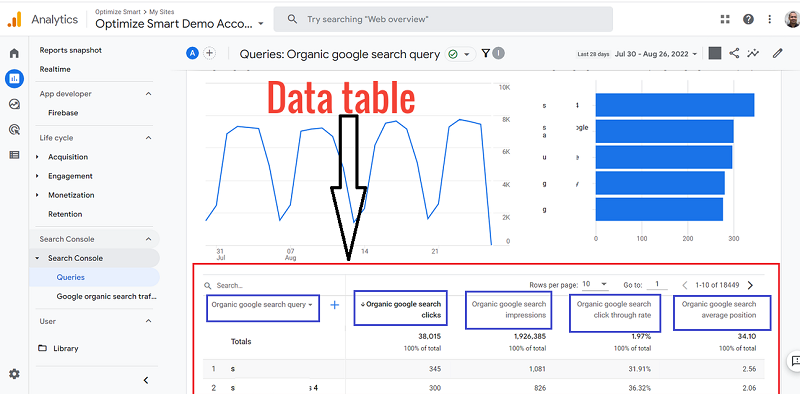
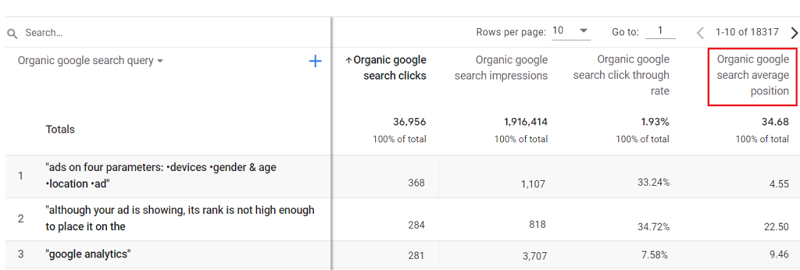
When you scroll down the ‘Queries’ report, you will see a data table just below the two graphs, which list the search console dimension named ‘Organic Google Search Query’ and the following search console metrics:
- Organic Google Search Clicks.
- Organic Google Search Impressions.
- Organic Google Search Click through rate.
- Organic Google Search Average positon.
Note: These Search Console metrics are only compatible with Search Console dimensions and the following Analytics dimensions: ‘Landing page’, ‘Device’ and ‘Country’.
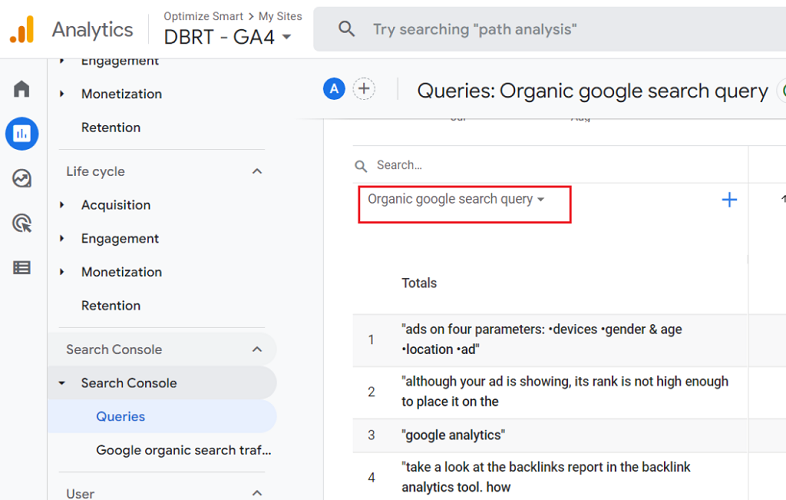
#4 You can determine the Google organic search terms/queries that generated traffic on your website via the ‘Organic google search query’ metric:
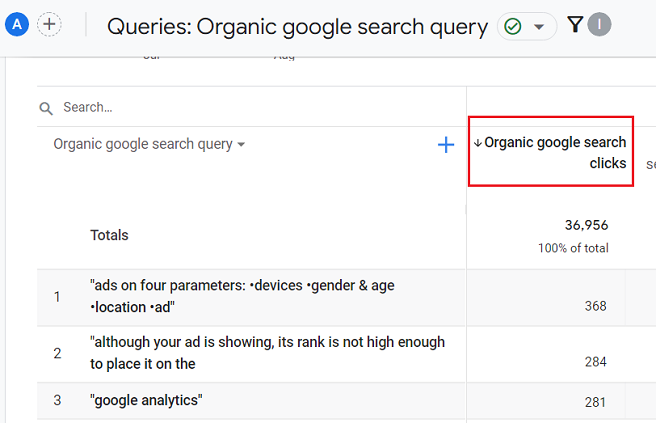
#5 You can determine the traffic (in terms of clicks) generated by each search query to your website via the ‘Organic google search clicks’ metric:
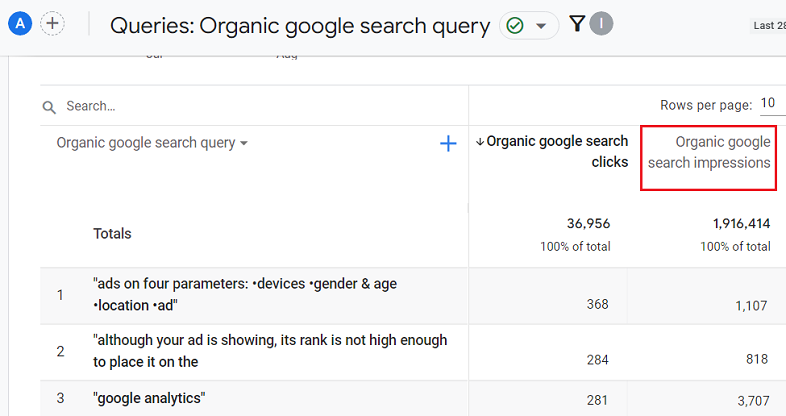
#6 You can determine the number of times your website appears in Google search results for a particular query via the ‘Organic google search impressions’ metric:
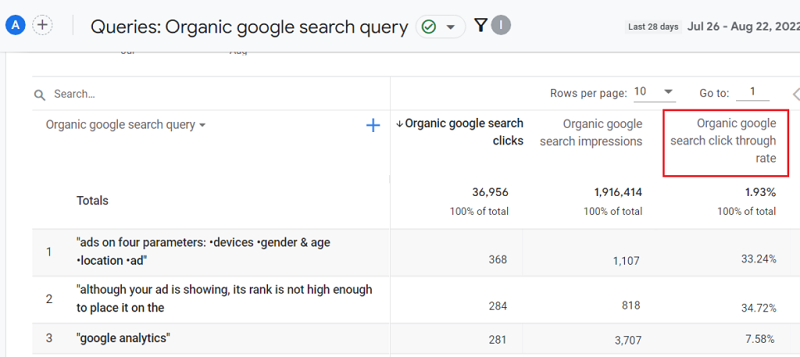
#7 You can determine the percentage of Organic Google Search impressions that resulted in search clicks via the ‘Organic google search click through rate’ metric:
#8 You can determine the average search engine ranking position of your website for each search term via the ‘Organic google search average position’ metric:
About ‘Google Organic Search Traffic: Landing page’ Report
Through the ‘Google Organic Search Traffic: Landing page’ report in your GA4 property, you can get the following insight:
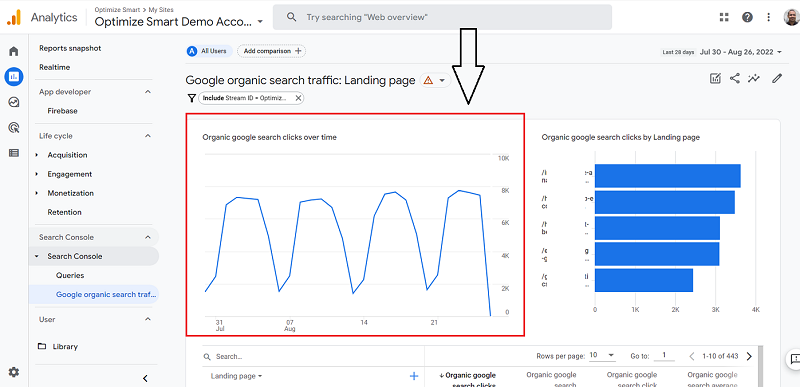
#1 You can see the trend of Google organic search clicks over time:
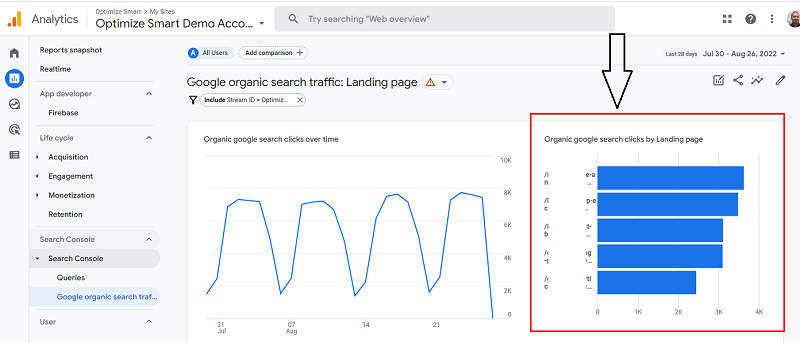
#2 You can determine the top 5 landing pages that generated organic search traffic on your website:
#3 You can see the search console metrics
When you scroll down the ‘Google organic search traffic’ report, you will see a data table just below the two graphs, which list the following search console metrics for each landing page:
- Organic Google Search Clicks.
- Organic Google Search Impressions.
- Organic Google Search Click through rate.
- Organic Google Search Average positon.
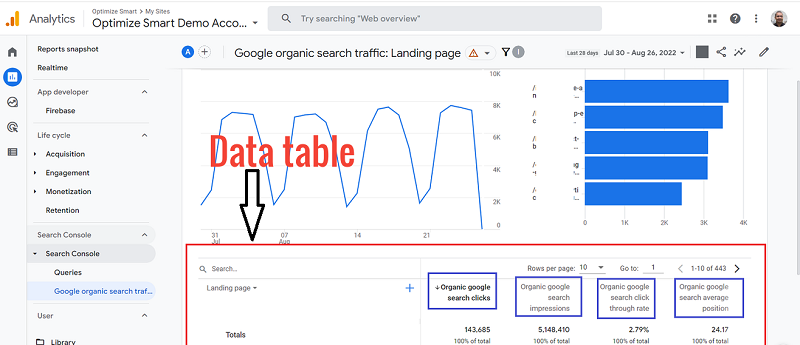
#4 You can determine the top landing pages of your website in terms of organic search traffic:
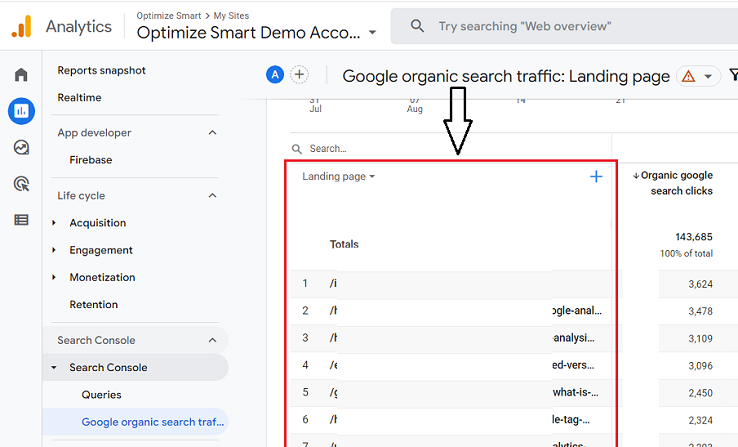
Note: The Google Search Console, by default, keeps data for the last 16 months. So, the search console reports in GA4 can show you a maximum of 16 months of data.

Other Articles on GA4.
- How to Create Landing Page Report in Google Analytics 4.
- How to segment Google Analytics 4 data by data stream.
- Setup Cross Domain Tracking in Google Analytics 4.
- How to see full page URLs in Google Analytics 4.
- Roll up Property in Google Analytics 4 – Tutorial.
- The Best Tag Auditing Tools for Google Analytics 4.
- How to Exclude URL Query Parameters in Google Analytics 4.
- How to Track Email Campaigns in Google Analytics 4.
- Google Analytics 4 Attribution Modelling Tutorial.
- Understanding Service Worker in GTM Server Side Tagging.
- Cohort Exploration Report in Google Analytics 4 (GA4).
- Google Analytics 4 vs Google Ads conversion tracking.
- Google Analytics 4 Custom Dimensions Tutorial.
- Google Analytics 4 Dimensions Tutorial.
- Event Scoped Custom Dimensions in Google Analytics 4.
- Google Analytics 4 Search Console Integration Tutorial.
- Fixing unassigned issues with GTM Server Side Tagging.
- How to exclude internal traffic in Google Analytics 4.
- Understanding data filters in Google Analytics 4.
- Conversion Funnel Analysis in Google Analytics 4.