

What is Event Scoped Custom Dimension in GA4?
A custom dimension which has an event scope is called an event-scoped custom dimension.
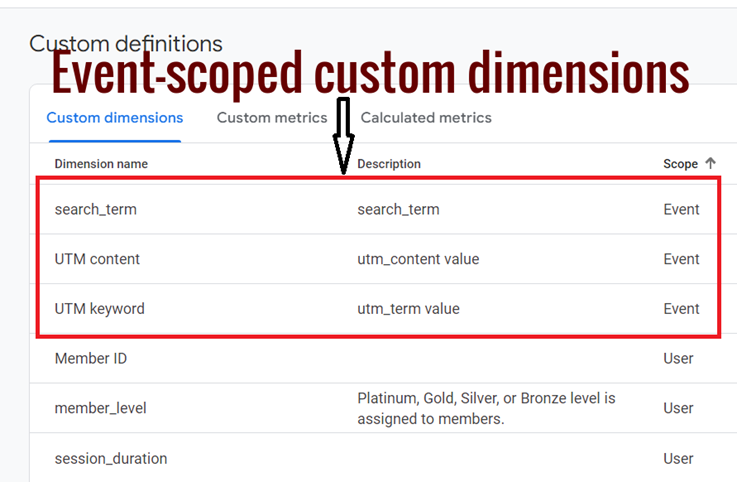
Event-scope means the value of the custom dimension is calculated and sent for each event.
When to create an Event Scoped Custom Dimension?
If a built-in event-scoped dimension does not capture the detail relevant to your business, create its corresponding custom event-scoped dimension.
For example, suppose you run a blog and want to track user engagement with different types of content.
You have a built-in event called ‘content_view’ that triggers whenever a user views a piece of content.
However, you want to capture additional details about the type of content being viewed, such as whether it is a blog post, video, or infographic.
To achieve this, you can create a custom event parameter called ‘content_type’ and send it along with the ‘content_view’ event.
Then, you can create an event-scoped custom dimension in GA4 to capture this parameter.
How to create an Event Scoped Custom Dimension?
You can create an event-scoped custom dimension by registering a parameter with the ‘event’ scope in the GA4 user interface.
This parameter can be automatically tracked parameter or a custom parameter.
Importance of logged event parameter
In GA4, the values of event-scoped custom dimensions are supplied by logged event parameters.
So, before you create the custom dimension, you would need a logged event parameter in your GA4 reporting view.
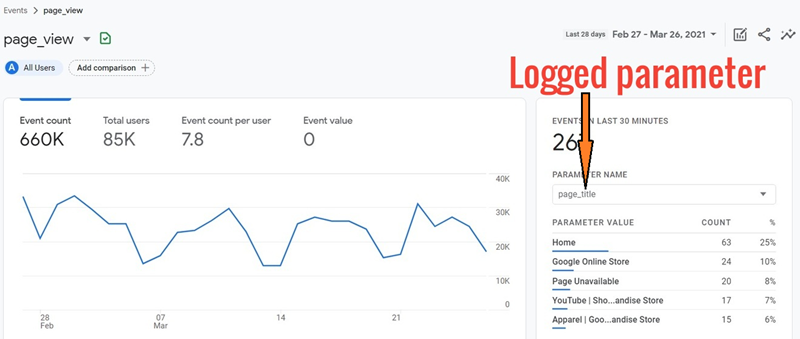
A logged event parameter is one that is already being tracked and reported by your GA4 reporting view.
For example, the ‘page_title’ parameter is a logged parameter:
Note: You can also create a custom dimension without a logged event parameter but it is not considered a good practice.
When you create a custom dimension without an existing logged event parameter, the dimension won’t have anything to populate it with.
This leads to a high number of “(not set)” values in your reports, making it difficult to understand user behaviour or trends.
Creating an event-scoped custom dimension via an automatically tracked parameter
Let us suppose you want to register the automatically collected parameter ‘page_title’ as an event-scoped custom dimension.
To do that, follow the steps below:
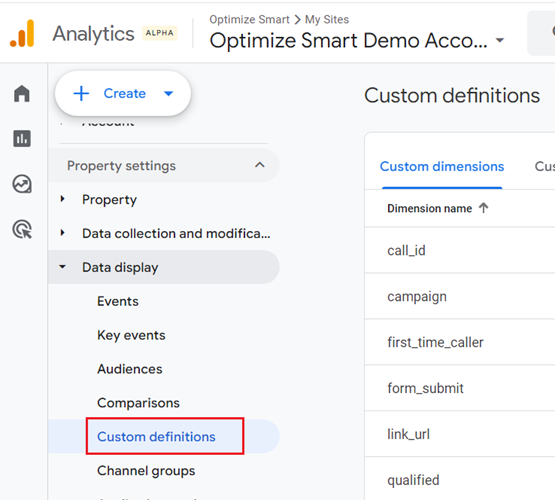
Step-1: Navigate to the admin area of your GA4 property and then click on the ‘Custom Definitions‘ link under ‘Data Display’:
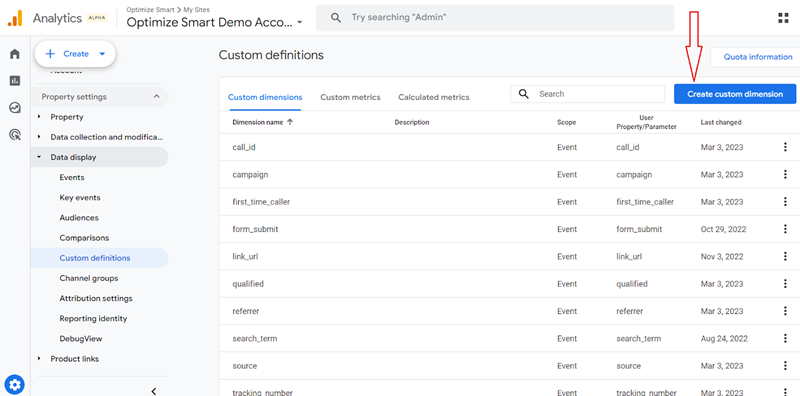
Step-2: Click on the ‘Create custom dimension‘ button:
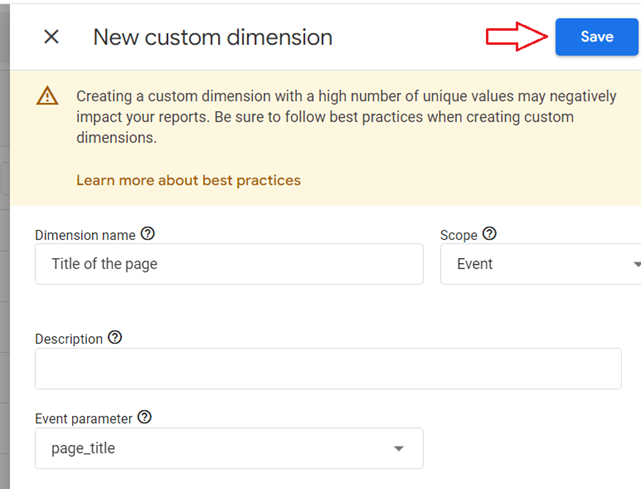
Step-3: Enter a name for your custom dimension. This name will appear in your GA4 reports, so use a descriptive name:
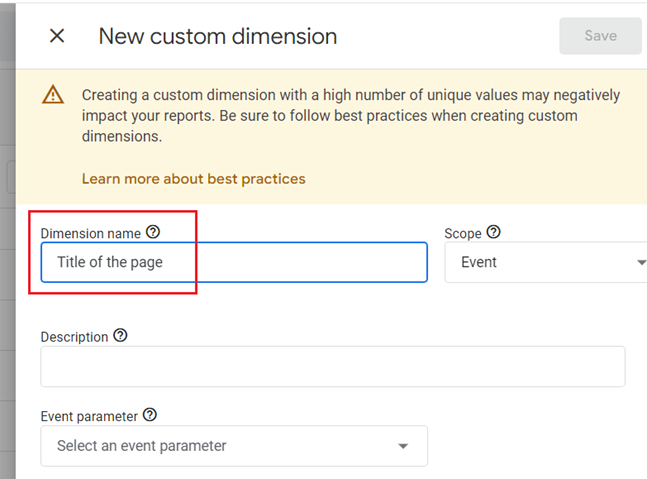
Note: You can always change the dimension name later if you want.
Step-4: Make sure the scope of the dimension is set to ‘Event‘:
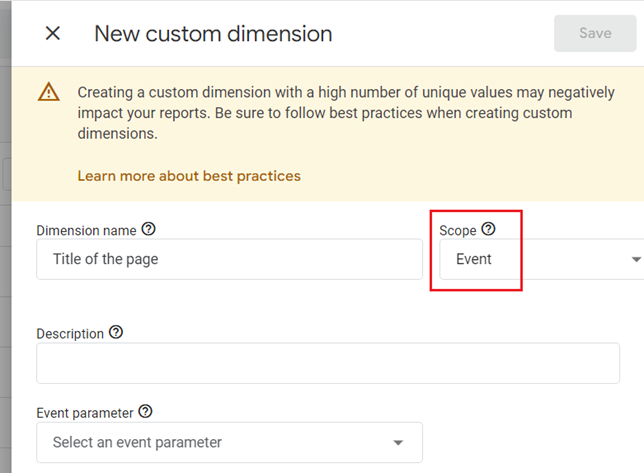
Note: Once you have set the scope, you cannot change it later.
Step-5: Enter a description for your dimension in the ‘Description’ field (optional):
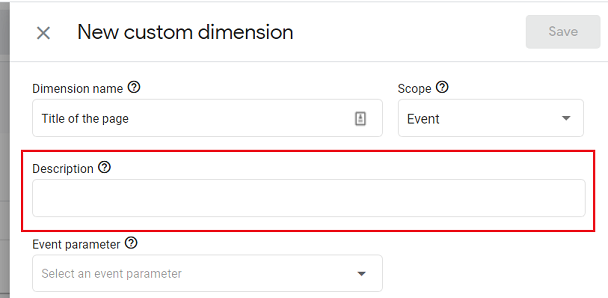
The description could be particularly useful if your dimension name is not very descriptive.
Step-6: Select the event parameter ‘page_title’ from the drop-down menu:
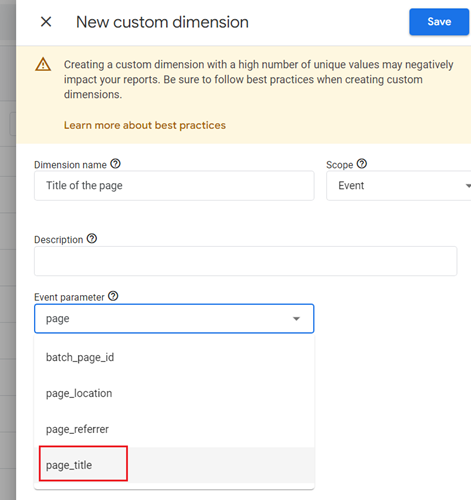
The event parameter ‘page_title’ supplies the value to your custom dimension.
Note: Once you have selected an event parameter, you cannot change it later.
Step-7: Click on the ‘Save‘ button at the top right-hand side:
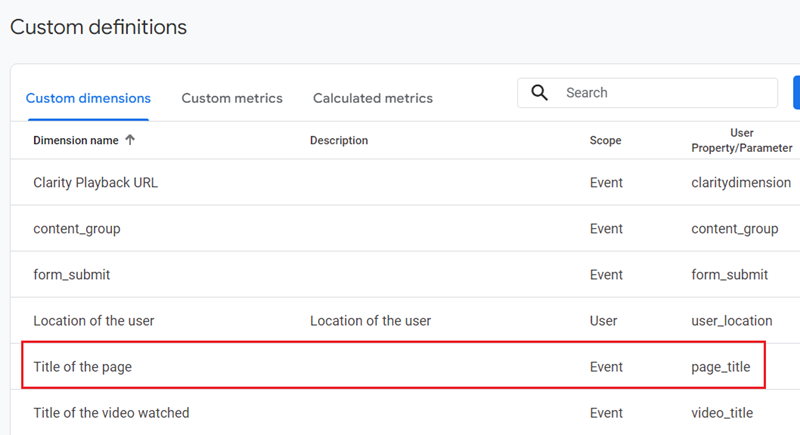
You should now see your new custom dimension listed under the ‘Custom dimensions‘ tab:
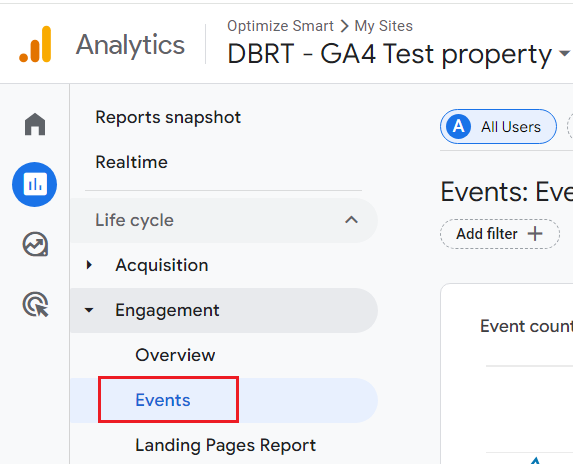
Step-8: Wait for a full 24 hrs and then navigate to the ‘Events‘ report (under ‘Reports’ > ‘Engagement’) in your GA4 property:
NOTE: You may see a value of (not set) for a custom dimension during the first 24 hours after its creation.
Step-9: Find and click on the ‘page_view‘ event:
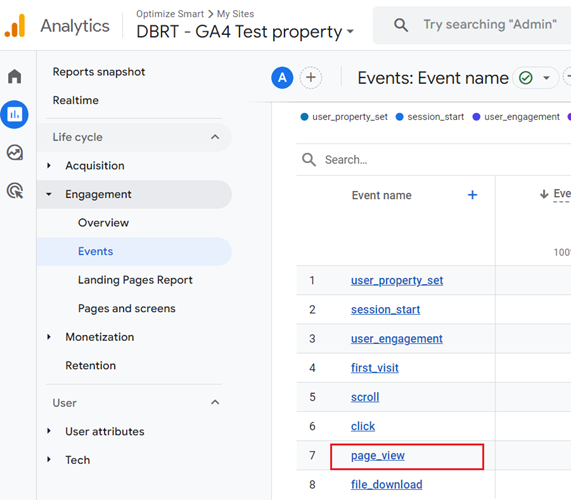
You should now see the report on the ‘page_view’ event:
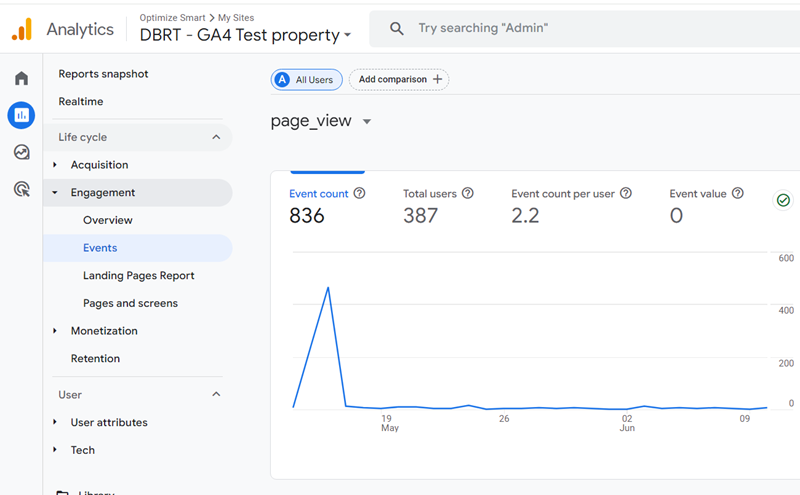
Step-10: Scroll down the ‘page_view’ event report until you see the data card named ‘Title of the page’:
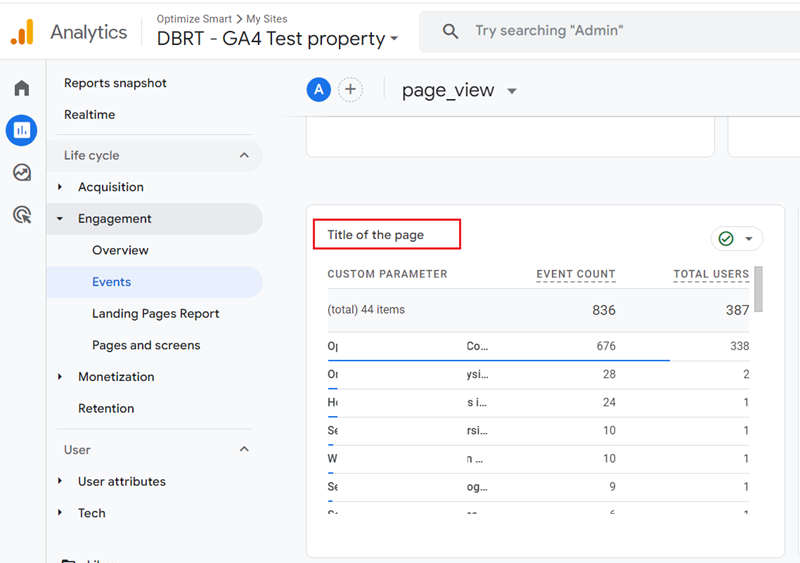
You only see this data card in the ‘page_view’ event report because you registered the ‘page_title’ parameter as a custom dimension. Otherwise, you won’t see it.
This data card will appear in every event report where you (or GA4) are passing the ‘page_title’ parameter along with the event. This is one of the main advantages of registering a parameter as a custom dimension.
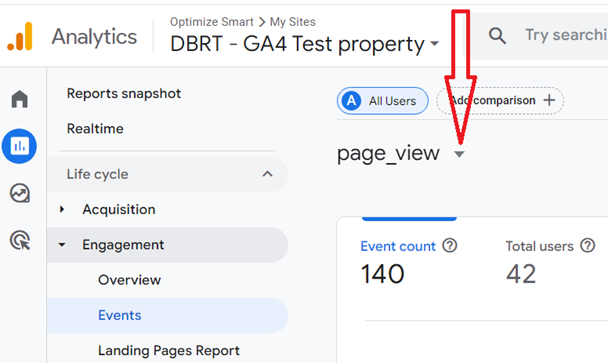
Step-11: Click on the events drop-down menu at the top:
Step-12: Select the ‘click‘ event from the drop-down menu:
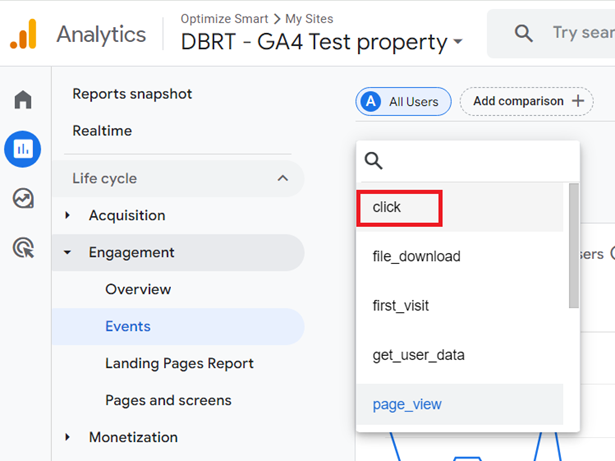
You should now see the report on the ‘click’ event:
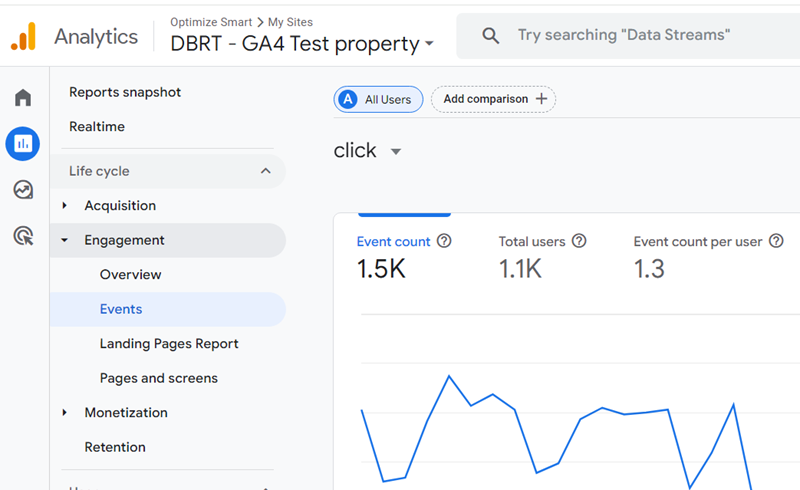
Step-13: Scroll down the ‘click’ event report until you see the data card named ‘Title of the page‘:
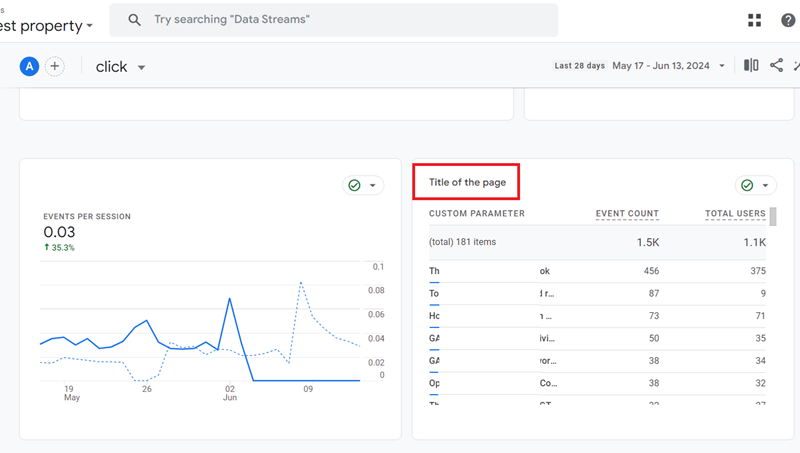
Again, you only see this data card in the ‘click’ event report because you registered the ‘page_title’ parameter as a custom dimension. Otherwise, you won’t see this data card.
Creating an event-scoped custom dimension via a custom parameter
The entire process of creating an event-scoped custom dimension via a custom parameter is similar to the process of creating an event-scoped custom dimension via automatically collected parameters.
Instead of selecting the automatically collected parameter, you select the logged custom parameter from the ‘Event Parameter’ drop-down menu:
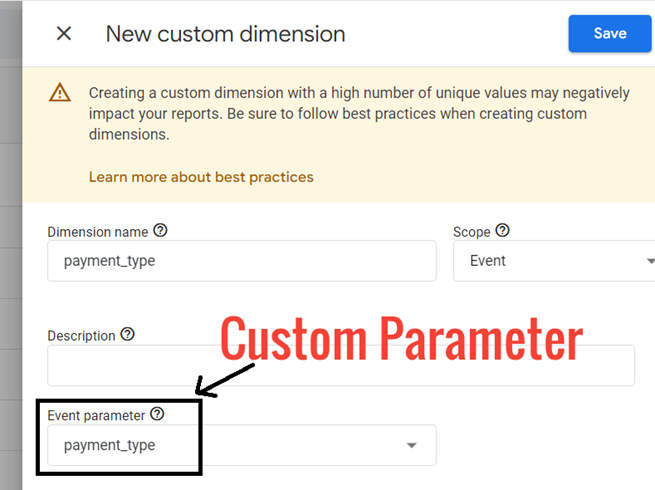
Here, ‘payment_type’ is a logged custom parameter which is sent along with the ‘purchase’ event
A custom parameter registered as a custom dimension appears as a data card in every event report where you (or GA4) are passing the custom parameter along with the event.
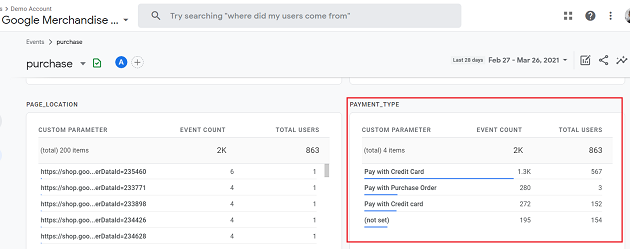
Applying an event-scoped custom dimension via ‘Add Comparison’
Once you have registered a logged event parameter as an event-scoped custom dimension, you can then apply the custom dimension to any GA4 report via the ‘Add Comparison‘ feature.
Let’s apply the event-scoped custom dimension ‘Title of the page’ we created earlier to the ‘Traffic Acquisition’ report in GA4.
Follow the steps below:
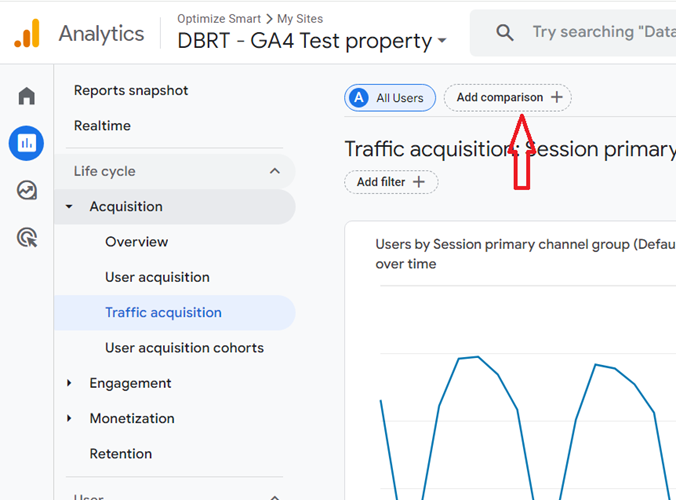
Step-1: Navigate to the ‘Traffic Acquisition’ report and then click on the ‘Add comparison’ button:
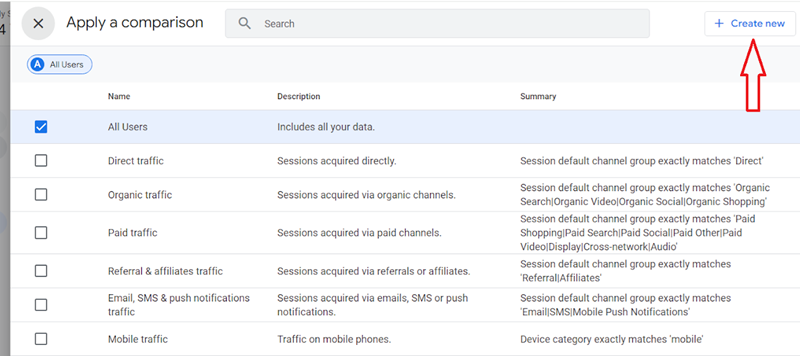
Step-2: Click on the ‘+Create new’ button:
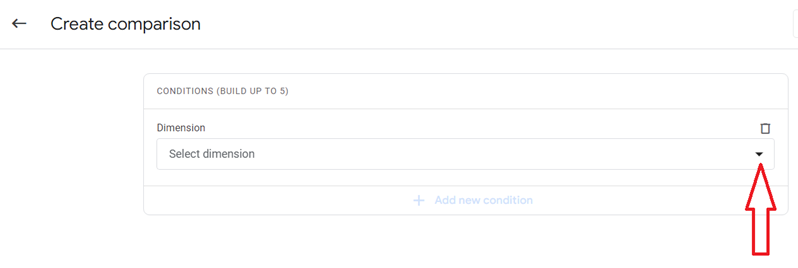
Step-3: Click on the select dimension drop-down menu:
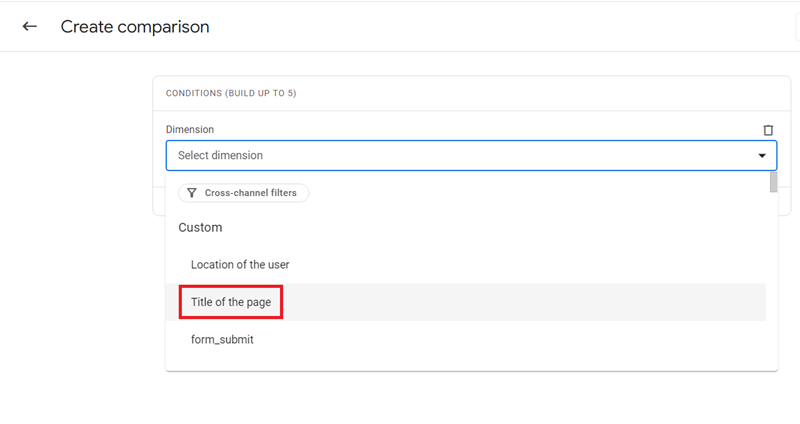
Step-4: Select the custom dimension ‘Title of the page’ from the drop-down menu:
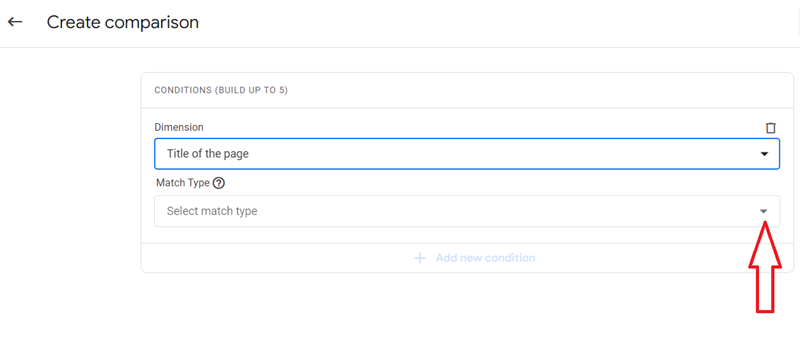
Step-5: Click on the drop-down menu under ‘Match Type’:
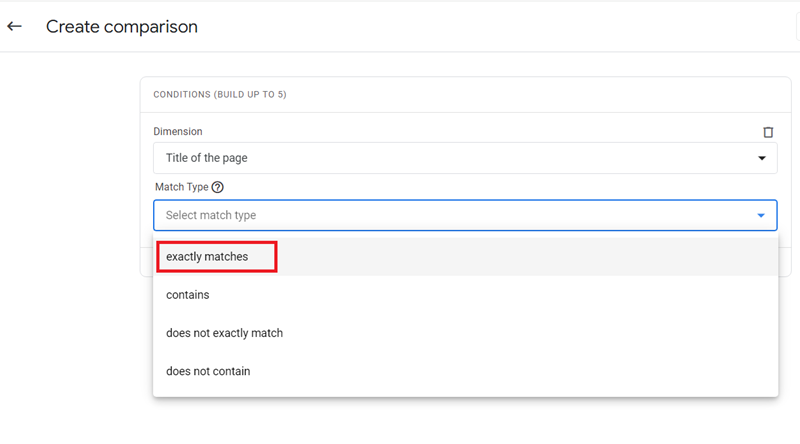
Step-6: Click on ‘exactly matches’:
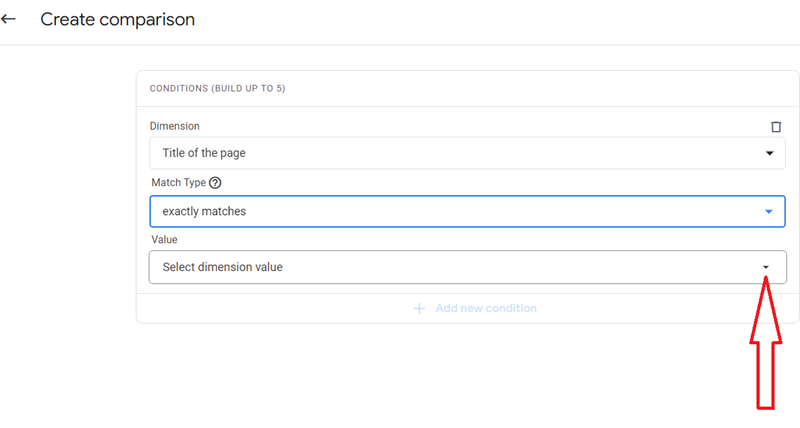
Step-7: Click on the drop-down menu under ‘Value’:
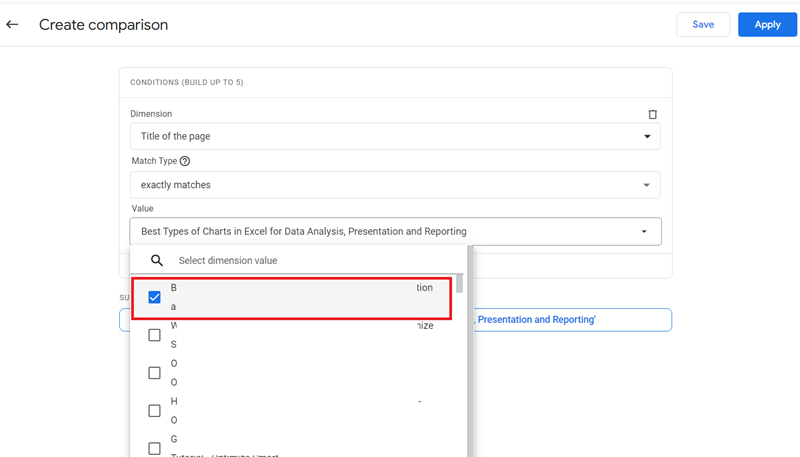
Step-8: Select one of the dimension values.
Step-9: Click on the ‘Apply’ button to create a new comparison.
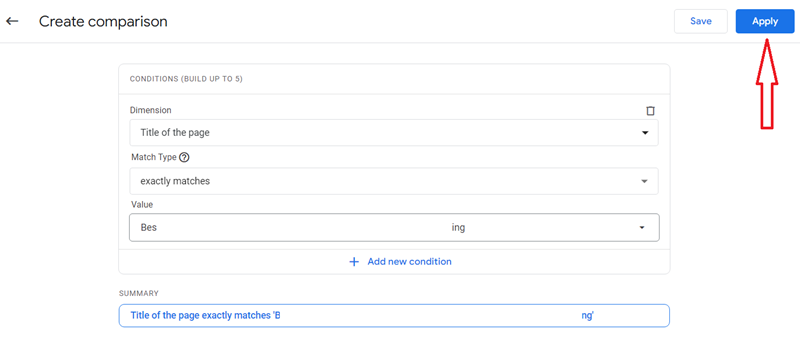
You should now see the new comparison added to the Traffic Acquisition report:
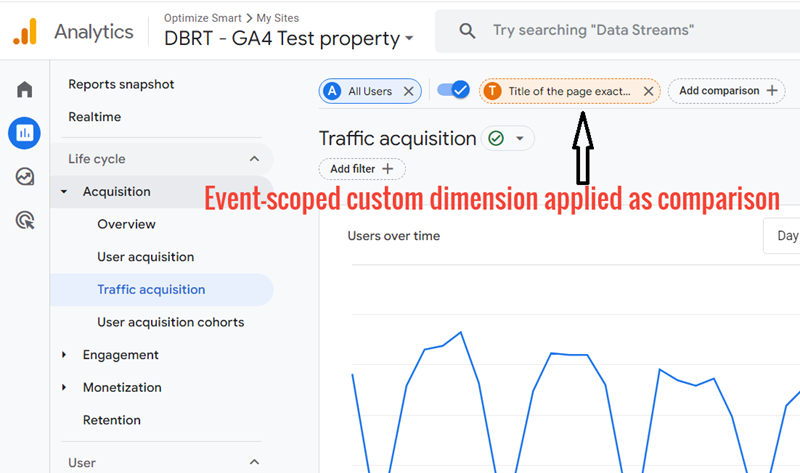
In GA4, we use the ‘Add comparison’ feature (instead of segments or filters) to evaluate and compare subsets of data.
Step-10: Scroll down the Traffic Acquisition report until you see the data table with the comparisons applied to it:
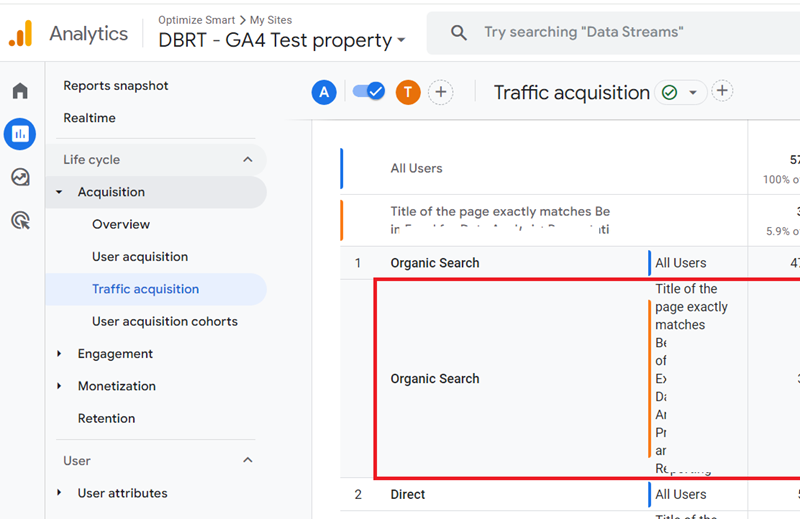
This is how you can apply an event-scoped custom dimension to GA4 reports using the ‘Add Comparison’ feature.
Another advantage of registering an event parameter as an event-scoped custom dimension is that you can report on the same event parameter for as many events as you like without passing the same parameter repeatedly for each event.
Applying an event-scoped custom dimension as a secondary dimension
Once you have registered a logged event parameter as an event-scoped custom dimension, you can apply the custom dimension as a secondary dimension to any GA4 report containing a data table.
For example, let’s apply the event-scoped custom dimension ‘Title of the page’ to the ‘User Acquisition’ report.
Follow the steps below:
Step-1: Navigate to the ‘User Acquisition’ report and then click on the + button to apply a secondary dimension to the report:
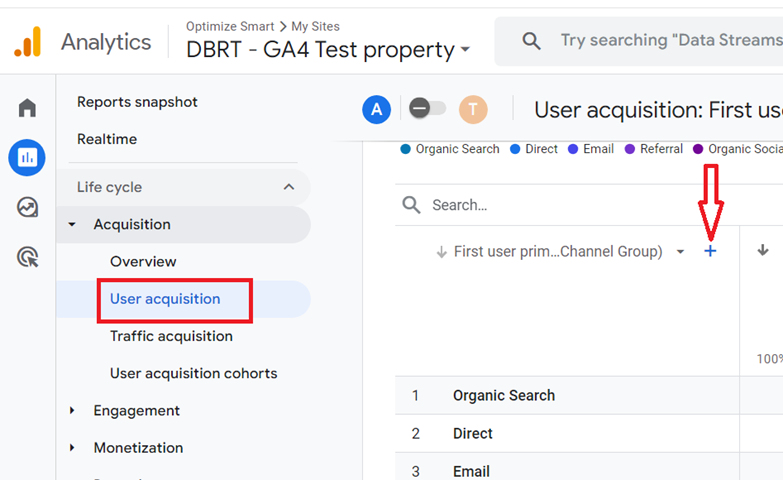
You should now see a screen like the one below:
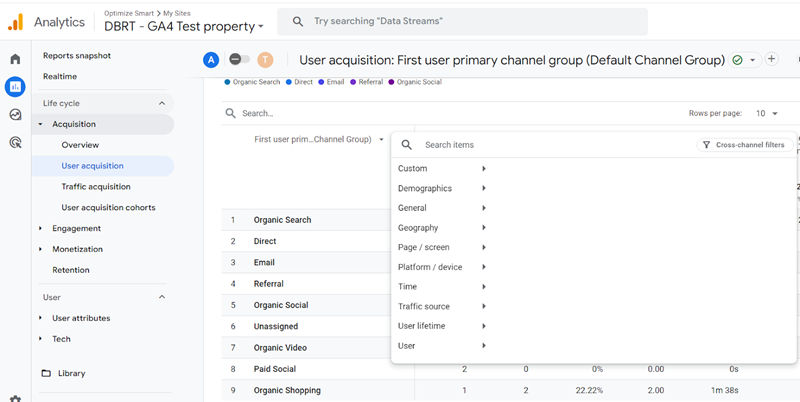
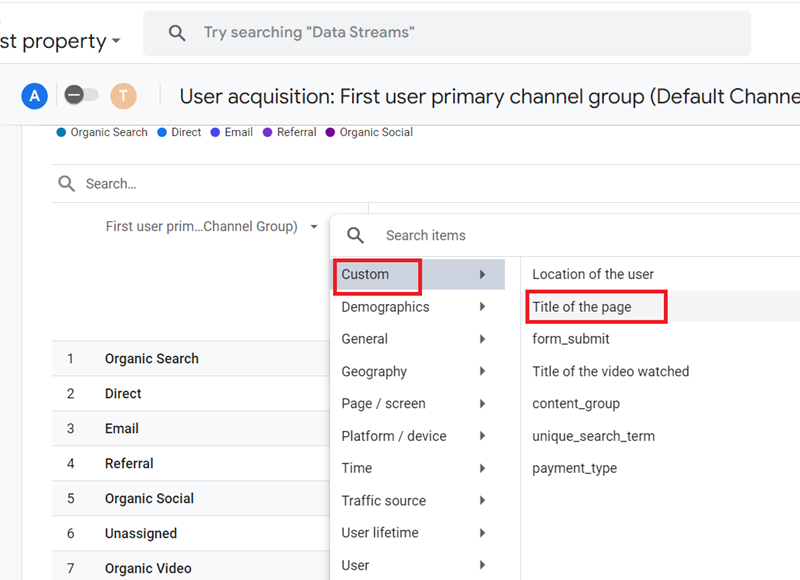
Step-2: Click on ‘Custom‘ from the drop-down menu and then click on the ‘Title of the page’:
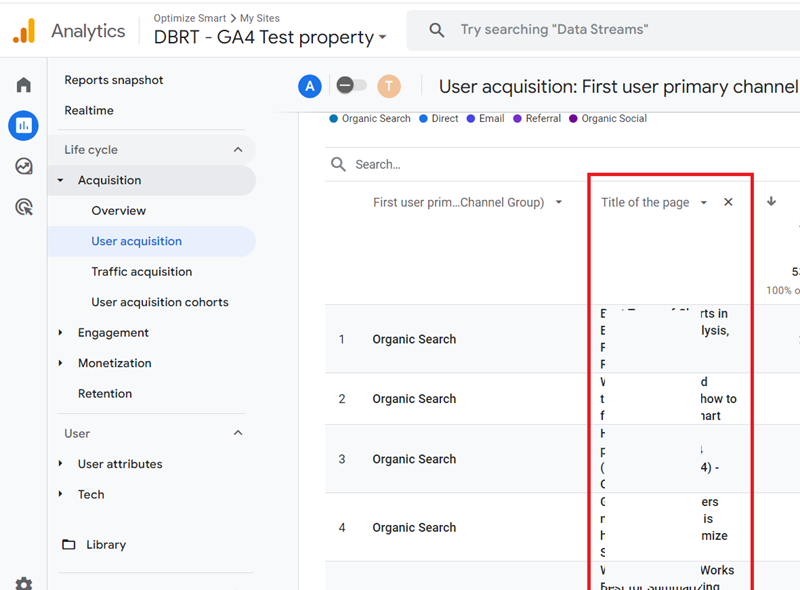
You should now see the ‘Title of the page’ event-scoped custom dimension applied to the ‘User Acquisition’ report as the secondary dimension:
That’s how you can apply event-scoped custom dimensions to GA4 reports as secondary dimensions.
Note(1): You can apply an event-scoped custom dimension only as a secondary dimension to a standard GA4 report.
Note(2): You can apply an event-scoped custom dimension as a primary dimension or as a secondary dimension to an exploration report.

Other Articles on GA4.
- User Explorer Google Analytics 4 Tutorial.
- Google Analytics 4 Explorations Tutorial.
- How to Change Attribution Models in Google Analytics 4.
- Google Analytics Real-time report not working? Here is the fix.
- Google Signals in Google Analytics 4 - See demographics (gender, age) data.
- How to Create Landing Page Report in Google Analytics 4.
- How to segment Google Analytics 4 data by data stream.
- Setup Cross Domain Tracking in Google Analytics 4.
- How to see full page URLs in Google Analytics 4.
- Roll up Property in Google Analytics 4 – Tutorial.
- The Best Tag Auditing Tools for Google Analytics 4.
- How to Exclude URL Query Parameters in Google Analytics 4.
- How to Track Email Campaigns in Google Analytics 4.
- Google Analytics 4 Attribution Modelling Tutorial.
- Understanding Service Worker in GTM Server Side Tagging.
- Cohort Exploration Report in Google Analytics 4 (GA4).
- Google Analytics 4 vs Google Ads conversion tracking.
- Google Analytics 4 Custom Dimensions Tutorial.
- Google Analytics 4 Dimensions Tutorial.
- Event Scoped Custom Dimensions in Google Analytics 4.